1. Our team appreciates that Pallet Connect can be used in high stimulation industrial environments, and we support users by understanding the importance of minimizing unnecessary visual distraction during routine workflows.
This article outlines two settings that assist with accessibility while using the system.
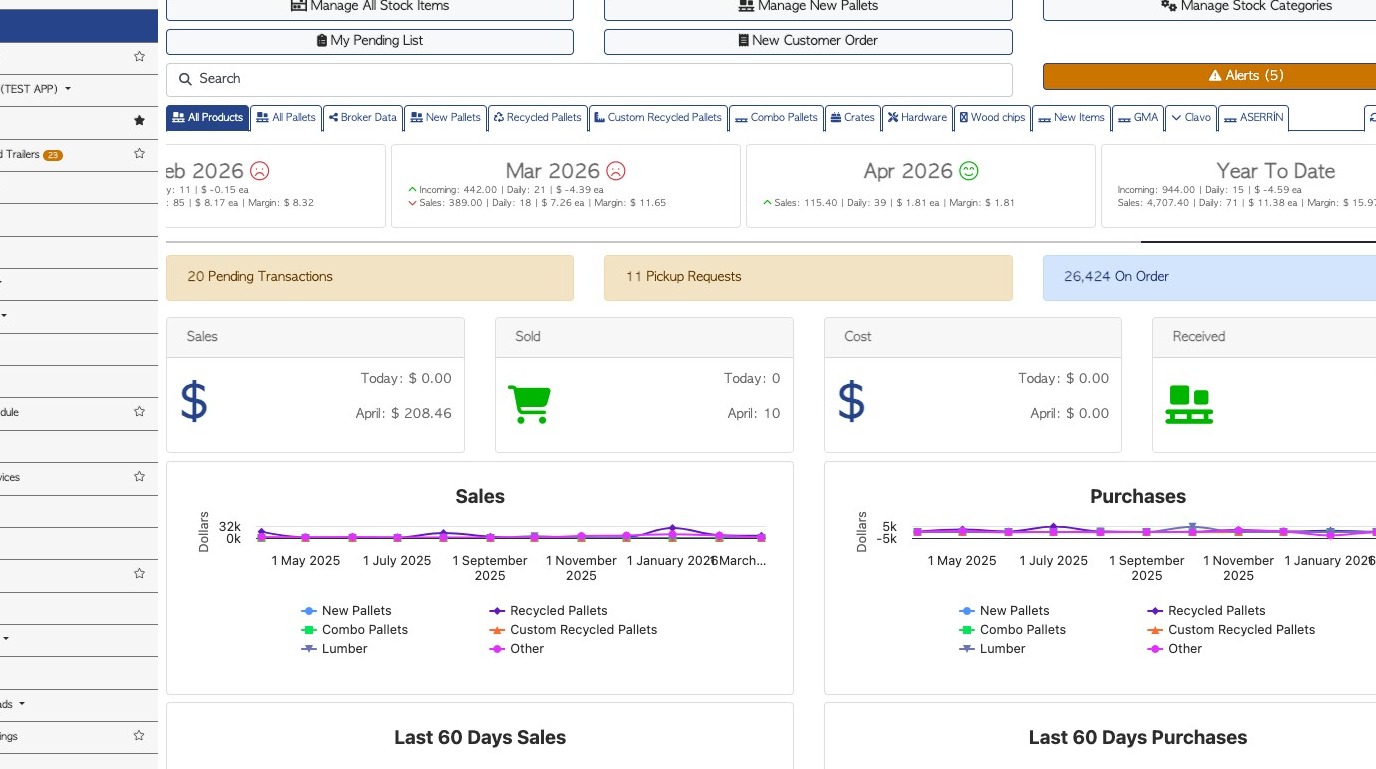
2. #1 Dark mode: Pallet Connect already supports multiple themes, including both light and dark options. Users can select a theme that best fits their environment and personal preference.
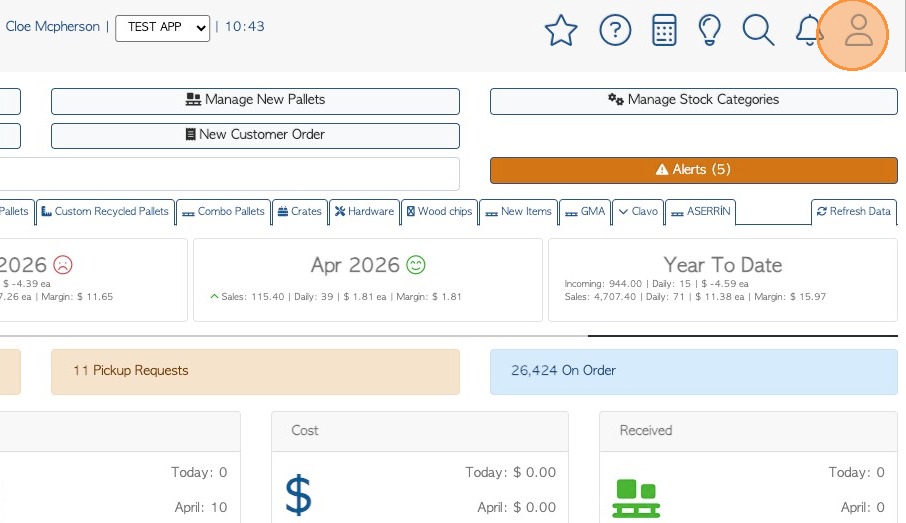
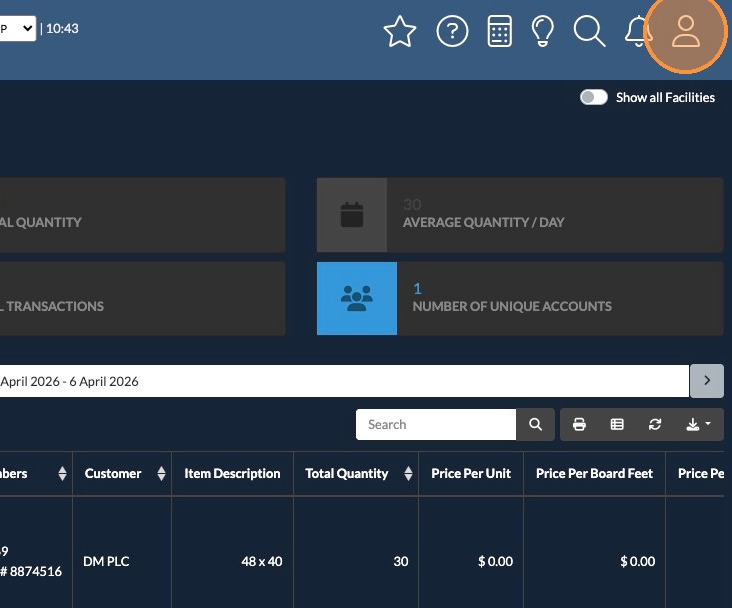
To change the default theme, navigate to the user settings, from the main task bar in the upper right corner of each page. Click on the person icon.
3. Select the "Dark" option from the Theme drop down menu.
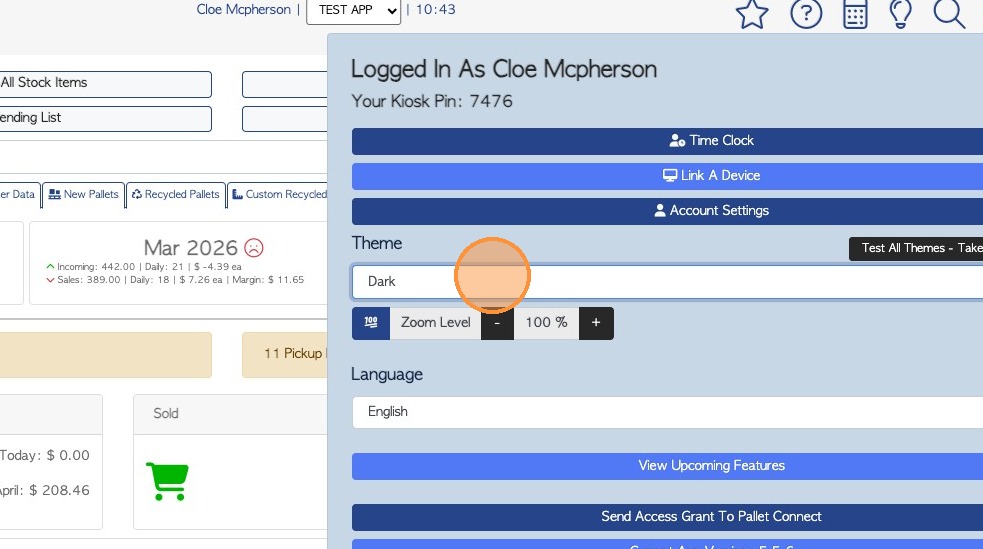
4. The change will occur in real time.
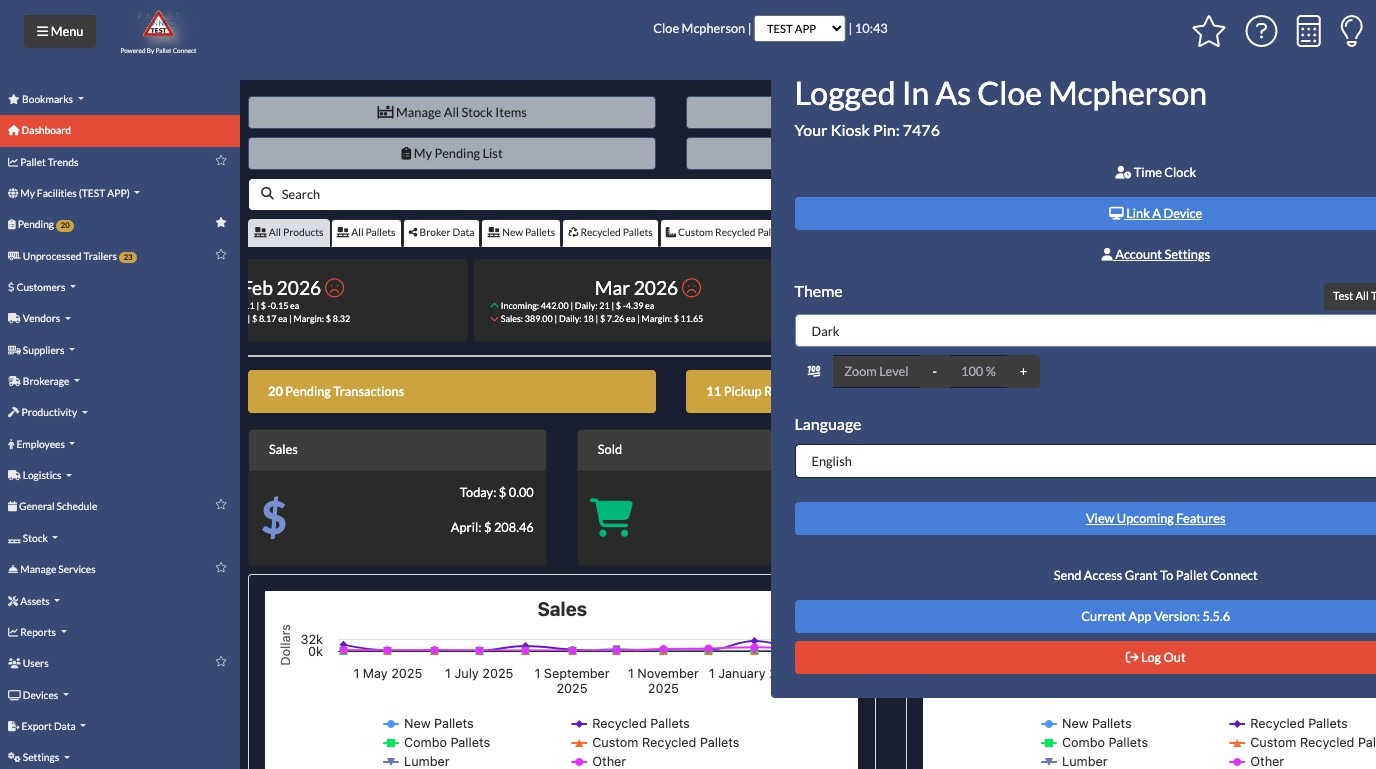
5. The Theme will apply to all pages.
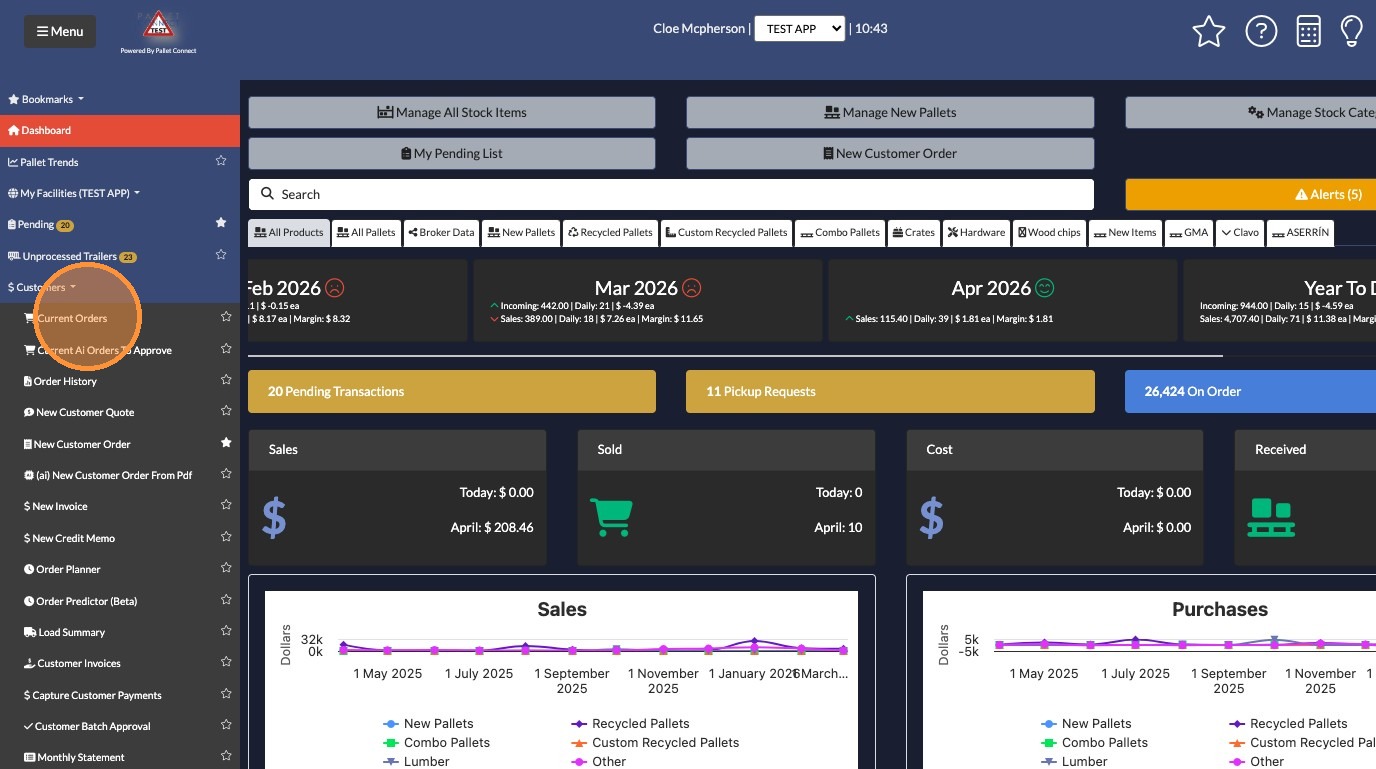
6. #2 Reduced motion: Providing a way to limit or disable animations is valuable from both a usability and accessibility standpoint.
Again, click on the person icon from the main tool bar, to access the user settings.
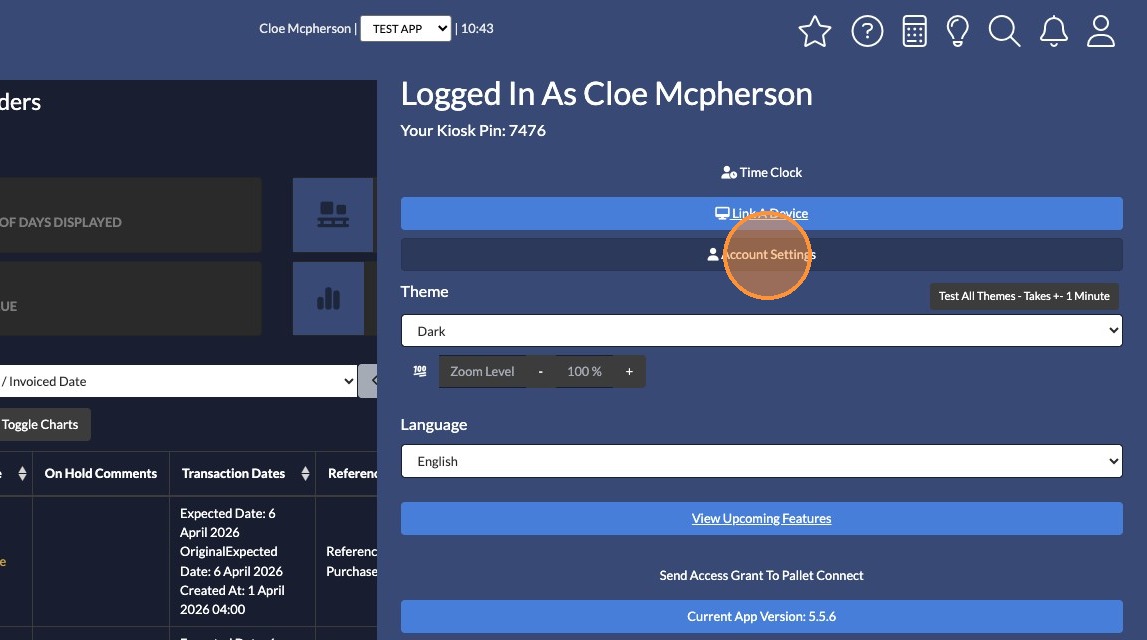
7. Click "Account Settings"
8. Toggle on "Disable Animations"
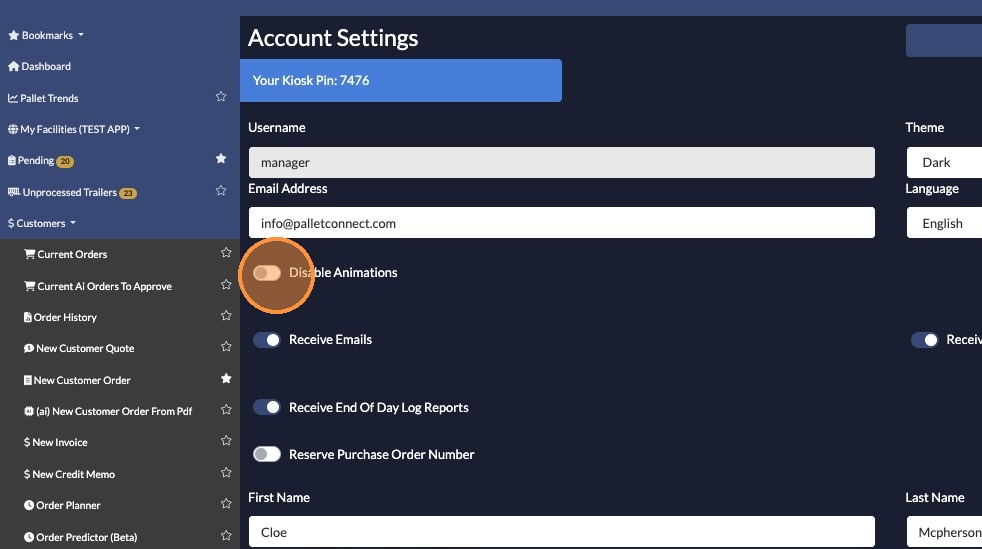
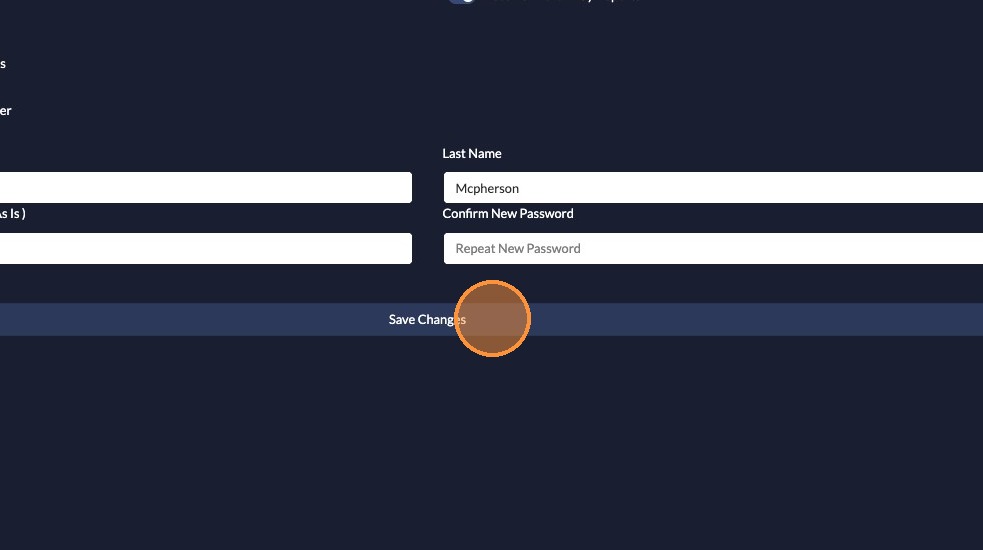
9. Click "Save Changes" to complete.
This setting allows users to disable animated effects, specifically for the login experience and order entry screens, for example the slide in screen.