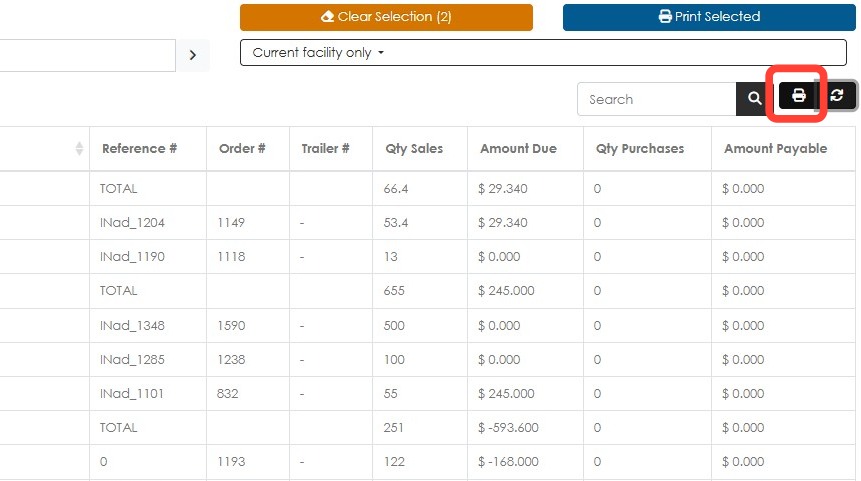
The Affiliate Linked Customer Invoices Report provides a summary of affiliate-linked customer transactions, including order references, quantities sold and purchased, amounts due, and amounts payable. Users can filter by date range and facility and print selected summary slips.
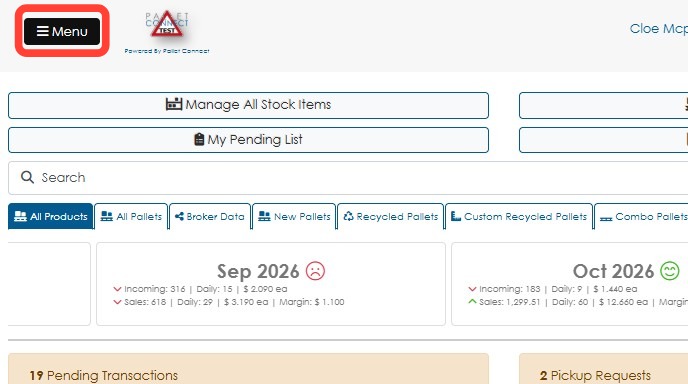
1. To navigate to the report. Click Menu.
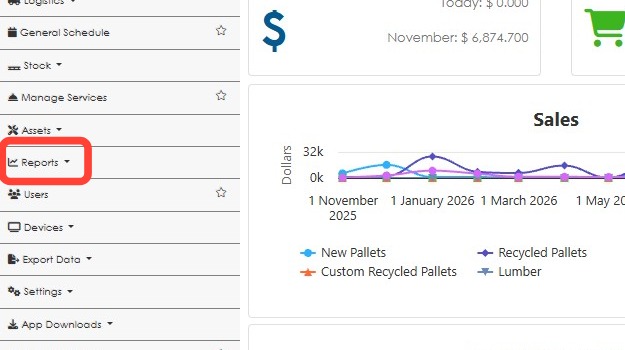
2. Click Reports.
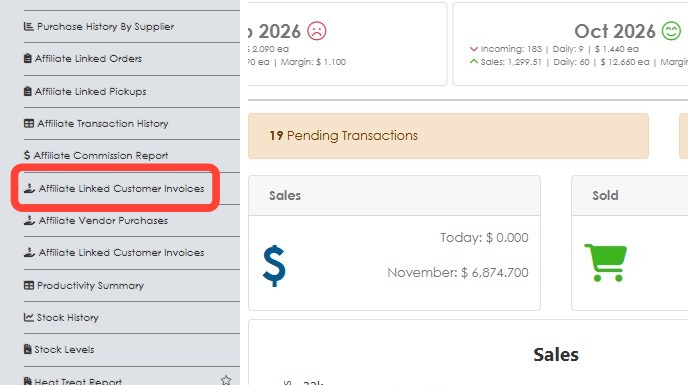
3. Click Affiliate Linked Customer Invoices.
Note: This can also be accessed in the Brokerage tab.
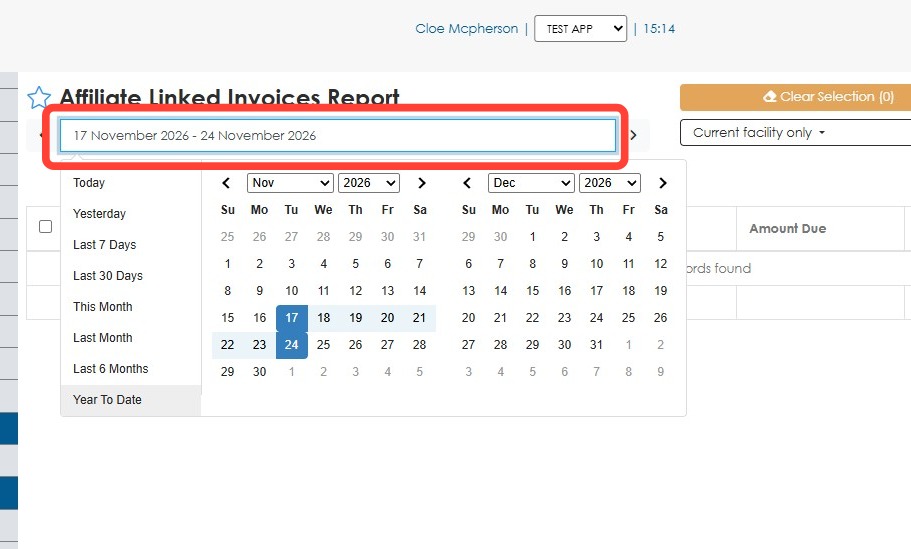
4. Select the date range.
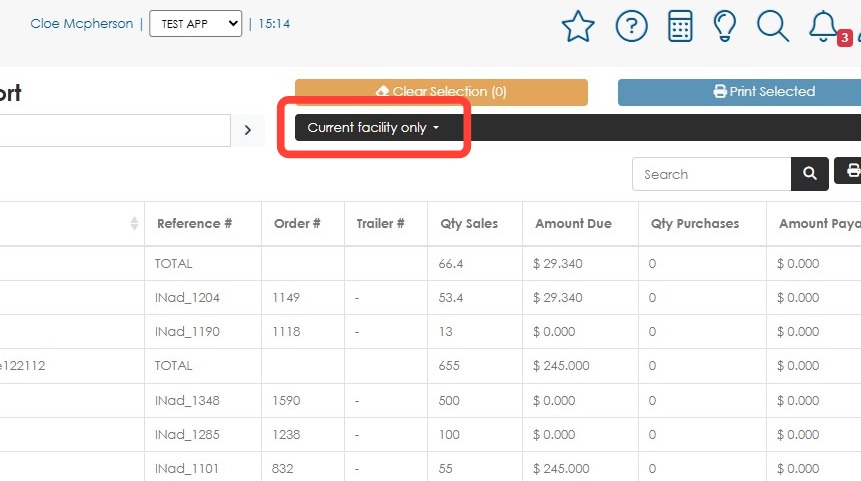
5. For users with multiple facilities, select the desired facility from the Current Facility Only dropdown.
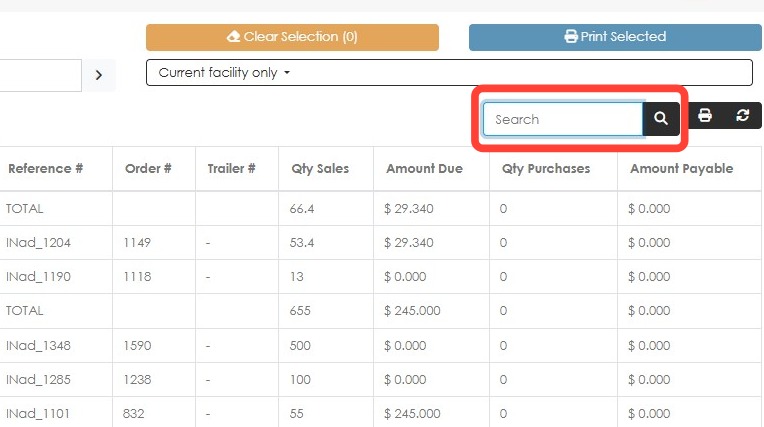
6. Use the Search field to find a specific affiliate by name or locate an invoice by its number.
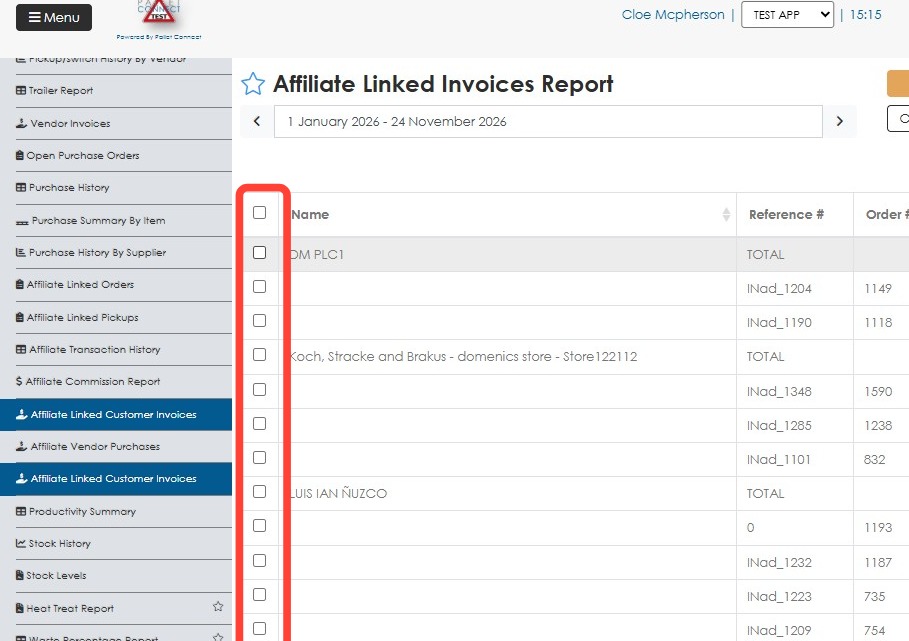
7. Use the checkboxes to select one or multiple affiliates or invoices.
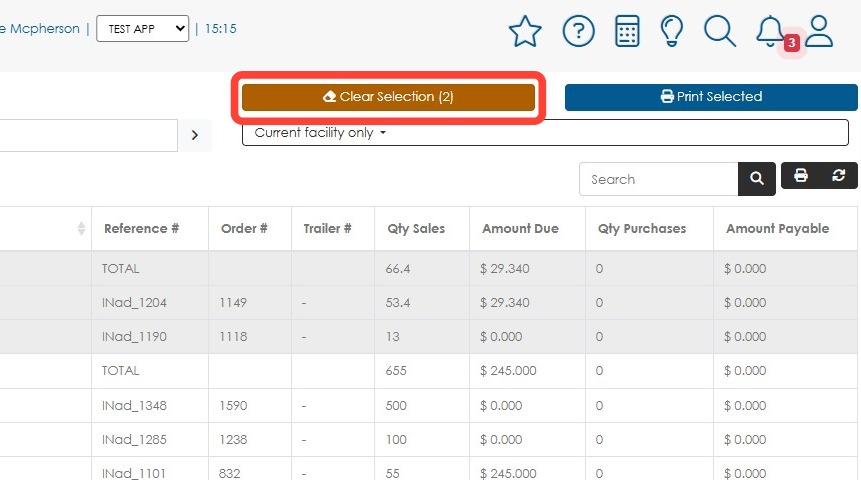
8. Click Clear Selection to deselect all currently selected checkboxes.
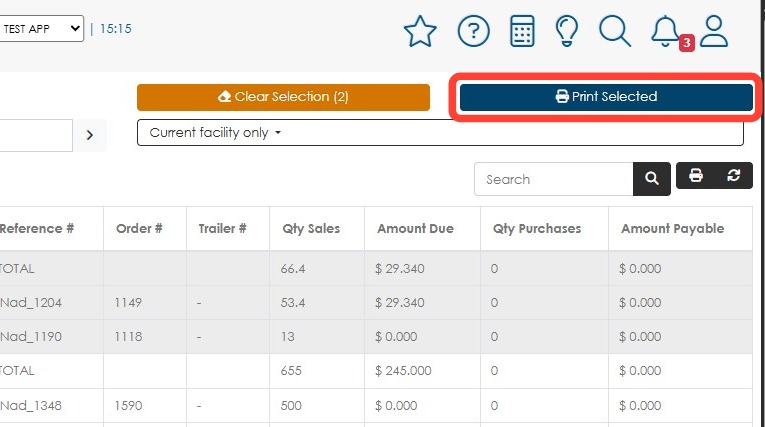
9. Click Print Selected to print summary slips for the selected transactions.
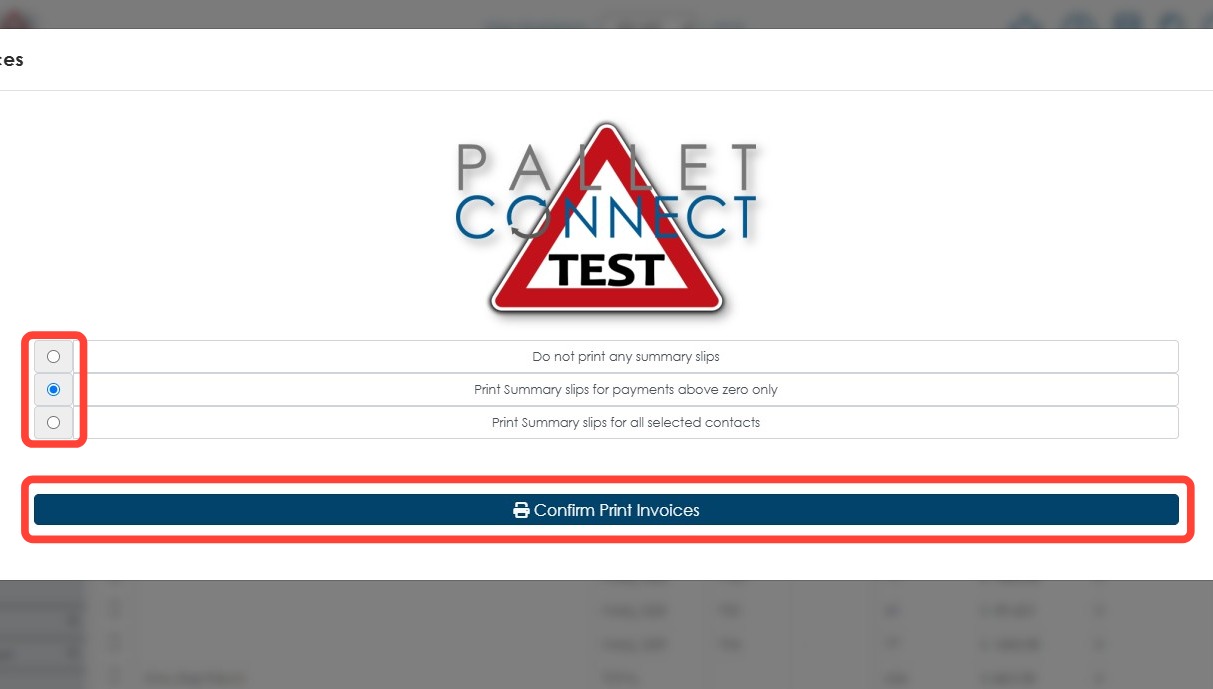
10. Choose which document to print from the following selection:
- Do not print any summary slips
- Print summary slips for payments above zero only
- Print summary slips for all selected contacts
Click Confirm Print Invoices.
11. The report shows a summary of all selected invoices on the first page.
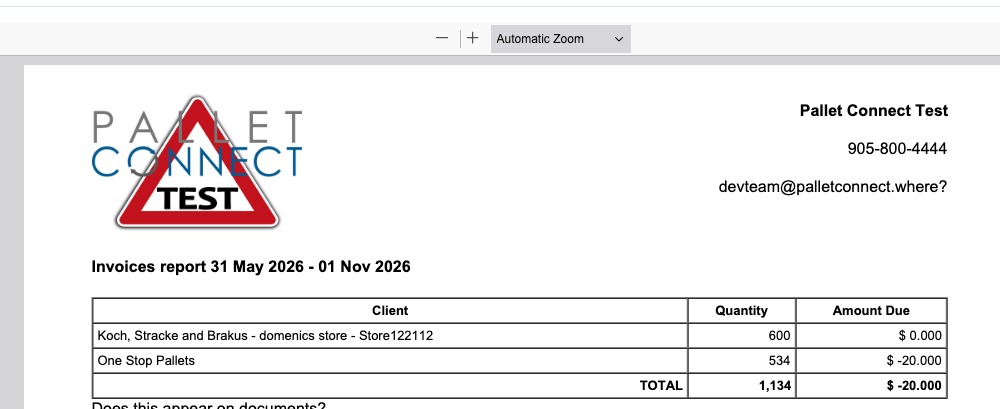
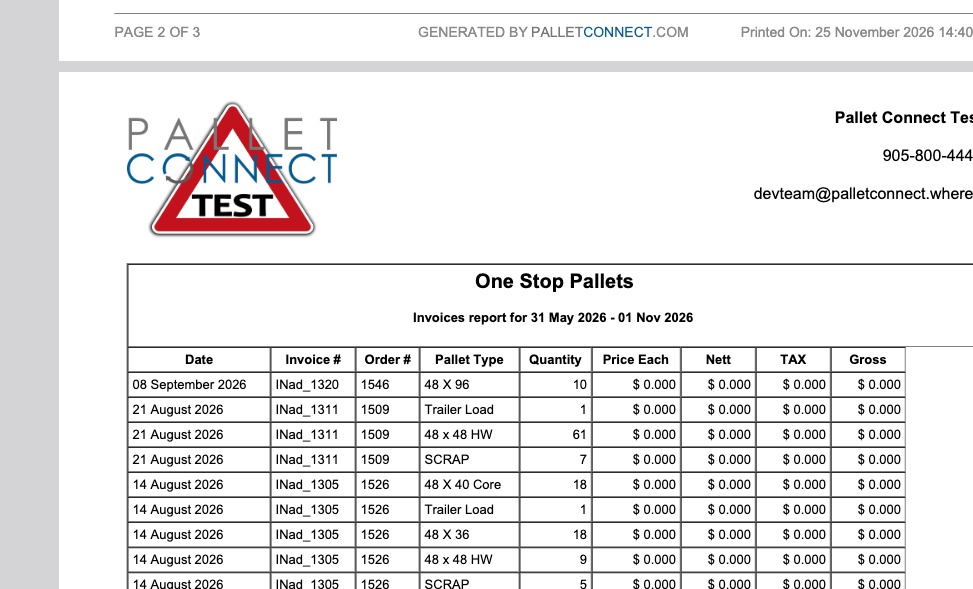
12. Any selected summary slips are shown in subsequent pages. One page per Customer.
Click the 'x' to return to the report page.
13. Click the Refresh button to refresh the page.
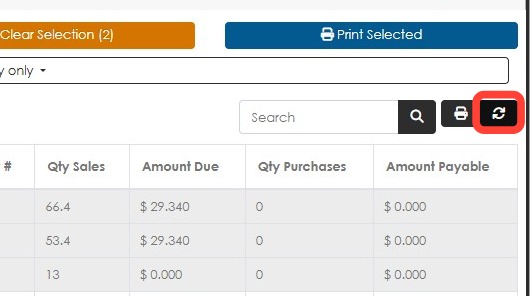
14. Click the Print button to print the whole report.