Learn how to use the Affiliate Monthly Statement report in Pallet Connect to review affiliate transactions, including purchase and sales details, dates, reference numbers, quantities, gross amounts, taxes, net amounts, and running balances. This report helps track affiliate activity and reconcile outstanding balances.
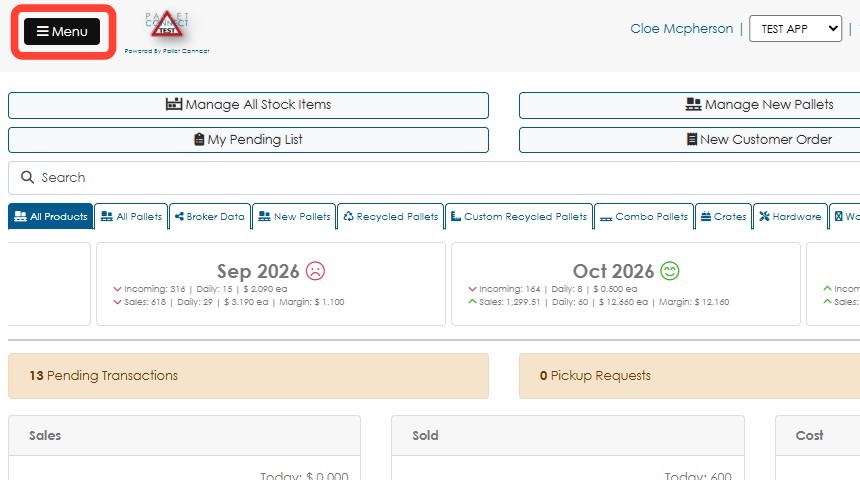
1. Click Menu.
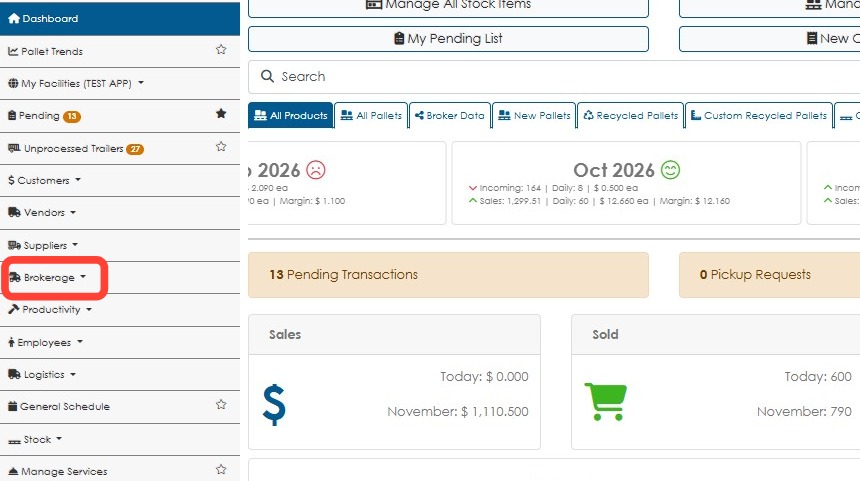
2. Click Brokerage.
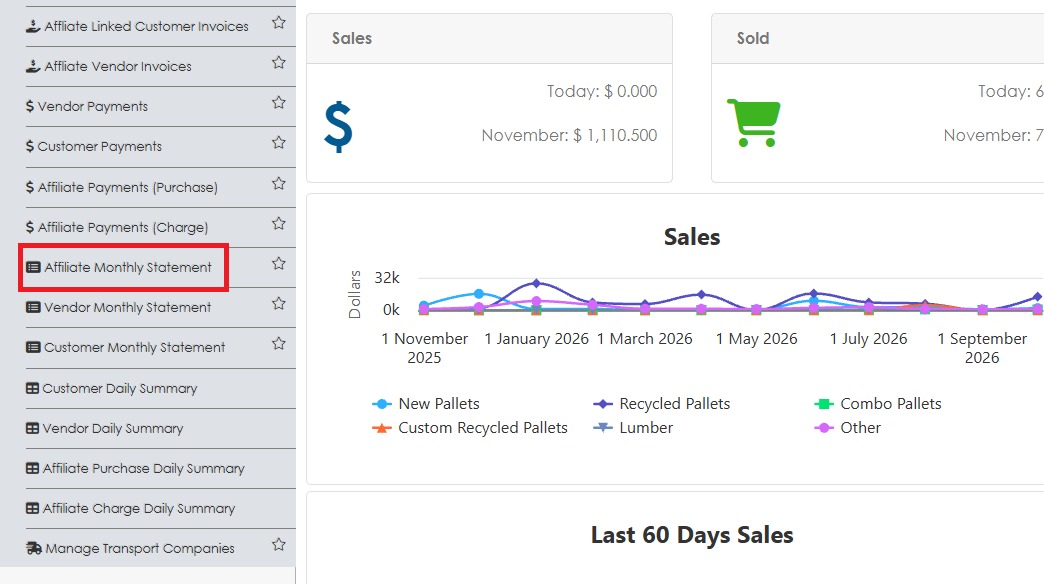
3. Click Affiliate Monthly Statement.
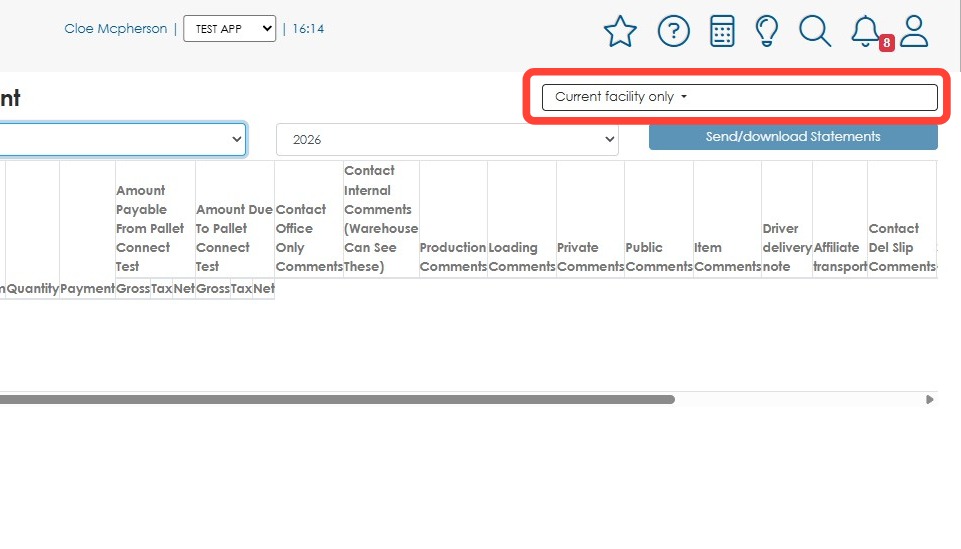
4. If the site has more than one facility, choose facility name from the drop down.
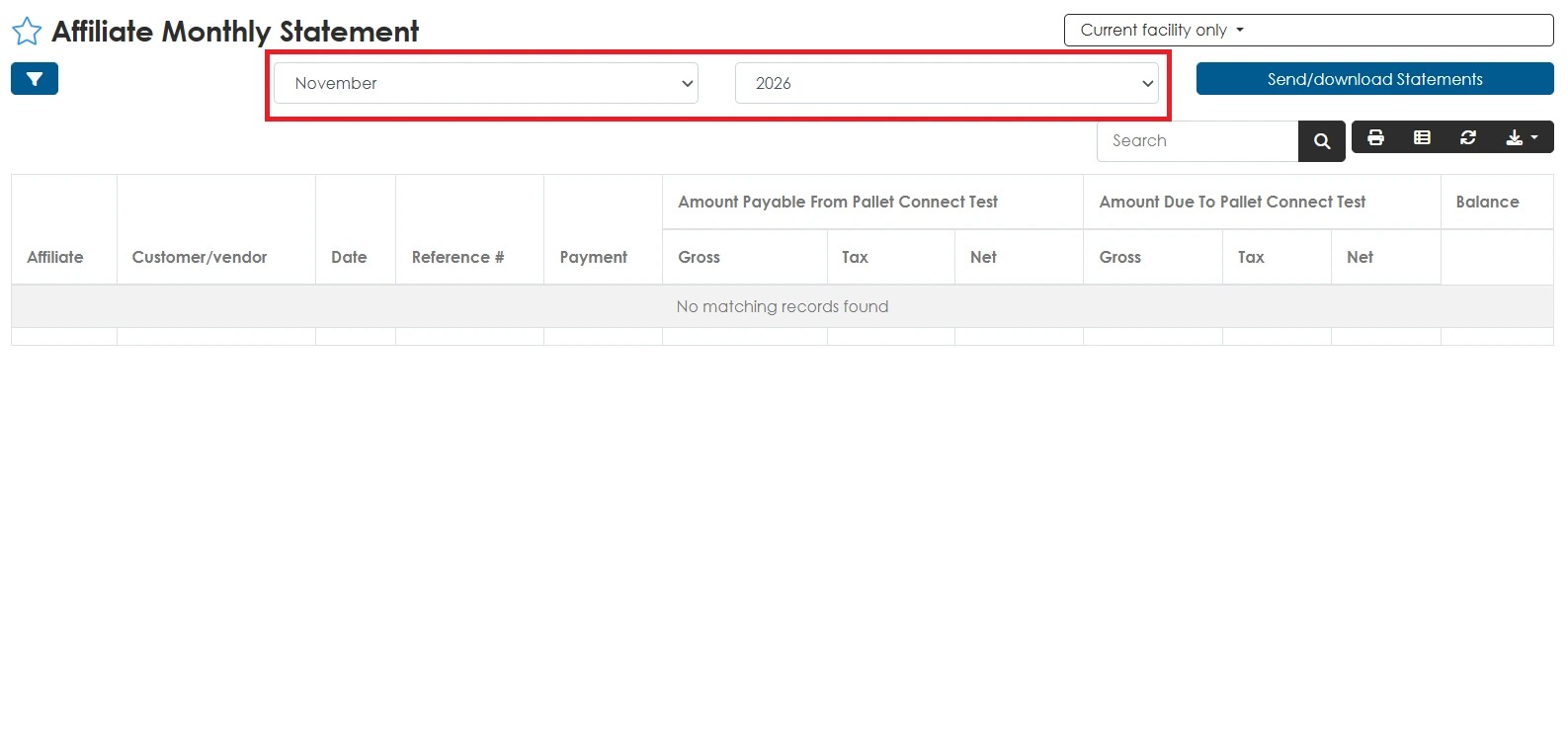
5. Choose the date range for the report.
Note that only month and year can be chosen from the drop down. The report shows one month's data only.
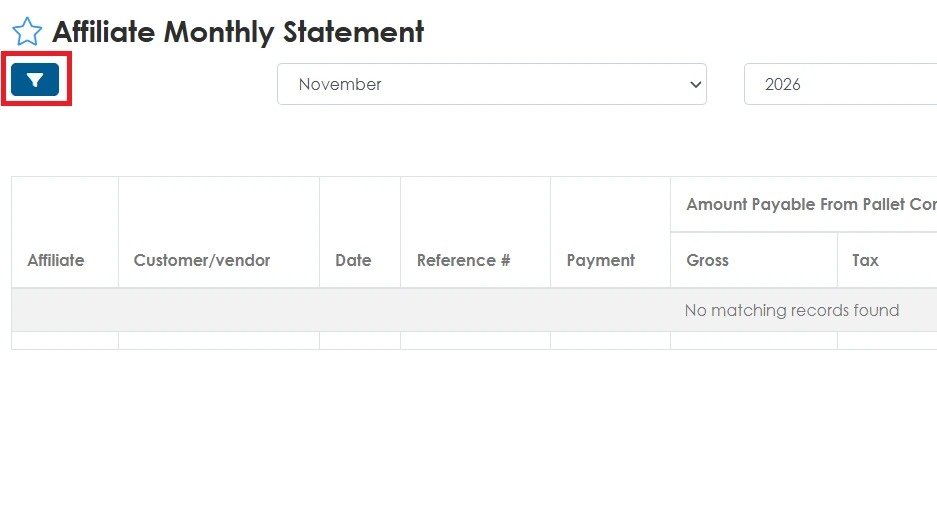
6. Click the Filter icon to select the desired filter options.
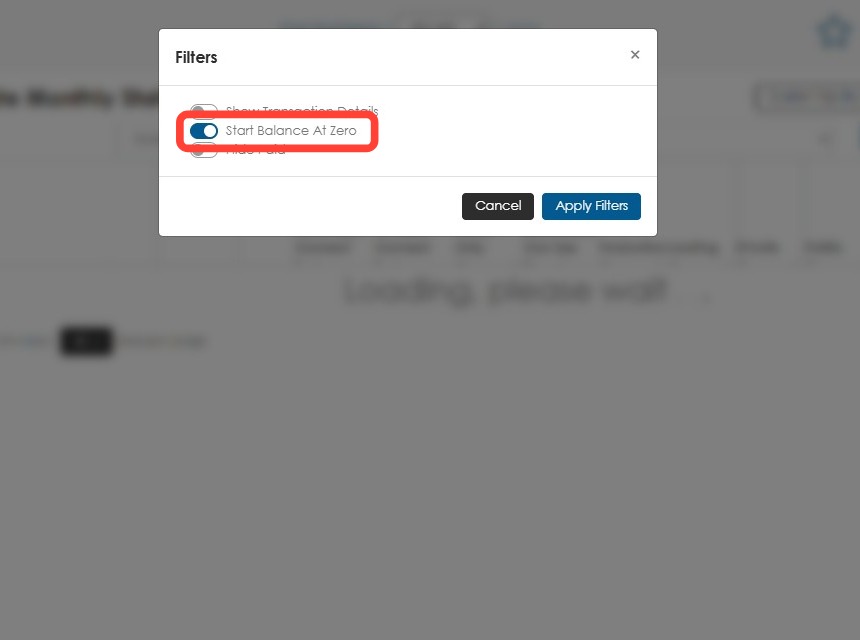
7. FILTERS: Turn on Start Balance At Zero to start the report balance at the first day of the chosen month. Toggle off the button to bring forward the previous balance.
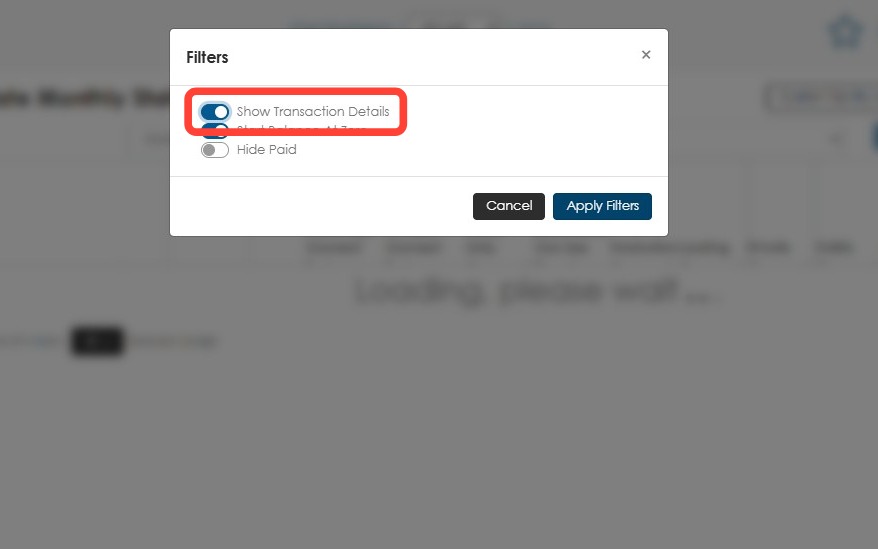
8. FILTERS: Turn on Show Transaction Details to display additional columns, such as Item and Quantity.
Note: The Item and Quantity columns will remain hidden in the report unless this option is enabled, even if they are added to the visible columns.
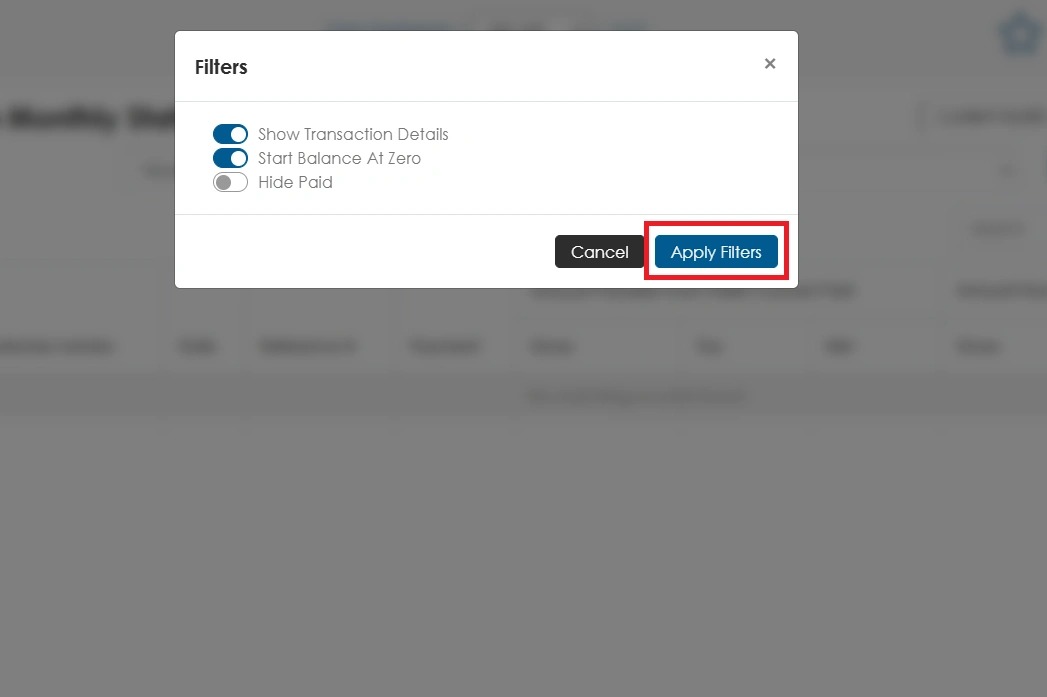
9. Click Apply Filters.
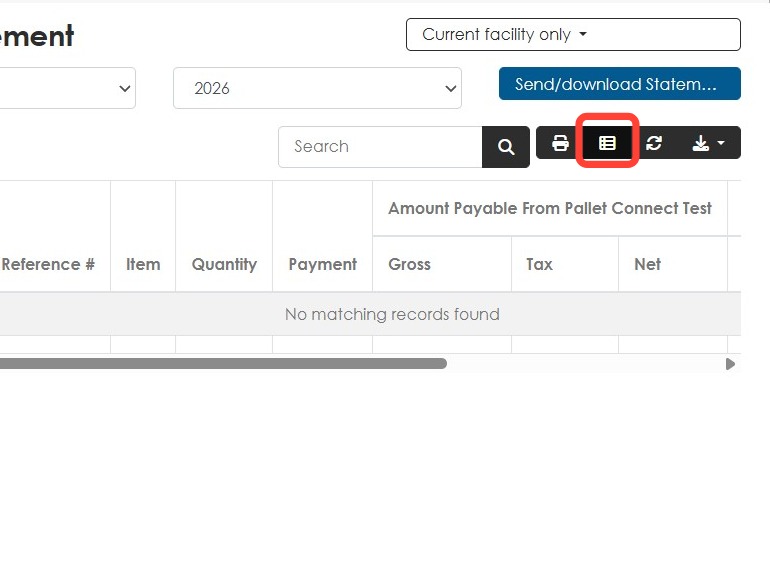
10. Click Edit Columns to manage columns.
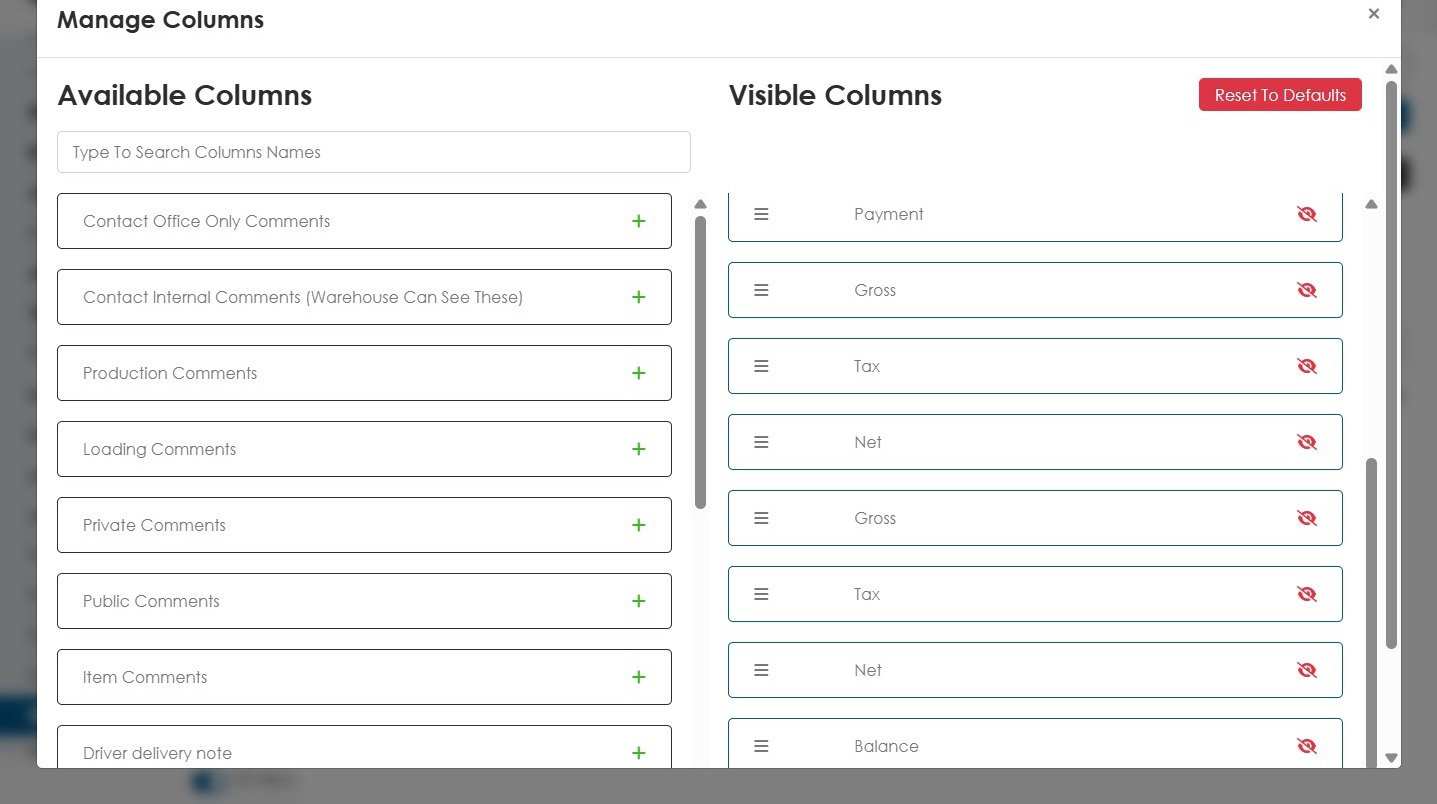
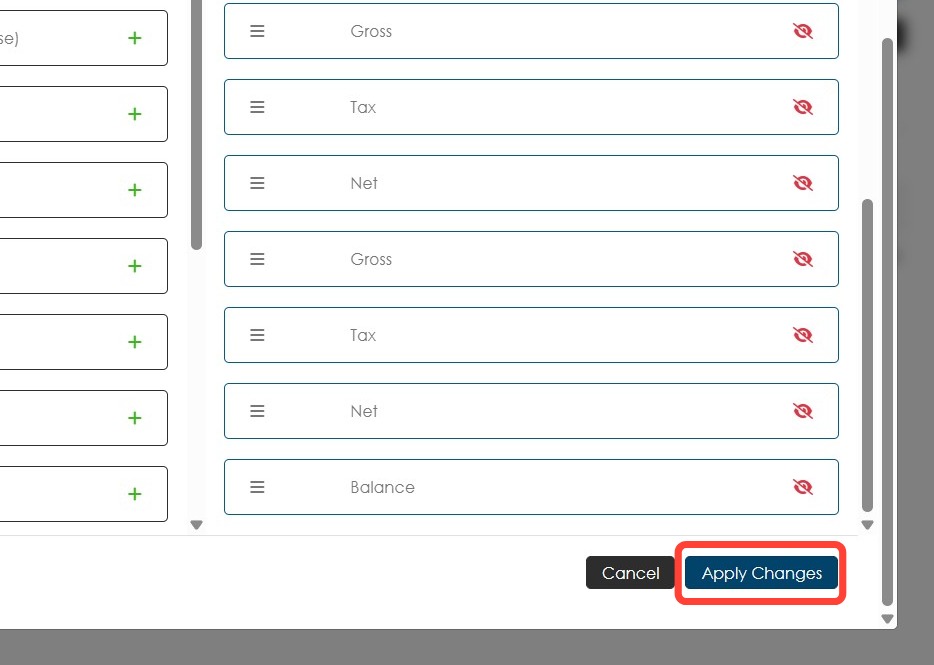
11. Click the plus (+) icon to add columns. Click the red eye icon to remove columns. Drag the column name to rearrange their order.
12. Click Apply Changes to save.
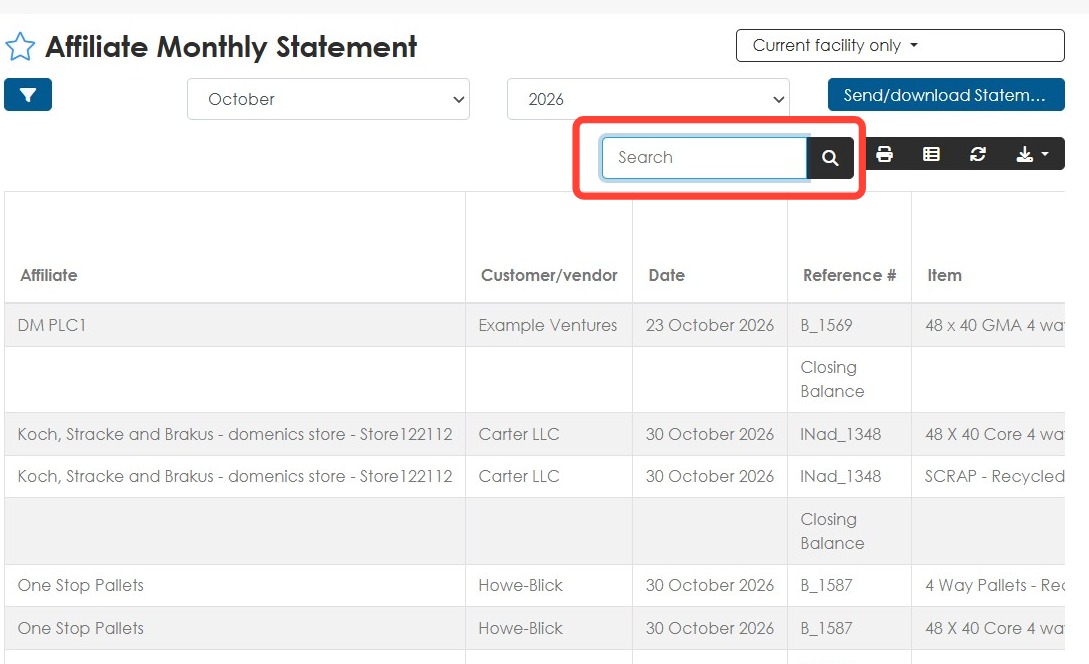
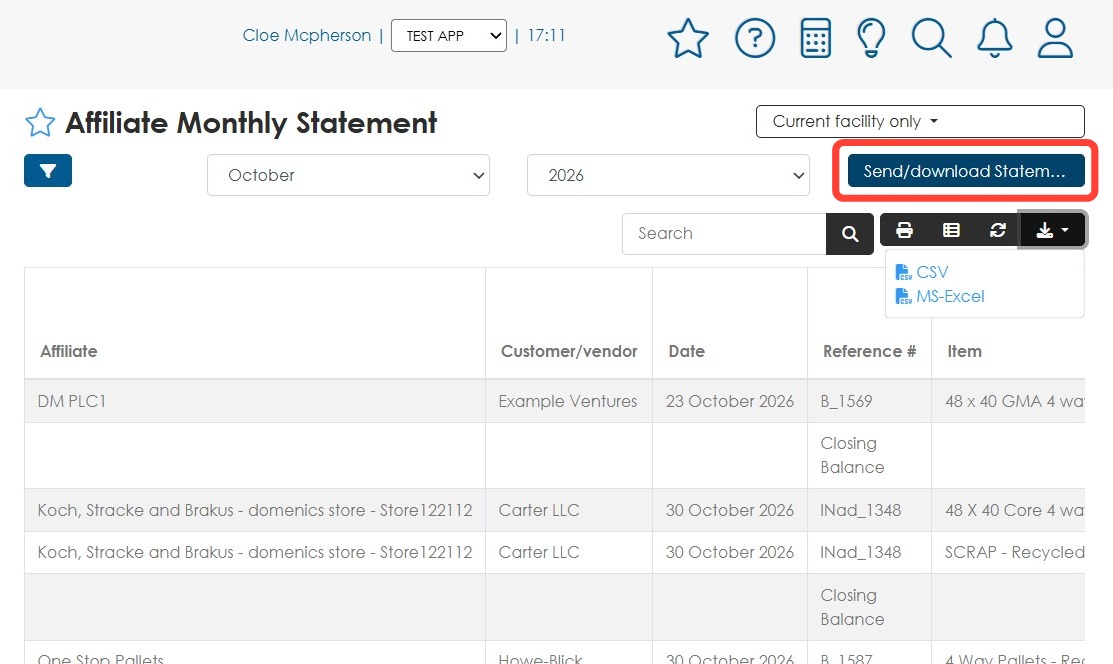
13. Use the Search field to search for a specific company.
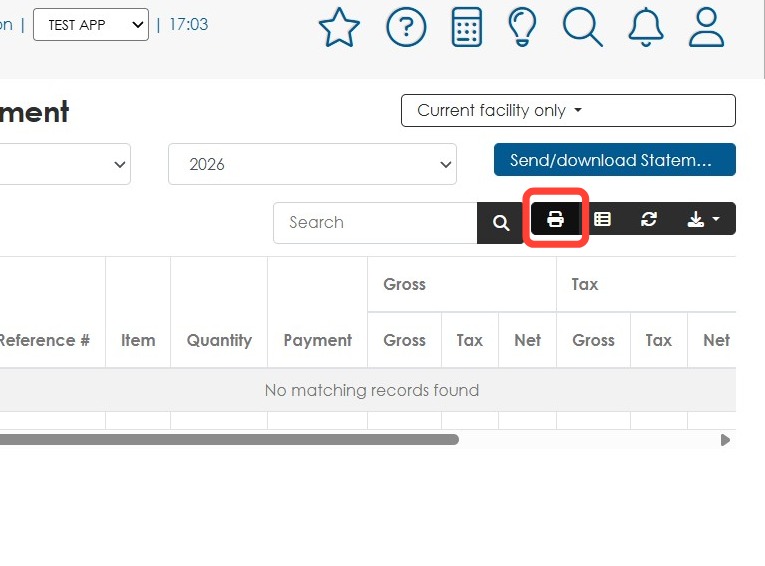
14. Click Print to print the report.
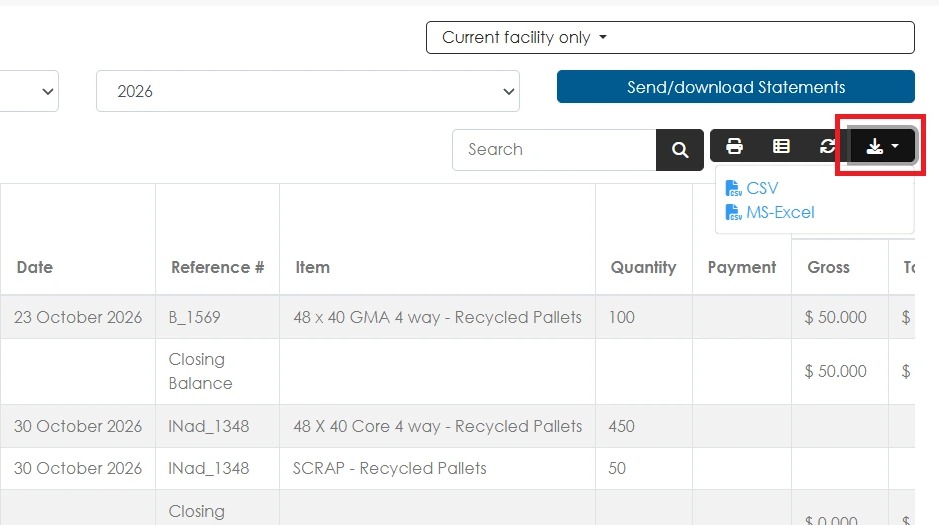
15. Click Export data to download either a CSV or MS Excel file.
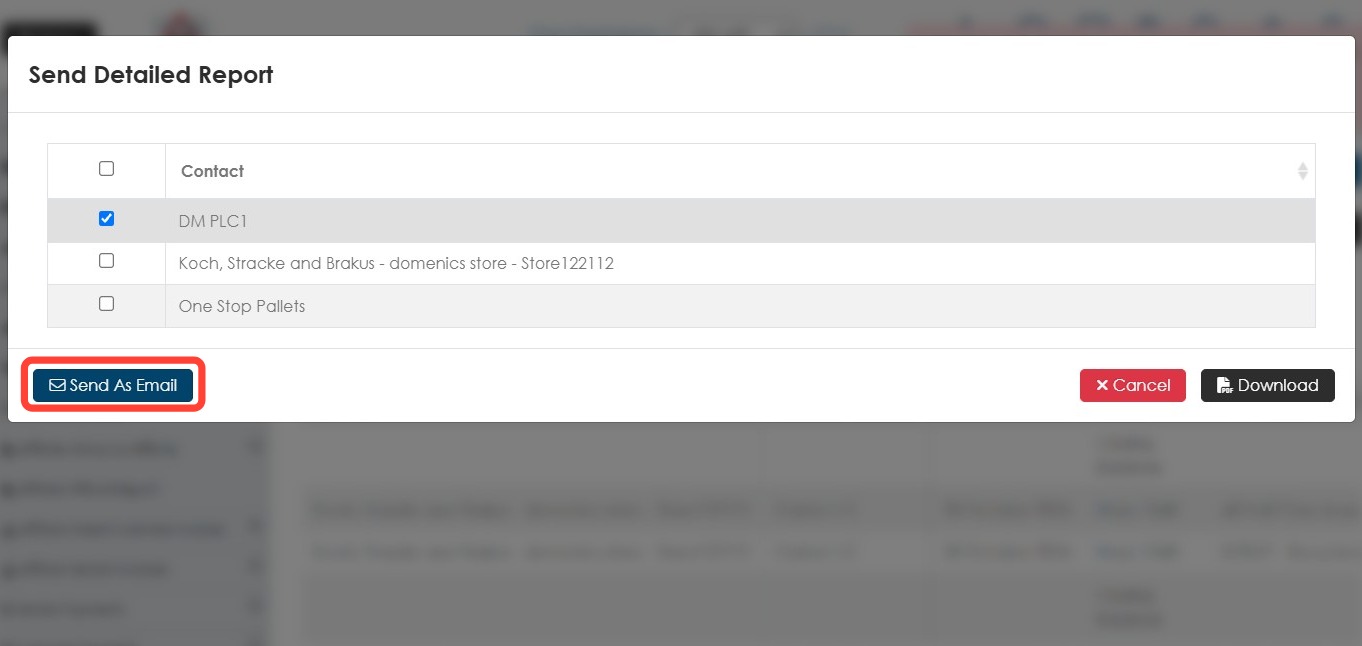
16. Click Send/download Statements to either download or email the report.
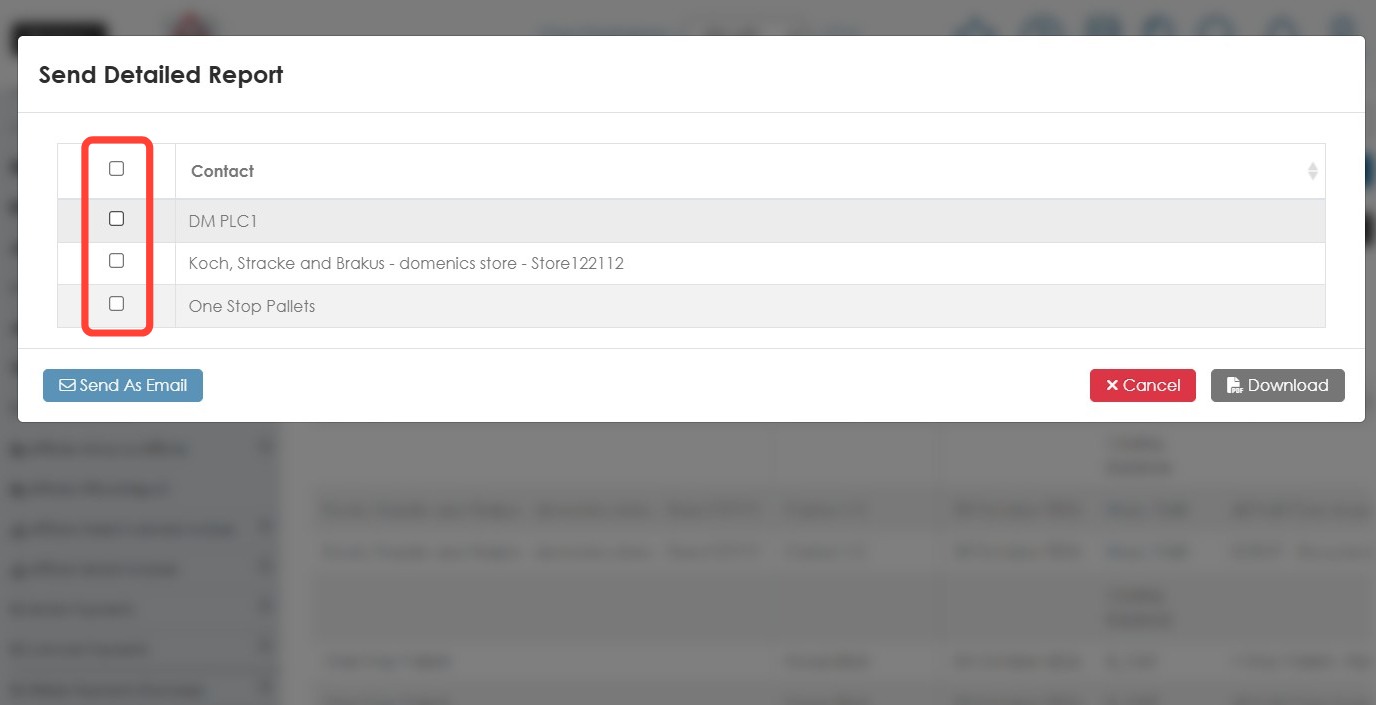
17. Choose the companies to include by ticking the checkbox.
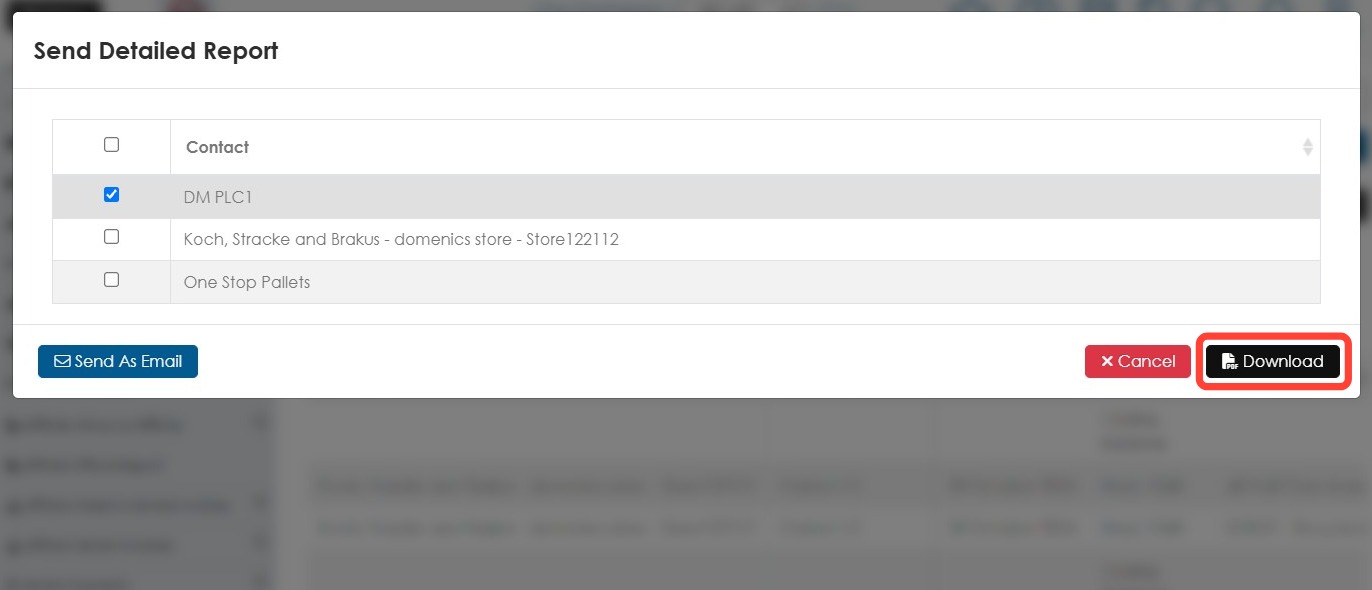
18. Click Download to download the report.
19. Click Send As Email to email the report.