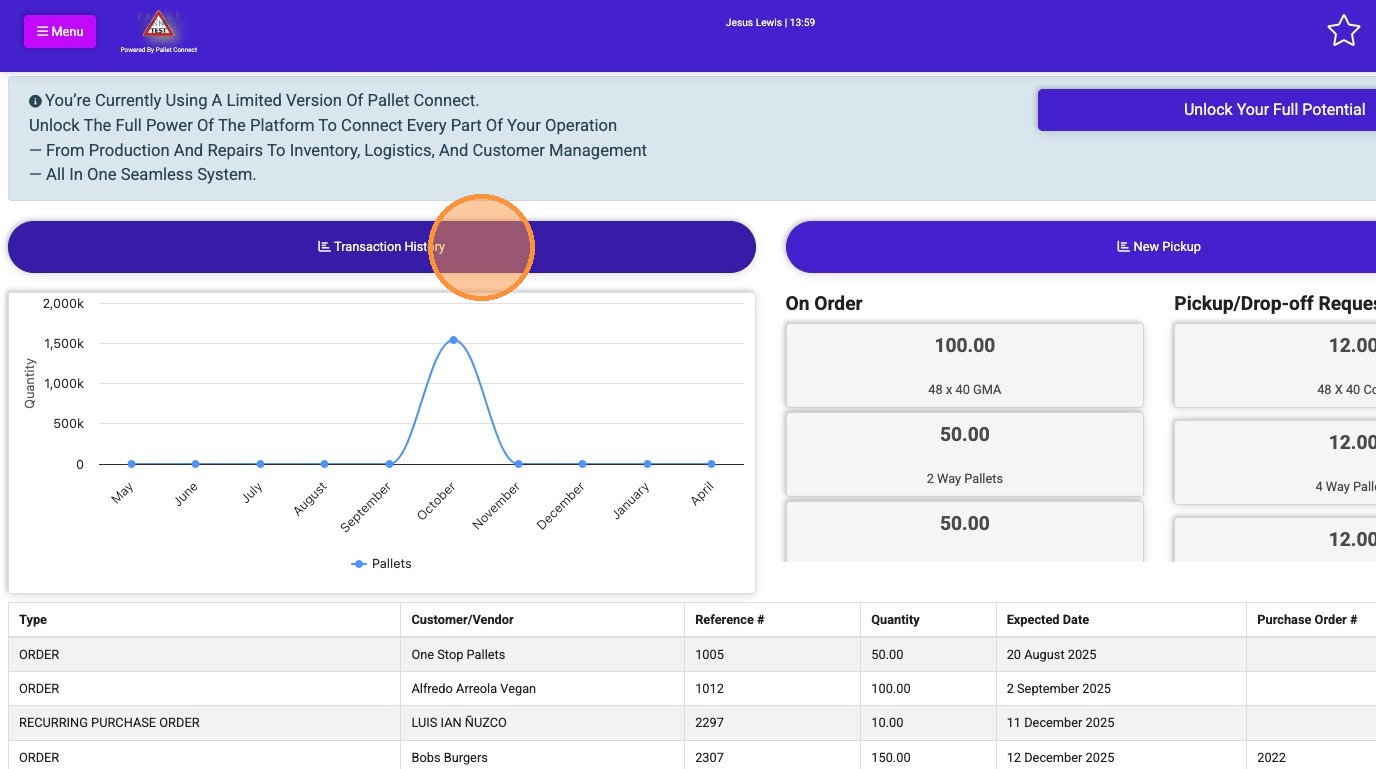
Follow this guide to learn how to process a pick up request within the Pallet Connect Affiliate Portal. This article will focus on picks that are NOT counted on site.
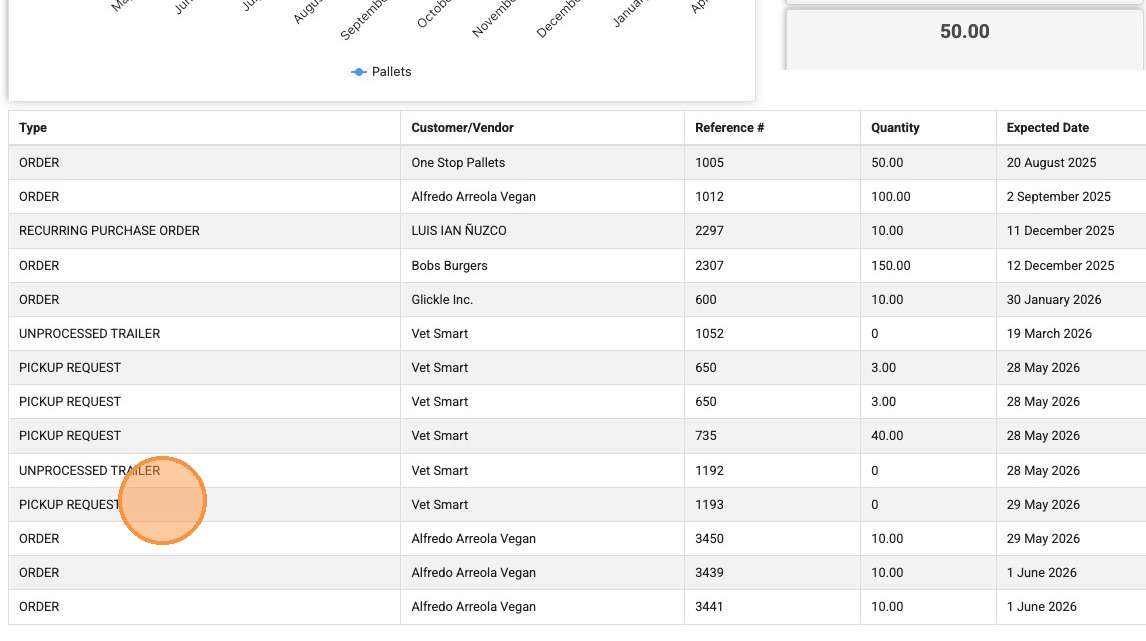
1. COMPLETE THE REQUEST: Log in the portal. From the dashboard, click on a "PICKUP REQUEST" from the list.
TIP: These are usually created by the broker in their system.
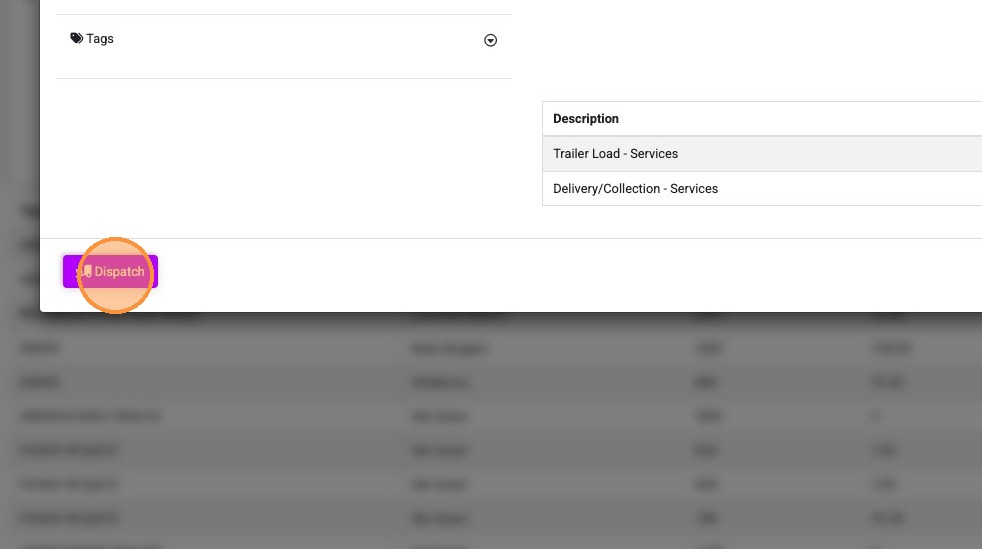
2. OPTION: From the transaction page, there maybe an option to show when the pick up has been dispatched. Click "Dispatch"
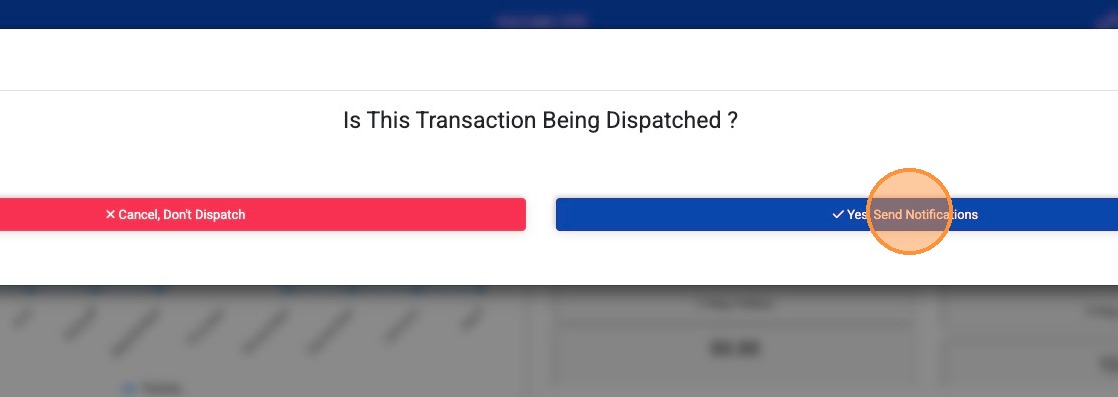
3. Click "Yes, Send Notifications". The Vendor (pallet supplier) is then notified by email that the driver is on their way.
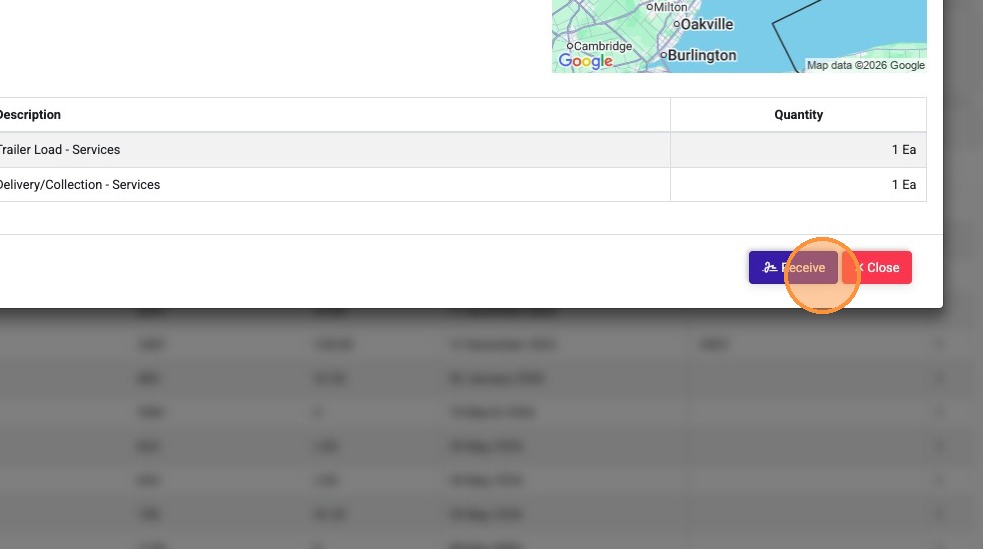
4. From the transaction page, once the driver is at the Vendor's facility, click "Receive"
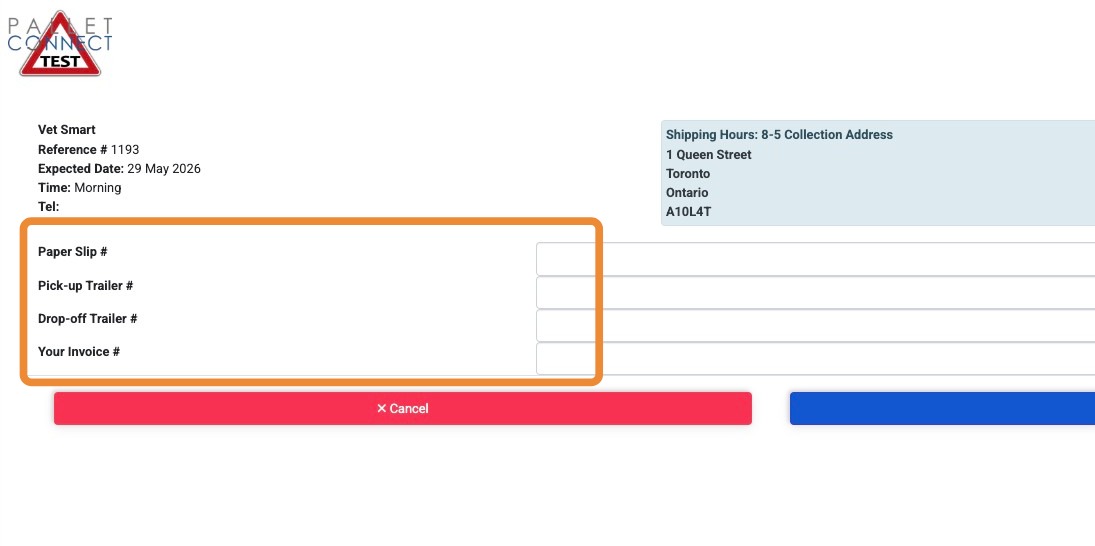
5. Trailer numbers or billing numbers can be added or edited here.
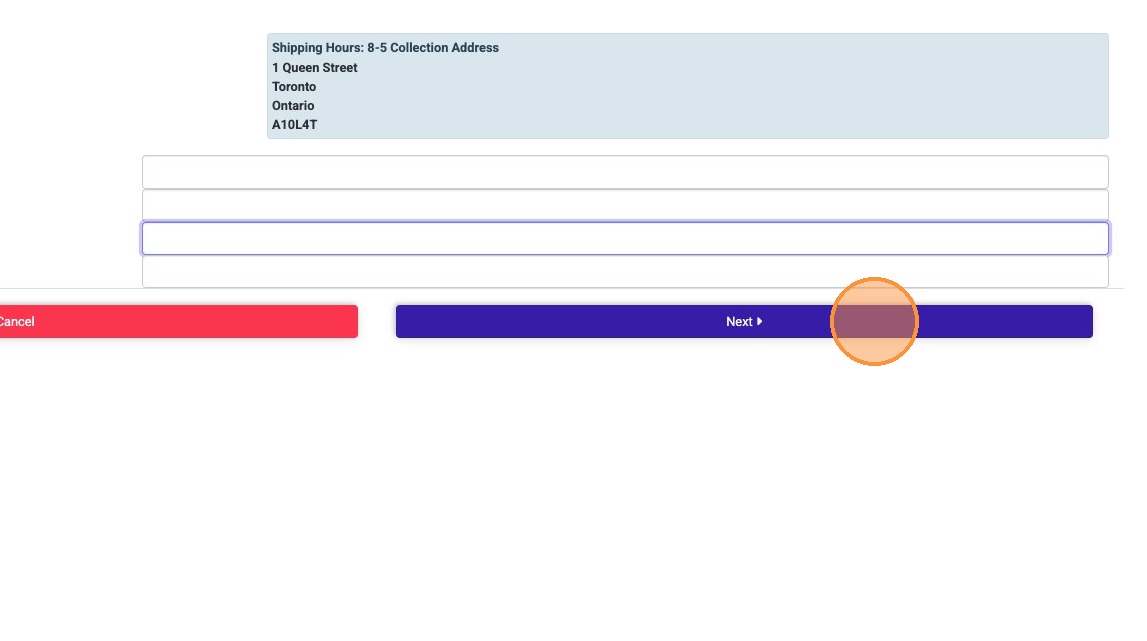
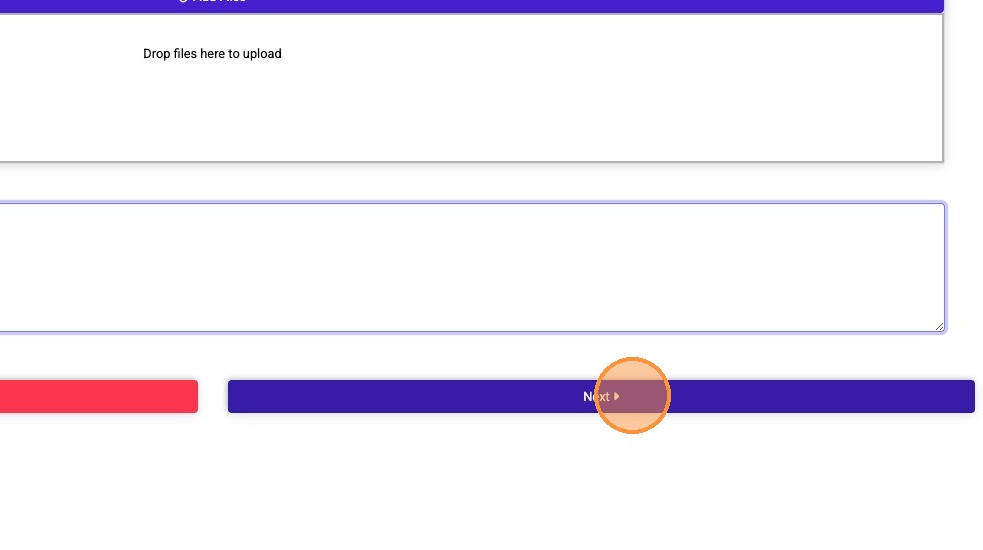
6. Click "Next"
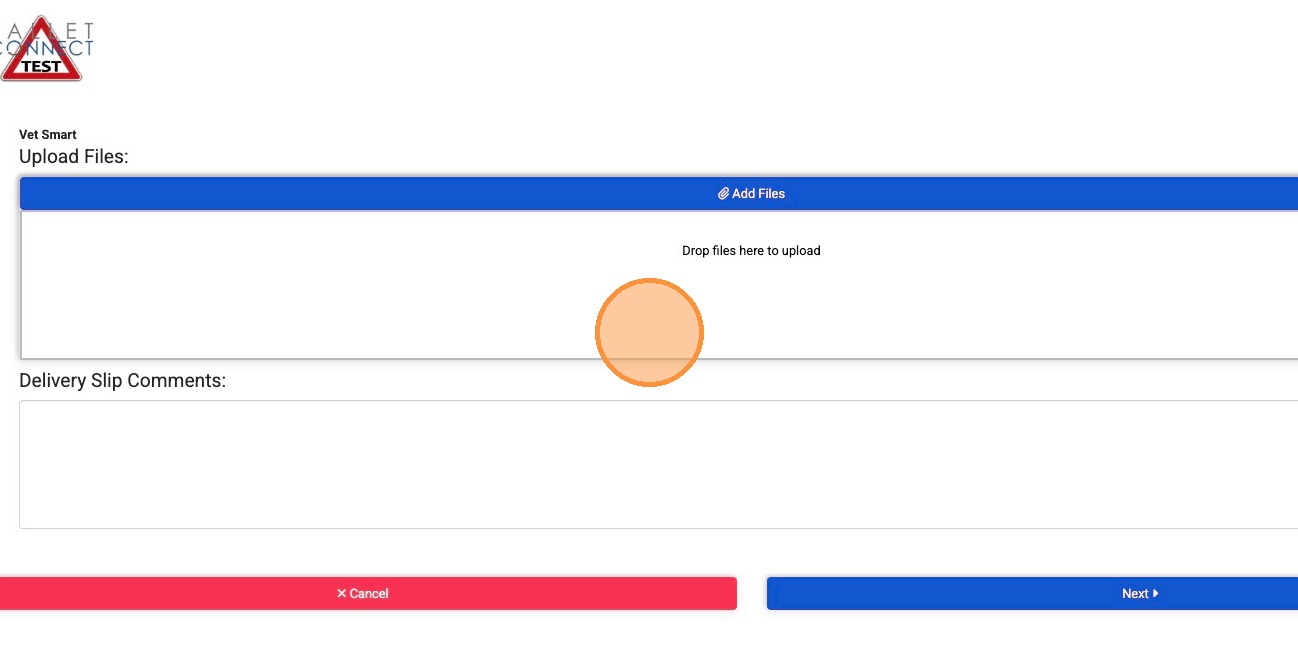
7. Files or pictures can be uploaded on this page.
Click "Delivery Slip Comments" to add a note.
8. Click "Next" to continue.
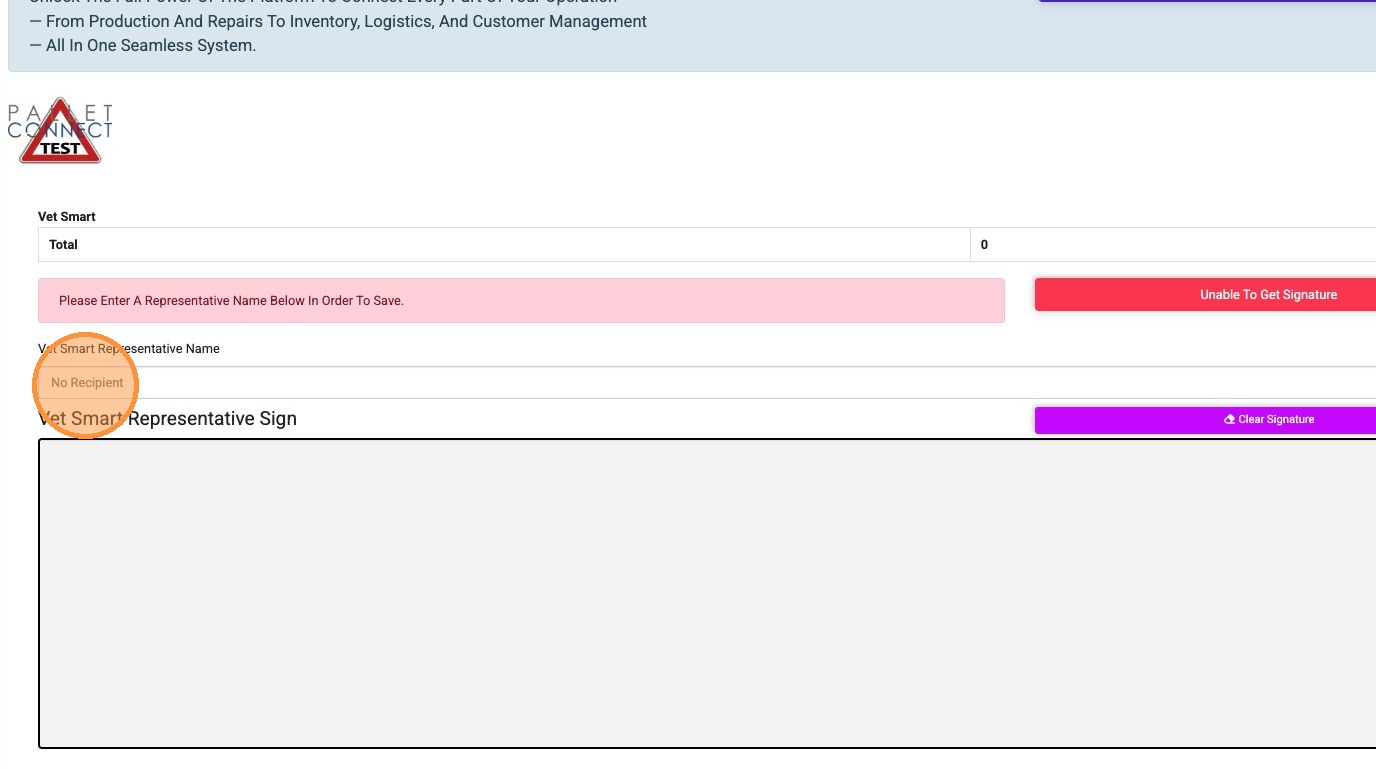
9. Type the Vendor Representative name to add the name of the contact person involved with the pick up .
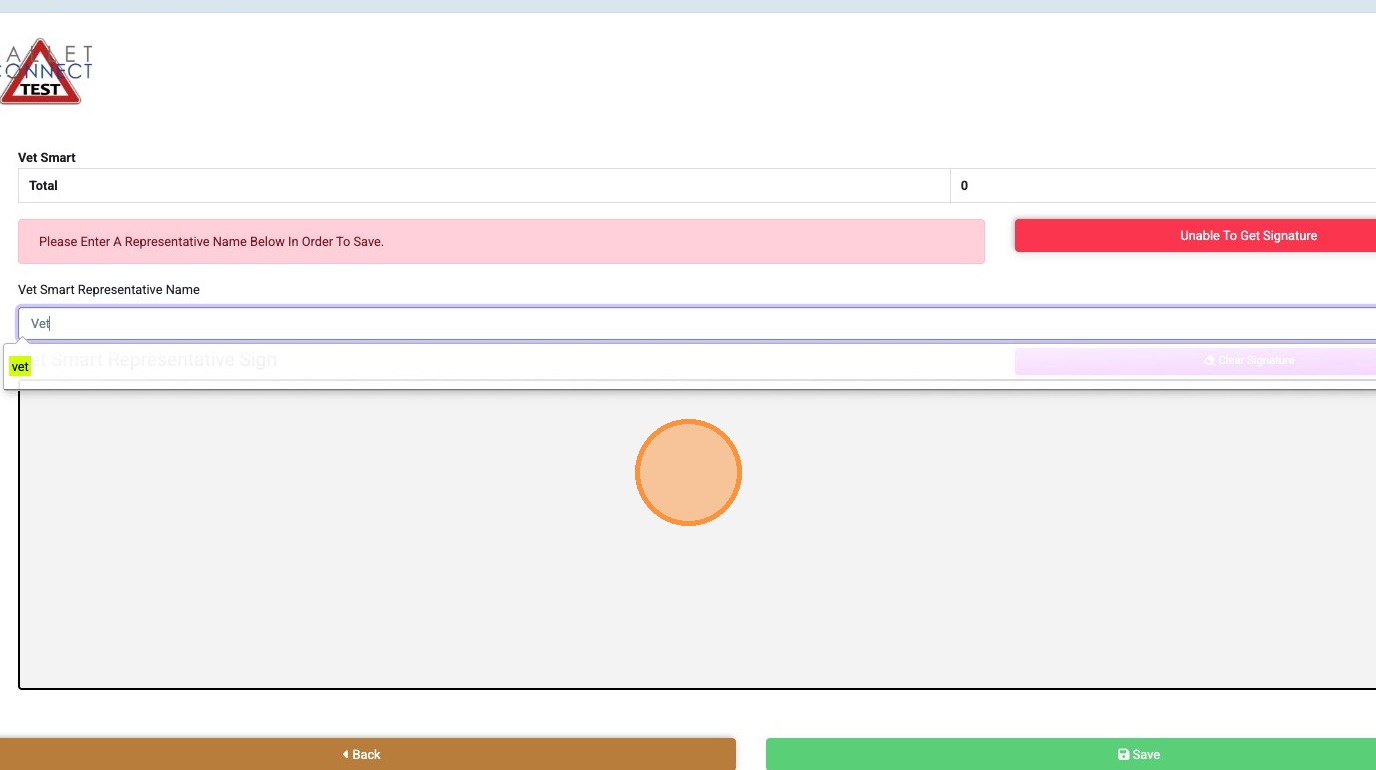
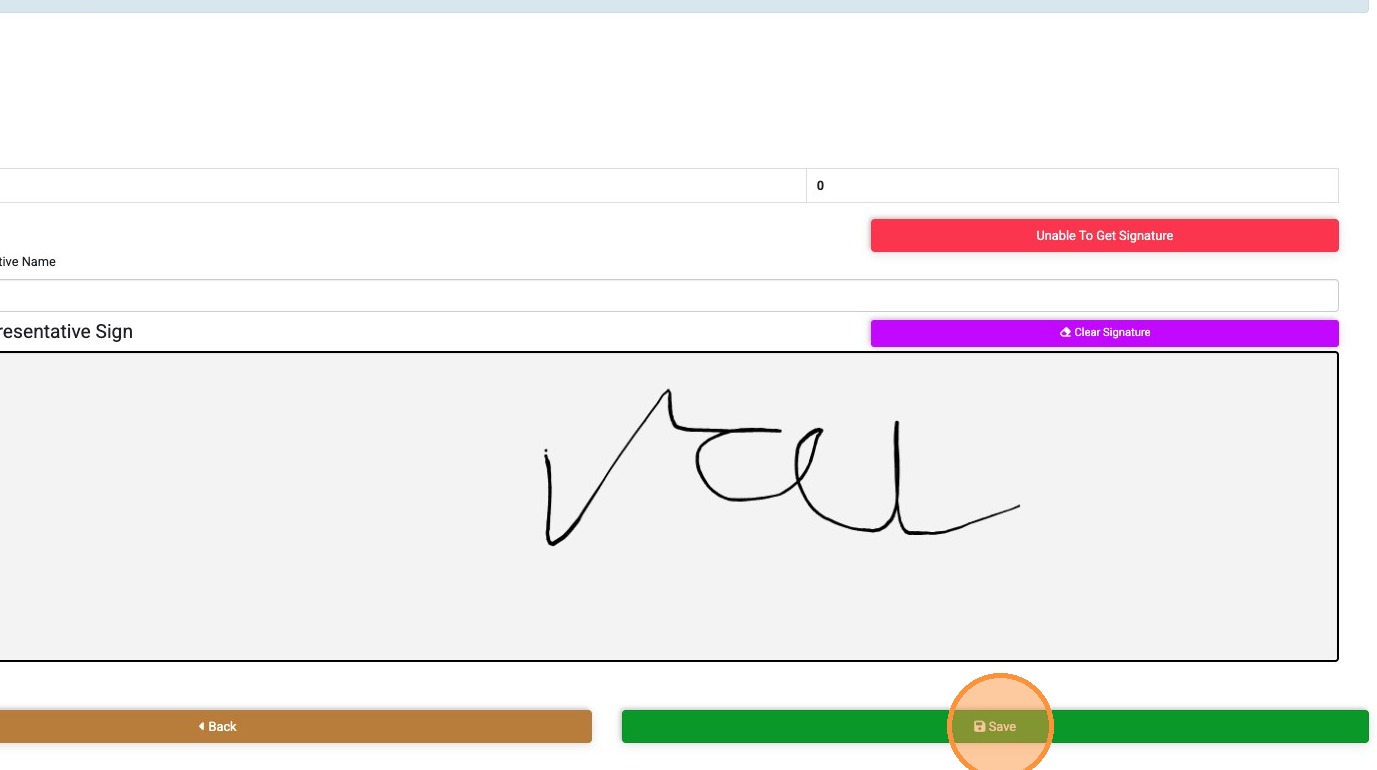
10. Provide signature in the area provided
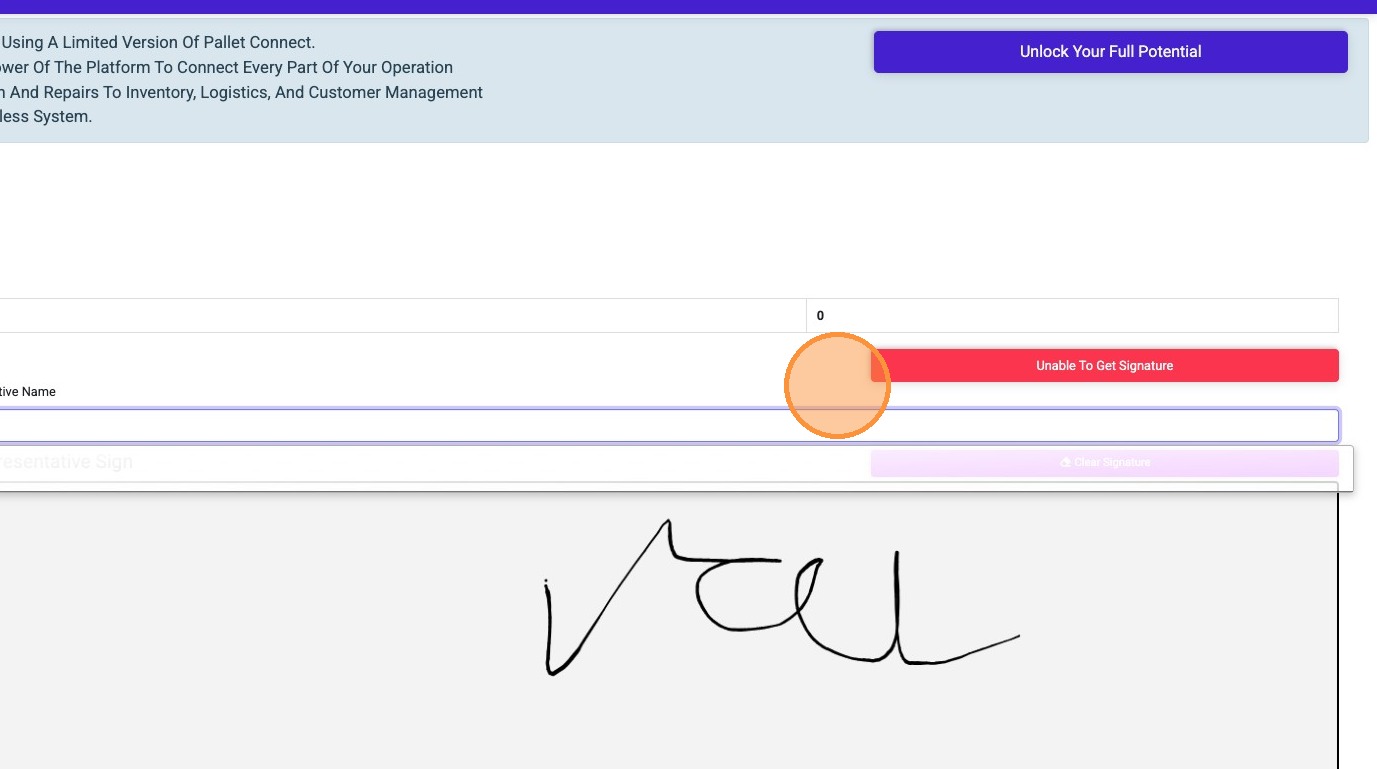
11. There is an option to click on "unable to get signature" if needed.
12. Click "Save" to complete the delivery.
The Vendor Request will now be turned into an "Unprocessed Trailer". The system will alert the broker that the pick up occurred.
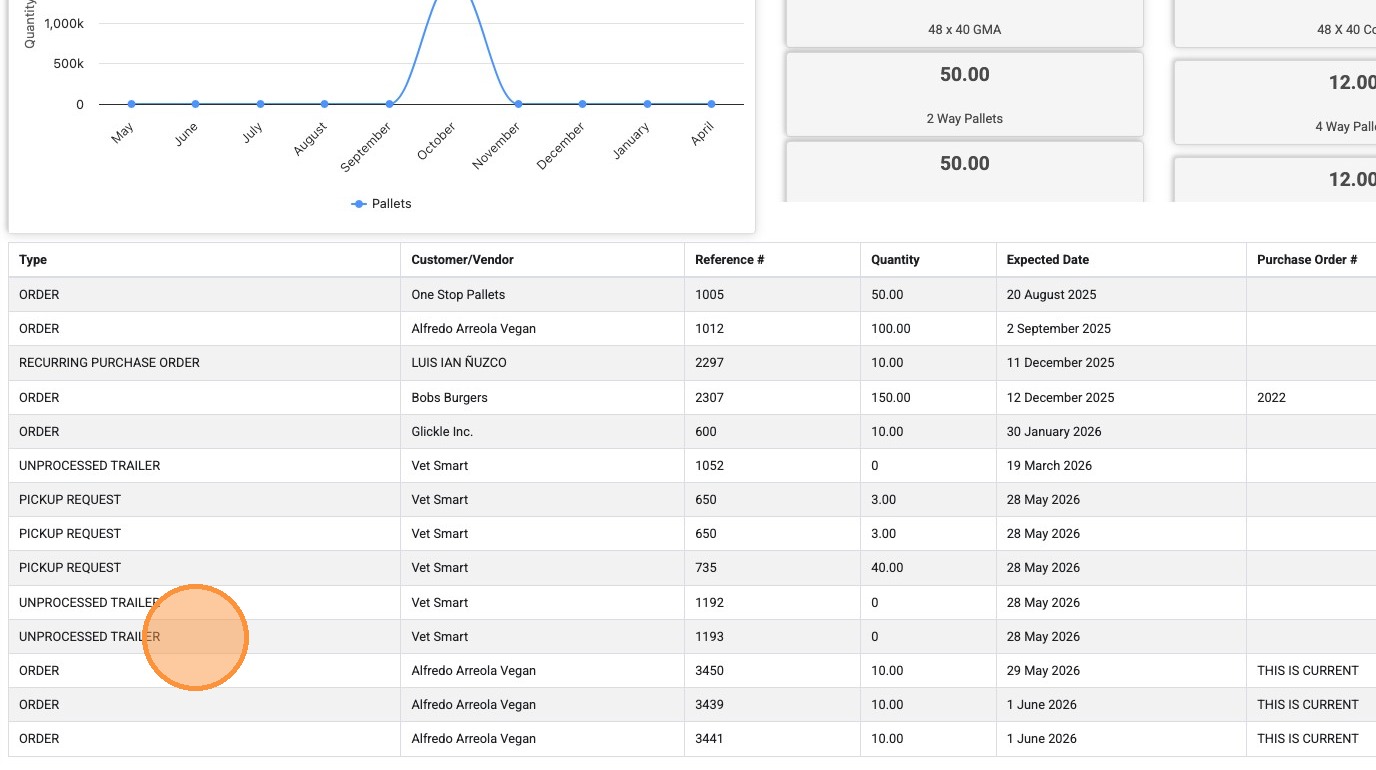
13. ENTER THE COUNTS: When ready to enter the counts, click on the "UNPROCESSED TRAILER" from the list.
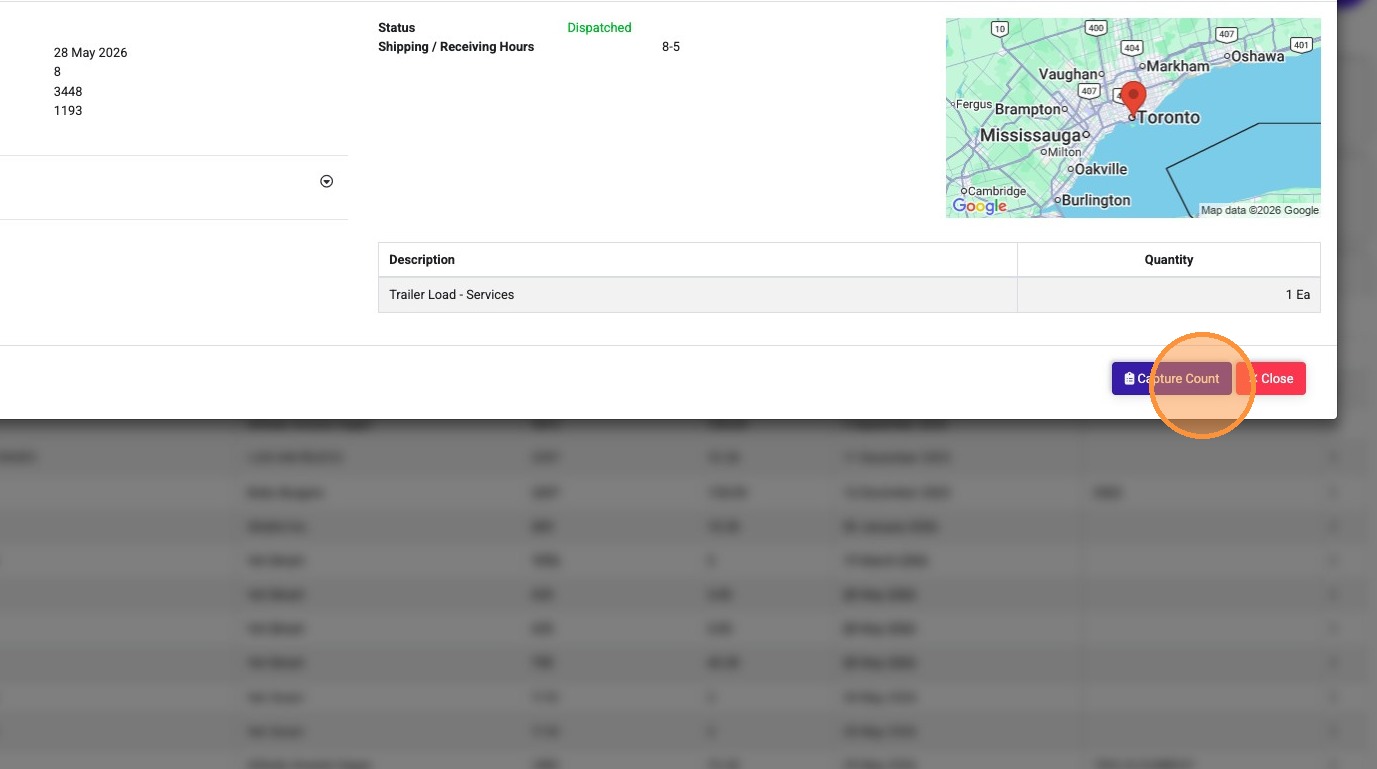
14. Click "Capture Count"
15. Counts can be entered by each stack. Stock items linked by the broker are listed here.
TIP! Enter the total quantity in 1 stack if preferred.
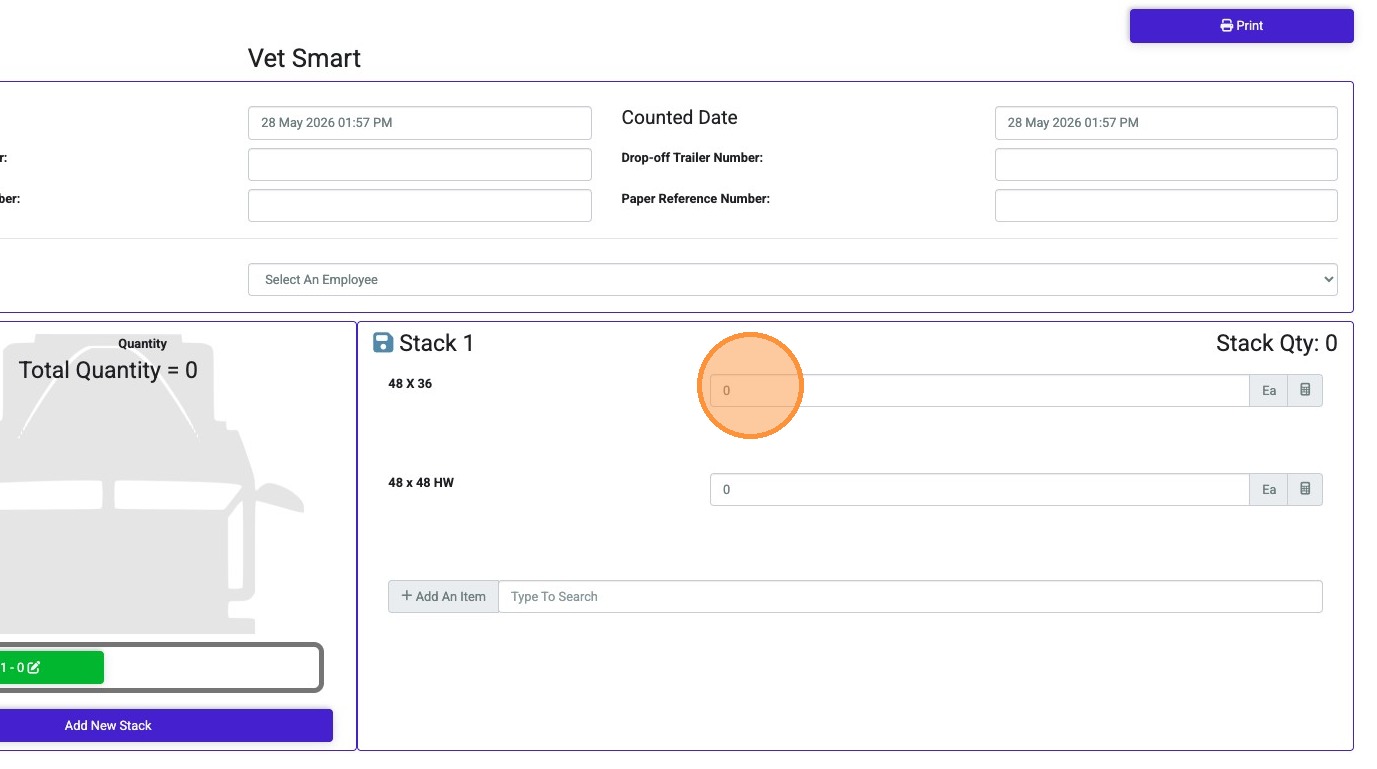
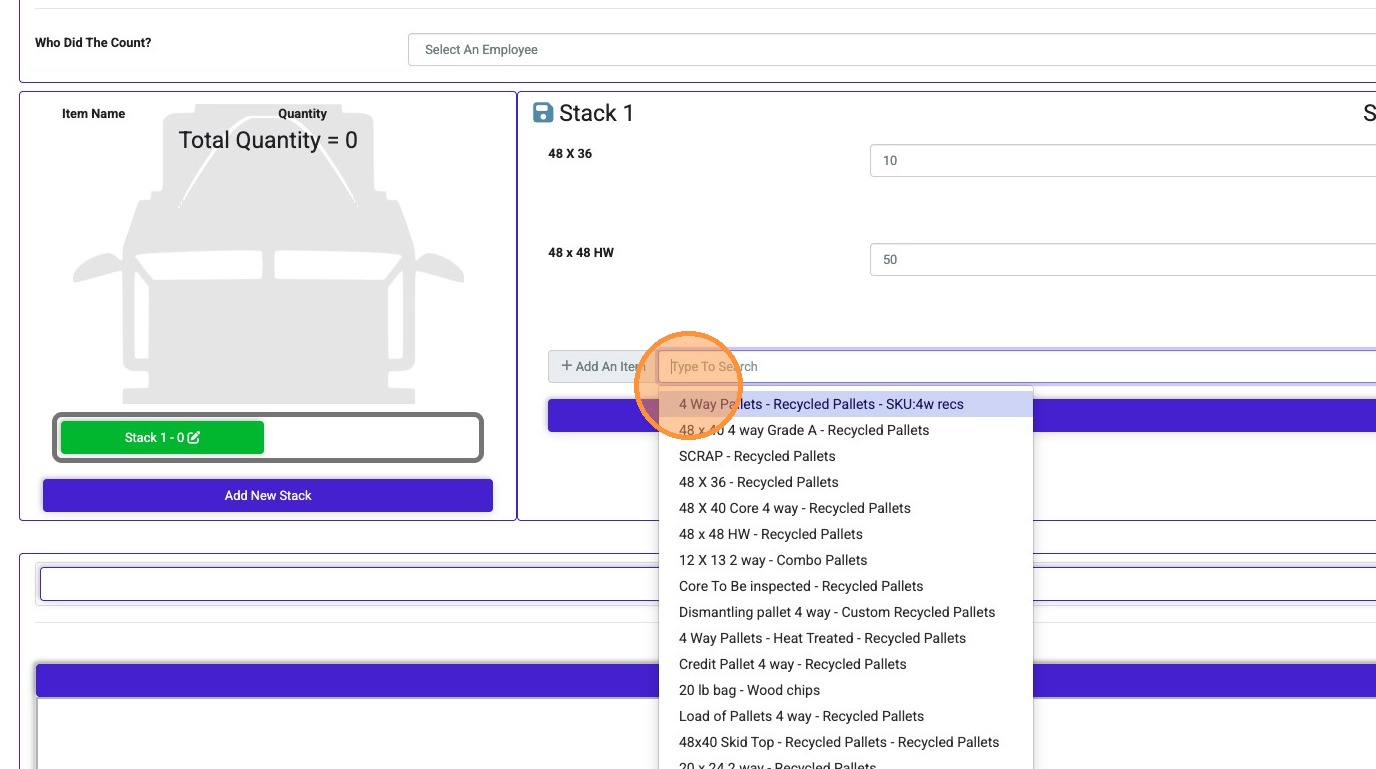
16. To add an item not on the list, click the "Type To Search" field. Select item from search results.
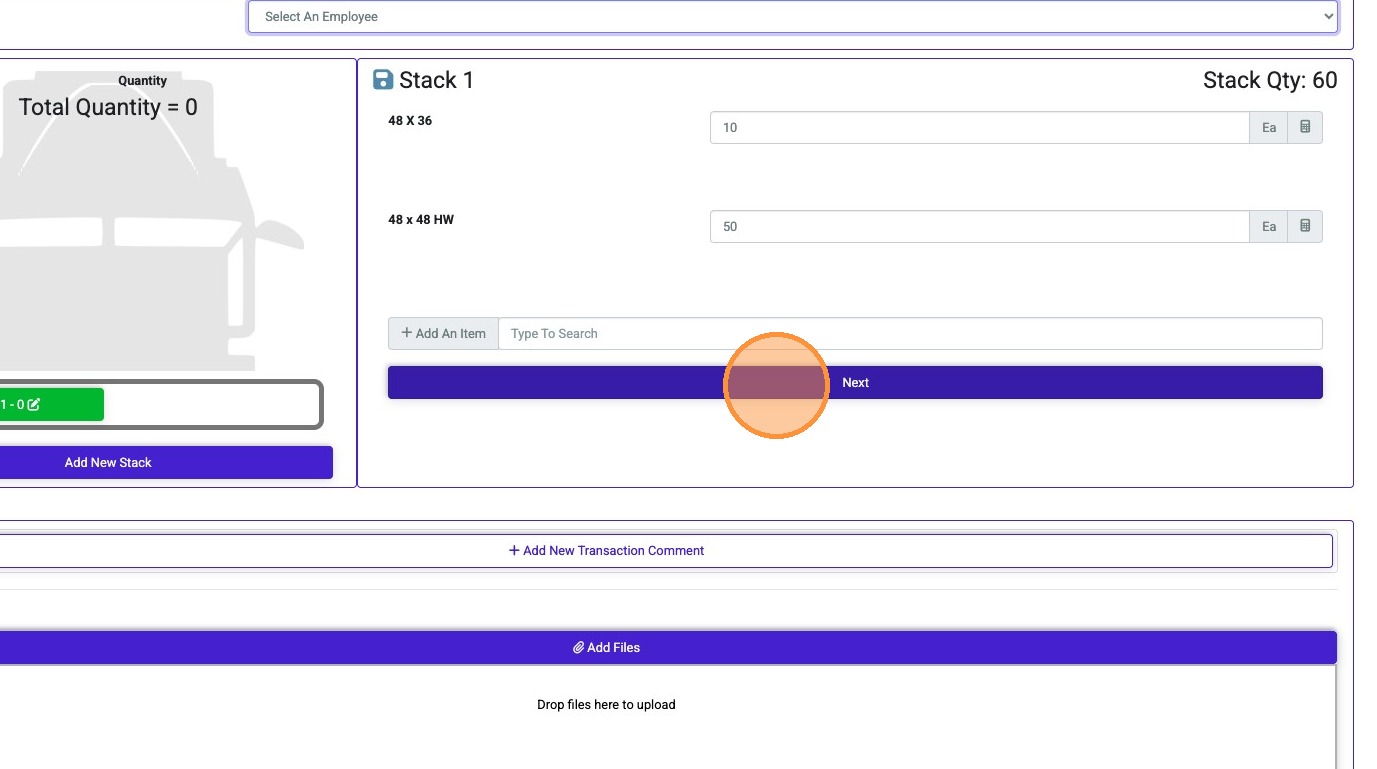
17. If counting by each stack, click "Next" to enter next stack.
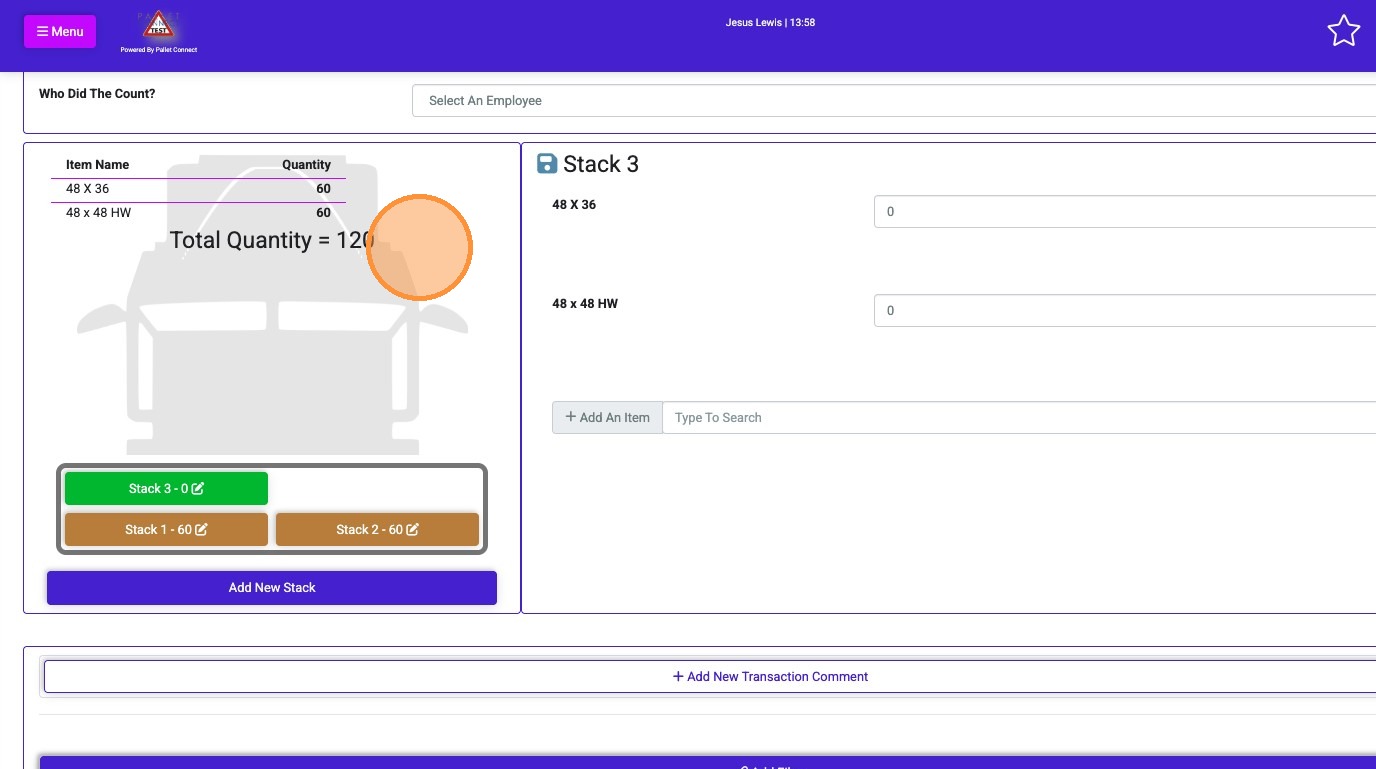
18. The various stacks are displayed and the "Total Quantity" is shown.
19. Once the counts are complete, click "Finalize And Save"
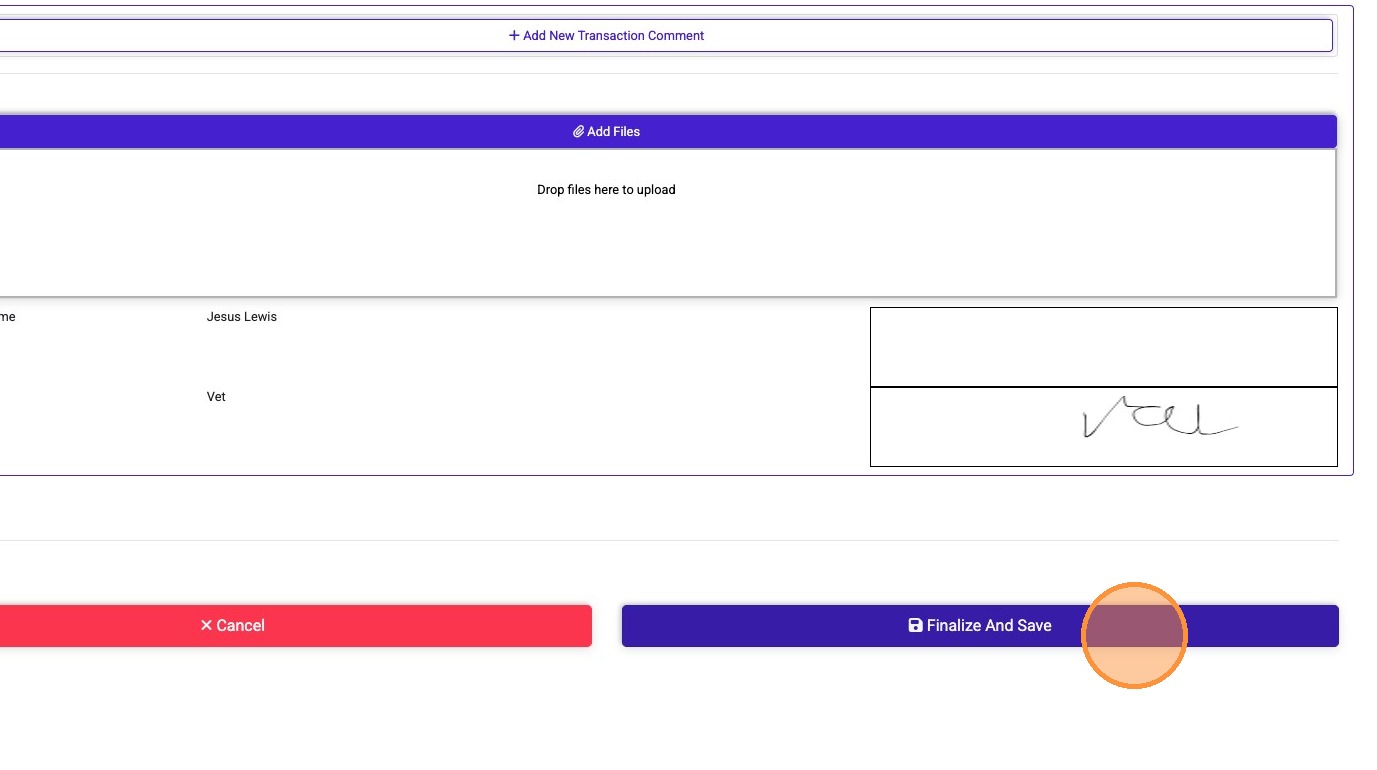
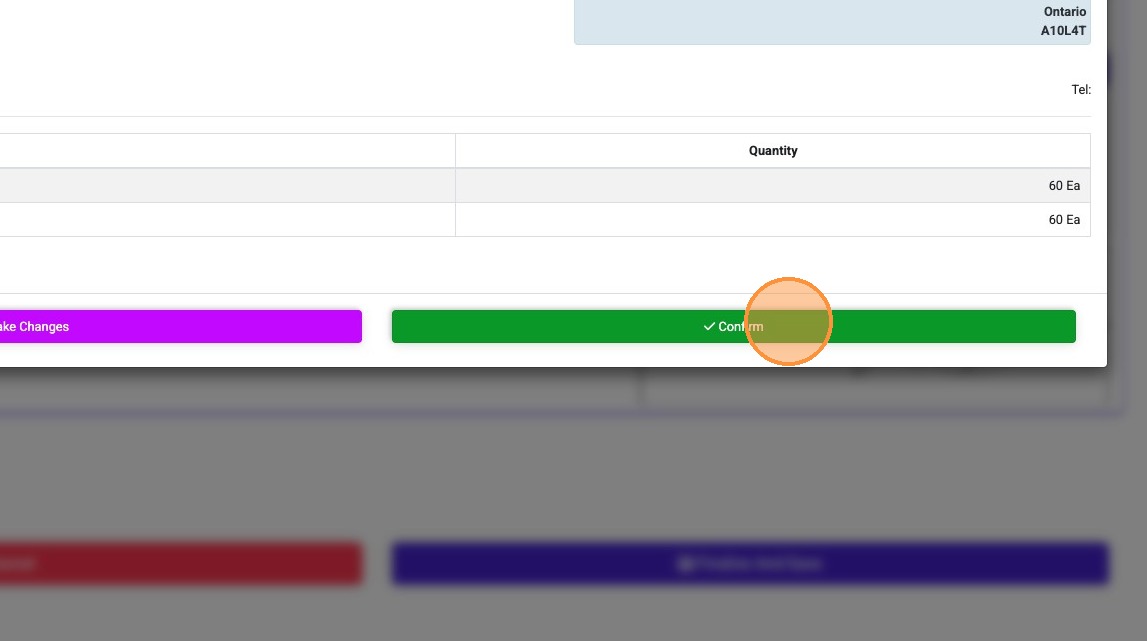
20. review the information and click "Confirm" to complete.
21. The completed pick up is now found in "Transaction History".