
The Affiliate Price Link Report displays the current linked buying and selling prices between a customer/vendor and their linked affiliate. This article provides an overview of this report. NOTE: This is separate from the Price Link Report for non brokered transactions, found in the Stock section of the main menu.
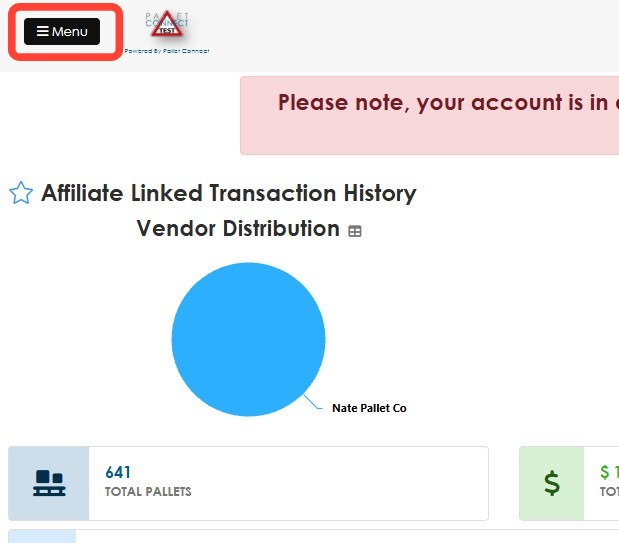
1. Click Menu.
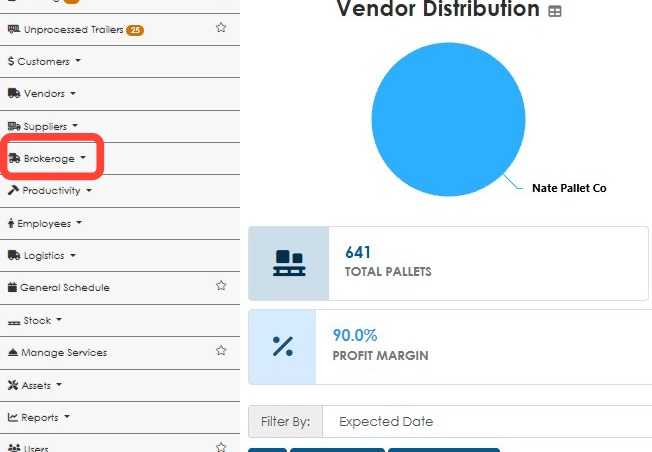
2. Click Brokerage.
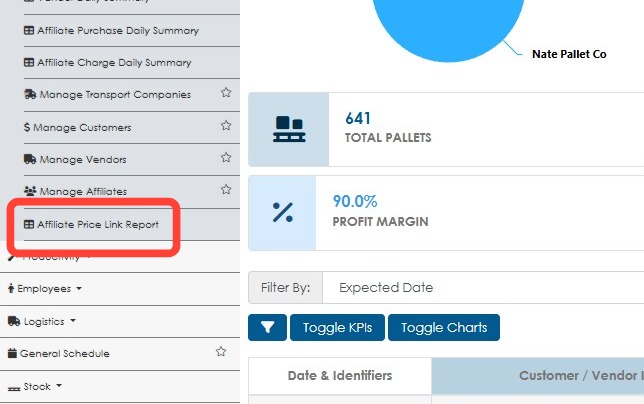
3. Click Affiliate Price Link Report.
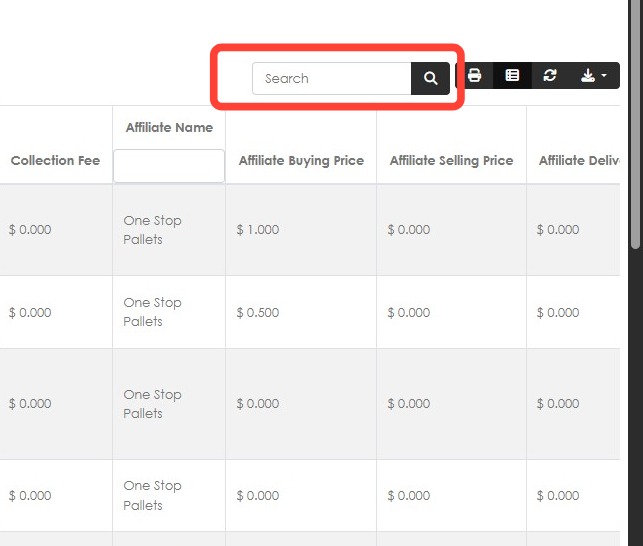
4. The report displays the various linked items and the buying and selling price related to customers, vendors and affiliates. Linked logistic fees can also be shown.
Use the top search bar to filter the report information. For example, search for a company name or a specific stock item.
5. Click Edit Columns to add or remove columns from the report.
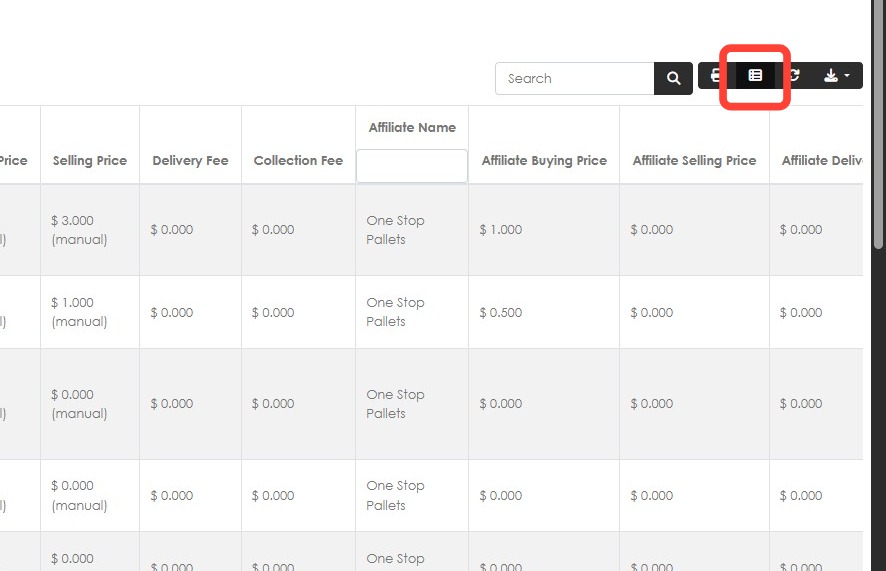
6. Add columns using the + icon in Available Columns and remove them using the red eye icon in Visible Columns, then click Apply Changes.
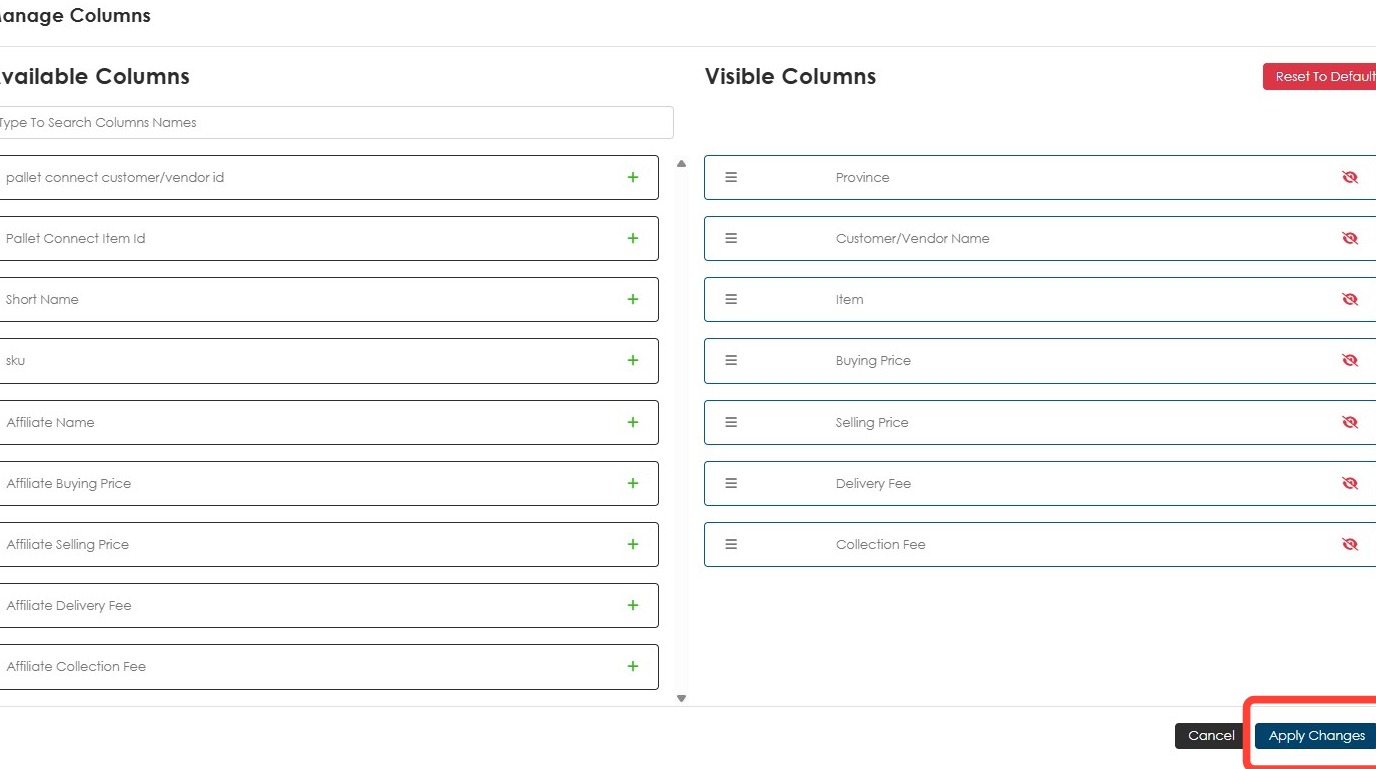
Tip: Tip! Add the Affiliate Name, Affiliate Buying Price, and Affiliate Selling Price columns to view the buying and selling price comparison.
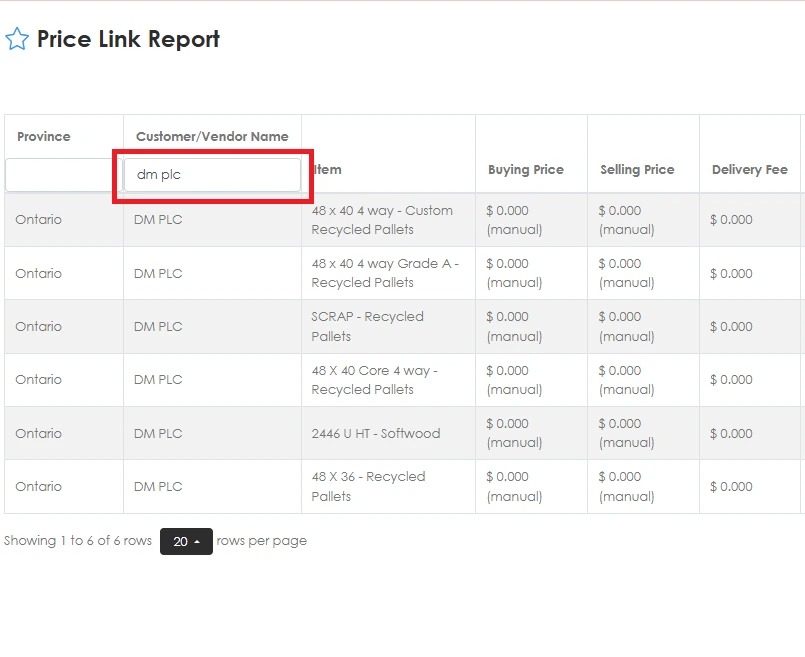
7. Enter the customer or vendor name in the Customer/Vendor Name column then click Enter to filter the results to a specific customer. The same can be done using the Affiliate Name column.
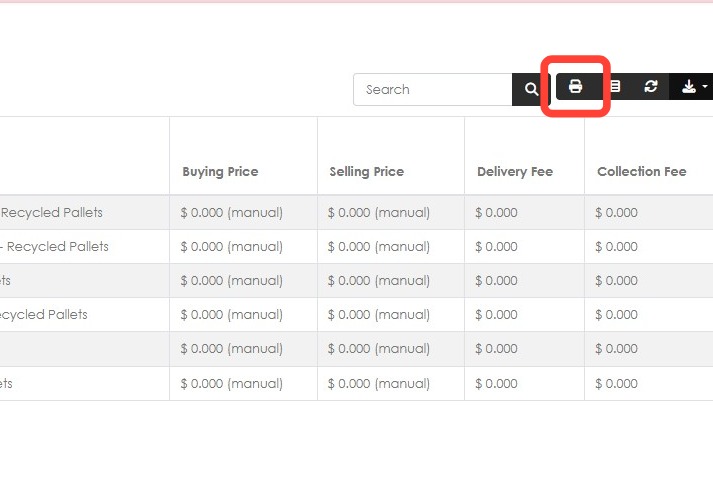
8. Click the Print button to print the report.
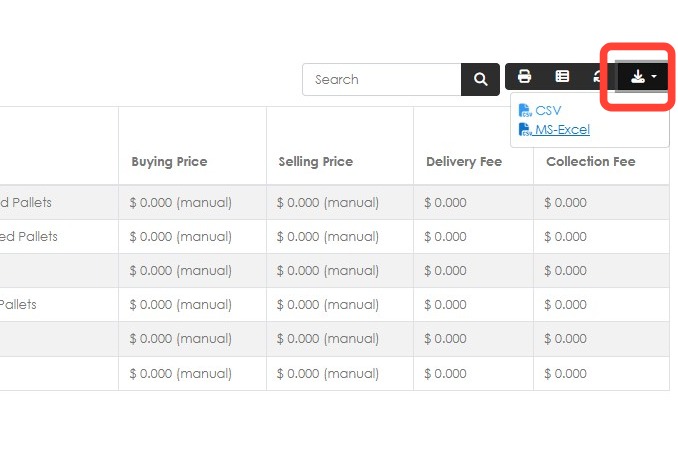
9. Click the Export Data button to export the report to a spreadsheet. Choose between CSV or MS Excel.
Tip: Tip! The Affiliate Price Link Report is for reviewing linked prices only. To make an update, open the applicable Customer or Affiliate profile and update the price from the Linked Customer tab.