Learn how to efficiently download multiple delivery and pickup slips for your orders on Pallet Connect. This guide will walk you through selecting orders and initiating the download process for your records.
1. There maybe times that multiple delivery slips for Customer orders need to be printed at one time. For example, if drivers are not yet set up as users in the system. This article explains how to print delivery slips as a bulk action from the Current Orders page.
NOTE: Delivery slips can be printed individually from the order transaction screen and also the driver schedule.
Production packs (including the delivery slip) can be printed in bulk from the Pending List (see related article)
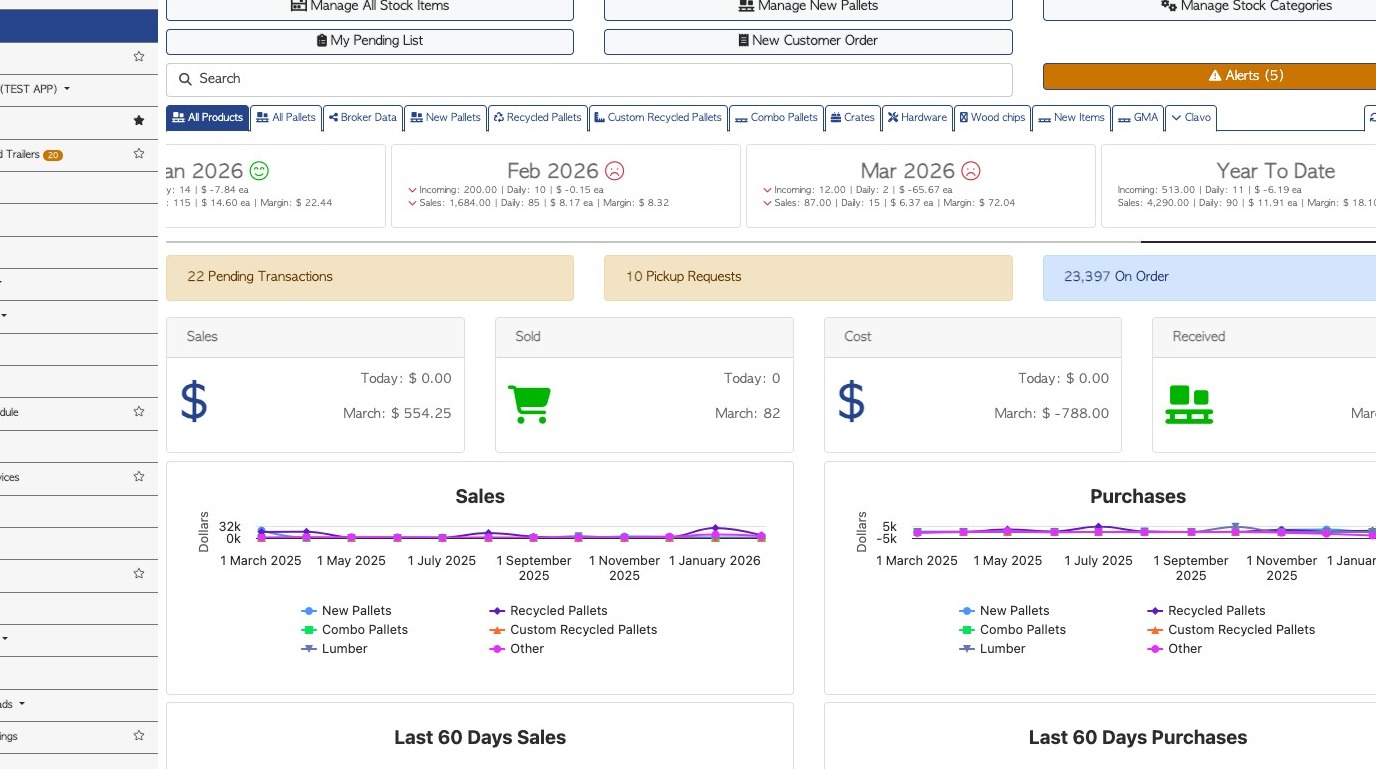
2. From the Main Menu. Click "Customers"
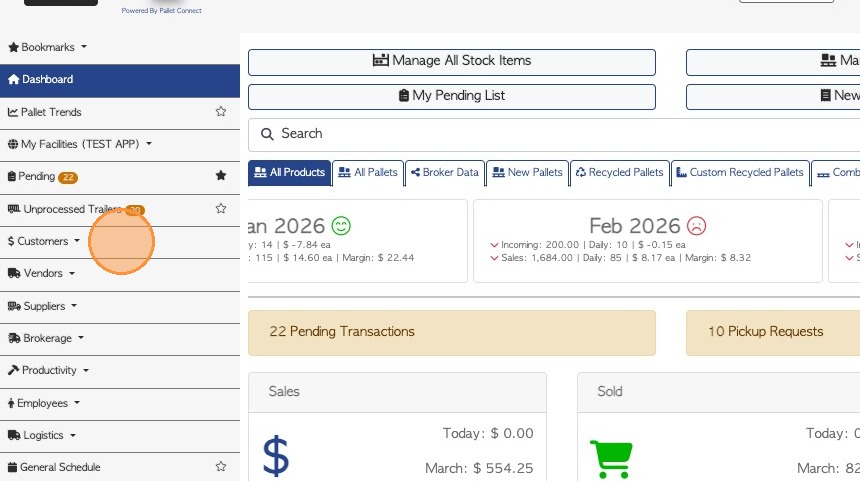
3. Click "Current Orders"
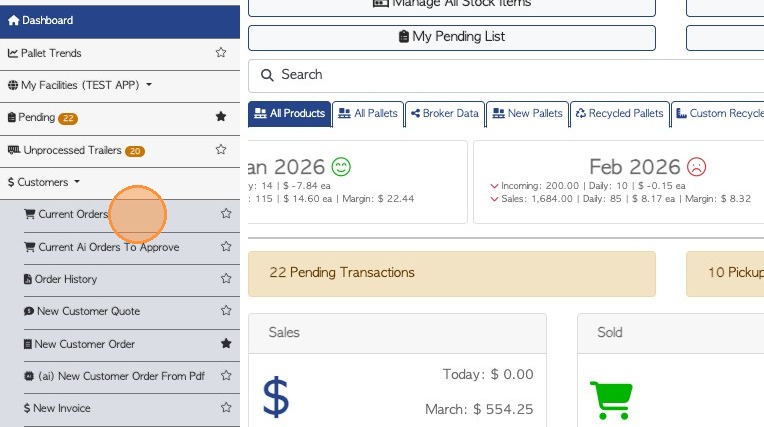
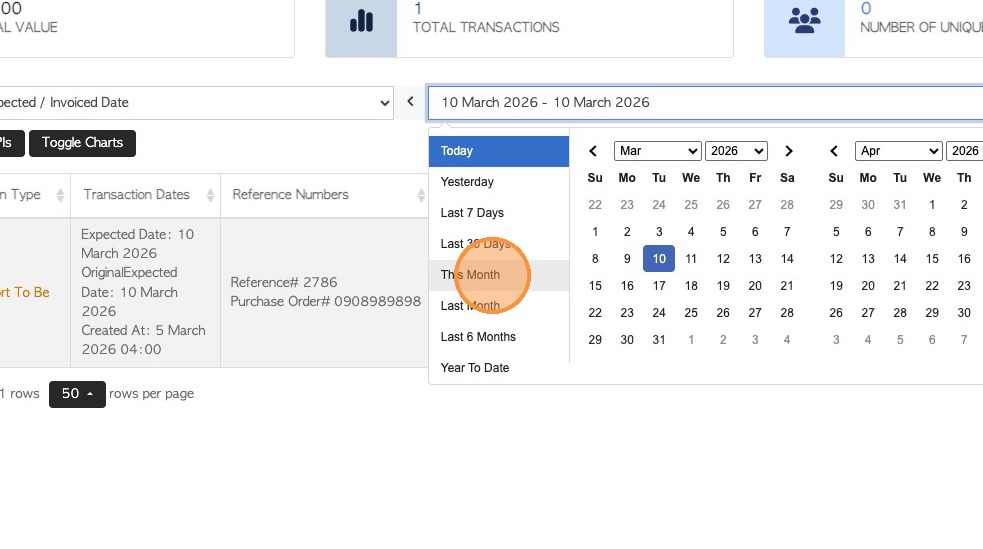
4. Adjust the time frame for the report, if needed.
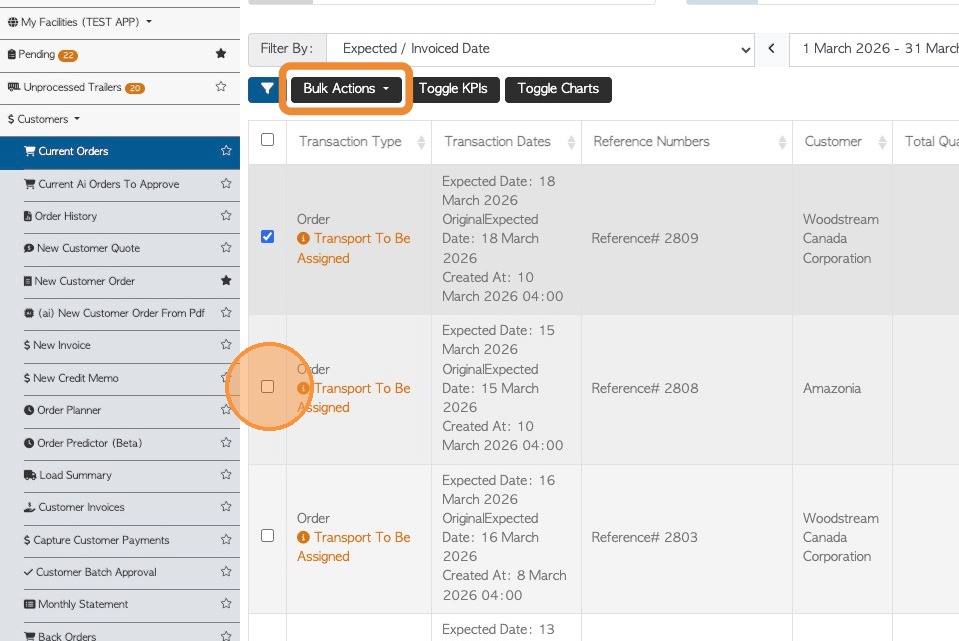
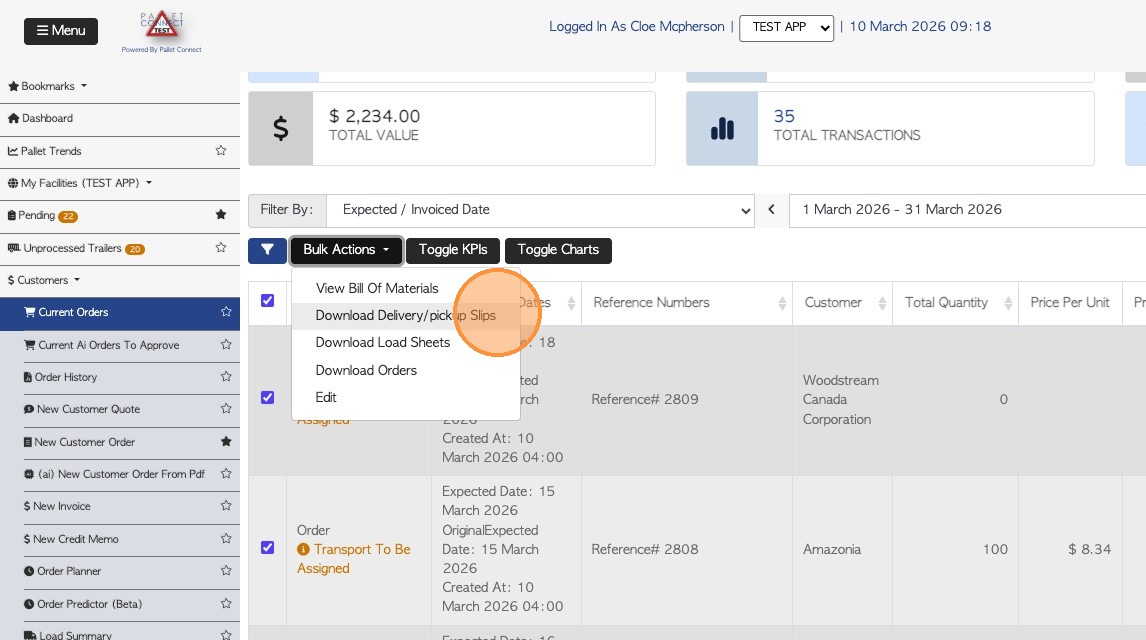
5. Once one of these checkboxes is selected, a "Bulk Actions" button will appear. Select the relevant orders using the checkboxes on the side.
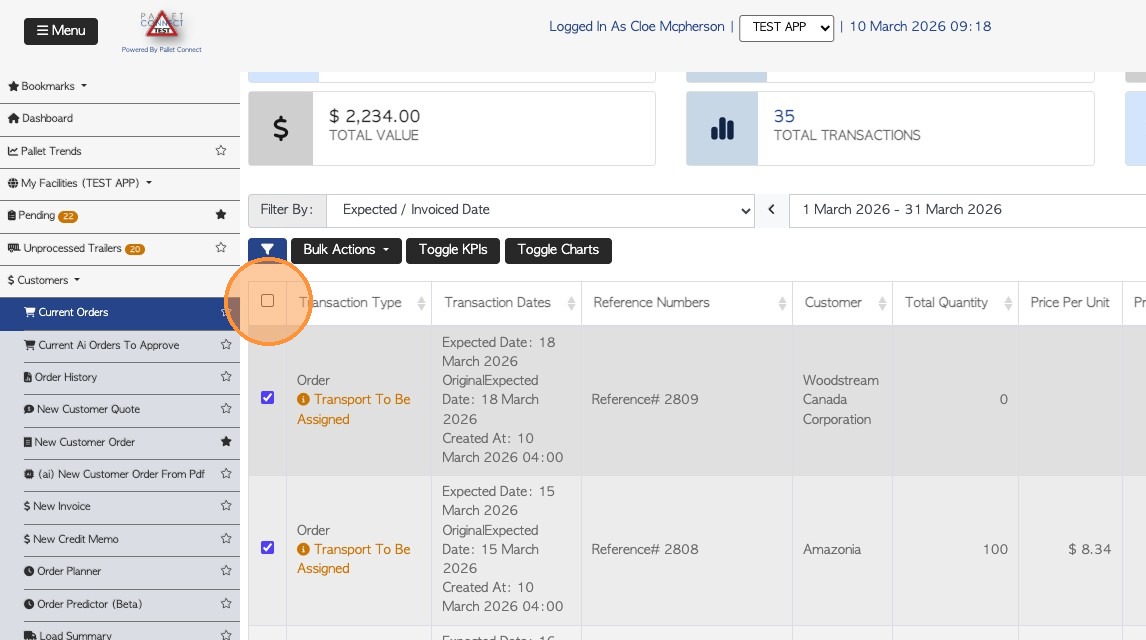
6. Alternatively, click this checkbox at the top of the list to select ALL transactions in the report.
7. Click the "Bulk Actions" button
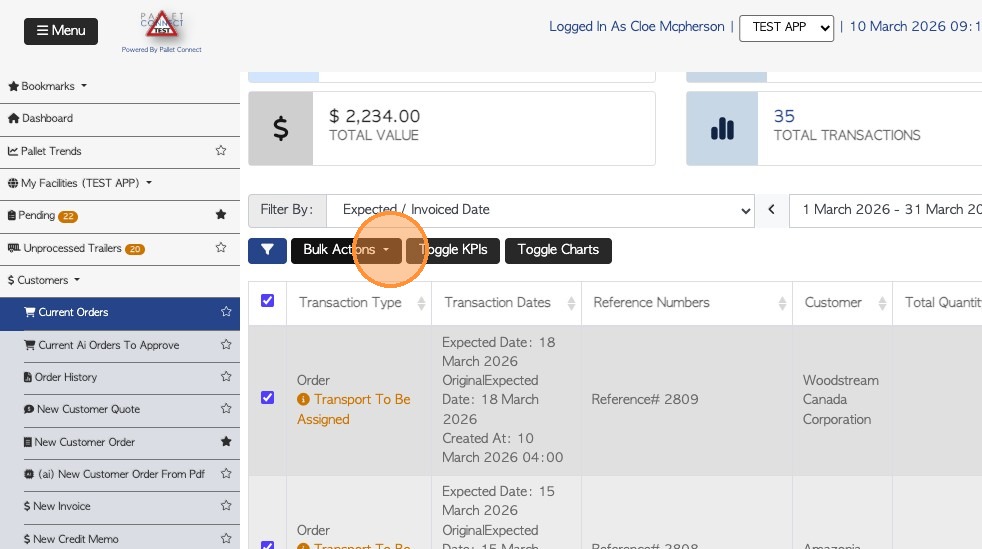
8. Various documents can be downloaded in bulk: Bill of Materials, Load Sheets and a copy of the Order.
Click "Download Delivery/pickup Slips"
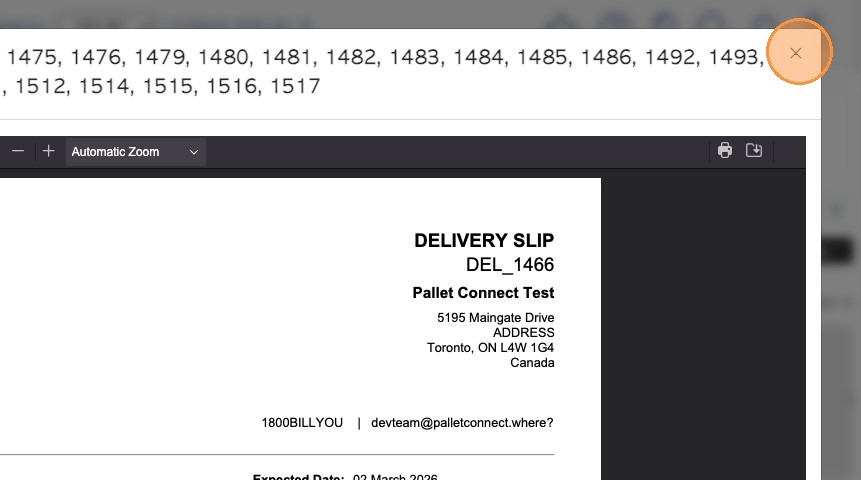
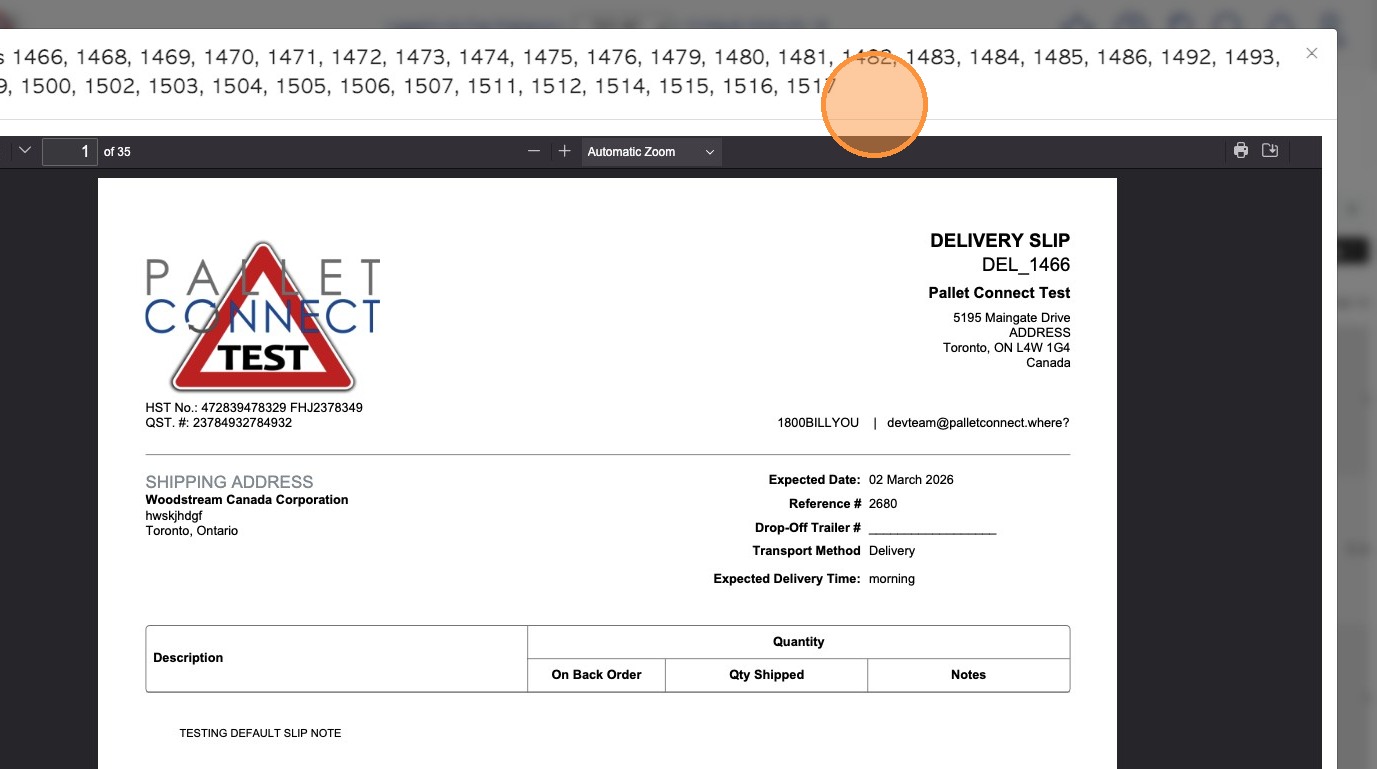
9. The delivery slips will be generated in PDF form and can be downloaded. The document numbers will be listed at the top.
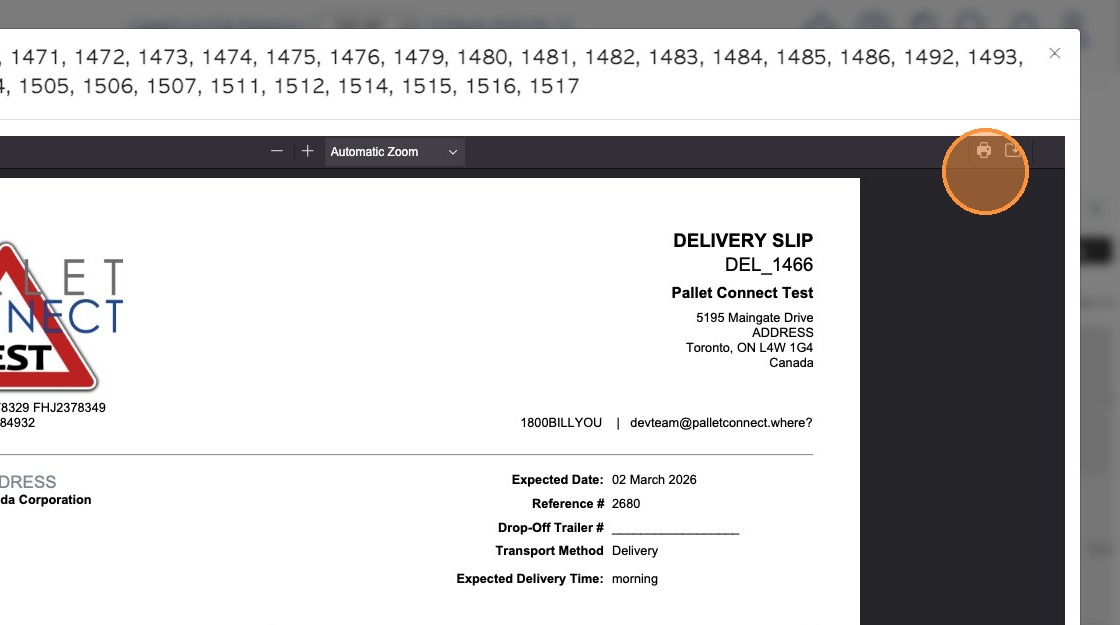
10. The delivery slips can also be printed by clicking on the print icon.
11. Click "×" to return to the Current Orders page.