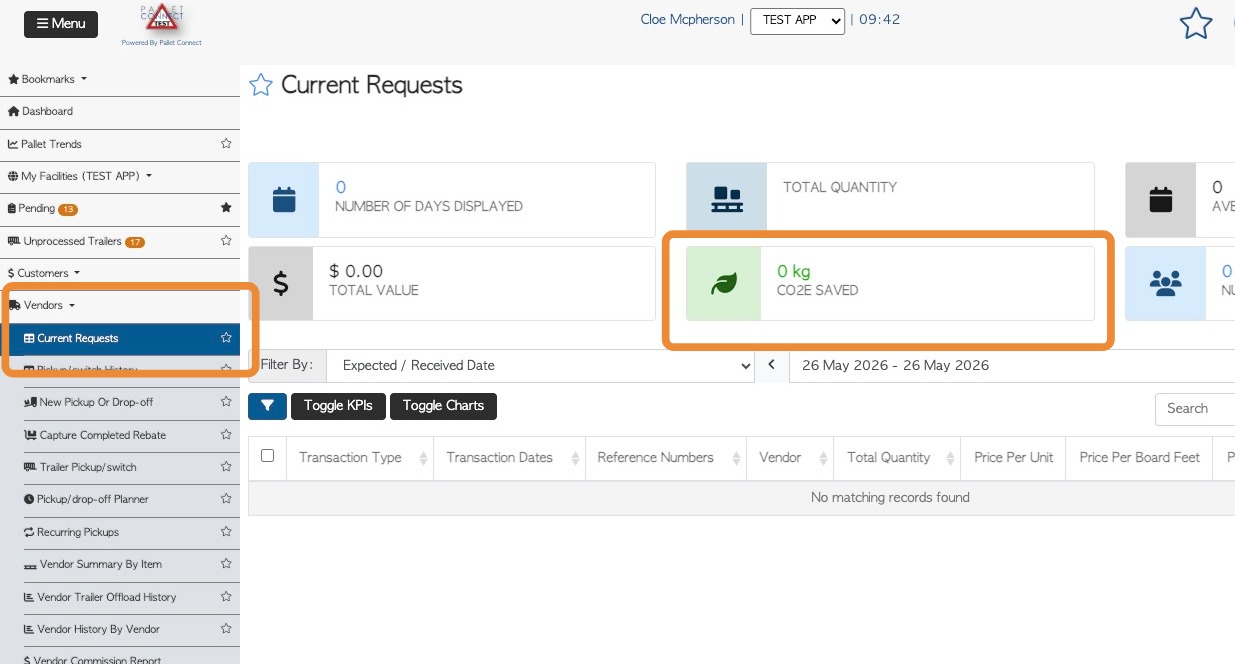
This article provides an overview of the Carbon Savings feature, which is available as a paid add-on in the system.
1. Many pallet companies are finding that their customers increasingly want visibility into carbon savings to better understand and measure environmental impact through quantifiable data. To support this, the feature is intentionally designed to be visible both for users within the system: and to end customers.
This functionality also supports ESG (Environmental, Social, and Governance) reporting by helping businesses track and communicate sustainability efforts.
Carbon savings are calculated on a per-pallet basis. The formula was generated in collaboration with Arbor (Arbor | Carbon Footprint Software & Carbon Accounting Platform) and is on based on real Pallet Production metrics. Arbor is a carbon accounting platform that helps companies calculate and reduce emissions to reach net zero.
The formula is applied to the pallets based on the BOM or dimensions using either (actual or calculated board feet) * (Co2/board foot).
ENABLE FEATURE: From the main menu, select "Settings" from the sidebar menu.
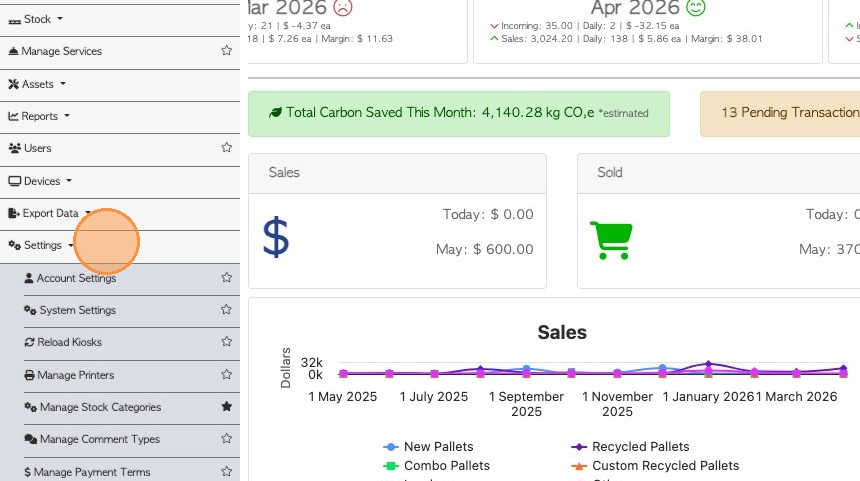
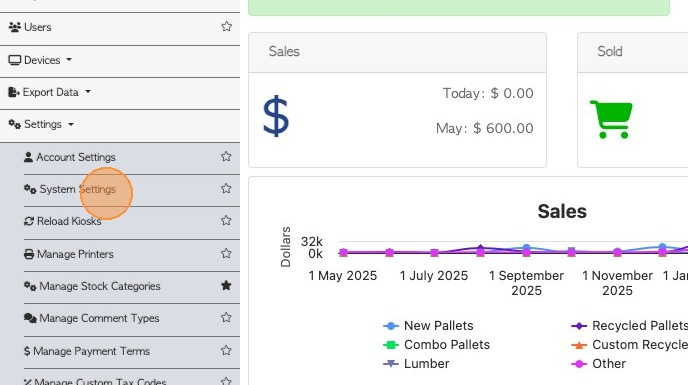
2. Click "System Settings".
3. Click "Features"
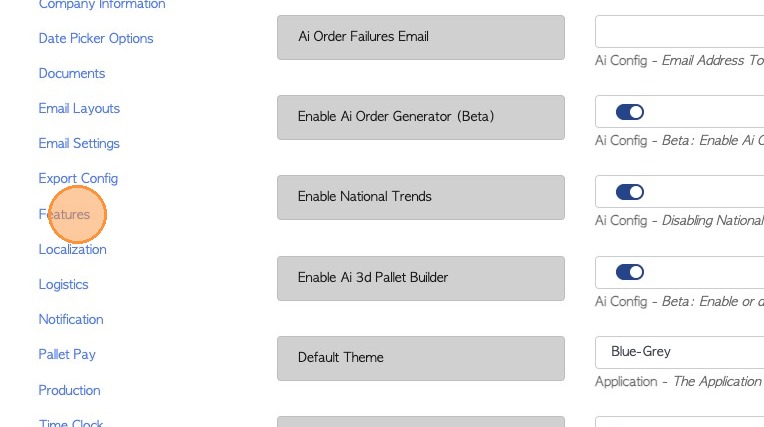
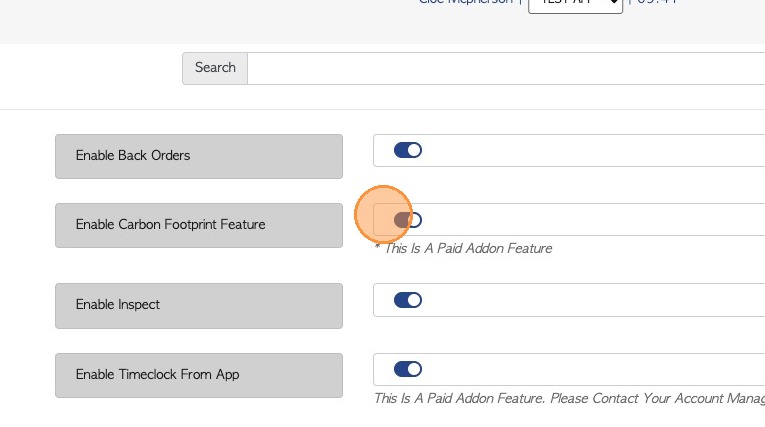
4. Toggle on "Enable Carbon Footprint Feature".
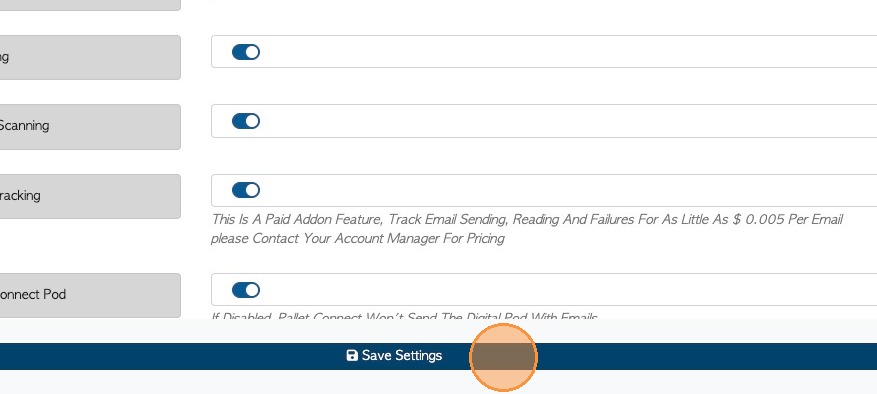
5. Click "Save Settings" to update your configuration.
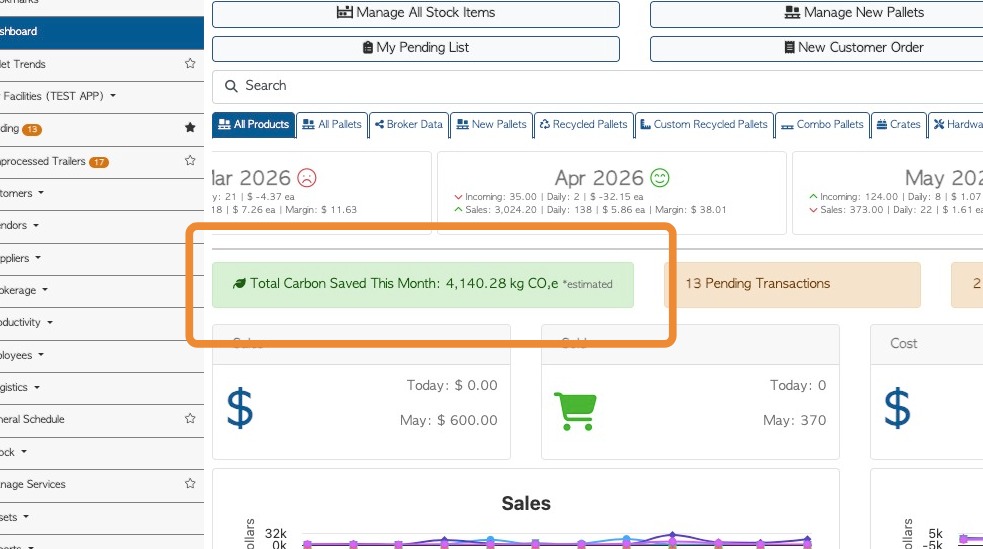
6. VIEW FROM DASHBOARD: The carbon savings KPI will be visible on the dashboard.
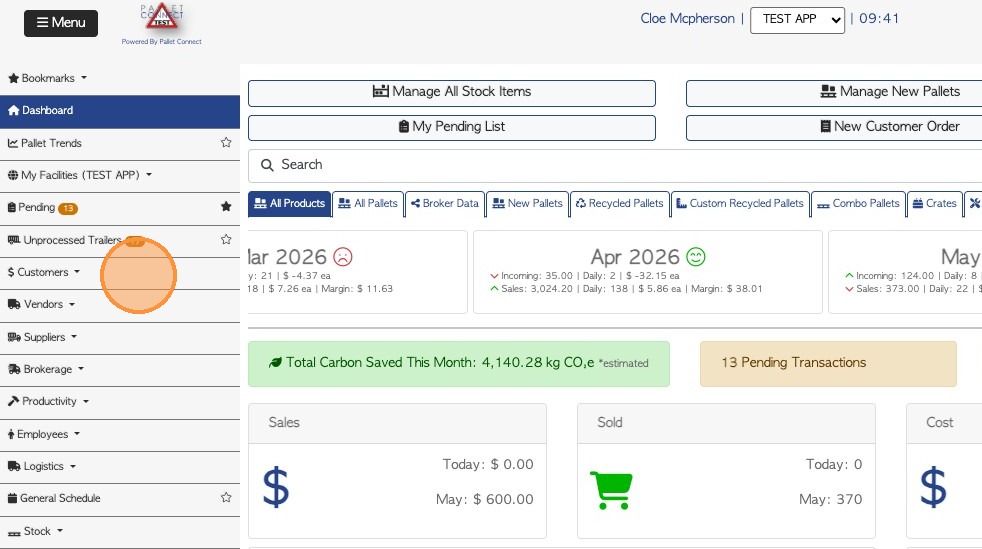
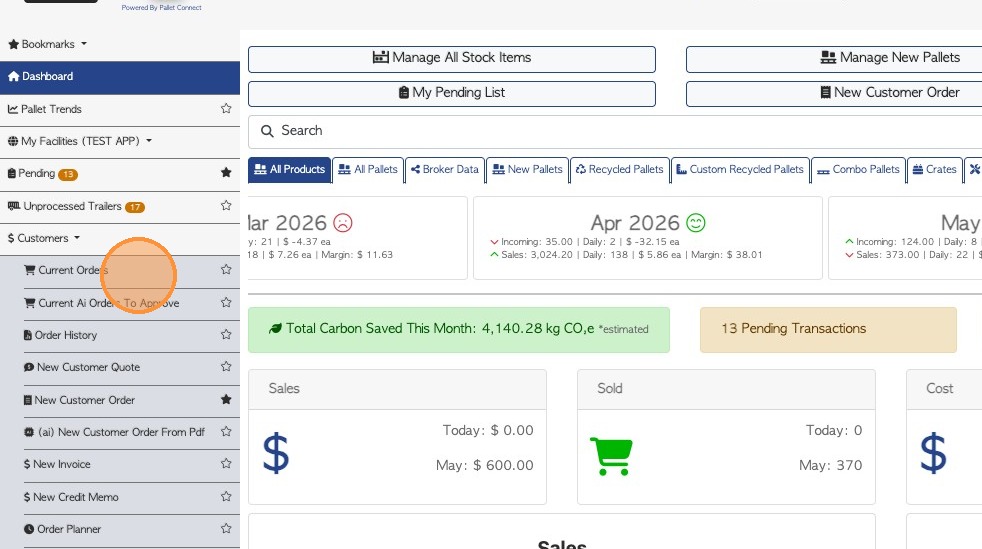
7. VIEW FROM ORDER PAGE: Click on "Customers" category in main menu.
8. Click "Current Orders".
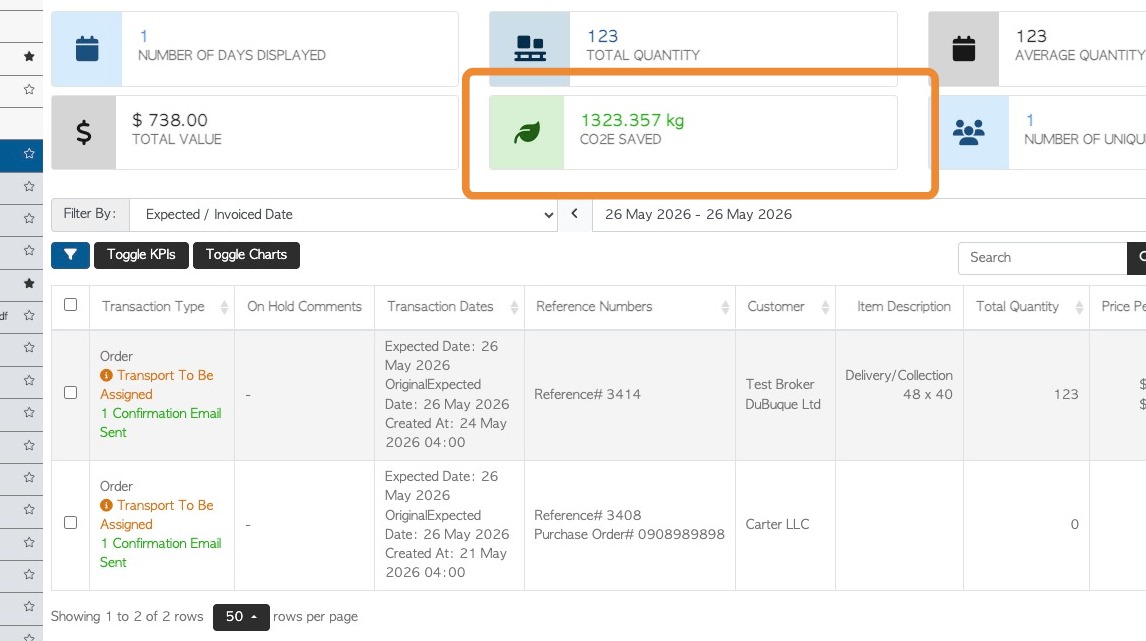
9. The CO2e Saved KPI tile is visible within the Current Orders page view.
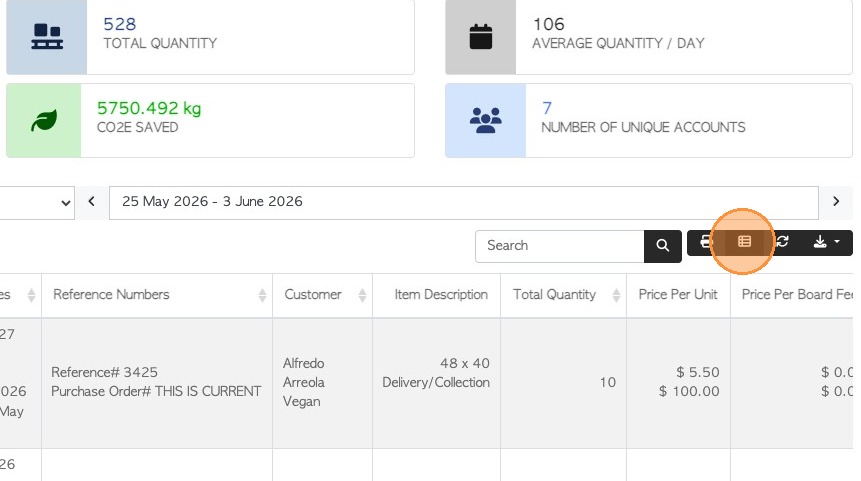
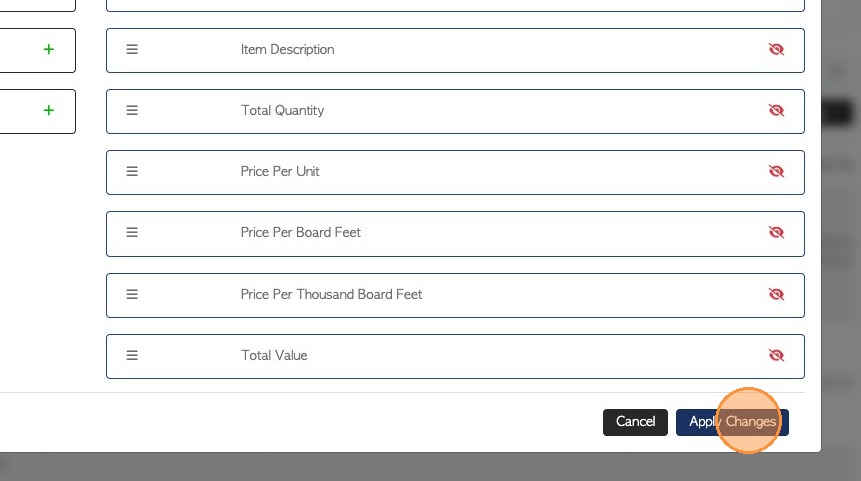
10. To ensure that the correct columns are visible for the report, click here, on the list icon.
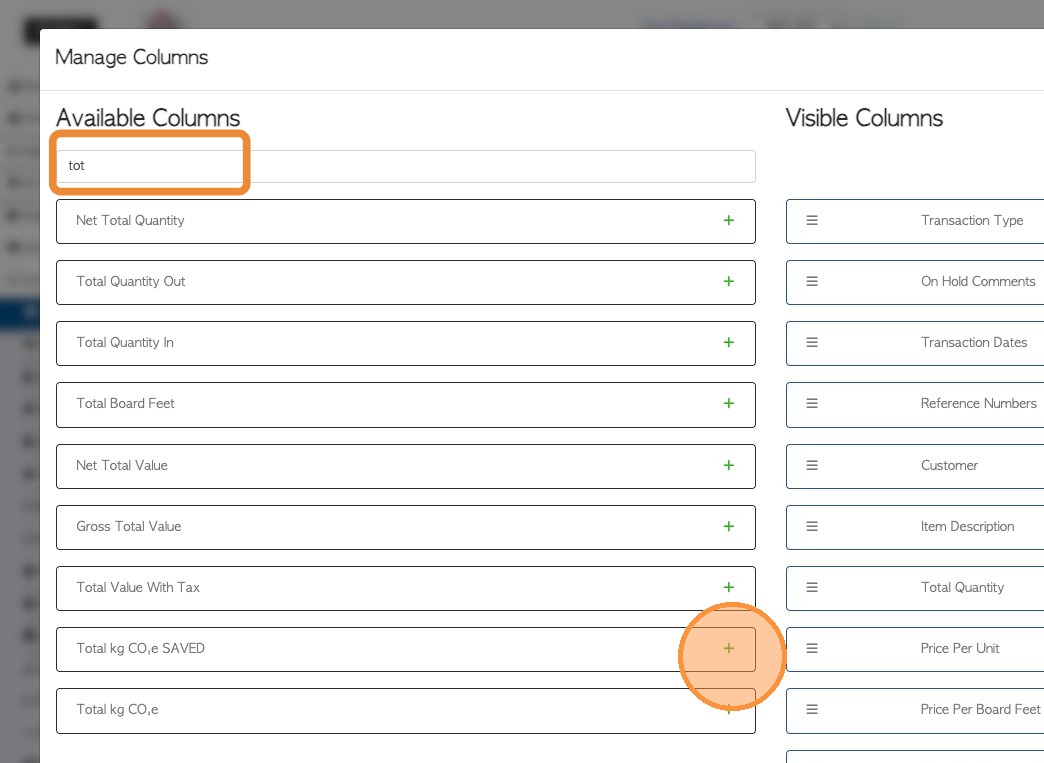
11. Search for "Total kg CO,e saved" and "Total kg CO,e". Then click on the plus button to make visible.
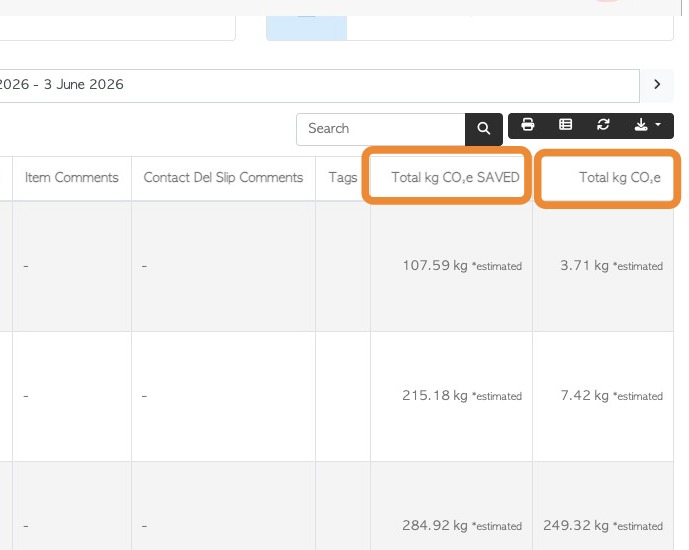
This will show the total produced and the total saved.
12. Click "Apply Changes" to save.
13. The data is now available on the report.
The list can be downloaded and printed, if needed.
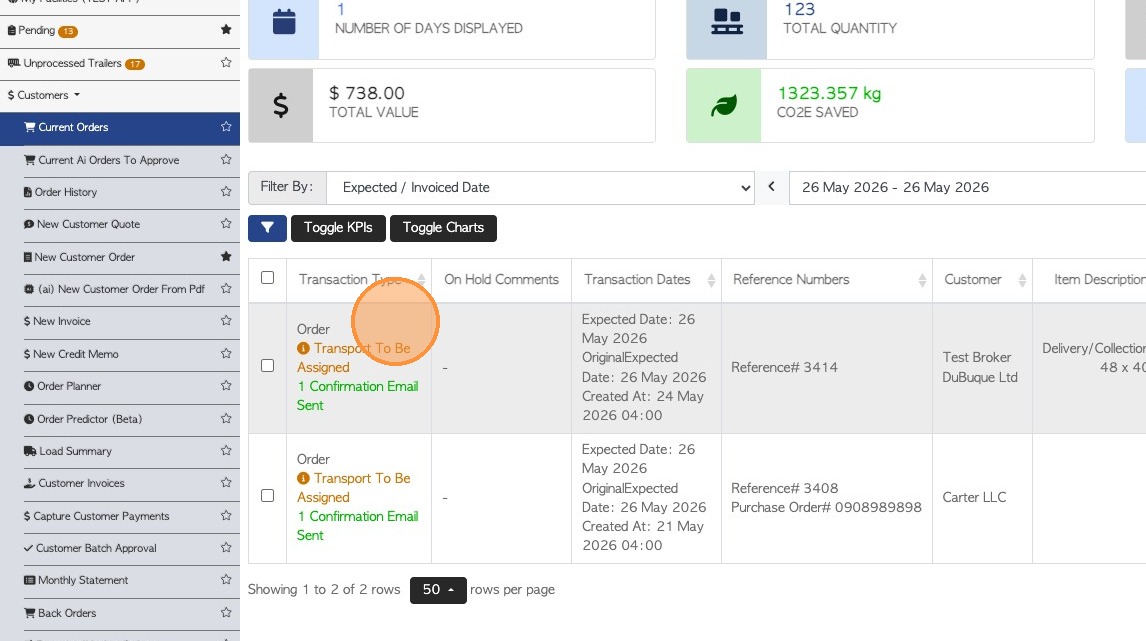
14. VIEW FROM TRANSACTIONS: Click on a current Customer Order from the list, on either the Current Orders of Order History page.
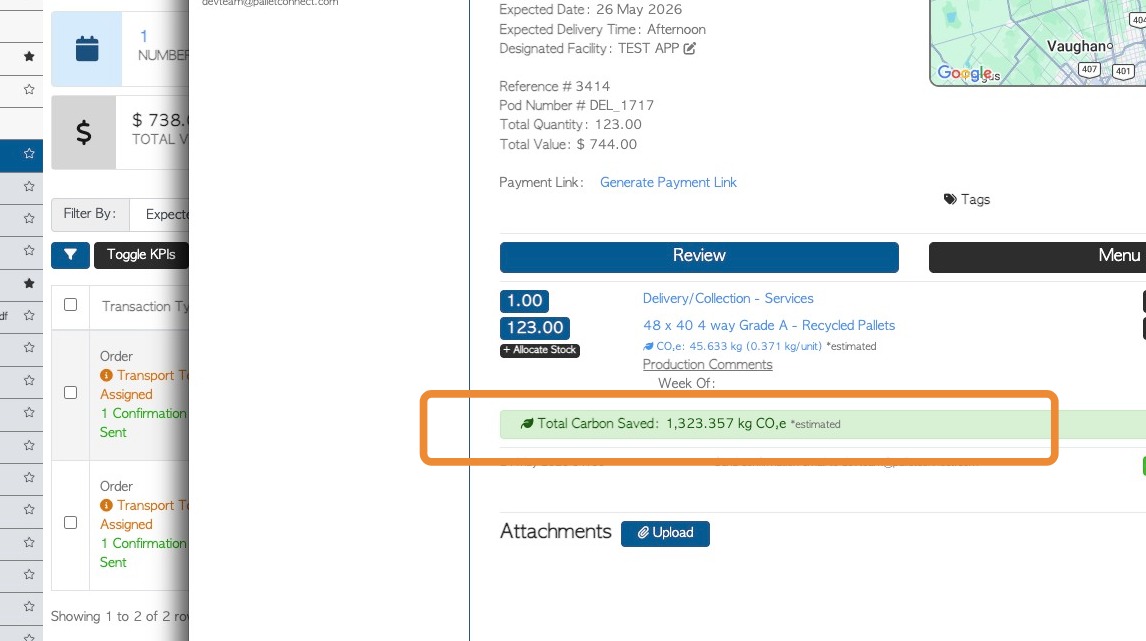
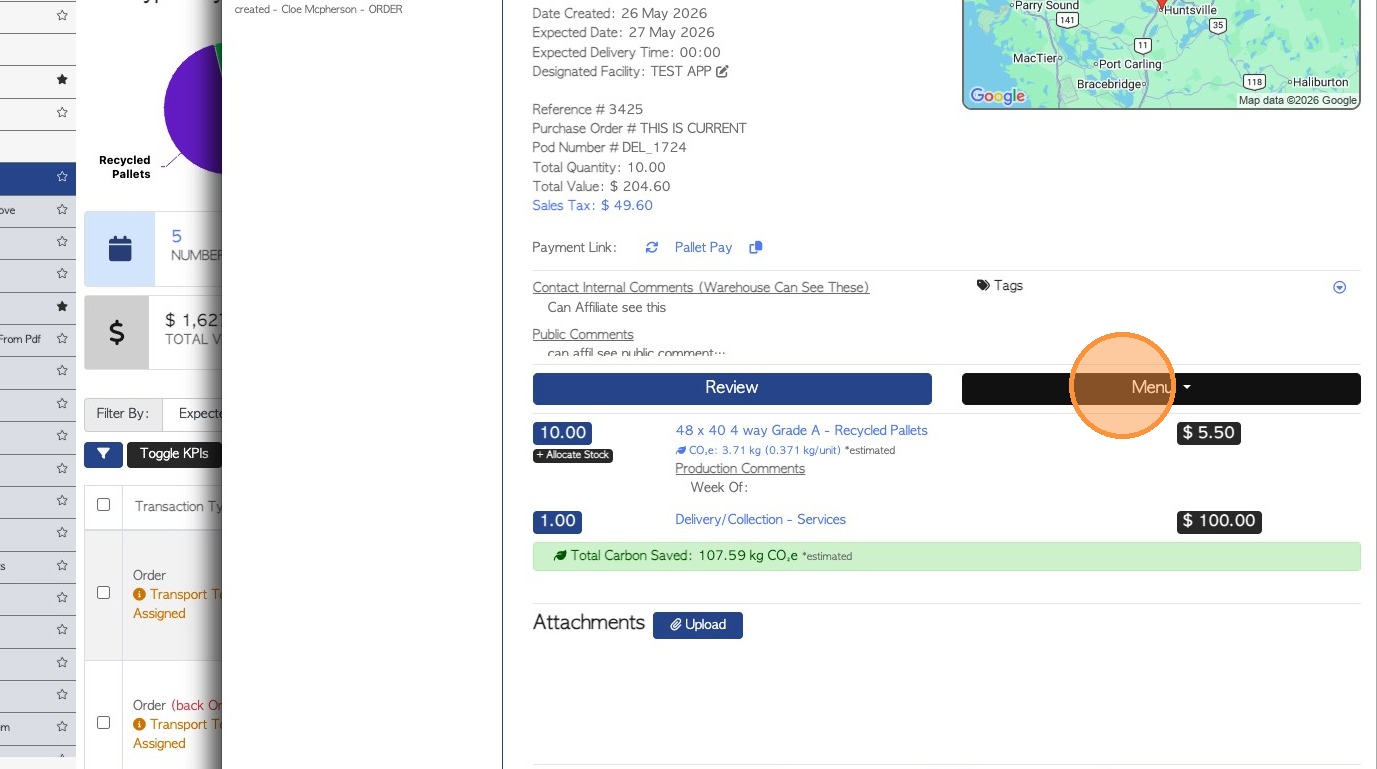
15. The Total Carbon Saved will show on the slide out transaction screen.
16. Click "Menu"
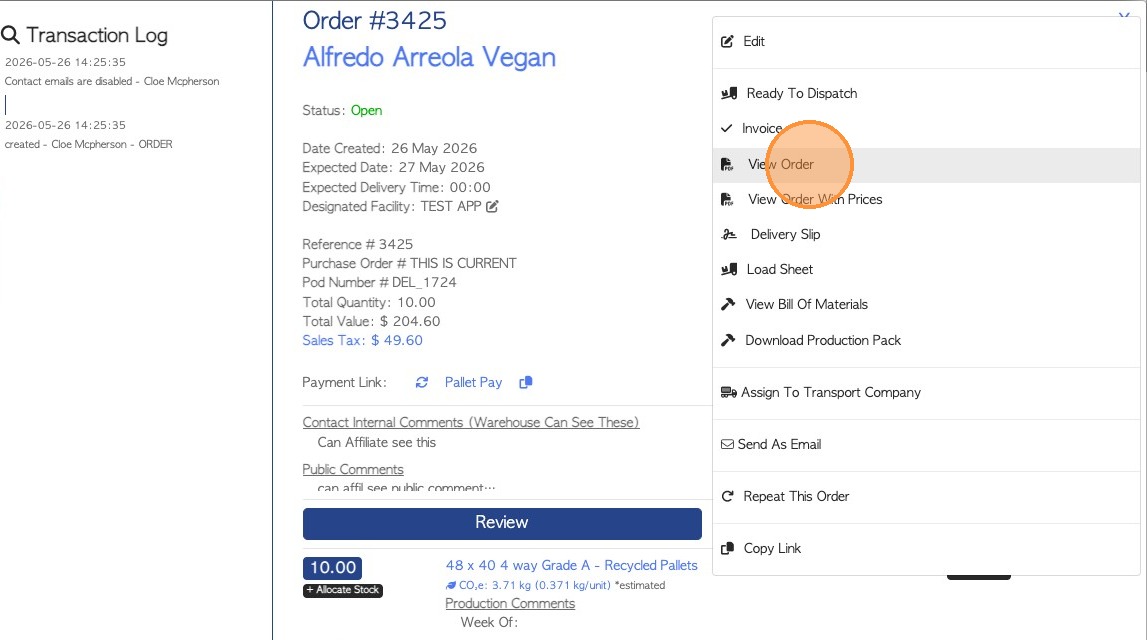
17. Click "View Order" to review the Order version that is sent to the Customer.
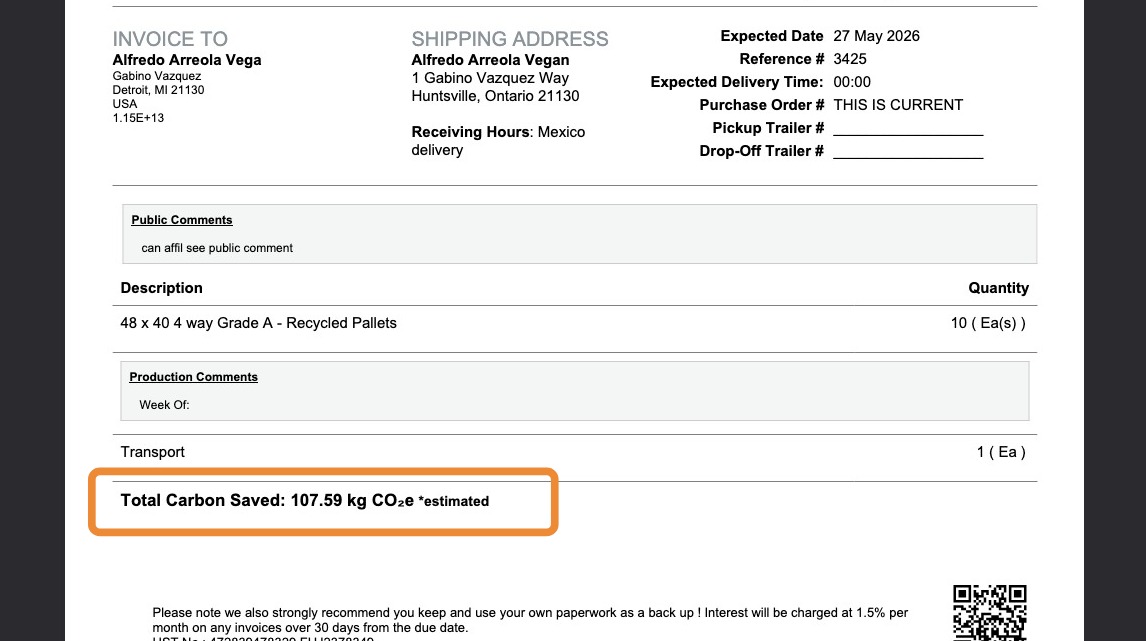
18. The Total Carbon Saved will be displayed for the Customer.
TIP! This information will also be shown in the Customer Portal.
19. NOTE: This information will be available for Vendor transactions too.