Cost of Goods Sold (COGS) Report Overview
Made by Eva Marie Manguilimutan with Scribe
Learn how to use the Cost of Goods Sold (COGS) report in Pallet Connect to review the quantity of items sold, total revenue, component costs, and material usage. The report also provides average selling prices, total costs, total profit, average cost and profit per unit, and the calculation method used to determine costs. This helps users evaluate product costs, monitor profitability, and identify items that may be selling below their production cost.
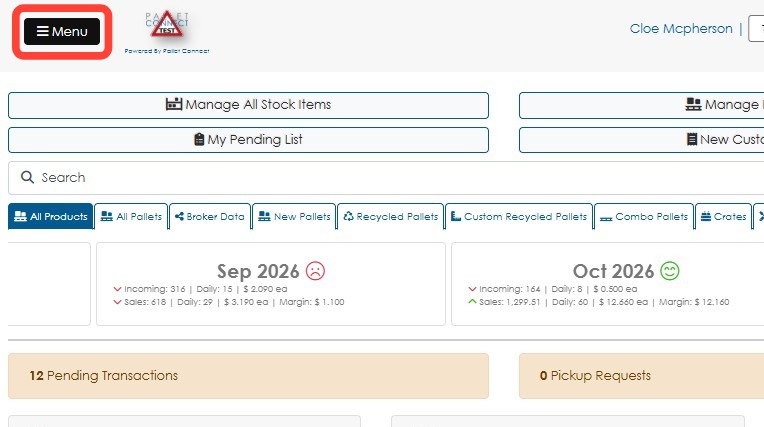
1. Click Menu.
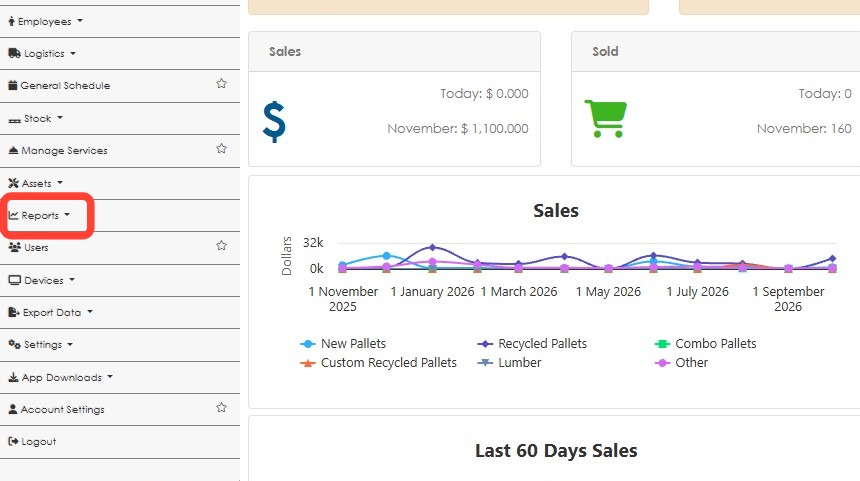
2. Click Reports.
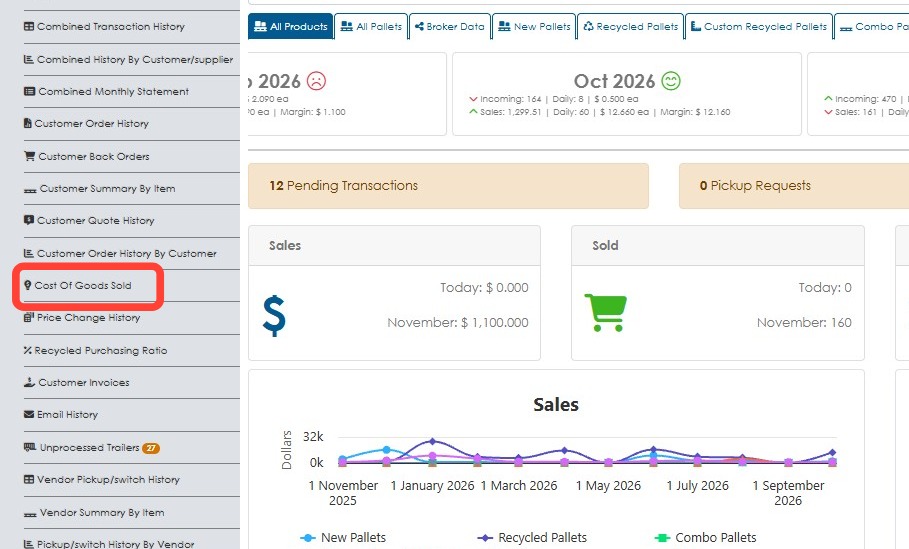
3. Click Cost Of Goods Sold.
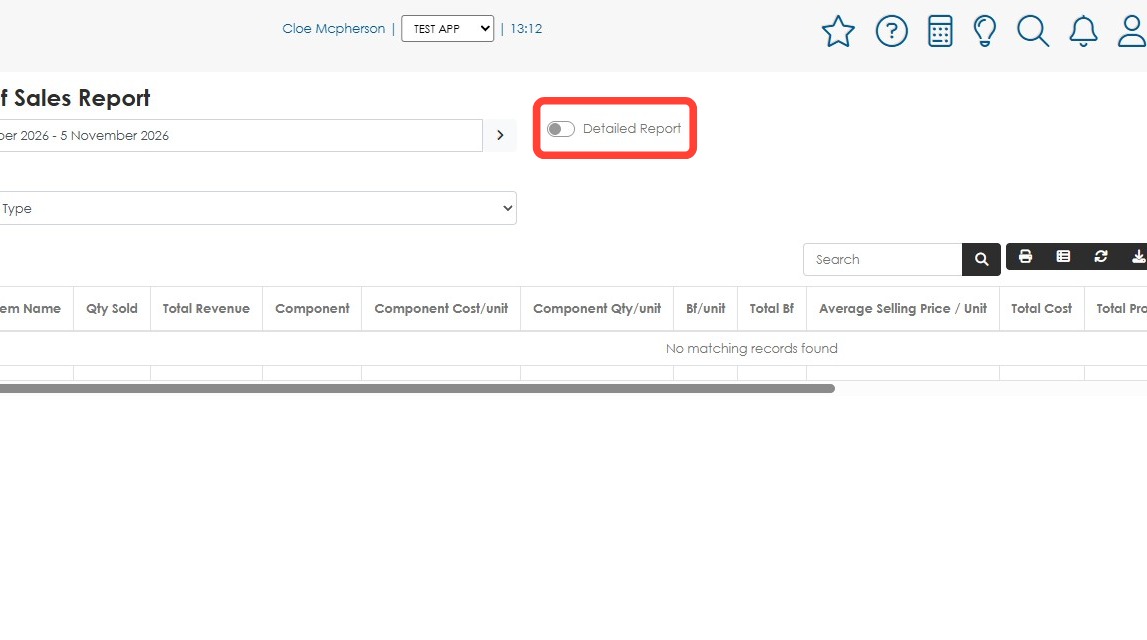
4. Toggle on Detailed Report to display additional report details.
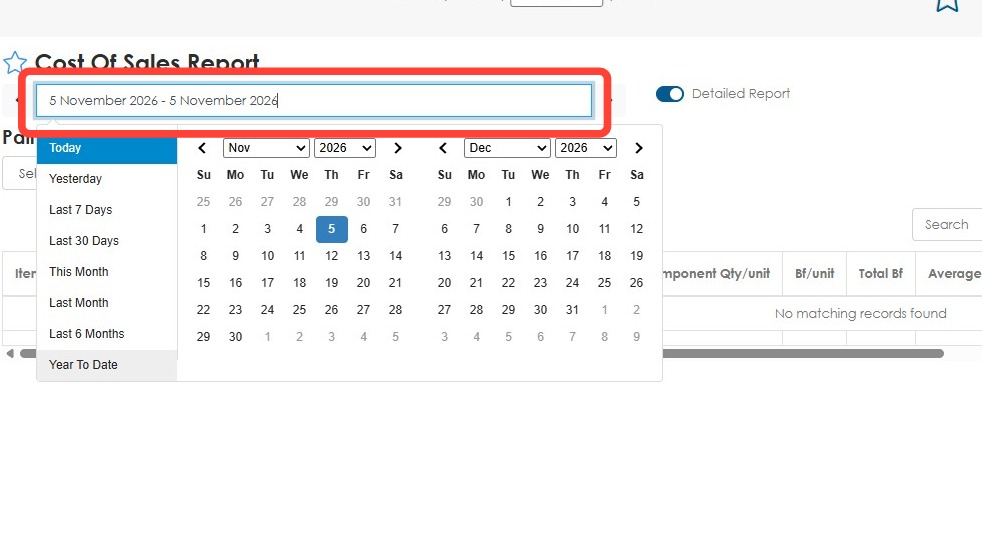
5. Click the date range selector to choose the reporting period.
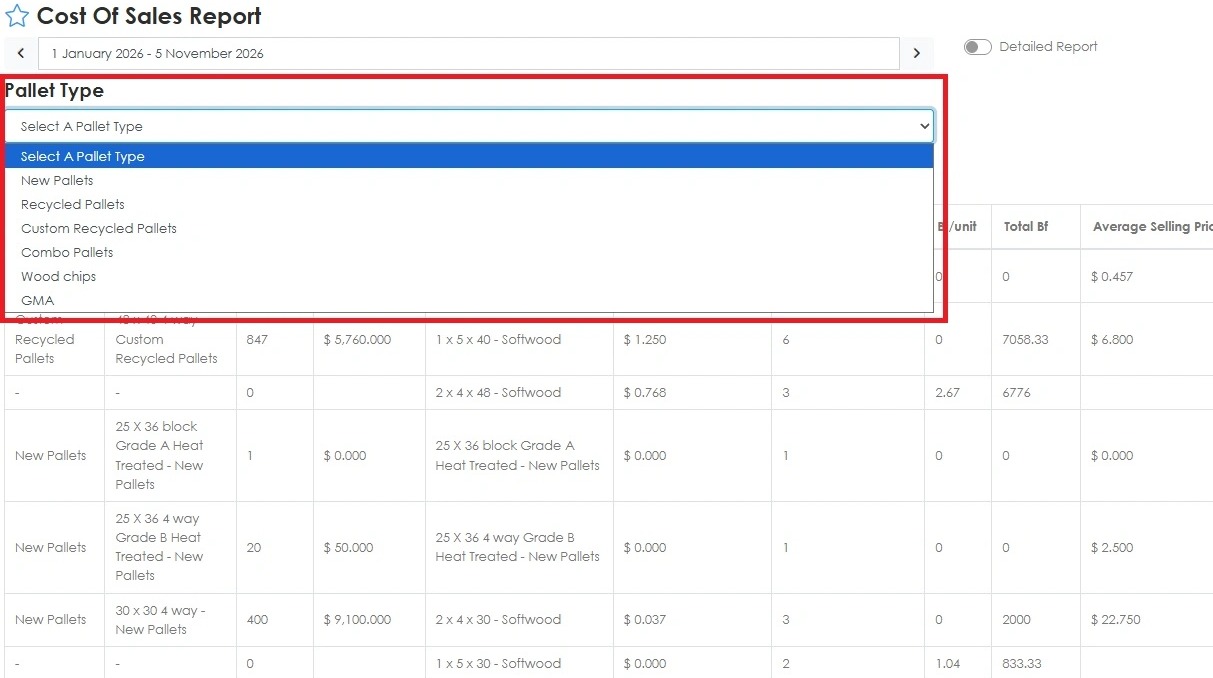
6. Select a Pallet Type from the dropdown to filter the report. To view all pallet types, choose Select a Pallet Type.
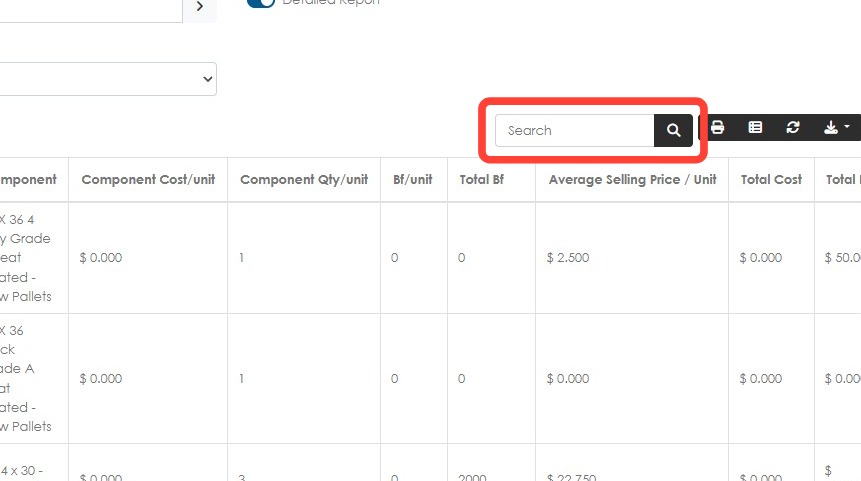
7. Use the Search field to search for a specific pallet.
8. Click Edit Columns to add or remove columns.
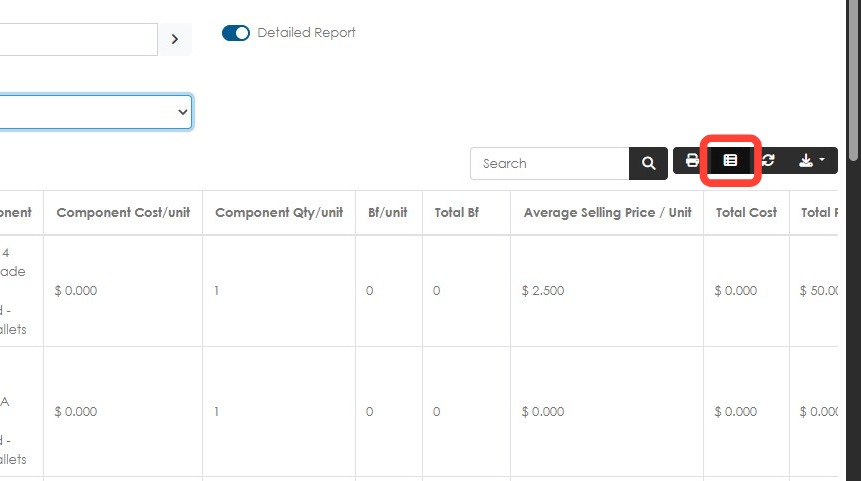
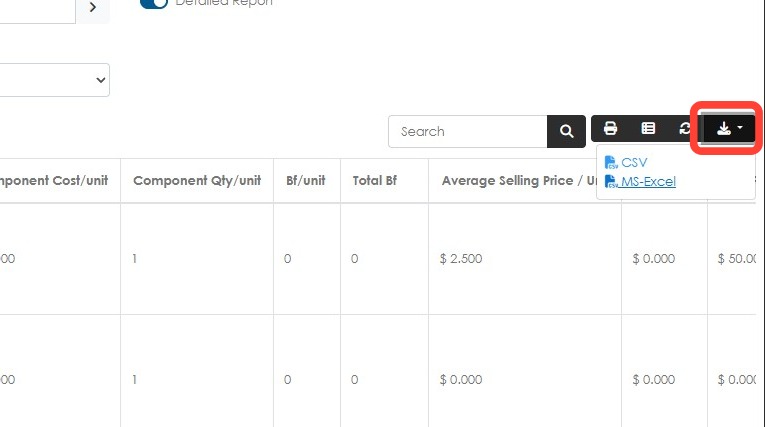
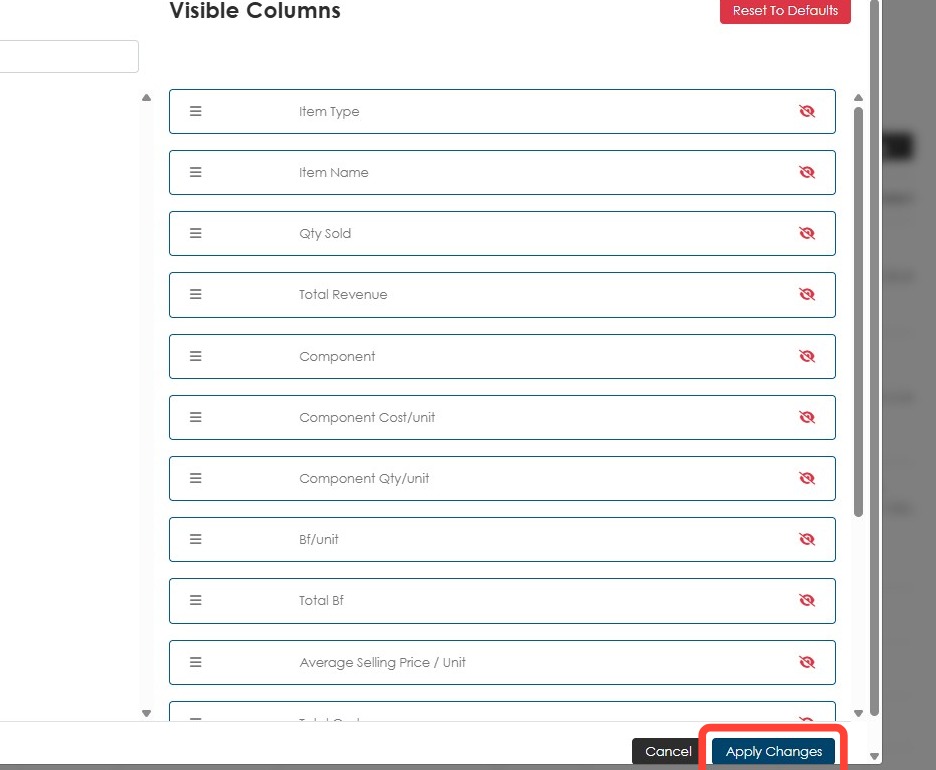
9. Click the plus (+) icon to add columns. Click the red eye icon to remove columns. Drag the column name to rearrange their order.
Click Apply Changes to save.
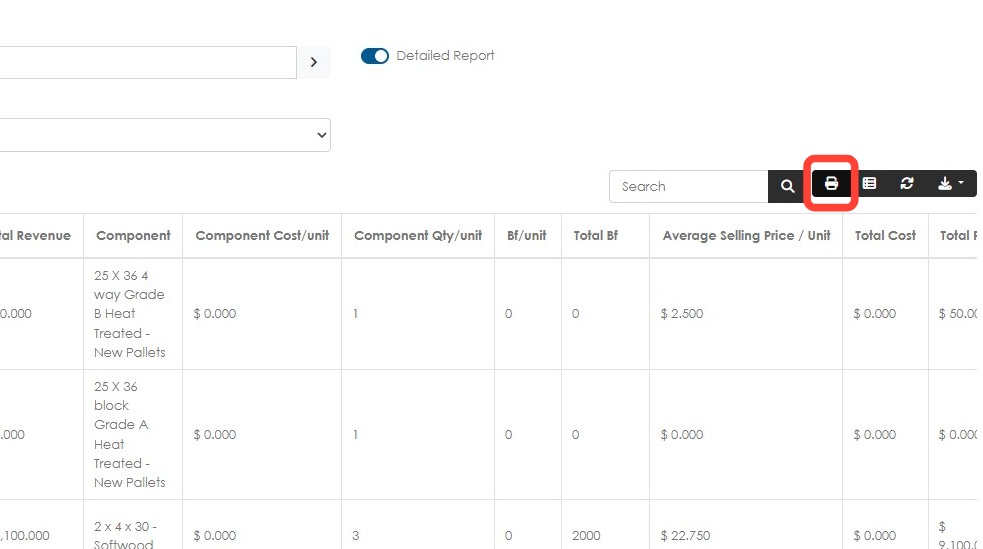
10. Click the Print button to print the report.
11. Click Export data to download either a CSV or MS Excel file.