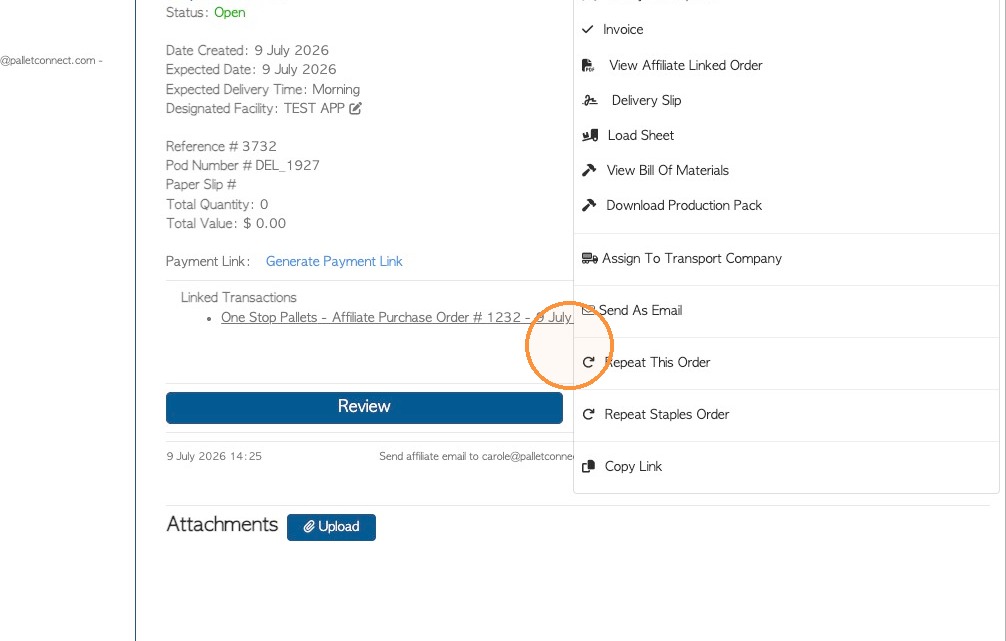
Learn how to efficiently generate a new affiliate linked customer order by order templates. This guide walks through the process to streamline your order management workflow.
1. Click "Customers" in the main menu.
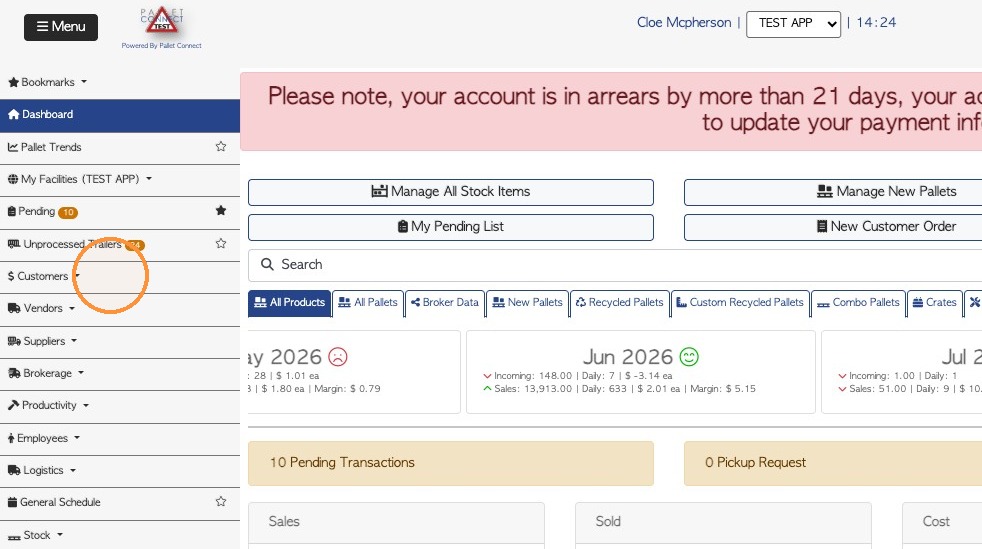
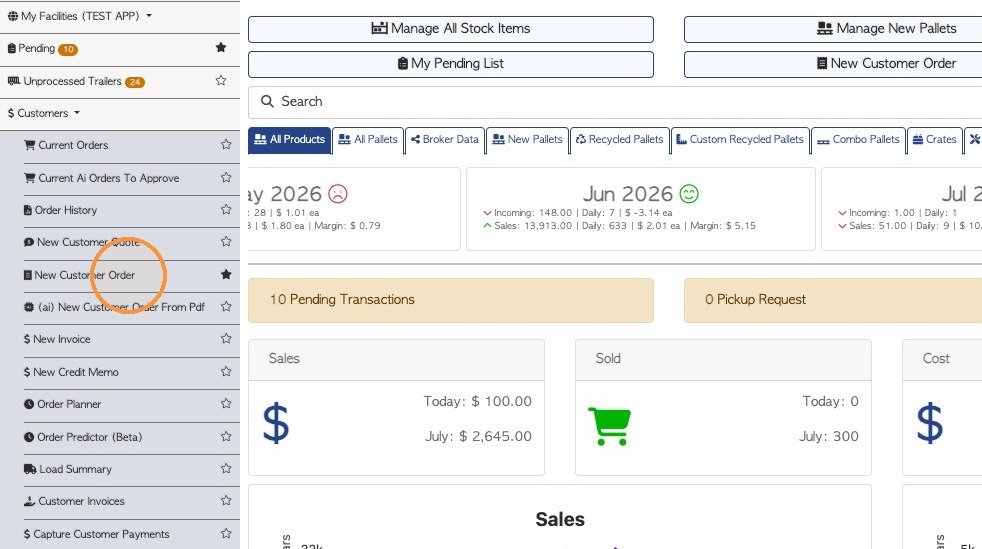
2. Click "New Customer Order"
NOTE: The order can be started from 'New Customer Order' in the "Brokerage" section of the main menu also.
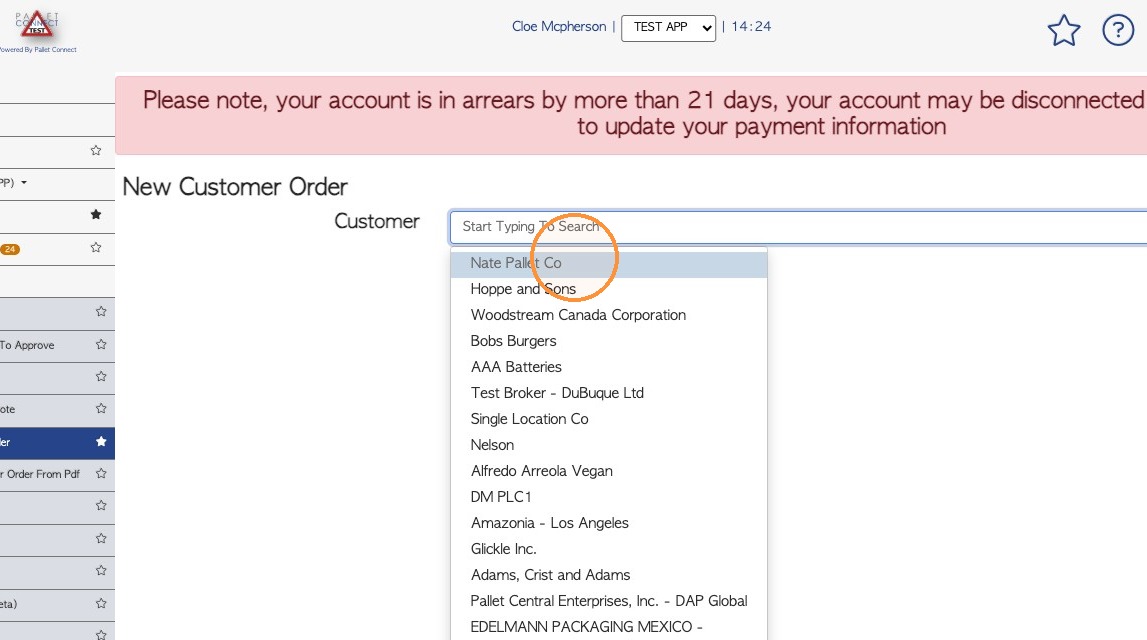
3. Choose the selected customer from the search results.
4. Click "Create From Template"
NOTE: Ensure that the Customer is linked to an Affiliate or the Affiliate will need to be added to the order.
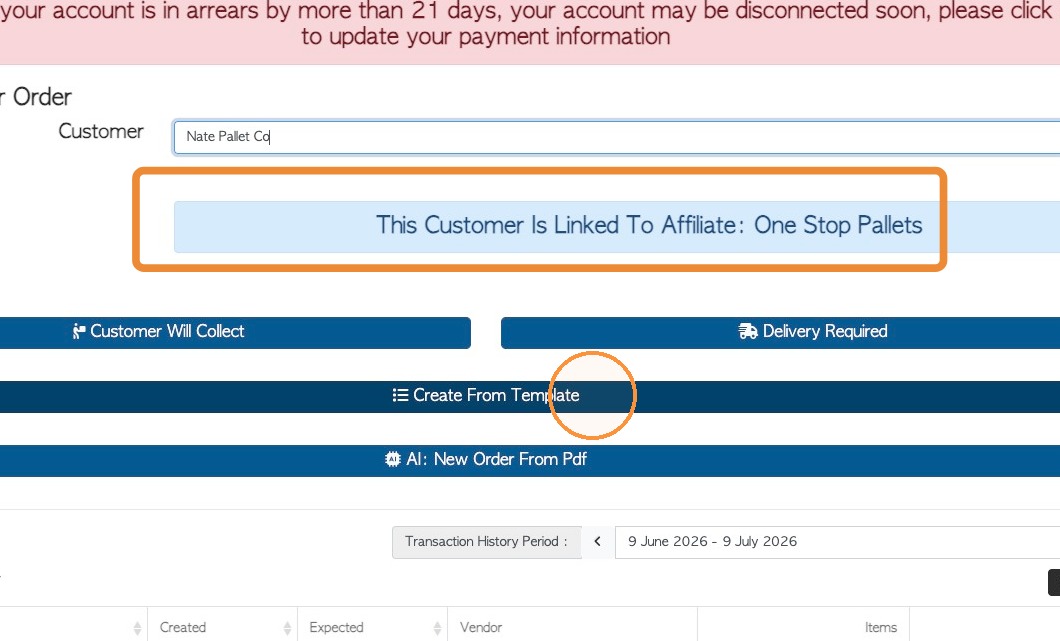
5. Choose the selected template from the drop down menu.
NOTE: A template must be active in the Customer profile to show up on the menu.
See related article on how to add a template to a Customer.
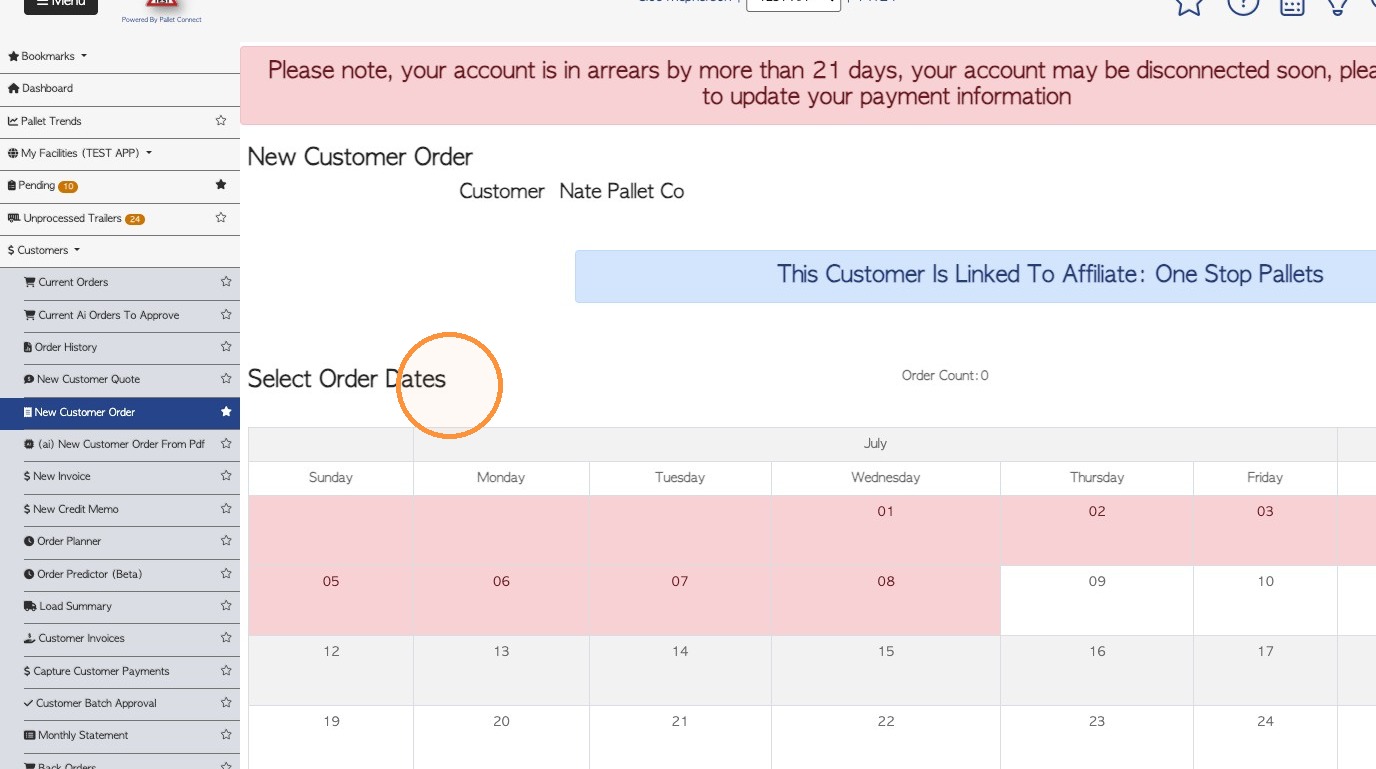
6. The stock items and quantity needed for the order are already included in the template.
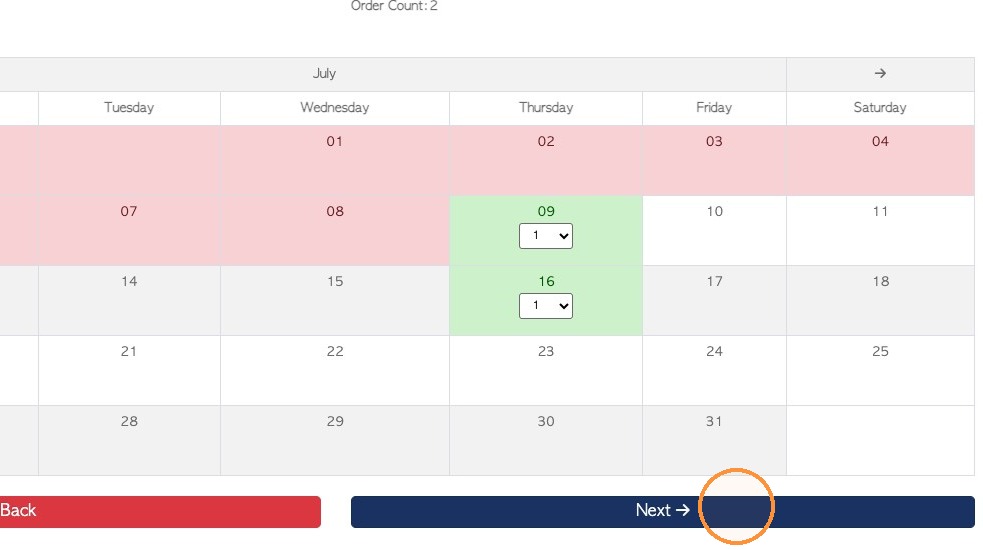
Now select the expected date for the collection or delivery, using the calendar.
NOTE: More than one date can be chosen to create multiple orders.
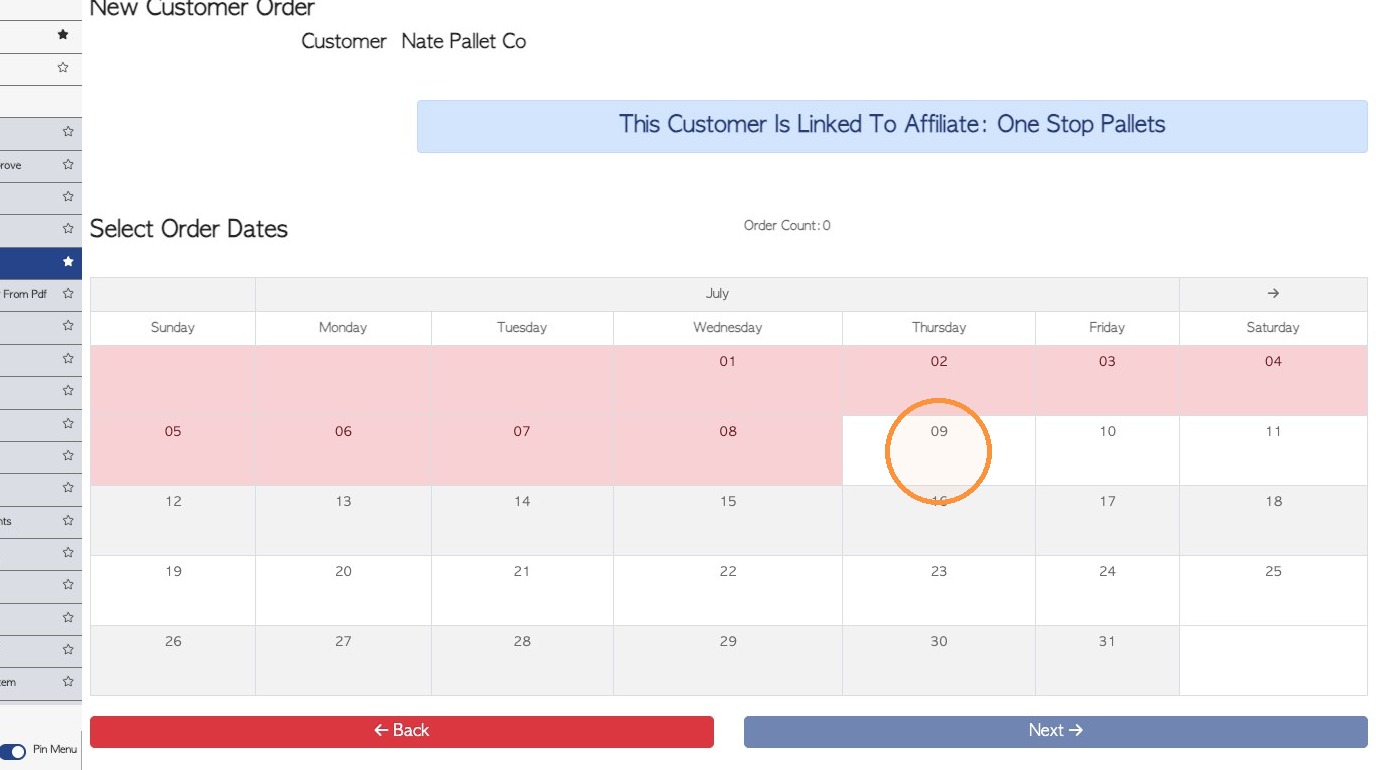
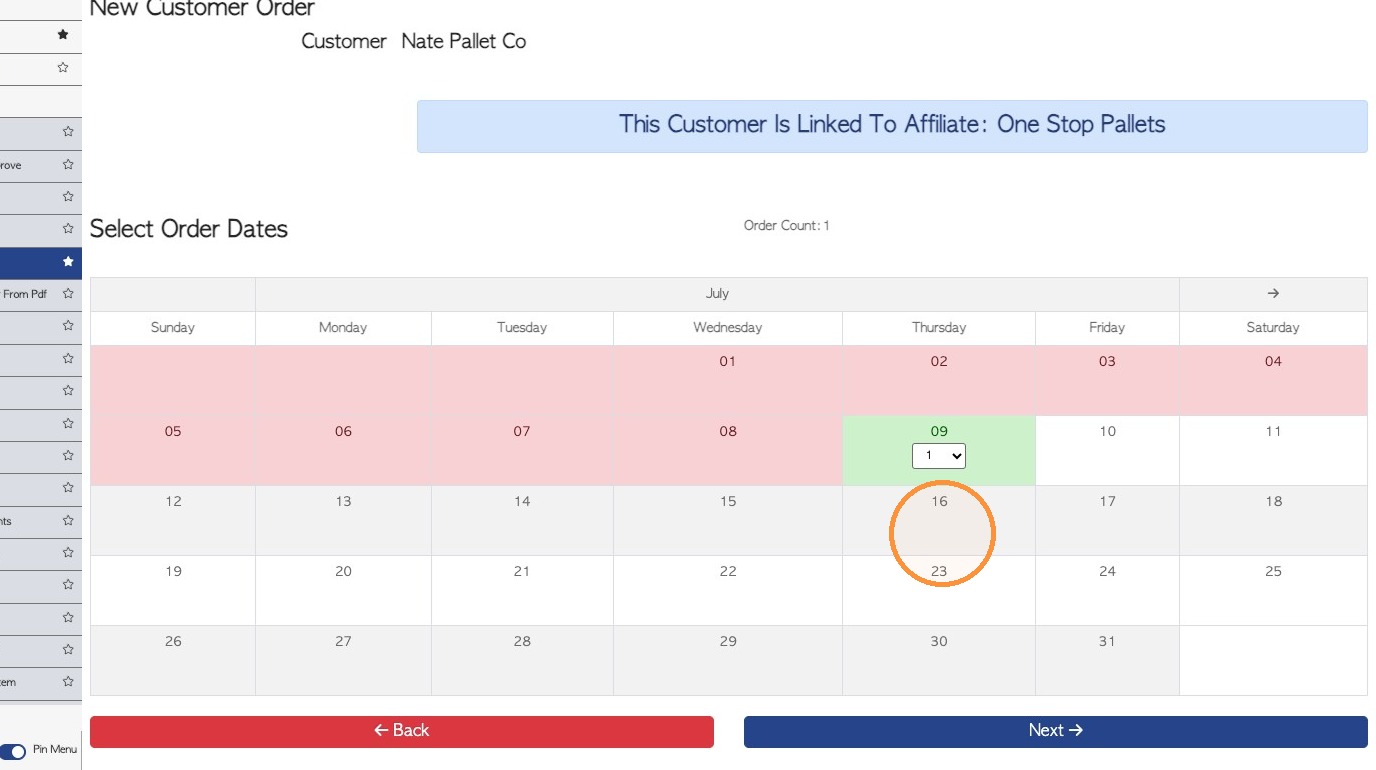
7. Click "Next"
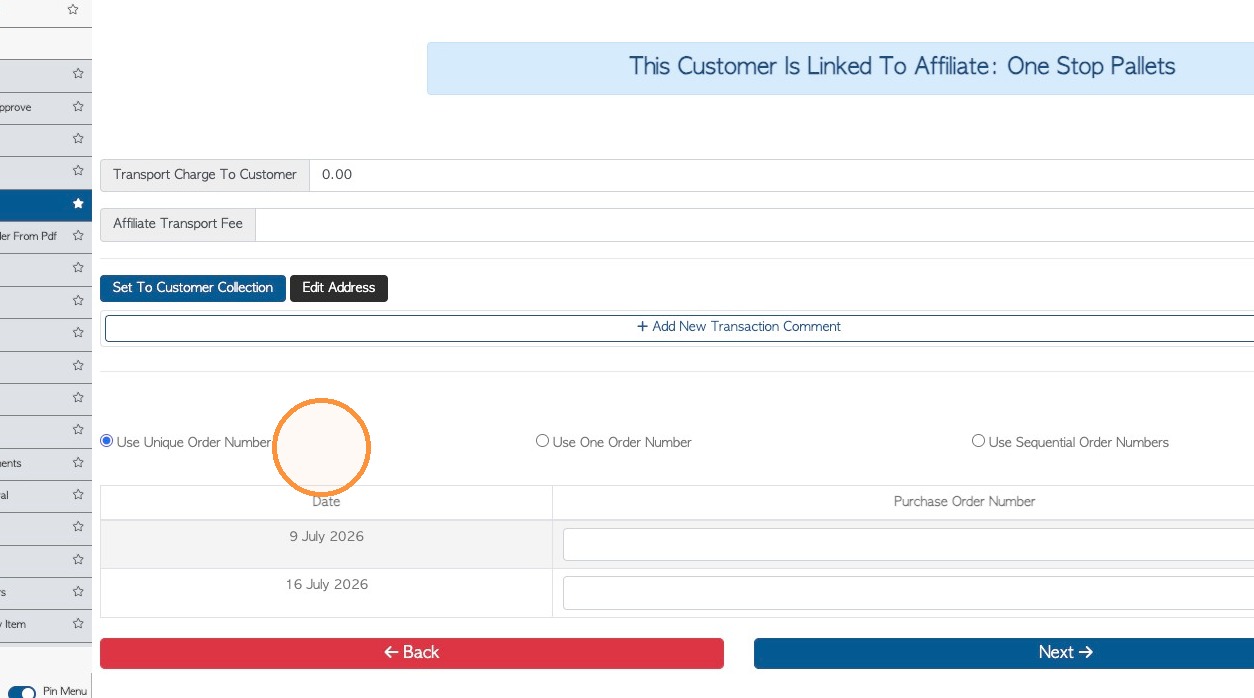
8. An "Unique Order Number" will be assigned to the orders, however a Purchase Order Number can be used instead.
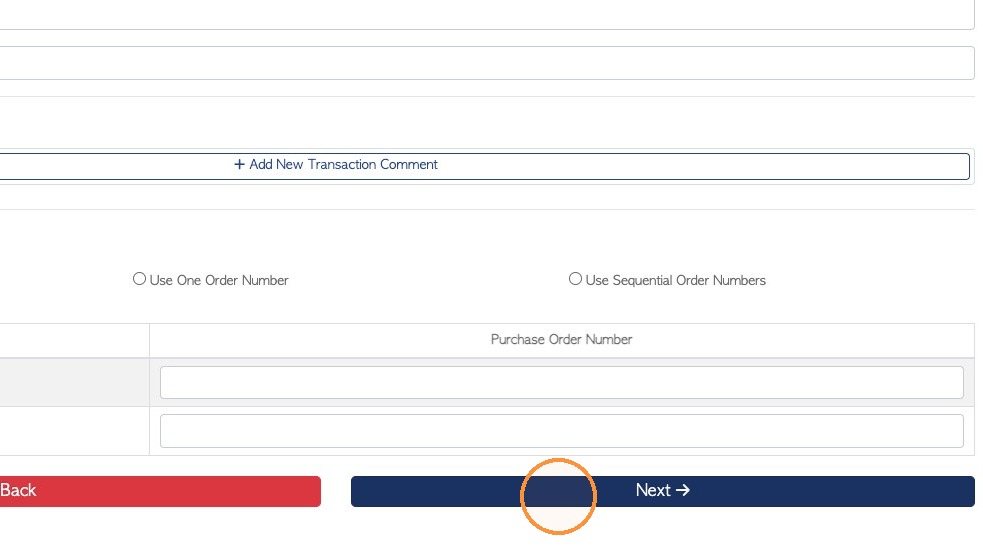
9. Click "Next"
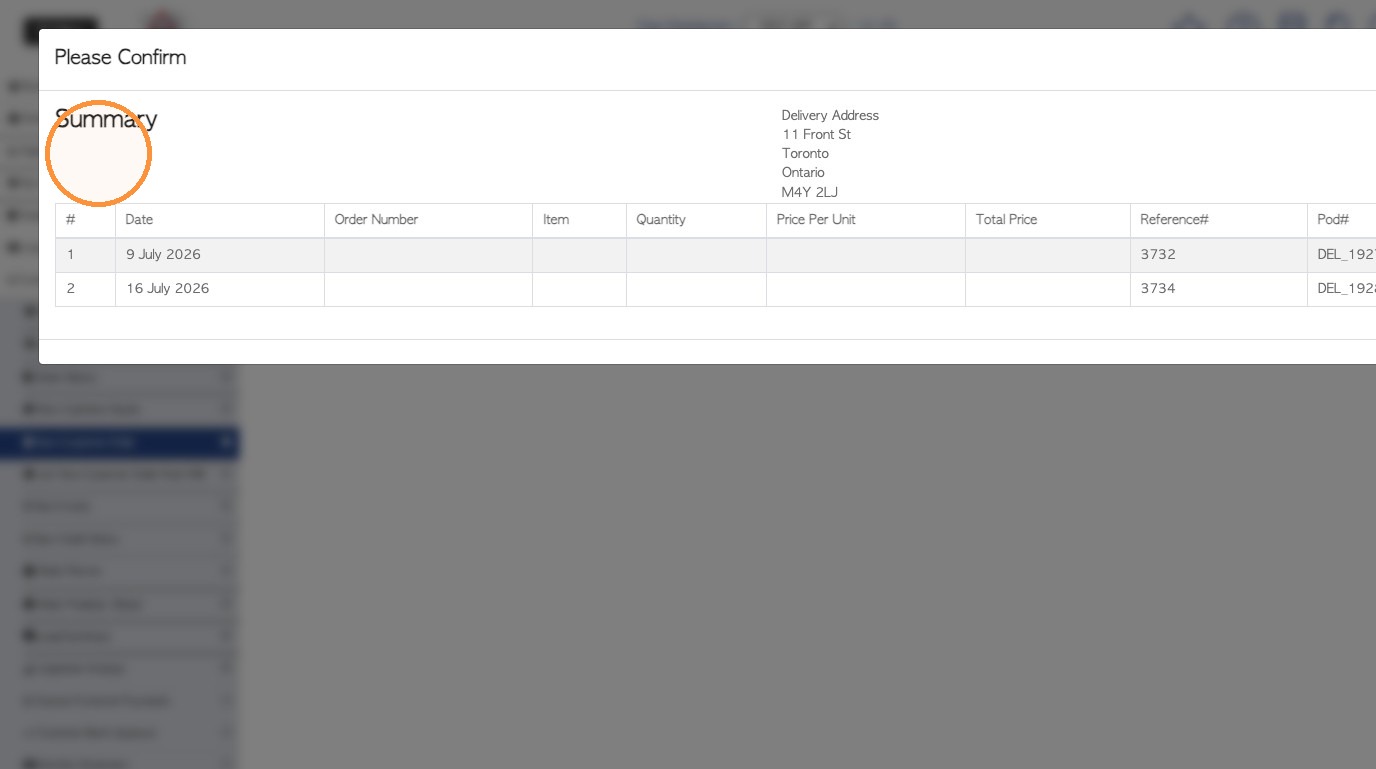
10. Review the orders before finalizing.
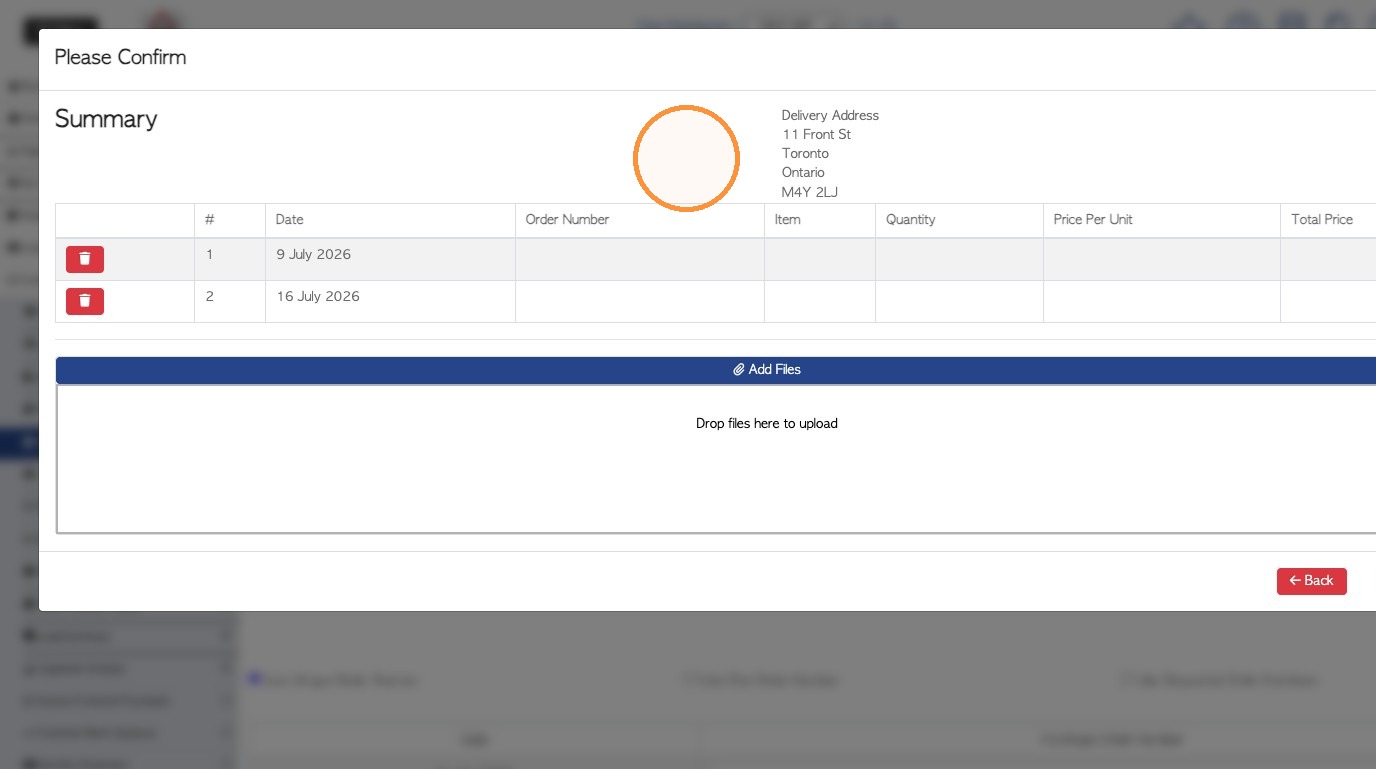
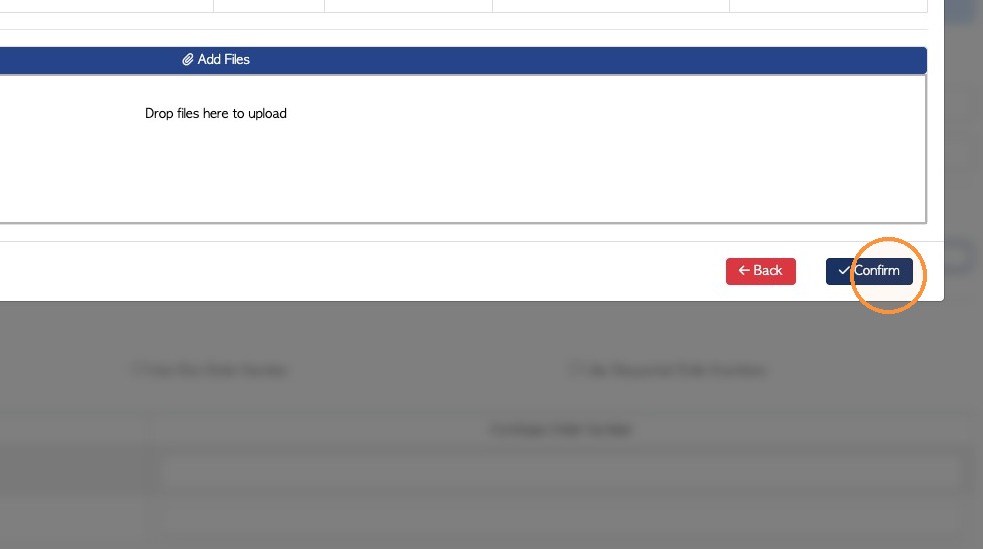
11. Click "Confirm" to finalize the order creation.
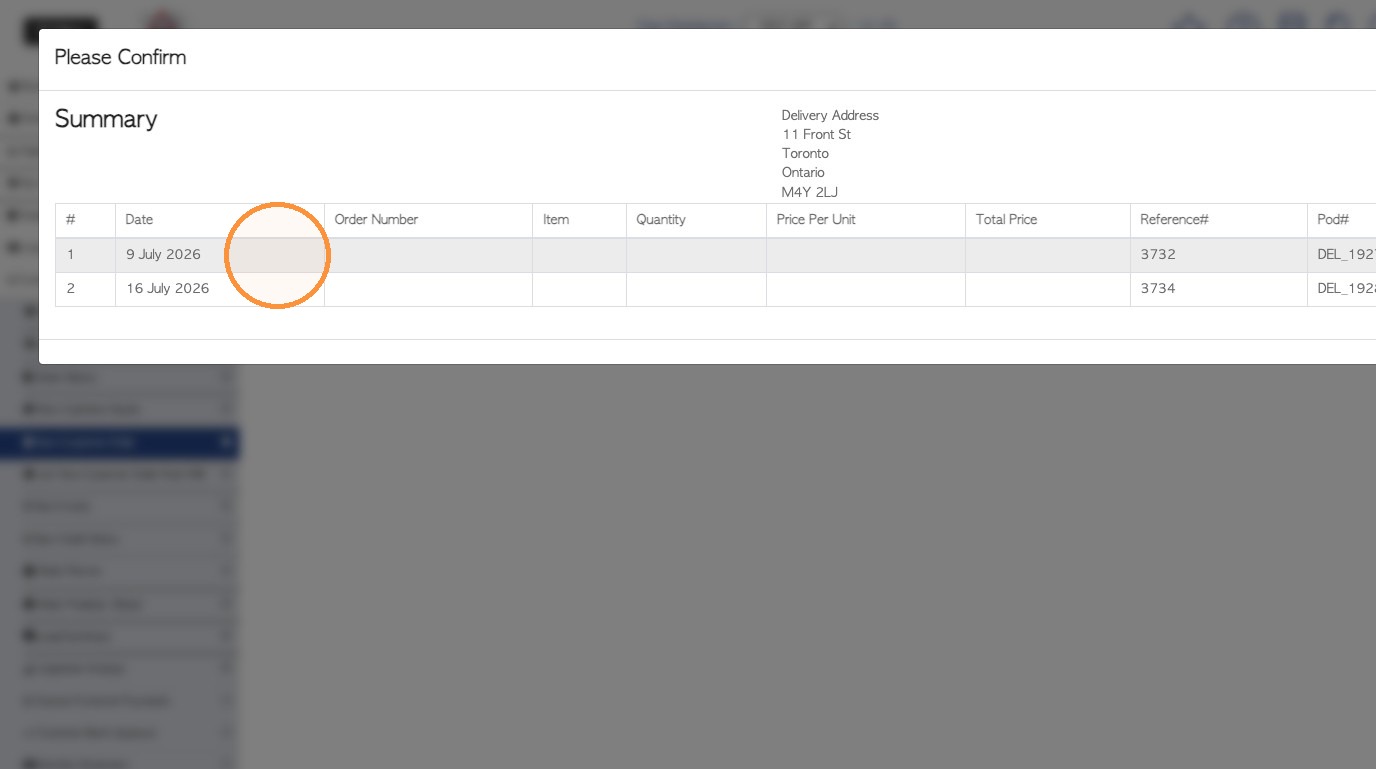
12. Click on the order from the summary page, to review the details.
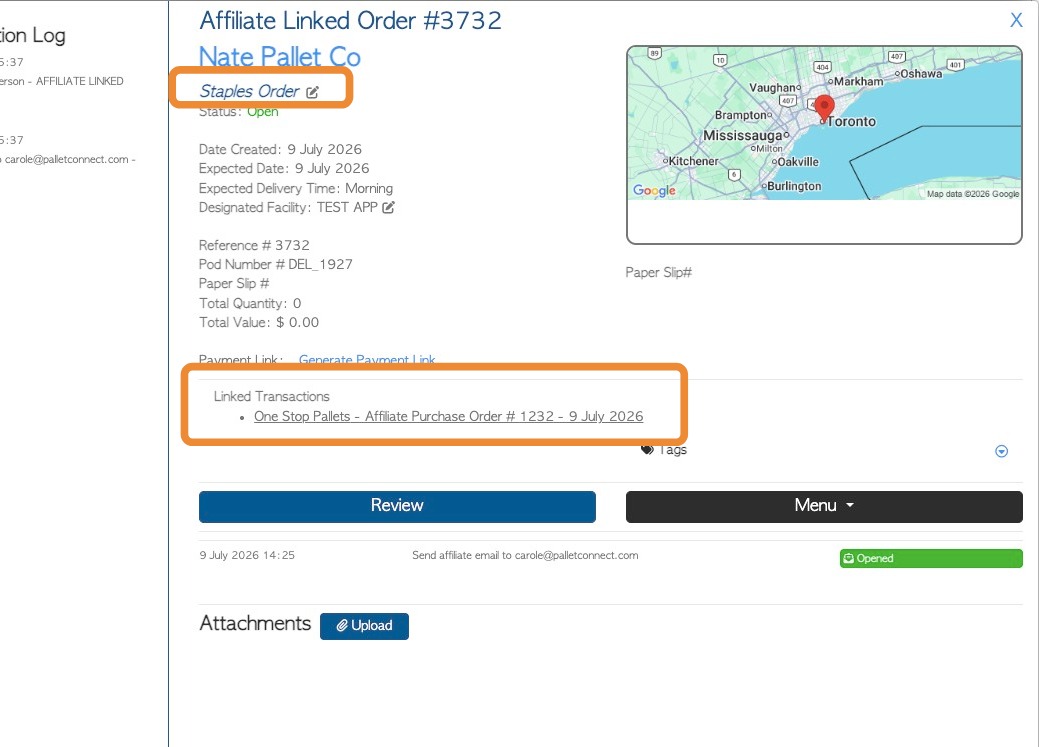
13. NOTE: The order will show the template used. The Affiliate side will be generated automatically as a linked transaction.
14. NOTE: From the slide out screen menu, this order can be repeated and it can also be repeated using the template.