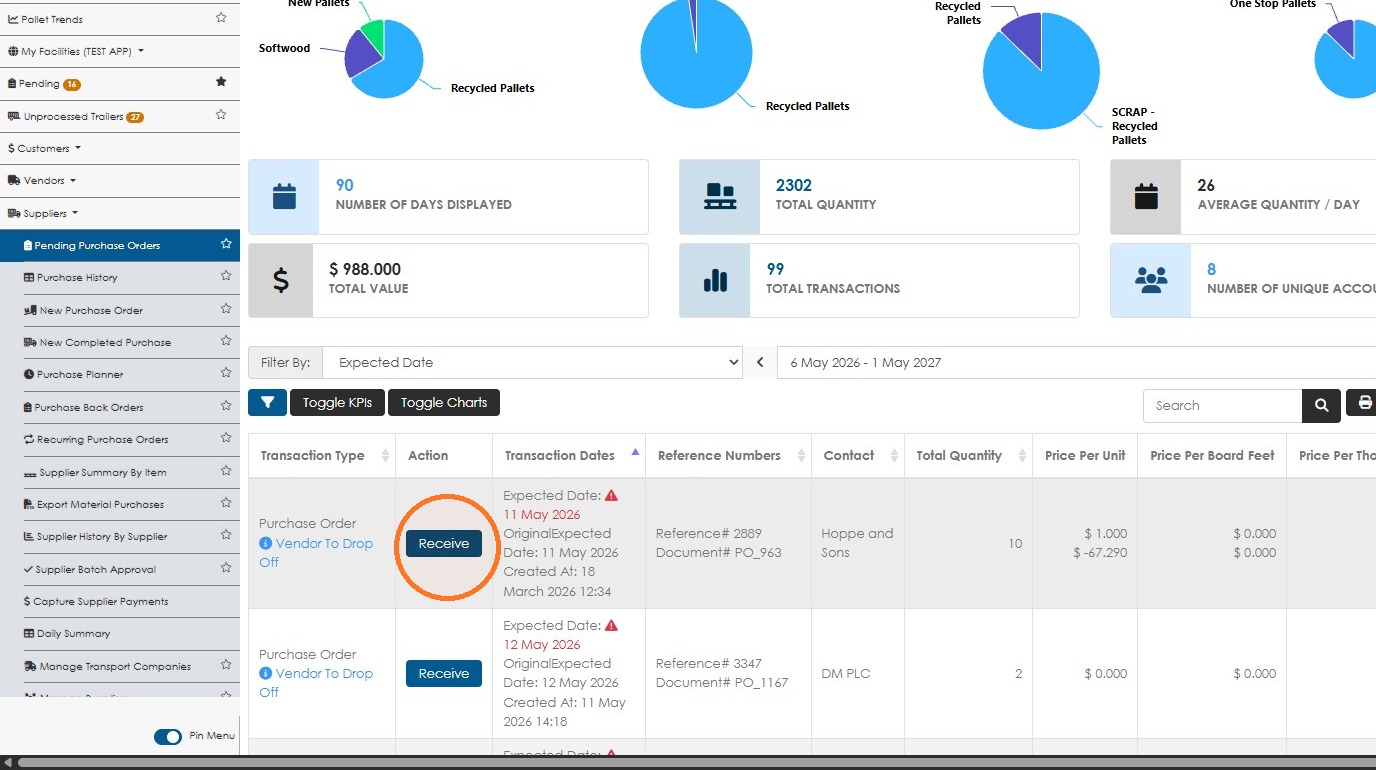
The Action column is not included in the default columns of Pallet Connect reports. Learn how to add the column and use its available actions to manage report entries more efficiently.
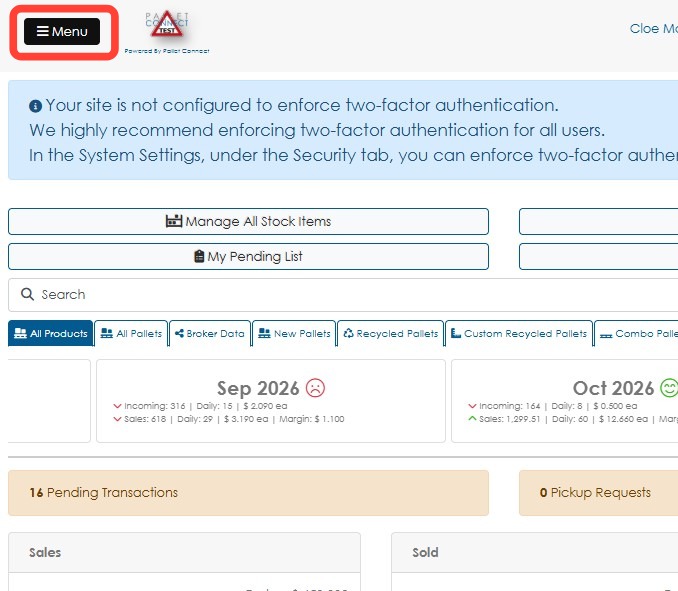
1. Click Menu.
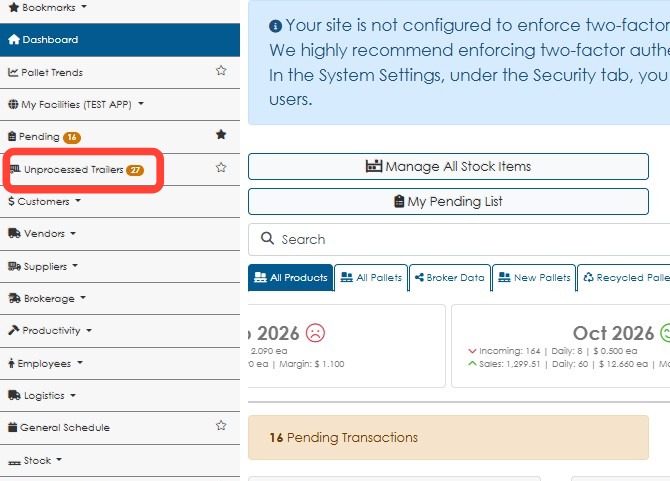
2. Choose a report, for example "Current Orders", "Order History", "Pending Pick Ups"
Note: "Unprocessed Trailers" will be used in this article as an example.
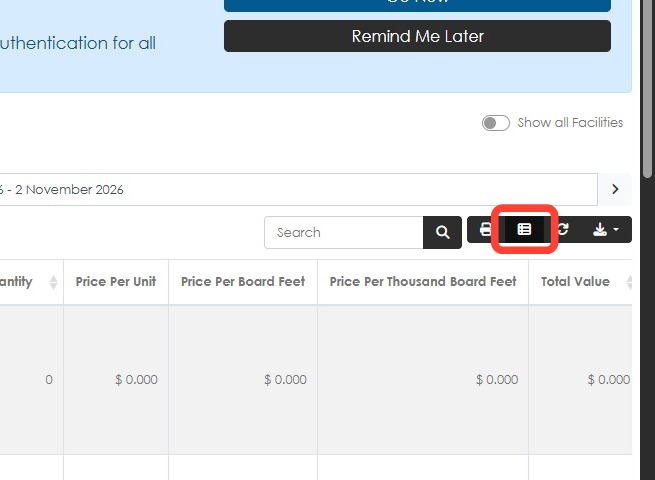
3. Click the Edit Columns button
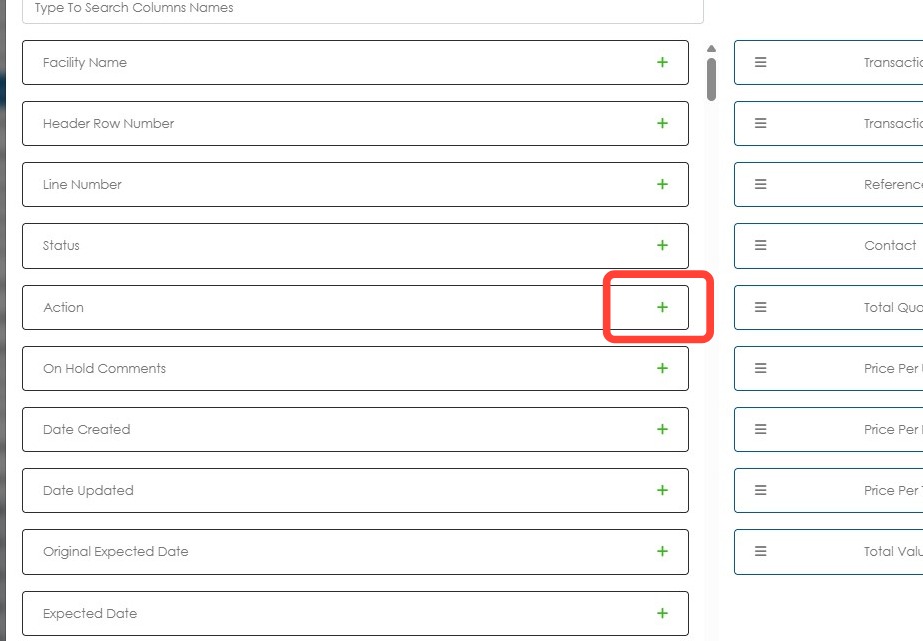
4. Click the plus (+) icon to add the Action column.
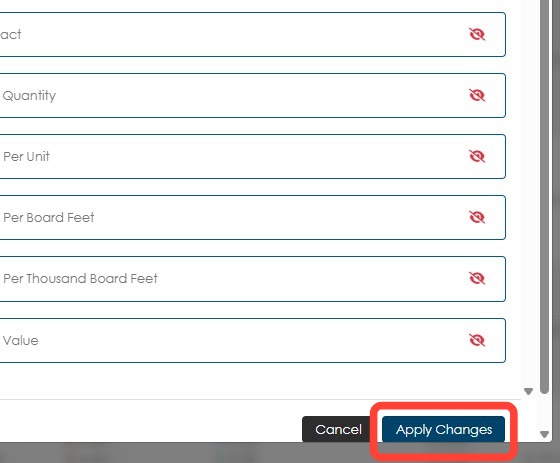
5. Click Apply Changes.
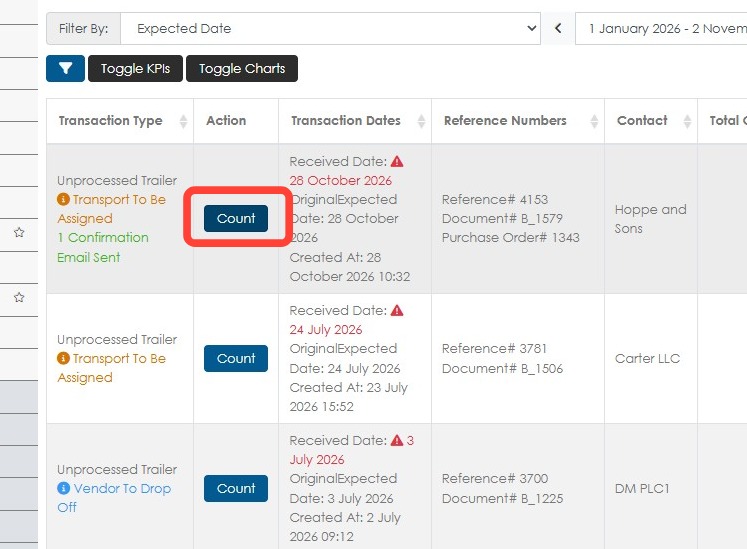
6. The Action column is now visible. For Unprocessed Trailers report, the Count button is available.
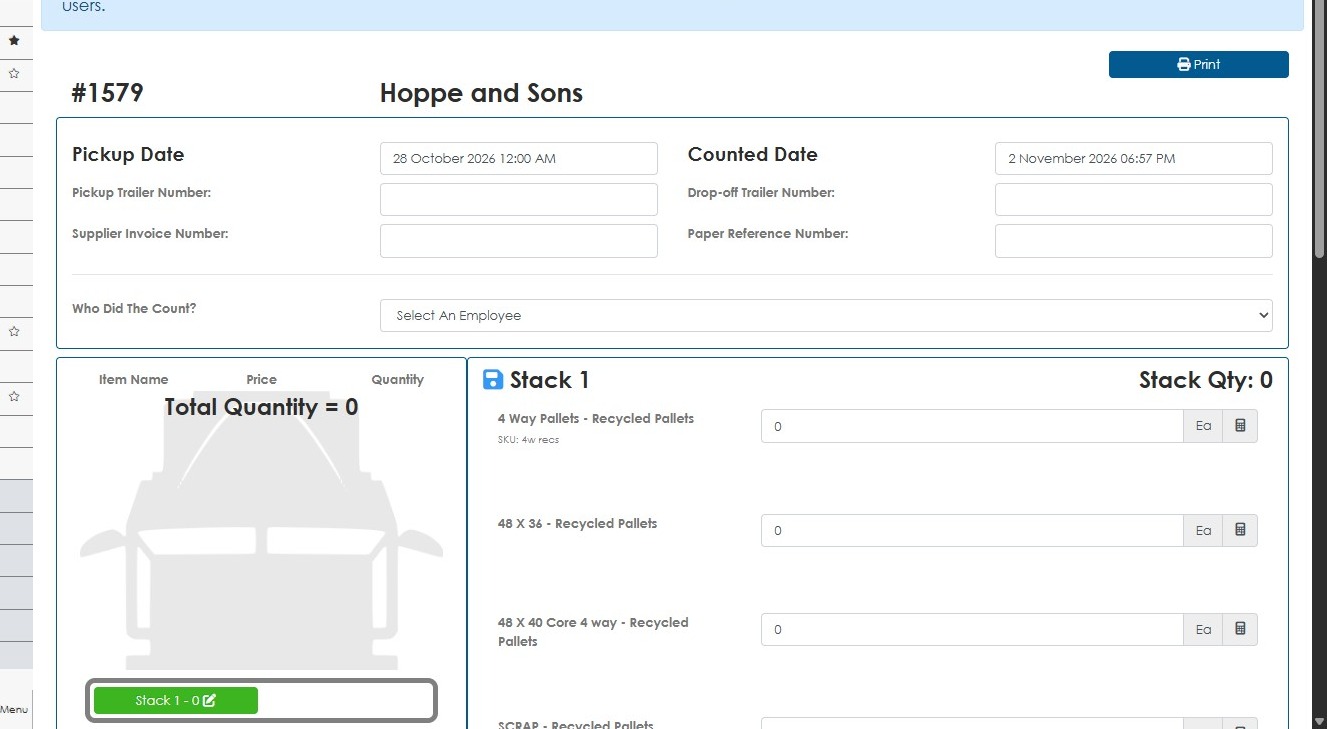
7. Clicking the Count button will open the count screen.
The Count button is also available in the following reports:
- Vendors Current Request
- Vendors Pickup/Switch History
- Combined Transaction History
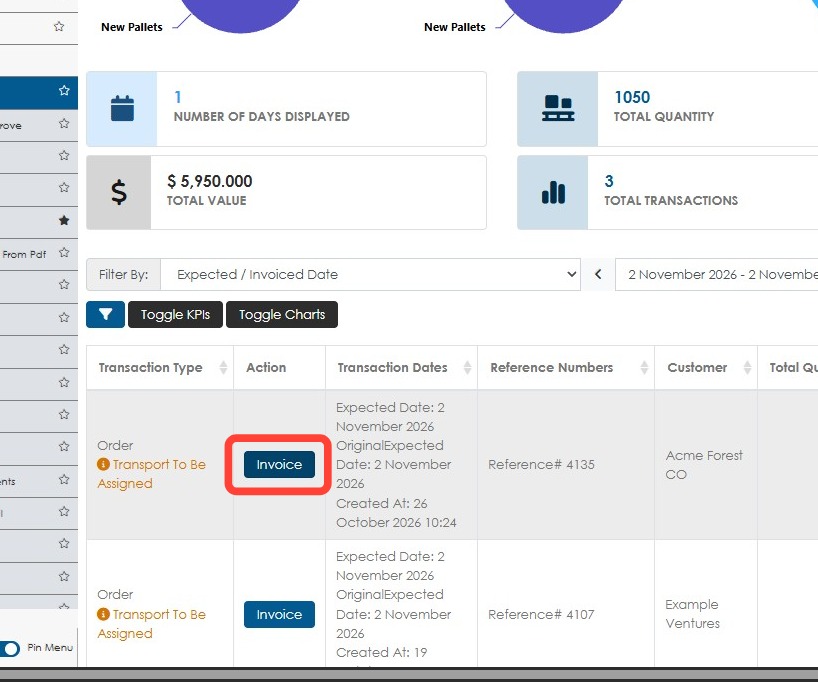
8. The Invoice button will open the invoice screen.
The Invoice button is available in the following reports:
- Current Orders
- Current AI Orders to Approve
- Order History
- Combined Transaction History
- Customer Back Orders
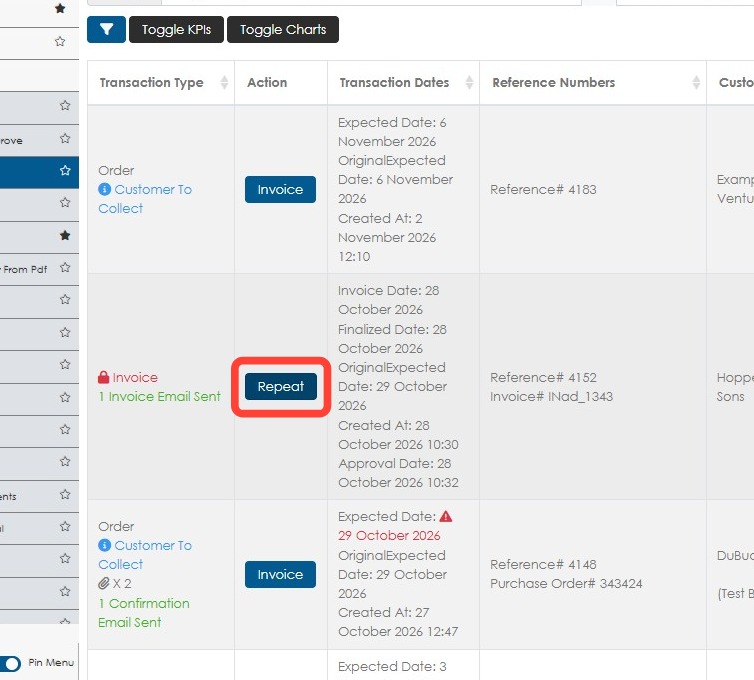
9. The Repeat button will open the transaction to access the option to repeat the order.
The Repeat button is available in the following reports:
- Order History
- Customer Batch Approval
- Pickup/Switch History
- Vendor Batch Approval
- Purchase History
- Supplier Batch Approval
- Combined Transaction History
10. Click Receive to record the materials received from suppliers and process the purchase order.
The Receive button is available in the following reports:
- Pending Purchase Orders
- Purchase History
- Combined Transaction History