Learn how to efficiently record chamfer production. This guide explains the data entry process to capture the production step.
1. Please note that this feature can be enabled by going to Settings - System Settings - Features, from the Main Menu. Then, toggle "Enable Chamfer" and save settings.
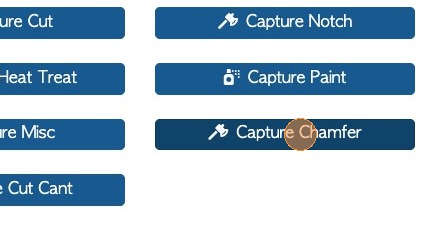
To start capturing production, navigate to MAIN MENU - PRODUCTIVITY - CAPTURE PRODUCTION.
Select Chamfer from the list.
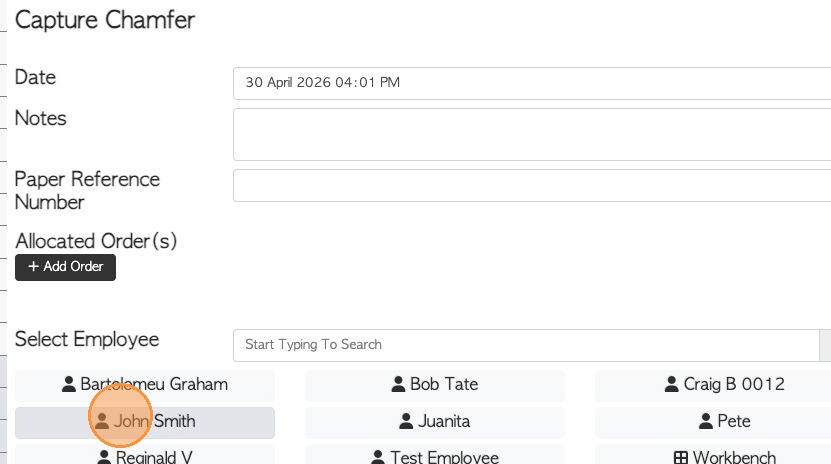
2. Modify the date and add notes if needed. There's also an optional field to add the Paper Reference Number.
This production step can be linked to a current order, by clicking "Add Order" to the Allocated Orders section.
An employee is selected from the list or can be found by typing the name into the search bar.
NOTE: Only the employees who have been selected as "Notcher" or "All Depts" will appear on the list.
NOTE: This setting can be viewed MAIN MENU - EMPLOYEES - MANAGE EMPLOYEES.
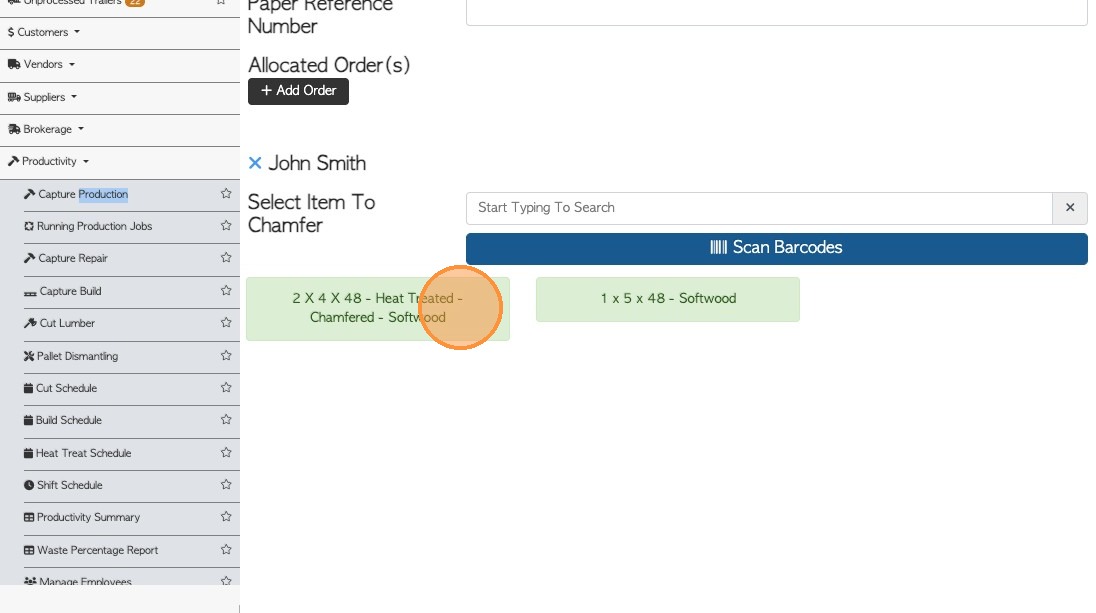
3. After the employee is selected, the items to be chamfered can be added. These refer to the source items, not the finished product.
Items may be selected from the list or located by typing the name into the search bar. The displayed items will correspond to those already entered in the stock inventory.
There is also an option to scan item barcodes using the action button.
If no items appear, new ones can be added by clicking the Create New Stock Item button.
4. Choose or enter the quantity that will be captured. Click the quantity from any of the boxes showing below. Use the plus (+) or minus (-) to add or deduct.
Select multiple items or add an item by clicking add item.
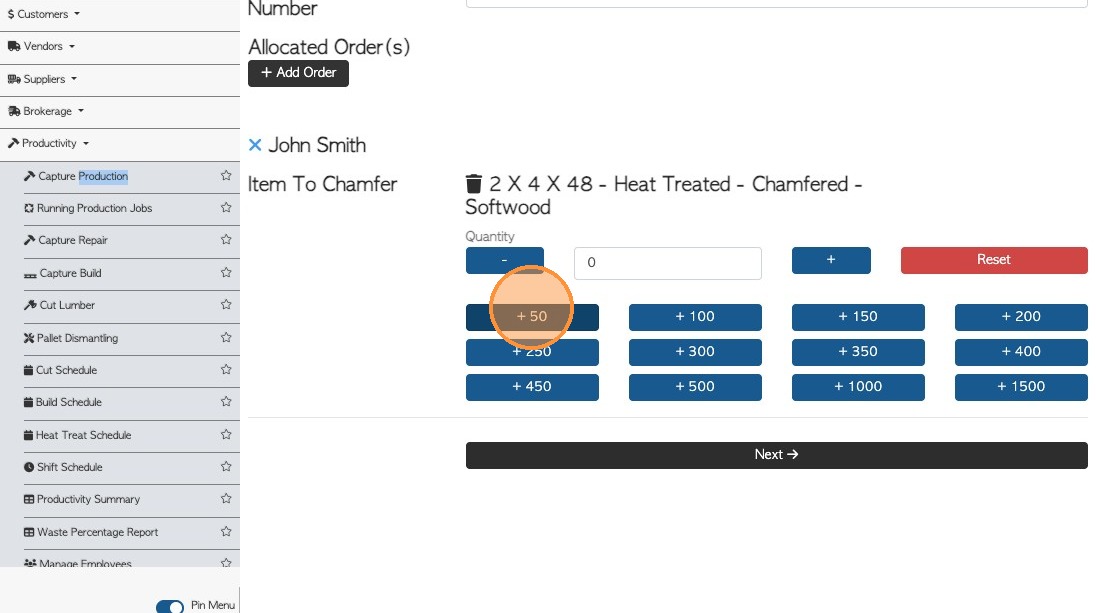
5. Once completed, click "Next".
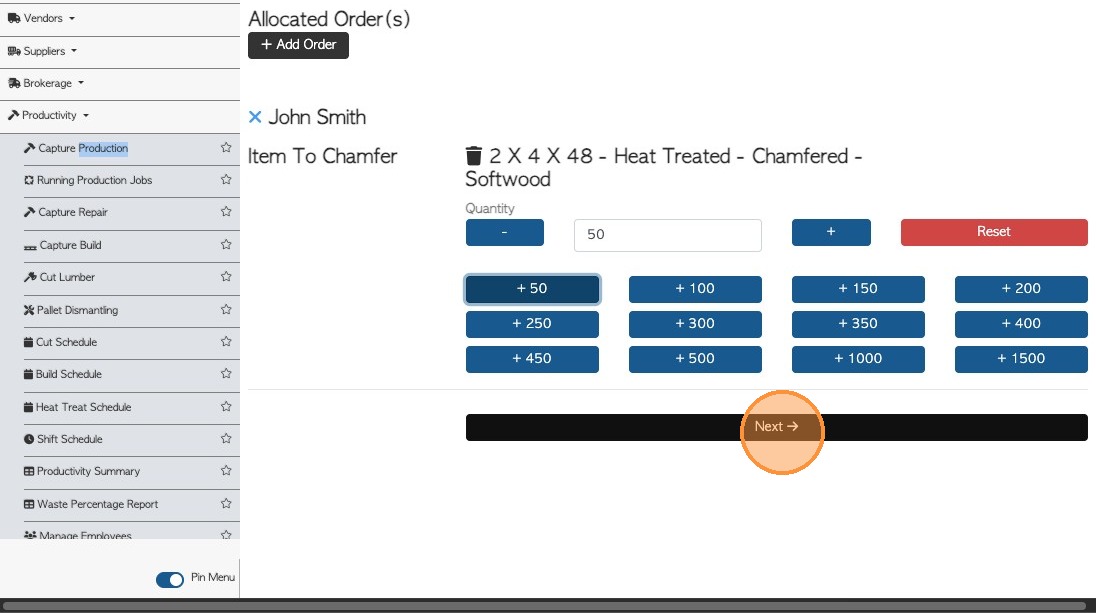
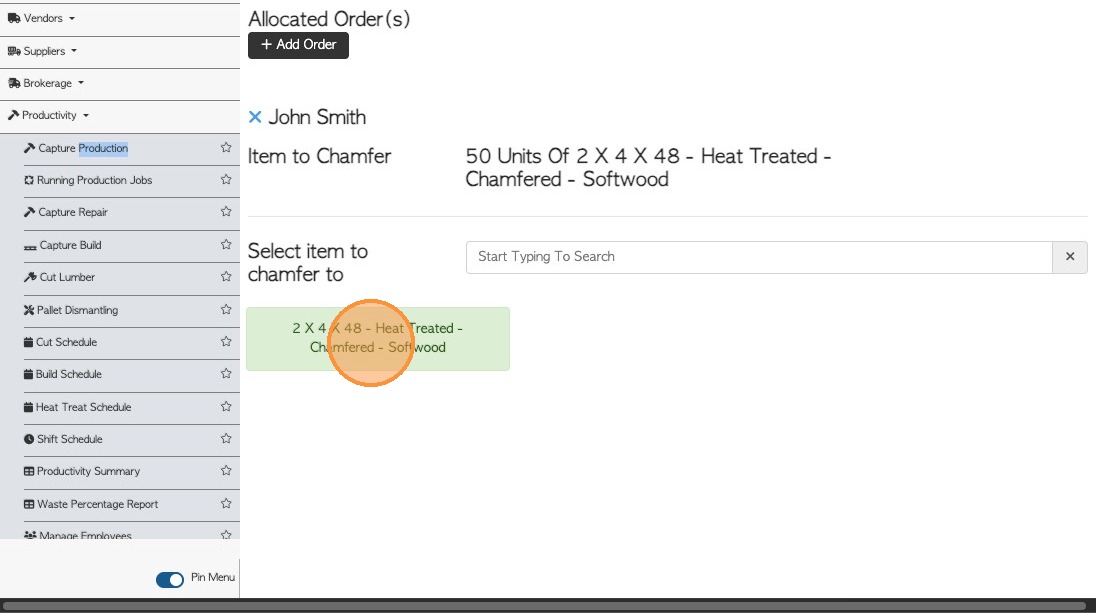
6. Select the target chamfered item. This will be the product after chamfering.
Multiple items can be added by using the Add Another Item action button.
If no items are displayed, new ones can be created by selecting the Create New Stock Item button.
To set the quantity, the plus and minus buttons on either side of the quantity bar can be used. There is also an option to add larger amounts using the action buttons located below the quantity bar.
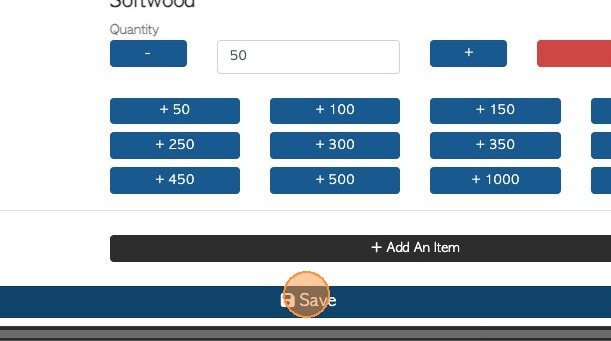
7. Once this is completed, click "Save".
8. ### BAR CODES ENABLED FEATURE
Once saved, bar codes can be printed for the items. To skip this step select the DO NOT PRINT button. To print, check the number of stacks and select NEXT.
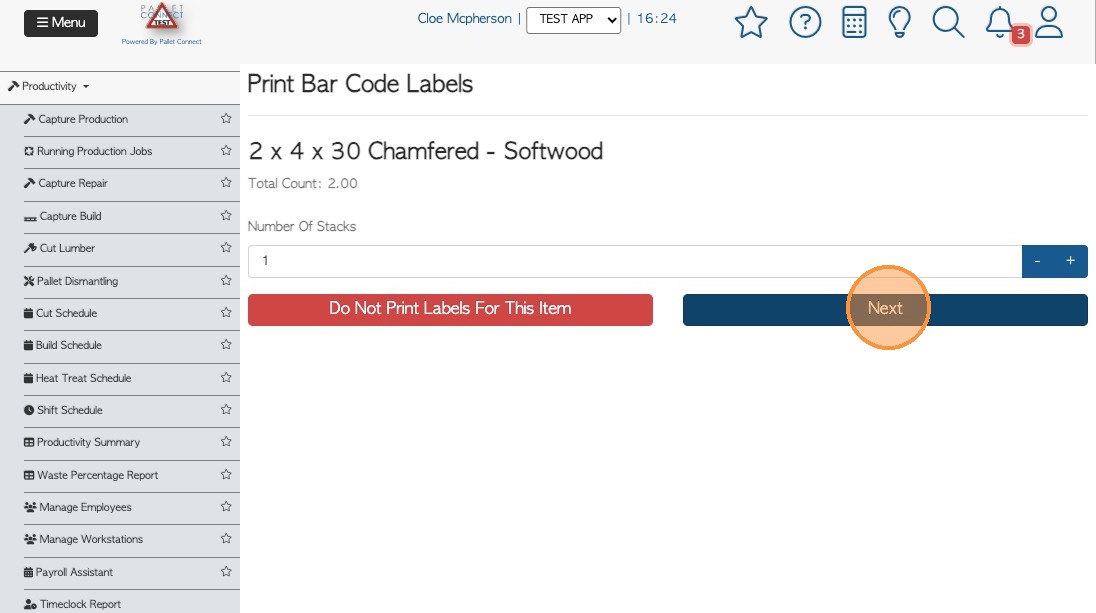
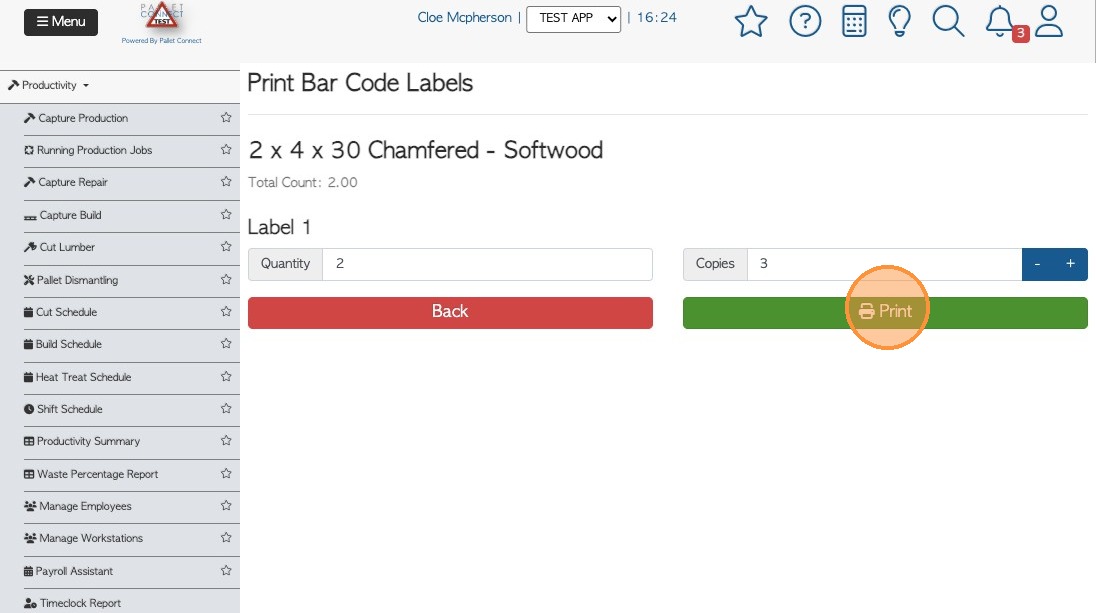
9. At the next page, the number of copies can be modified. Select PRINT button to see the PDF preview screen and select the printer icon to print the document.
10. This is a sample barcode document print.
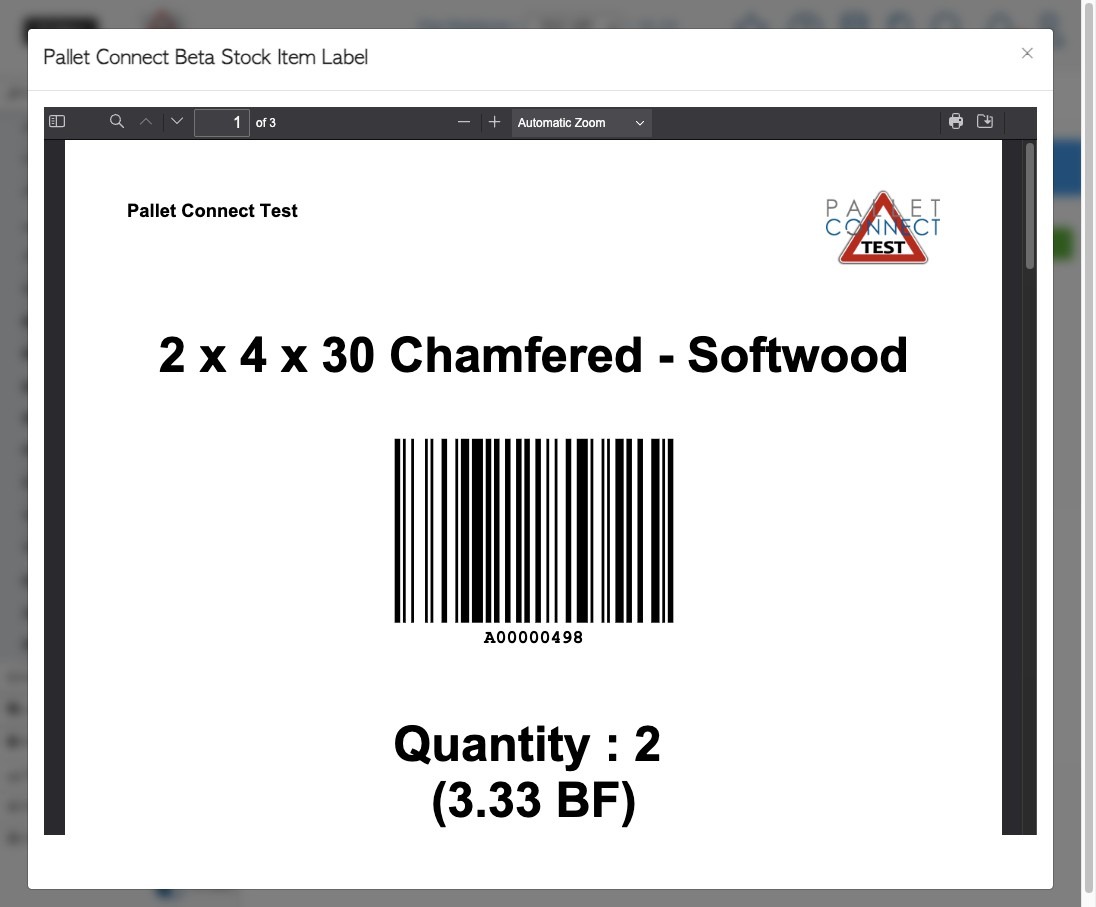
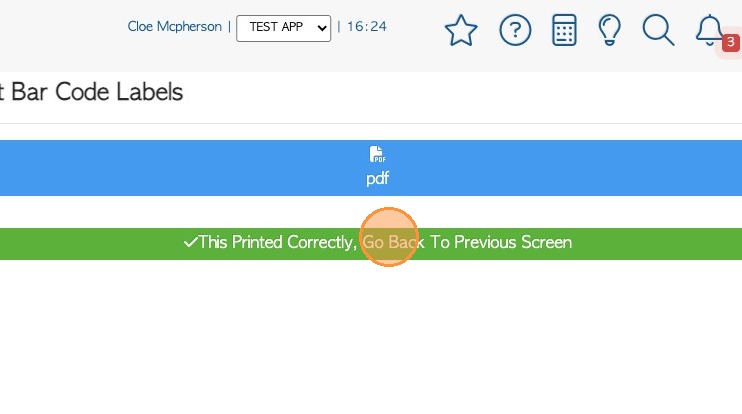
11. Exit from the print screen to return to PRINT BAR CODE LABELS screen and select THIS PRINTED CORRECTLY button to finish.
The captured production can be viewed on the Productivity Summary, see related article.