Selling prices for pallets are not changed at the stock item in Pallet Connect, but at the transaction or contact level. Prices can be updated when creating or editing an order. This article however, is a guide on how to change the selling price of a pallet from the customer profile. This price will then auto populate for future orders.
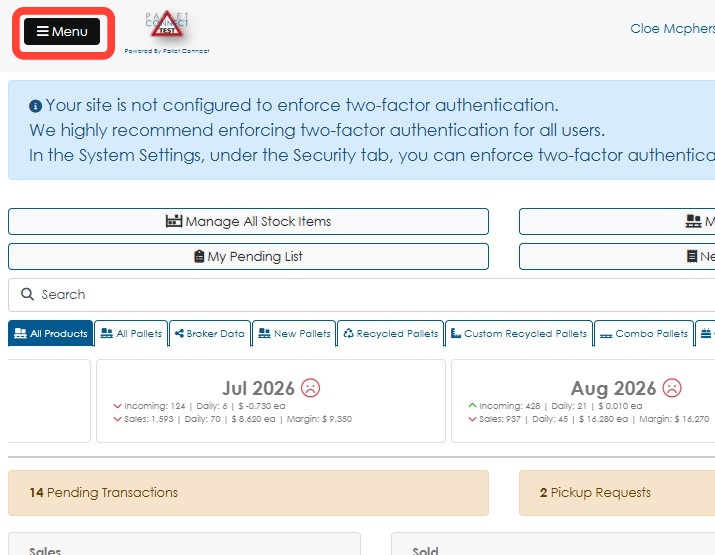
1. Click Menu.
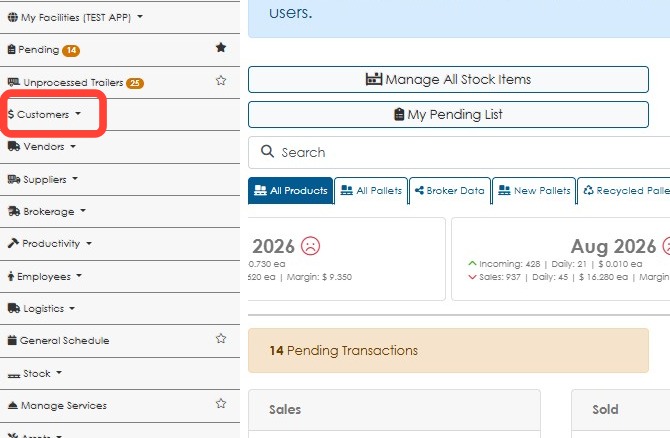
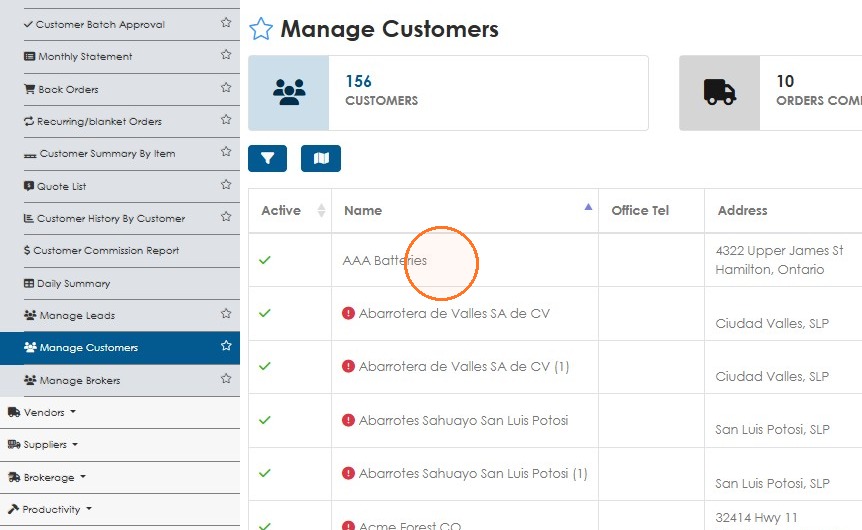
2. Click Customers.
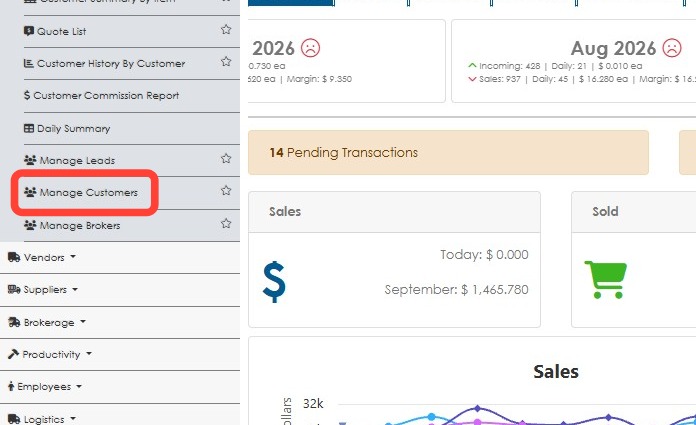
3. Click Manage Customers.
4. Click on the selected customer.
Alternatively, type the customer name into the global search tool to reach the contact profile.
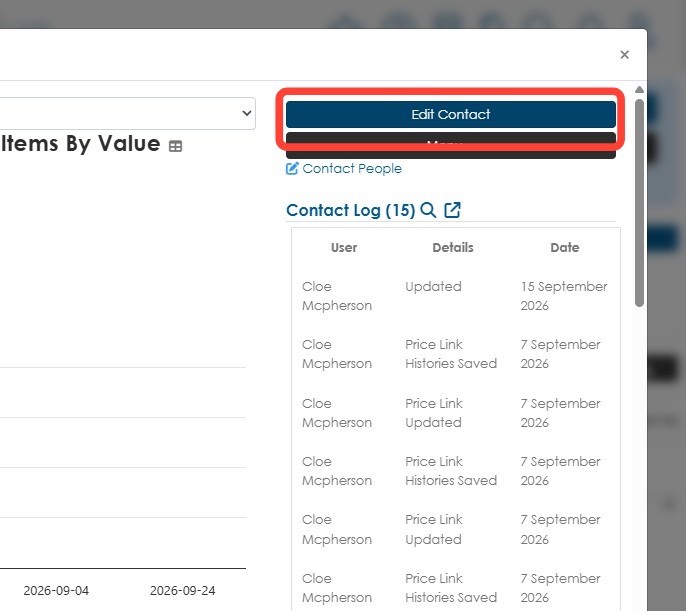
5. Click Edit Contact.
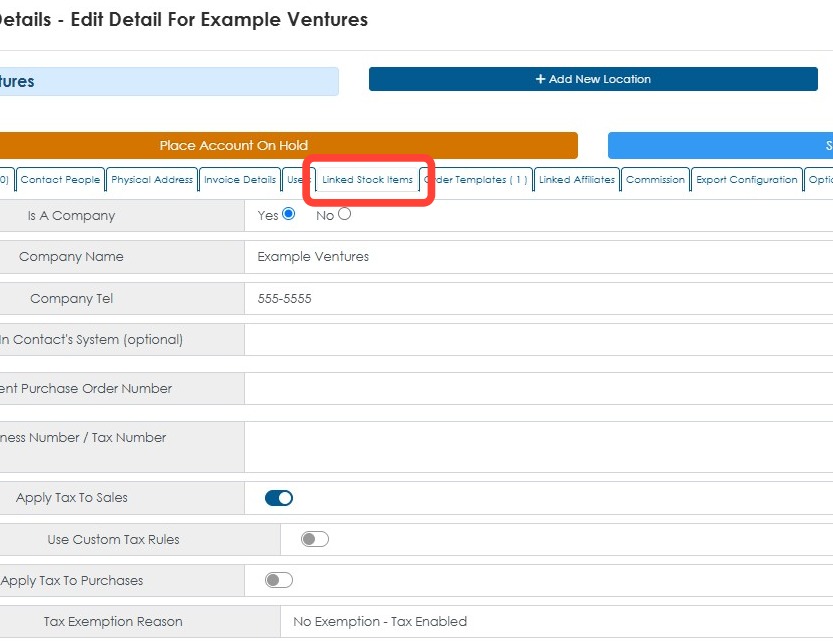
6. Click the Linked Stock Items tab.
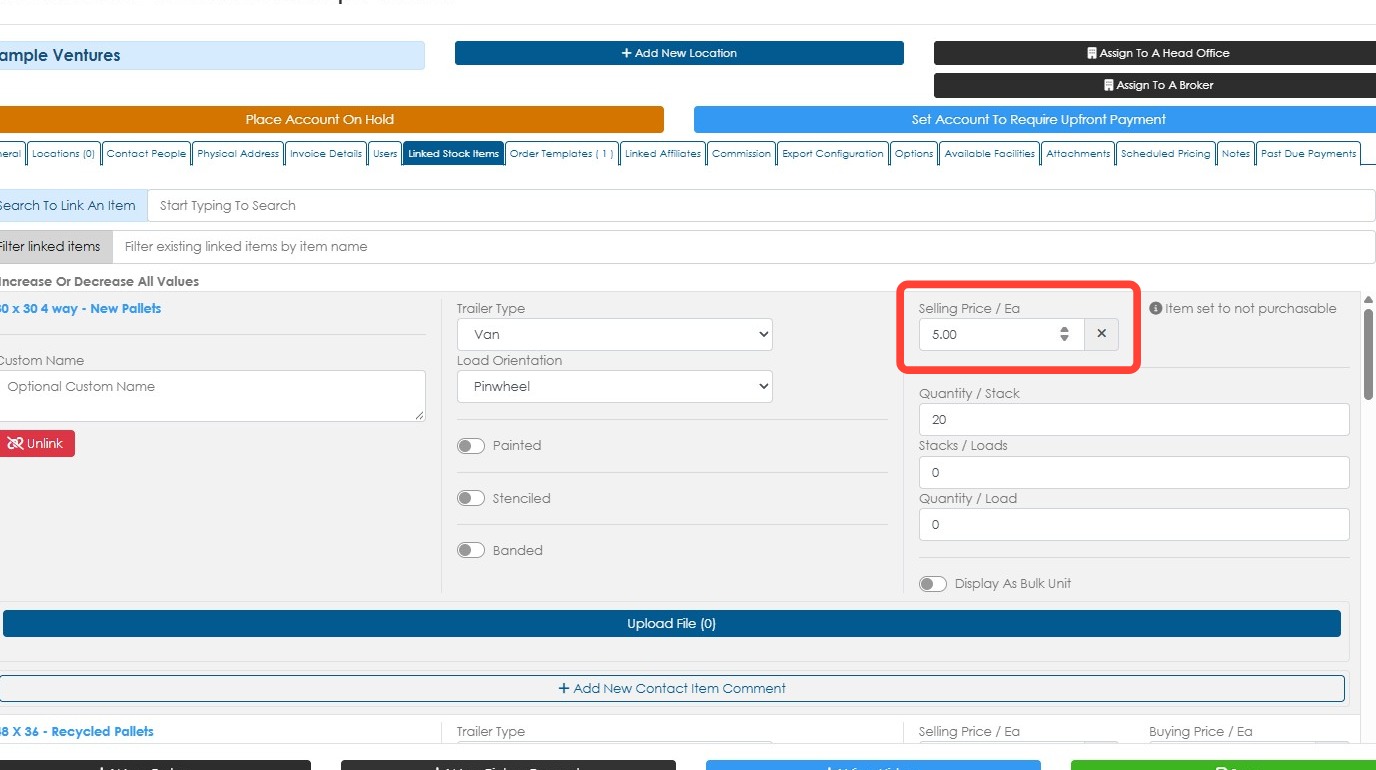
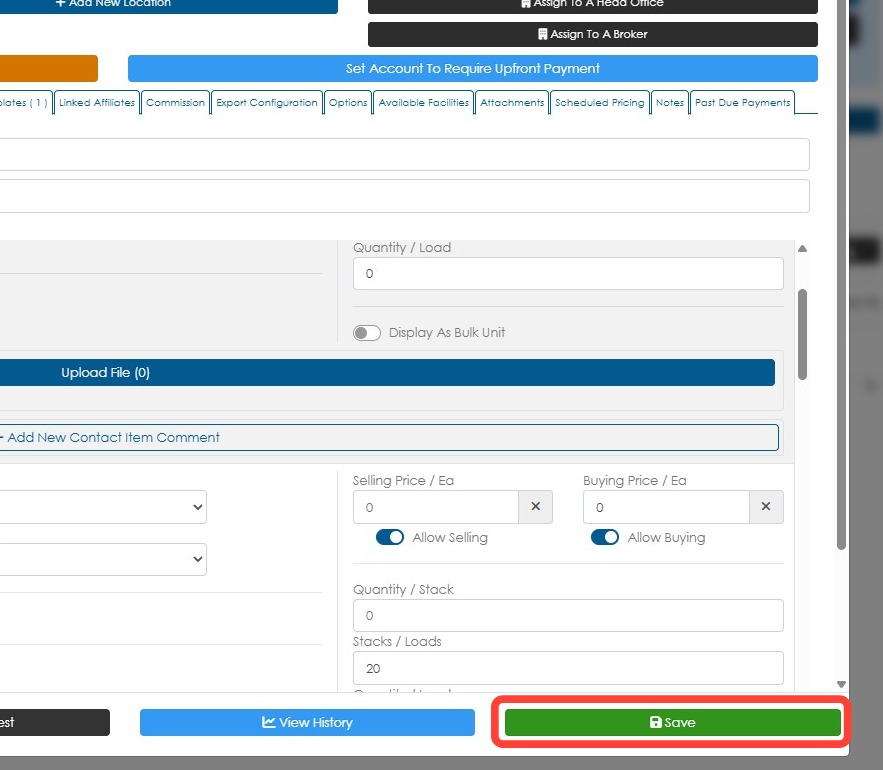
7. Enter the updated price in the Selling Price field.
NOTE: The price can be updated manually or a price list can be selected. See related articles on setting up and utilizing price lists.
8. Click Save to complete.
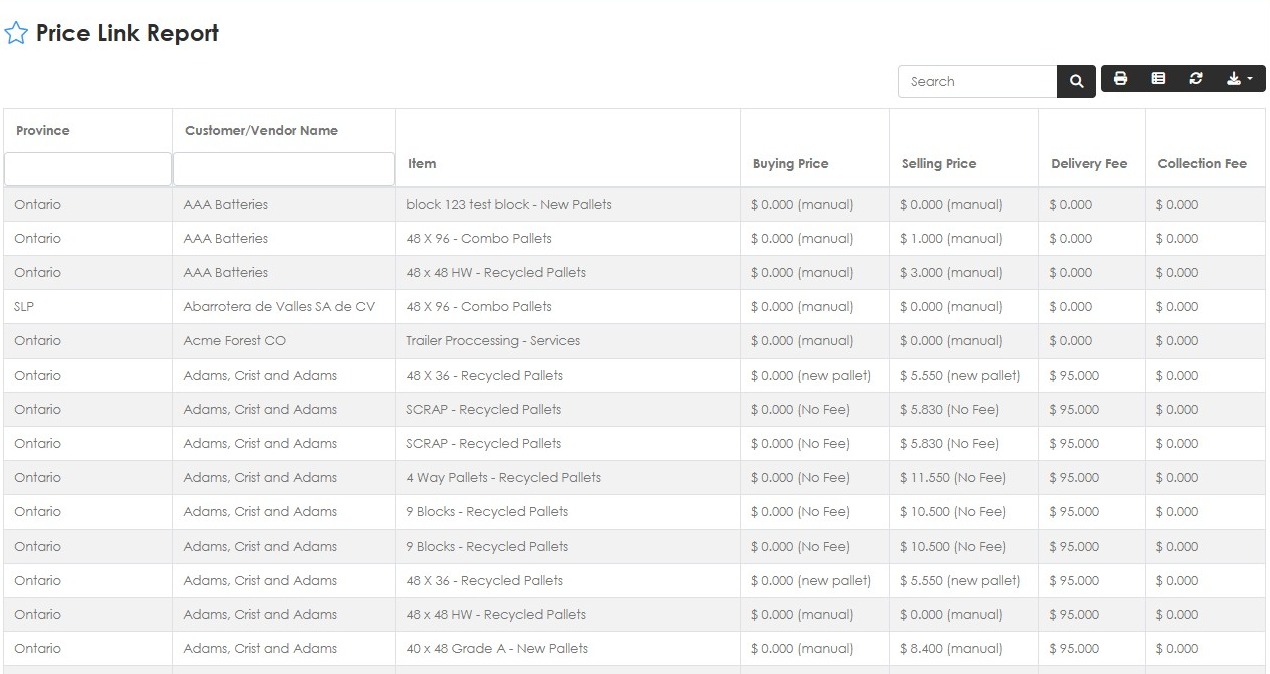
9. TIP! Use the 'Price Link Report' page to view all linked items and prices, in a report format.
View this article for more details: Utilizing the Price Link Report