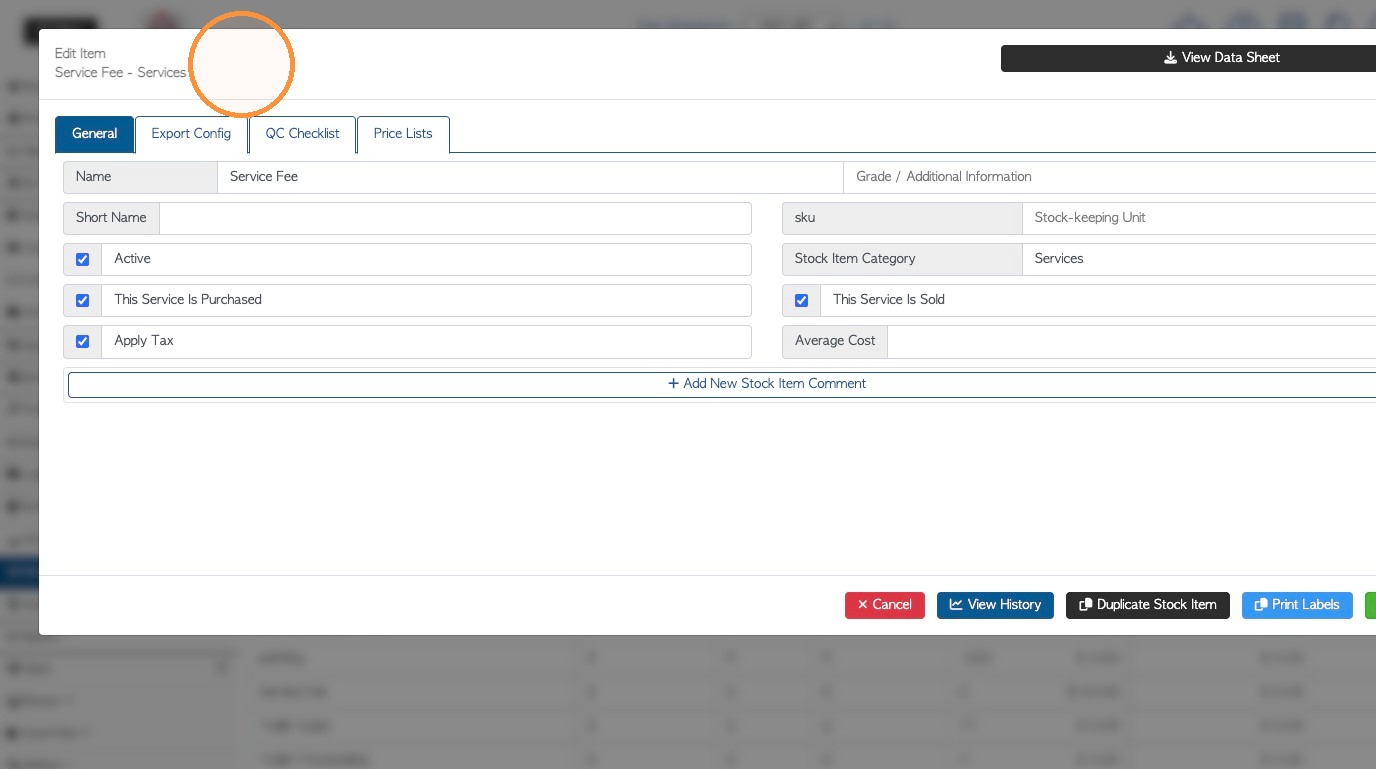
Learn how to efficiently add a new service item to the system. A service item is a non-physical stock item in the system e.g. delivery fee, credit card processing fee. This item can then be added to transactions and linked to contact profiles.
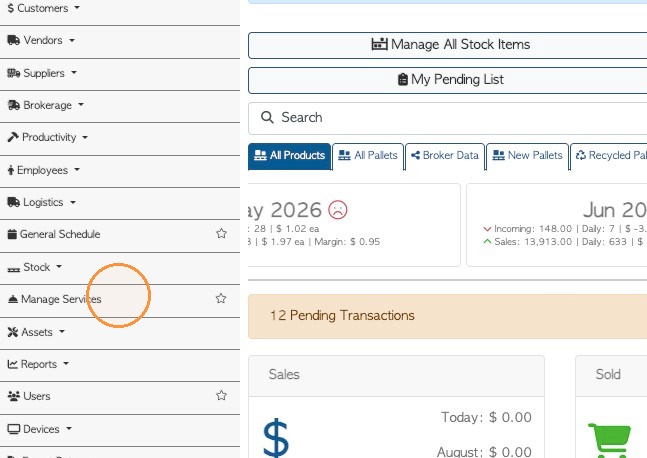
1. Navigate to the main menu. Click "Manage Services"
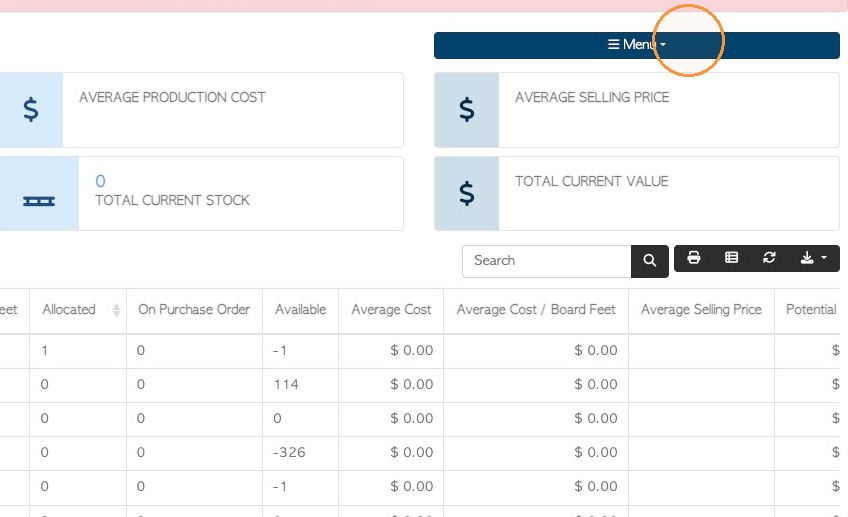
2. Click "Menu" in the Services page.
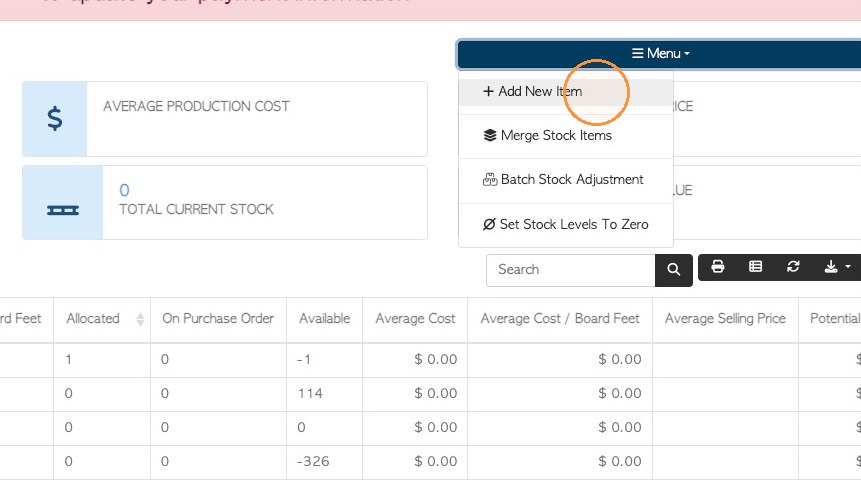
3. Choose "Add New Item" from the drop down list.
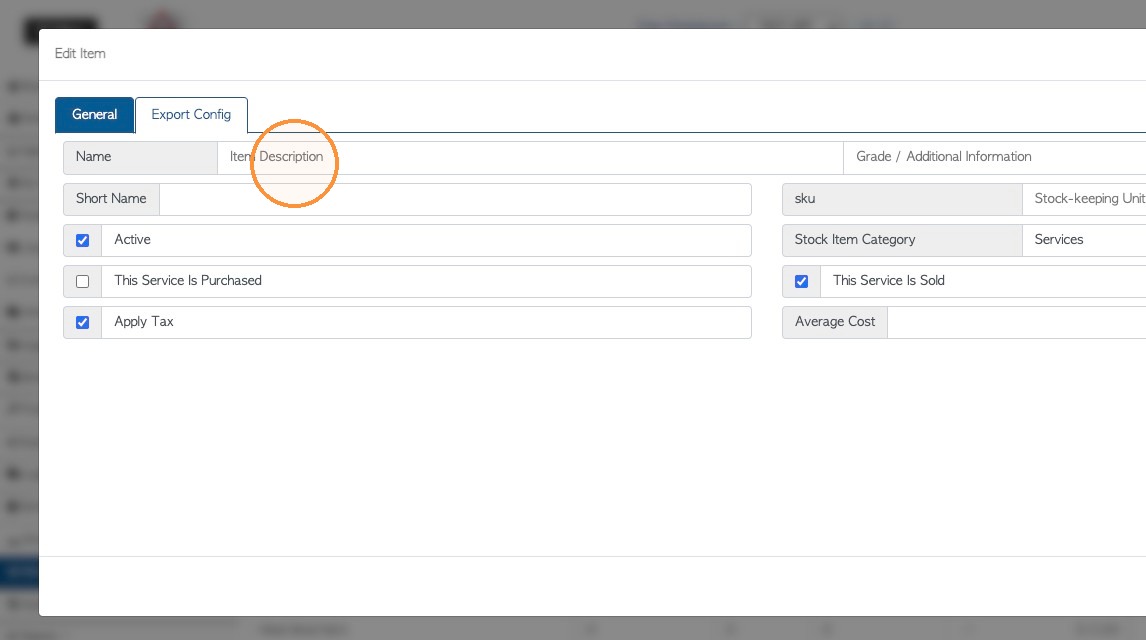
4. Enter the service name, in the Item Description field.
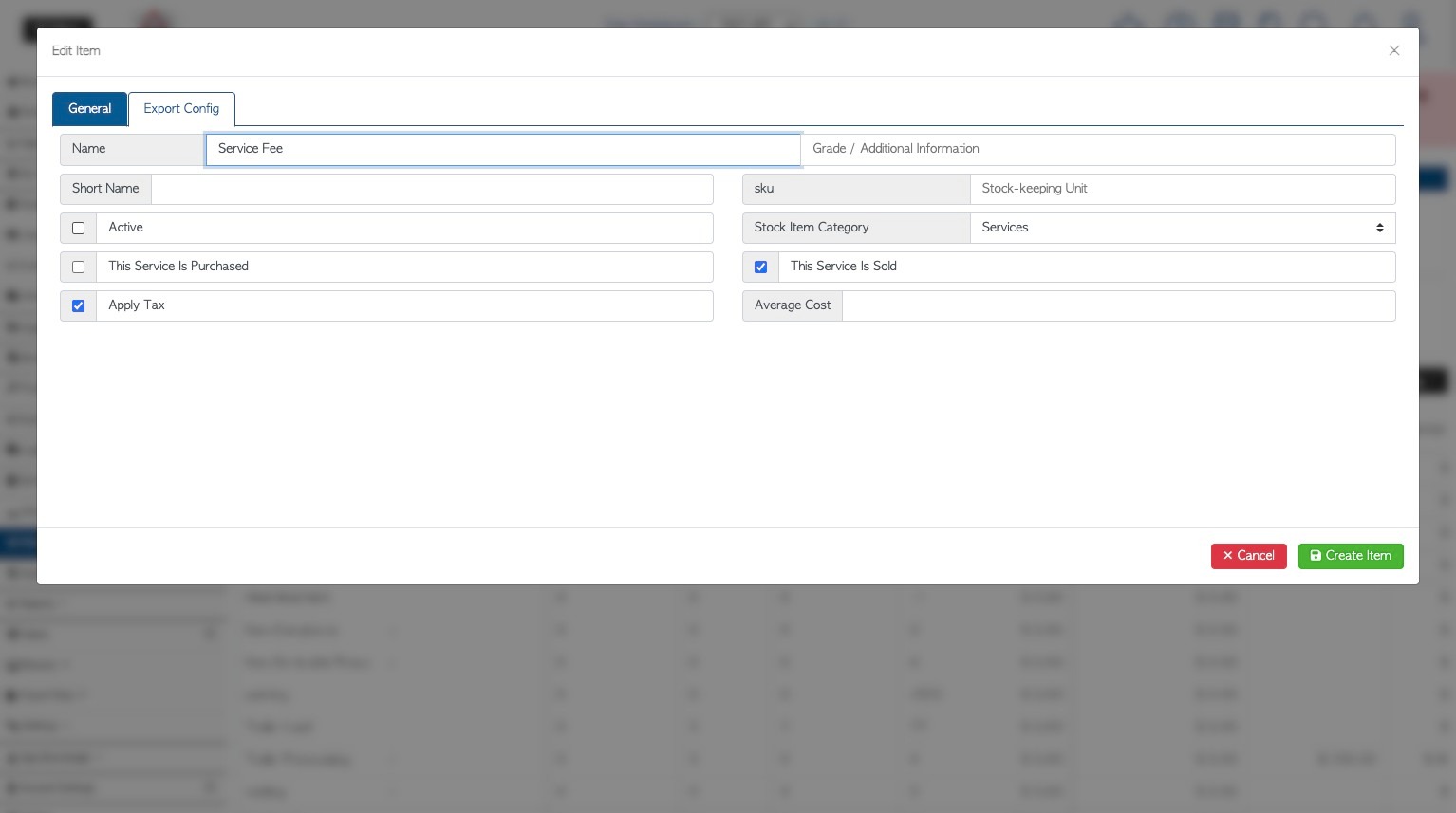
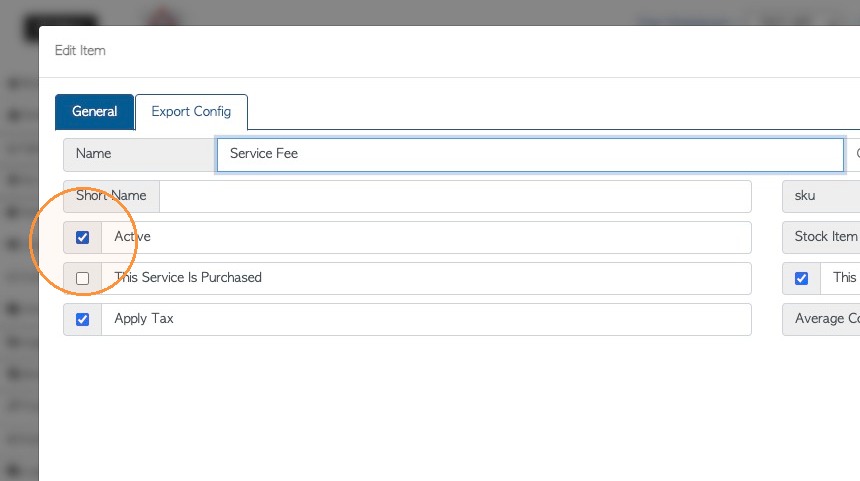
5. Ensure that "Active" is checked off for the item to be used in transactions.
6. The item will automatically be assigned to "Services" Item category.
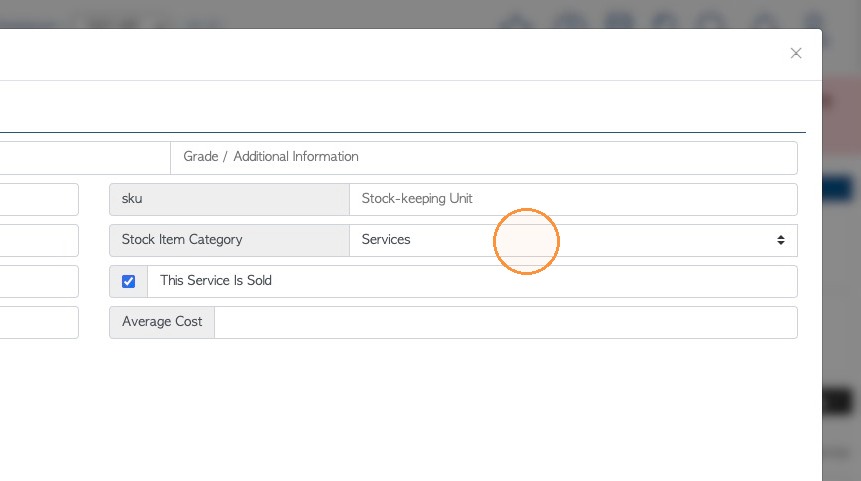
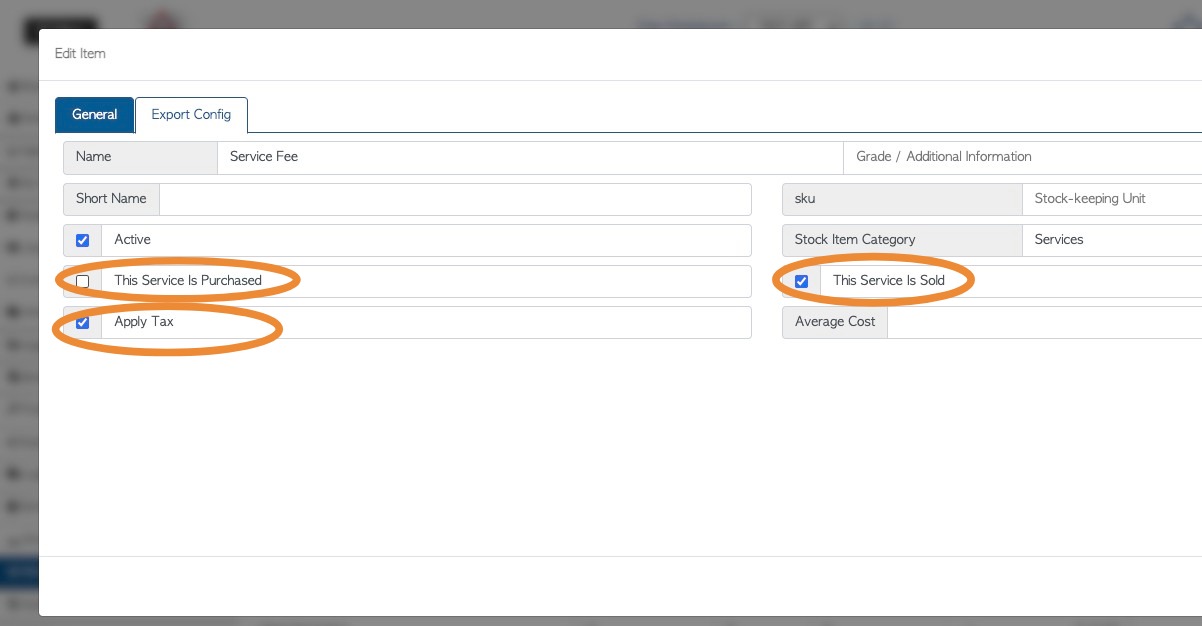
7. Choose if the item is to be sold or purchased by clicking the relevant fields. Choose if tax is applied or if it is tax exempt.
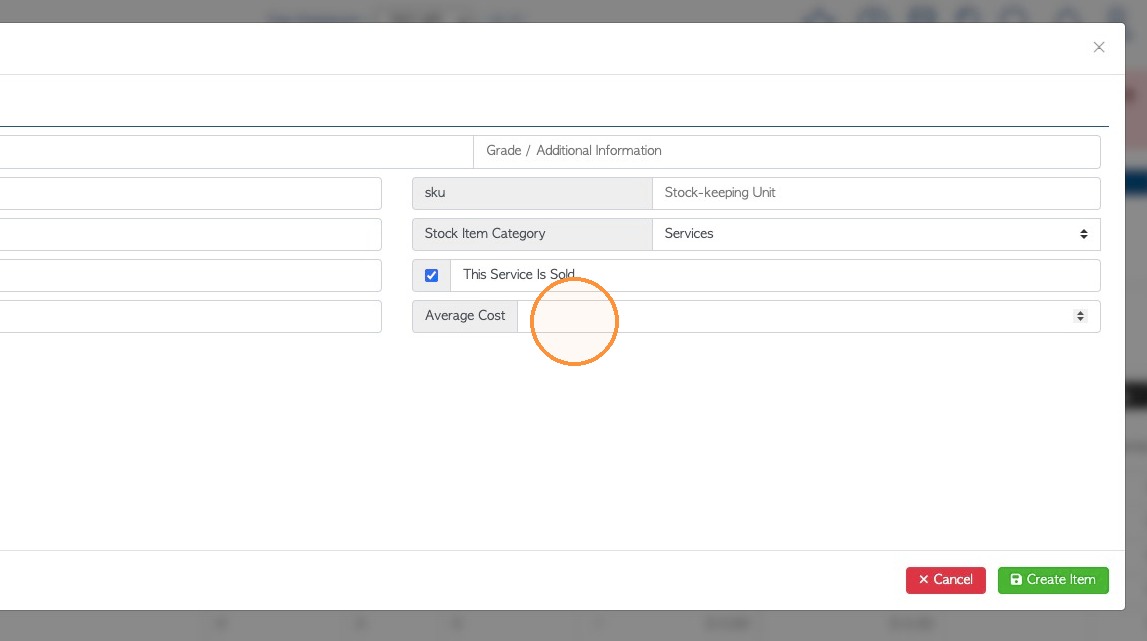
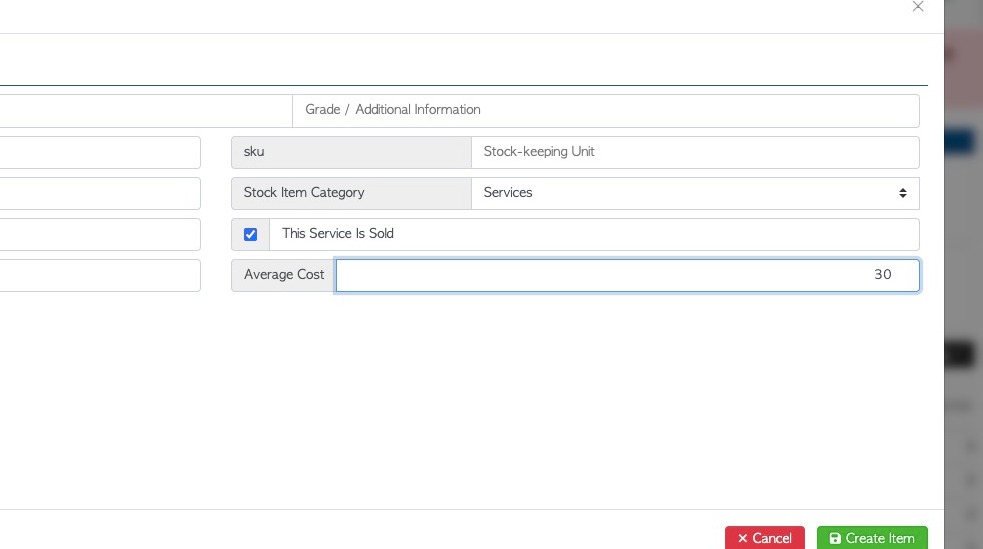
8. Enter the Average Cost, if applicable.
NOTE: The cost can be set when linking the items to a contact. The cost can also be added when creating a transaction.
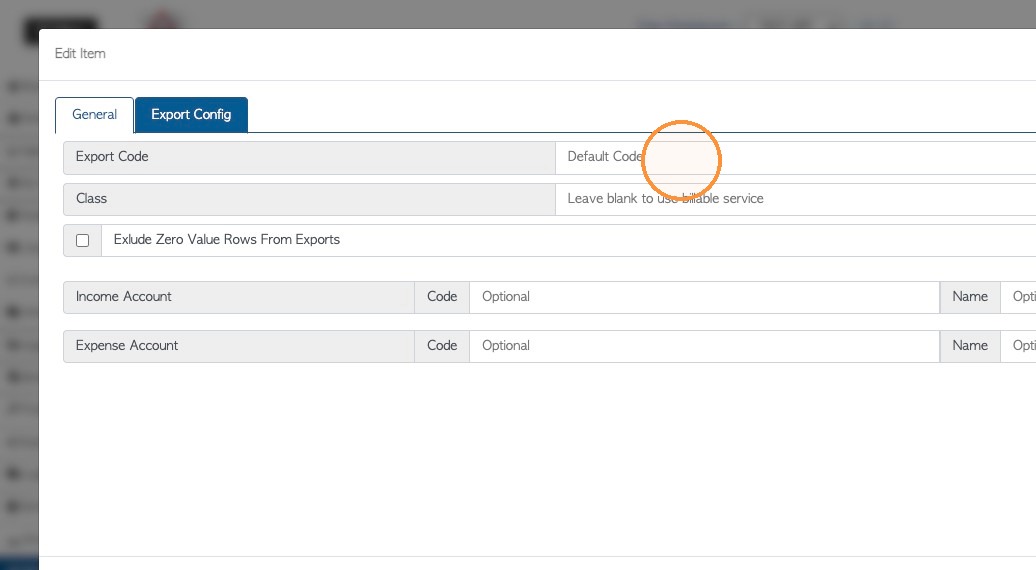
9. Click the "Export Config" tab
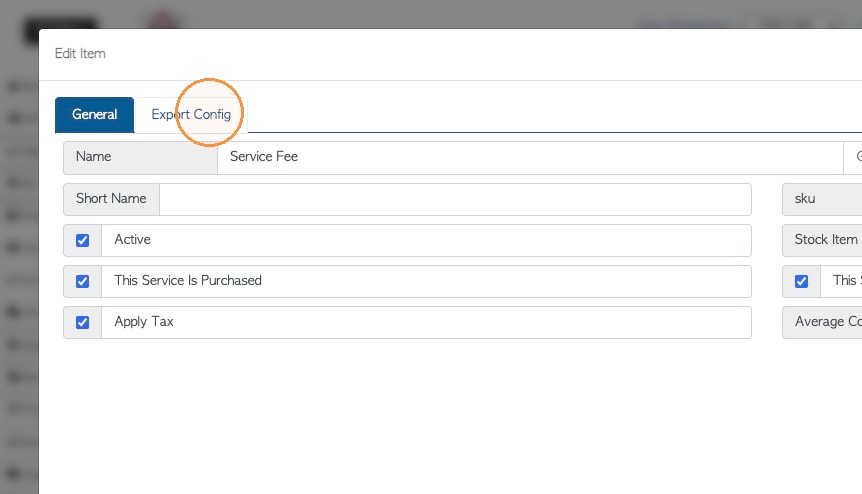
10. Add an export code, if applicable. This is used when exporting to accounting softwares e.g. Quickbooks online .
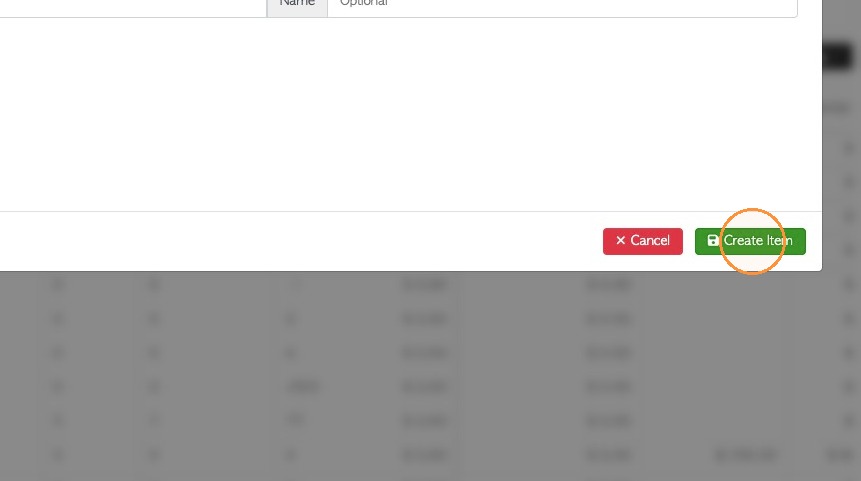
11. Click "Create Item" to save.
12. The new service will now be visible on the Services list.
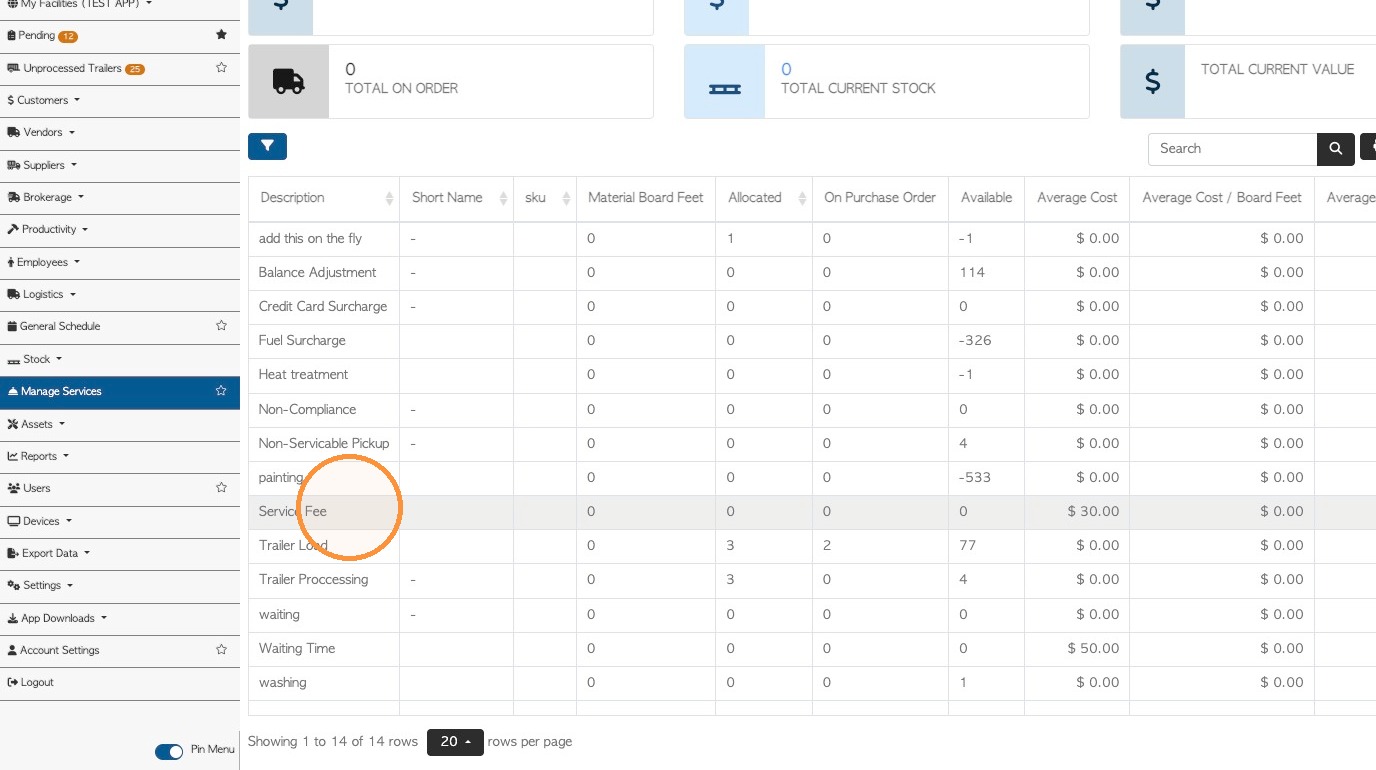
13. Additional information can be added to the profile e.g. comments.