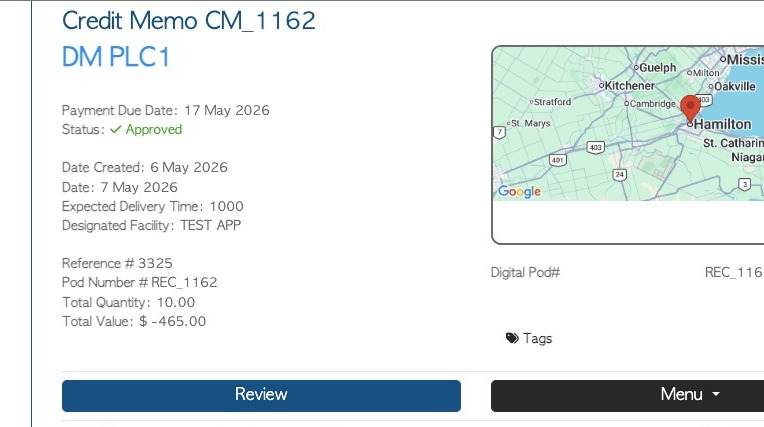
1. Normally when a Vendor transaction is completed a 'Rebate' is produced. This is a Purchase/Bill that shows what is owed to the Vendor. There is an option in the system that allows the Rebate to show as a Credit Memo instead. This is useful, for example, when a Vendor is also a Customer. The amount owed can then be added to the company's account as credit against their sales account. This article shows how this is set up at the contact level.
- Start by clicking Vendors from the main menu.
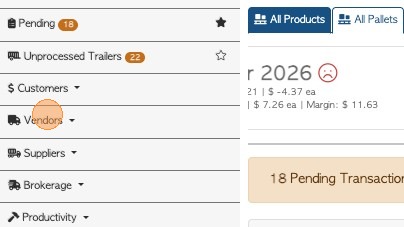
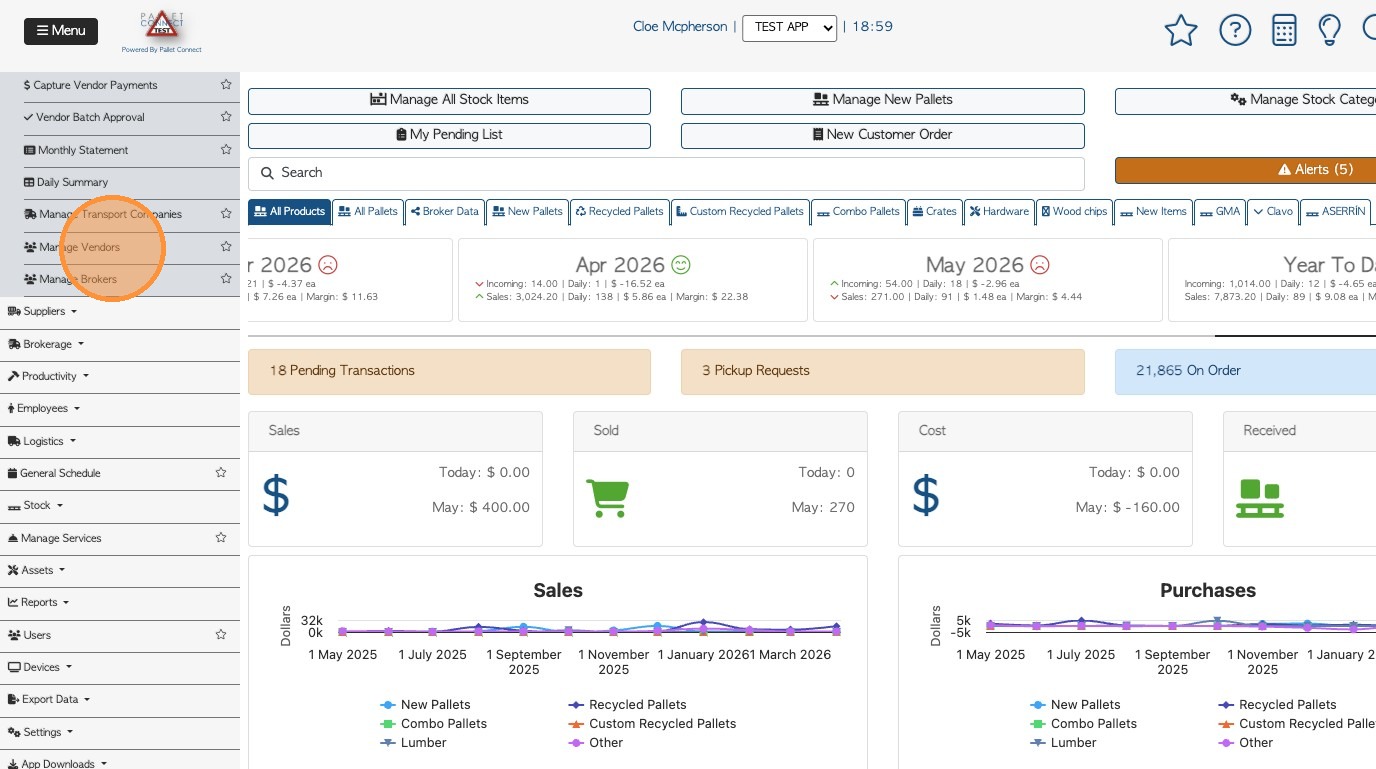
2. Select "Manage Vendors".

3. Type the name of the Vendor on the search tab or click on the Vendor name from the list.
Tip! Use the Global Search tool in the top right tool bar, to find the Vendor profile.
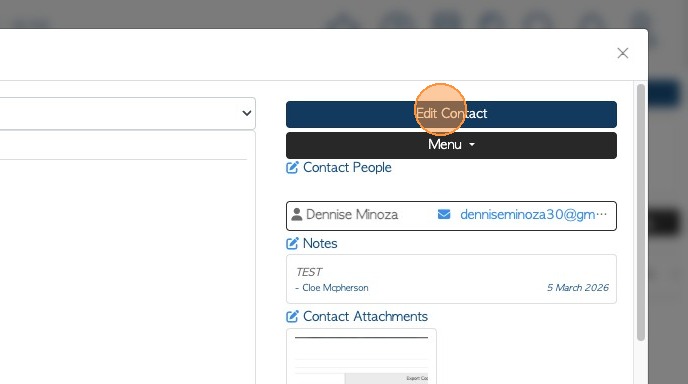
4. Click "Edit Contact", this will open the full profile settings and customization options for the Vendor.
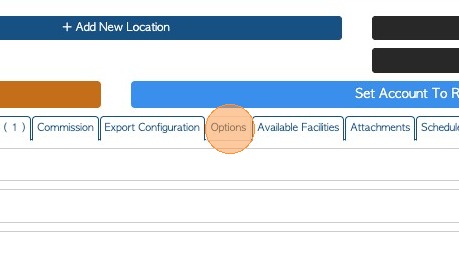
5. Click "Options" tab.
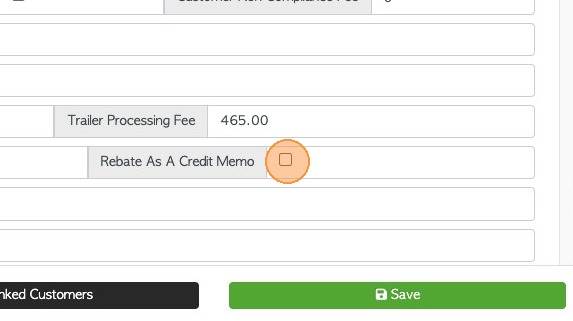
6. Enable the “Rebate As A Credit Memo” checkbox. Once activated, the Vendor transactions will generate a Credit Memo instead of a Rebate. This setting can be changed anytime.
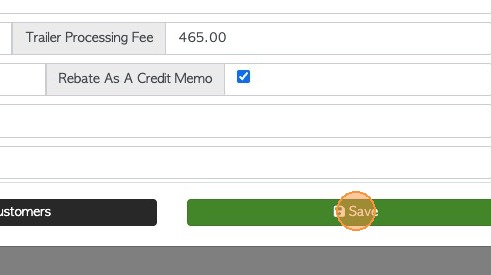
7. Click 'Save' to apply your changes.
8. As shown in the example below, the completed Vendor transaction now appears as a “Credit Memo” instead of a Rebate after the count has been entered.