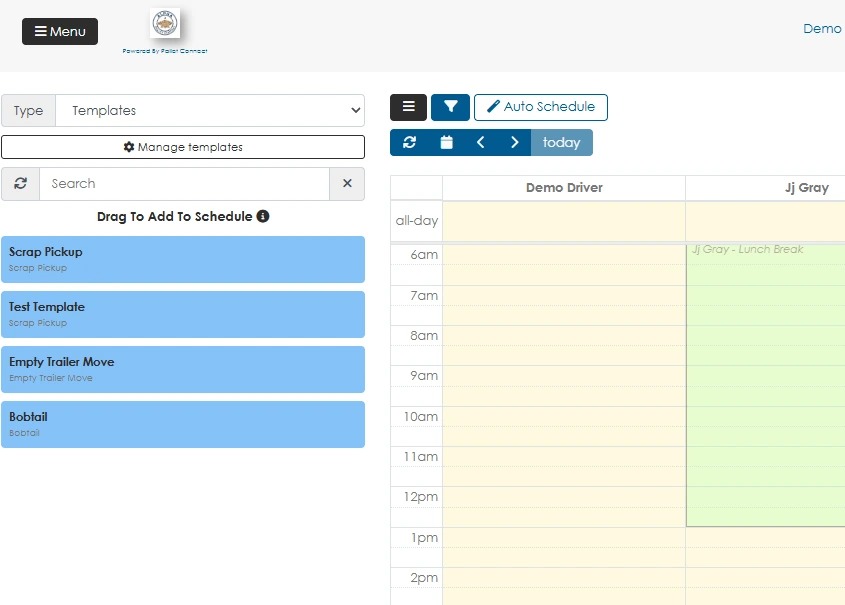
Driver Schedule Event Templates allow users to save reusable templates for unlinked driver schedule events. These are events that are not deliveries or pick ups e.g. oil change. Templates make it easier to create these tasks quickly and minimize repetitive data entry.
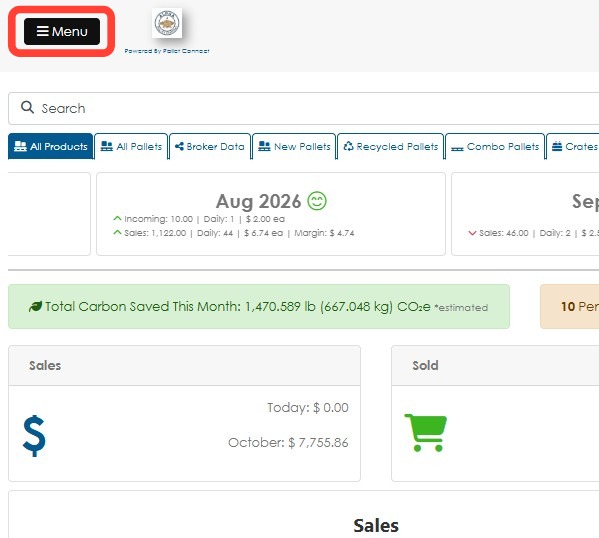
1. Click Menu.
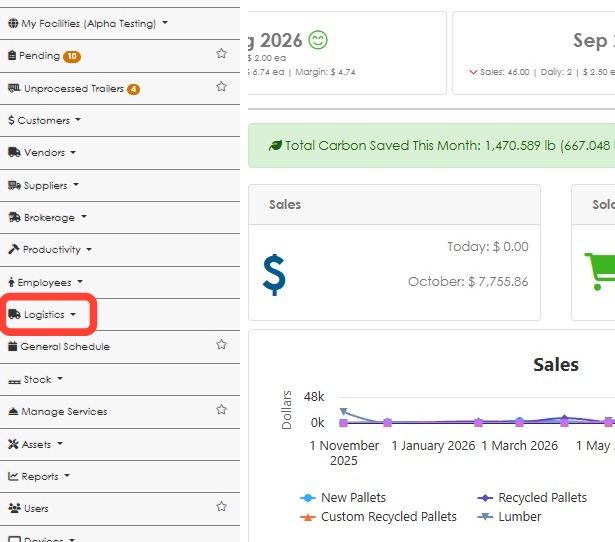
2. Click Logistics.
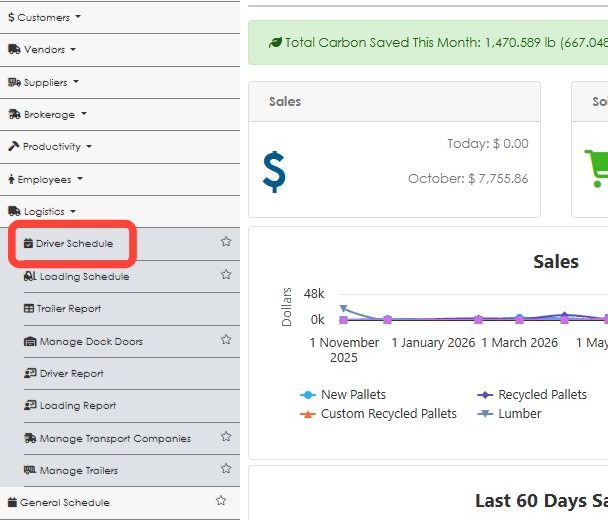
3. Click Driver Schedule.
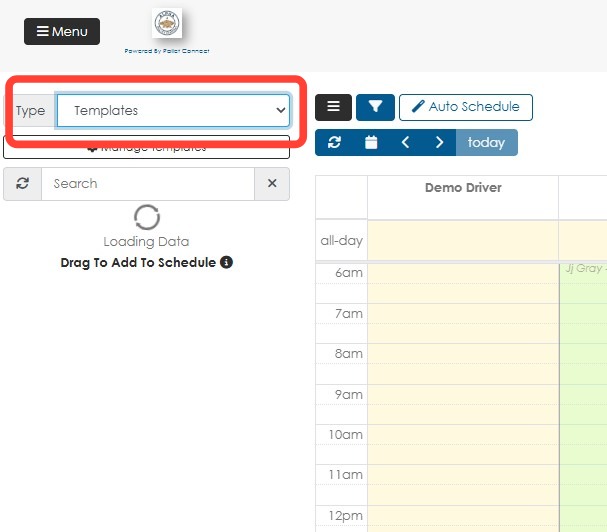
4. Click Type drop-down and select Templates.
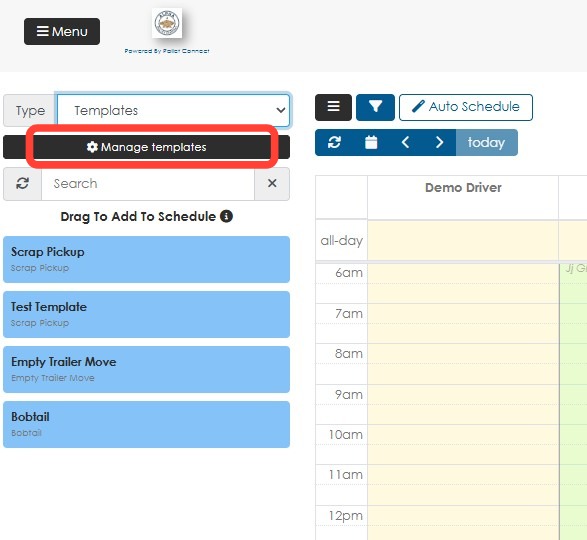
5. Click Manage templates.
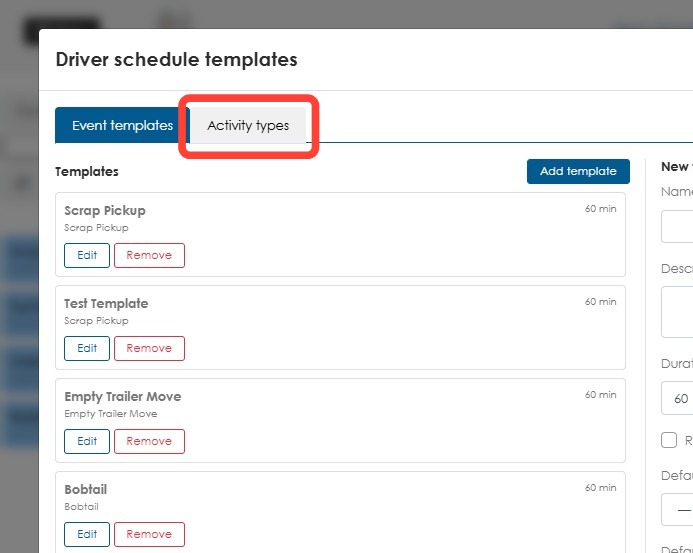
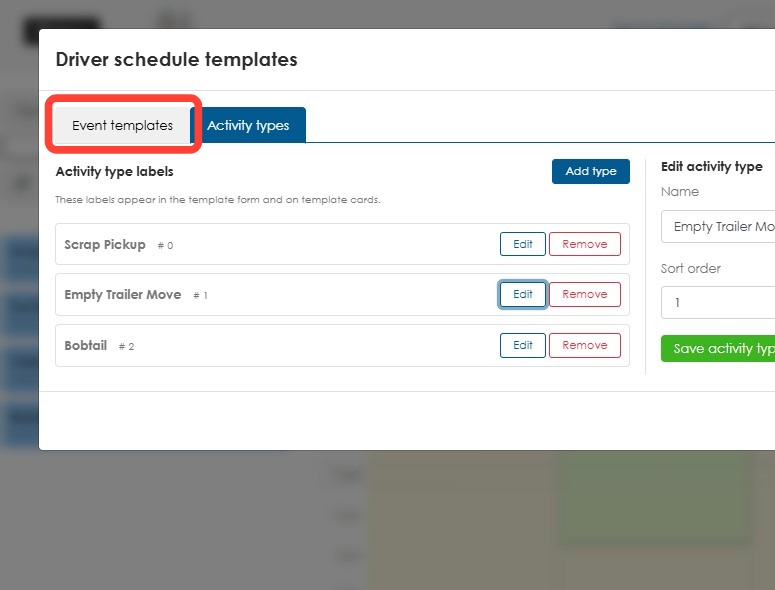
6. To create or manage activity types, click the Activity types tab.
7. Fill up the Name and Sort order fields then click Save activity type.
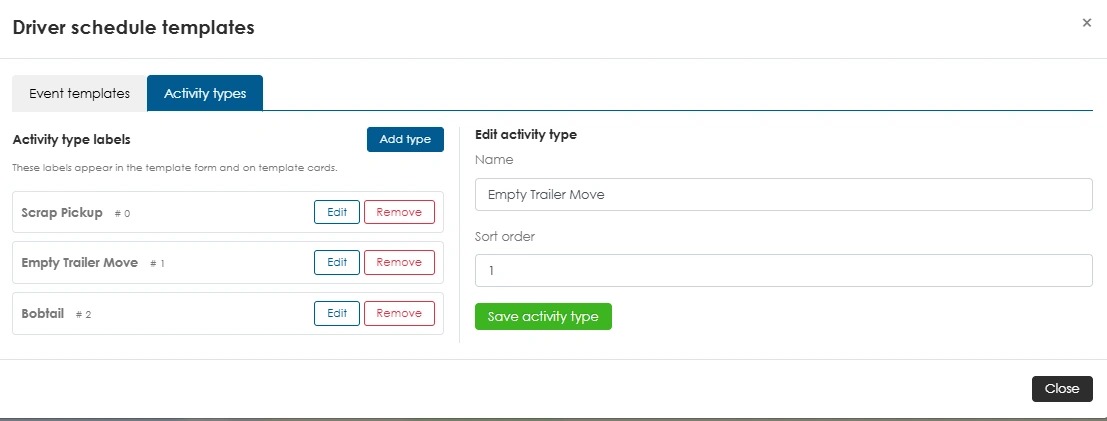
Tip: Tip! Existing activity types can also be managed on this page. Select an activity type to edit its details or remove it as needed.
8. To create an event, go to the Event template tab.
9. Fill up the form then click Save Template.
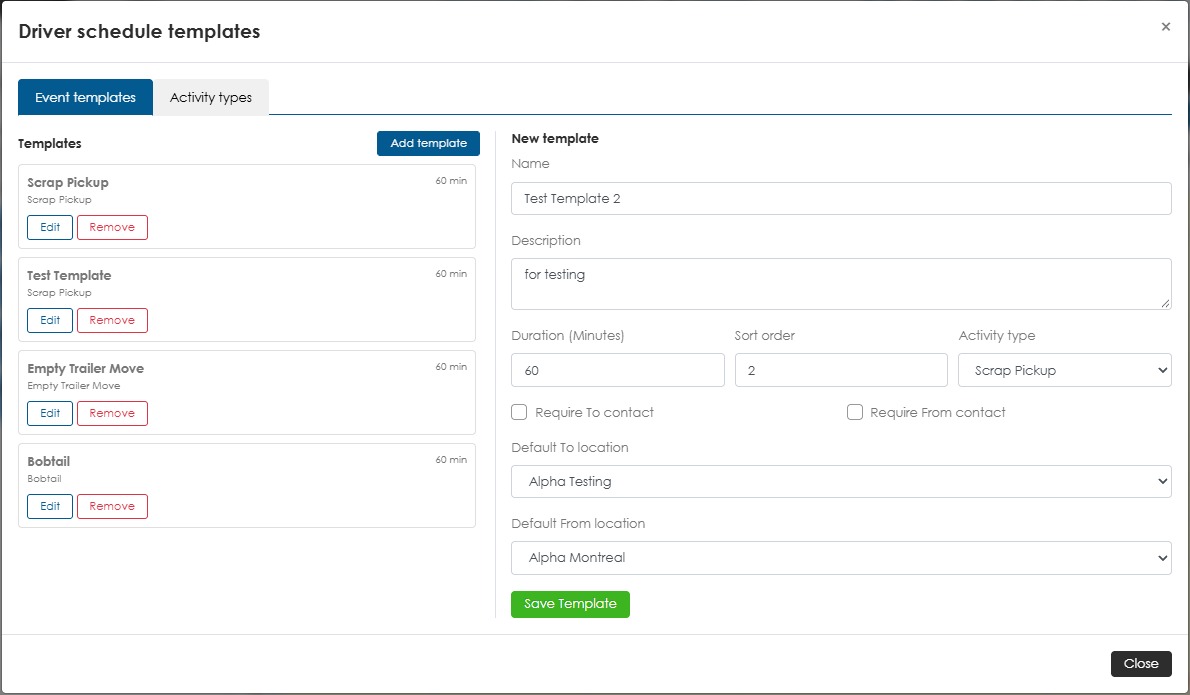
Tip: Tip! Existing templates can also be managed on this page. Select a template to edit its details or remove it as needed.
If the required activity type is not listed, refer to Step 6 of this article for instructions on how to create a new one.
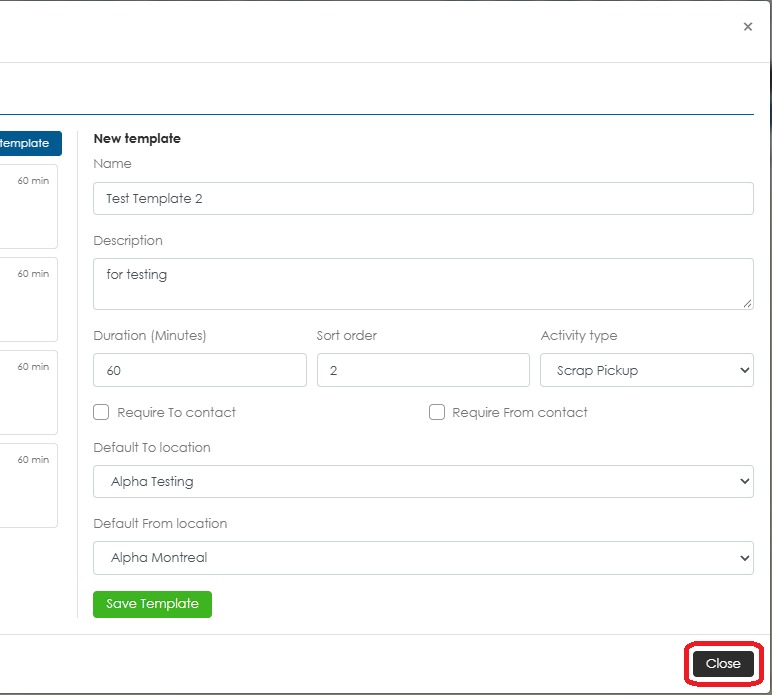
10. Click Close.
11. The templates are now available on the Driver Schedule page. Drag and drop a template onto the schedule to assign the event to a driver. Once on the schedule, additional notes can be added.