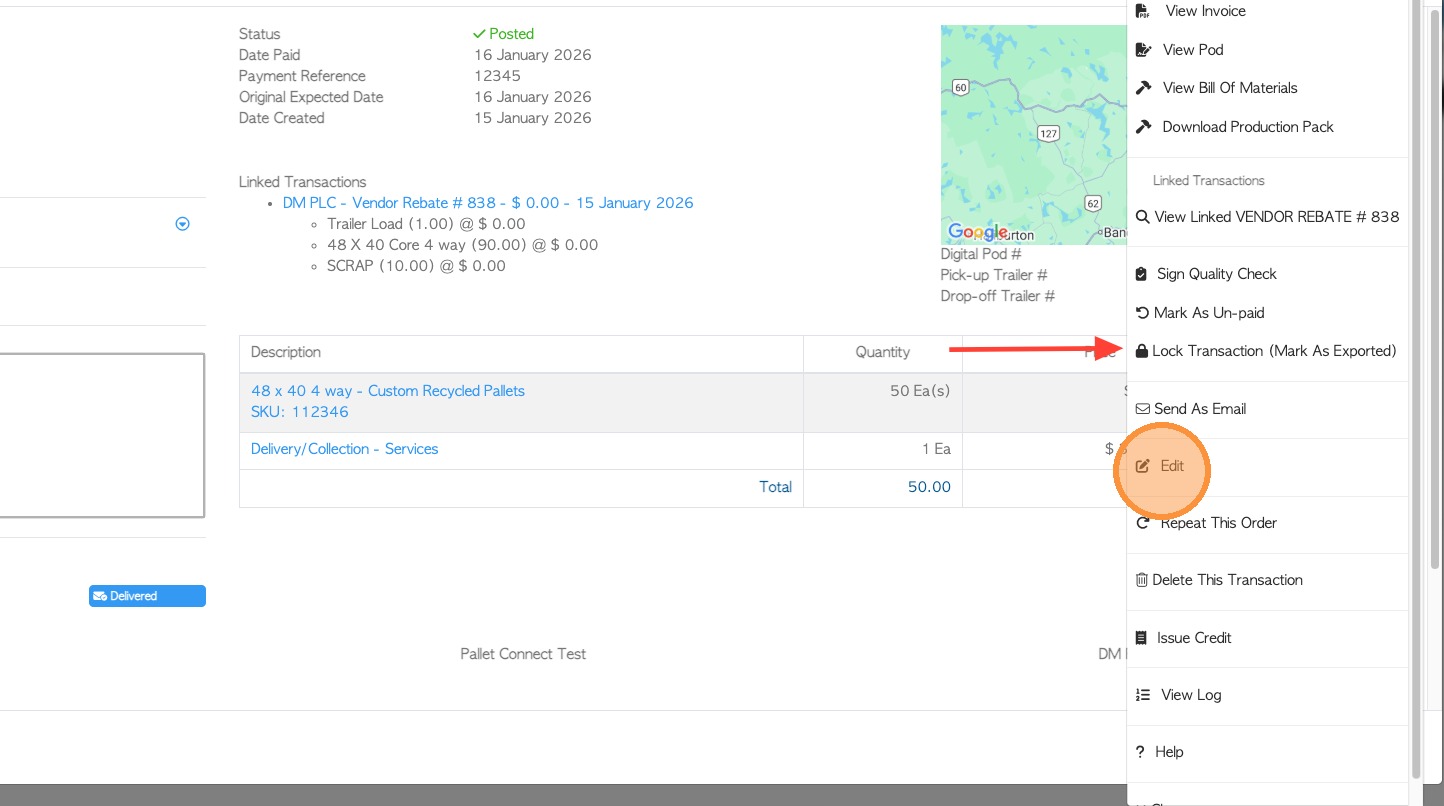
1. In instances where additional information is received after transaction completion (e.g., PO number or trailer number), users are permitted to update the transaction record.
Updates can be made prior to or following invoicing, provided the transaction status is "Open" or "Pending Approval". The 'Edit' button will be available in the transaction menu.
TIP: Edits cannot be made once an Invoice has been 'Posted'. This status shows that the Invoice has been exported to an accounting system and is locked. This is discussed later in this article.
Tip! This process can still be applicable for transactions that are already 'Approved'. A user that has access to approve invoices will have this option. The Approvals feature is optional in the system, see related article on Approvals.
NOTE: Certain information cannot be edited when a transaction is in a billing state (Invoice or Rebate). For example "Invoice To" address cannot be changed for a completed Invoice. See related article on how to change this information.
Follow the steps below:
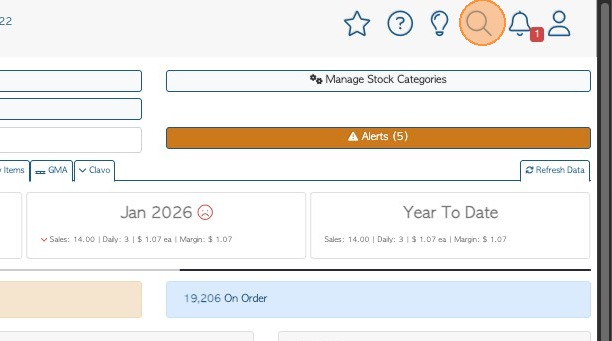
2. If the user has a transaction number, it can be found using the Global Search tool. Alternatively, user can go back to the Order History page to look up the selected transaction.

3. EDIT APPROVED TRANSACTIONS: The example below shows that the status is already 'Approved'. For the user to unlock the Edit button, go to Menu > Revert Back To Pending Approval (Unlock Edit).

4. Click 'Yes' to unlock the Edit feature. Once unlocked, the status should return to 'Pending Approval' and changes can be made.
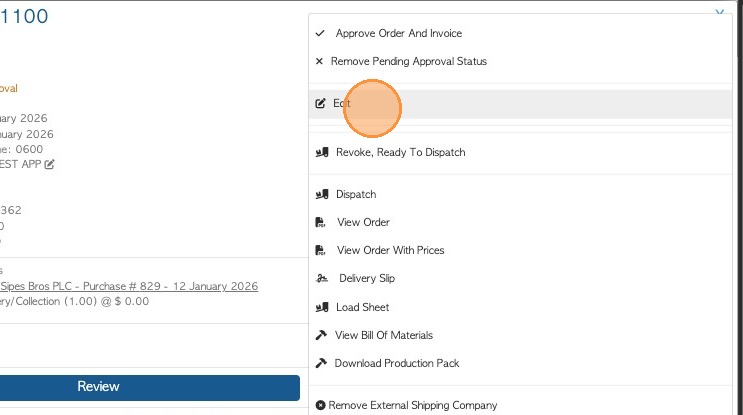
5. From the Menu > Select 'Edit'.
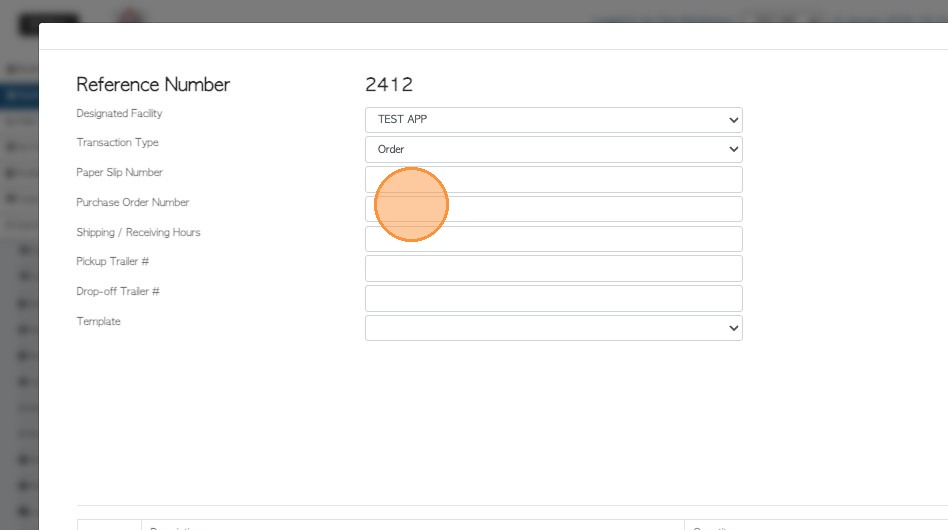
6. The text fields are now available to add or modify the transaction. Remember to review the information before saving.
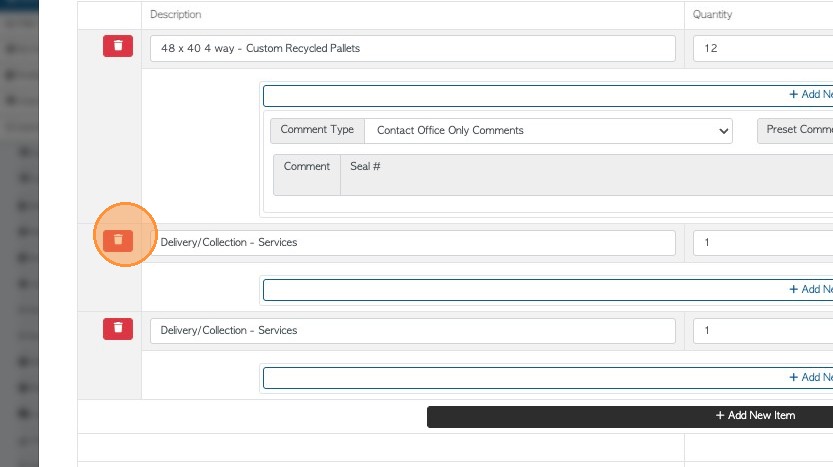
7. Stock items and Comments can also be added/deleted. For deletion, click the 'trash icon' next to it.
8. Click "Save Changes" to complete.
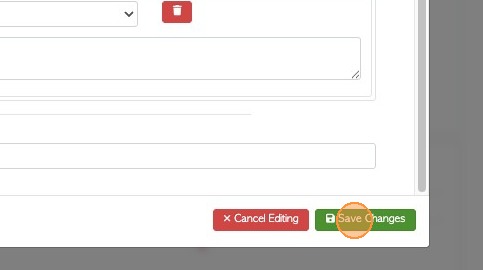
9. After the changes are successfully saved, the transaction can now be 'Approved' again.
NOT: As mentioned, this feature is only available for certain users types that have the ability to approve transactions e.g. General Manager.

10. EDIT OPEN TRANSACTIONS: For customers who have disabled the 'Approval' setting in System Settings, users can edit order information directly from the menu, even if it has been invoiced.
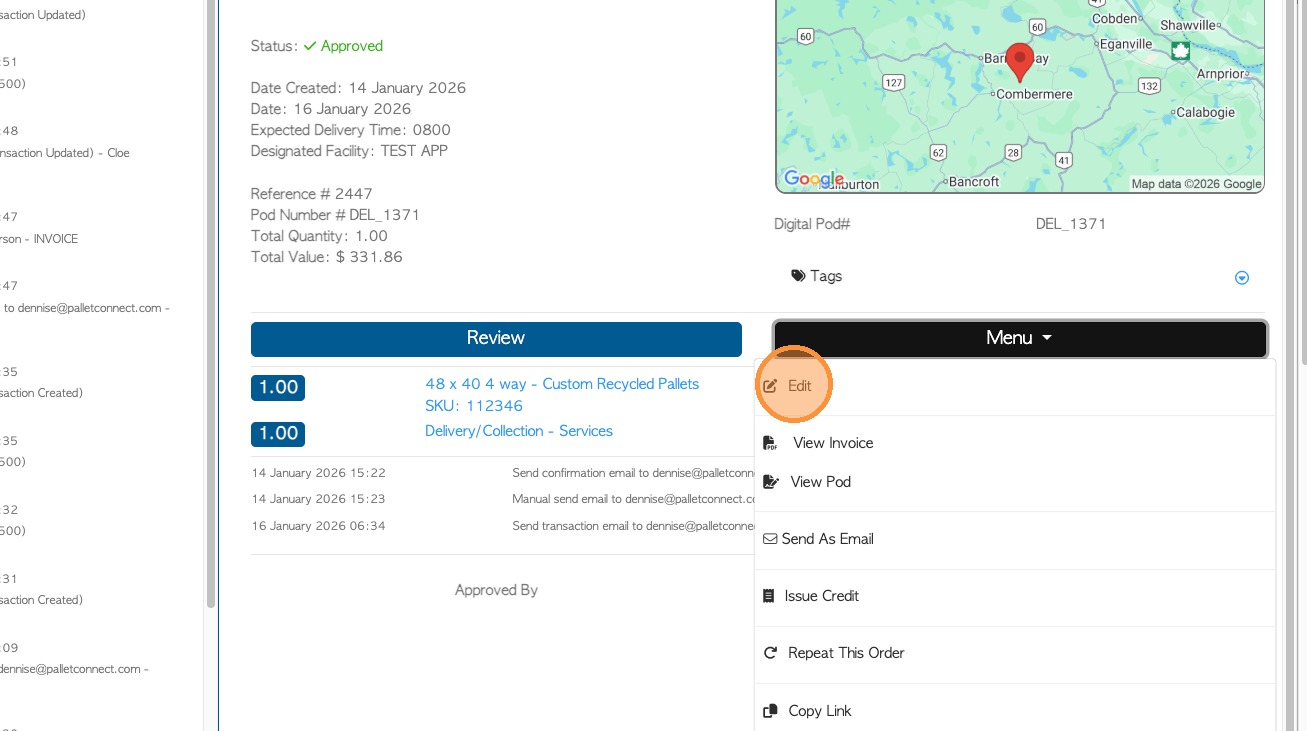
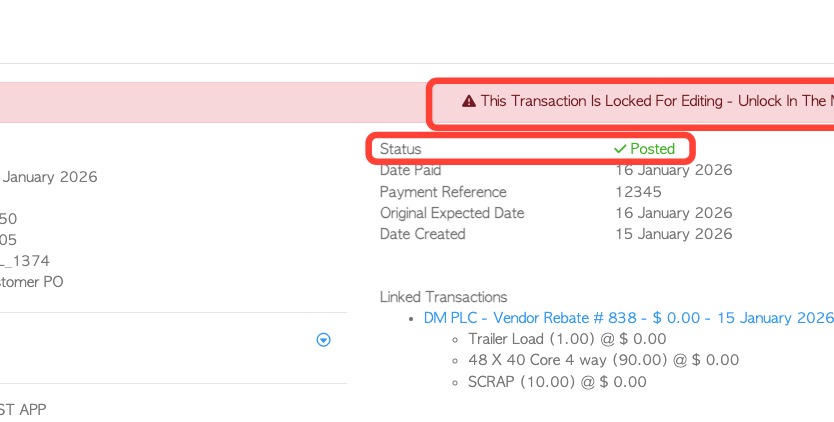
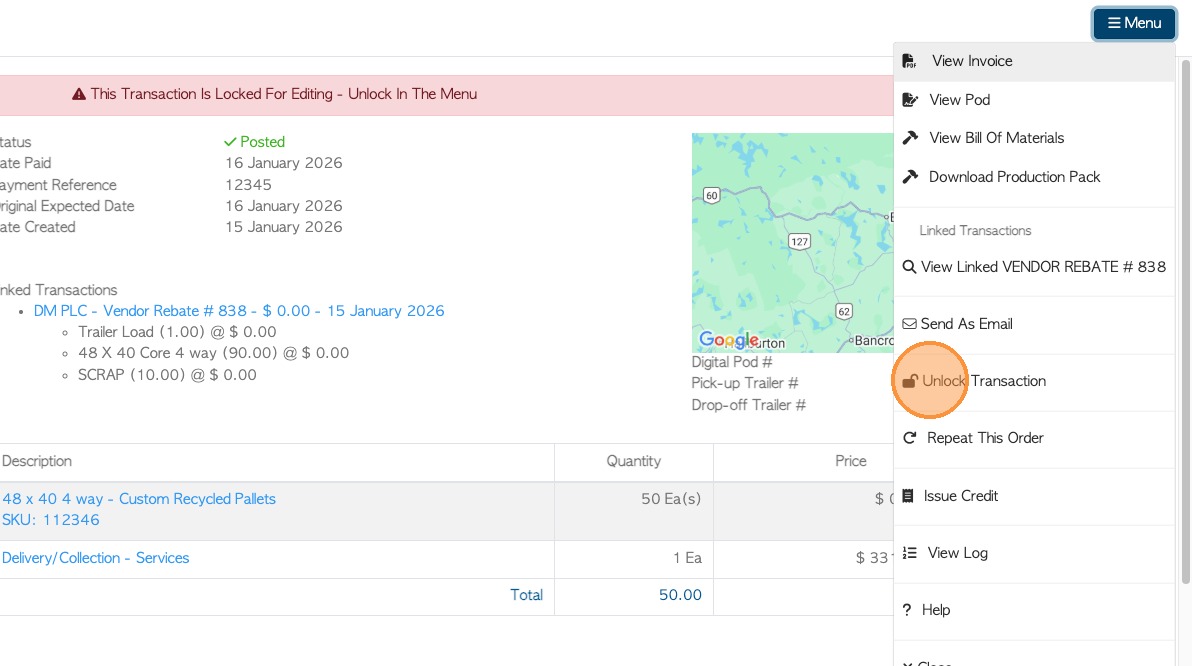
11. EDITING LOCKED TRANSACTIONS: If status is showing as 'Posted', user can still make changes in the transaction. User will see the message 'This Transaction Is Locked For Editing - Unlock In The Menu'.
Note: If the system shows that the transaction is 'Posted', this usually indicates that the transaction has been exported from Pallet Connect to an accounting program, Changes therefore may need to be made in the accounting software as well, to ensure information matches.
12. To unlock, go to the Menu > select 'Unlock Transaction'.
13. The transaction can now be edited.
Click “Lock Transaction (Mark As Exported)” once updates are complete.