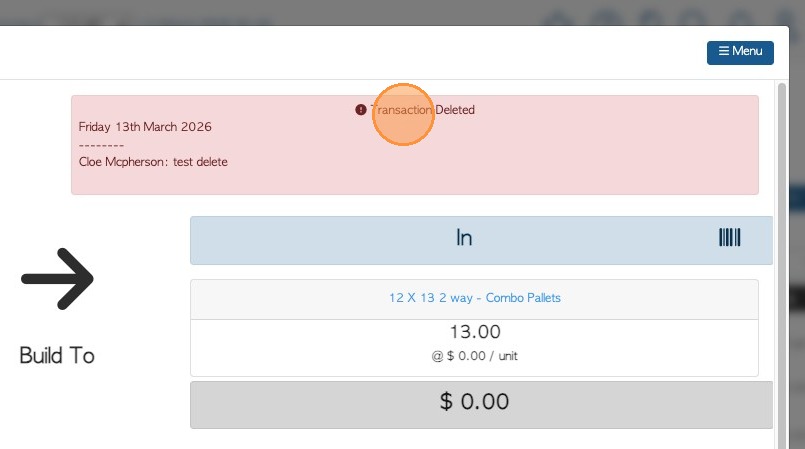
Learn how to remove a transaction from PalletConnect. This guide walks you through accessing the productivity report and deleting specific entries step-by-step.
1. From the Main Menu, click "Productivity Summary".
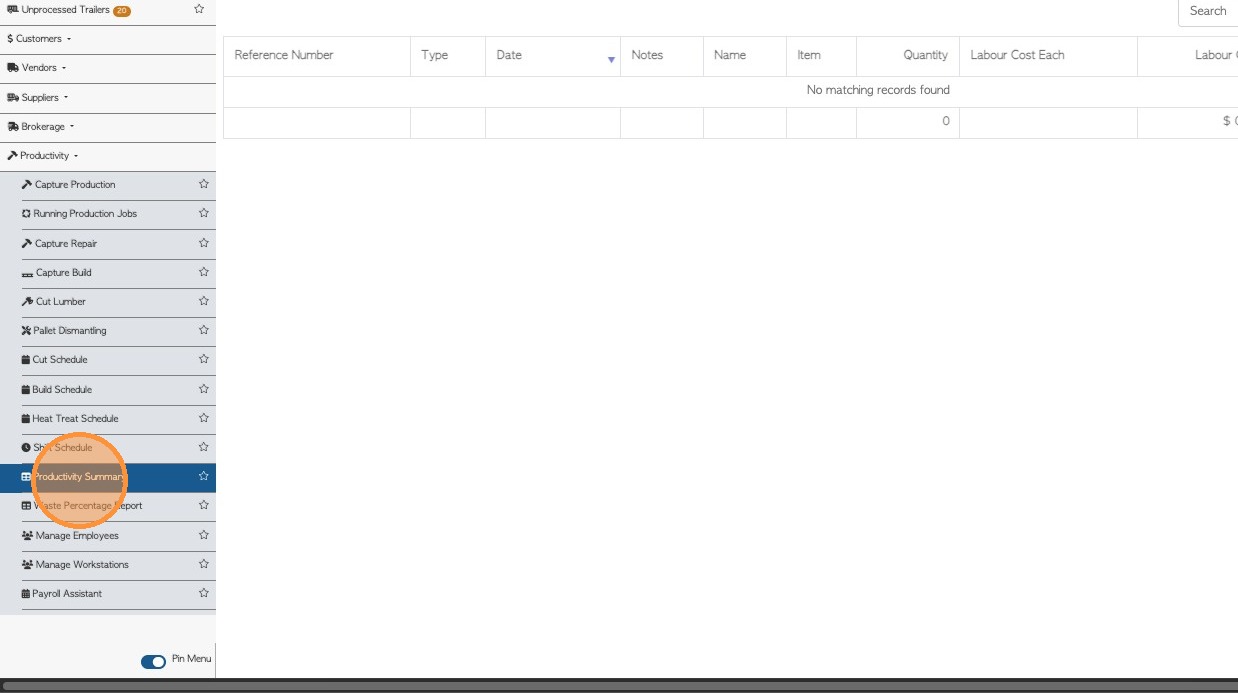
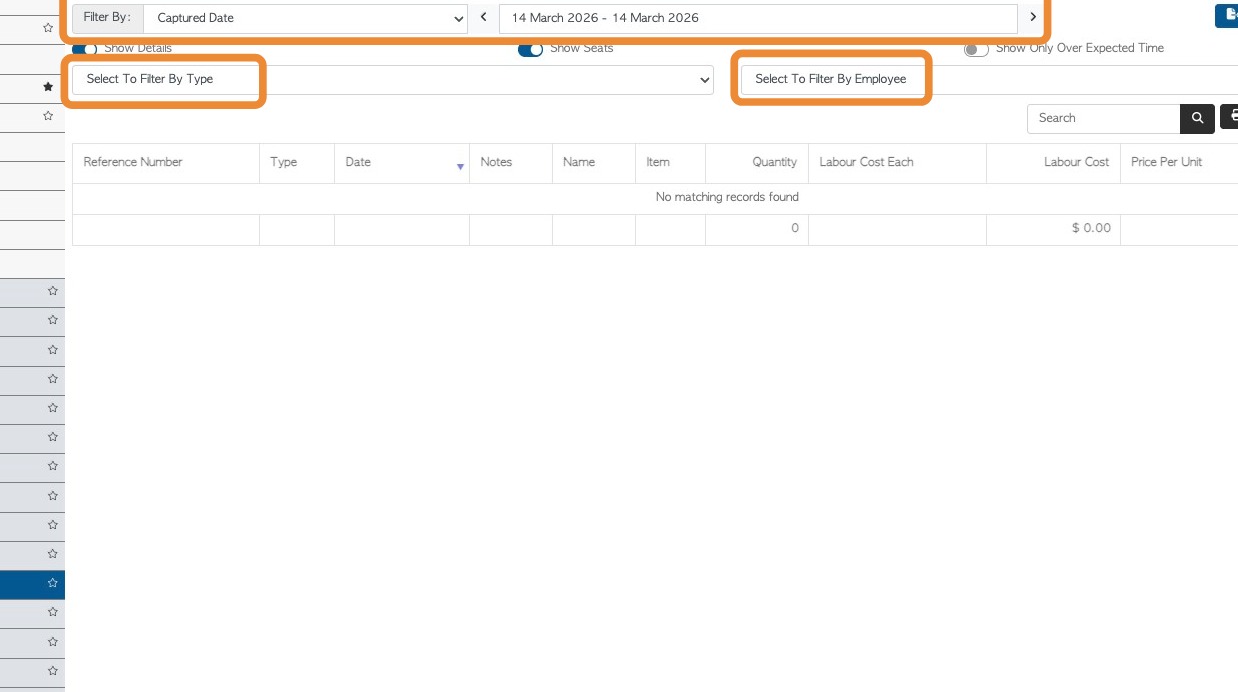
2. Look for the completed task. User can search it by using the captured date, filter it by employee or by using the filter for job type.
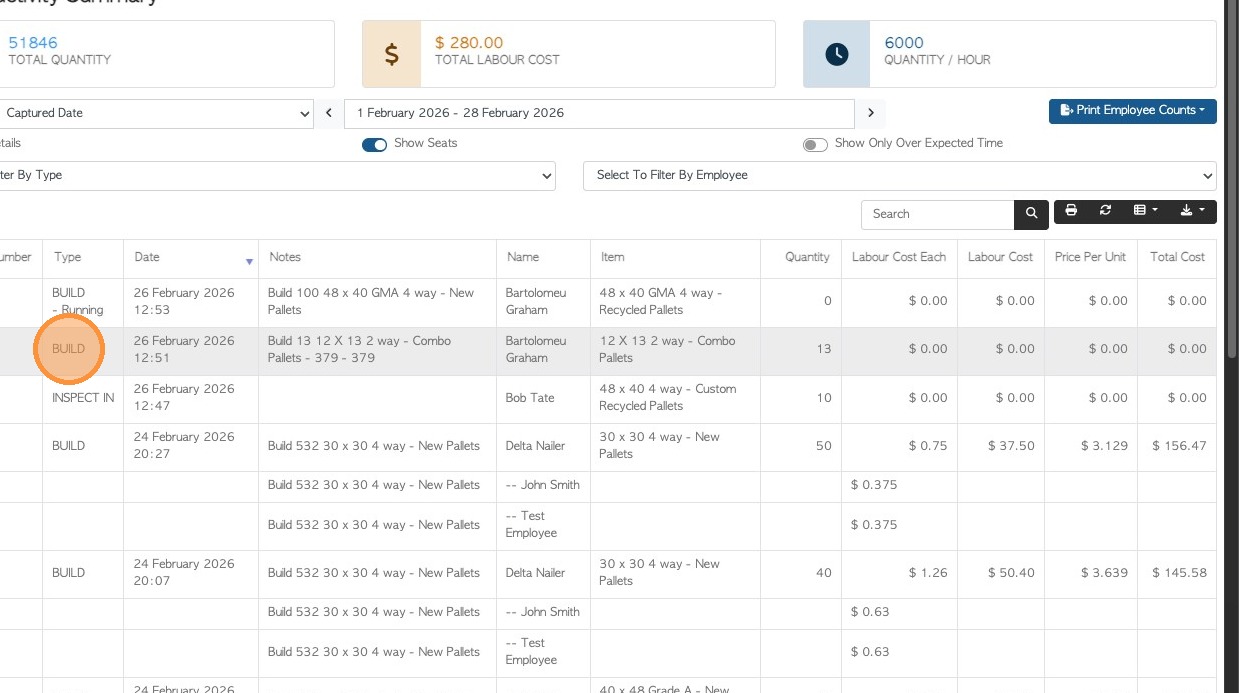
3. Click the task from the page.
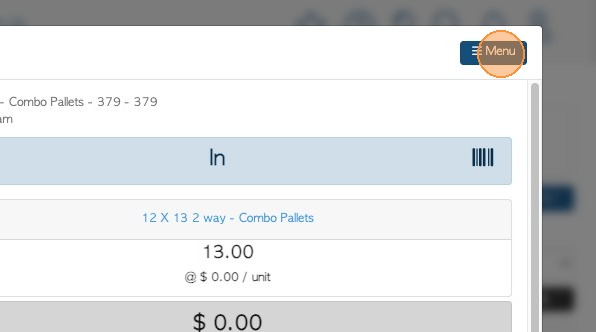
4. A pop-up window will appear. Look for the Menu on the top right.
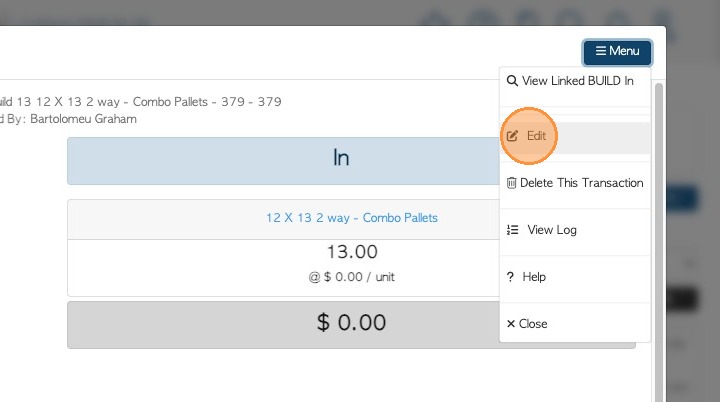
5. Click "Edit".
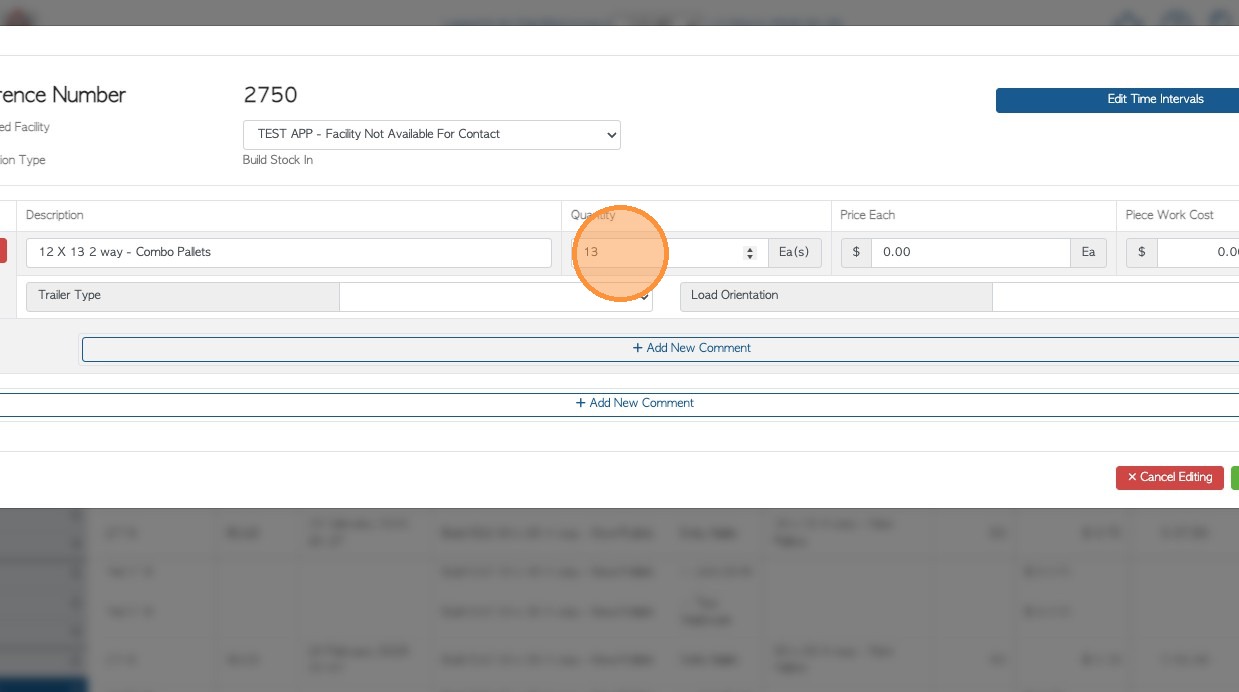
6. Make the necessary changes.
User can modify the following:
- Start/End Date
- Item
- Quantity
- Price
- Piece Work Cost
- Trailer Type
- Load Orientation
- Add/Edit Comment
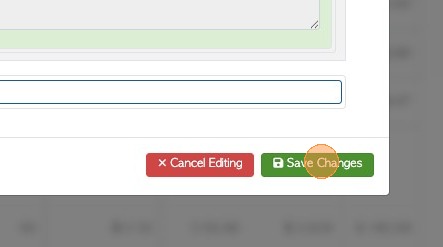
7. 7. Click "Save Changes".
8. 8. To delete a completed task. Go to the same Menu and click "Delete This Transaction"
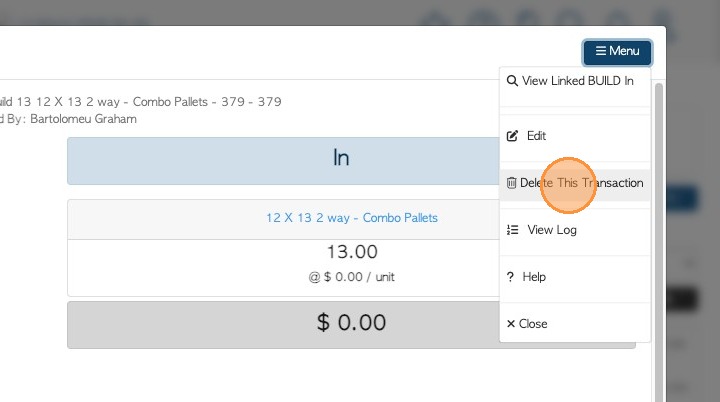
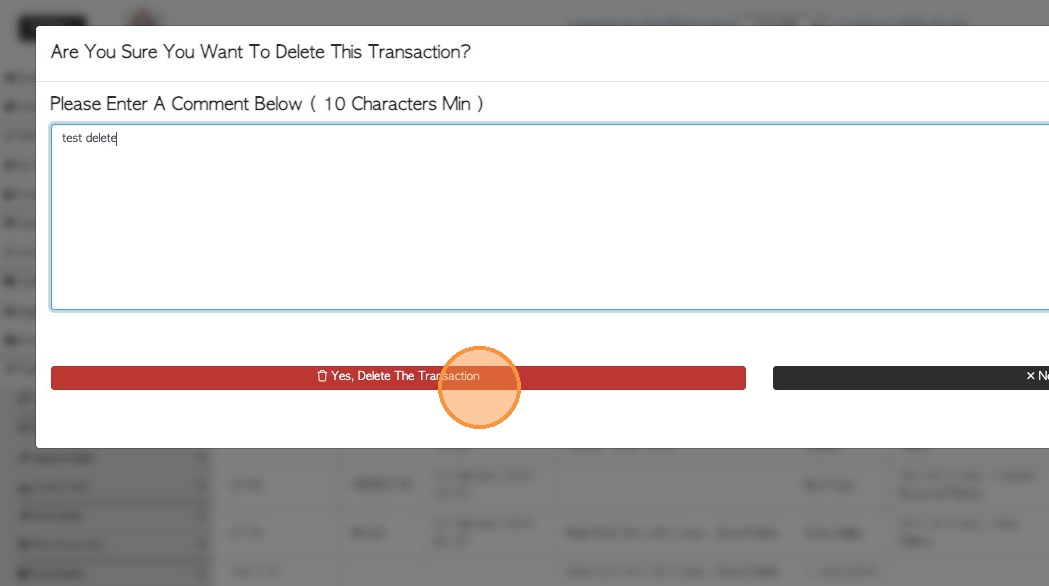
9. The system will ask for a comment why you want to delete the transaction. (Min of 10 characters)
10. Click "Yes, Delete The Transaction".
11. A message will show that transaction has been deleted.