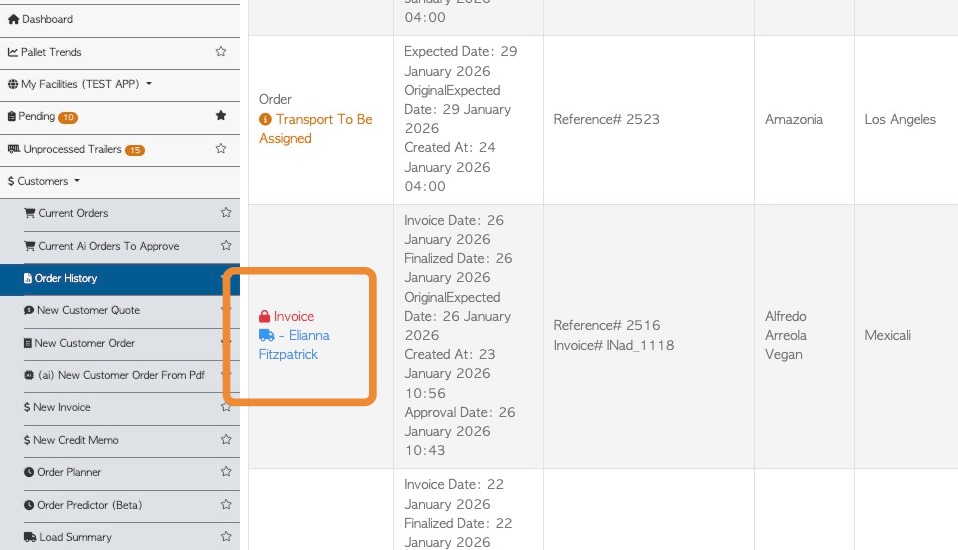
1. When a transaction is exported from Pallet Connect to an accounting system it is automatically marked as "posted" and is locked. These transactions cannot be edited. This is to ensure the information remains the same in both systems.
An Invoice can also be manually marked as "posted" and locked in the system.
TIP! This article focuses on Invoices but the process is the same for Rebates and Purchase Orders.
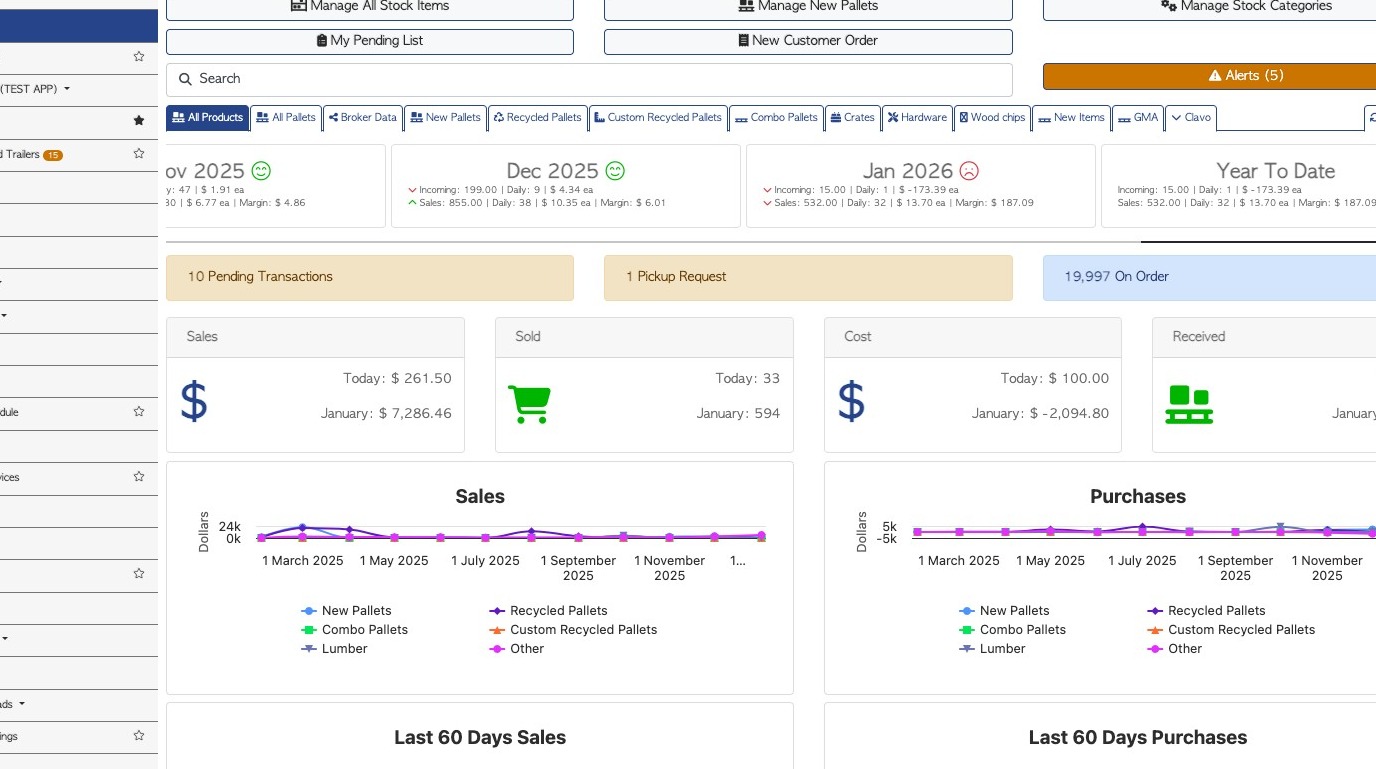
2. From the main menu, click "Customers".
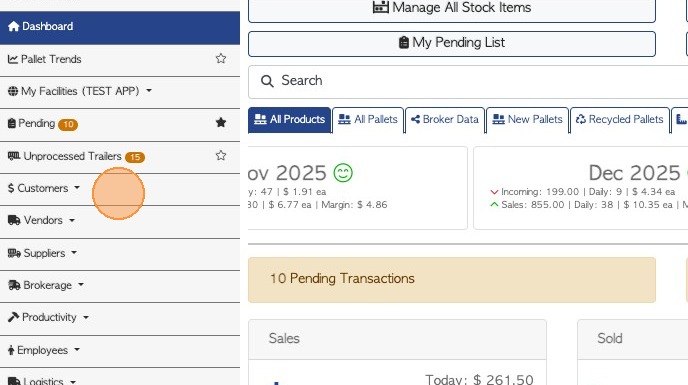
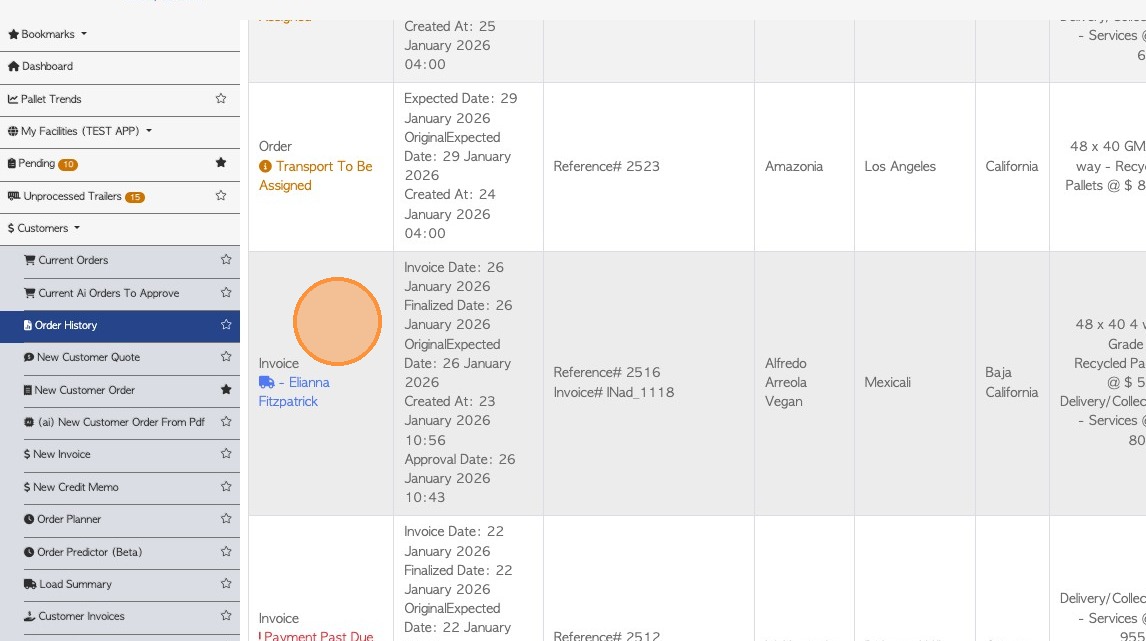
3. Click "Order History"
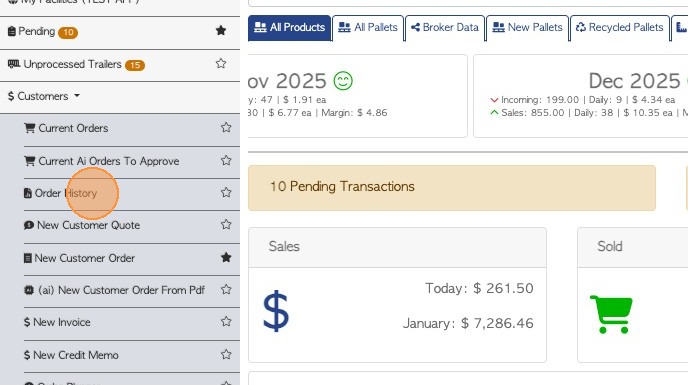
4. Click on the selected invoice from the list.
TIP! Alternatively, use the Global search to look up the invoice number. This is located in the top right corner of each page.
5. From the slide out screen, click "Review"
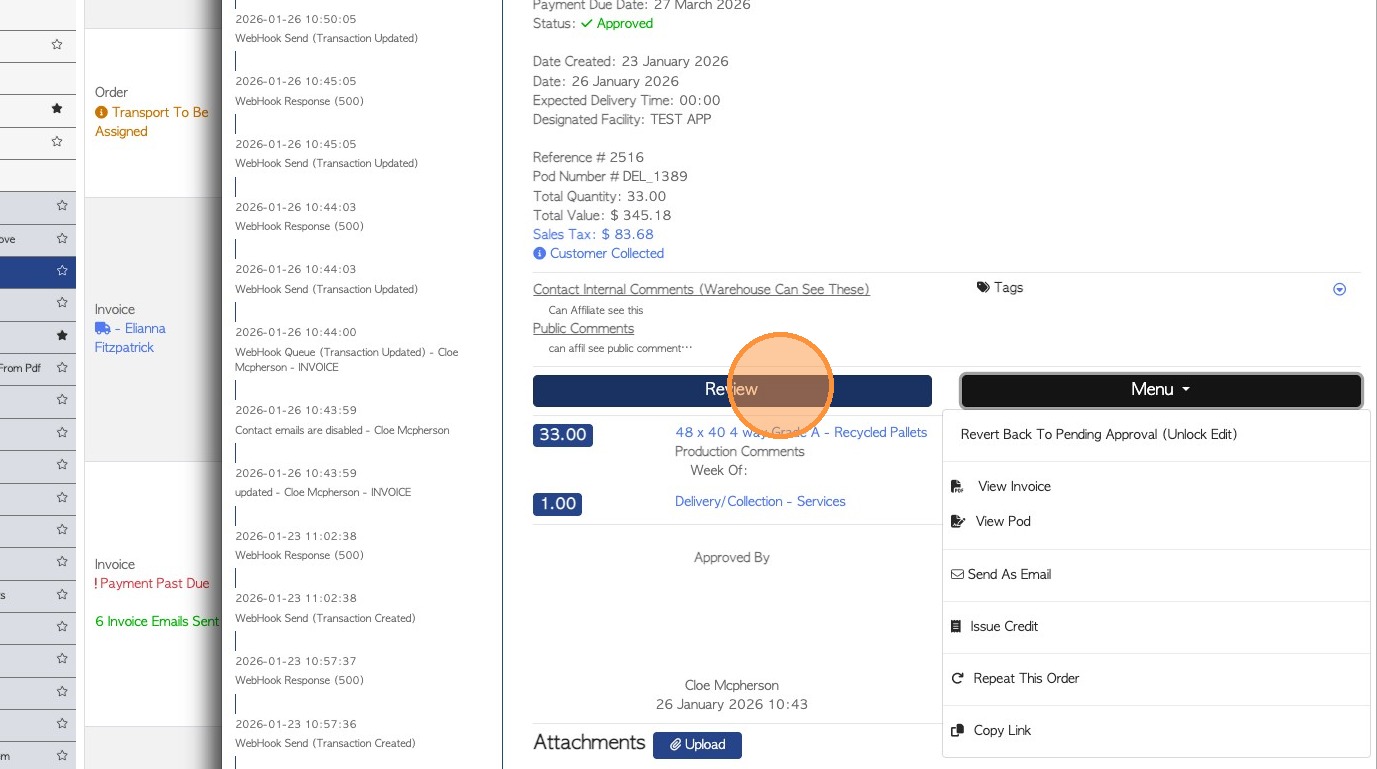
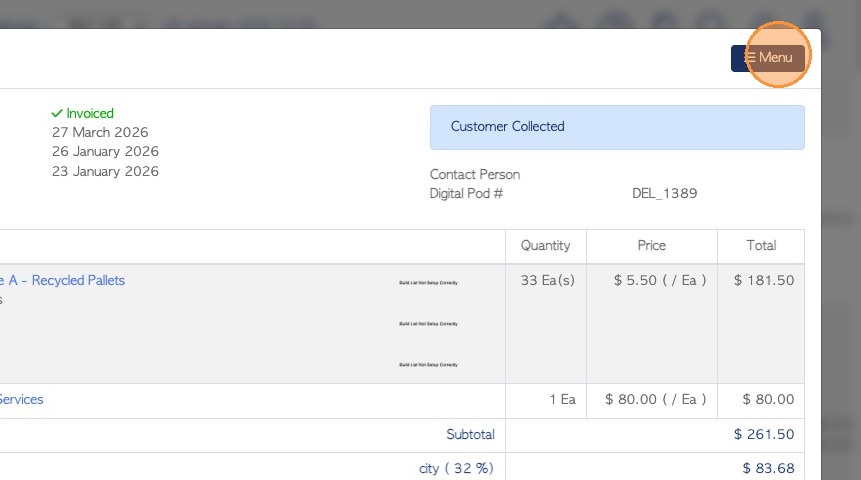
6. Click "Menu"
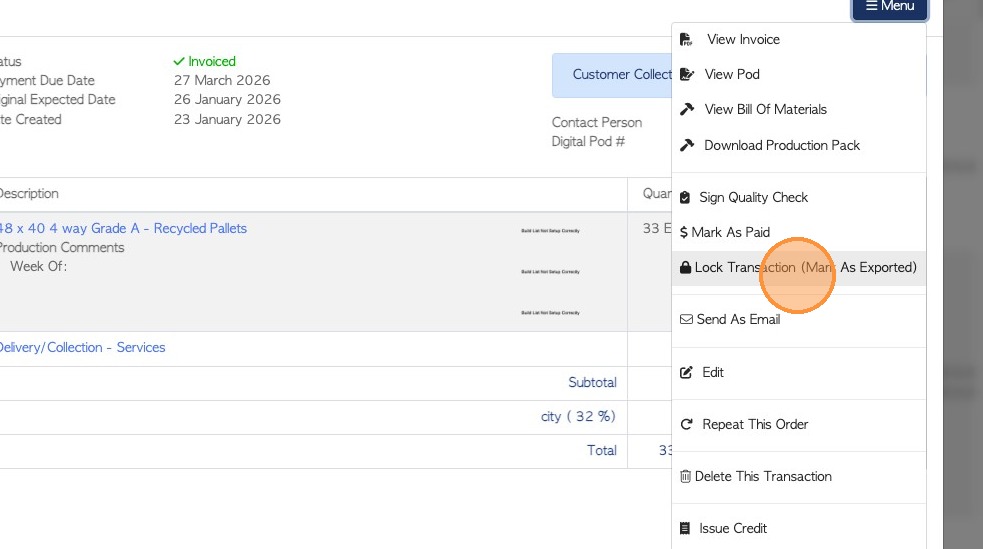
7. Click "Lock Transaction (Mark As Exported)"
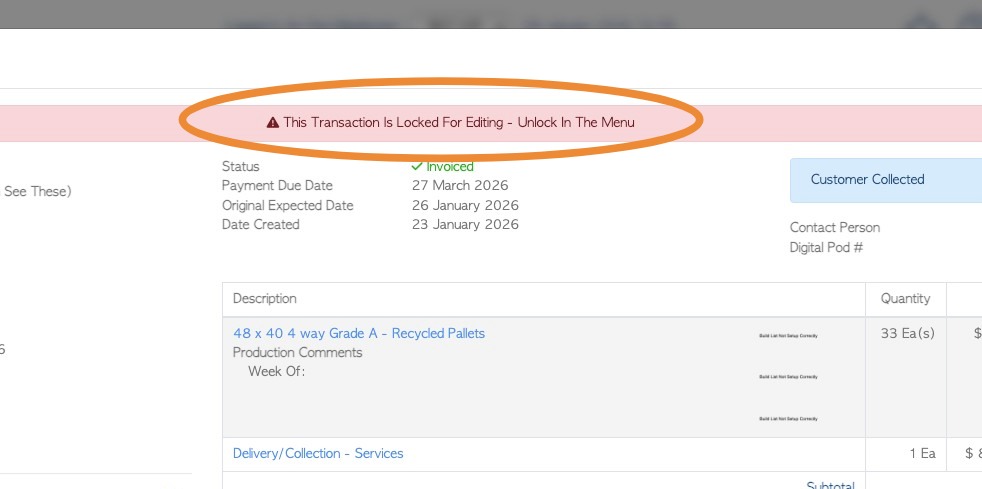
8. A banner now shows on the invoice page to indicate it is locked.
9. In the Order History page there is a padlock symbol to show it is locked/posted.
The invoice will also show as exported in the system and not be available in the Export Data pages.