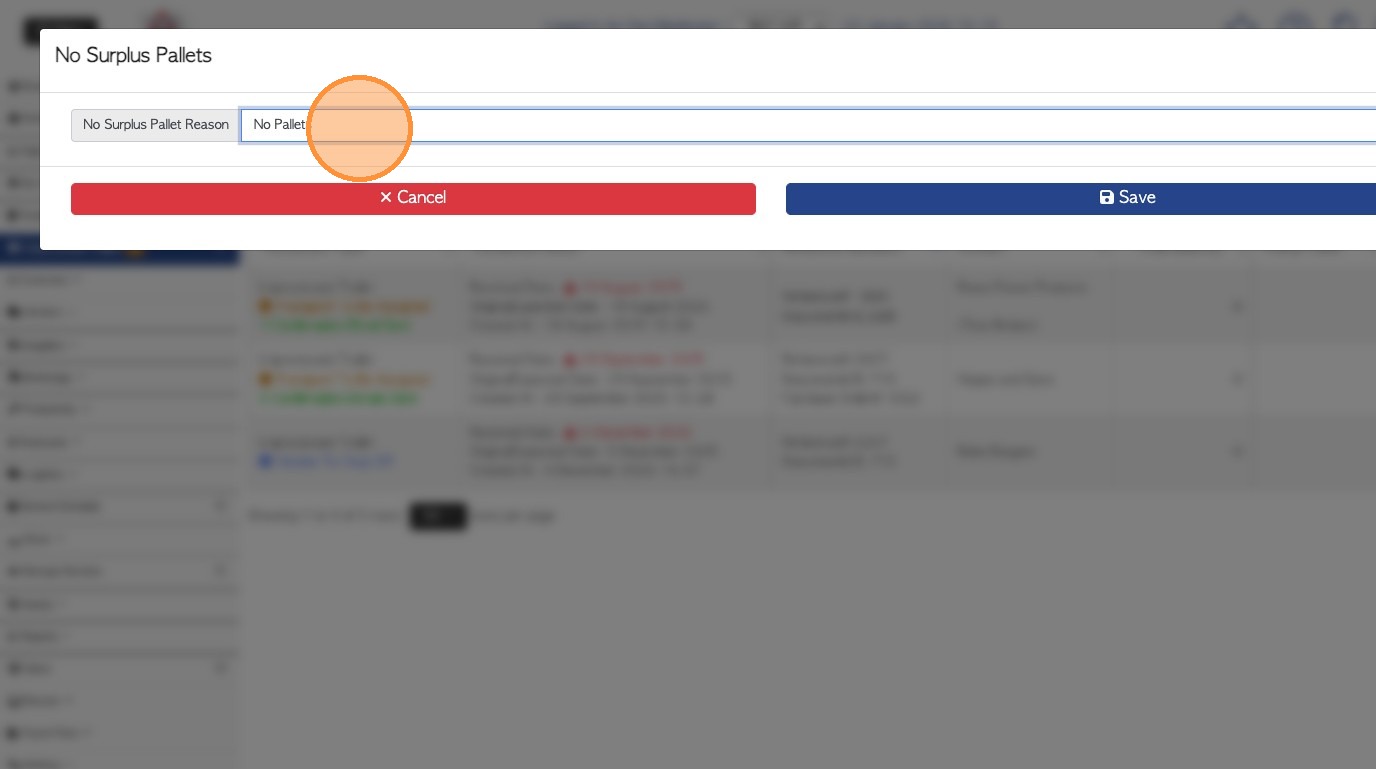
1. There are times when a trailer is received that has no pallets and therefore no counts to be recorded. This article shows how to capture this information in Pallet Connect.
NOTE: The alternative process is to "Delete this transaction" from the Unprocessed Trailer transaction page. This will make the trailer inactive in the system.
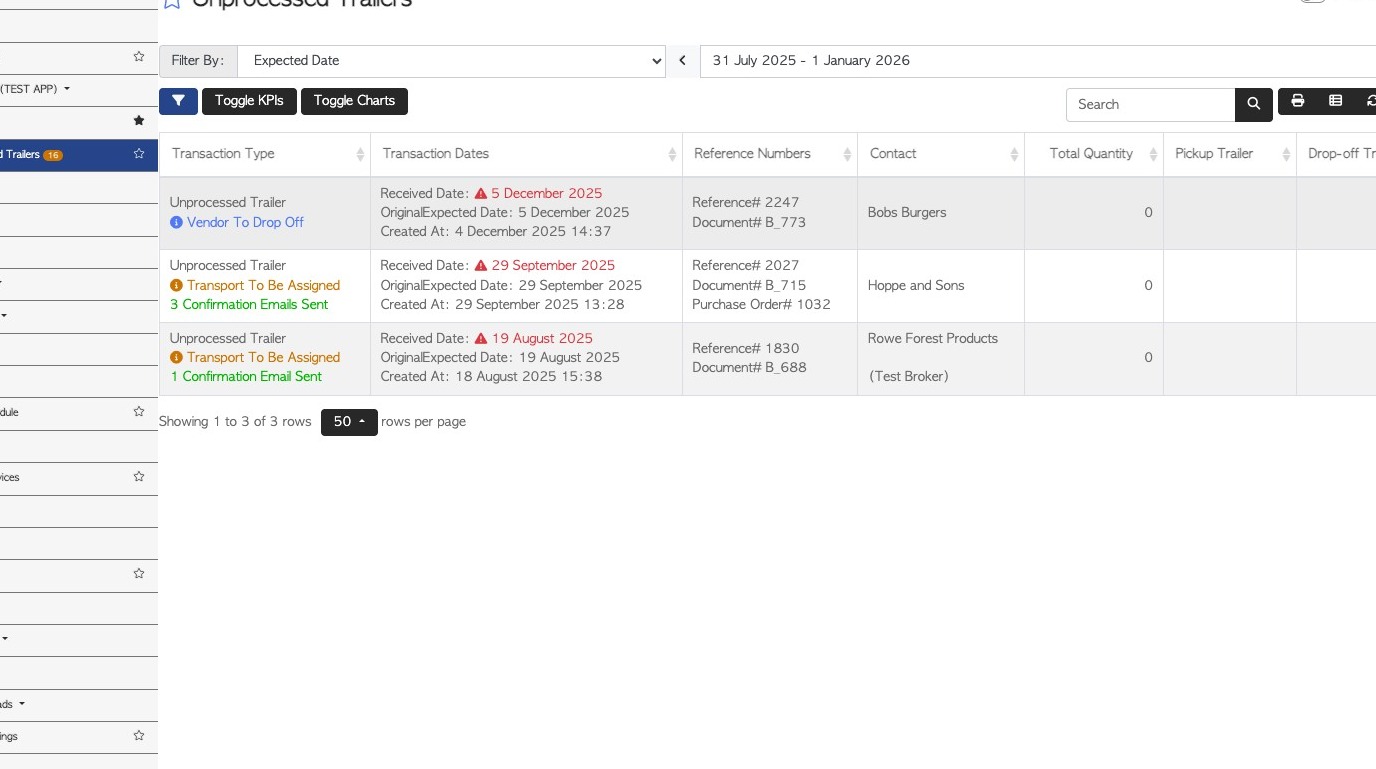
2. Clicking on an unprocessed trailer from the list will bring the user to the count sheet only.
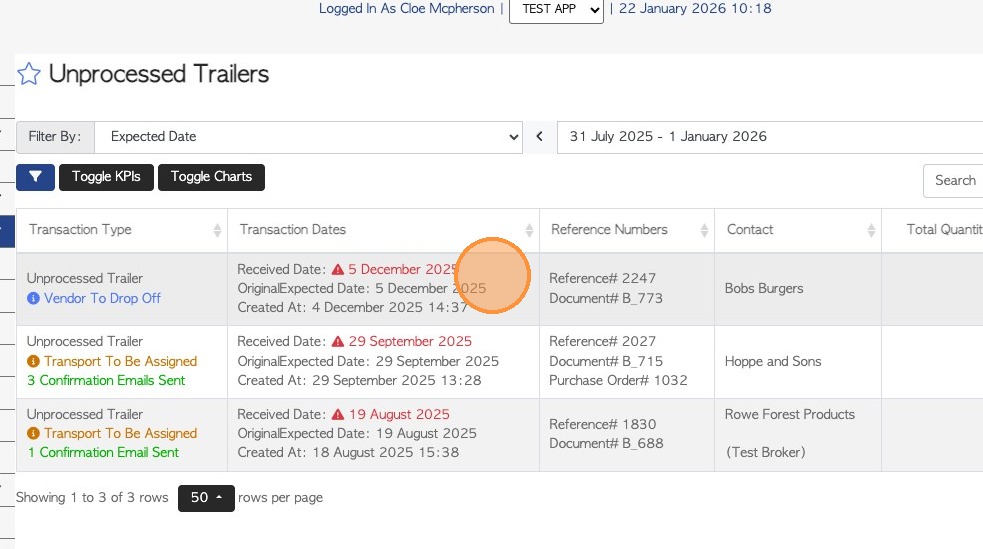
3. Once a Vendor Request has been turned into an Unprocessed Trailer in the system, it requires a count sheet to be completed and produce a rebate. The count sheet will only save if an item is added and will not allow zero pallets to be recorded.
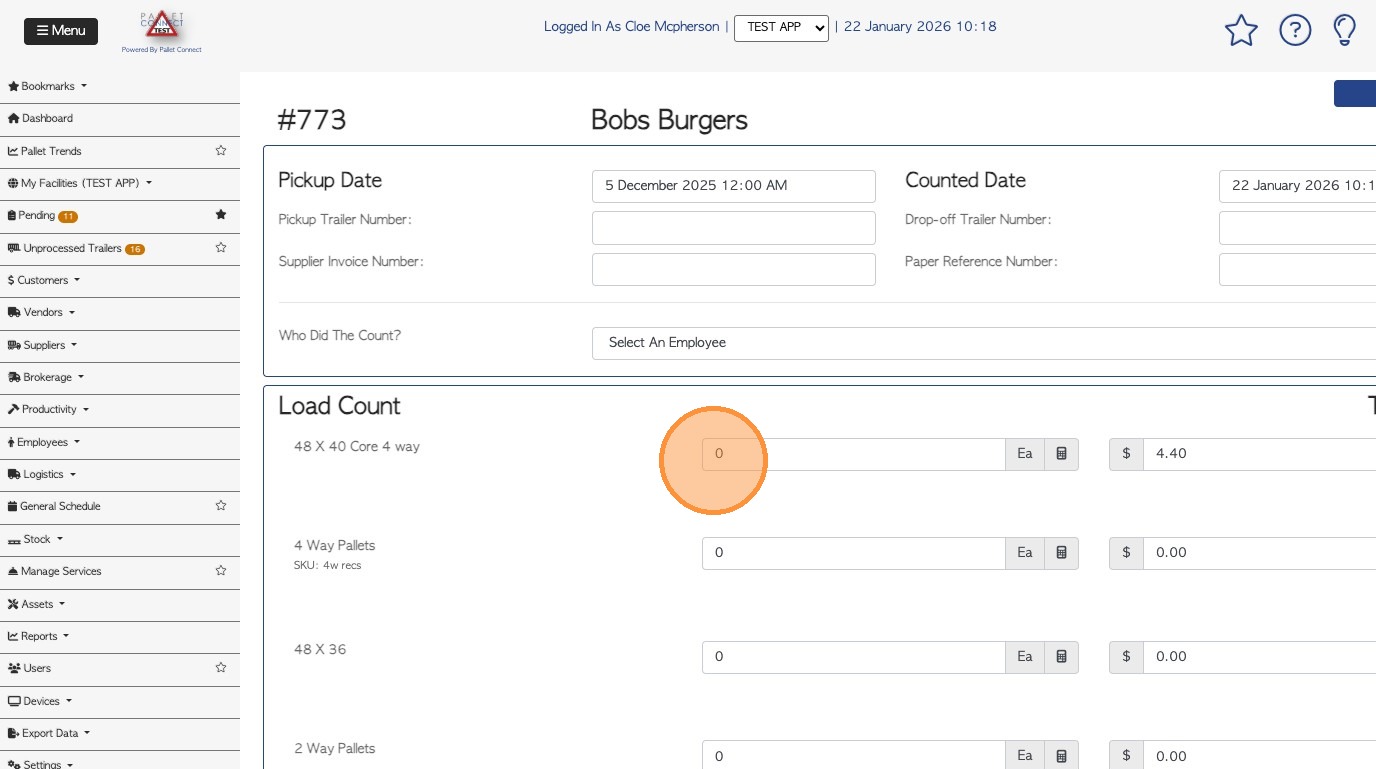
4. To record "no pallets/items" open the transaction page.
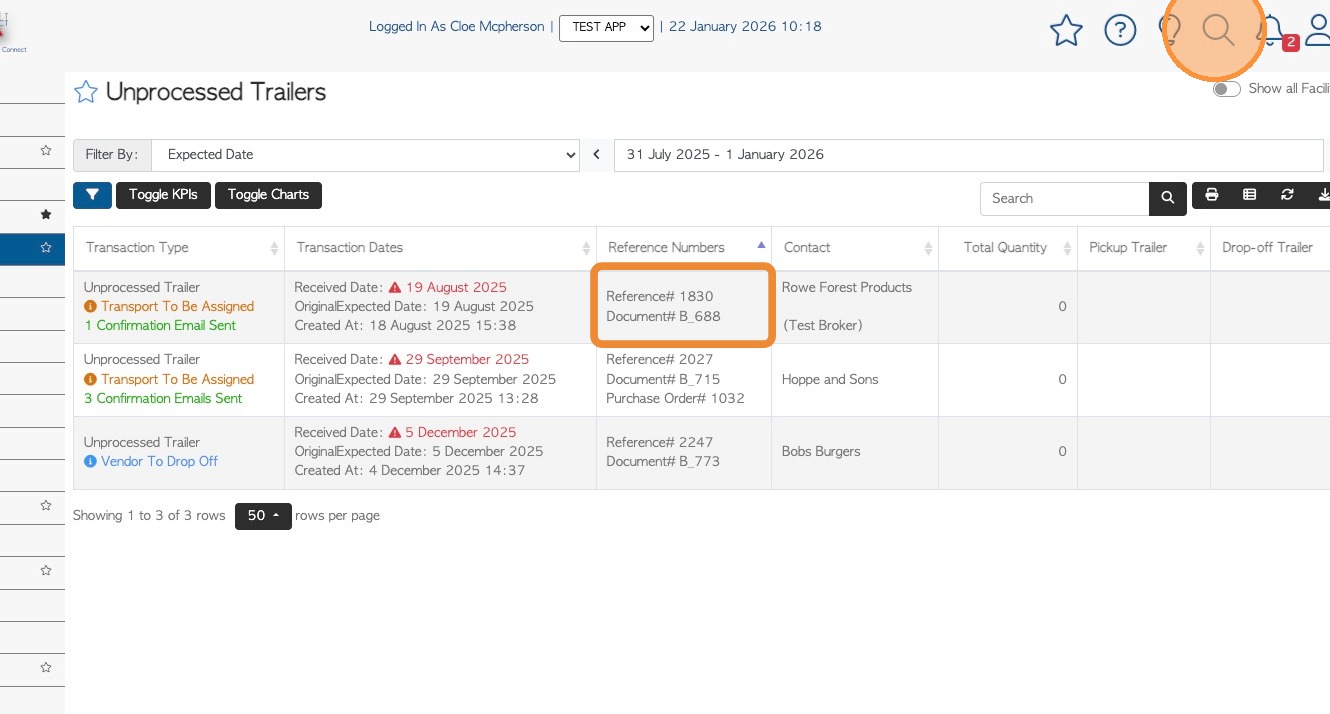
To open the Unprocessed Trailer details, enter the reference number into the global search (located at the top right of each corner).
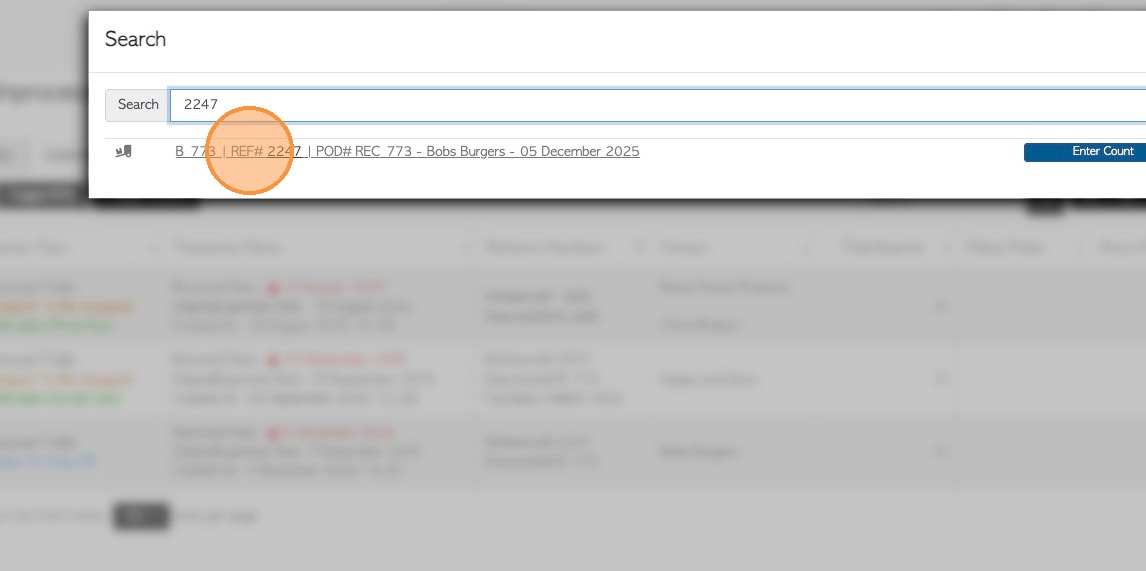
5. Click on the result to reach the Unprocessed Trailer transaction page.
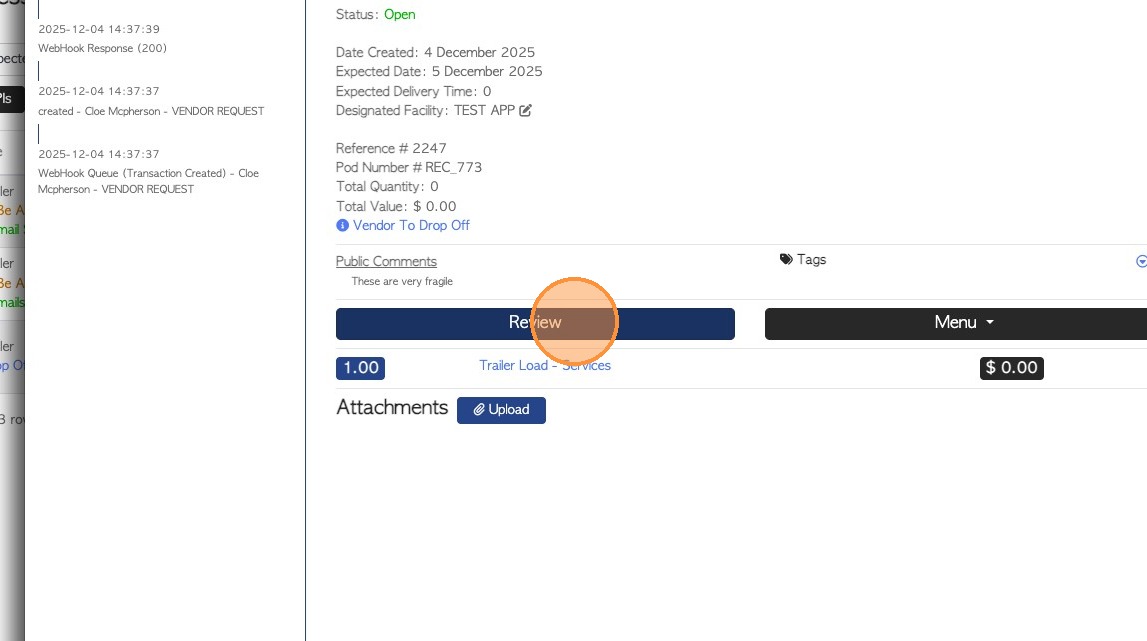
6. Click the "Review" button to access the full details.
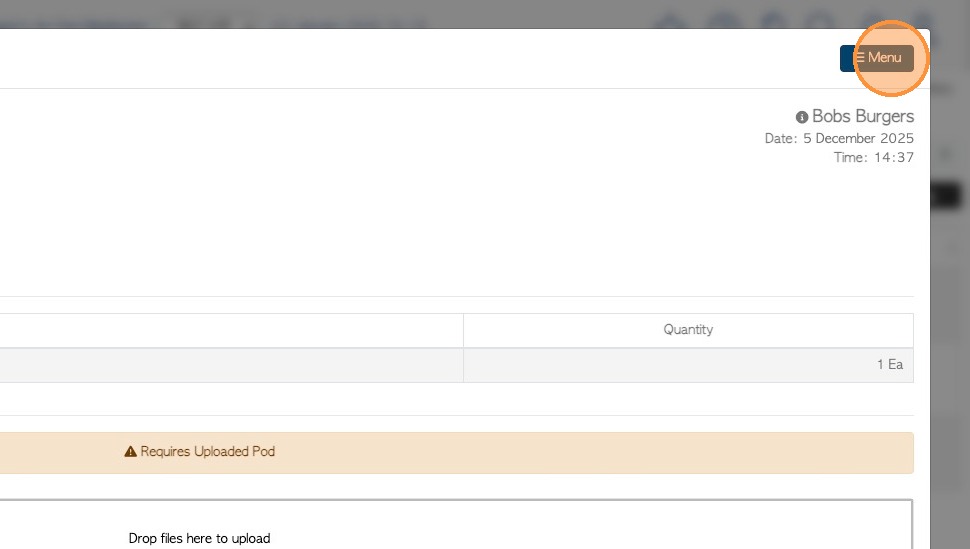
7. Click the transaction "Menu"
8. Click "No Surplus Pallets"
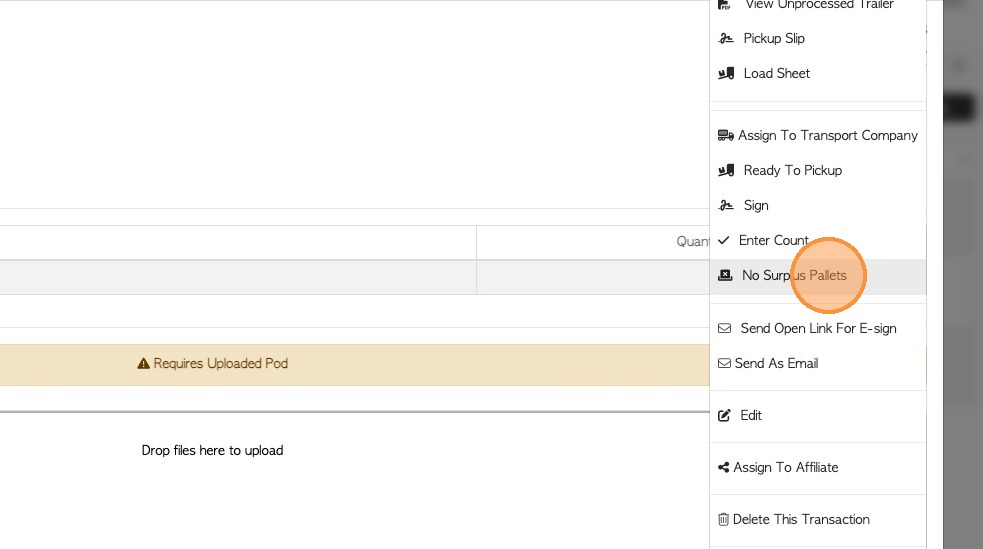
9. Select the "No Pallets" option. The Unprocessed Trailer will become a Rebate with no line/stock items.
NOTE: Other options include "Service refused" "Receiving too busy" or "Other".