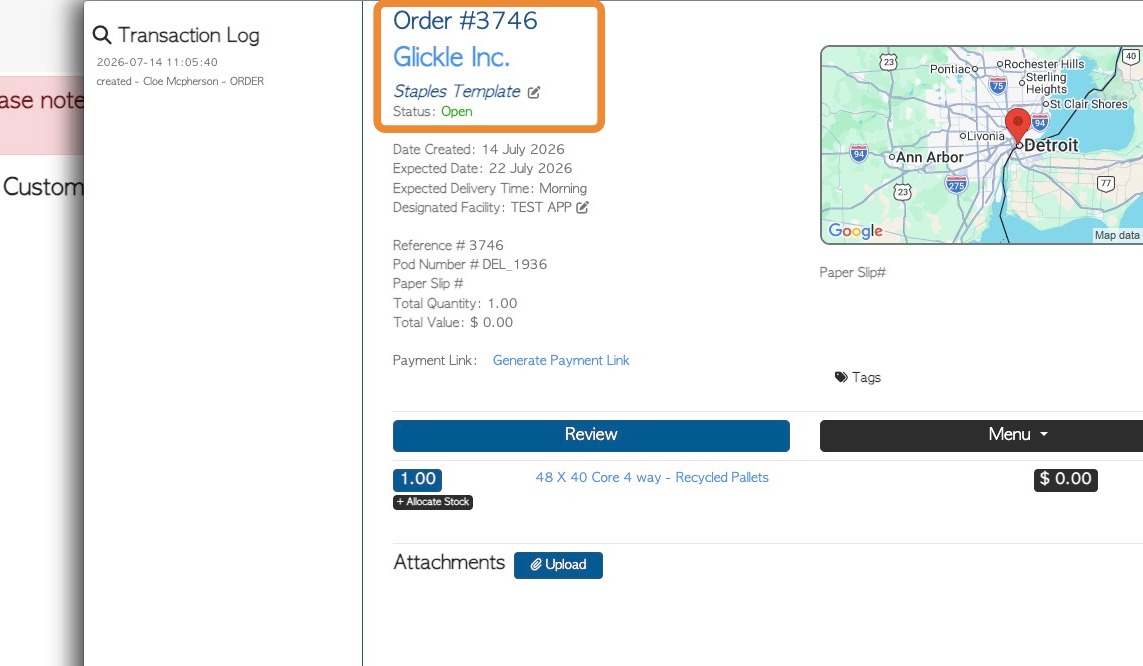
Learn how to quickly duplicate existing transactions by using the "Repeat Template" feature. Order Templates are a time saving feature when ordering and they can be repeated as needed, to help streamline the order management process.
1. Navigate to an existing order that was created using a template. For example, use the global search or the Customer history page.
NOTE: The Template used to create the order is listed in the transaction page.
An 'Order' or an 'Invoice' has this feature in the menu.
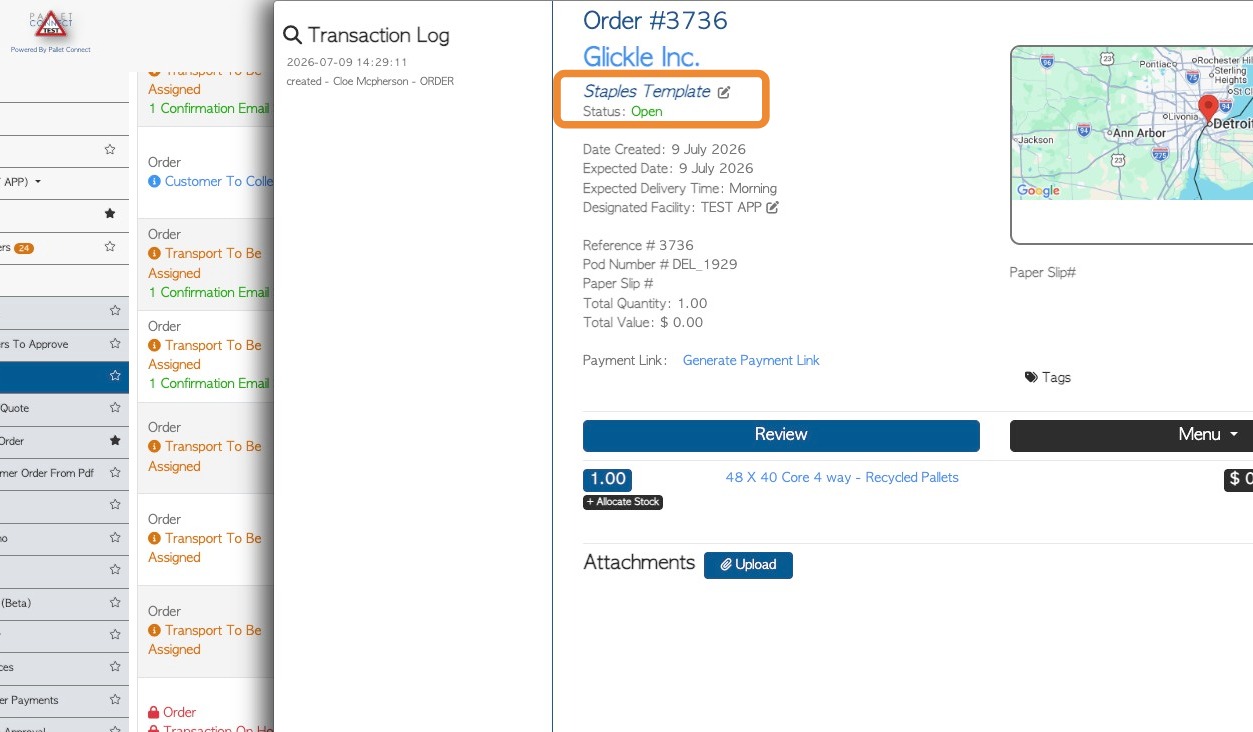
2. Click "Menu" from the slide out screen.
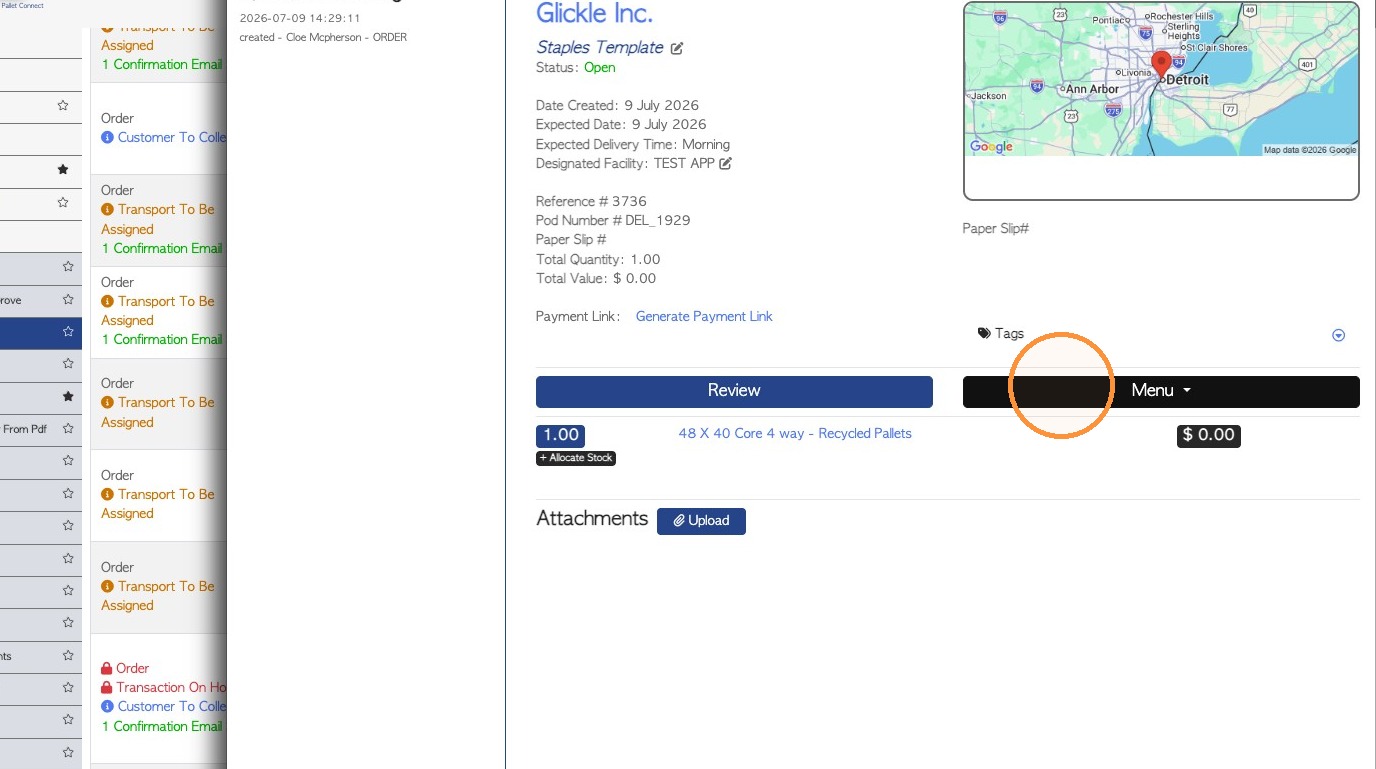
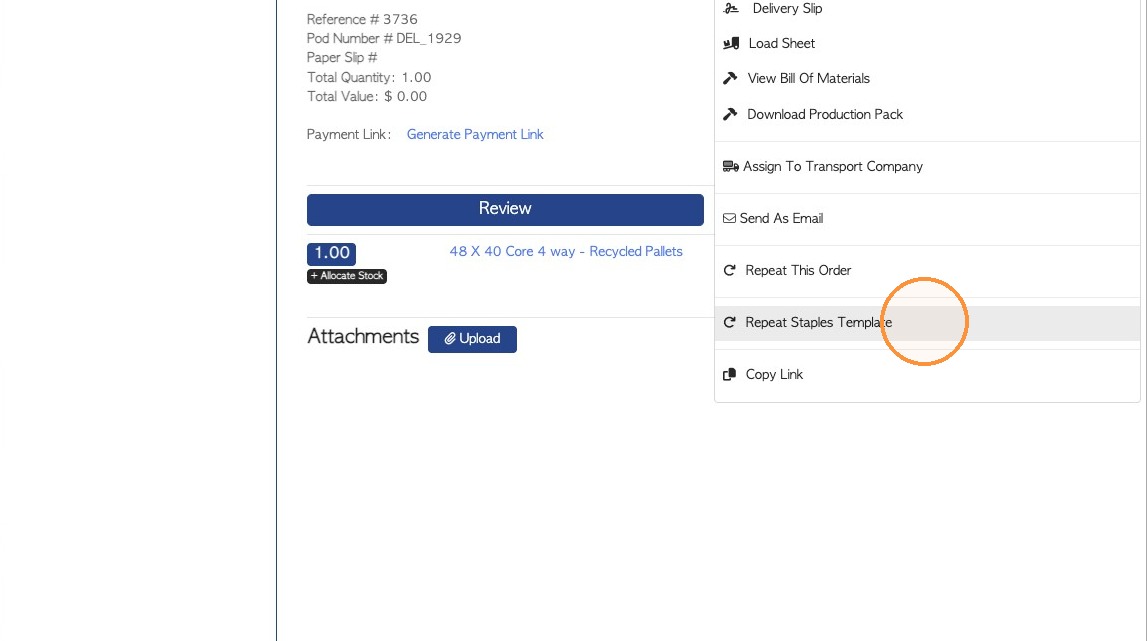
3. Click "Repeat Template"
NOTE: The name of the template will be visible. e.g. Repeat Staples Template.
4. Select the chosen delivery date on the calendar.
NOTE: More than one date can be chosen, to create multiple orders.
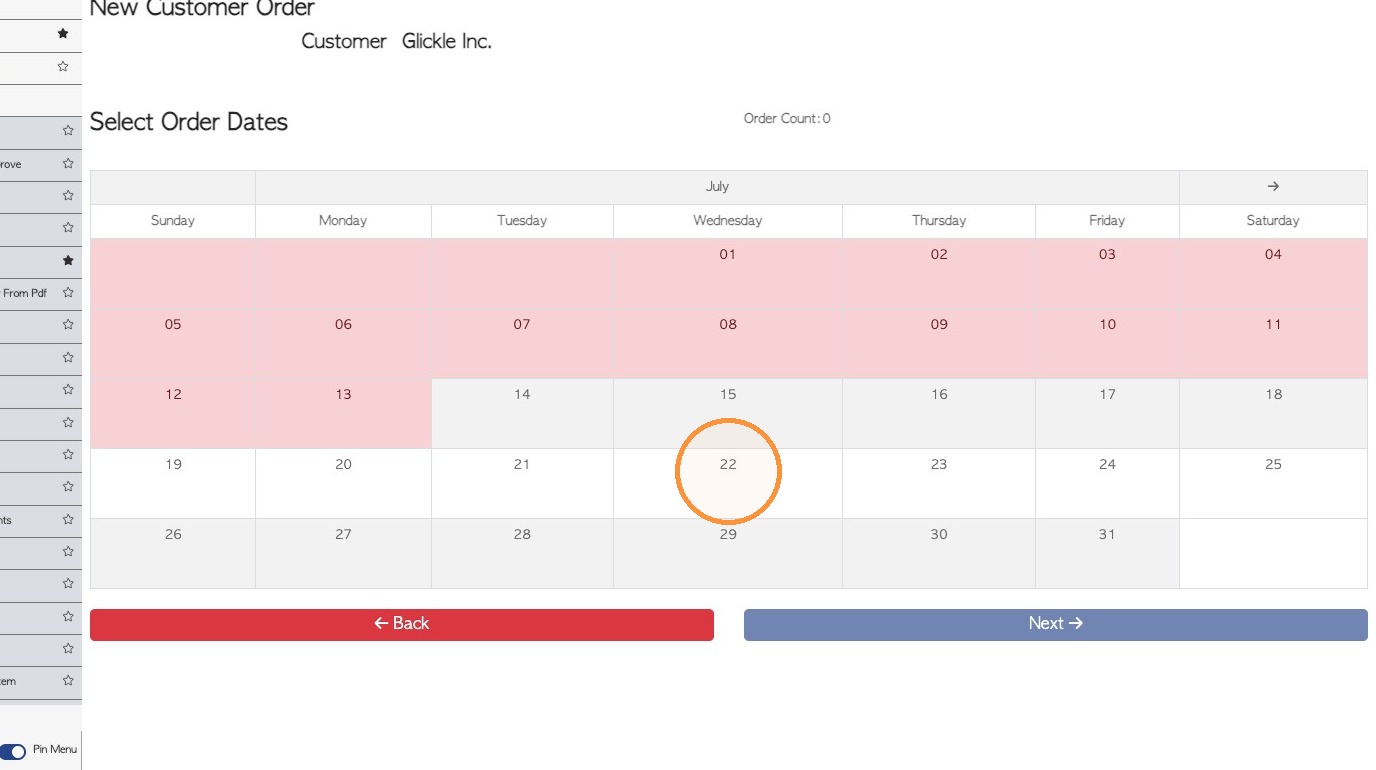
5. Click Next to proceed to the order details section.
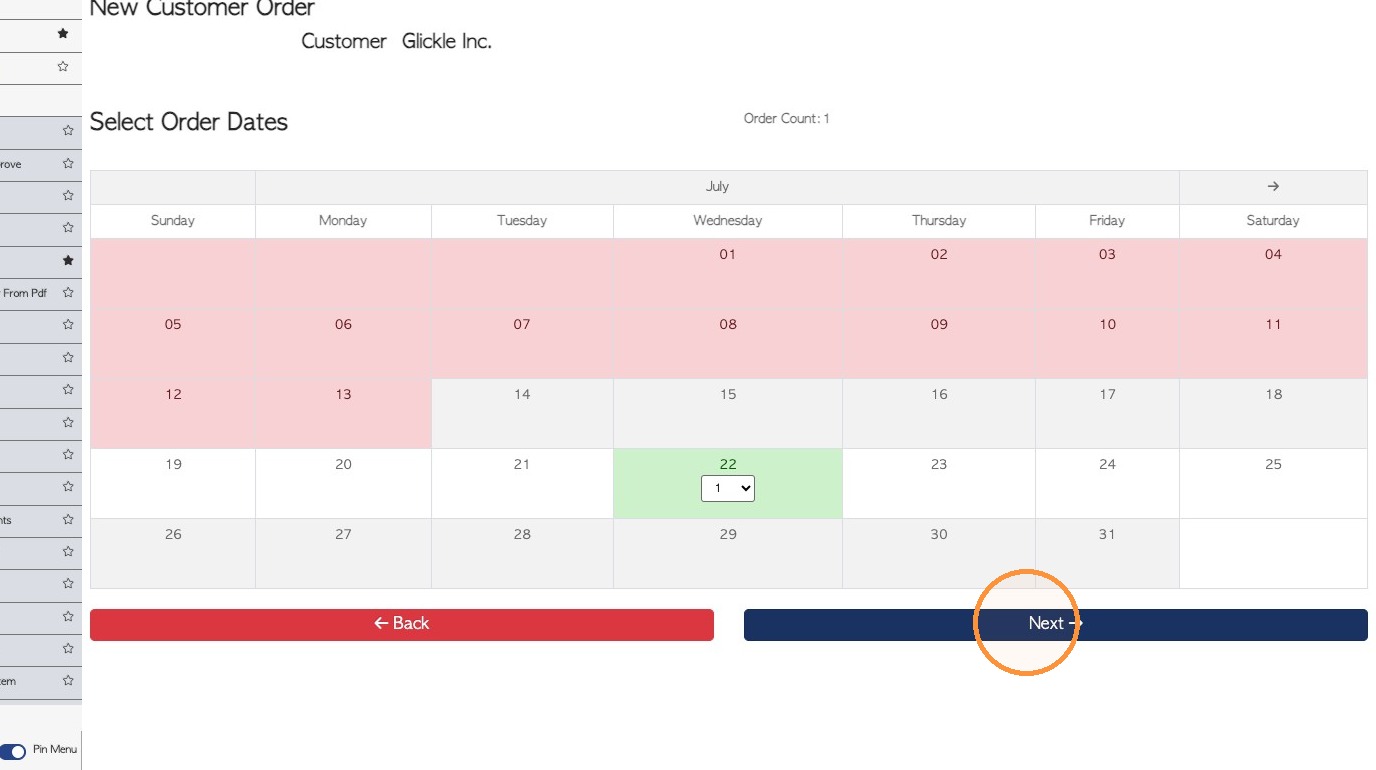
6. Review the order details on this page. The order will be assigned a reference number but this can be changed to a Purchase Order number, as needed.
Click 'Next' to review the order summary.
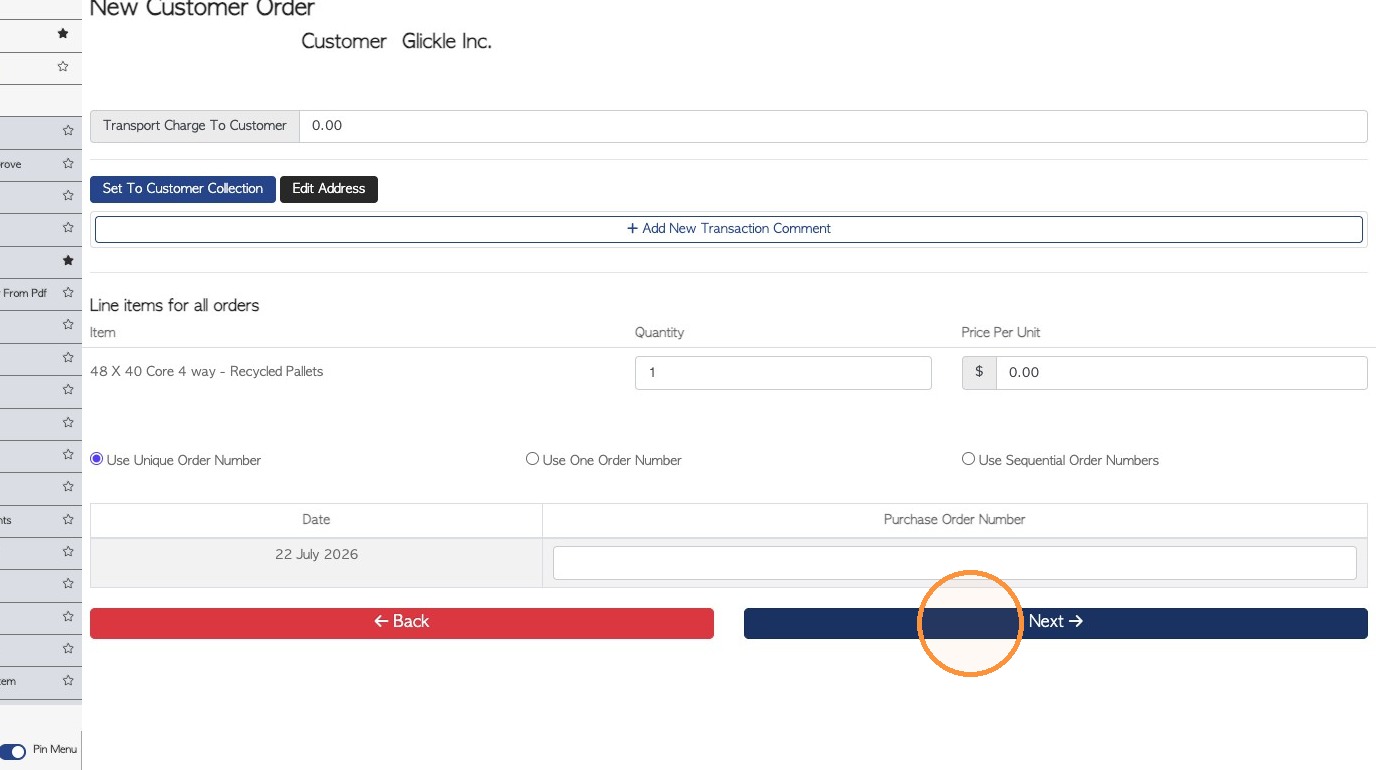
7. Click "Confirm"
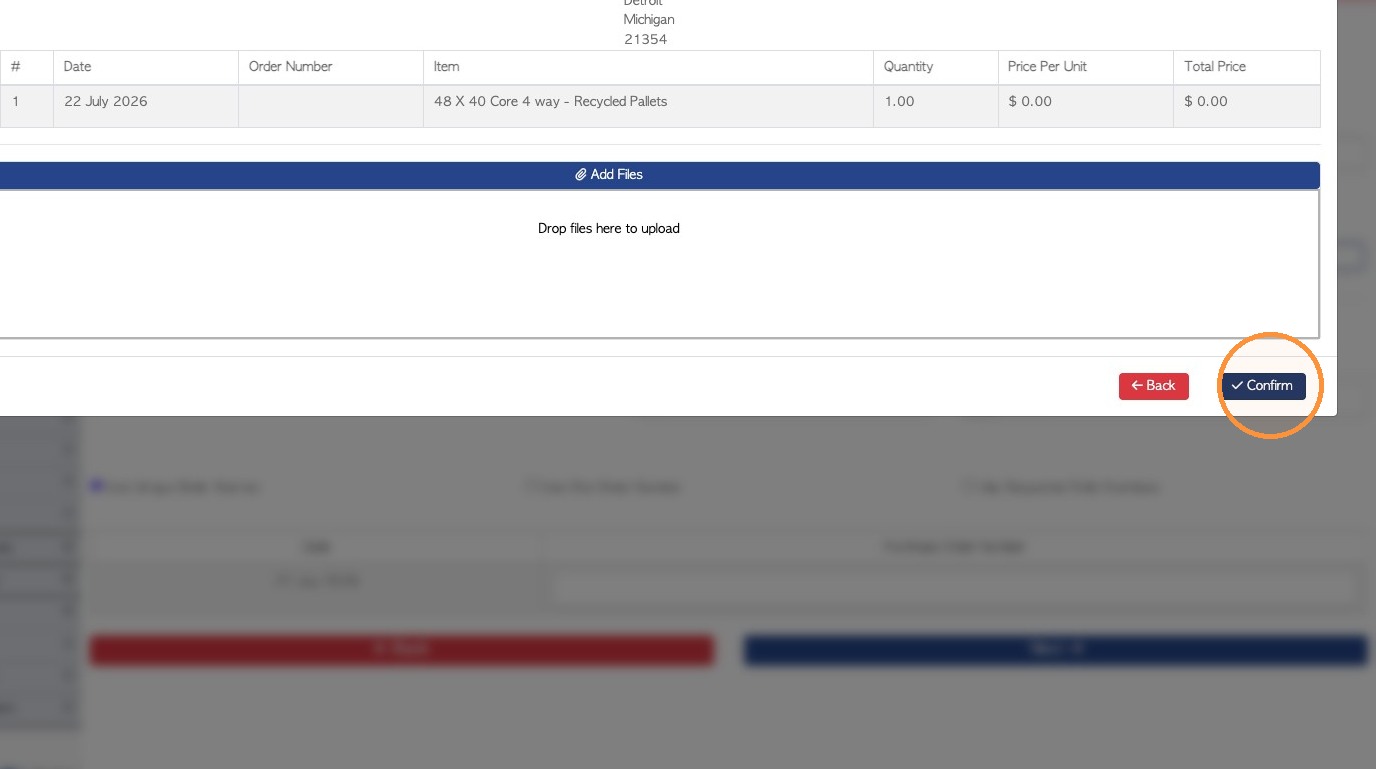
8. The order will be generated and the Template used will be shown.