
Learn how to quickly locate and generate replacement barcode labels for when bar codes need to be reprinted. This guide simplifies the process to efficiently manage inventory documentation.
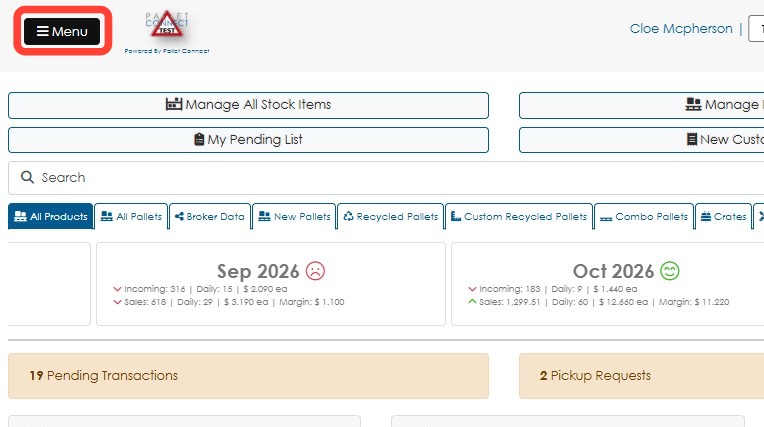
1. To navigate to the re-print screen, click Menu.
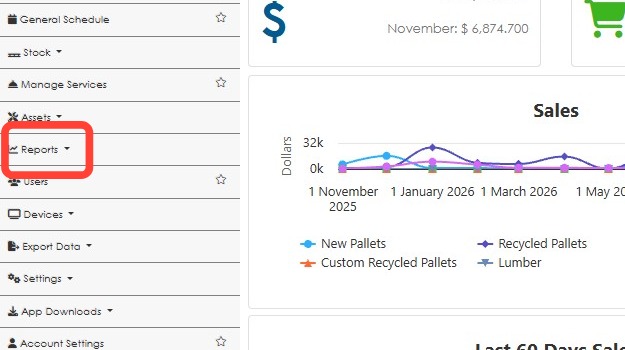
2. Open the Reports.
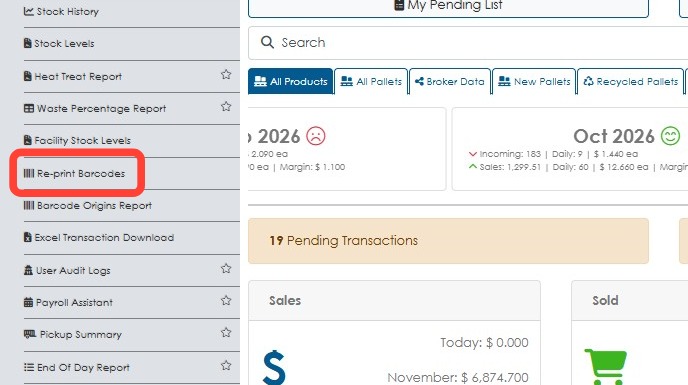
3. Select Re-print Barcodes.
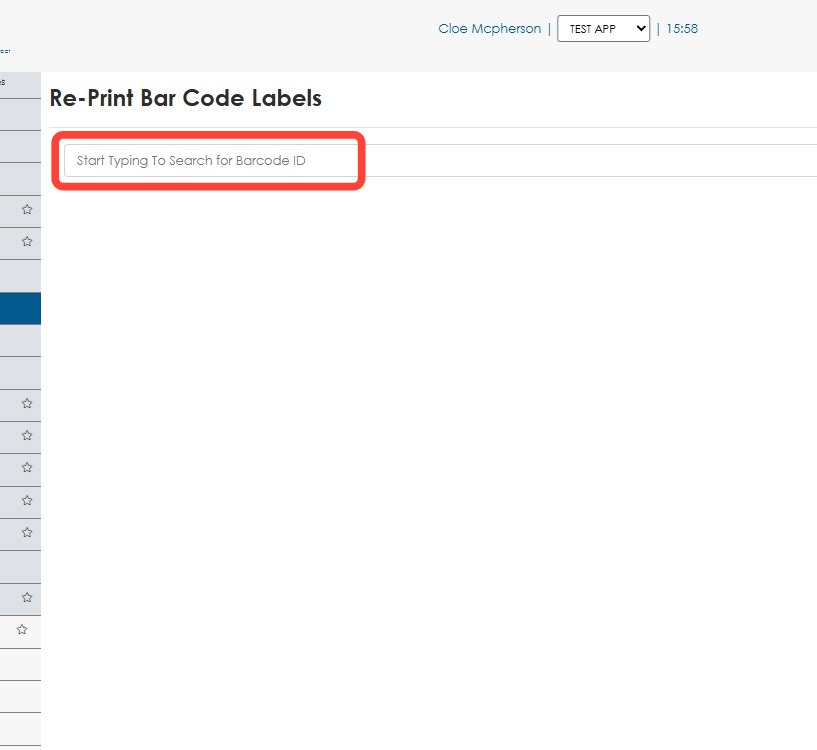
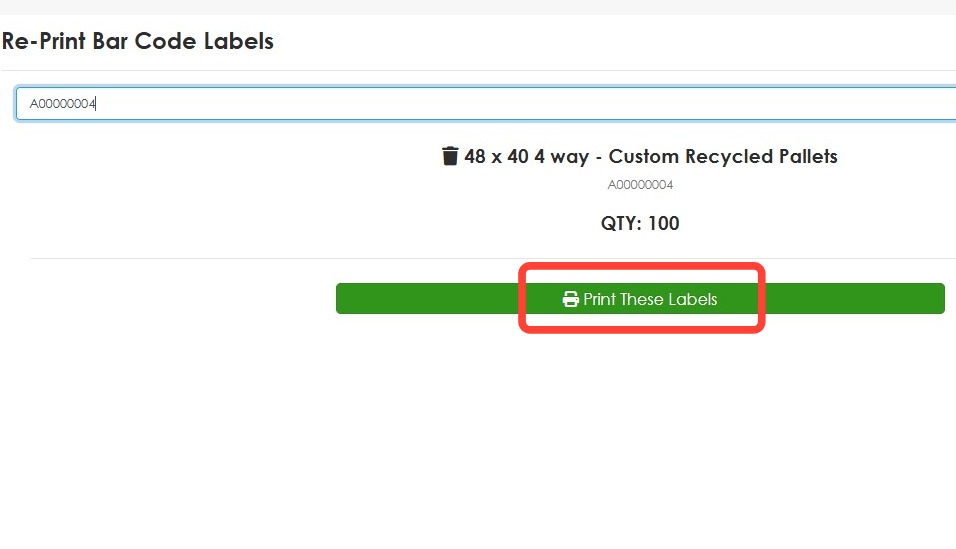
4. Type the barcode ID in the Start Typing To Search for Barcode ID field.
5. Click Print These Labels.
6. Click Next.
Tip: Tip! If the wrong barcode was selected, click Do Not Print Labels For This Item to return to the search field and select the correct item.
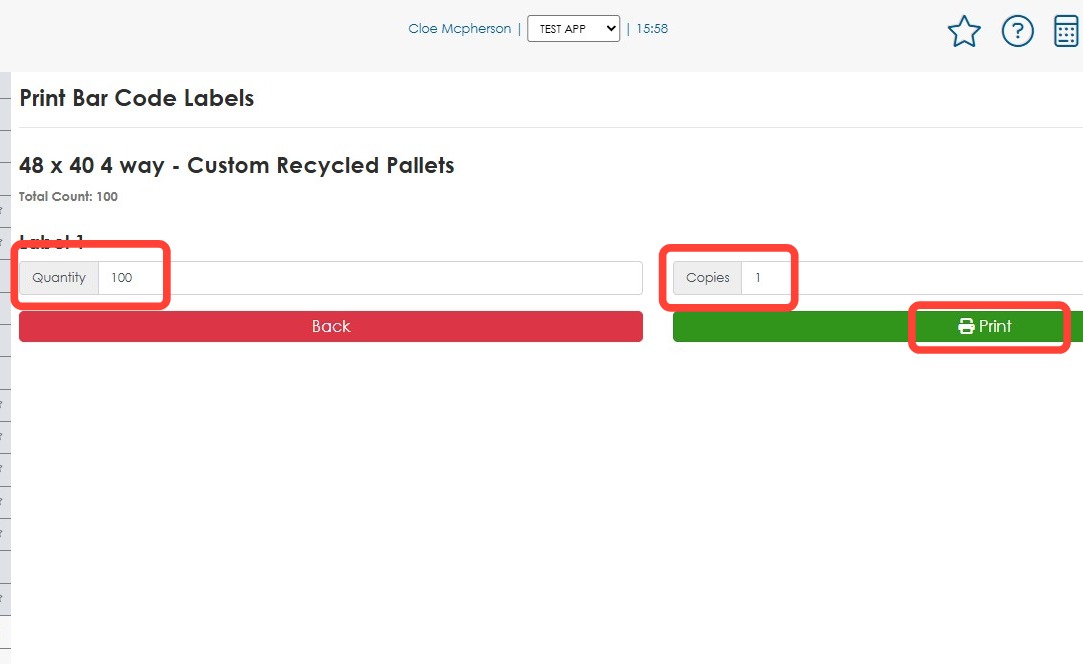
7. Enter the desired Quantity and number of Copies in their respective fields, then click Print.
8. A preview of the bar code is shown. Click the Printer icon to open the print dialog and proceed with printing.
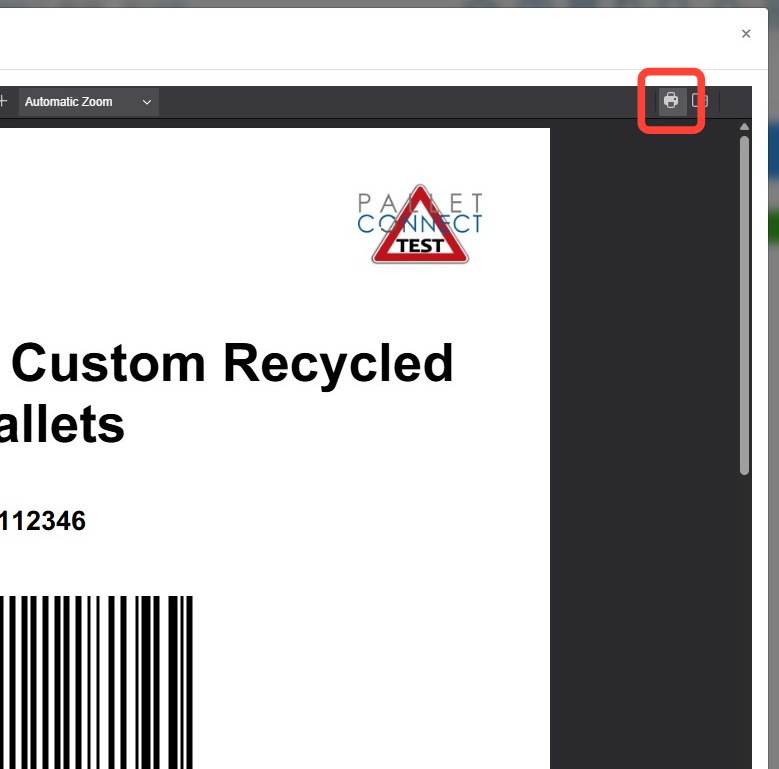
Tip: Tip! To save a pdf copy of the barcode, click the Download button beside the print button.