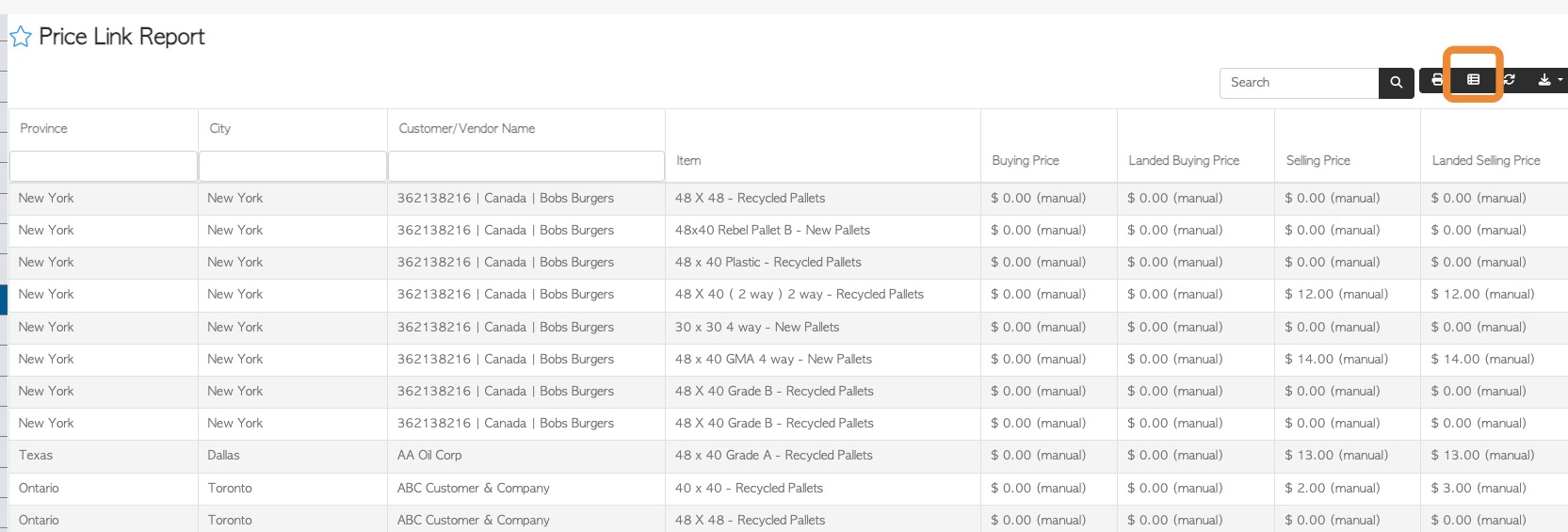
Landed cost pricing combines the delivery or transportation cost with the pallet price, allowing customers to see one total price instead of separate product and delivery charges. Setting up a landed cost, allows Pallet Connect to apply different prices depending on whether the customer collects the pallets or requires delivery.
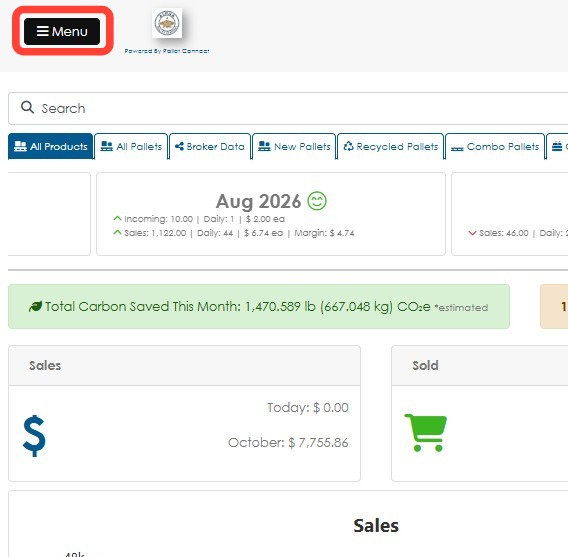
1. Click Menu.
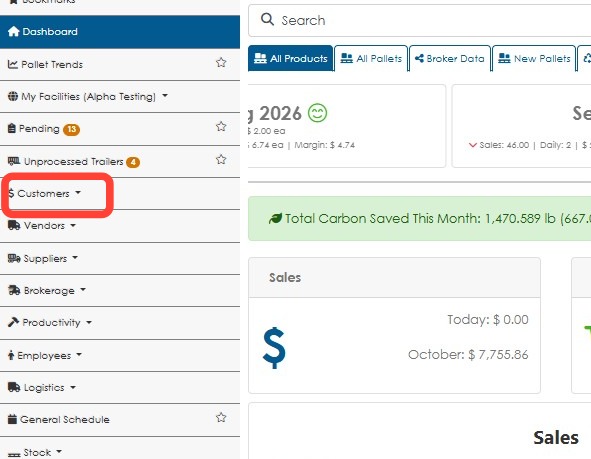
2. Click Customers.
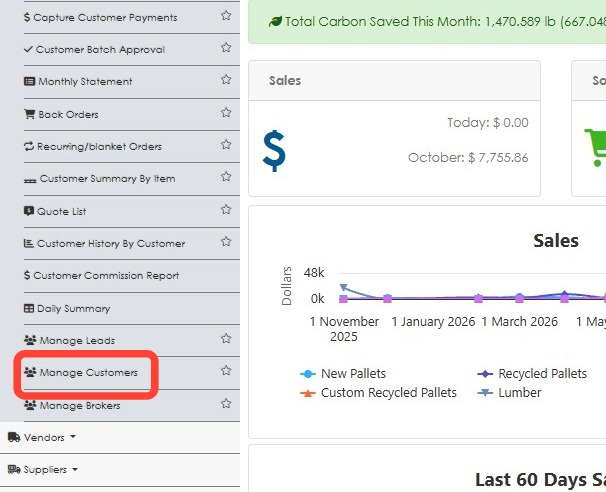
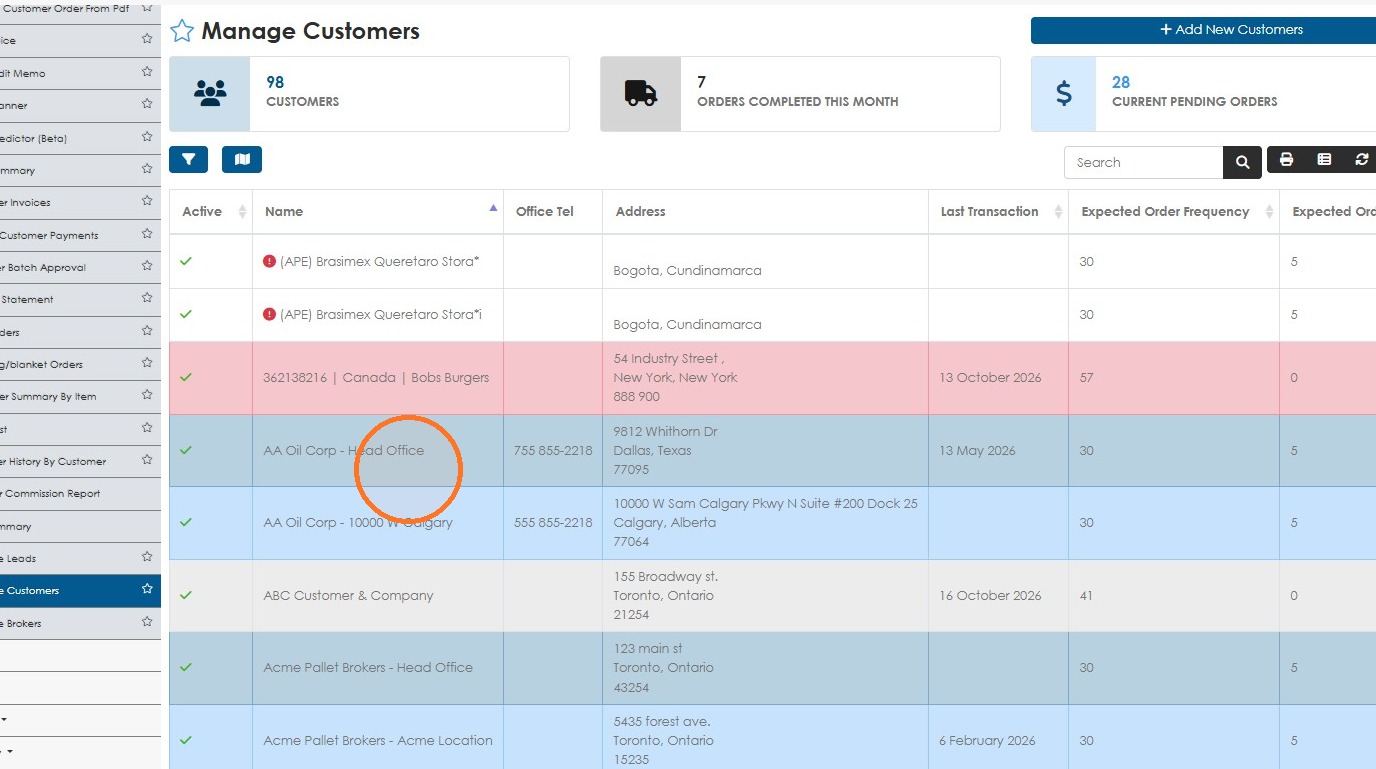
3. Click Manage Customers.
4. Open the customer profile from the list.
NOTE: As a short cut use the global search tool to look up the company name and navigate to the customer profile.
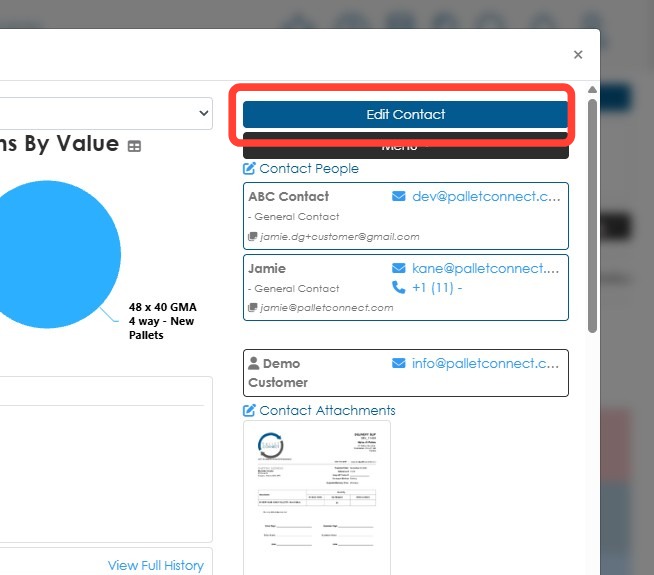
5. Click Edit Contact.
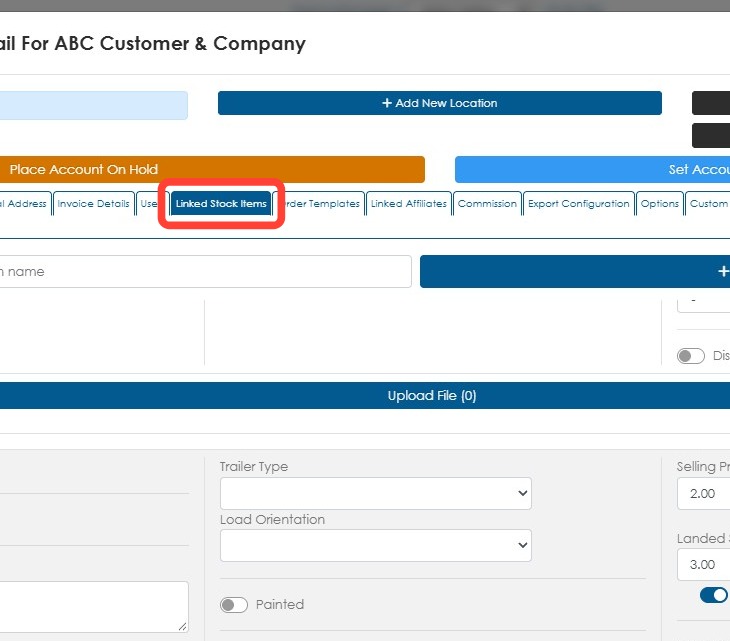
6. Click the Linked Stock Items tab.
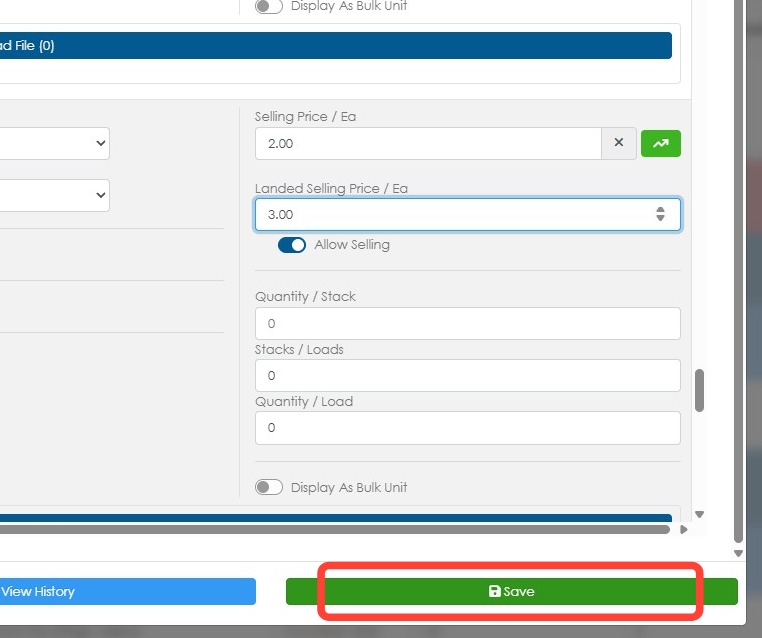
7. If 'allows selling' has been enabled, the linked stock item will show options to add a selling price and a landed price. Set the desired landed price in the Landed Selling Price field.
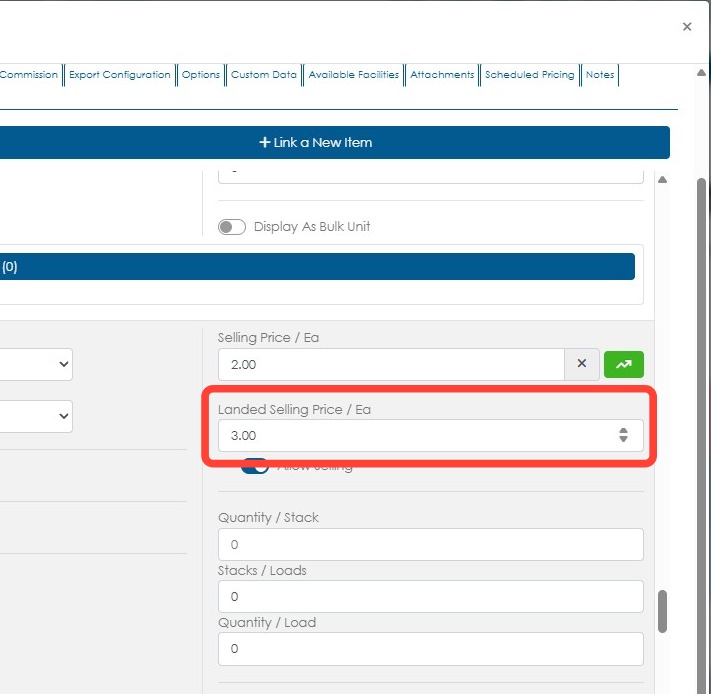
Tip: Tip! The Selling Price field is the price customers pay when they pick up the item (customer to collect). The Landed Selling Price field is the price customers pay when the item is delivered, including the transportation cost.
8. Click Save.
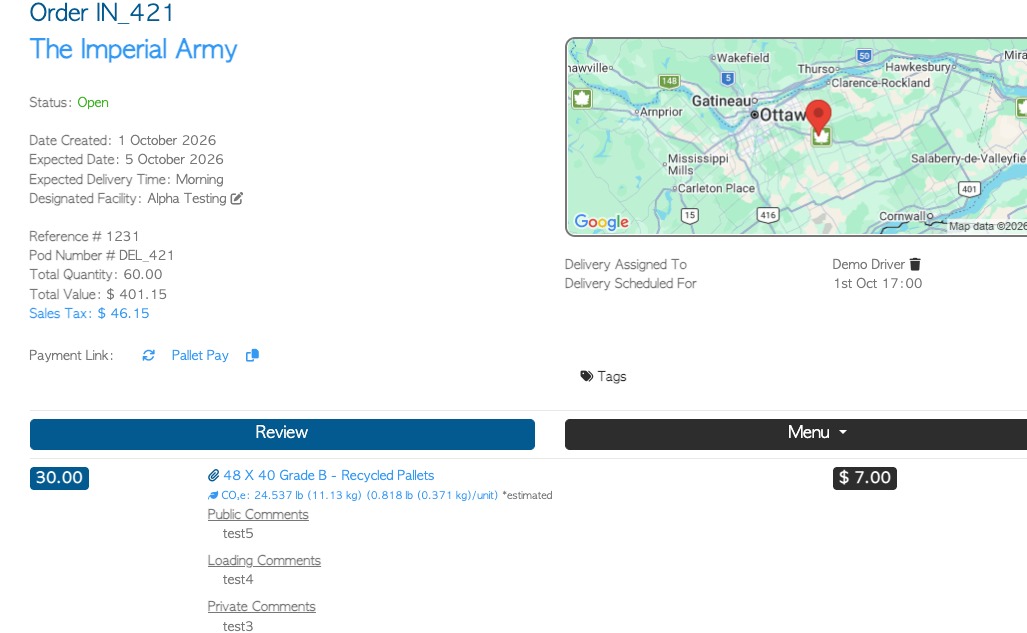
9. When creating an order the relevant price will automatically be used. If delivery was selected, the landed price is used, and if customer to collect the selling price will populate.
10. To view and compare the landed vs selling prices of multiple contacts, use the Price Link report, located in the Stock section of the main menu.
TIP! Ensure the relevant columns are visible using the manage columns icon.