1. A posted or locked transaction is usually one that has been exported to an accounting system. It is locked from editing in Pallet Connect, to ensure that the transaction information matches in both systems. This is also to prevent a transaction being exported more than once.
There are times when a locked transaction needs to be edited. For example if the transaction is changed in the accounting software and it needs to be updated in Pallet Connect.
This article explains how to unlock a posted or exported invoice. This process will apply to rebates and purchase orders also.
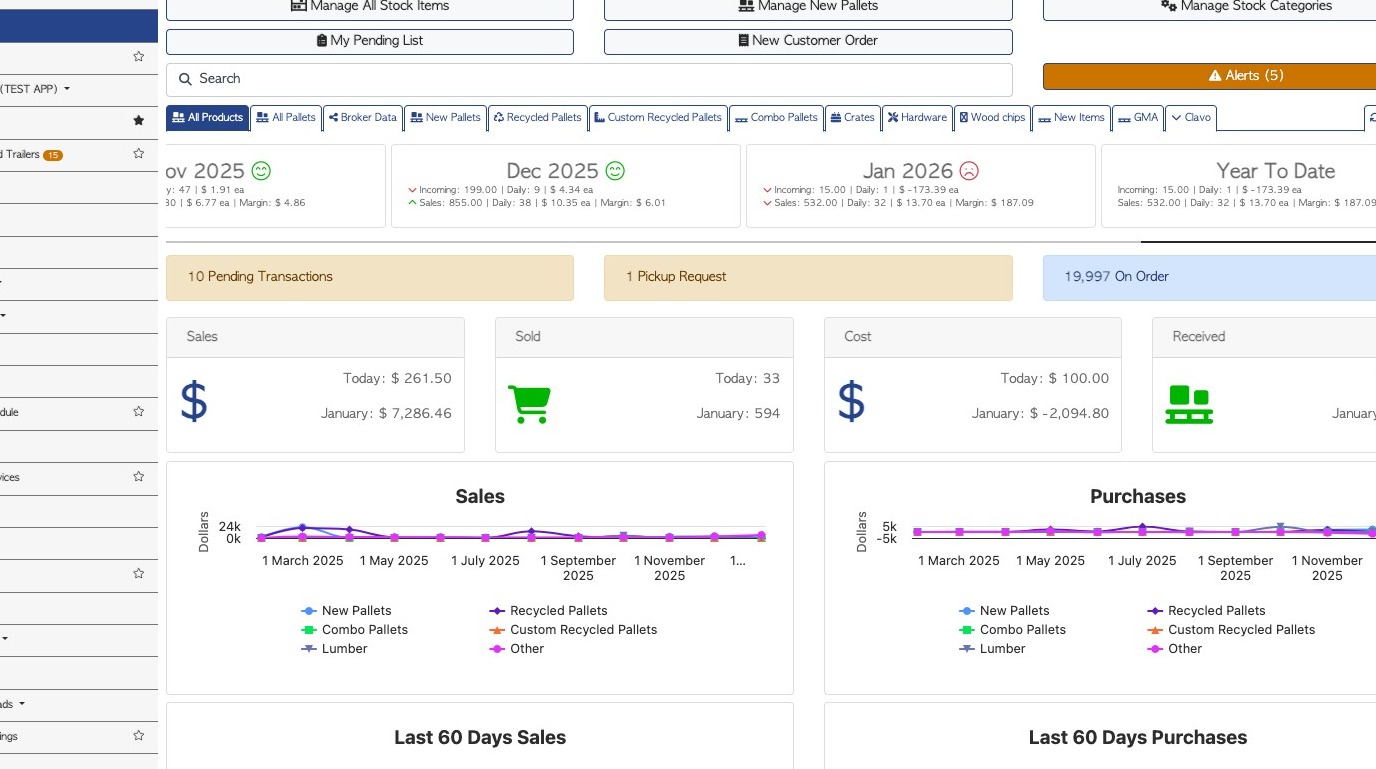
2. From the main menu, click "Customers"
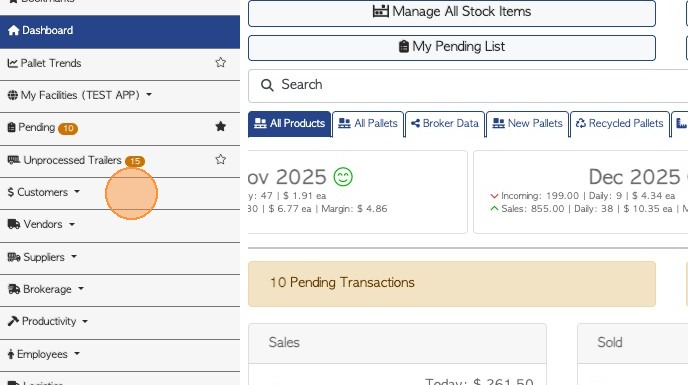
3. Click "Order History"
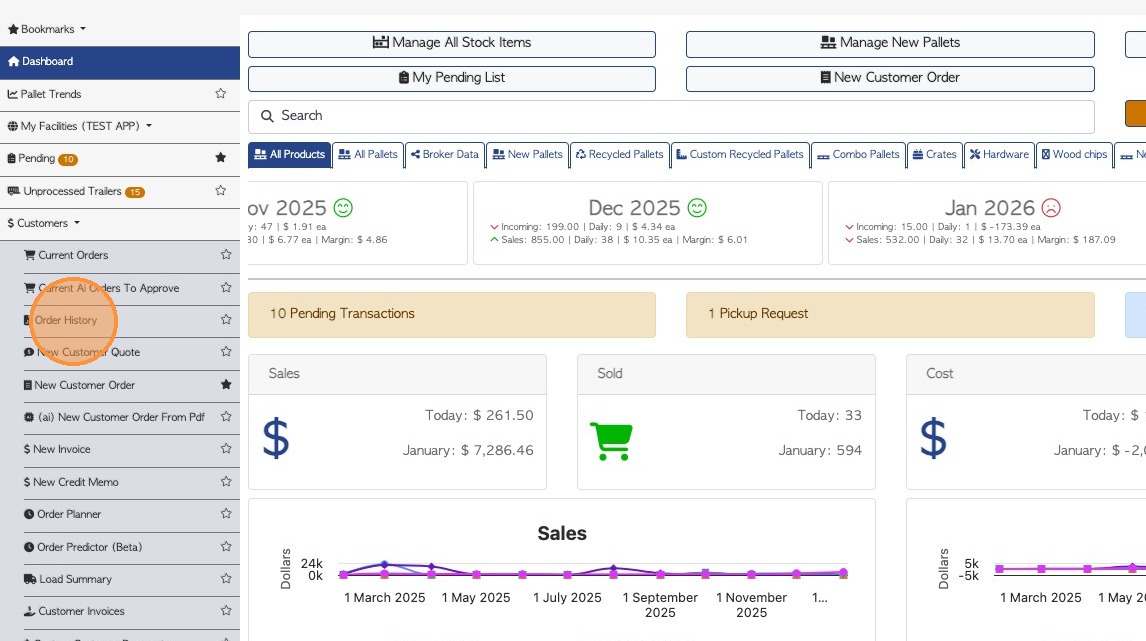
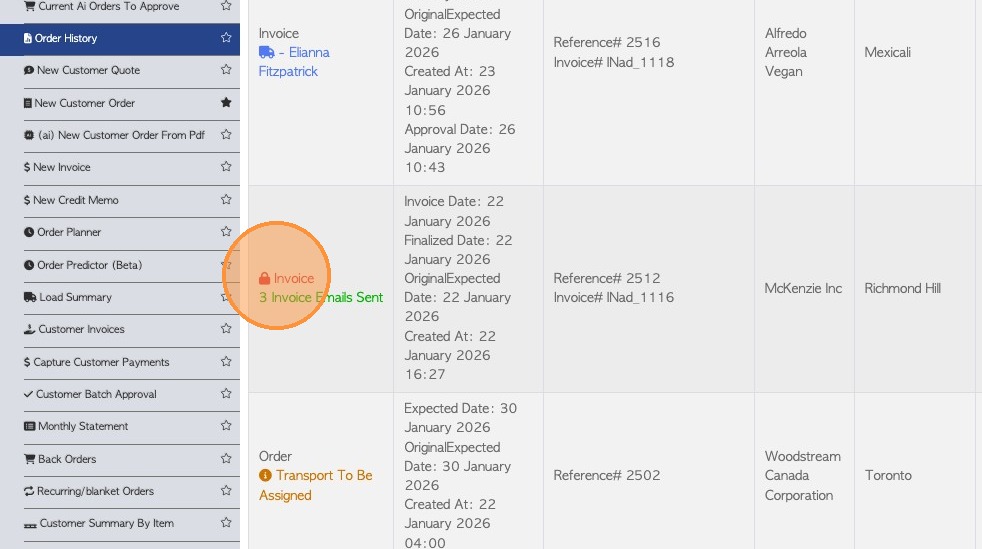
4. Click on the selected transaction.
NOTE: A locked transaction will display a padlock icon.
TIP! Alternatively, type the transaction number into the Global search, located at the top right corner of each page.
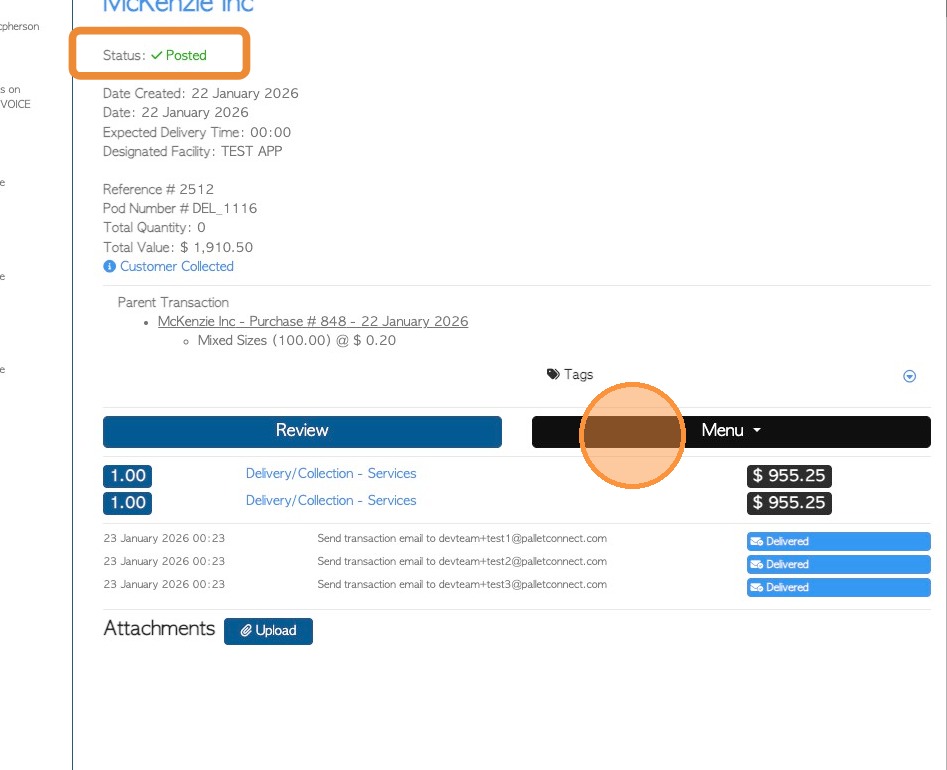
5. Click "Menu" from the slide out page.
NOTE: The transaction will show as 'posted'.
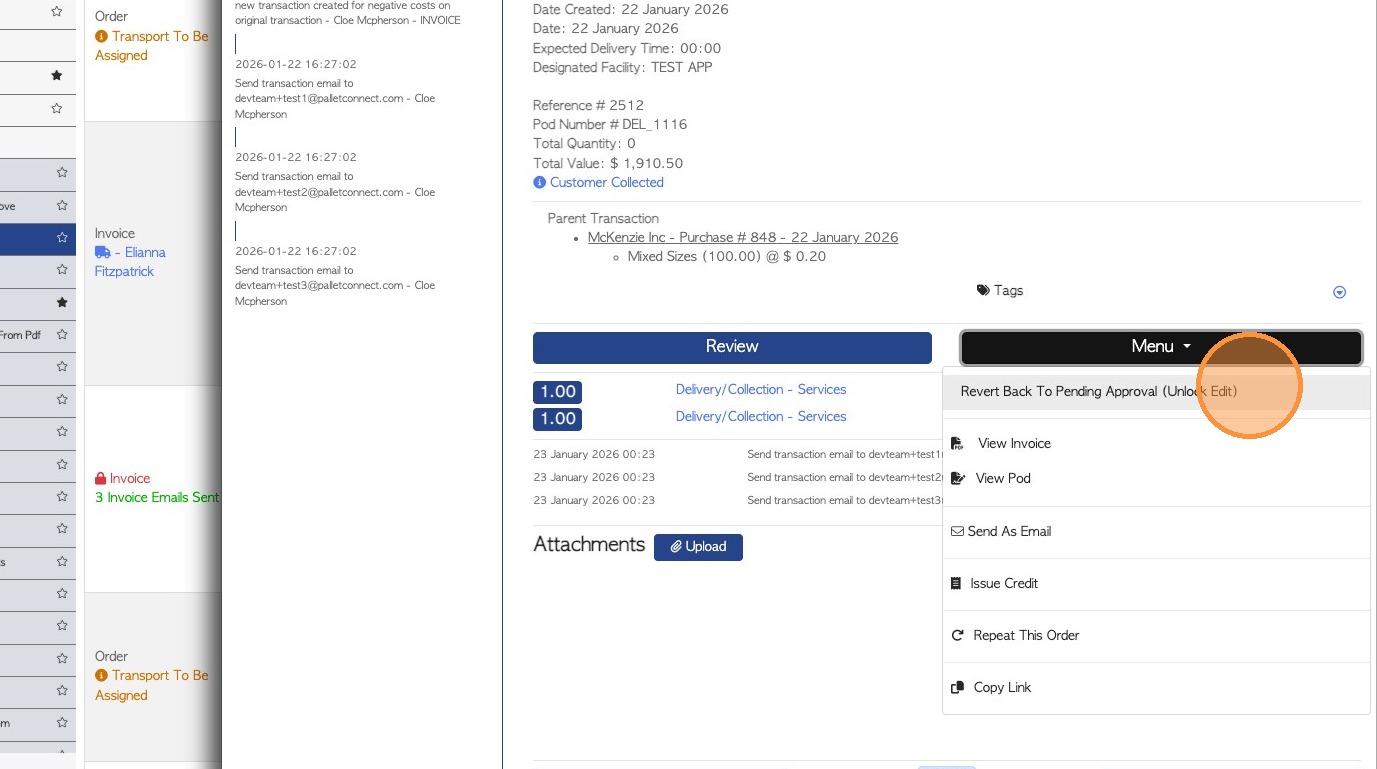
6. IF APPROVALS ARE ENABLED: The Approval can also be reversed, if the changes need to be approved.
Click "Revert Back To Pending Approval (Unlock Edit)"
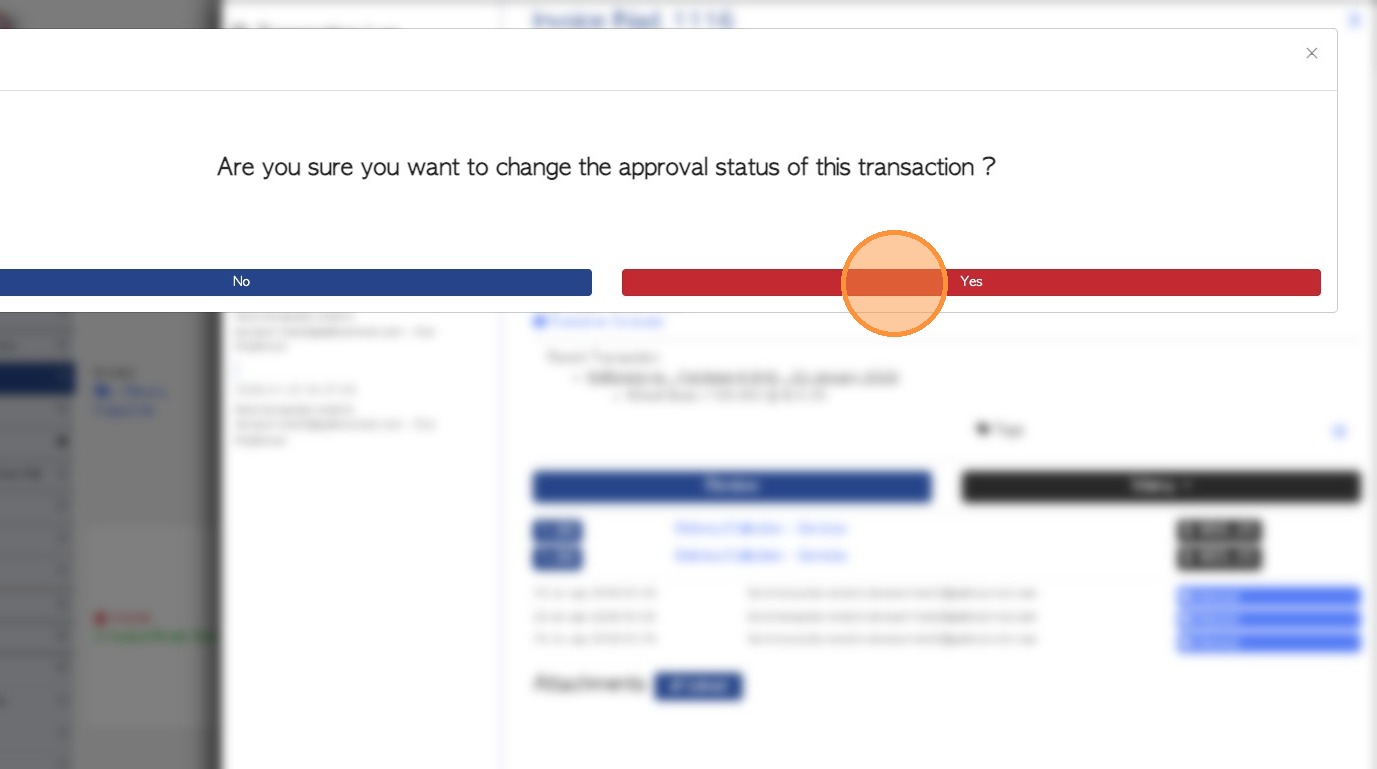
7. Click "Yes" to revert to "pending approval' status.
8. Click "Review" to see the full transaction page.
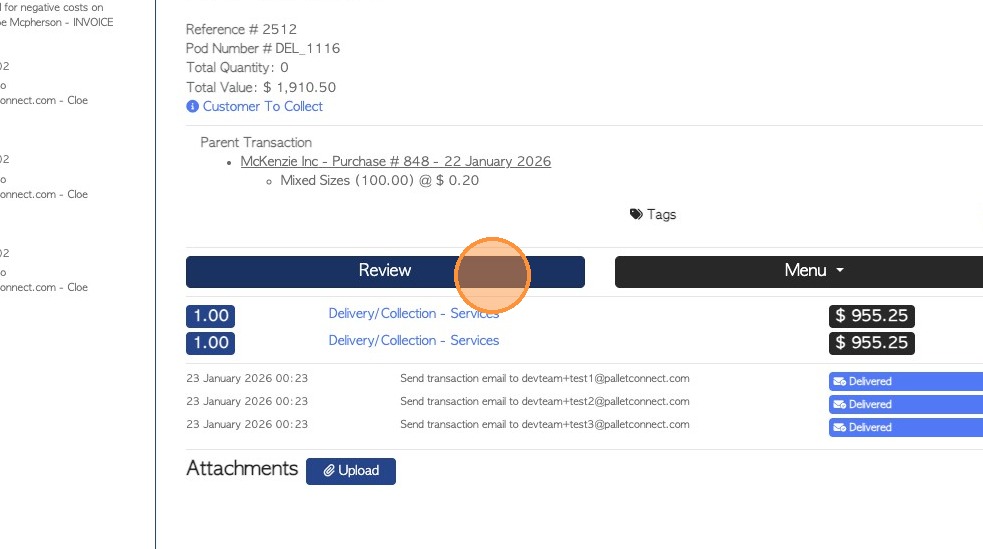
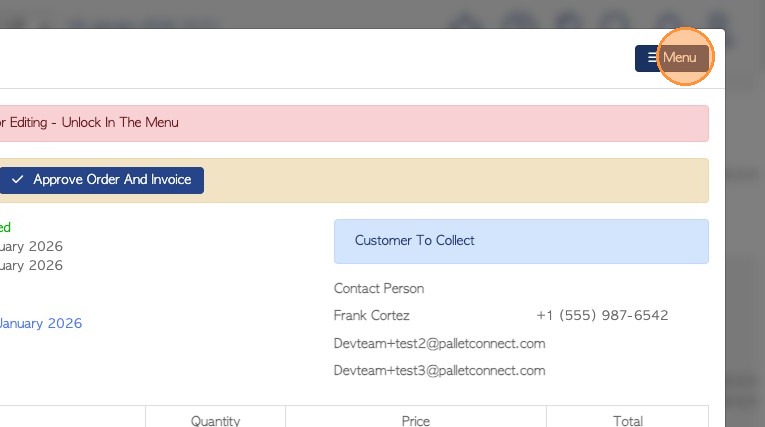
9. Click "Menu"
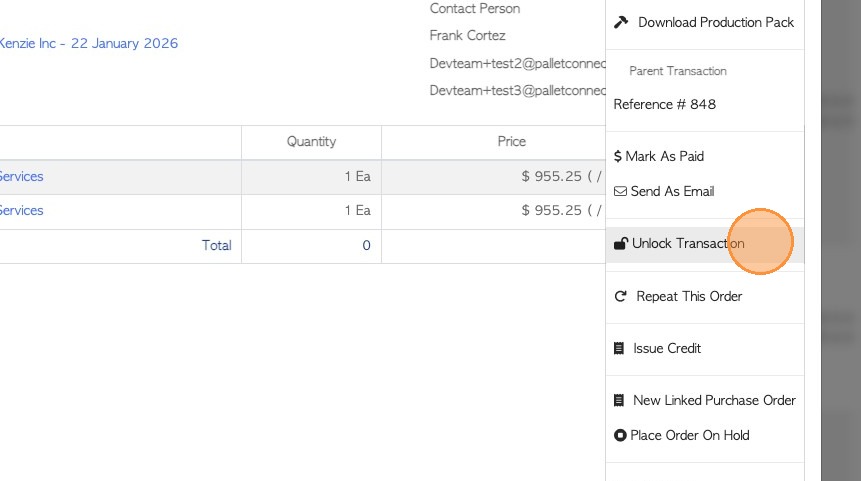
10. Click "Unlock Transaction"
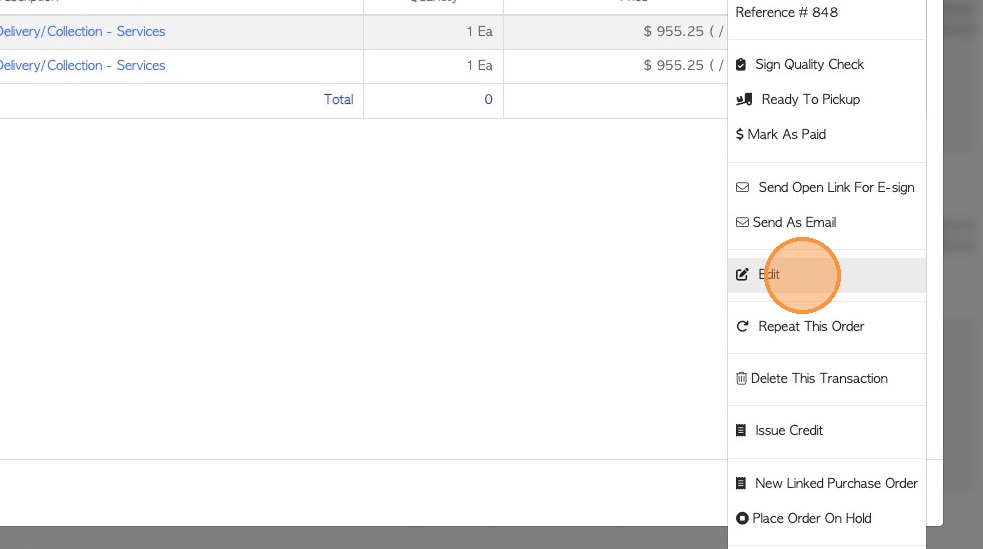
11. The option to "Edit" will now be available in the menu.
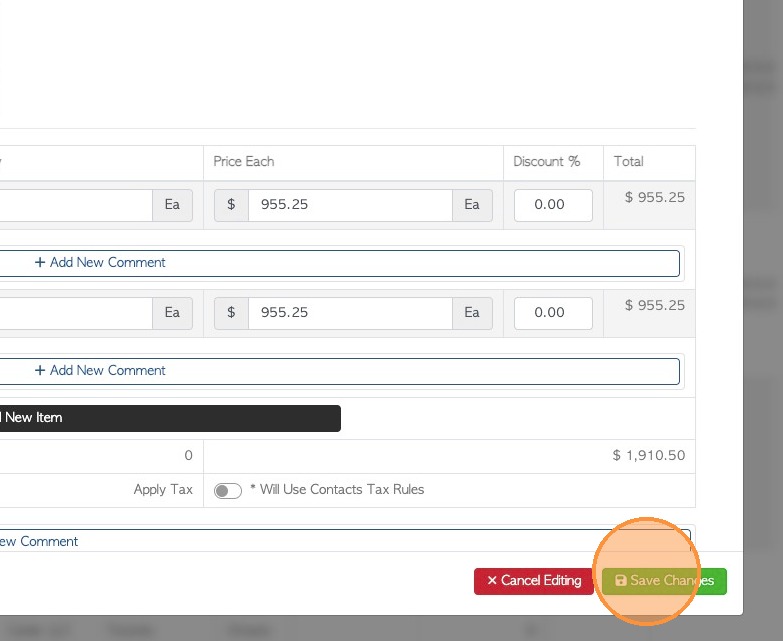
12. Click 'save changes' when complete.
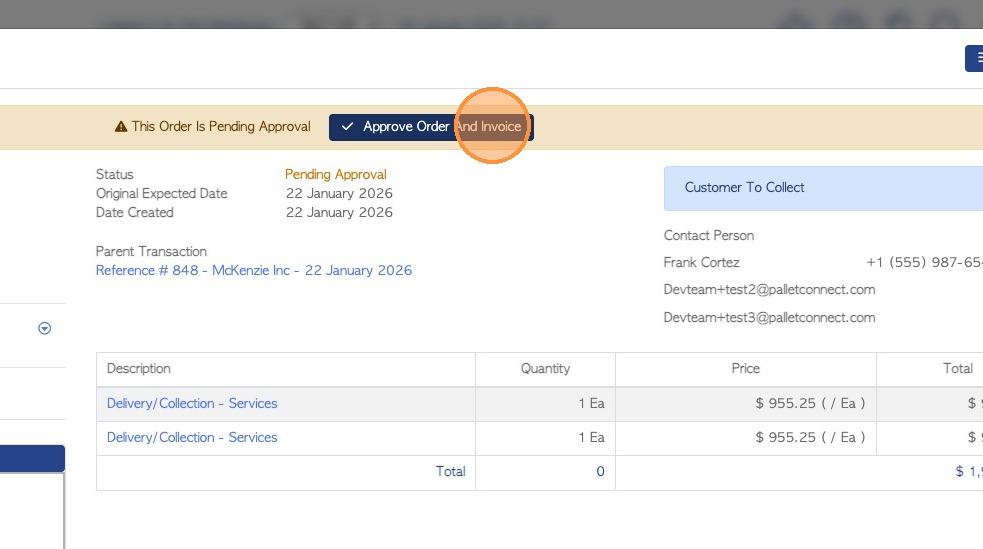
13. Click "Approve Order And Invoice" to approval changes, if applicable.
Use the menu to " Lock Transaction- Mark as Exported" again, if needed.