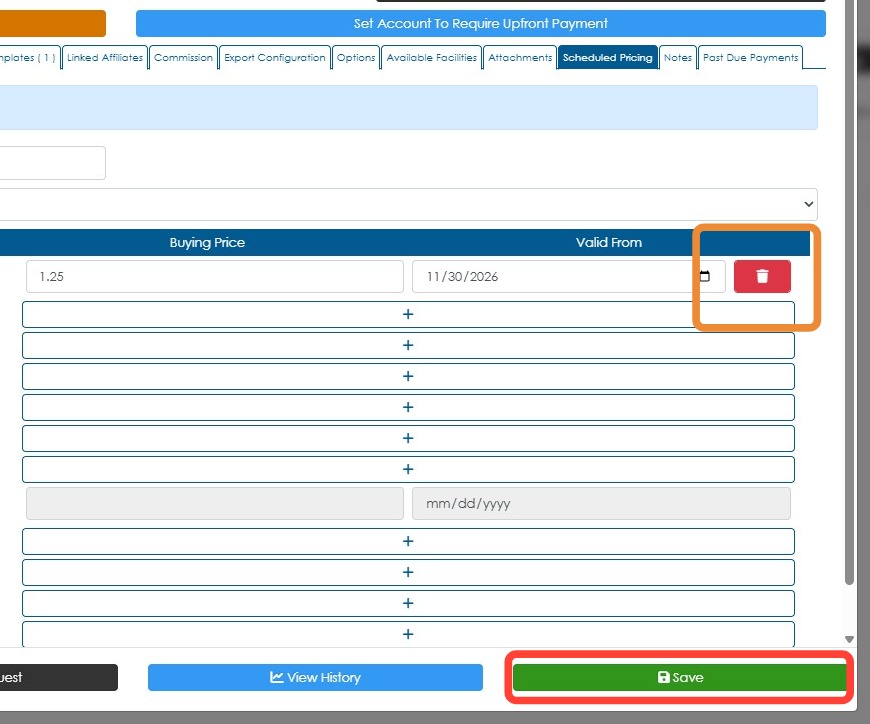
Learn how to use future pricing in Pallet Connect to update the buying and selling prices of stock items linked to specific customers. Set the date and time when the new prices will take effect to ensure the updated prices are applied at the scheduled time.
Tip: Tip! This article covers future pricing for individual customers. To update prices for items across the board, refer to [[Manage Price List Page Overview]].
1. Click Menu.
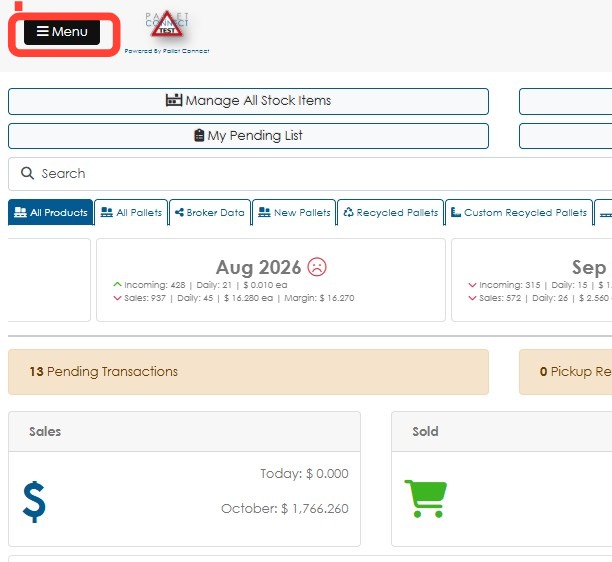
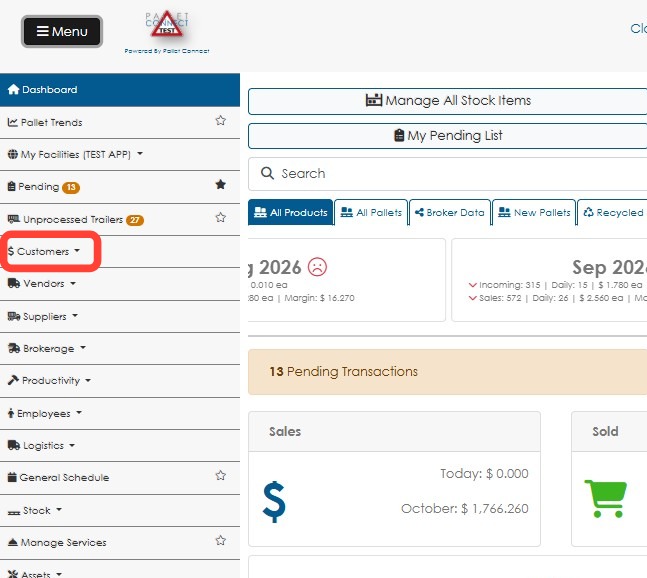
2. Click Customers.
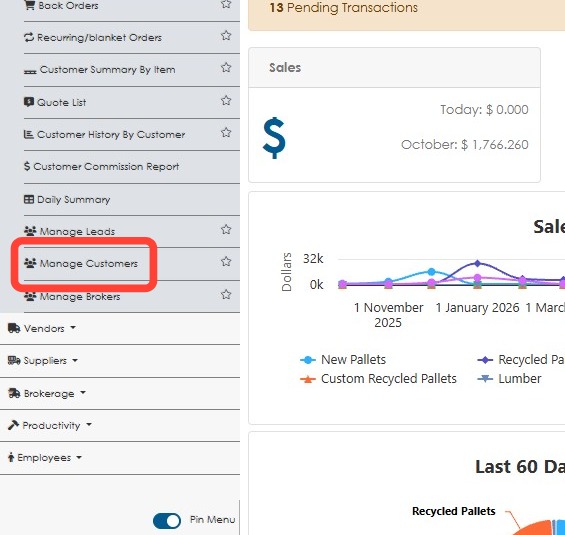
3. Click Manage Customers.
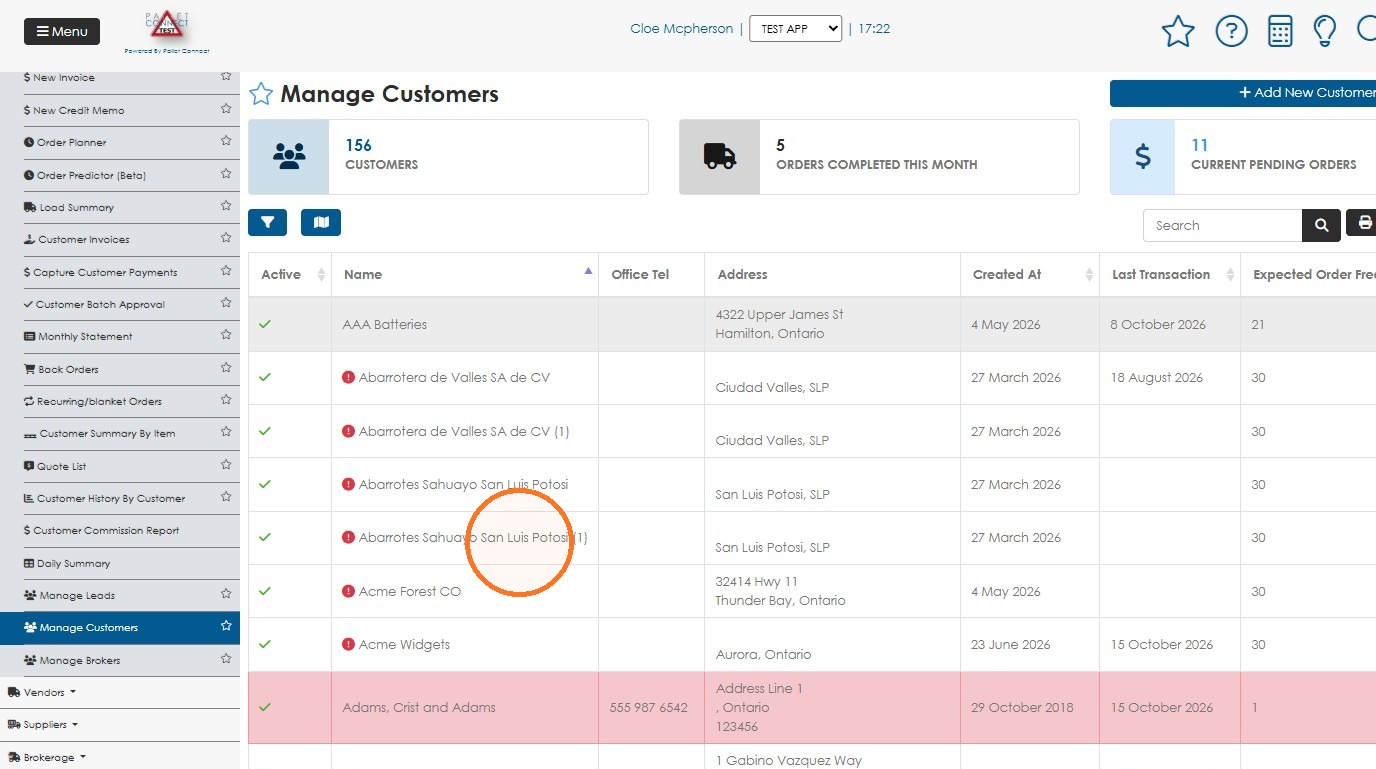
4. Choose the customer from the list.
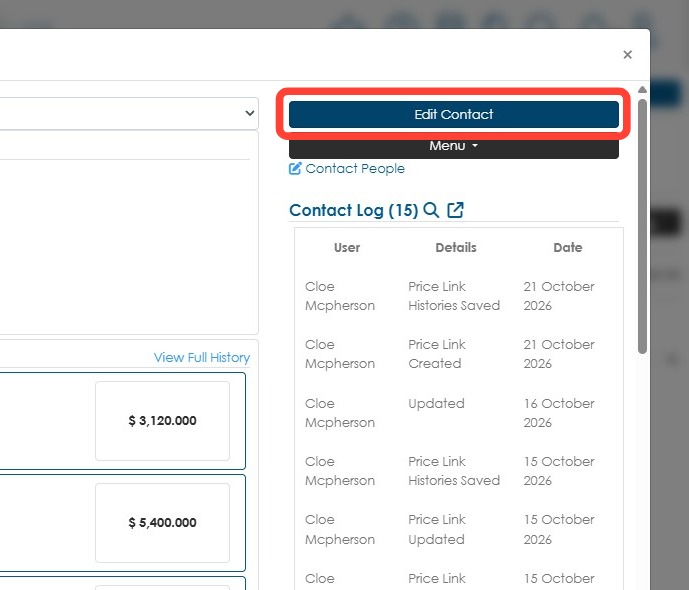
5. Click Edit Contact.
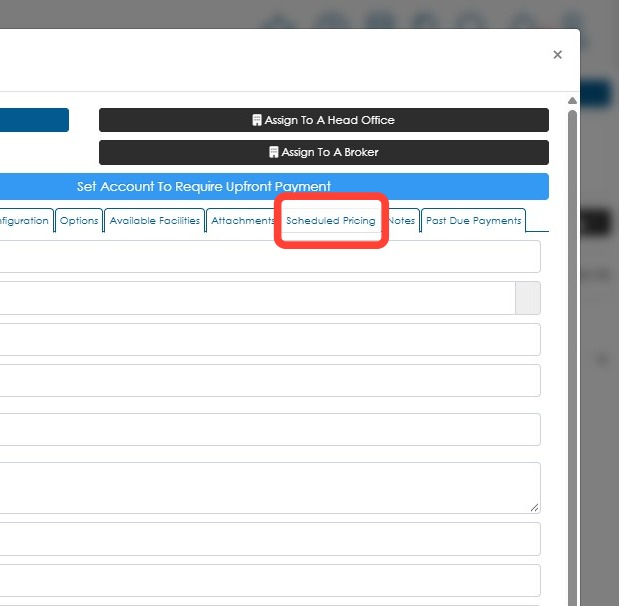
6. Click the Scheduled Pricing tab in the Customer profile.
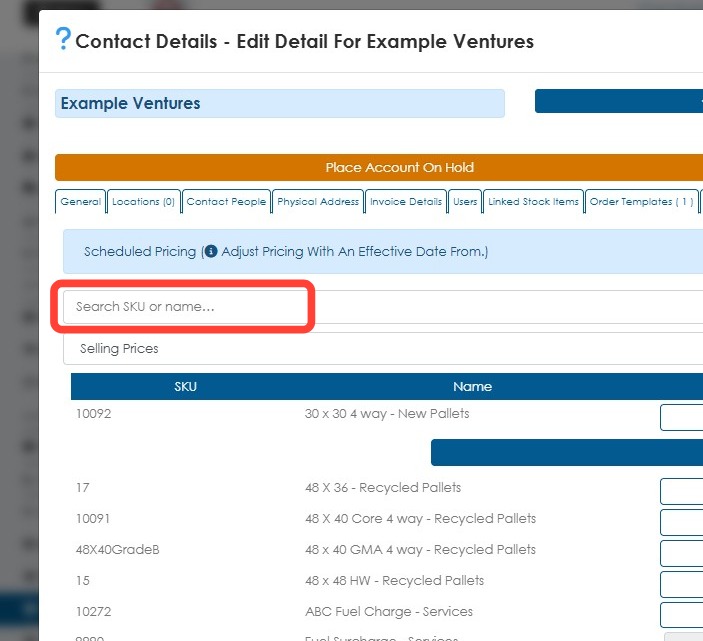
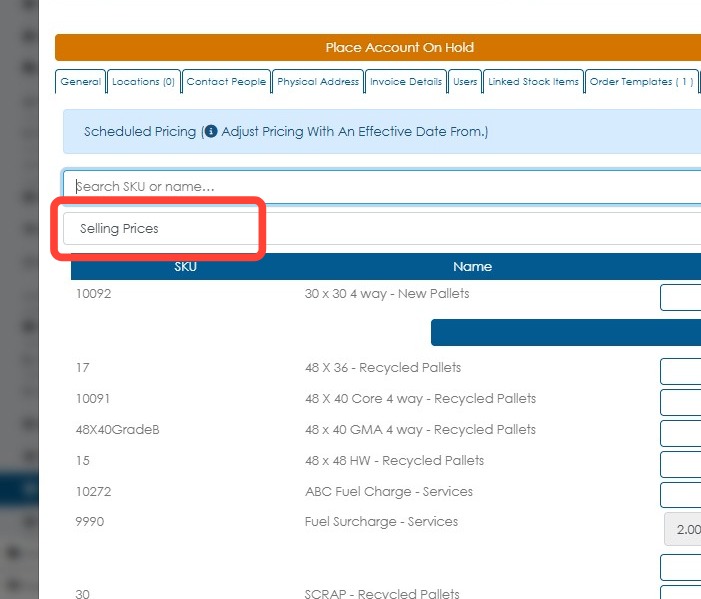
7. If the customer has a long list of linked stock items, enter the item's SKU or name in the Search SKU or name field to find it quickly.
8. Open the pricing type dropdown and select Buying Prices or Selling Prices, depending on which prices need to be updated.
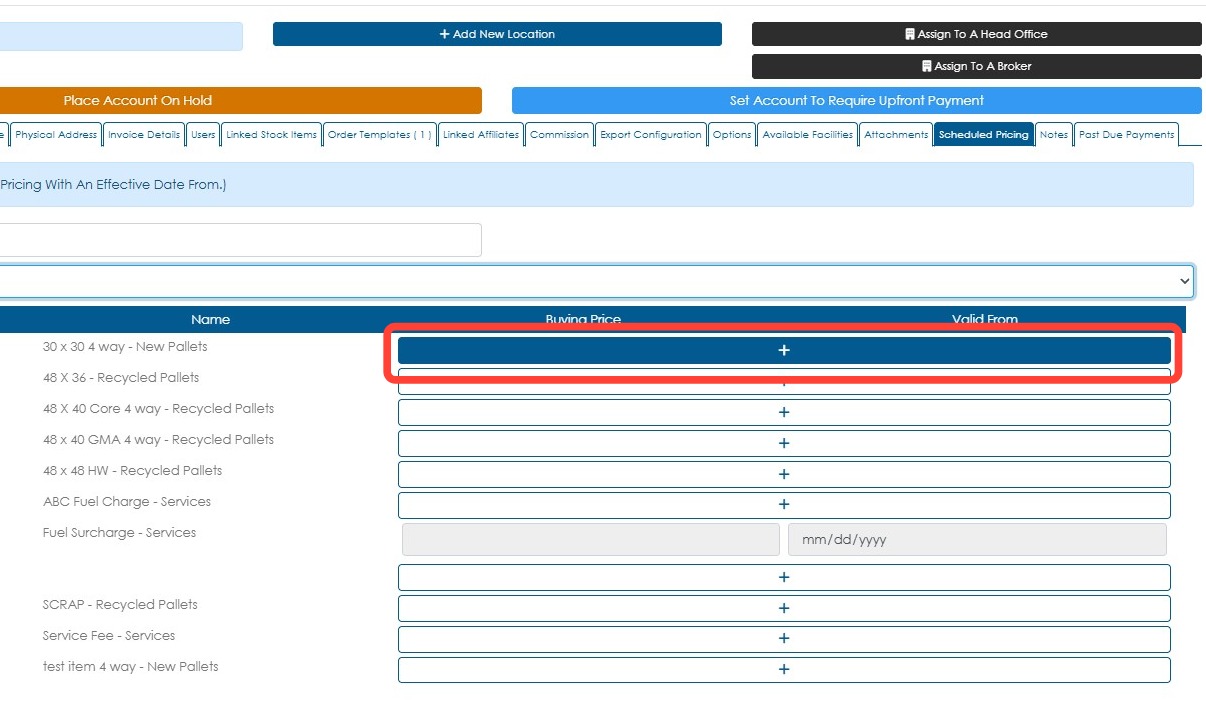
9. Click the plus (+) button beside the item.
10. Enter the new price and then select the Valid From date, using the calendar icon.
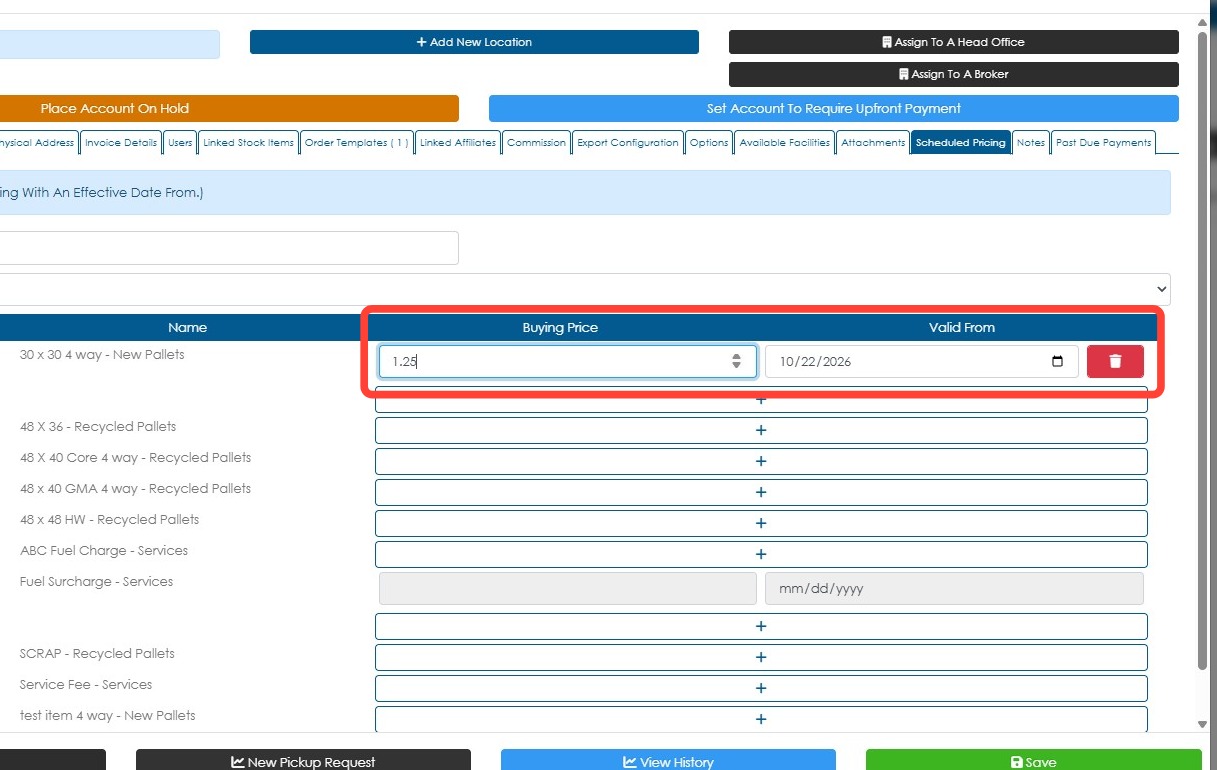
11. Click Save to complete changes.
NOTE: The Scheduled Pricing data can be deleted using the garbage can icon.