Managing inventory goes beyond tracking stock, it also means keeping the right connections in place. This guide shows how to quickly find specific pallet types in the dashboard and manage their linked contacts. This article explains where to view these associations, how to access them and how to keep your records accurate and up to date.
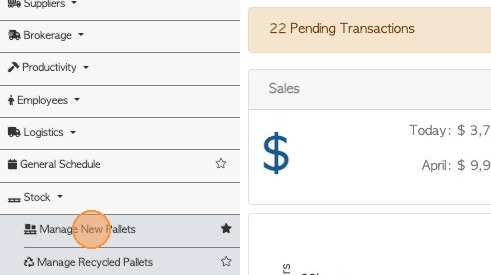
1. Go to "Stock" from the main menu, then click “Manage New Pallets” or any selected stock category.
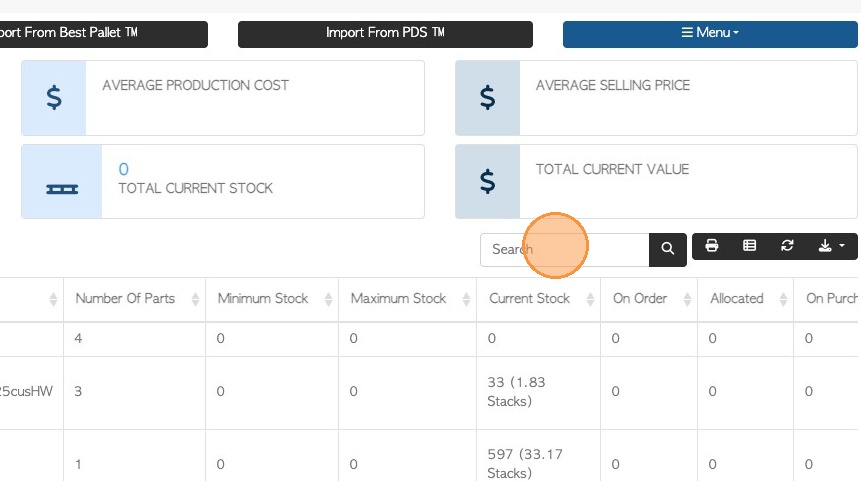
2. Look for the stock item from the list or use the search field.
Tip: To reach a stock profile directly, use the Global Search tool.
3. Click the item from the list to open the profile.
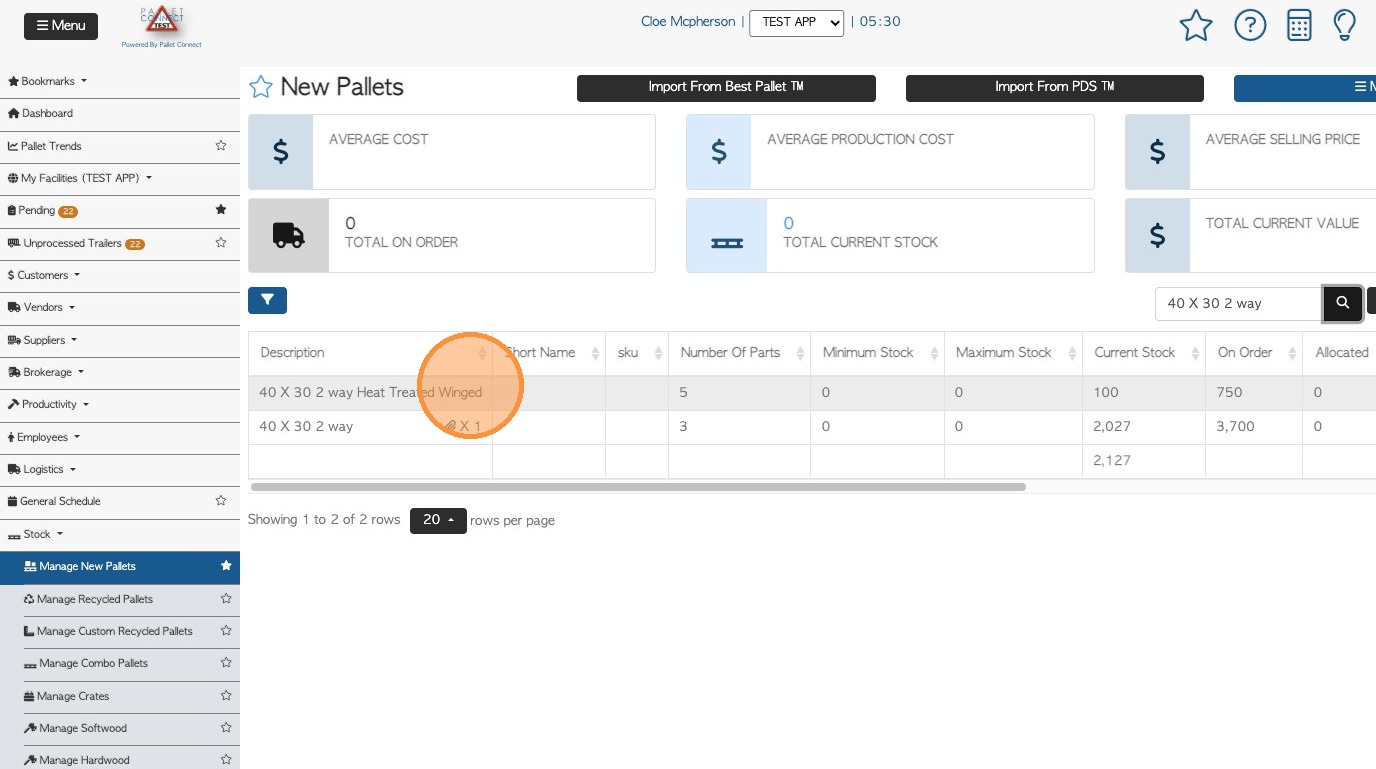
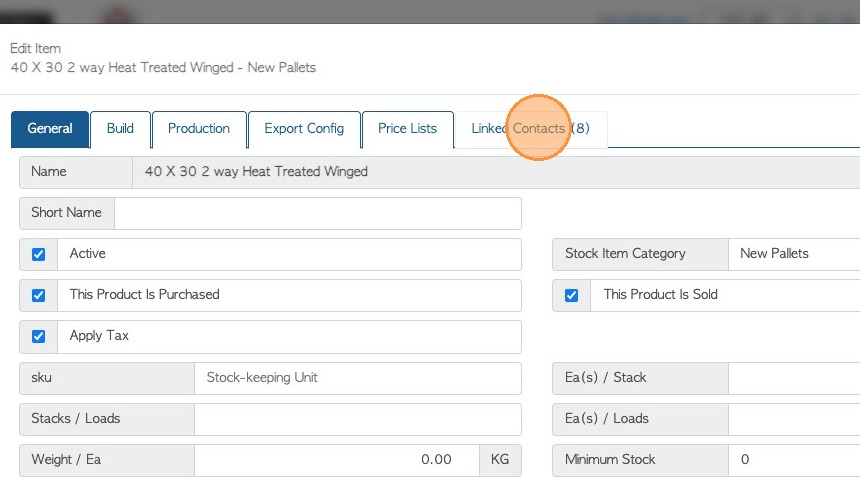
4. If the item is linked to any contacts, there will be a “Linked Contacts” tab. Click it to view a table of all associated contacts.
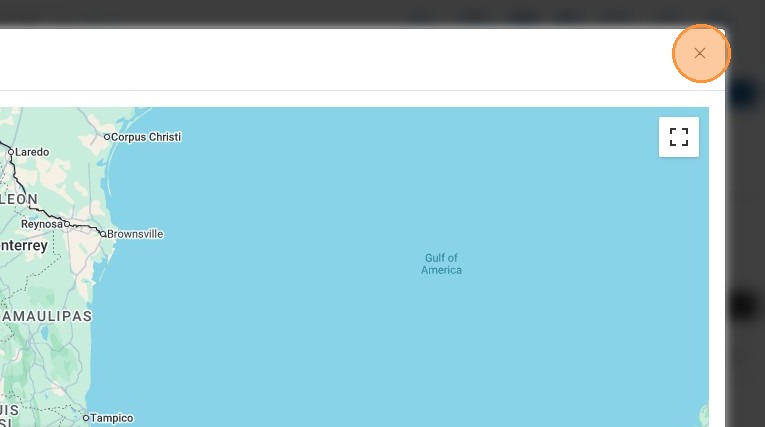
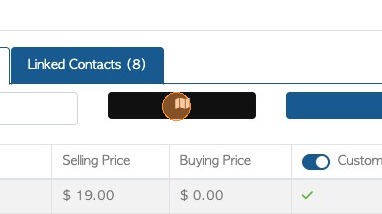
5. Use the map icon at the top to see the company's locations.
6. From here, review and update these connections to keep the logistics records accurate and up to date.
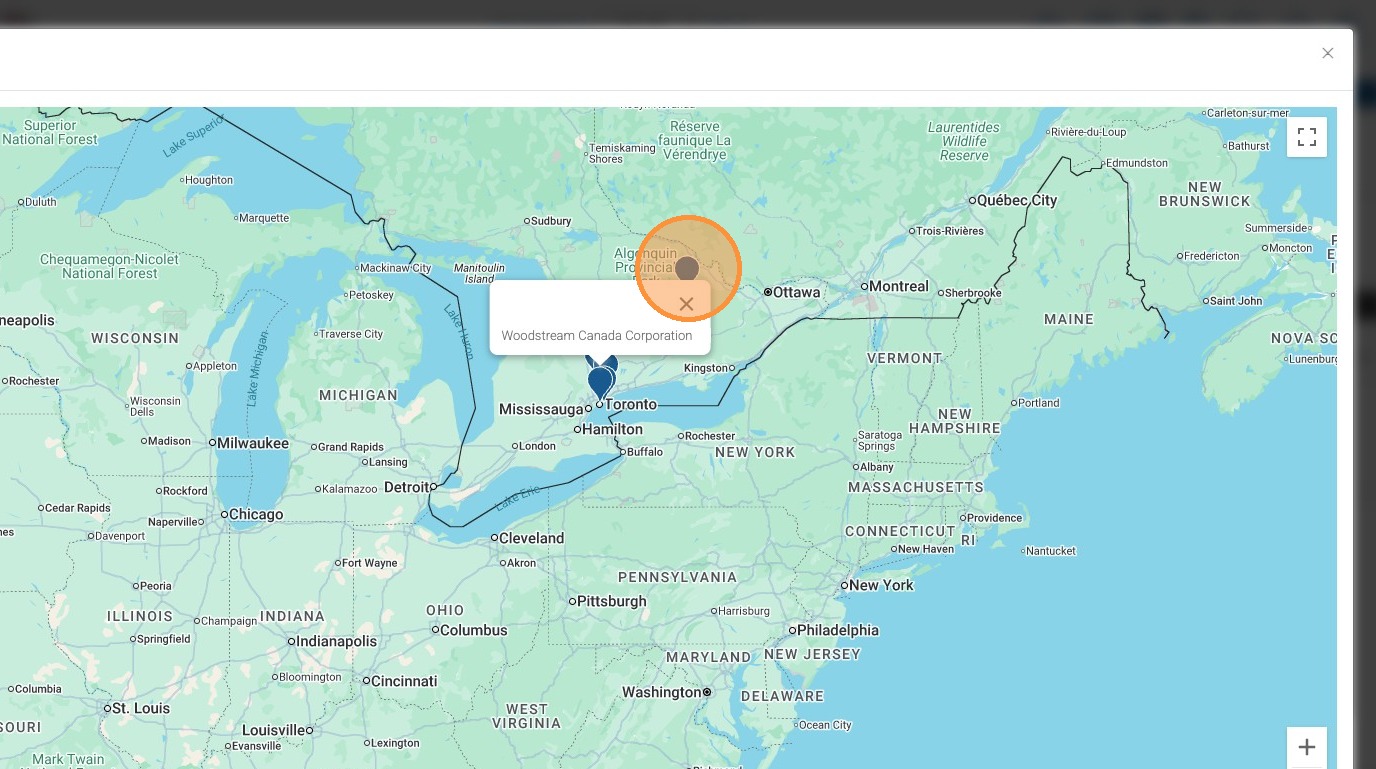
7. Zoom in and out using the mouse scroll or the on-screen controls. For a wider view, click the full-screen button located in the top-right corner.
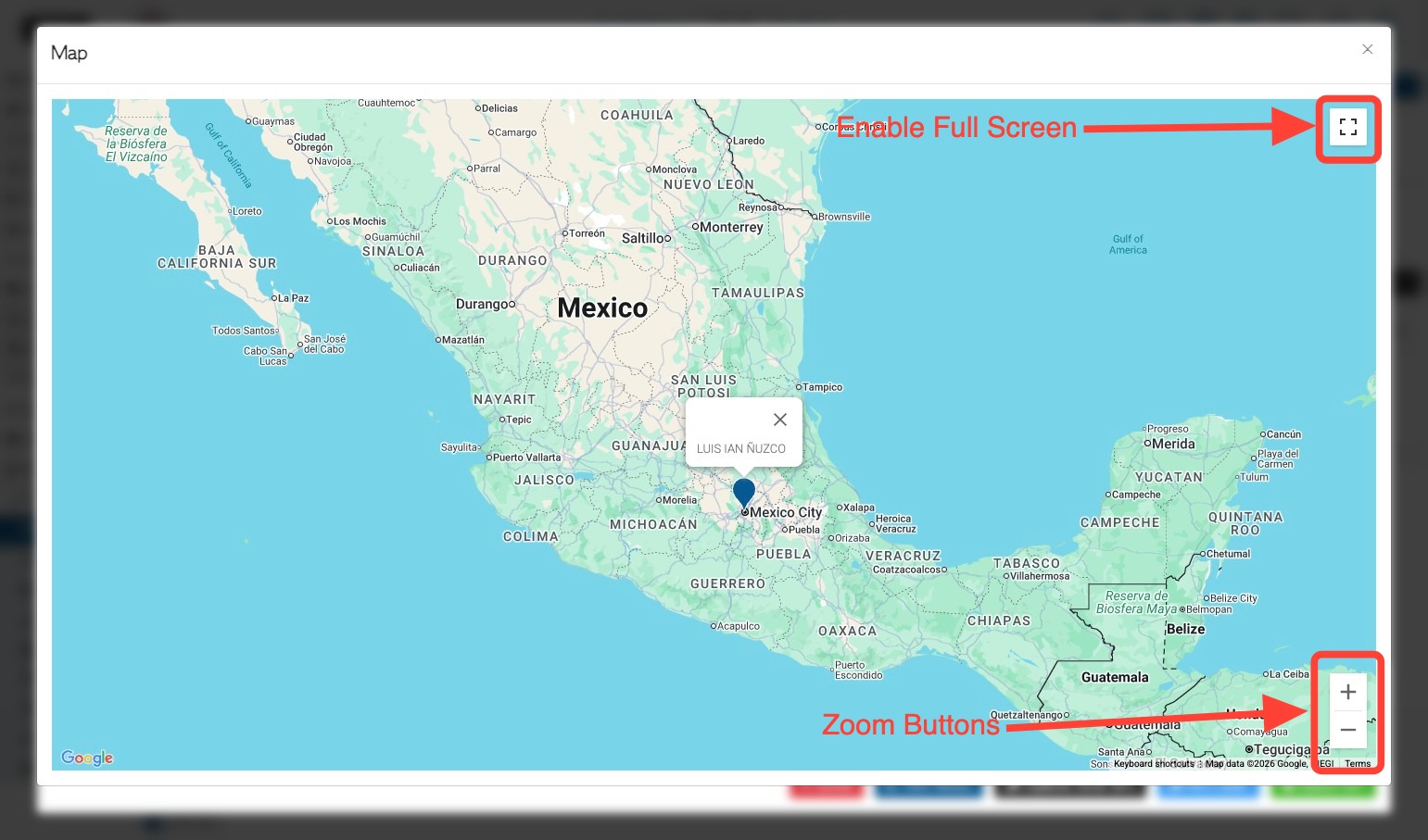
8. To close the window, click X.