
The Pallet Connect Print mobile app allows users to connect their Android devices to Zebra printers to print production labels for stacks of pallets and lumber in the warehouse. Drivers can also use it to print delivery slips and proof of delivery (POD) documents directly from their mobile devices. IMPORTANT! The app is currently available for Android only.
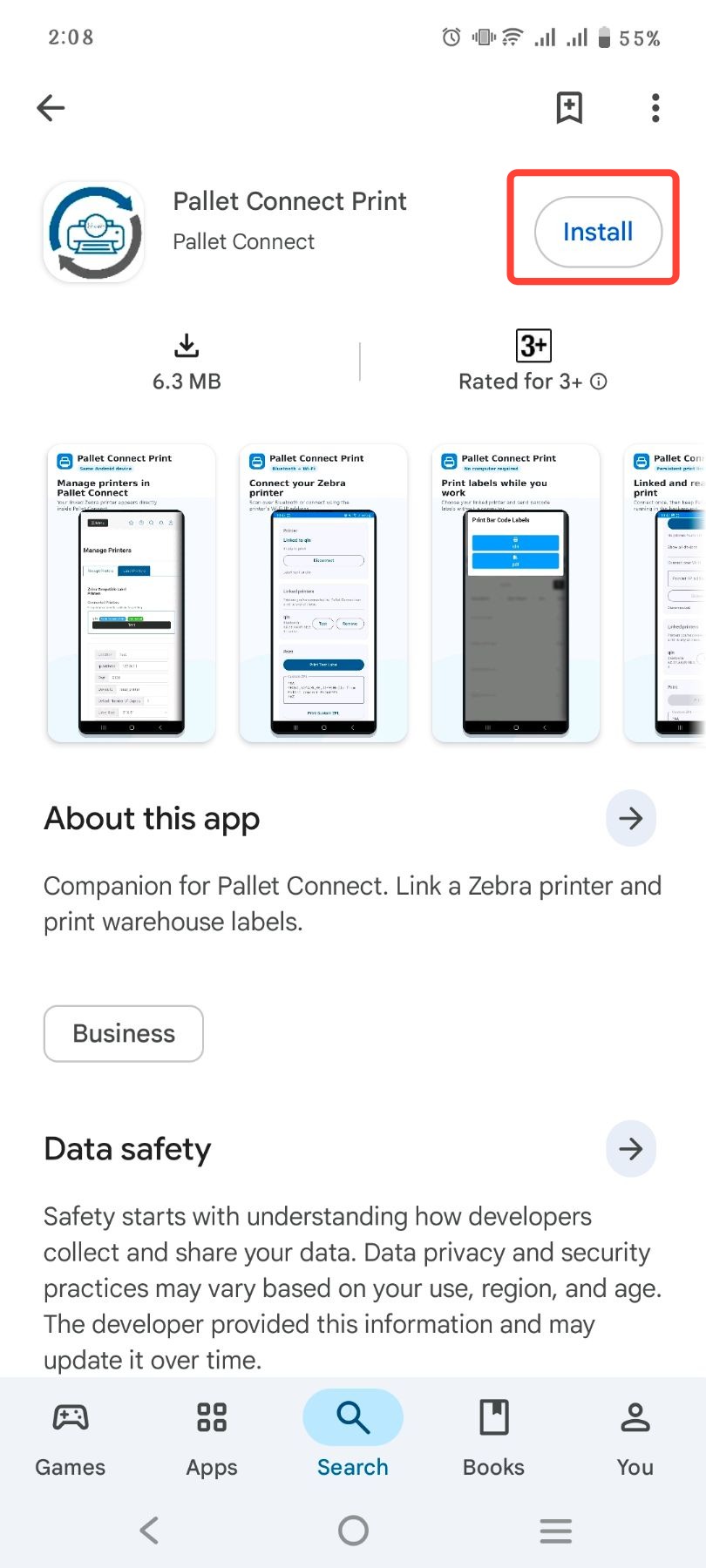
1. Go to Google Play Store. Search for Pallet Connect Print and tap Install.
2. The screenshot below shows how the app will look when opened.
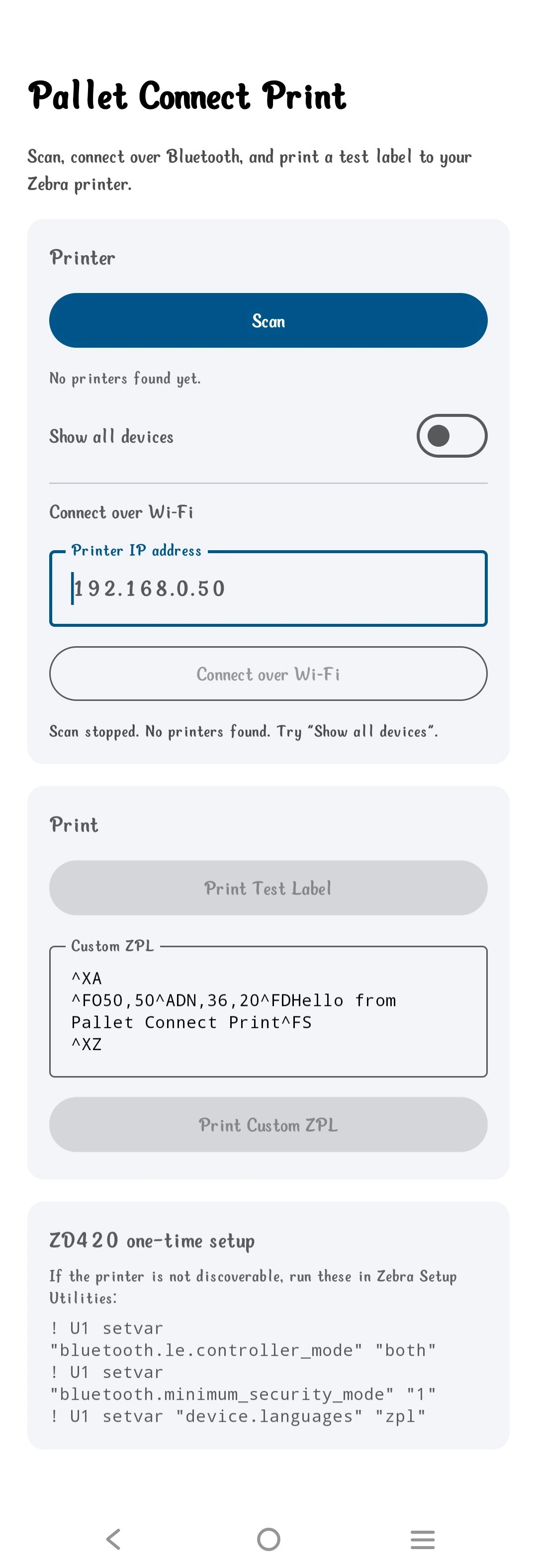
3. Connect via Bluetooth
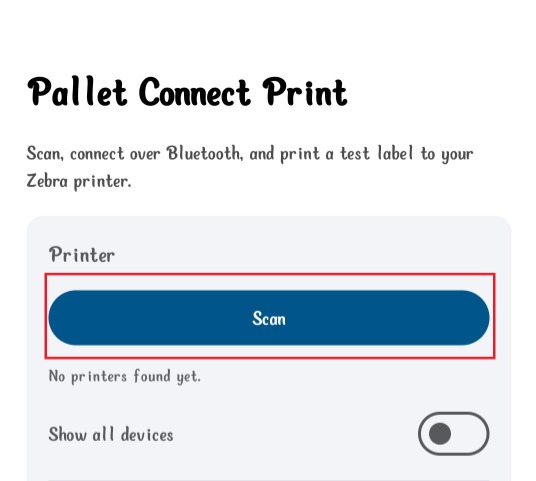
Tap Scan to search for available printers, then select the desired printer to connect via Bluetooth.
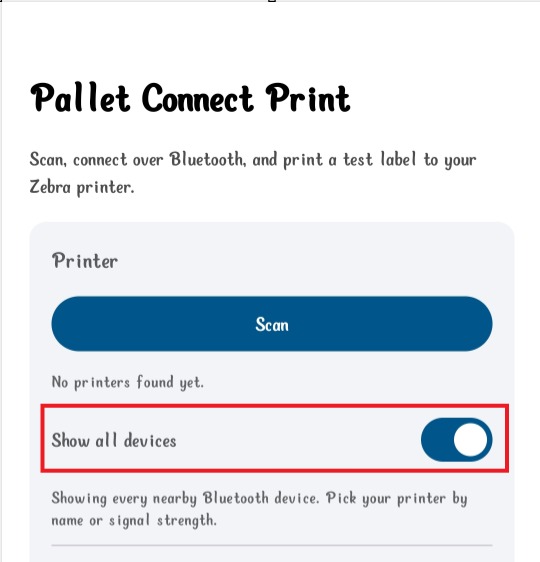
4. Enable the Show All Devices toggle to display all nearby Bluetooth devices, then select the printer from the list.
5. Connect over Wifi
If the printer does not appear in the Bluetooth device list, enter the printer's IP address and tap Connect over Wi-Fi to connect to the printer over the network.
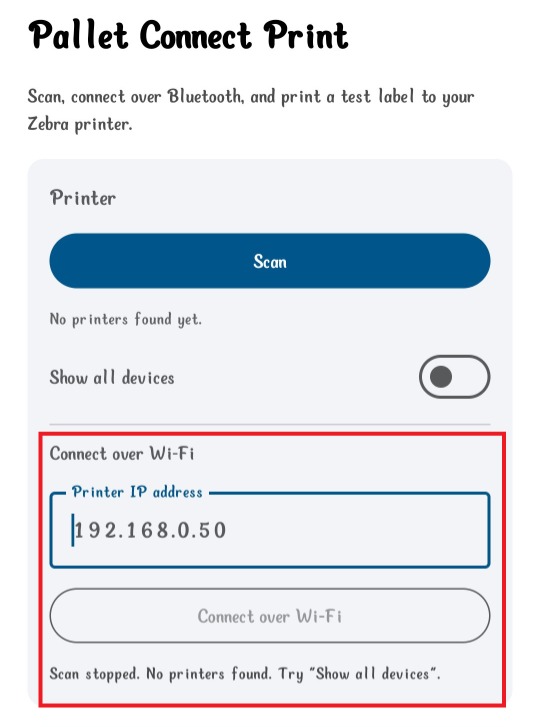
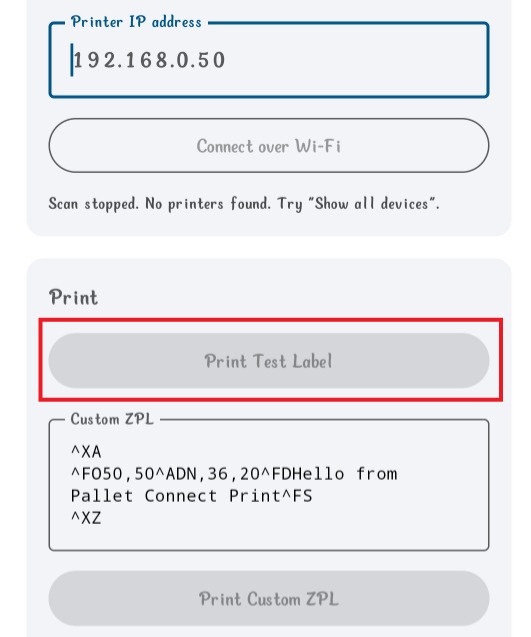
6. Tap Print Test Label to print a test label and confirm that the printer is connected and working correctly.
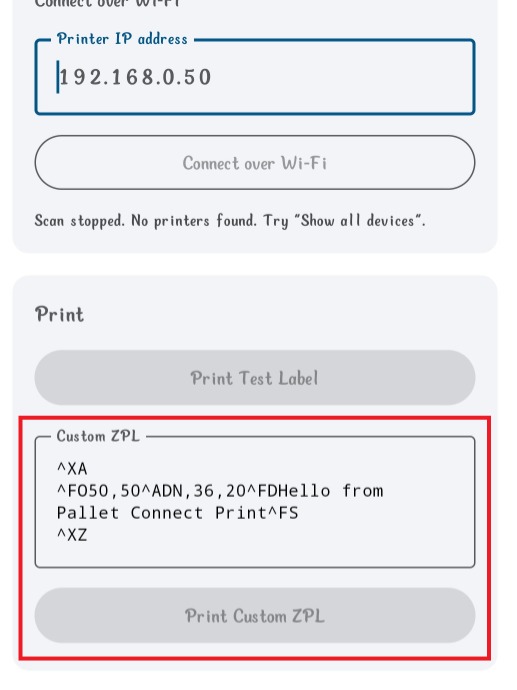
7. Custom ZPL can be added in the custom field. Tap Print Custom ZPL to print.
NOTE: Custom ZPL refers to custom-designed "Zebra Programming Language" (ZPL) scripts or templates used to control the label printers. ZPL uses line-by-line text commands to tell the printer where to place elements.
Tip: Tip! If the ZD420 printer is not discoverable, complete the following one-time setup in Zebra Setup Utilities to make it discoverable. This setup only needs to be completed once.
! U1 setvar
"bluetooth.le.controller_mode" "both"
! U1 setvar
"bluetooth.minimum_securi ty_mode" "1"
! U1 setvar "device.languages" "zpl"