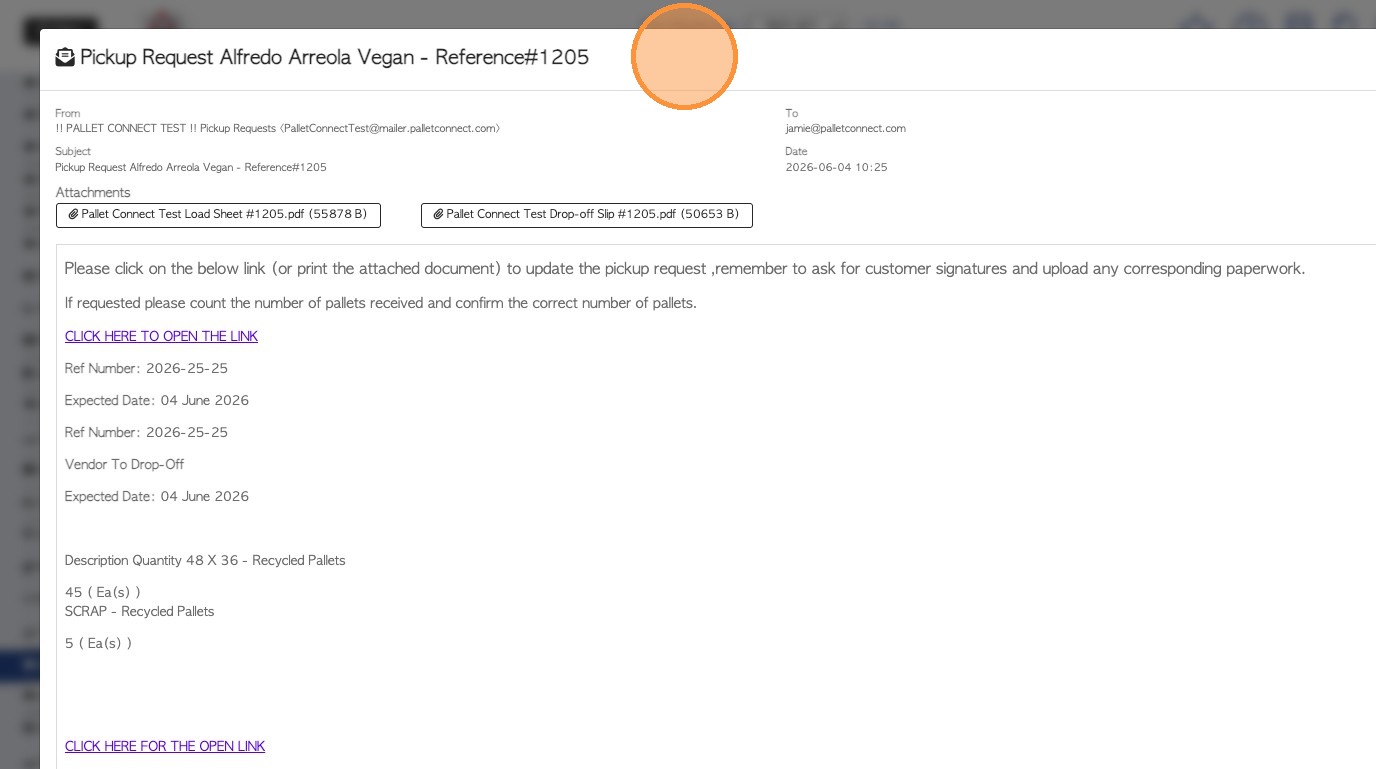
Pallet Connect allows for manual and automatic emails to be sent from the system. The emails are related to transactions created in the platform. This guide shows how to view an email that was sent by Pallet Connect
1. There are notifications that show when an email has been sent from the system. They can be found on pending transaction and transaction history pages.
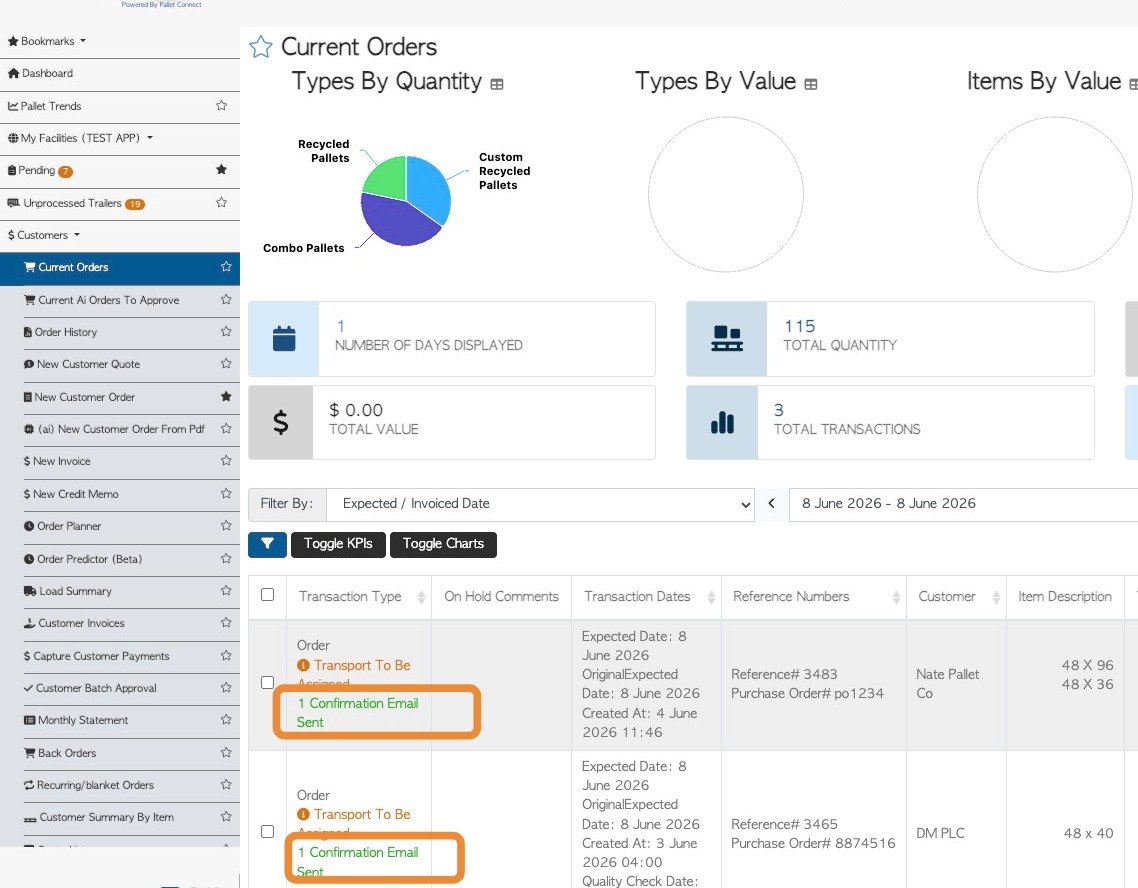
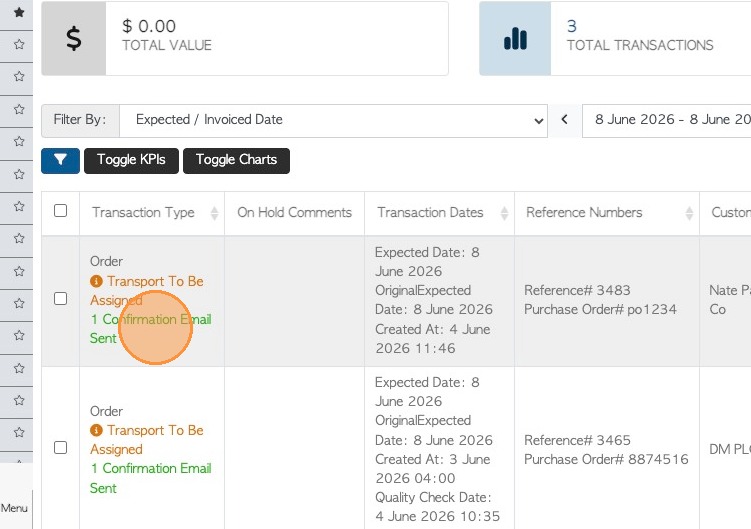
2. To view the email details, click on a transaction from a list, or search the transaction using the global search.
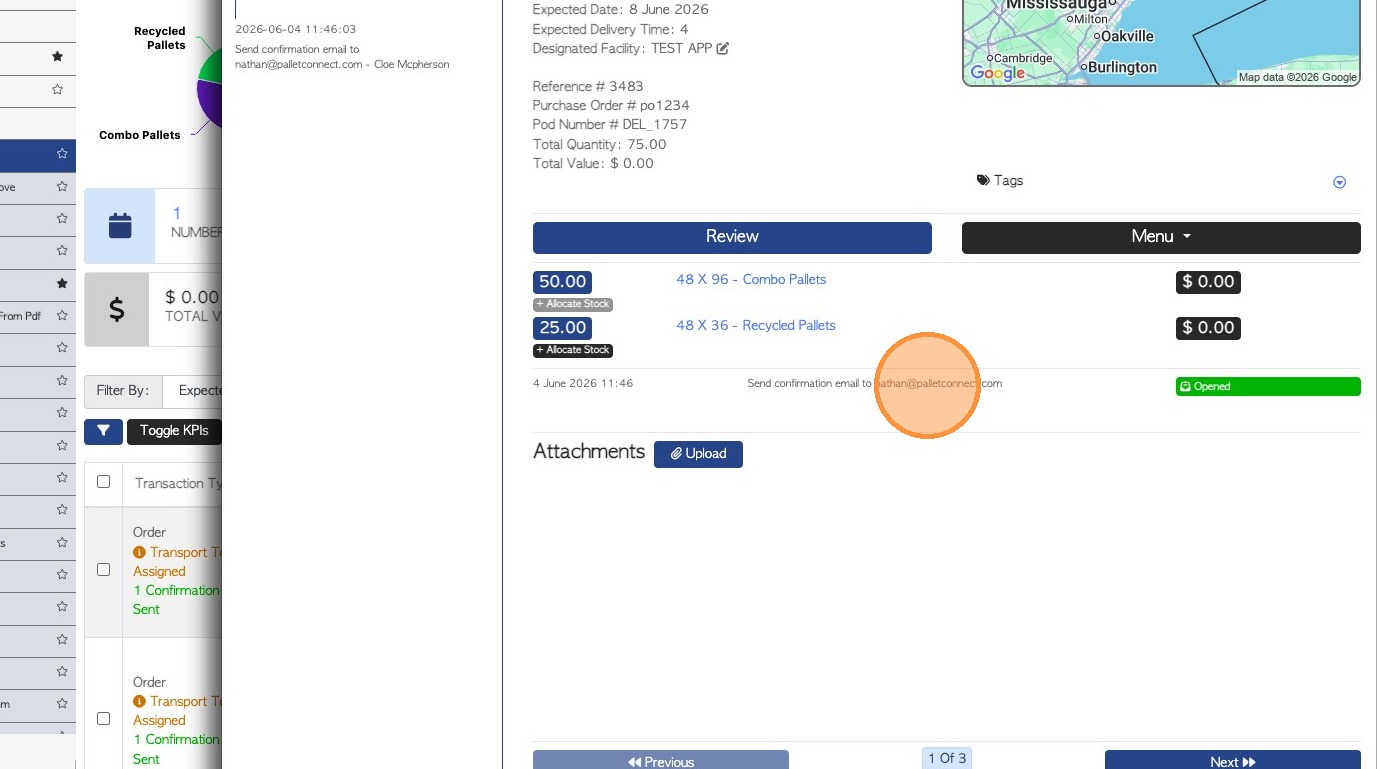
3. Click on the email notification from the slide out screen.
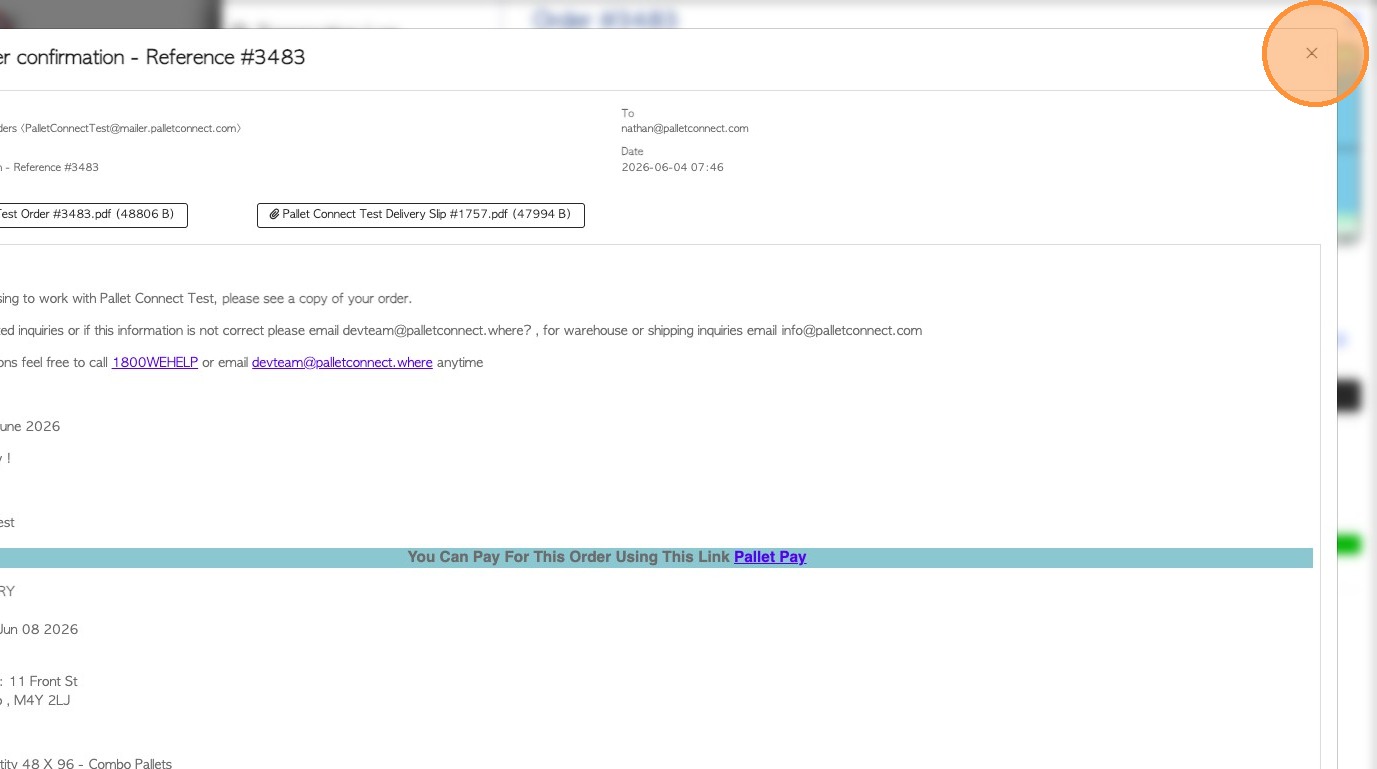
4. The email details are displayed on a pop up screen. Click 'x' to return to the transaction slide out screen.
TIP! The email can be viewed from the "Review" page of the transaction also.
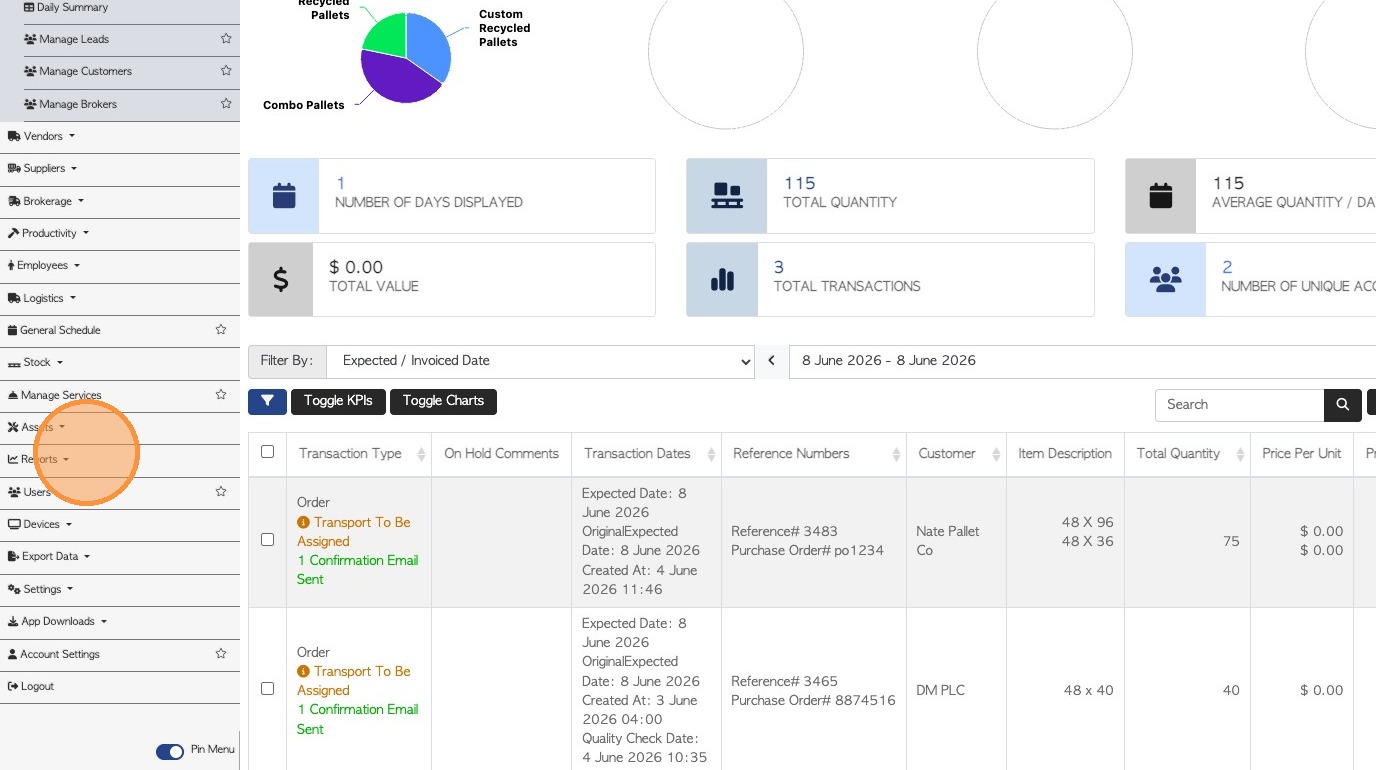
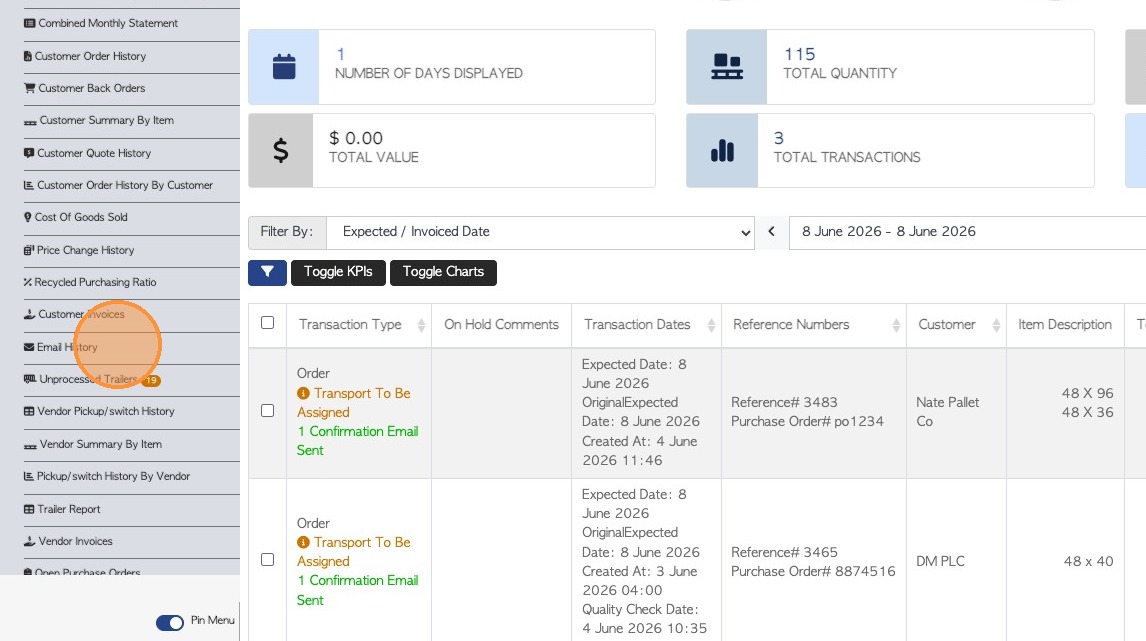
5. A list of sent emails can be viewed from the Email Report also. Navigate to "Email History" from the reporting section of the Main Menu.
NOTE: This report is linked to Email Tracking, an add-on feature. See related article on Email Tracking.
6. Click on an email record from the list.
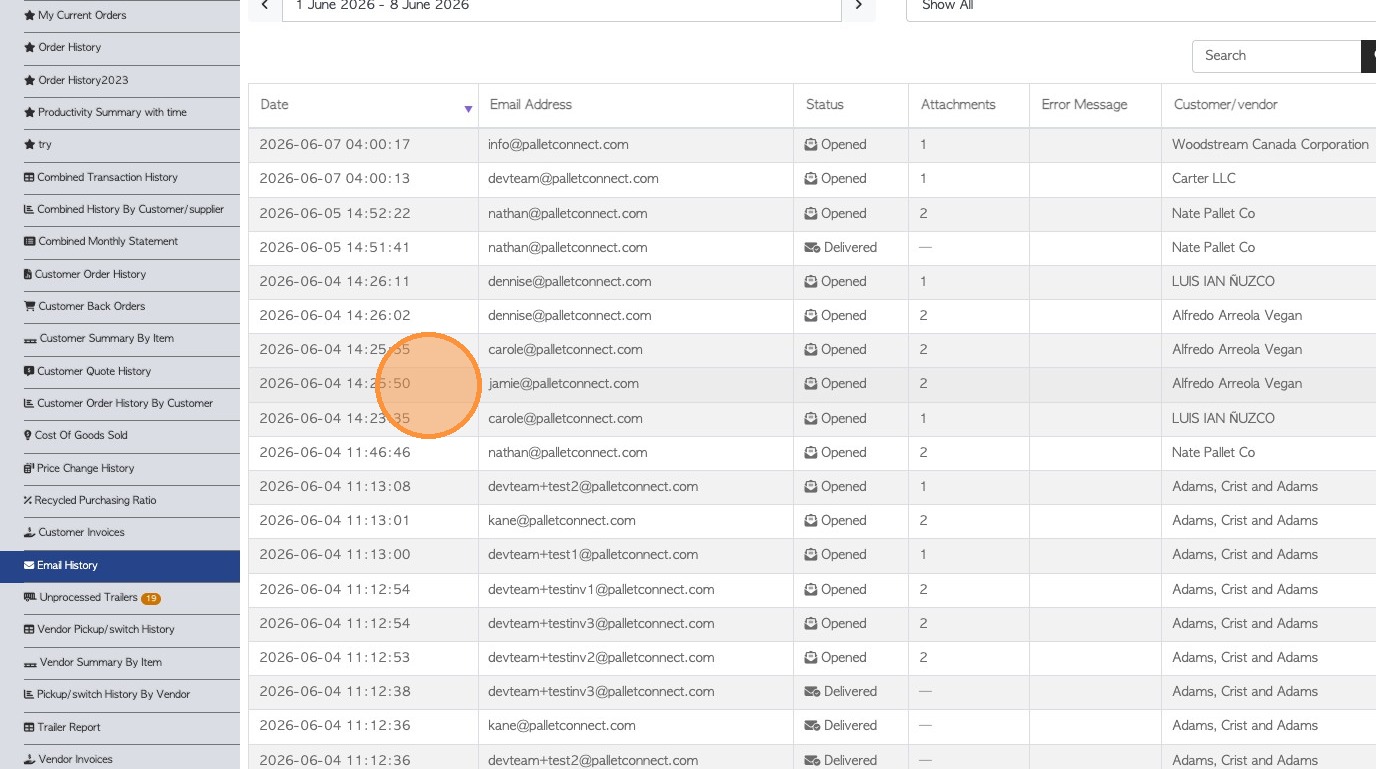
7. The email details will be displayed in a pop up screen. Click on the 'x' to return to the report.
Information shown includes the email recipient, the body of the email, the date sent and will also display attachments as applicable.