1. This article walks through how to track price changes per item in Pallet Connect, showing where to view historical pricing, how to identify updates, and how to interpret the data so you can confidently audit costs and respond quickly to discrepancies.
- To access the Price History of an item, simply search the item in the Global Search, located at the top right of each page.
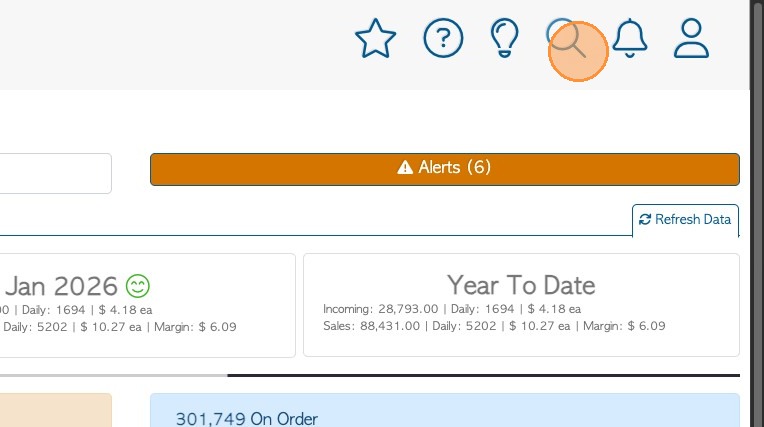
2. 2. Search for item name or look it up using the SKU or barcode.
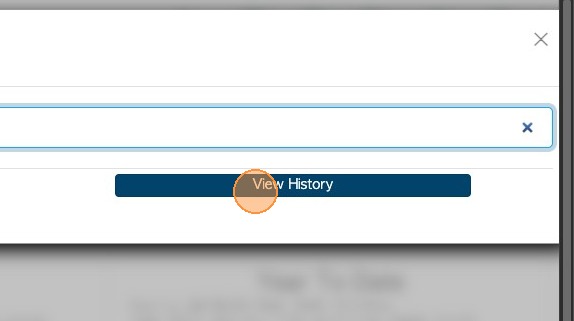
3. 3. From the Stock Item profile, click 'View History' to reach the history page.
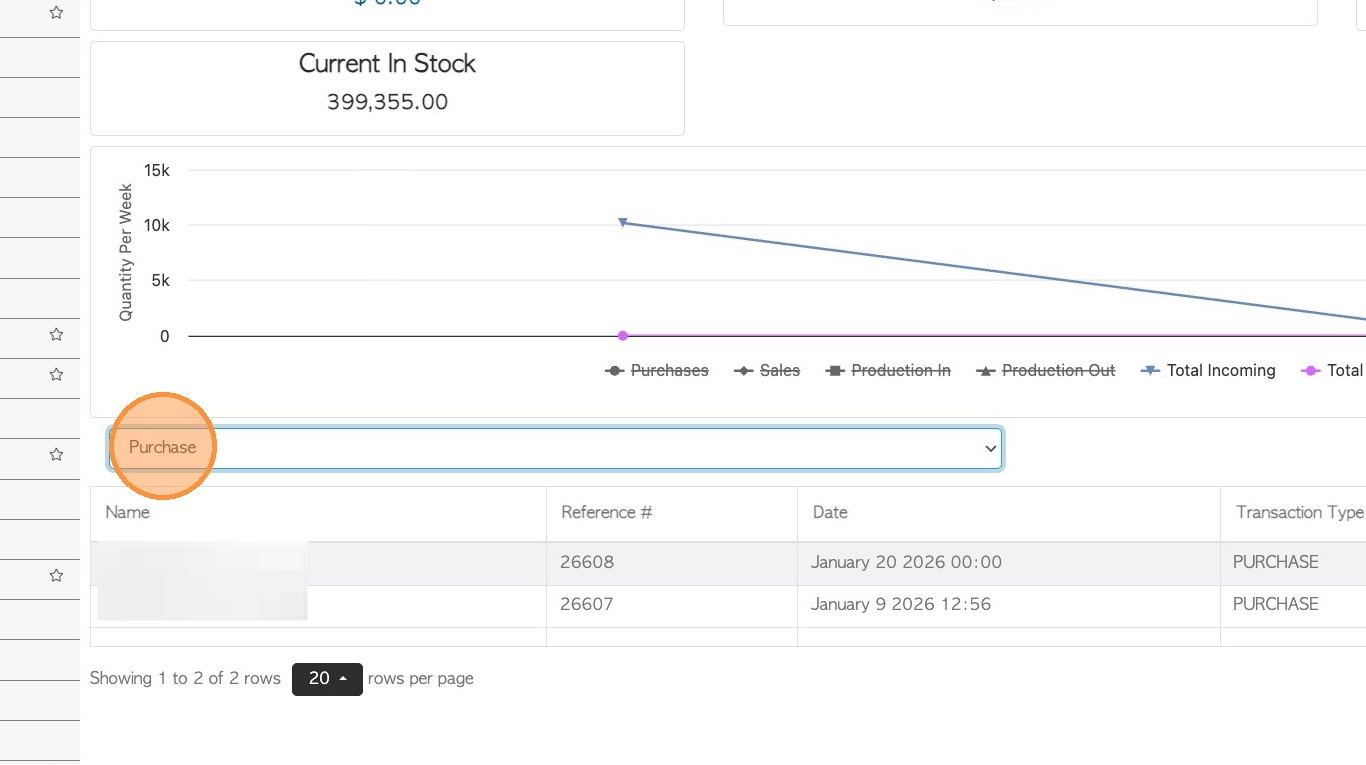
4. 4. On the Stock Item History page, the user can change the transaction type to filter the report.
Select the filter 'Purchase'.
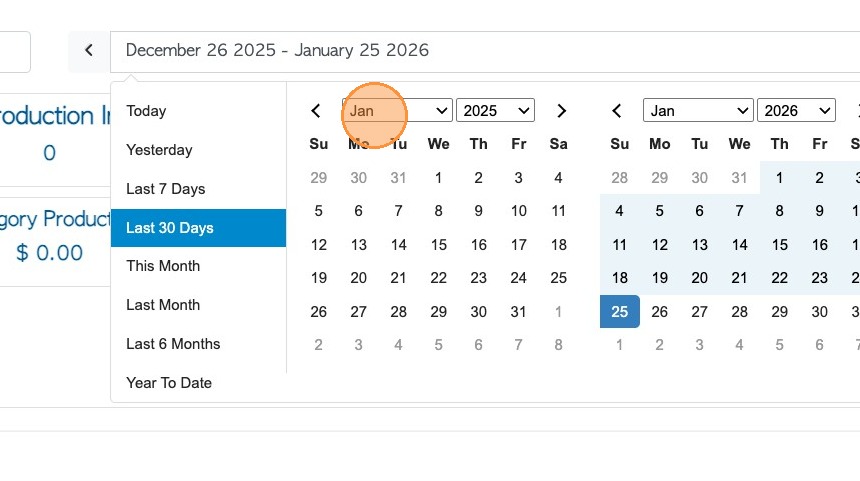
5. 5. Select a date range using the calendar to update the report results.
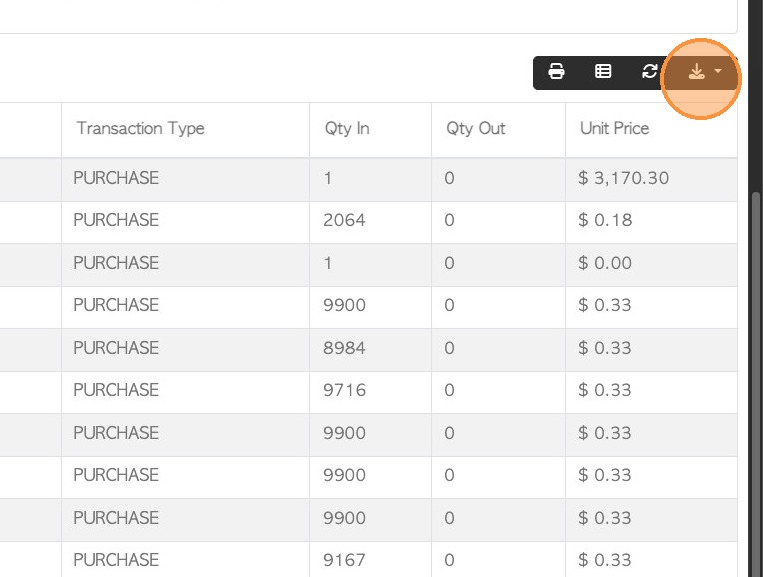
6. 6. The user can now view the Supplier Name, Reference#, Date of transaction, Qty in/out and unit price of the item per transaction.
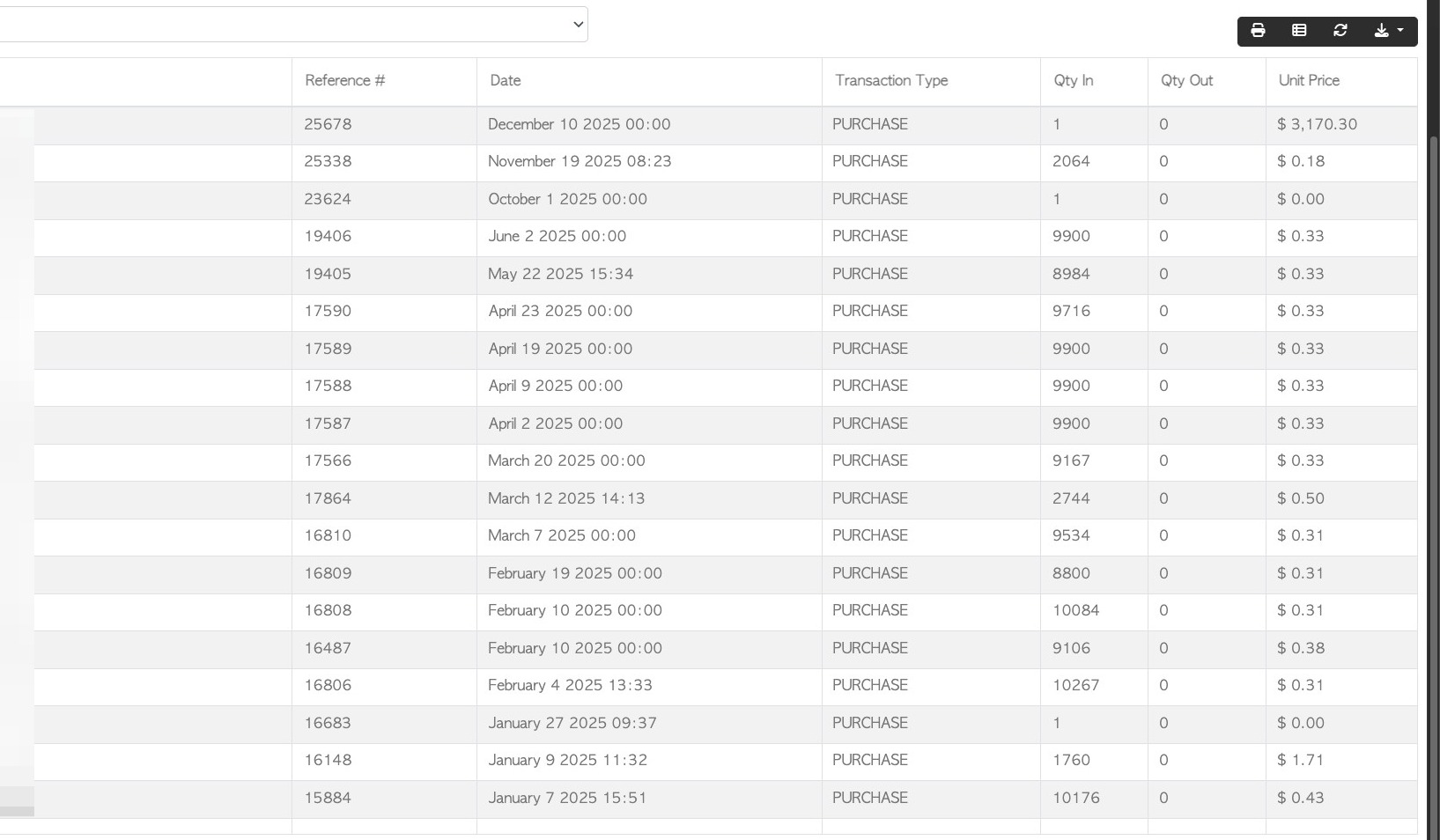
7. 6. The report can be exported to Excel, if needed.
NOTE: This report can also be reached from the Main Menu. Navigate to Stock > Stock History, then type in the name of the Stock Item.