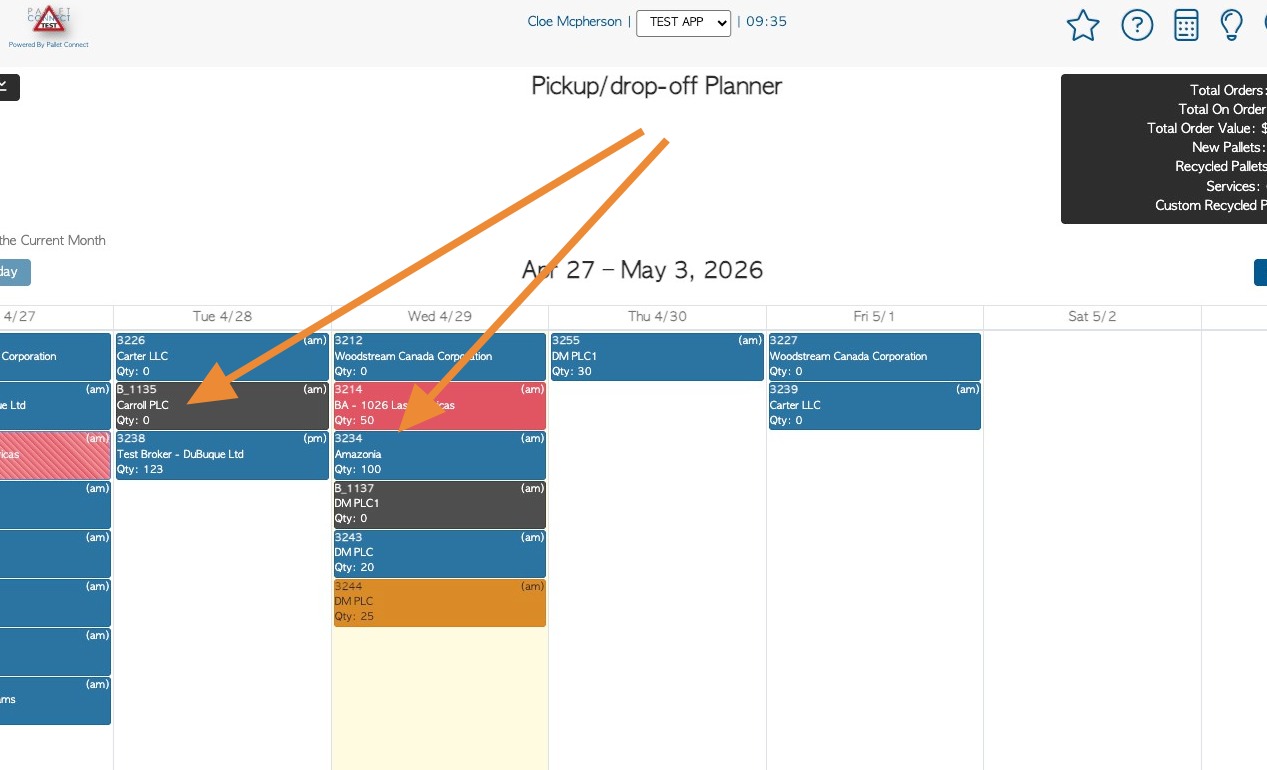
Vendor requests and Customer orders are separated on different planners within Pallet Connect. This article explains how to see a combined view within the system

1. FROM ORDER PLANNER: Navigate to the Customers section of the main menu and select Order Planner.
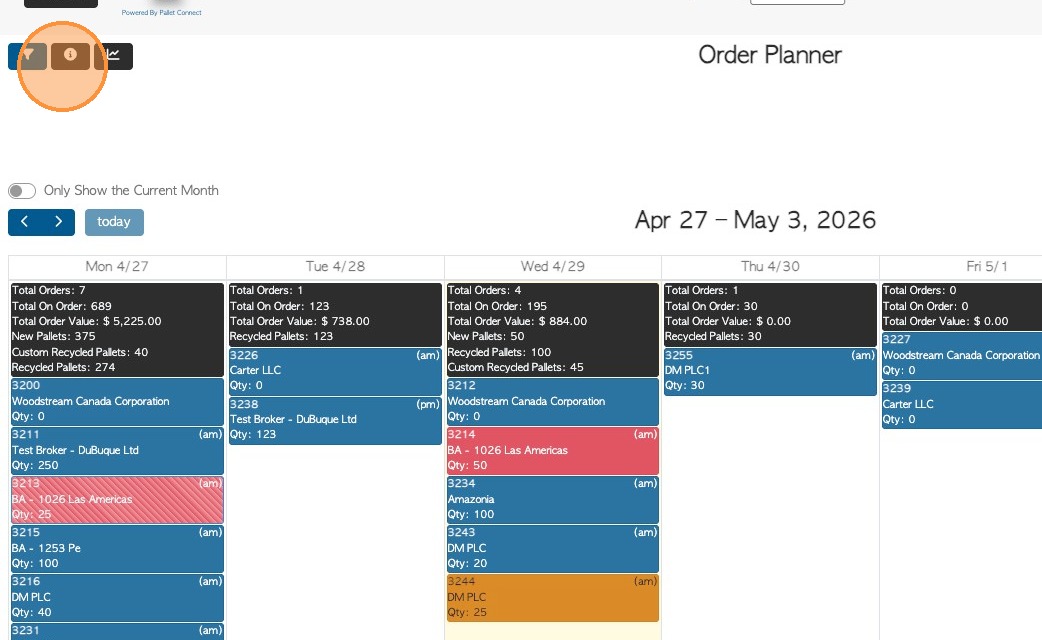
2. From the Order Planner, click the Filter icon in the top left corner.
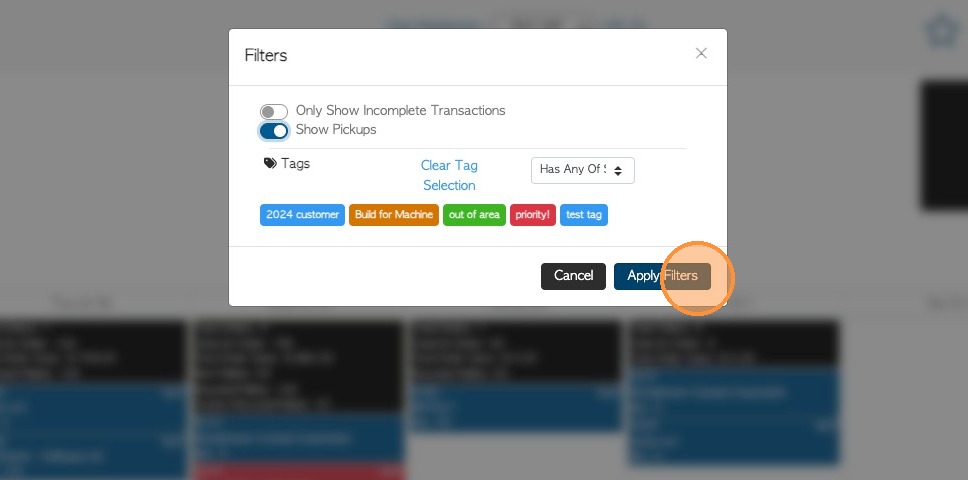
3. Enable the 'Show Pickups' toggle.
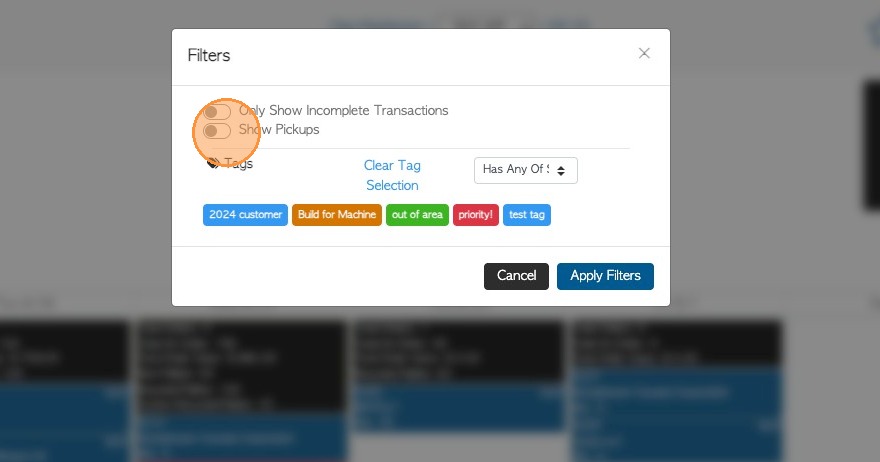
4. Click "Apply Filters" to save.
5. The calendar view now shows Customer Orders.
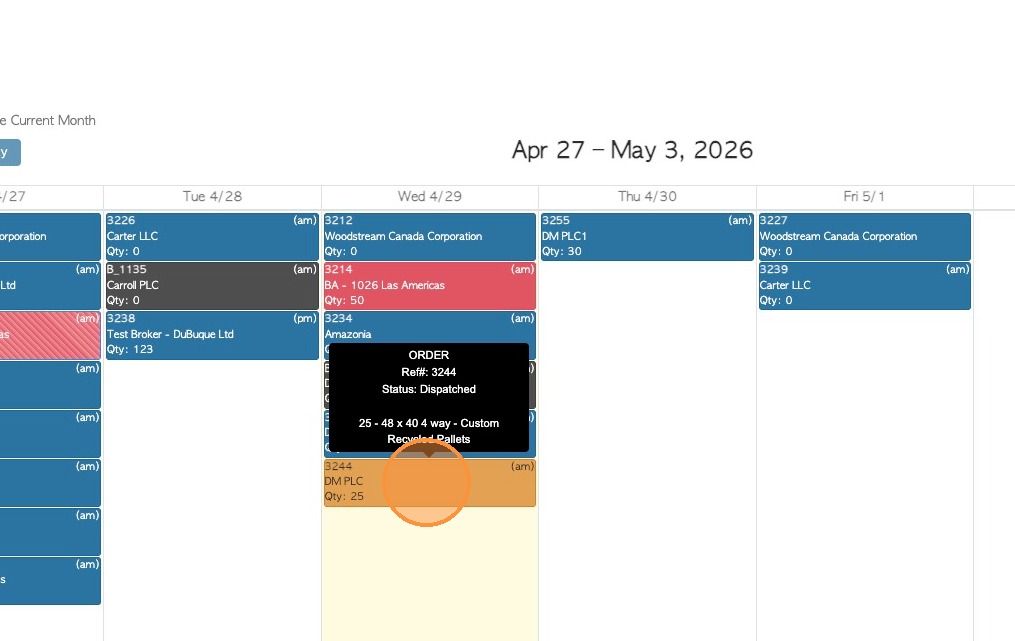
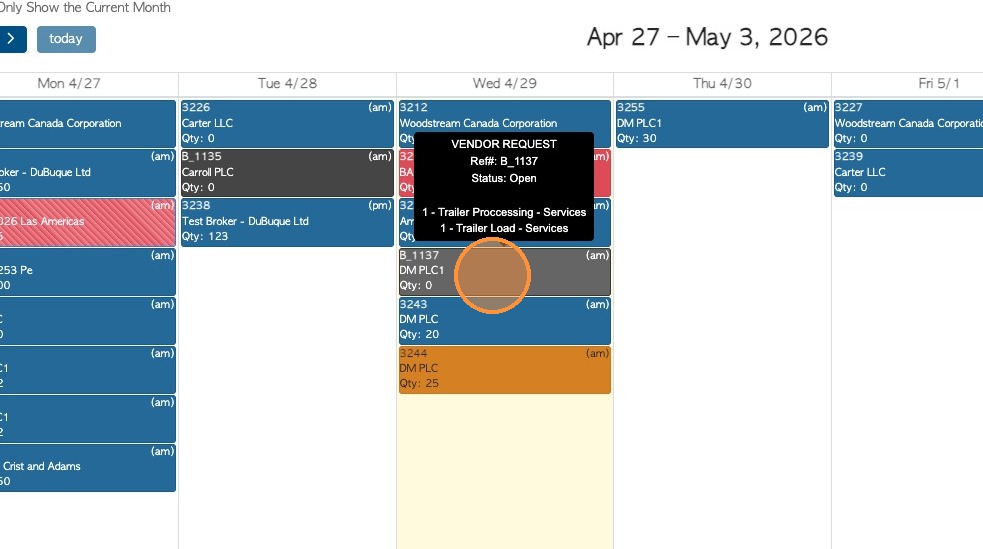
6. It also shows Vendor Requests.
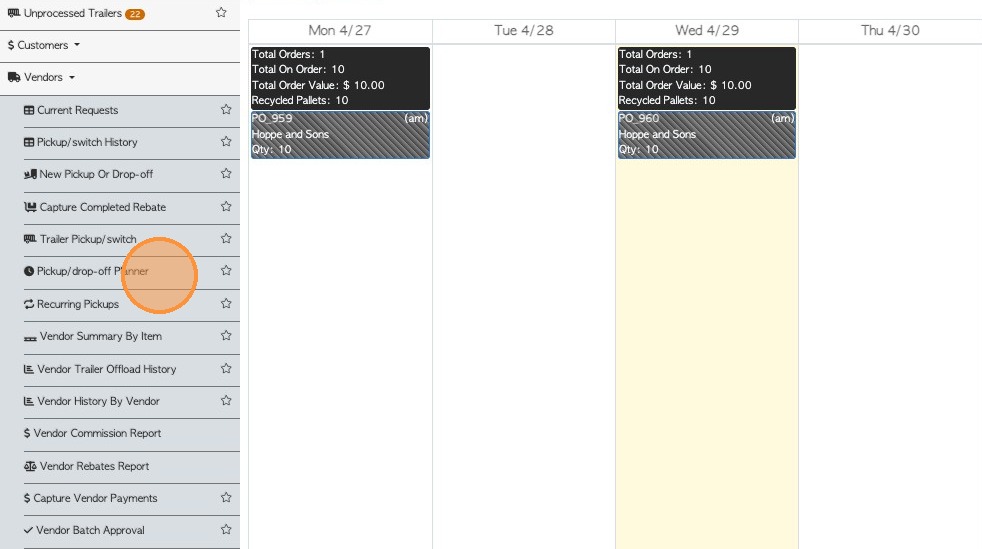
7. FROM PICK UP PLANNER: Click "Vendors" from the main menu.
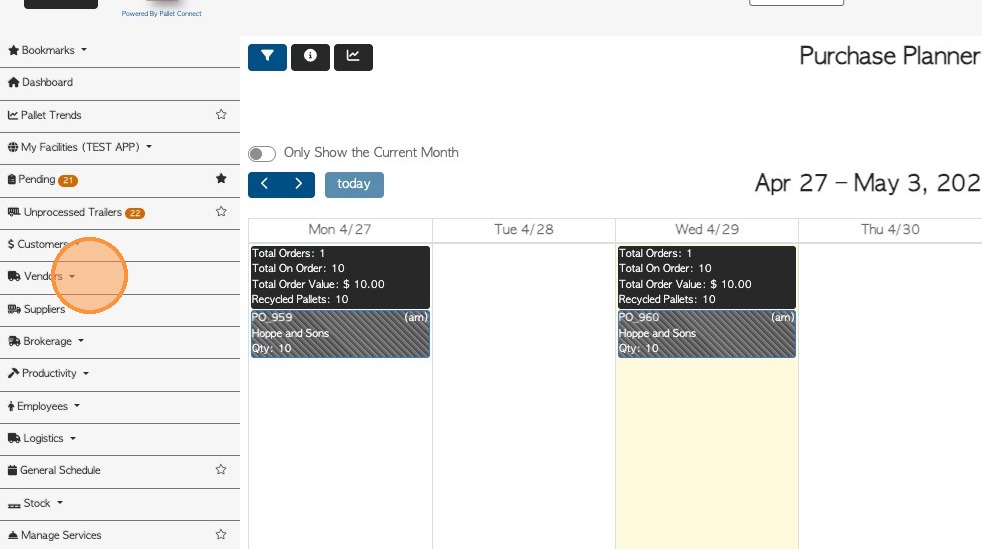
8. Click "Pickup/drop-off Planner"
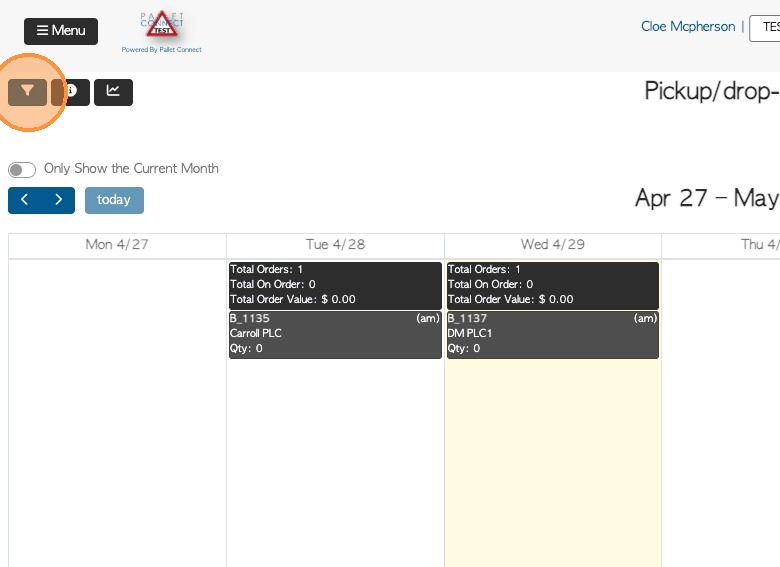
9. Click on the filter icon.
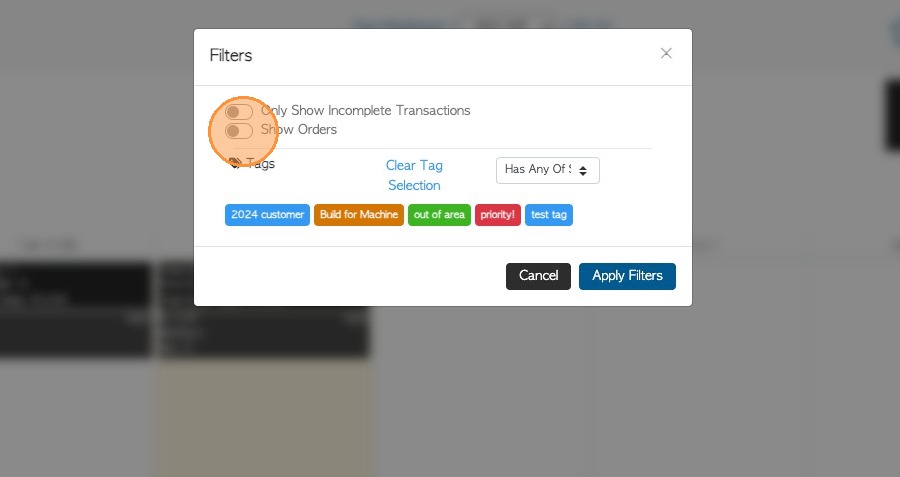
10. Click "Show Orders"
11. Click "Apply Filters" to save.
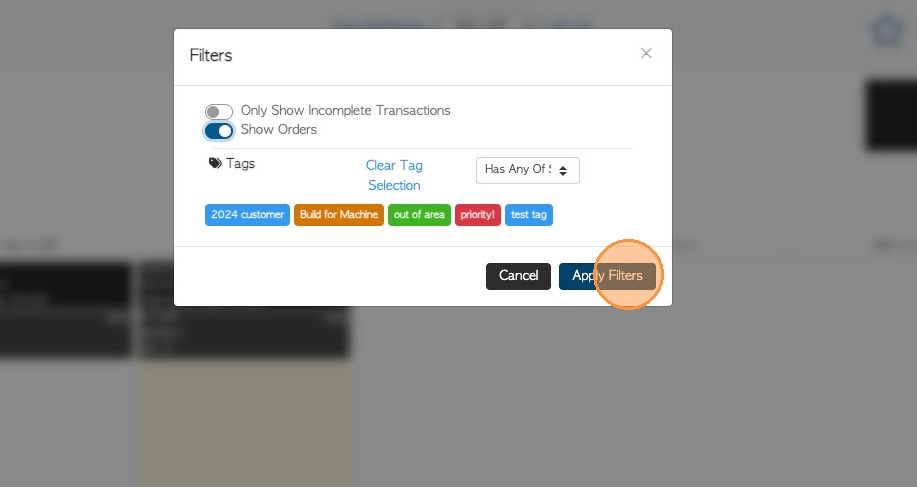
12. The calendar view now shows both Customer Orders and Vendor Requests.