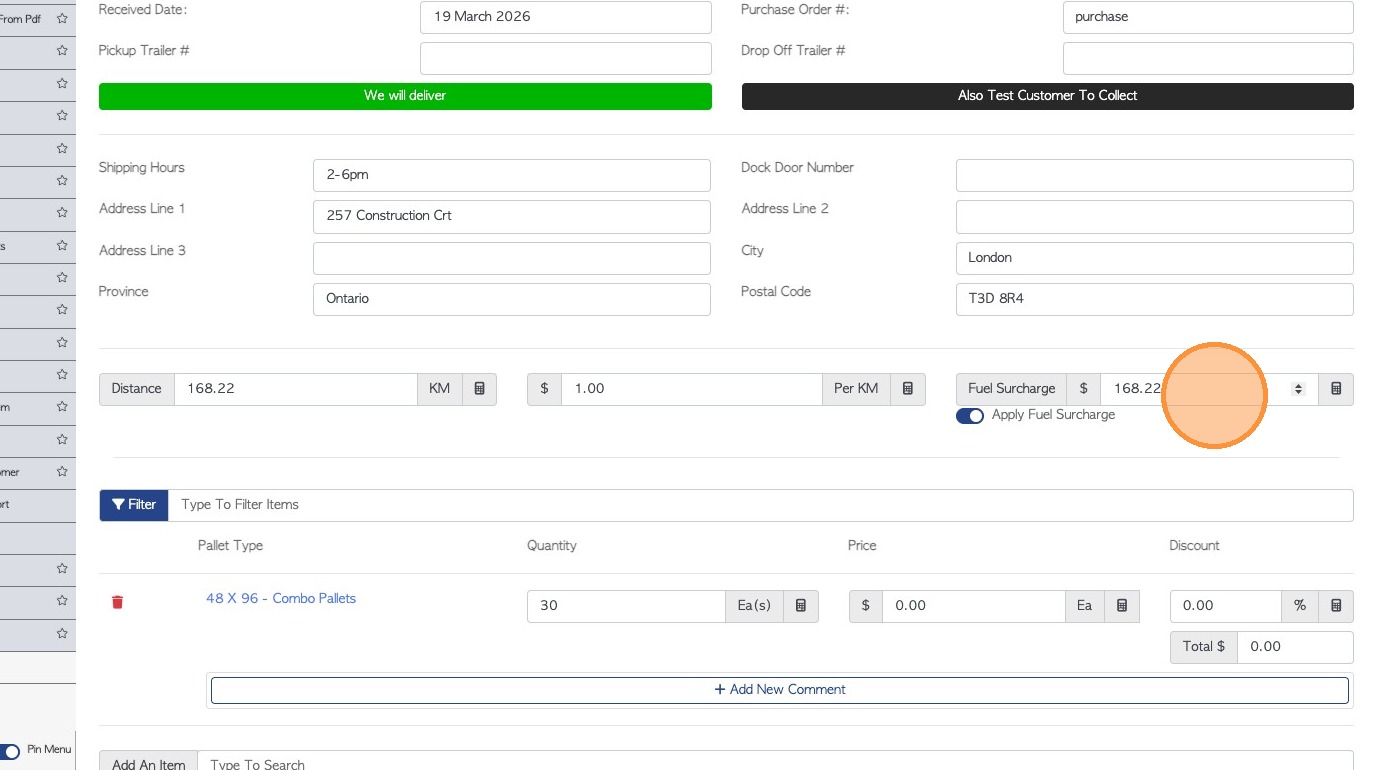
1. There are a few different ways to set up Logistics fees in Pallet Connect.
This article focuses on Customer deliveries by internal drivers; and outlines Delivery fees, Transport fees and Fuel Surcharges.
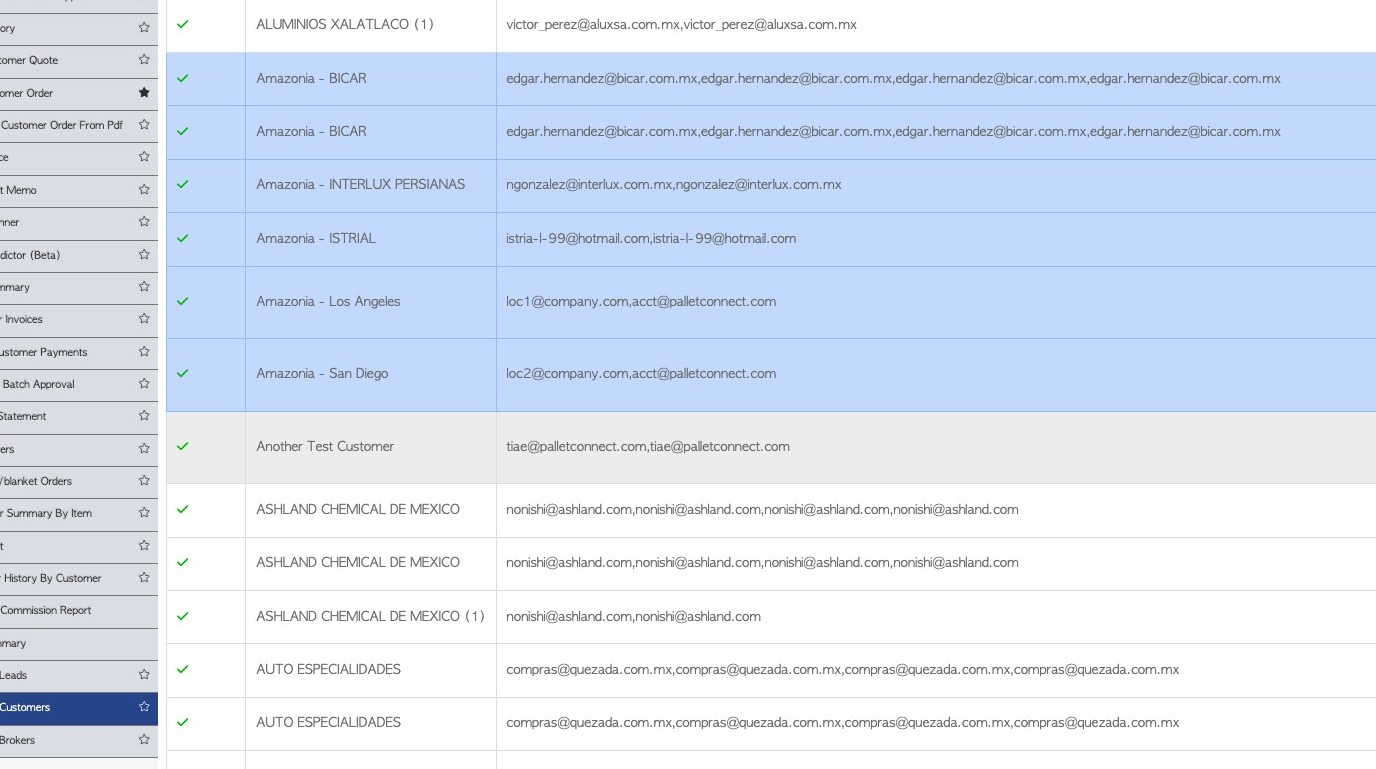
2. FEE #1 DELIVERY FEE This is a set fee that is applied to all of a Customer's deliveries. It is applied at the contact/customer level.
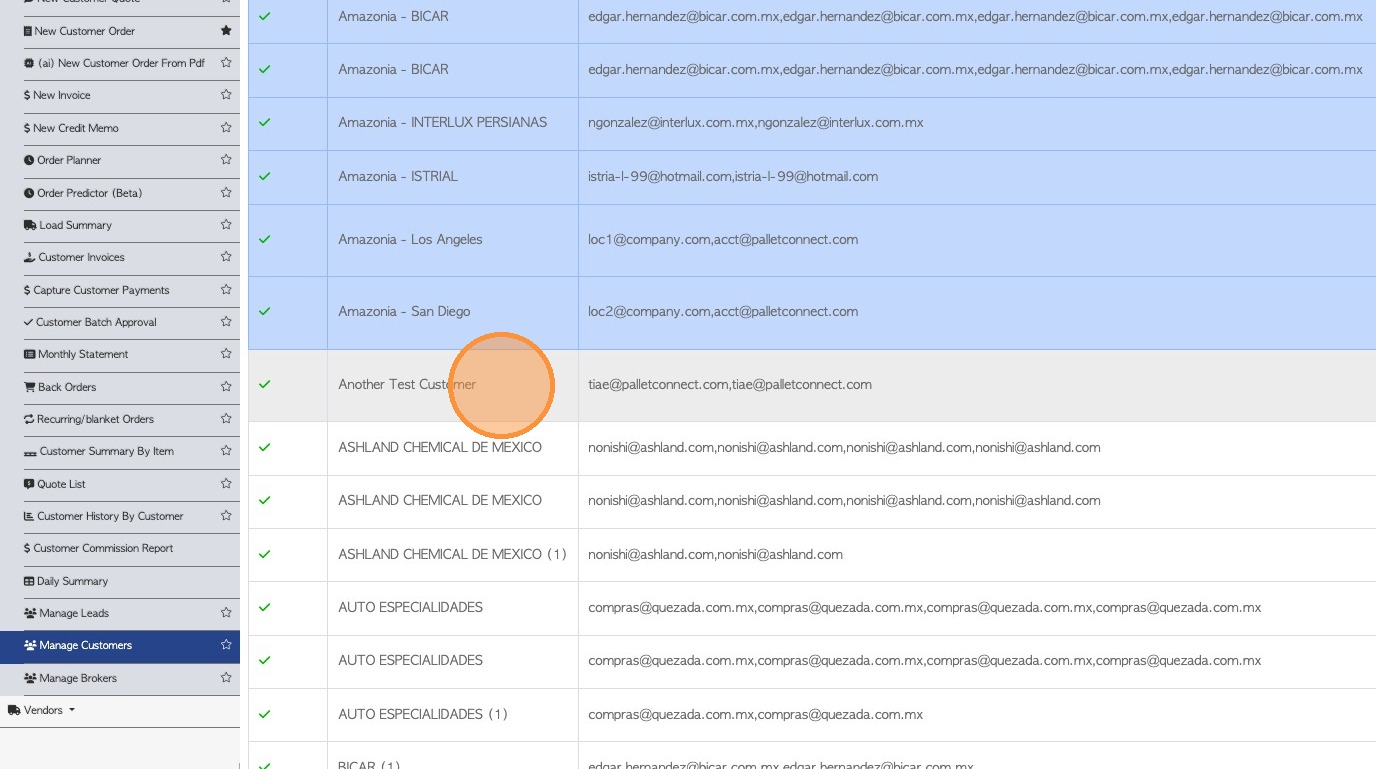
Click into the Customer profile, either from the Global Search tool or from the Manage Customers page.
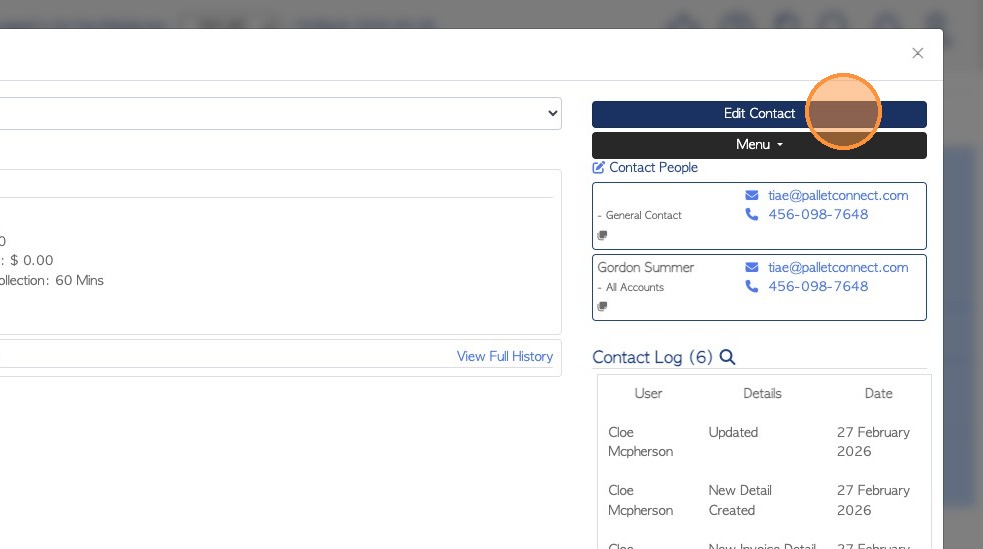
3. Click "Edit Contact" from the profile dashboard
4. Click the "Physical Address" tab.
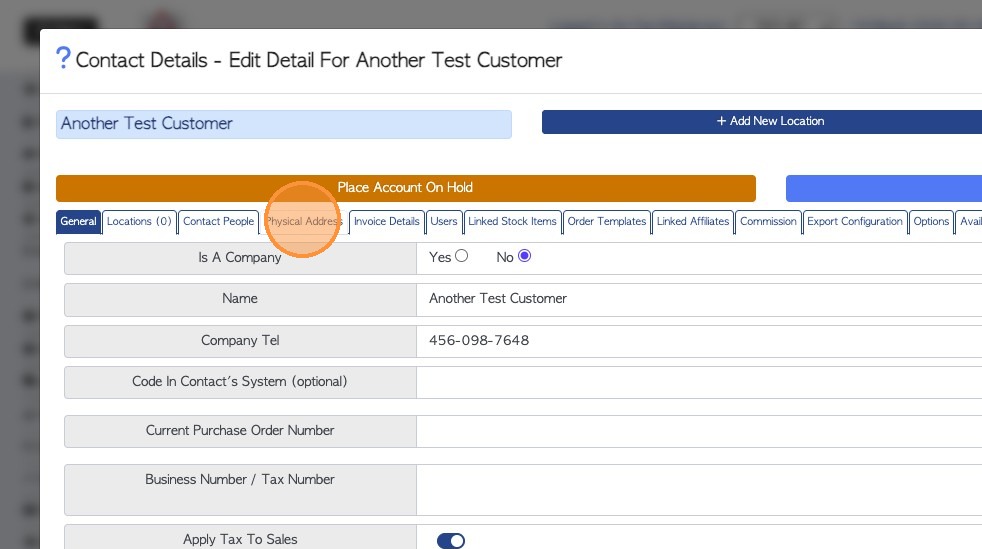
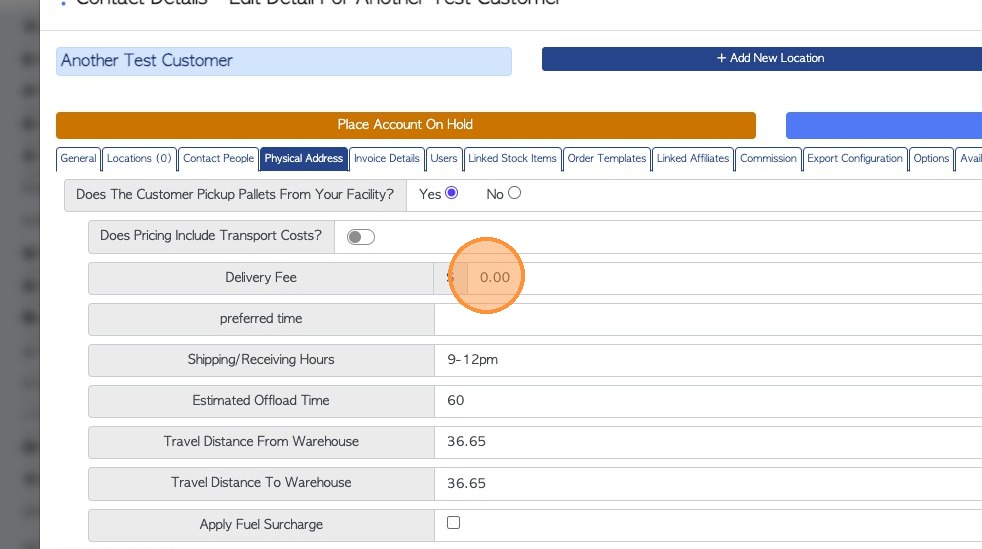
5. Click the Delivery fee field and enter the cost.
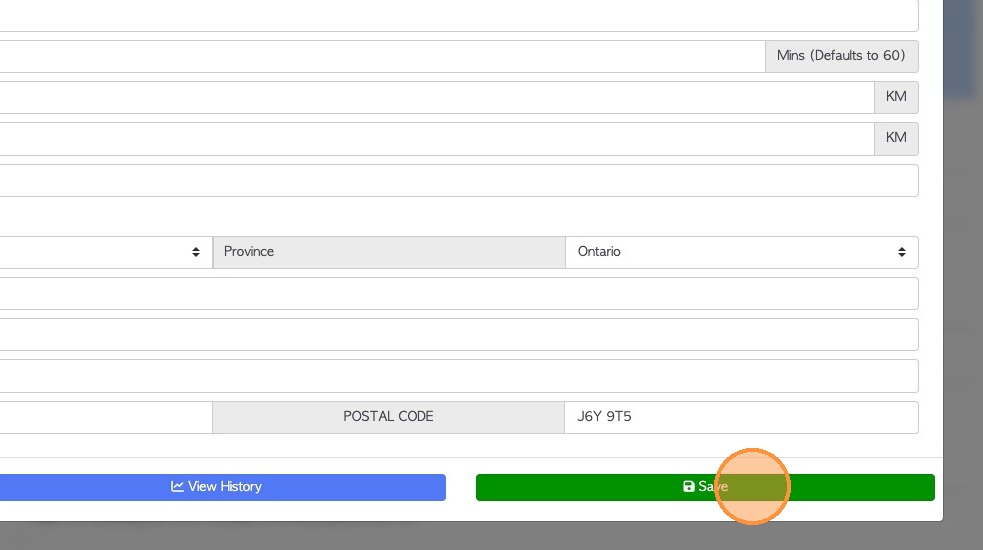
6. Click "Save"
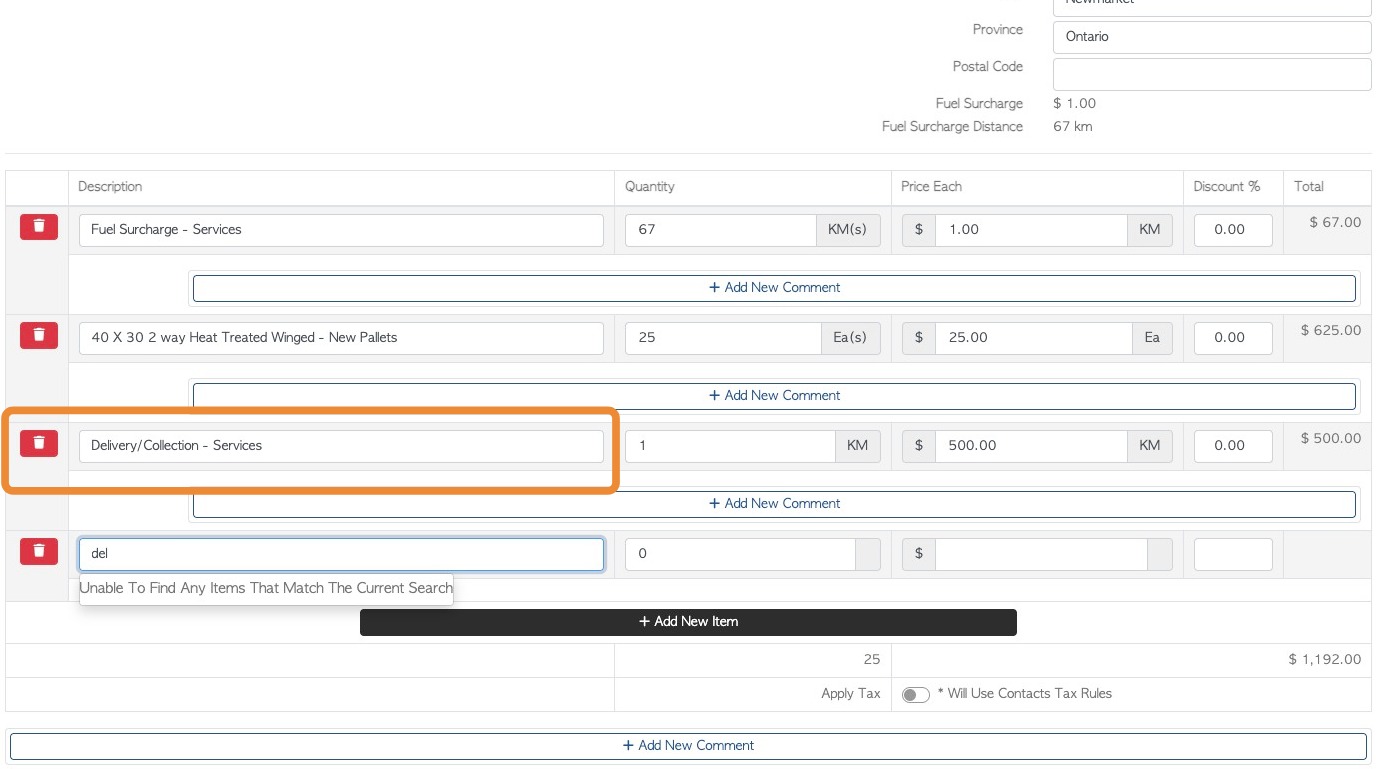
7. The Delivery fee will now be added for each Customer order that is delivered.
8. FEE #2 TRANSPORT FEE This is a fee that varies dependent on travel distance. It uses a rate and calculates the total based on distance.
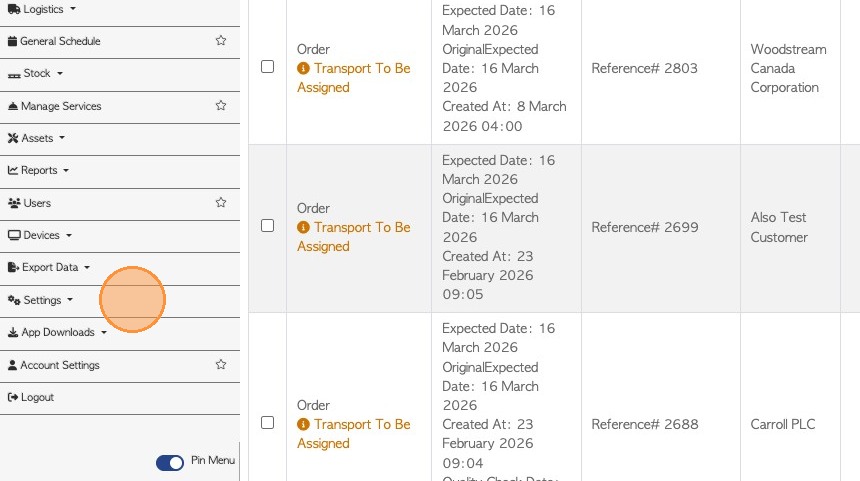
To enable, first click on Settings from the main menu.
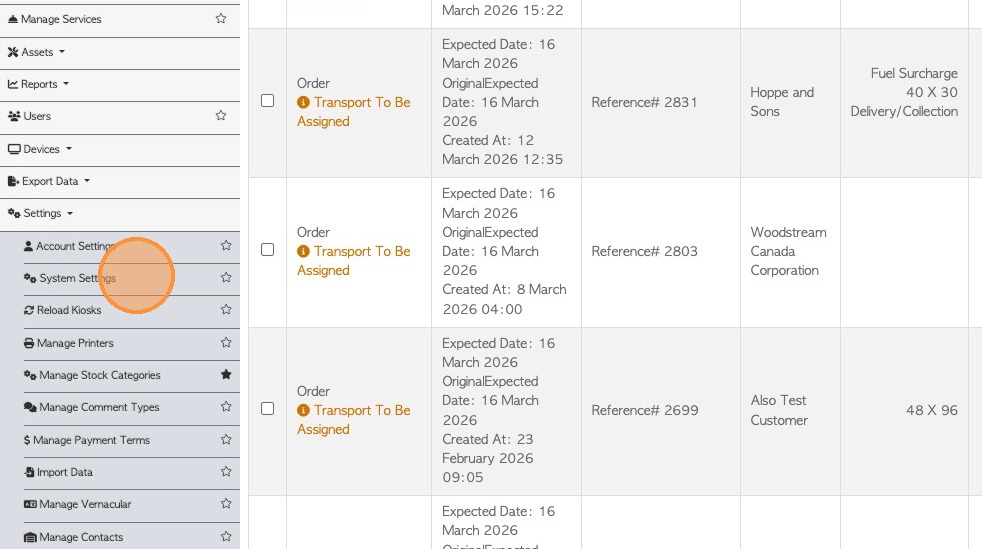
9. Click "System Settings"
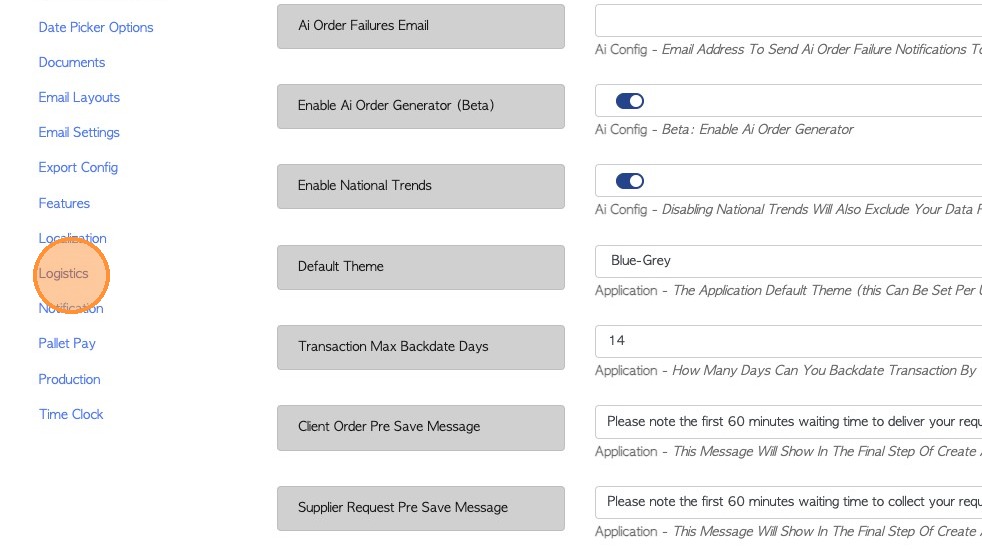
10. Click "Logistics"
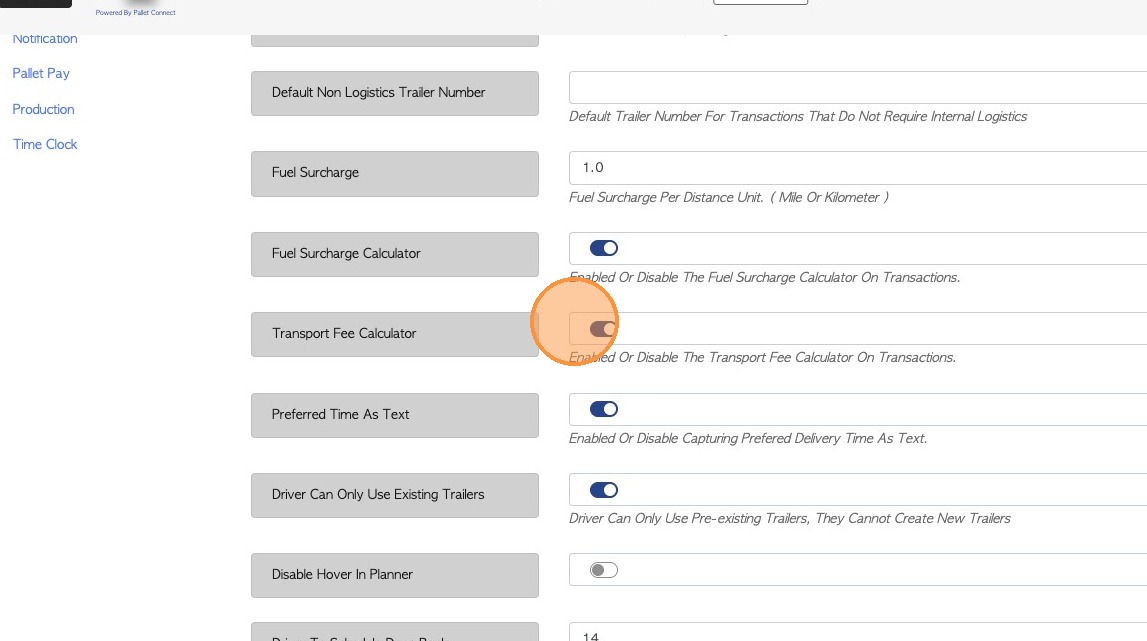
11. Toggle on the "Transport Fee' calculator and remember to "Save".
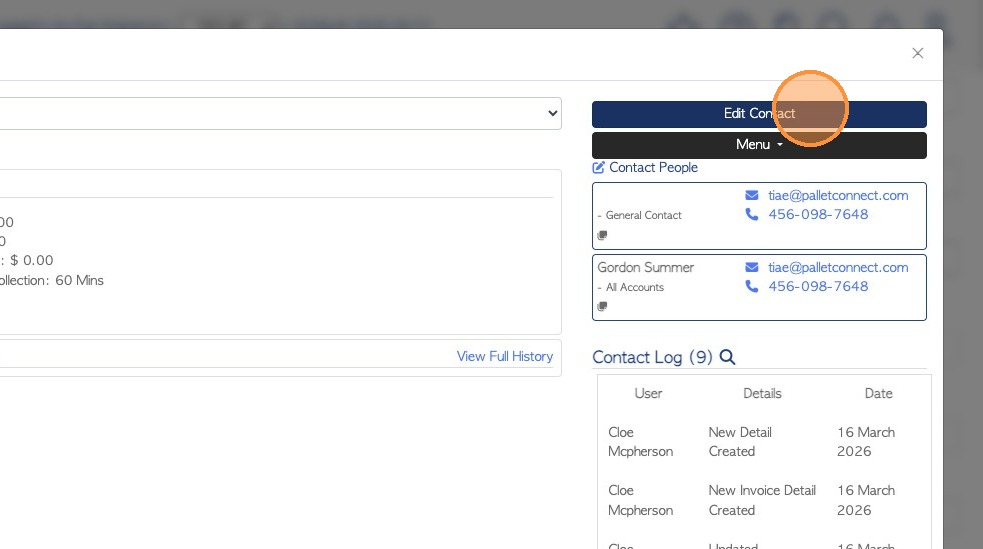
12. Now navigate to the selected Customer profile. Click "Edit Contact" from the profile dashboard.
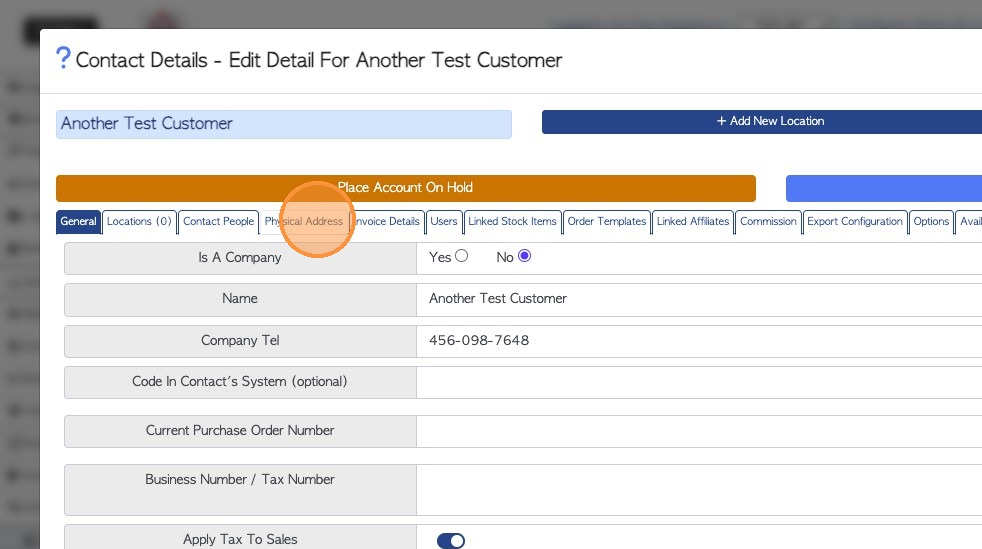
13. Click the "Physical Address" tab.
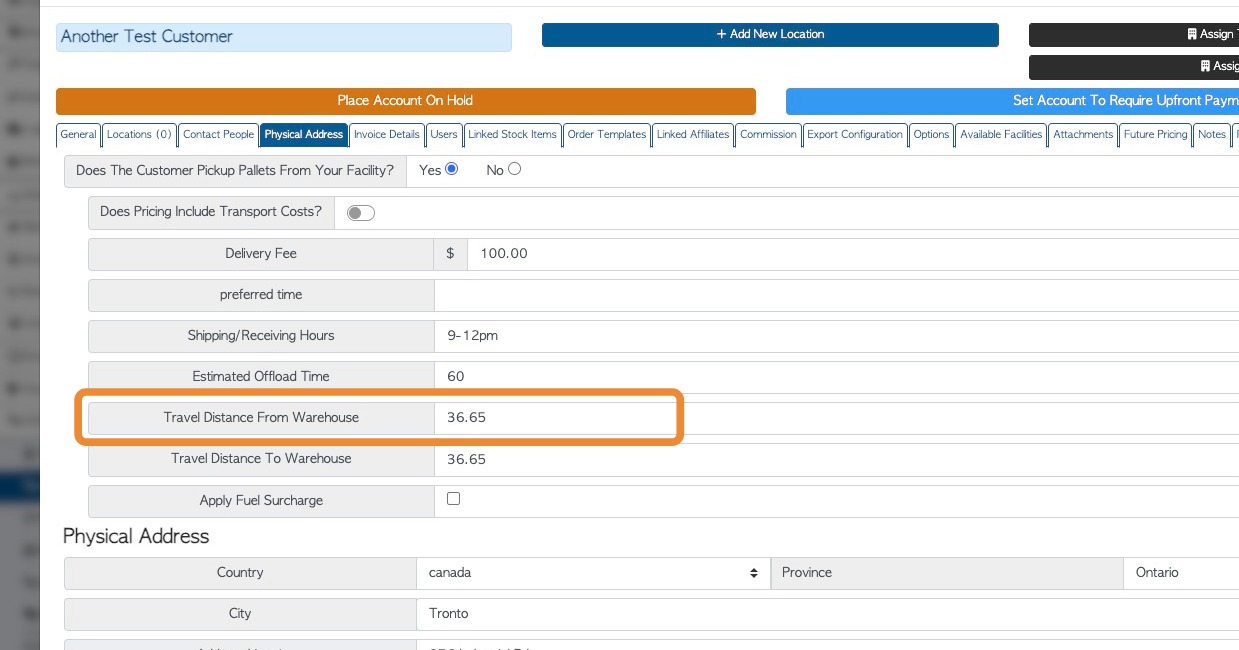
14. Ensure that the "Travel Distance from Warehouse" field is filled out. This is the value that the calculator uses to determine the total cost.
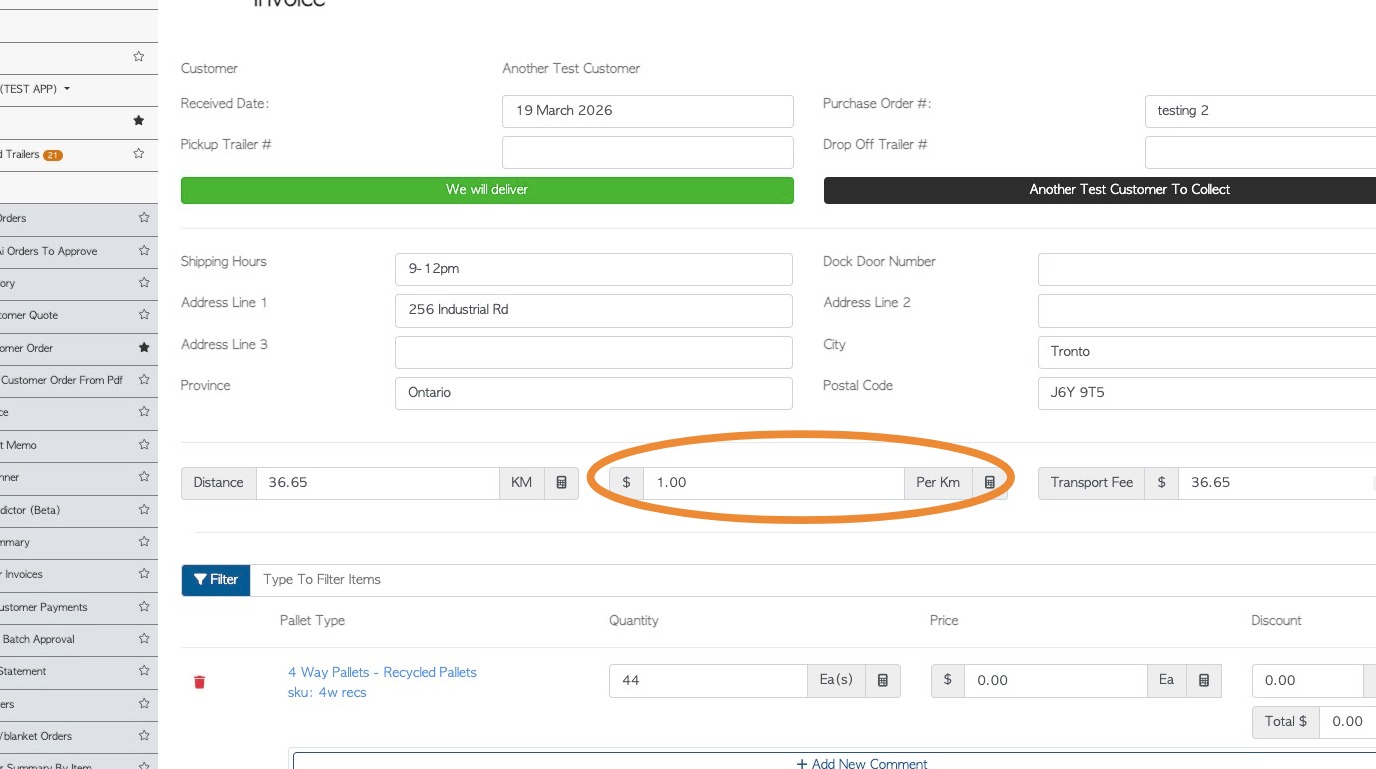
15. When delivery has been completed for a Customer order, the Transport fee Calculator will show in the Invoice screen.
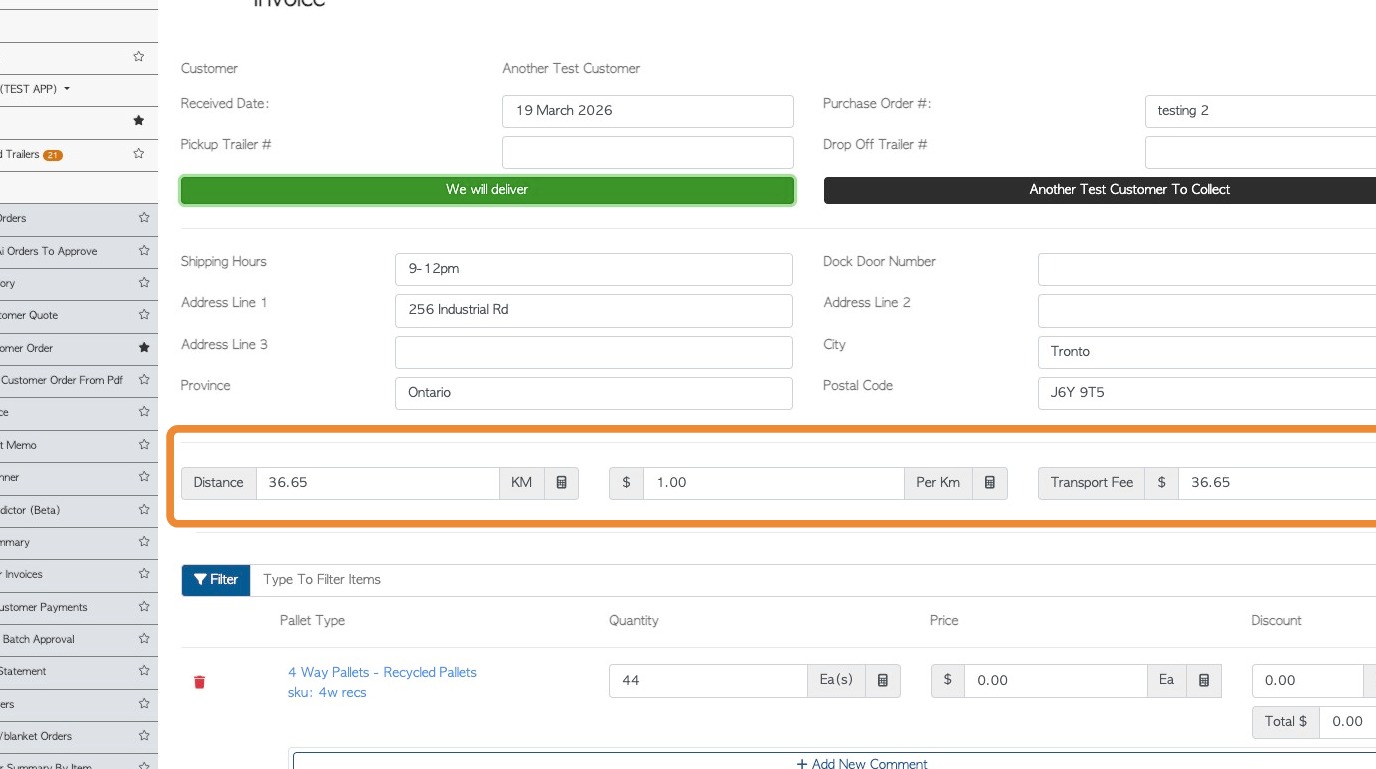
16. The Distance and Rate fields are pre-populated, which generates a total, however this can be edited.
NOTE: The Rate will be zero, unless a 'fuel surcharge rate' is applied in settings, then this will be used.
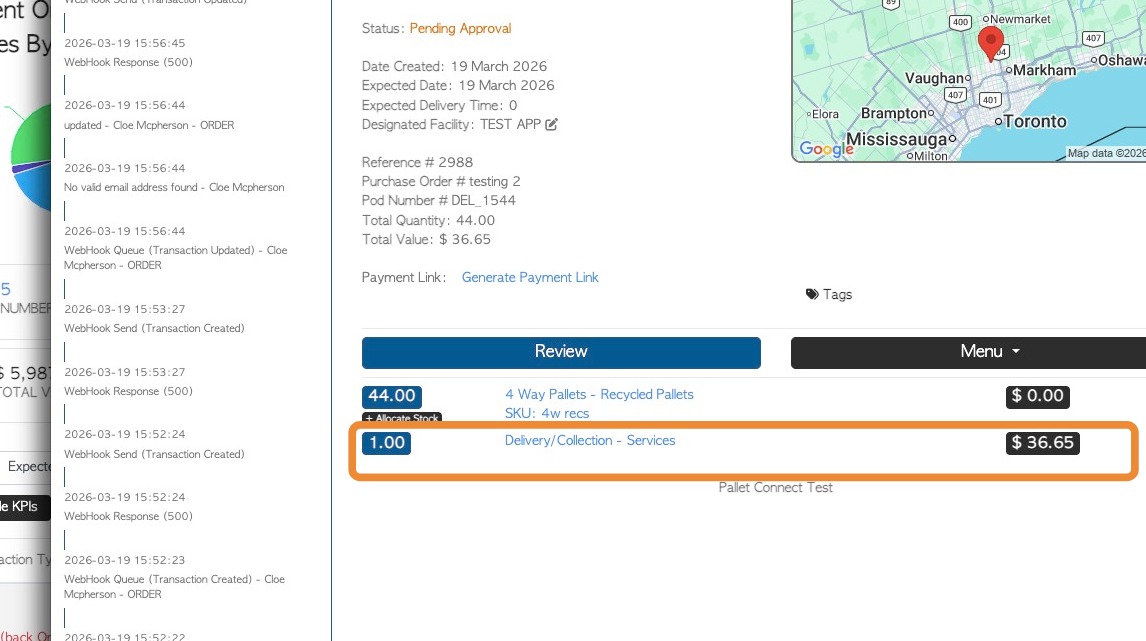
17. When the Invoice is completed the charge will show as a separate line item.
18. FEE #3 FUEL SURCHARGE: This is an additional fee that companies add to the base price of shipping or services to offset fluctuations in fuel costs.
TIP! See separate related article regarding this feature.
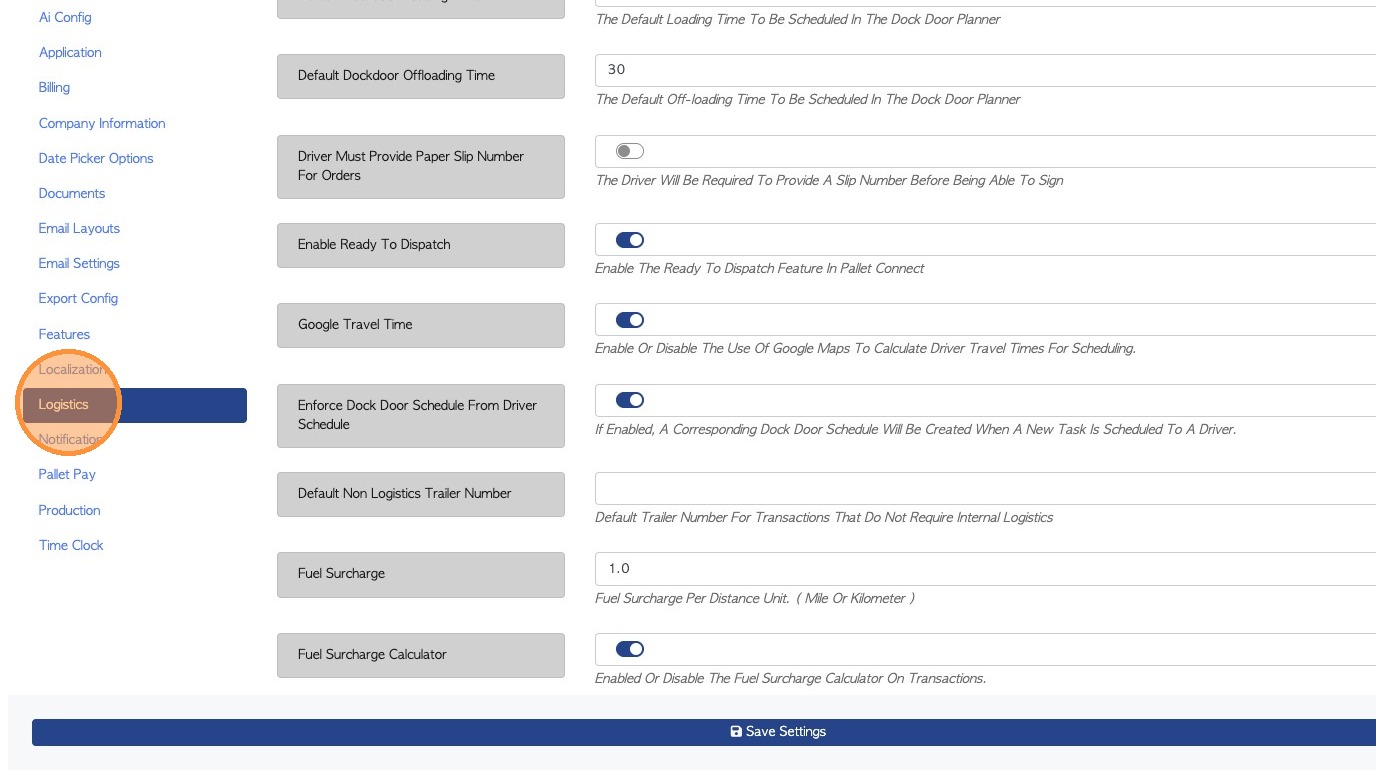
19. From the System Settings, toggle on the fuel surcharge calculator. Also add a rate. This rate is applied per distance unit e.g. km. Save to complete.
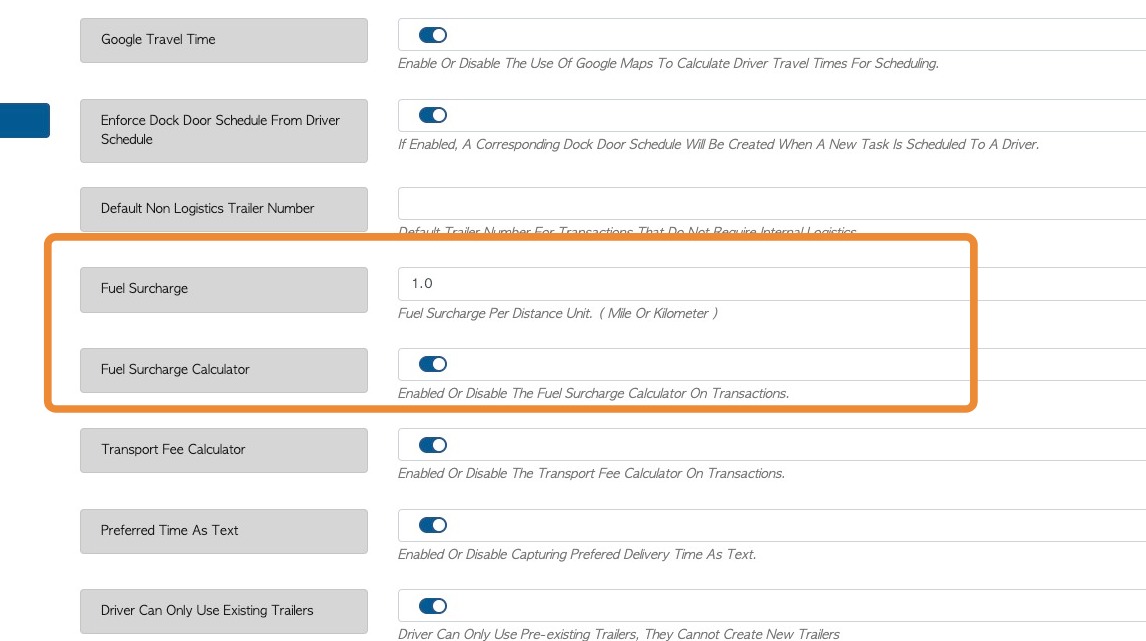
20. Now navigate to the selected Customer profile, either using the global search tool or from the Manage Customers page.
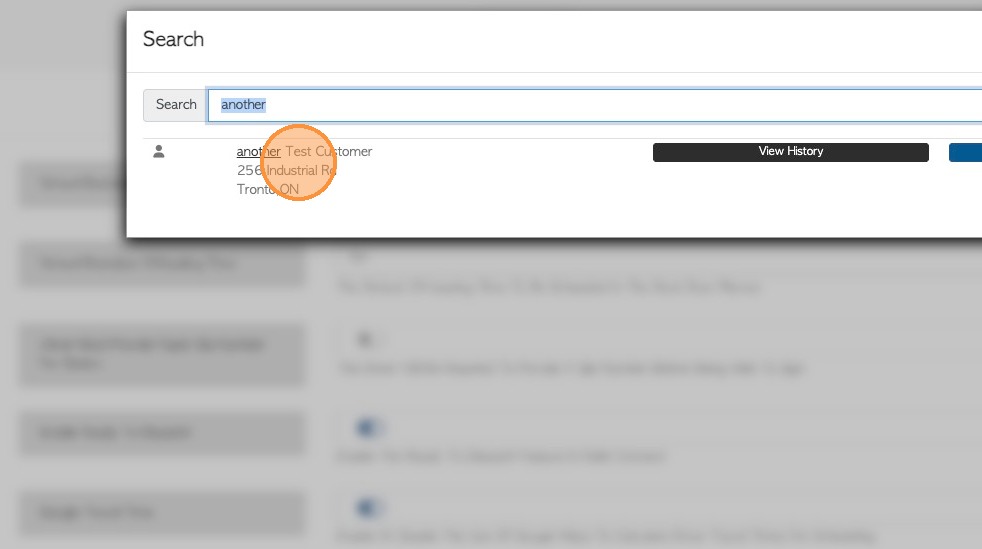
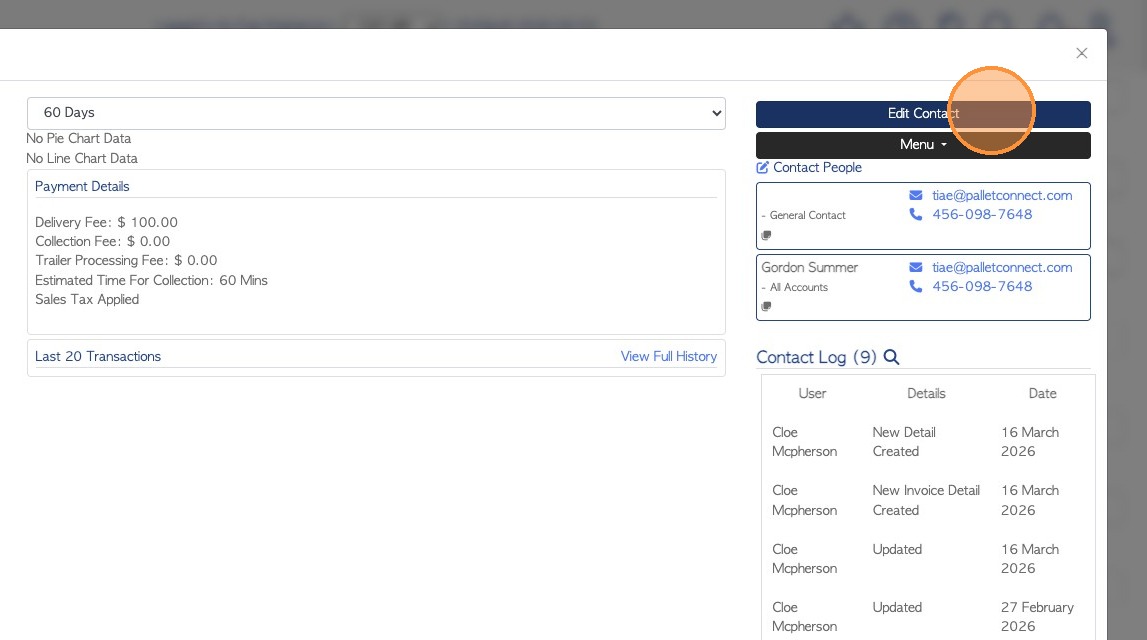
21. Click "Edit Contact" from the profile dashboard.
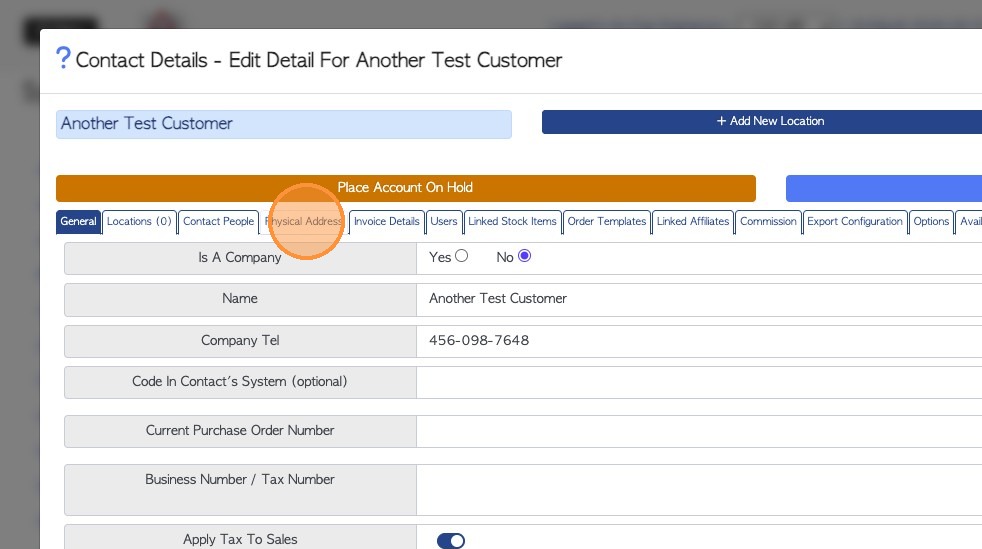
22. Click the "Physical Address" tab.
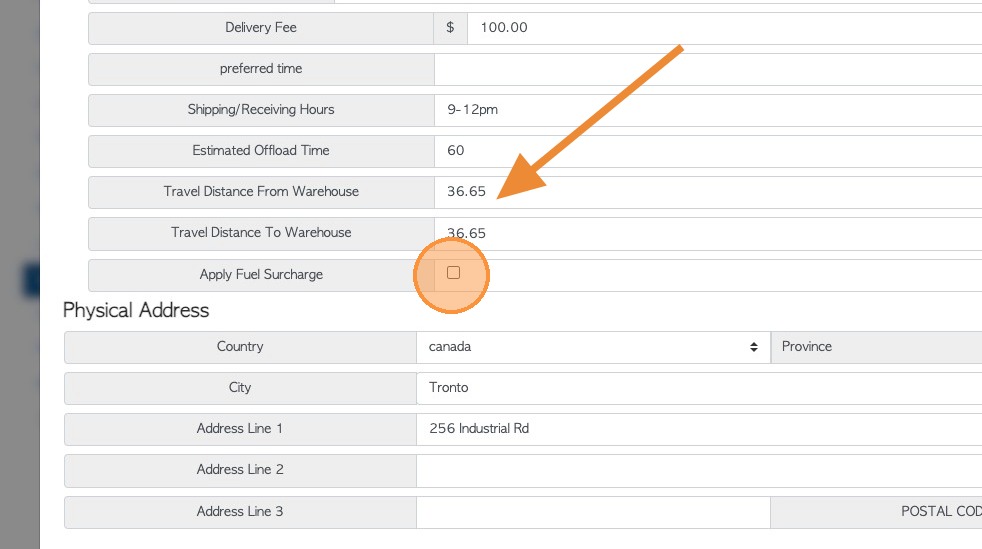
23. Click the "Apply Fuel Surcharge" field.
TIP! Ensure the "Travel distance From Warehouse" is entered as the fuel calculator uses this to determine the total.
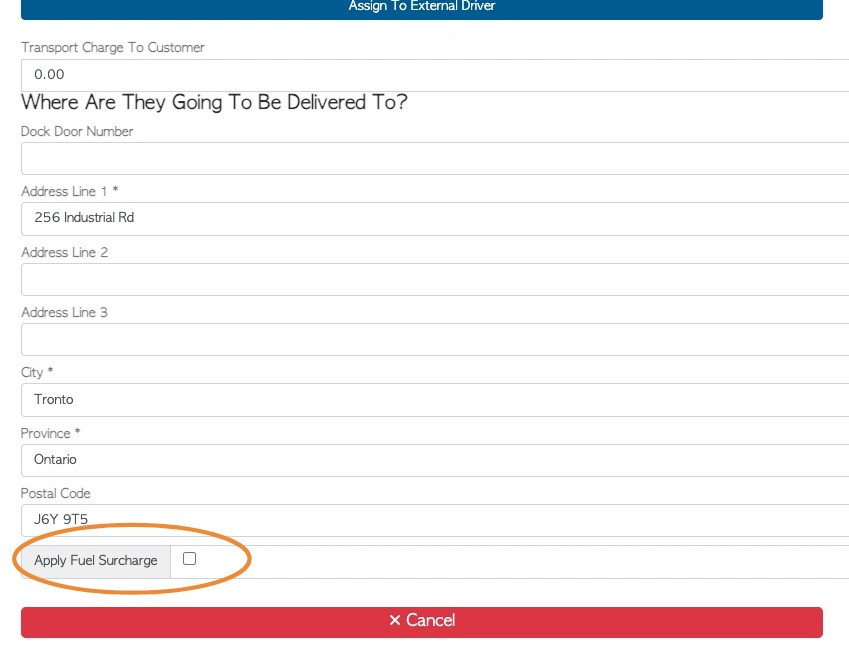
24. When creating an order for this Customer that requires delivery, an "Apply Fuel Surcharge" field will now be visible.
Check this if the surcharge is to be added to this order.
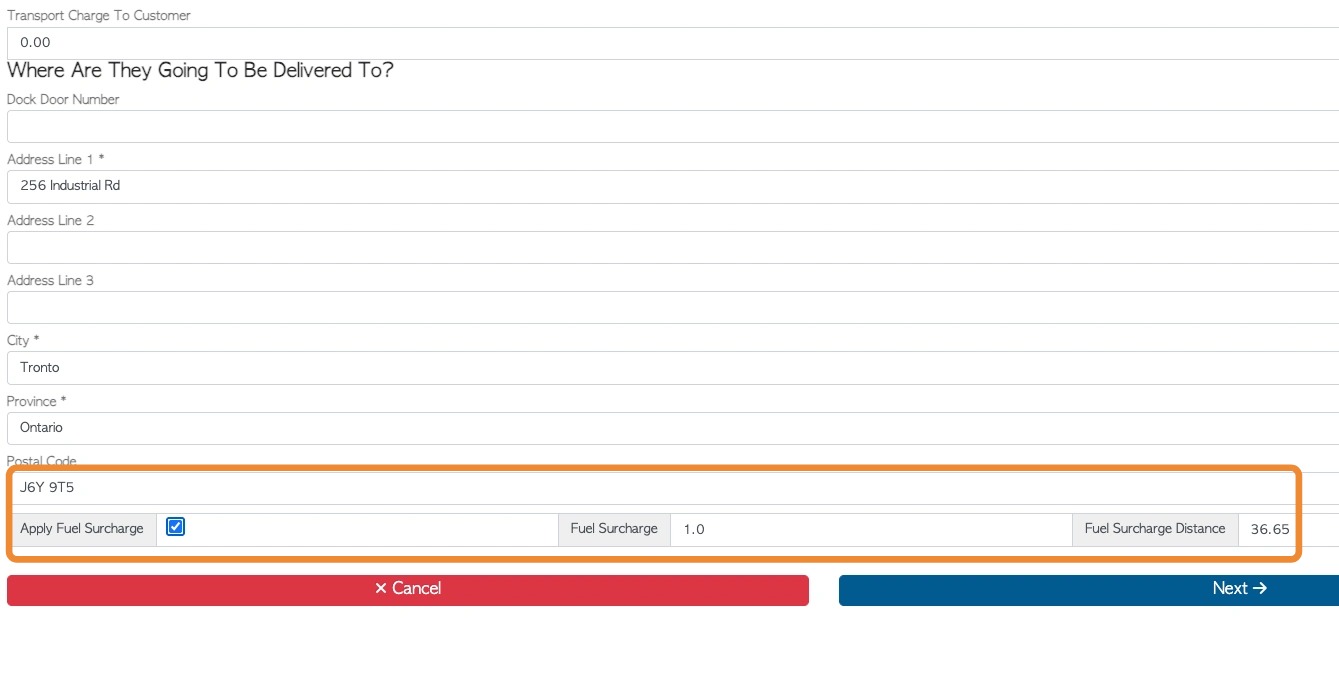
25. This will open the Fuel Surcharge fields and information can be reviewed or edited.
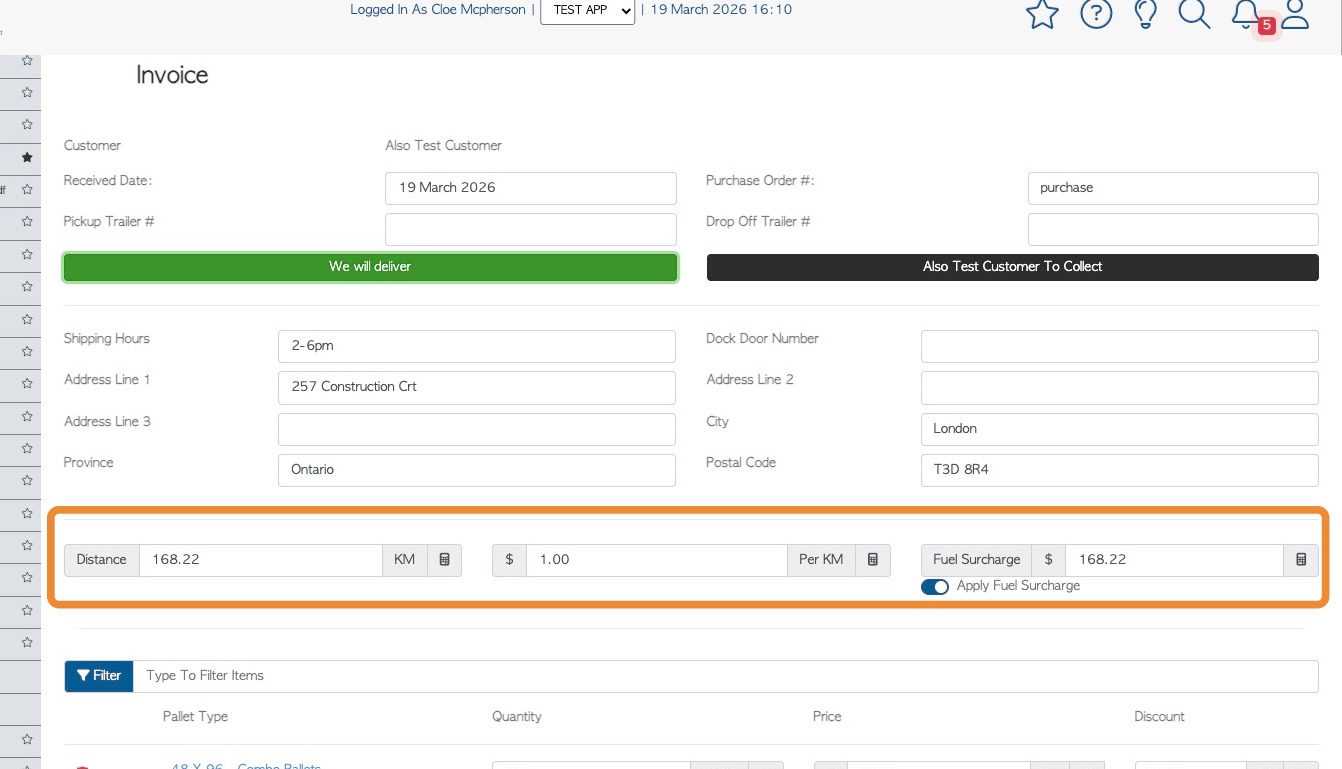
26. The fuel charge calculator will also be visible during the invoice stage.
The fuel charge can be removed here or edited.
It will be shown as "Fuel Surcharge" on the Customer's invoice.
27. NOTE: If both the 'Transport Calculator' and the 'Fuel Surcharge Calculator' are enabled in System Settings, then the cost will show as "Transport fee" only. There will NOT be two separate lines for logistics fees.
NOTE: If the Fuel Surcharge has a unit value in System Settings, the 'Transport Calculator' will use this to calculate the Transport fee as well.