1. Pallet Pay allows payment links to be created within Pallet Connect and sent directly to Customers.
Generating one time links from within the system can accelerate cash flow and improve customer service. It can also increase security; by not handling credit card information directly.
Pallet Pay can be used for processing credit card and ACH payments.
NOTE: This feature is currently available for US and Canadian sites only.
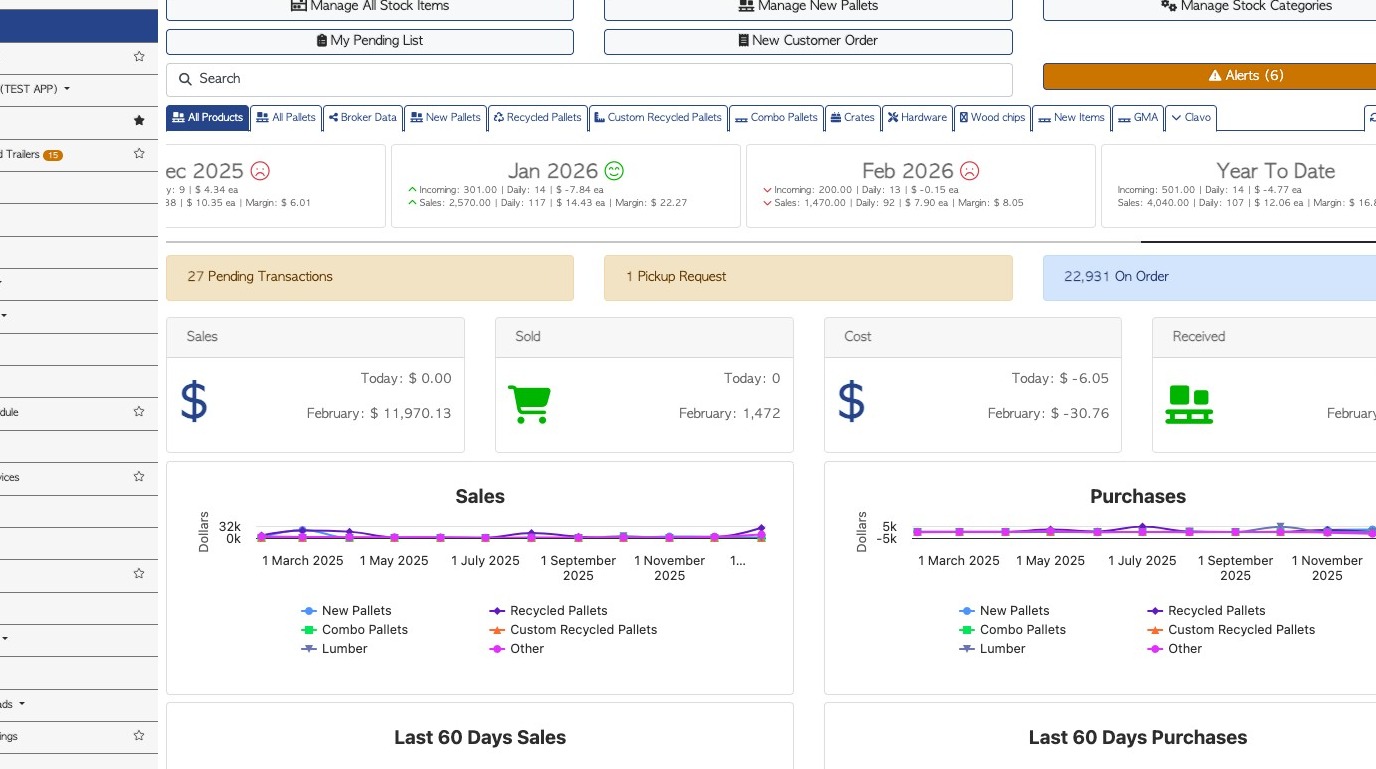
2. SET UP: First step is to check Pallet Pay settings.
From the Main Menu, click "Settings", then "System Settings".
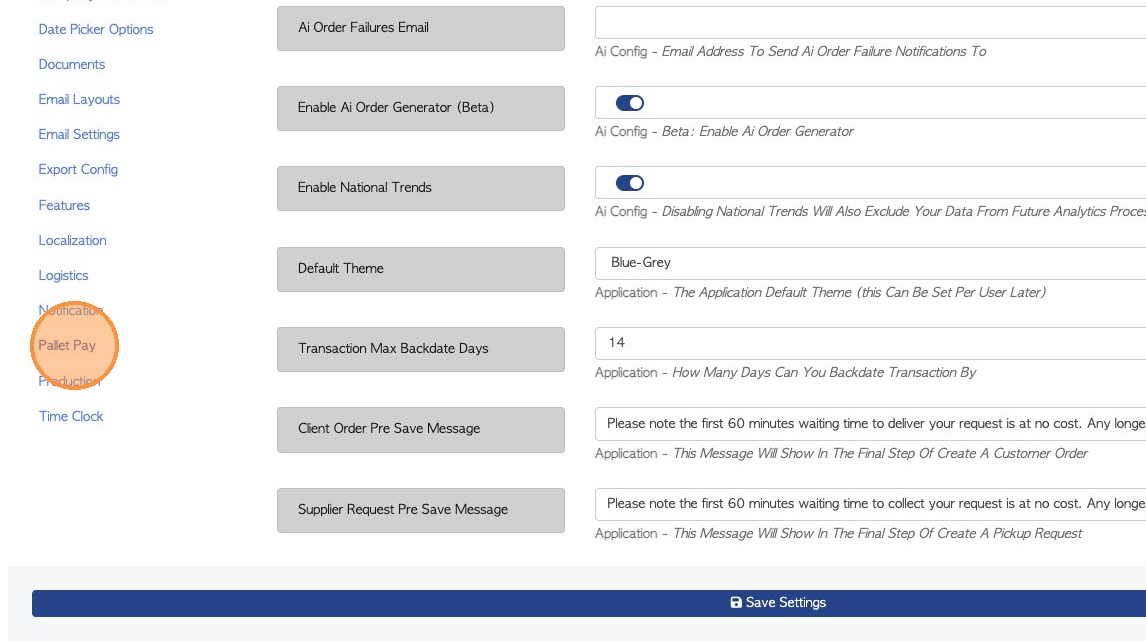
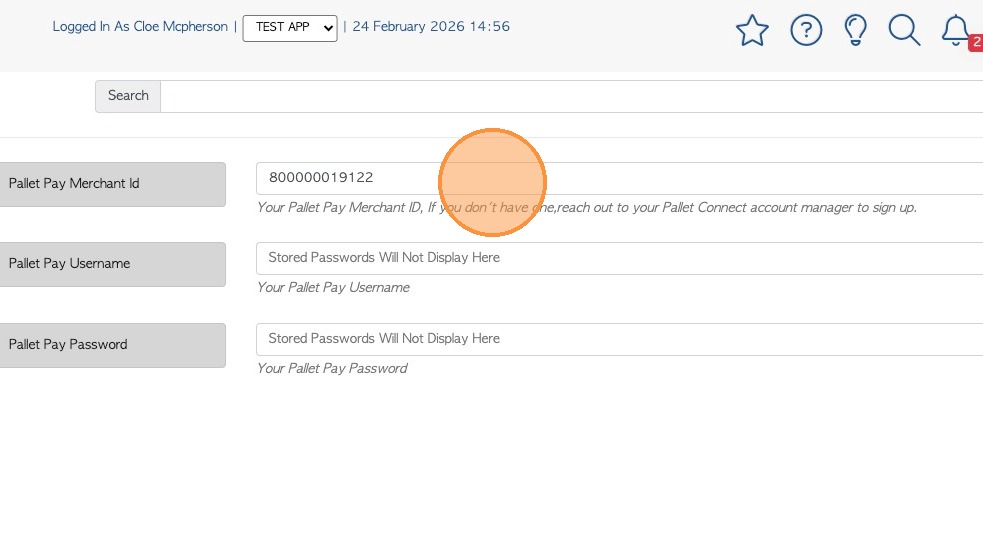
Choose the "Pallet Pay" section.
3. If the "Pallet Pay Merchant id" field is blank, then Pallet Pay has not yet been enabled for the site.
To begin set up, click on the link below to fill out and submit the sign up form.
A member of the Pallet Pay team will reach out to start the process.
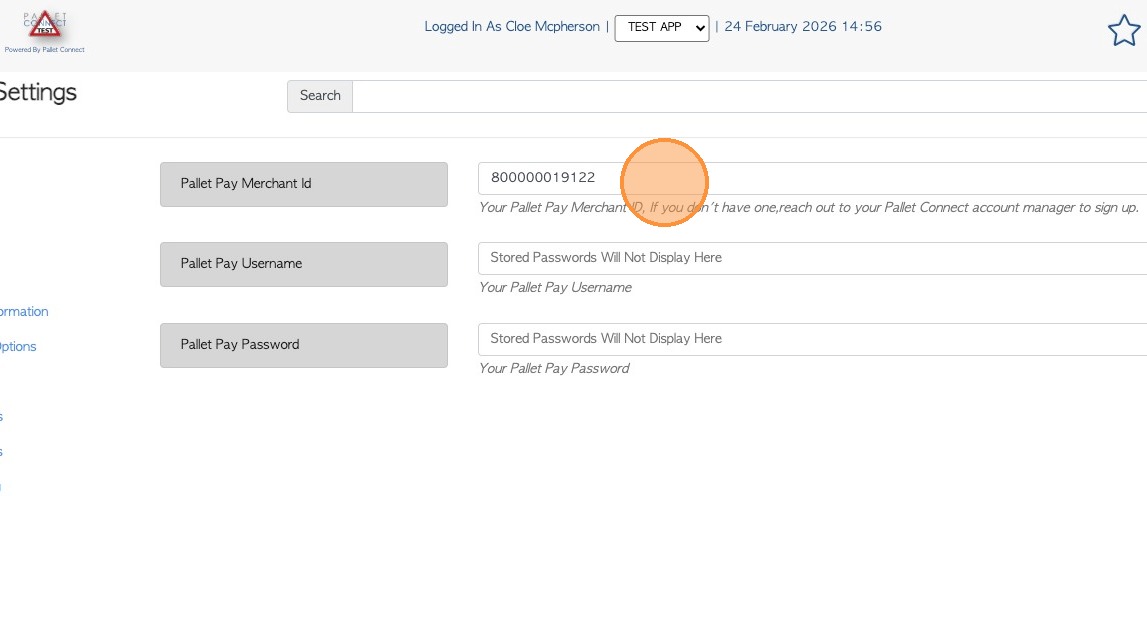
4. When the sign up process is complete, account information can now be added to the System Settings: Merchant ID, Pallet Pay username and password.
Click "Save" to complete changes.
5. SET UP CUSTOMER: Now set up conditions at a Customer level.
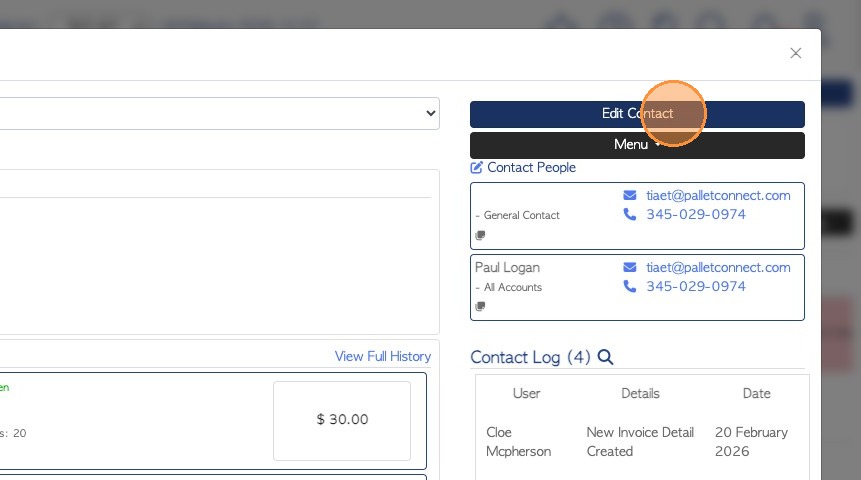
Navigate to the Customer profile. Click "Edit Contact".
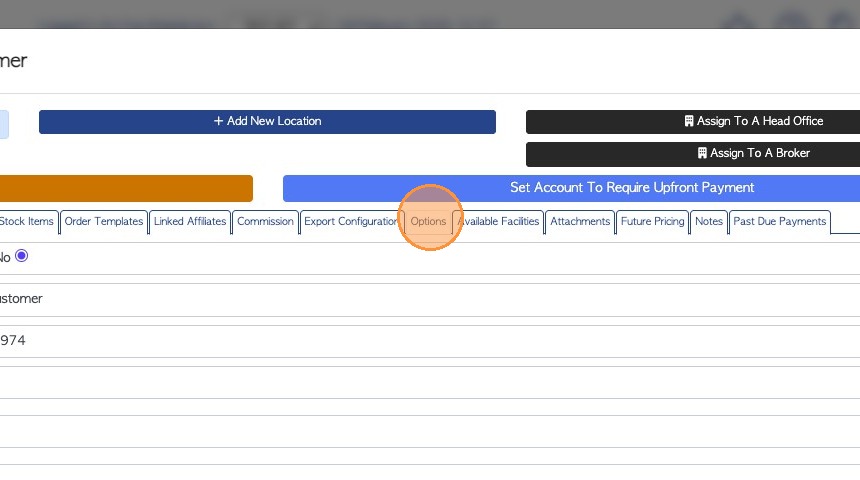
6. Click the "Options" tab.
7. Click the "Payment Processing Fee (Percent)" field.
Add the relevant payment fee as a percentage.
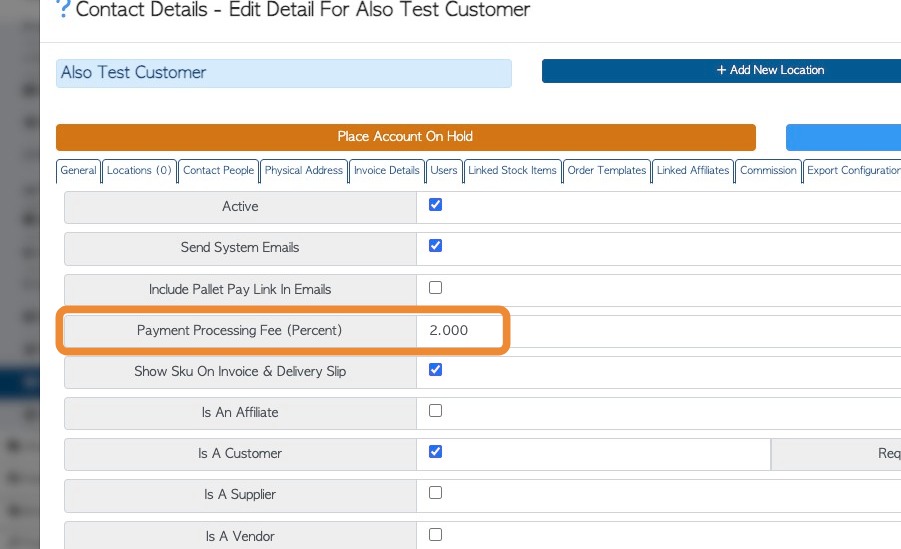
8. Click the "Include Pallet Pay Link In Emails" field.
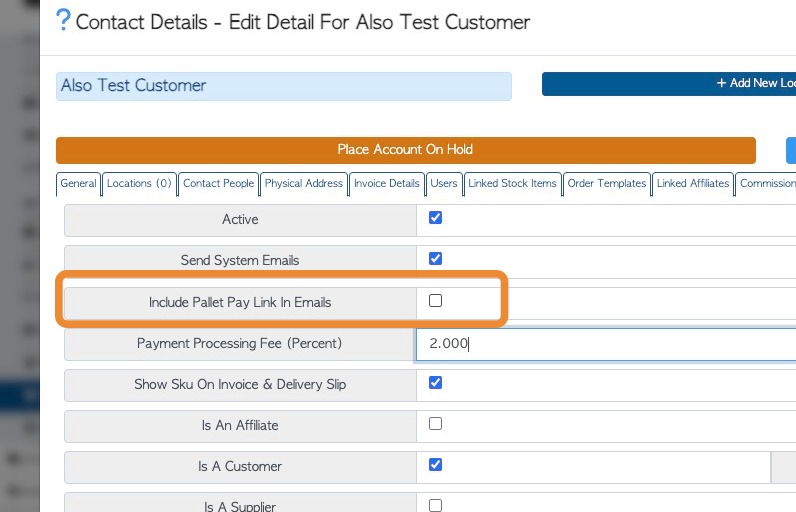
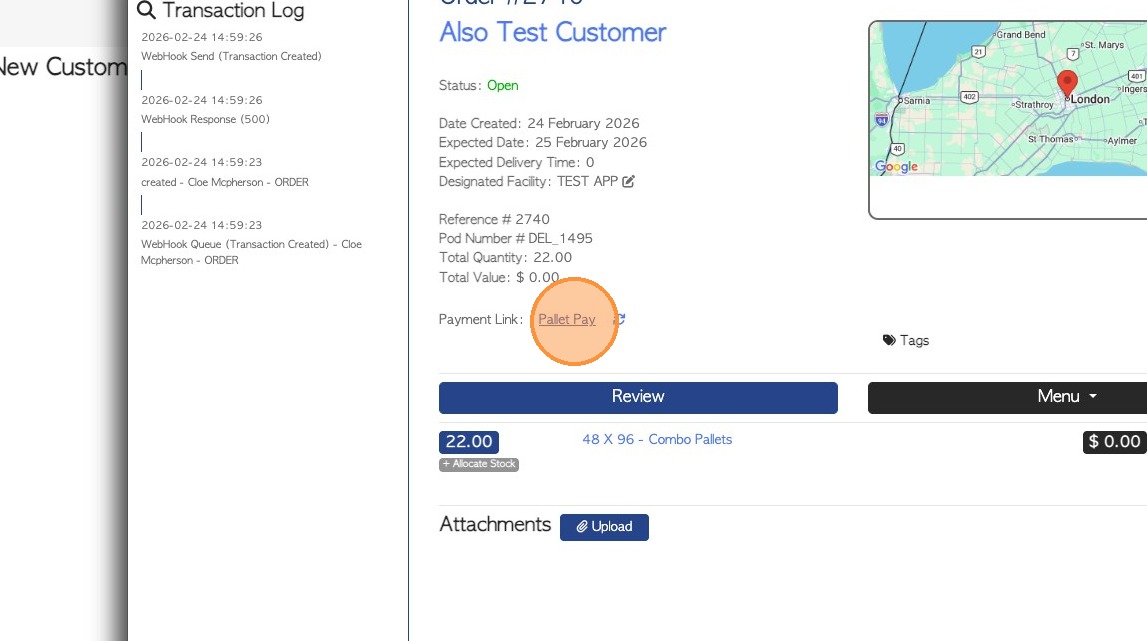
9. "INCLUDE LINK IN EMAIL" ENABLED: If this setting is enabled in the Customer profile, a payment link will be automatically generated on creation of an order.
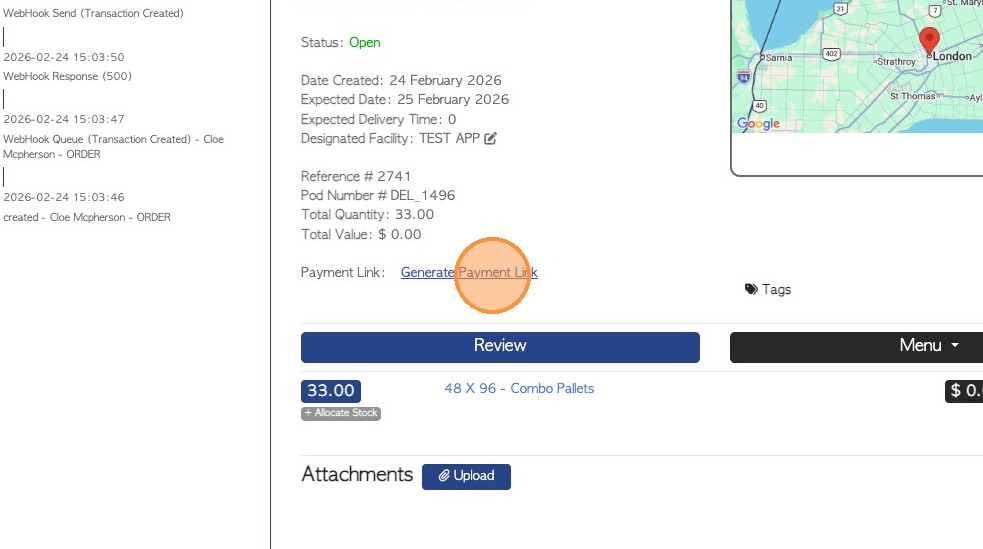
10. "INCLUDE LINK IN EMAIL" NOT ENABLED: If this setting is NOT enabled in the Customer profile, a payment link will NOT be generated.
TIP! There is an option to generate a link once the order is created. Click "Generate Payment Link".
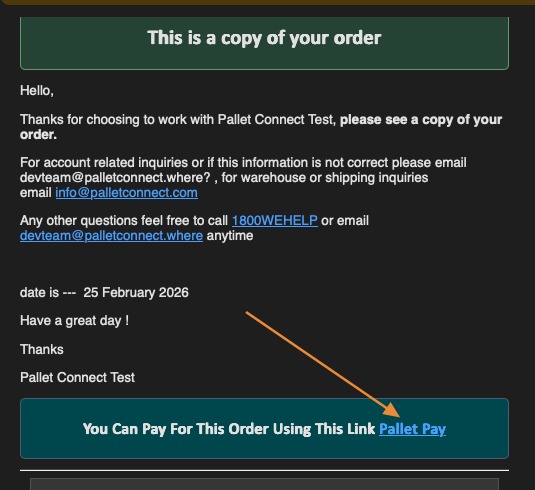
11. The payment link is included in automatic and manual emails sent to the Customer from Pallet Connect e.g. Order confirmation email and the Invoice email.
NOTE: The Payment Processing fee will be added in the payment page, NOT to the invoice/order.
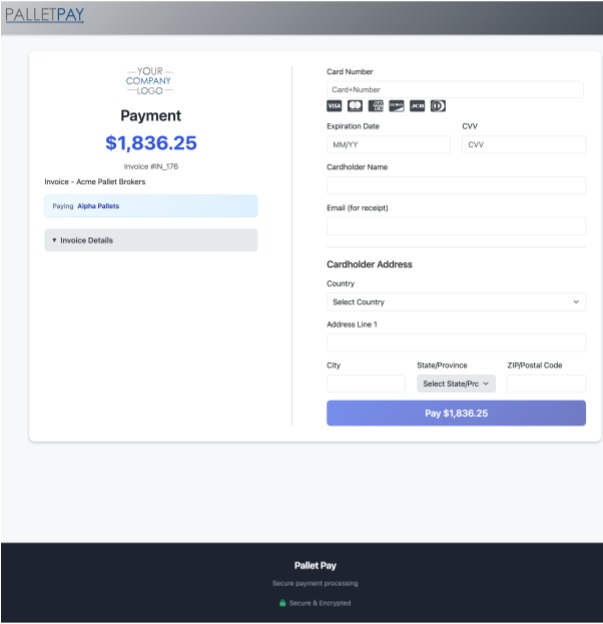
12. The link directs the Customer to a payment page which shows invoice details and an area to add credit card details.
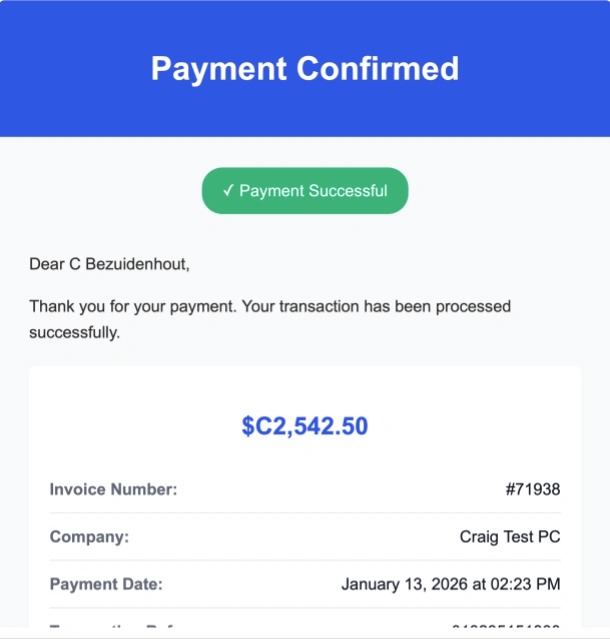
13. When payment is successful a receipt page is generated.
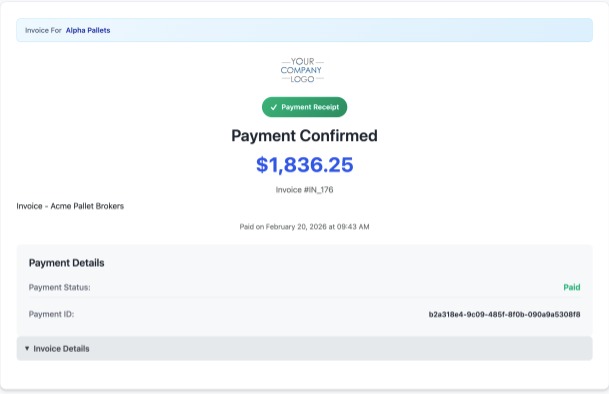
14. This receipt is then emailed to the Customer.
NOTE: The invoice will automatically be marked as 'paid' in Pallet Connect.
NOTE: If the invoice has been exported from Pallet Connect to Quickbooks Online and the invoice is paid in Quickbooks, the payment will be confirmed on the Pallet Pay link too. This is to avoid duplicate payments.