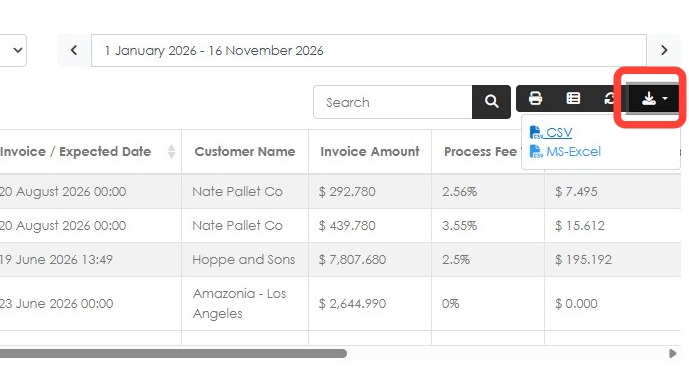
Learn how to use the Pallet Pay Payments Report to review payment transactions, including payment dates, invoice details, invoice amounts, processing fees, payment references, and payment methods.
1. NOTE: The Pallet Pay Report will only be visible when the Pallet Pay feature has been enabled. See related article on how to set up Pallet Pay or contact the Pallet Connect Team for more information.
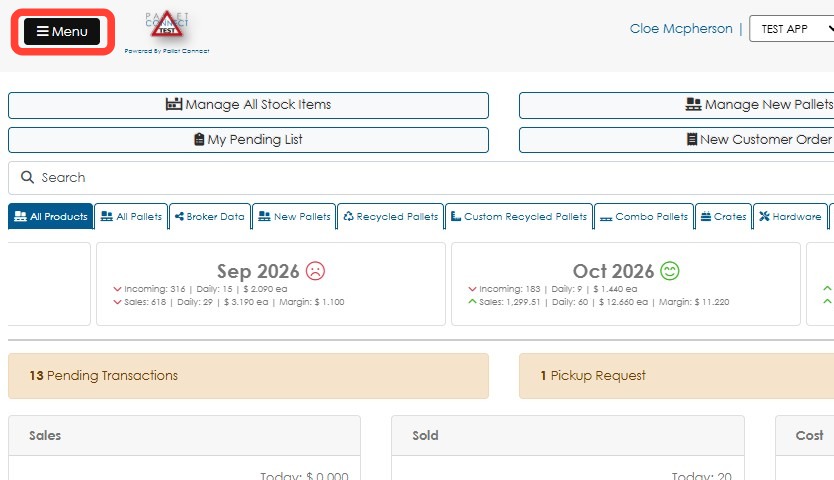
To view the report. Click Menu.
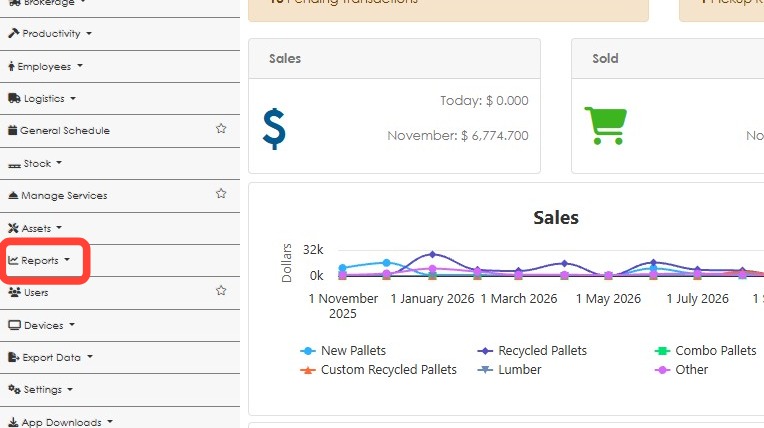
2. Click Reports.
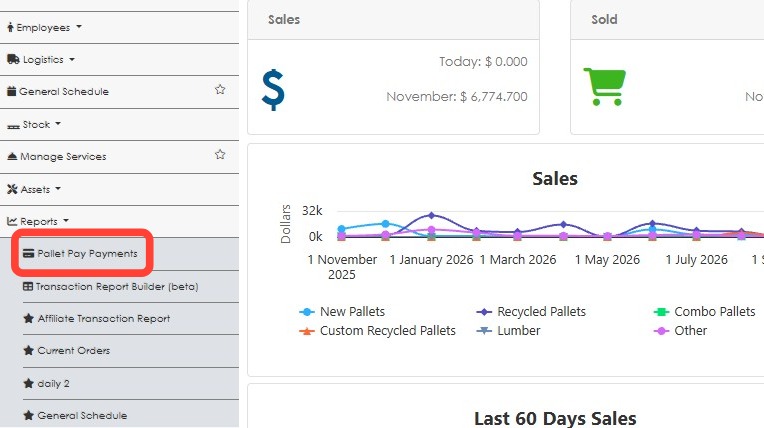
3. Click Pallet Pay Payments.
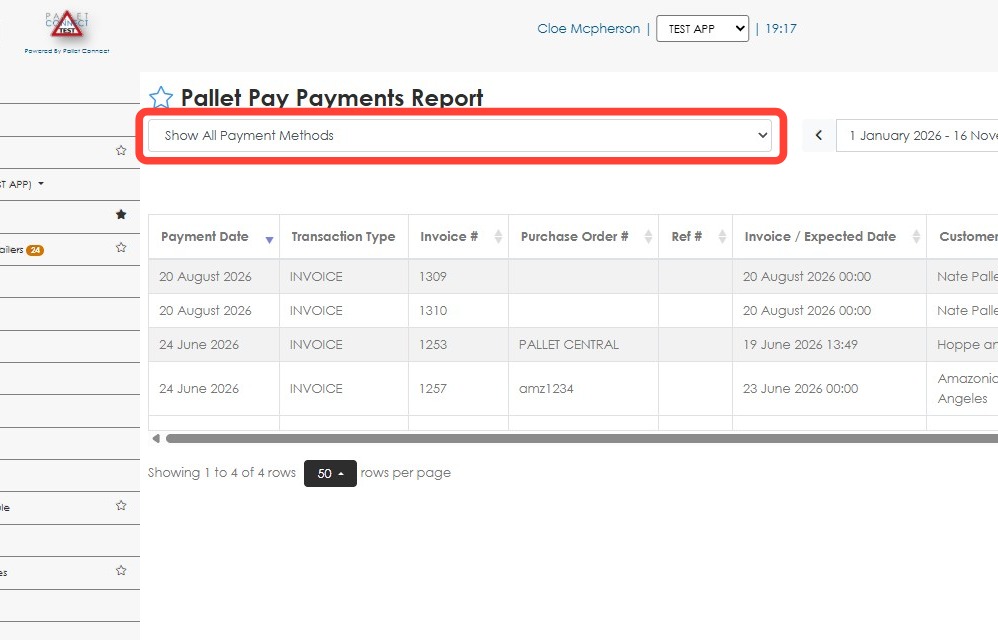
4. Choose a specific payment method from the Show All Payment Methods drop down. For example Pallet Pay and Stripe payments.
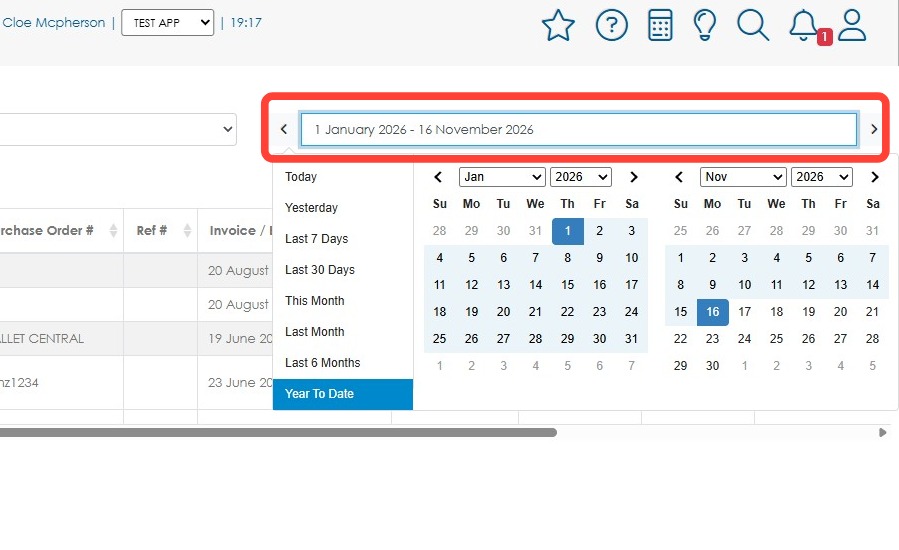
5. Select a date range to view the corresponding payment records.
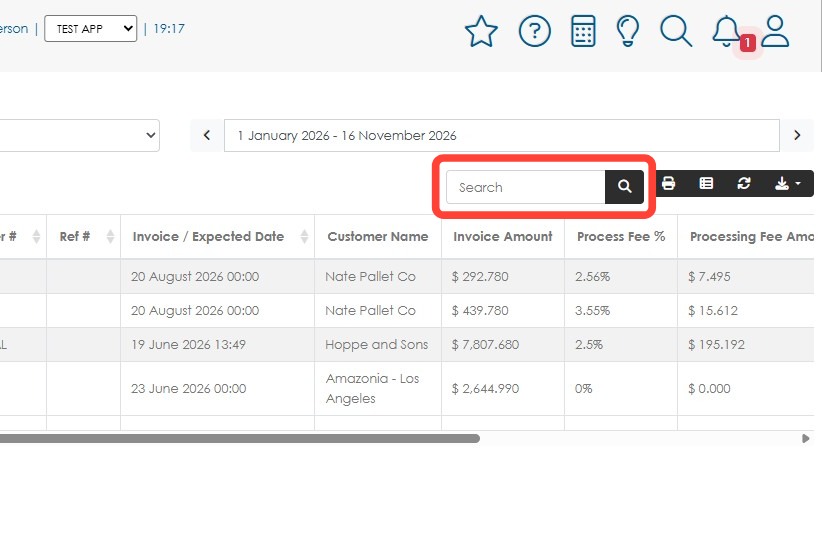
6. Use the Search field to look for a specific transaction.
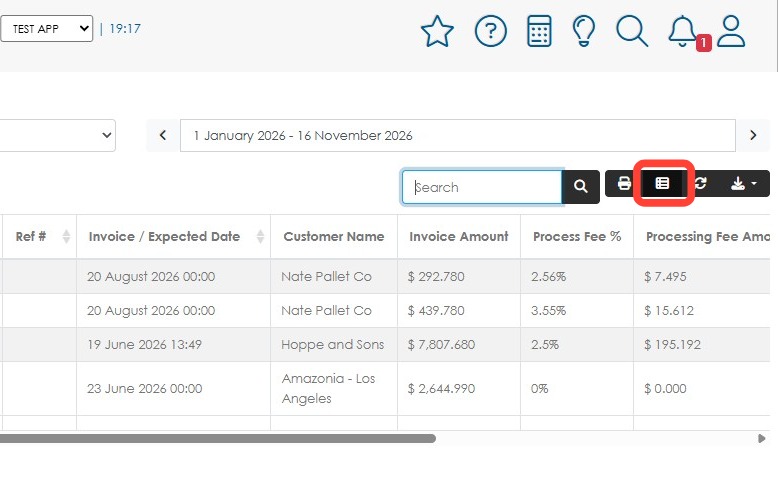
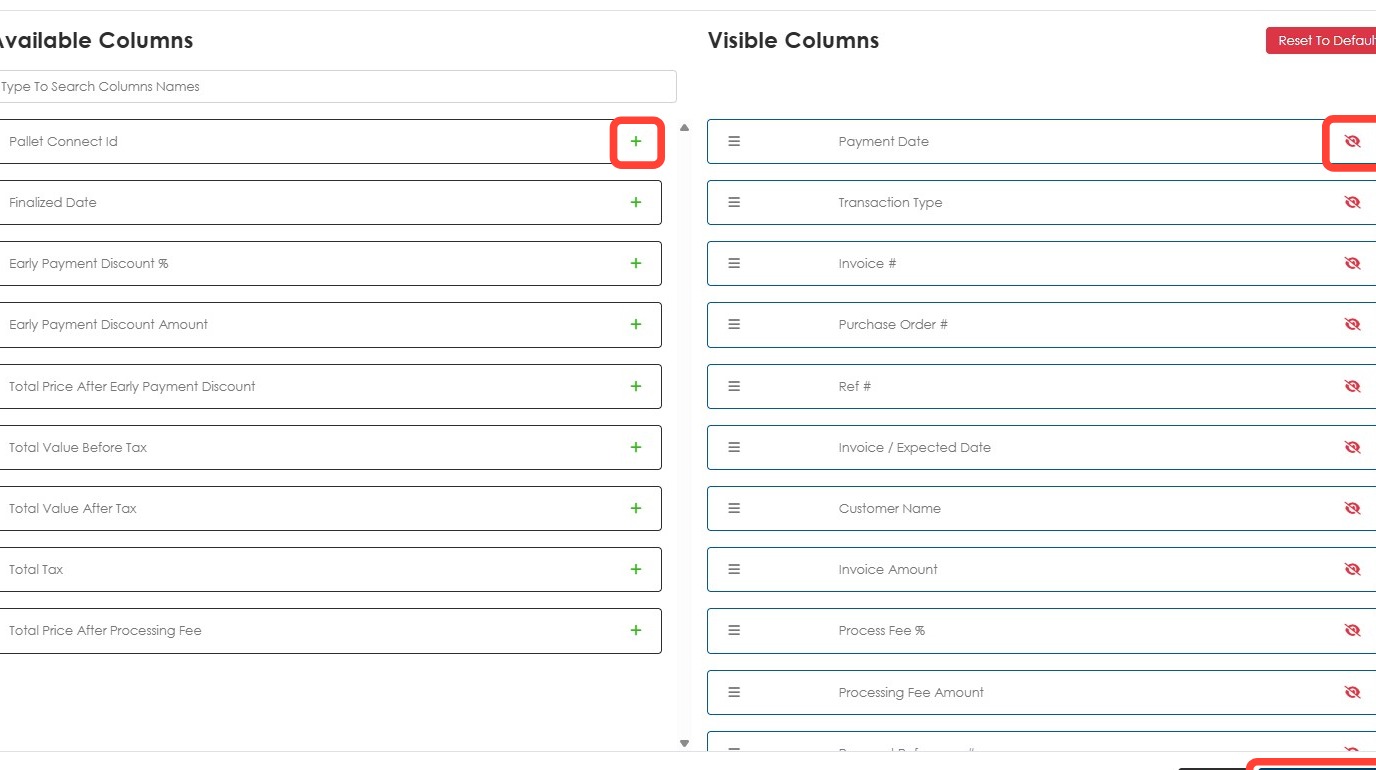
7. Click Edit Columns to customize the columns displayed in the report.
8. Click the plus (+) button to add a column. Click the red eye button to remove a column.
Click Apply Changes once done.
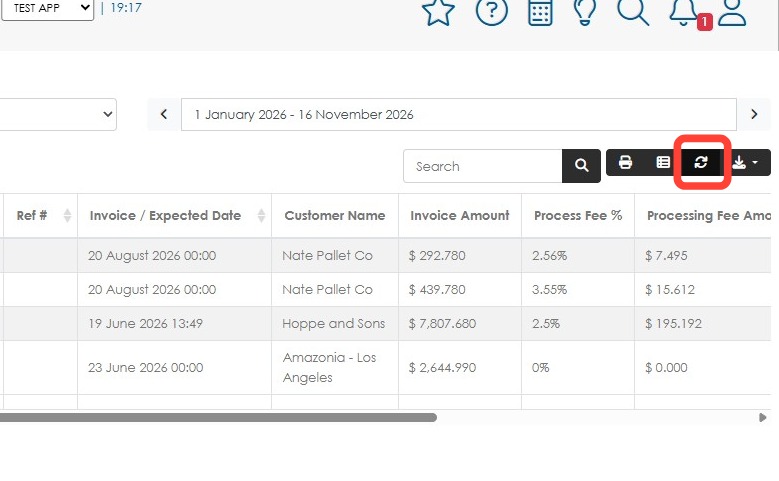
9. Click the Refresh button to refresh the page.
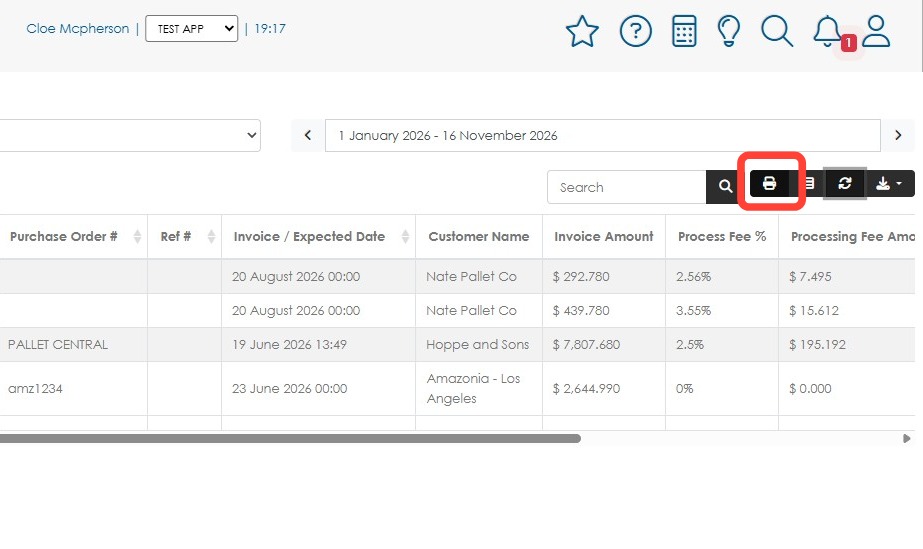
10. Click the Print button to print the report if needed.
11. Click Export data button to download a CSV or Excel spreadsheet.