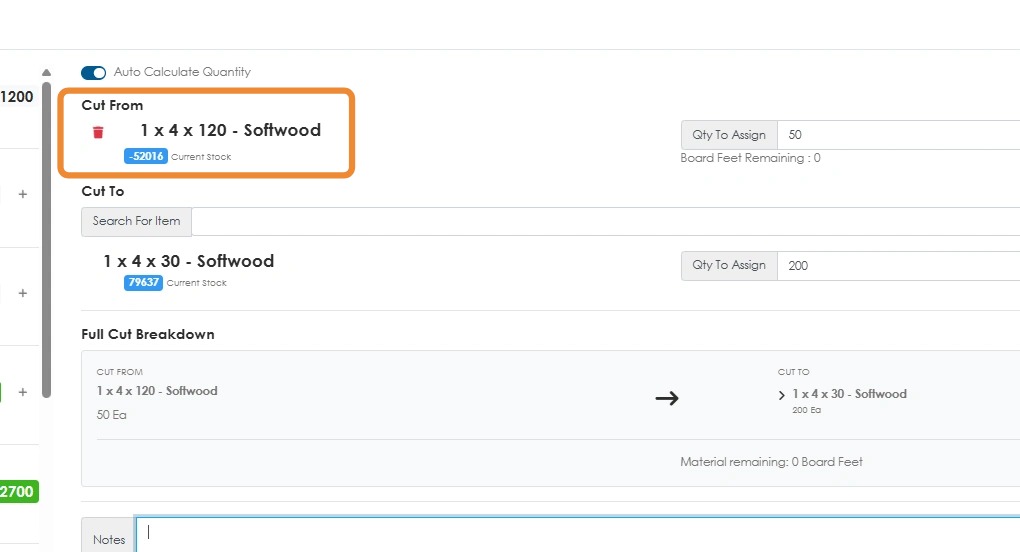
Learn how to set the "preferred cut from" lumber item for capturing a cut. This guide provides a walkthrough for updating item preferences and how it is used in the bills of materials. The "preferred cut from" board will now also show on the BOM and estimate how many are required for this build.
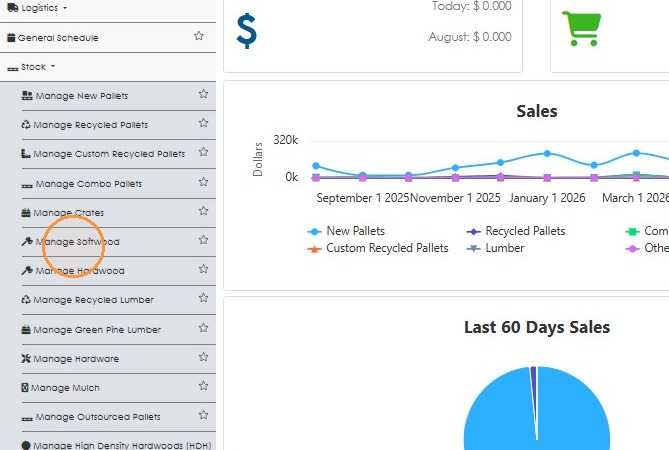
1. From the Stock section of the Main Menu, click on the lumber category, for example "Manage Softwood"
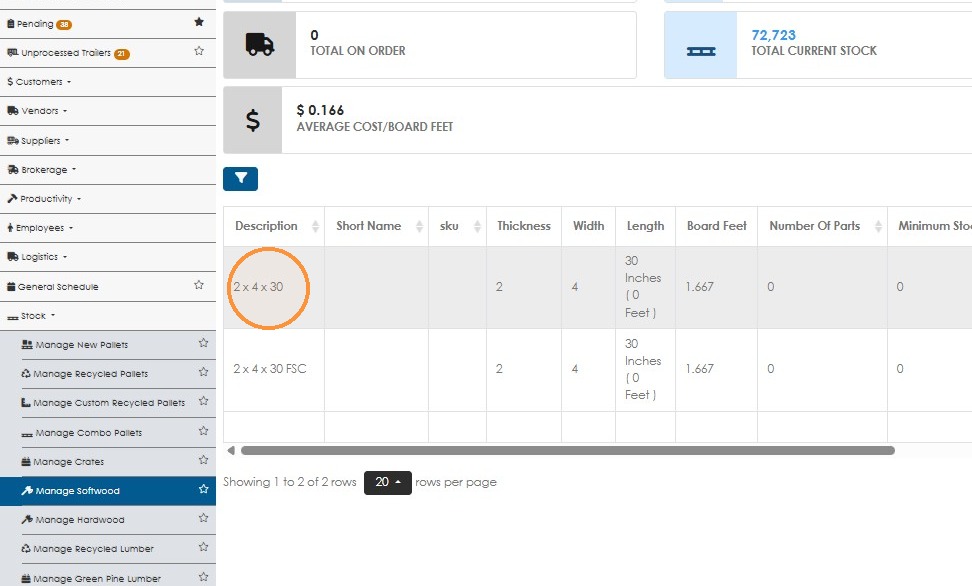
2. Search for the stock item in the list. Click to reach the stock item profile.
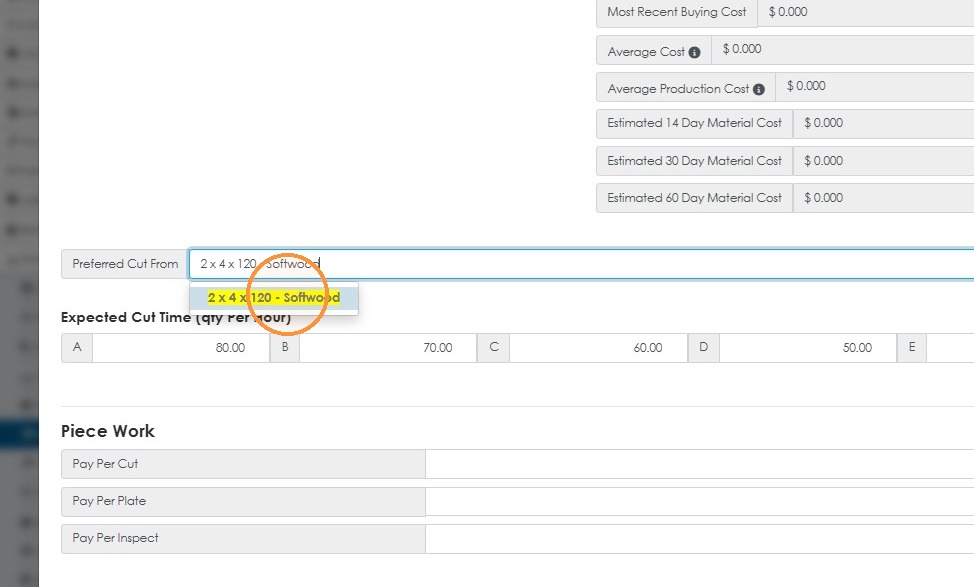
3. Navigate to the Production tab of the stock item profile. Click the "[OPTIONAL] Preferred item this will be cut from." field.
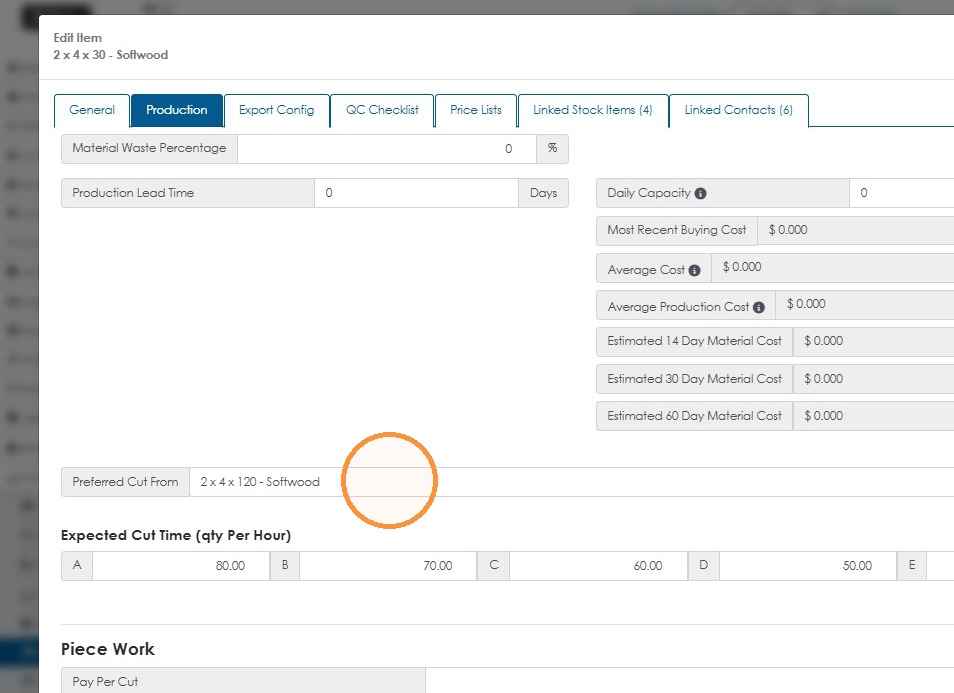
4. Start typing the name and click on the stock item from the drop down list.
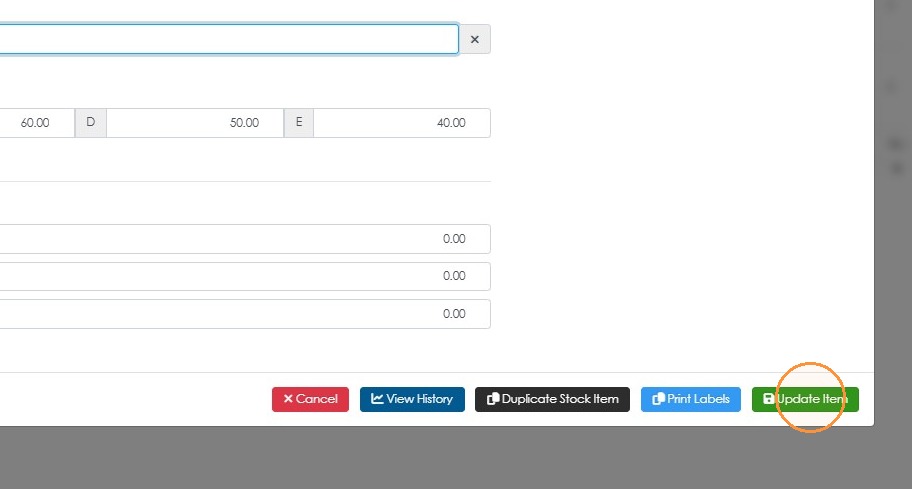
5. Click "Update Item" to save.
6. Now when viewing the Bill of Material or Cut Schedule, for pallets that use this item, Pallet Connect will display the "preferred cut from" board and identify how many will be needed for the build.
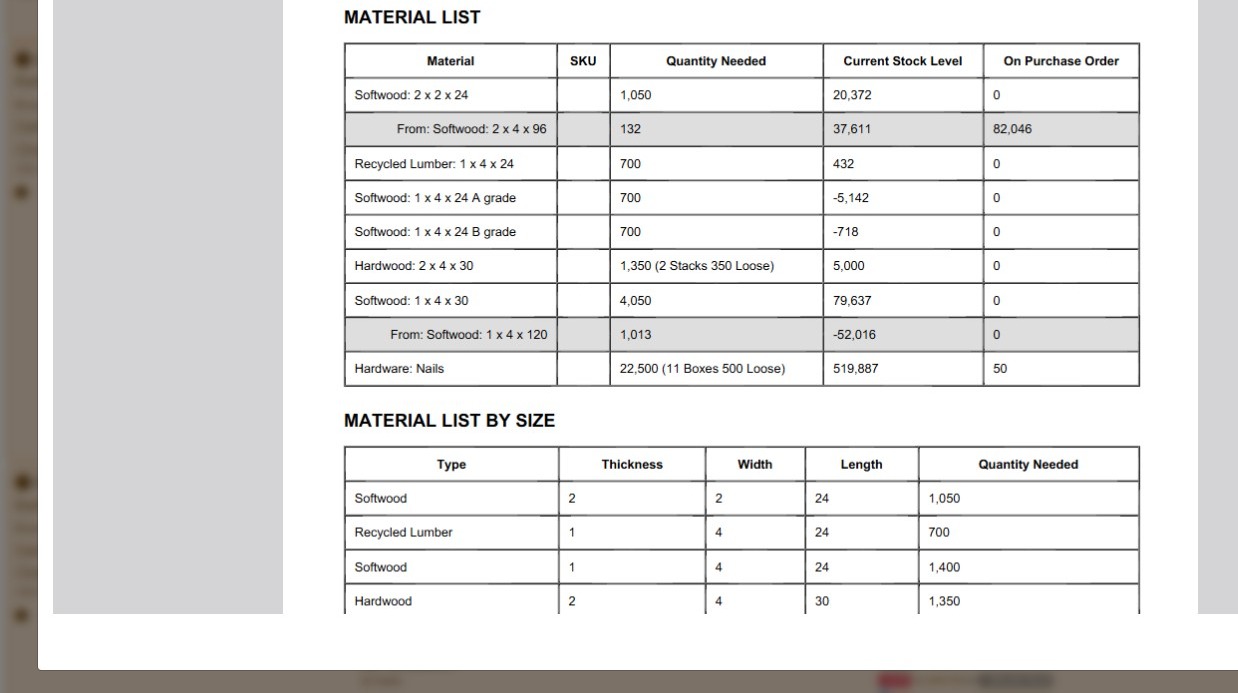
7. TIP: The Cut Schedule will automatically select the "preferred cut from" item.