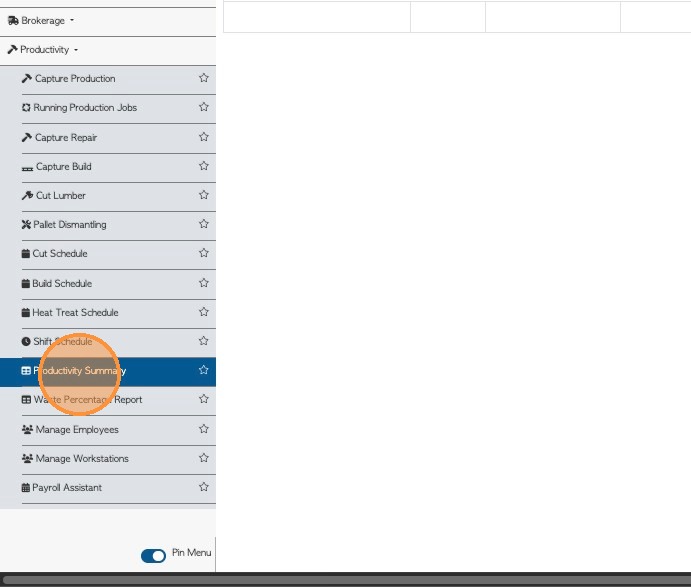
2. EDIT CAPTURED RECORD: Look for the completed task that needs to be edited.
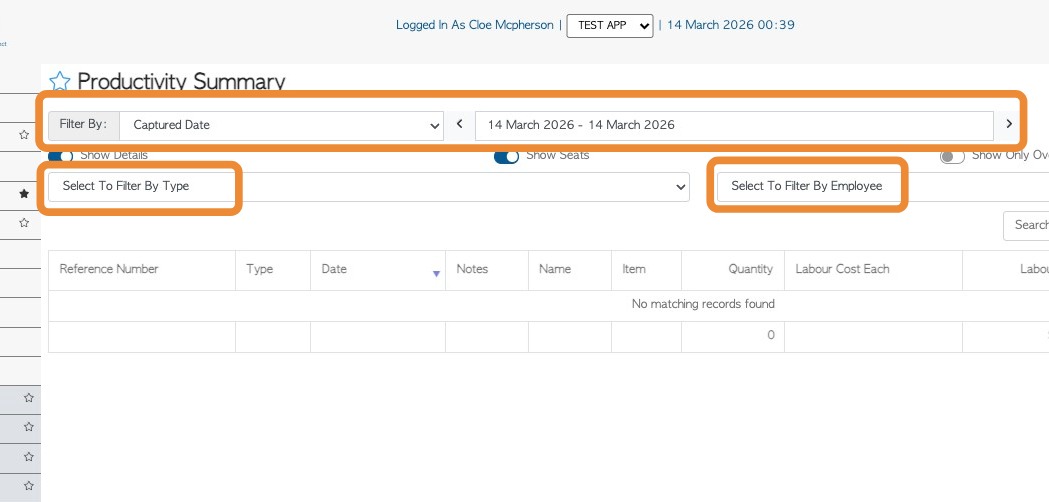
Search by using the captured date. The report can also be filtered by Employee name or by job type e.g. 'build'.
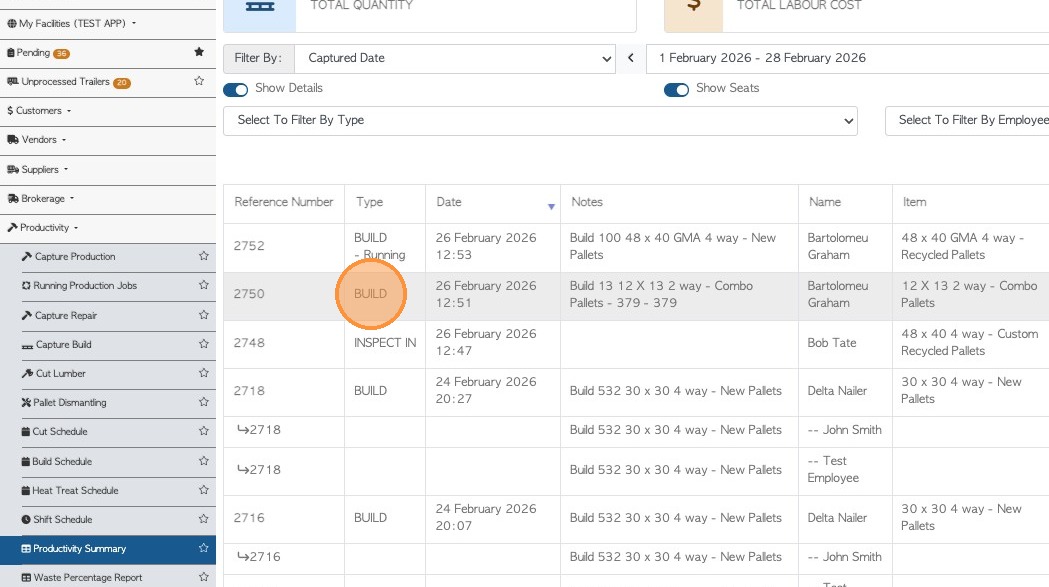
3. Click the selected task from the list.
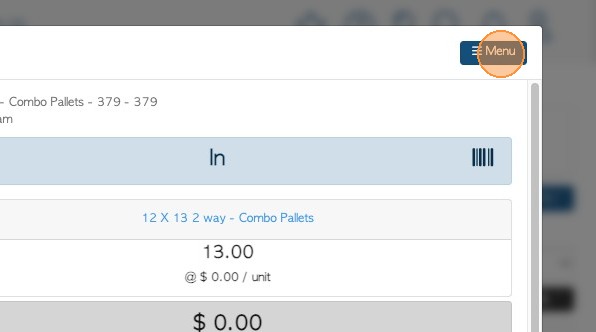
4. A pop-up window will appear that provides details of the captured task. Click the Menu on the top right.
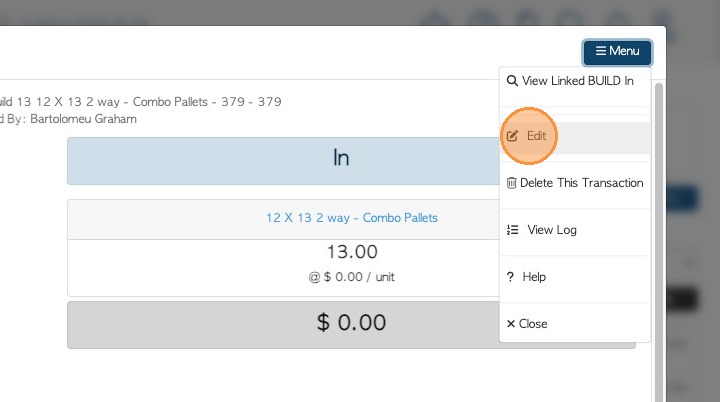
5. To make changes, click "Edit".
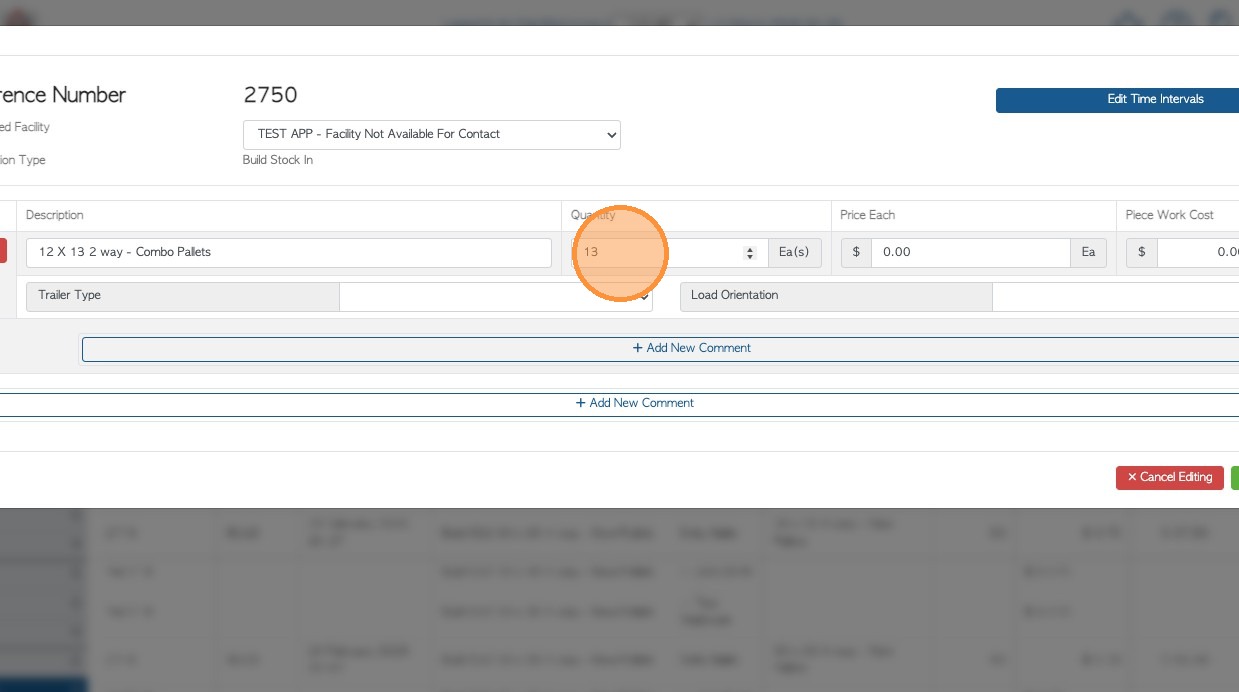
6. Make the necessary changes.
Users can modify the following:
- Start/End Date
- Item
- Quantity
- Price
- Piece Work Cost
- Trailer Type
- Load Orientation
- Add/Edit Comment
NOTE: Certain pricing cannot be changed. For example, the 'stock out' is a calculated price that is used during the capture and is not meant to be edited (when you edit, it just recalculates again).
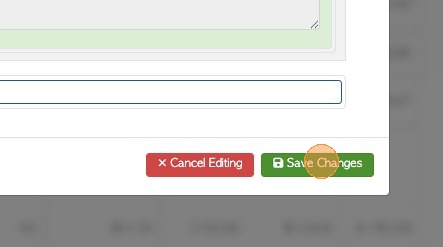
7. Click "Save Changes" to complete.
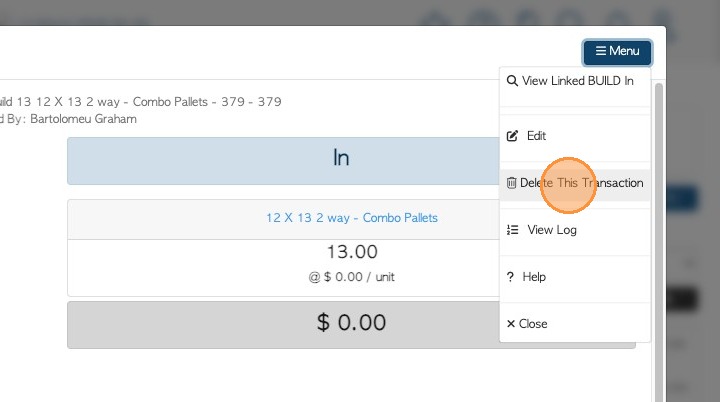
8. DELETE CAPTURED RECORD: To delete a completed task, select the record from the list, as before. Go to the same Menu in the details page, and click "Delete This Transaction"
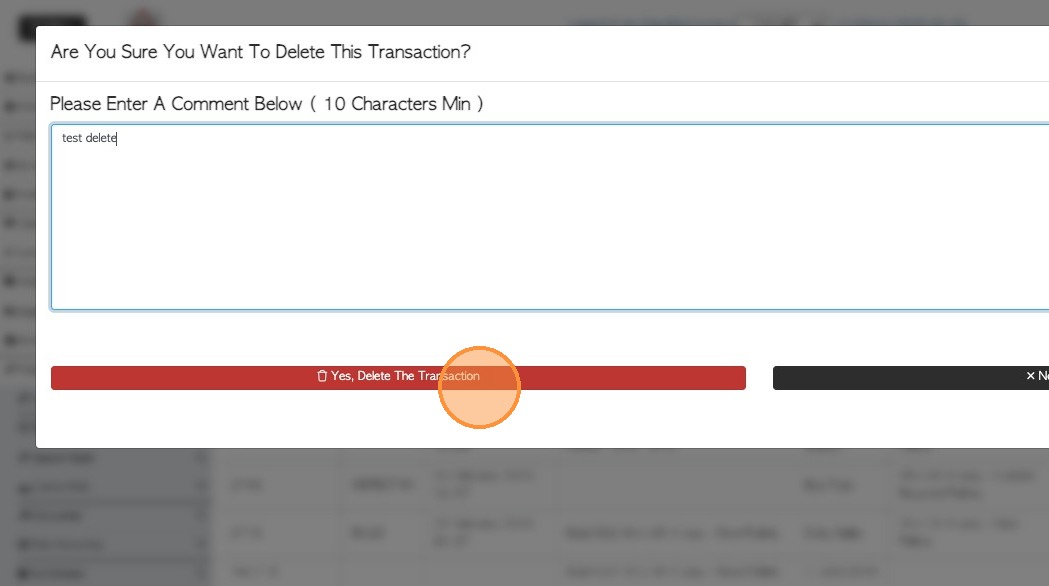
9. The system will request confirmation. To delete the transaction a comment must be added. (Minimum of 10 characters).
10. Click "Yes, Delete The Transaction".
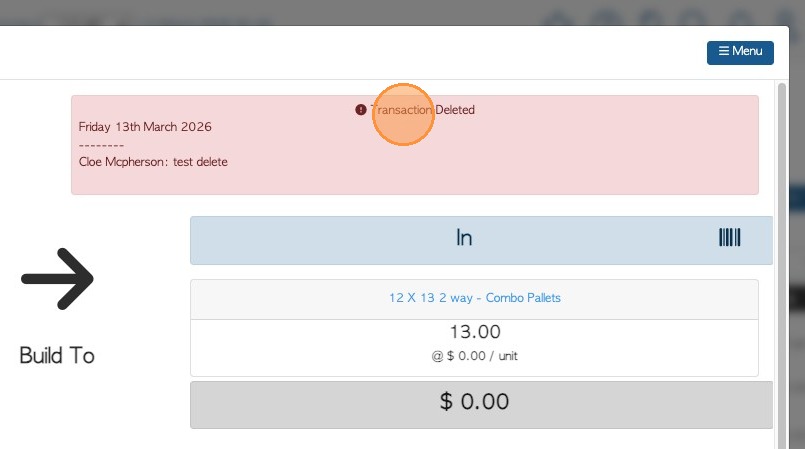
11. A message will confirm that transaction has been deleted.