Learn how to export a customer's configuration settings from Pallet Connect. This guide walks through the steps to access and save these important details for your records.
1. QuickBooks does not allow the same contact to be a Vendor and a Customer, but Pallet Connect does.
This can result in a 'duplicate name' error when exporting transactions from Pallet Connect to Quickbooks.
To handle this an export code needs to be set, for either sales or purchase, to match the proper name in QuickBooks.
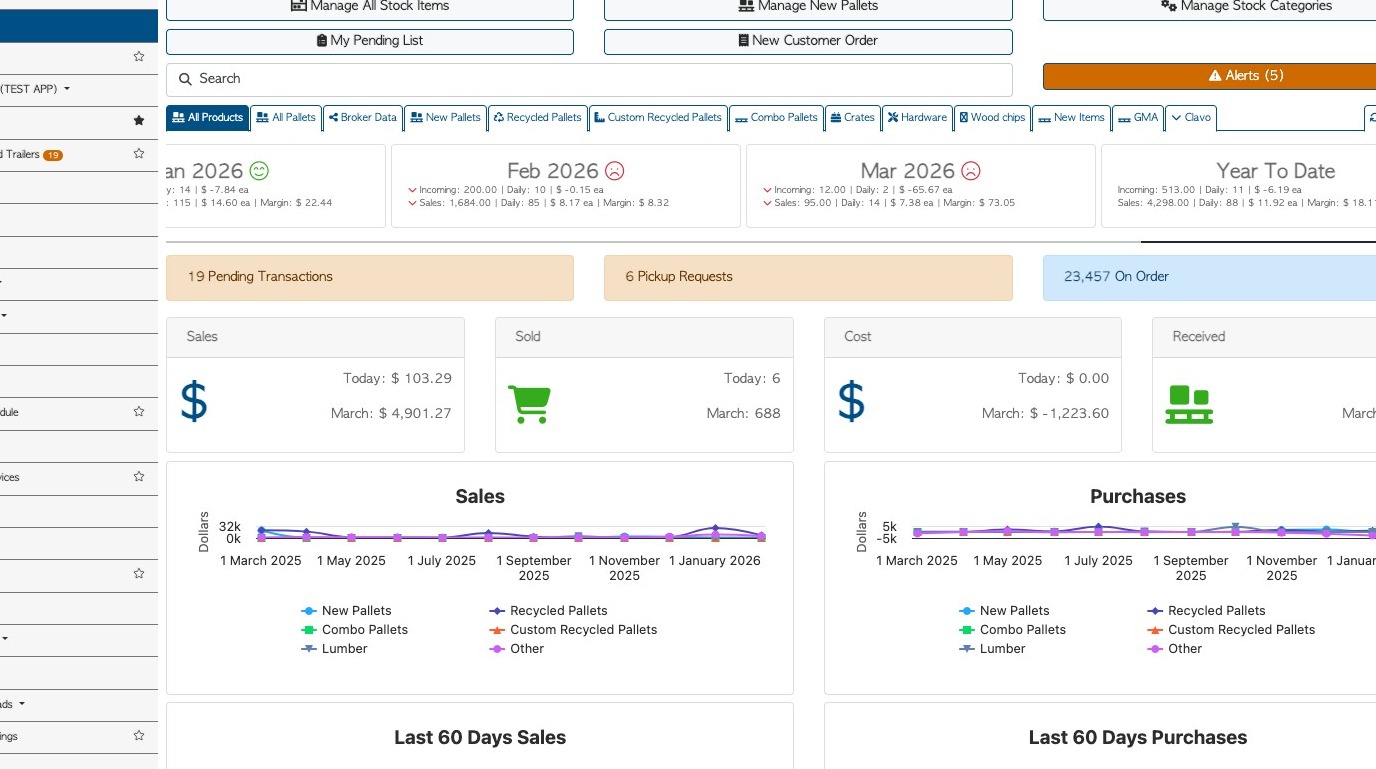
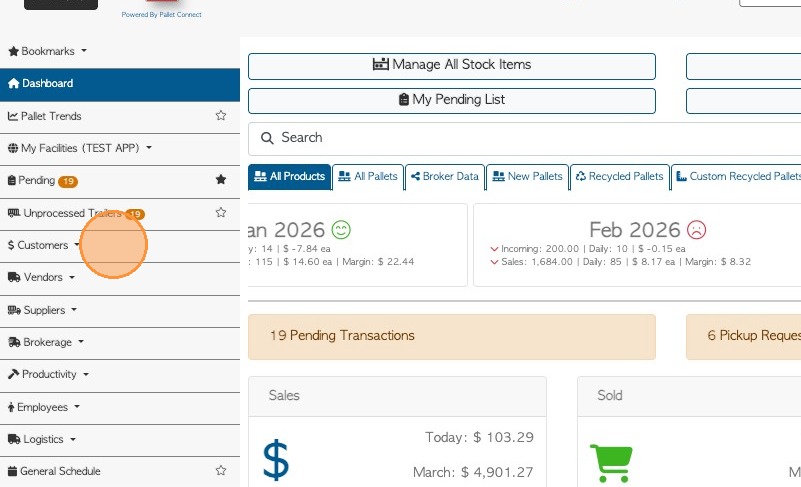
2. From the main menu, click "Customers".
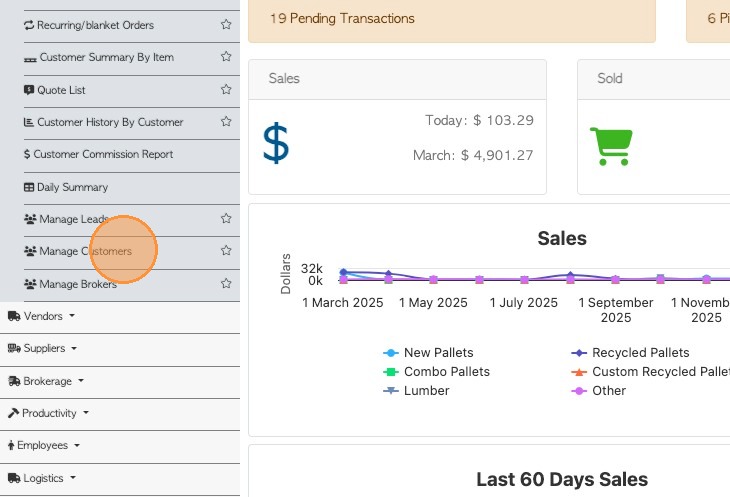
3. Click "Manage Customers"
4. Click on the selected Customer from the list.
TIP! The Customer profile can also be found by typing the name in the Global Search tool, located at the top right of each page.
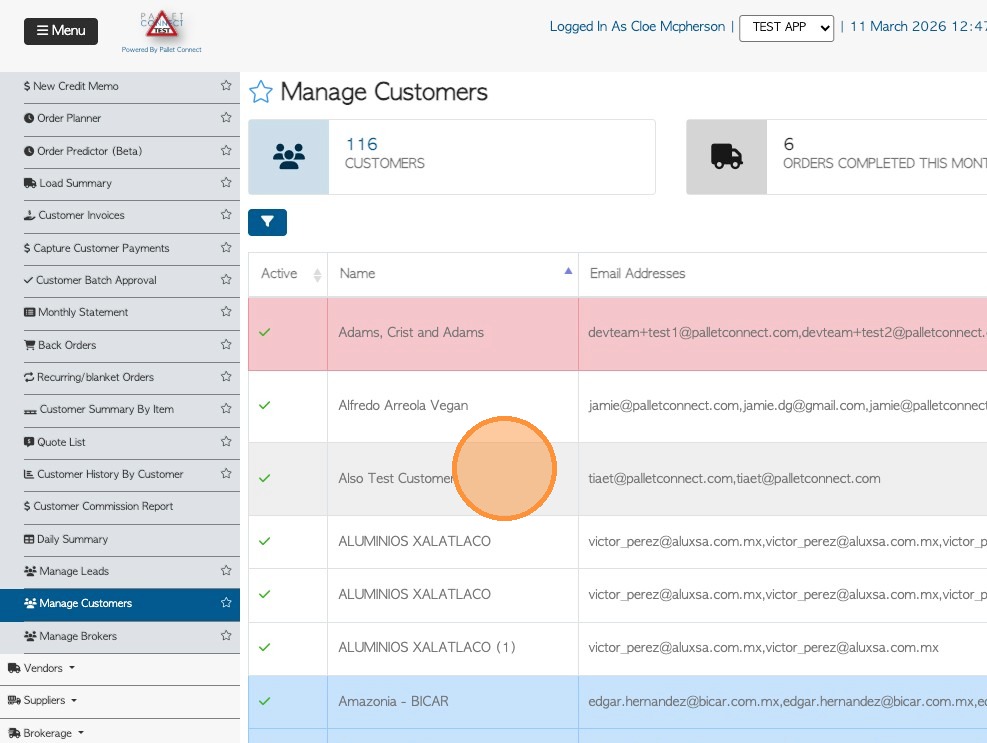
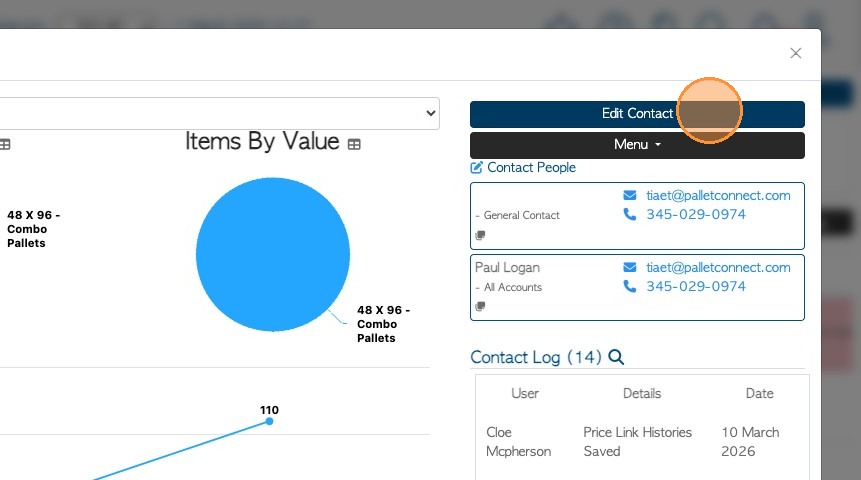
5. Click "Edit Contact"
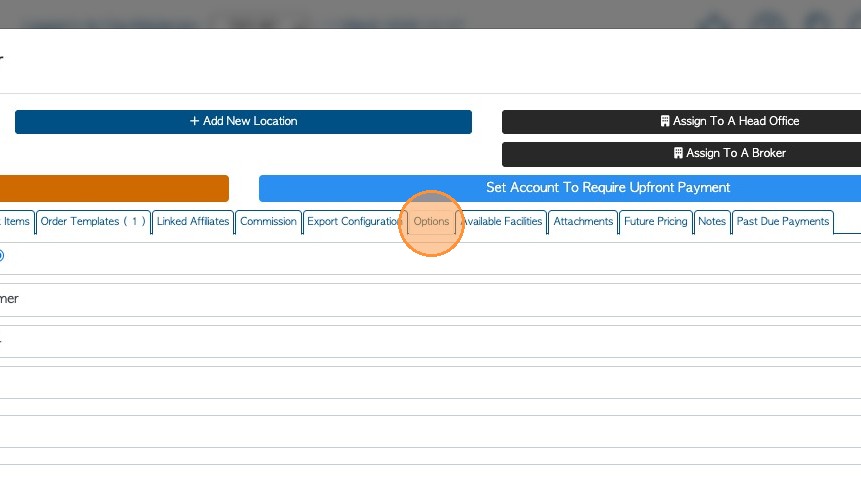
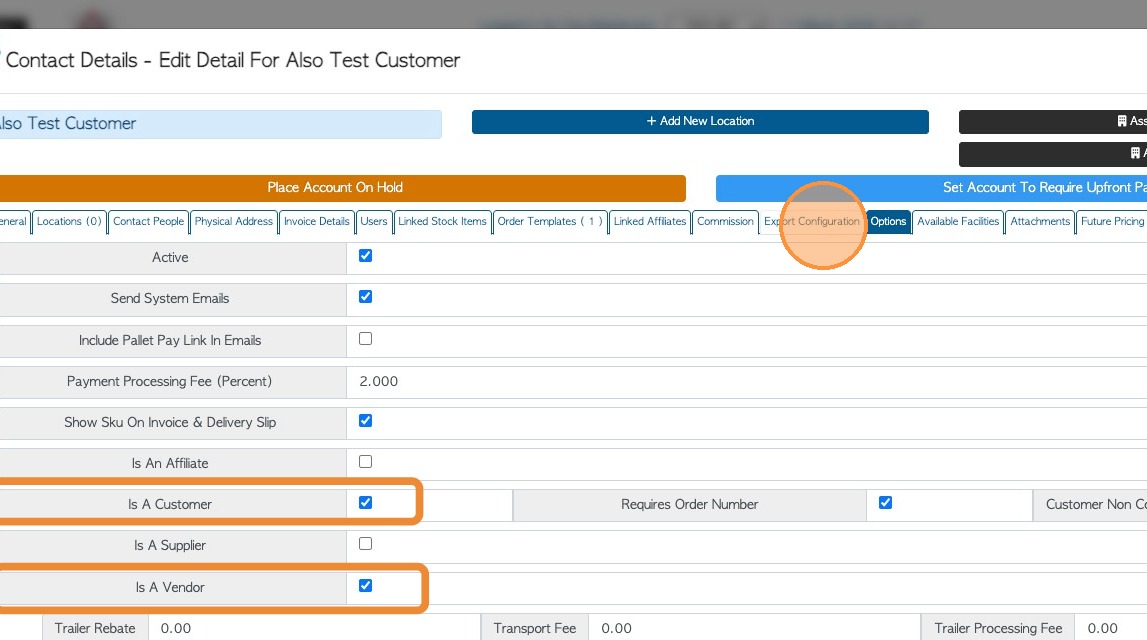
6. Click the "Options" tab to check that the contact is selected for more than one category e.g "Is a Customer" and "Is a Vendor".
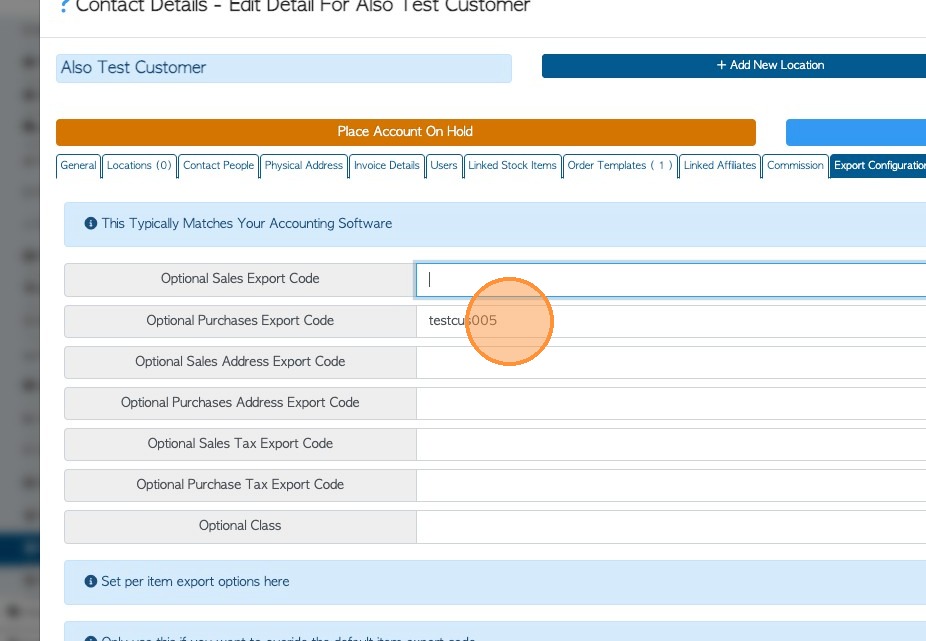
7. If the contact is in more than one category, an export code needs to be entered. Click the "Export Configuration" tab.
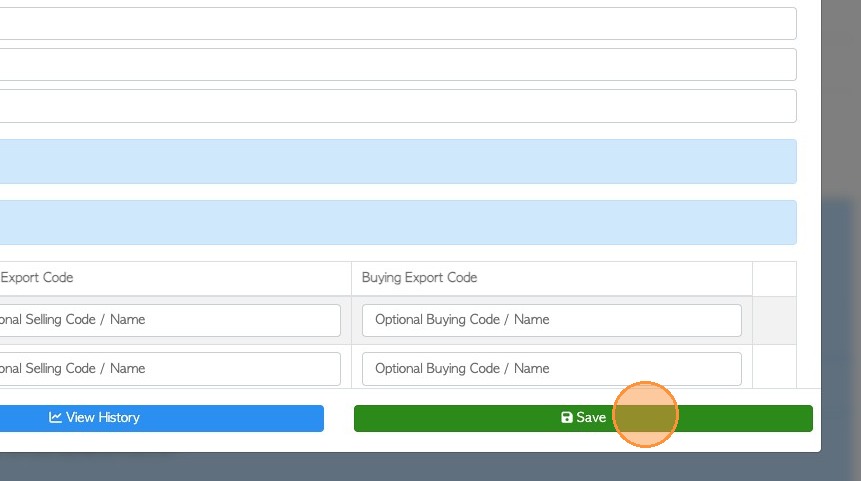
8. An optional export code is added here.
For this example, all sales/invoices can use the Customer name and a 'purchases export code' can be added for Vendor Rebates. The code cannot be identical to the Customer name, it needs to differ somehow.
NOTE: If the Sales export code is filled out, then the contact name will be used for Vendor purchases and the export code for customer transactions.
9. Click "Save" to finalize.