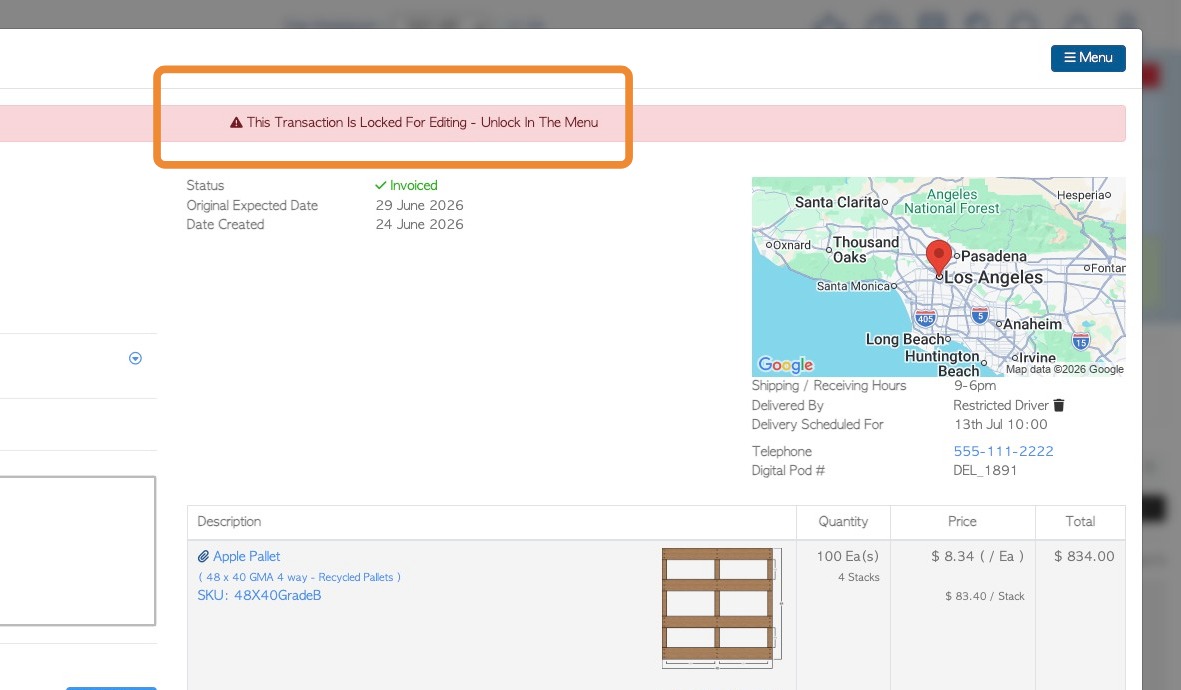
All completed sales and purchases are displayed in the Export Data page, to be exported to Quickbooks for accounting purposes. Once exported they are locked and will not show up again for export. There are times when a transaction does not need to be transferred to Quickbooks at all and this article explains how to configure this.
SYSTEM SETTINGS TO EXEMPT EXPORTS
1. There are two settings that restrict transactions from being exported. One for zero value transactions and one for negative value.
From the main menu, click "Settings". Then click System Settings.
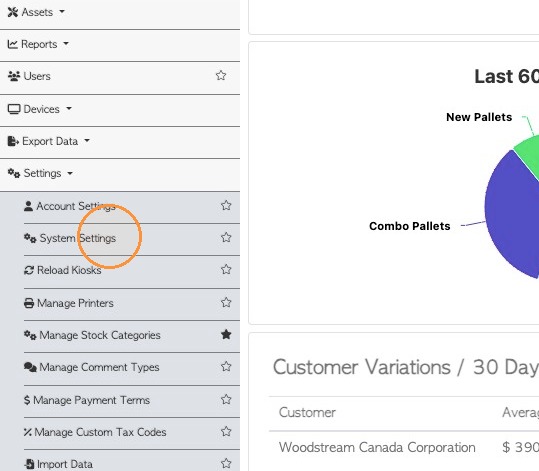
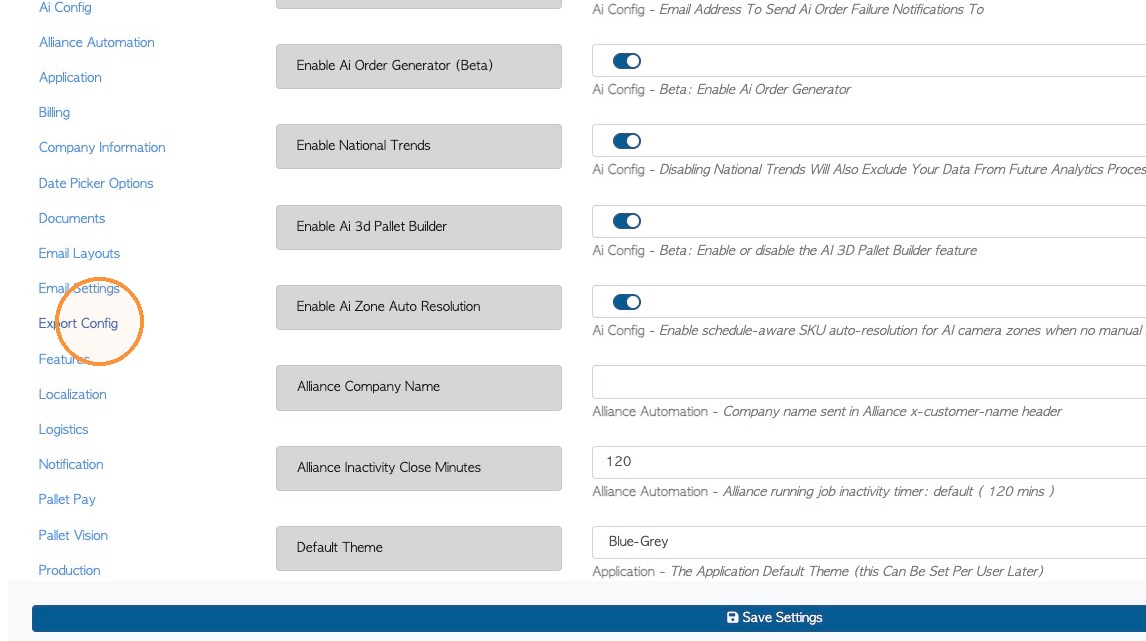
2. Click 'Export Configuration'.
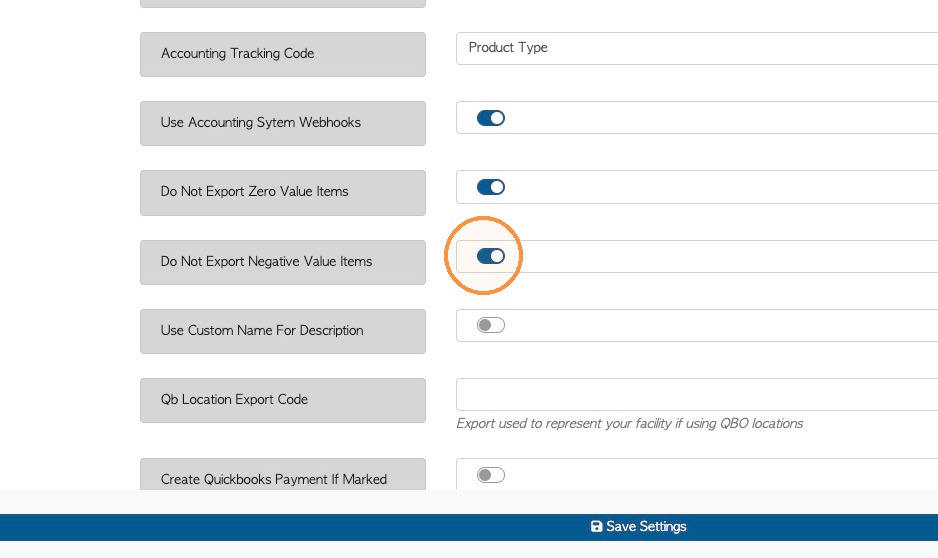
3. Toggle on "Enable Do Not Export Zero Value Items" settings. Any transactions that are zero value will not be available for export to Quickbooks Online.
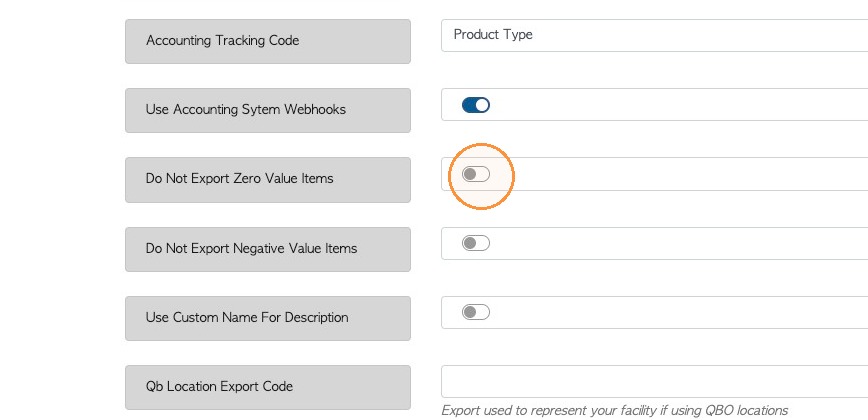
4. Toggle on" Do Not Export Negative Value Items". Any transactions that are negative value will not be available for export to Quickbooks Online.
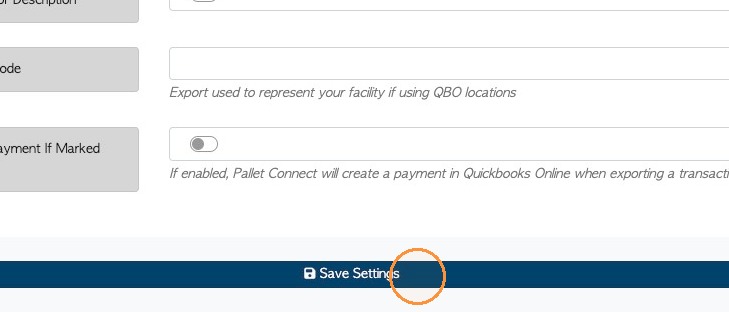
5. Click "Save Settings" to complete any changes.
NOTE: These transactions will not be 'locked' but they will not appear on the export page.
CONTACT SETTING TO EXCLUDE EXPORT
6. All transactions from a particular contact can also be excluded from export to accounting software.
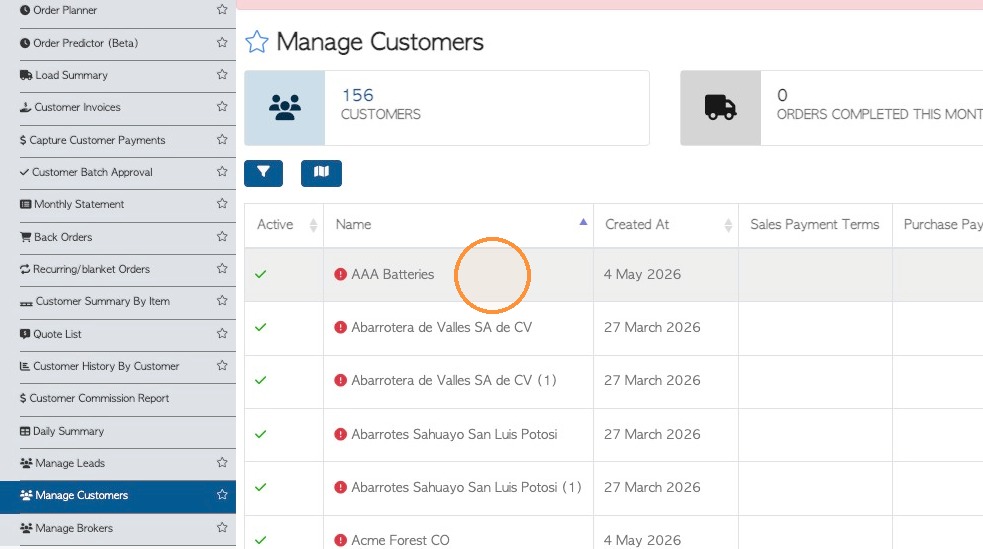
For example, for Customer. From the main menu, click on 'Customers'. Then click "Manage Customers". Click on the selected customer from the list.
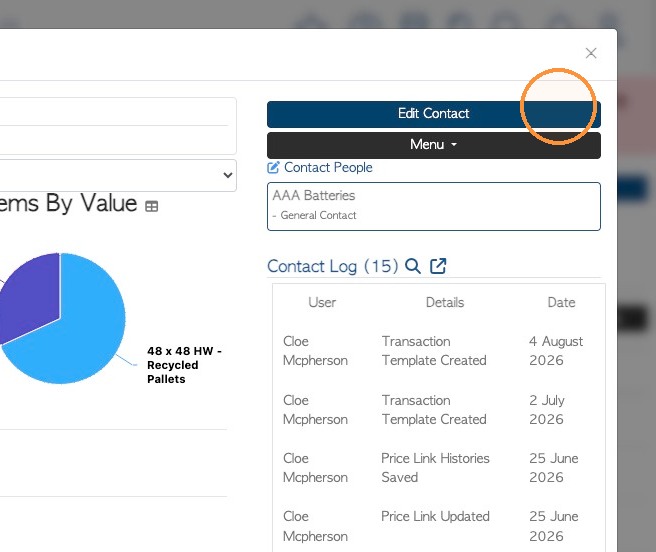
7. Click "Edit Contact"
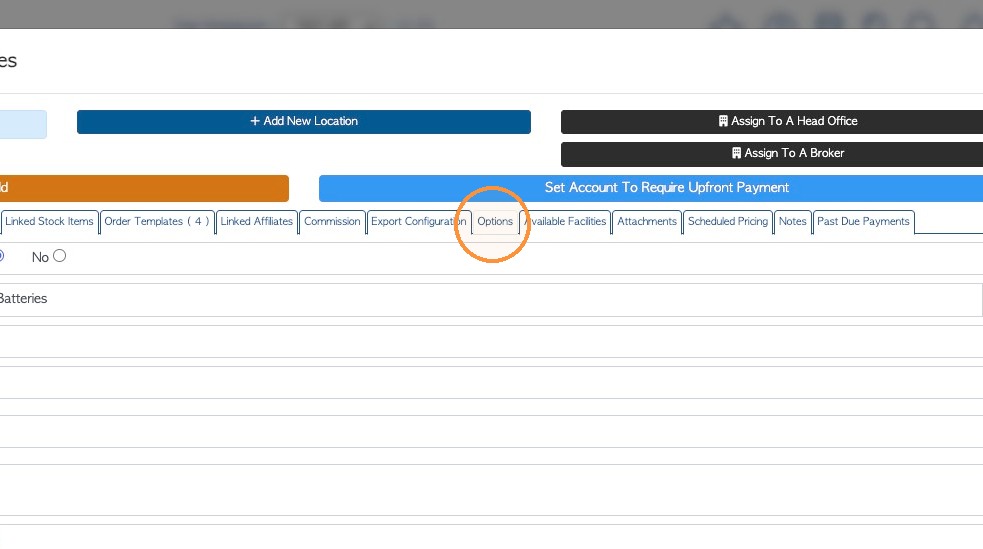
8. Click the Options tab
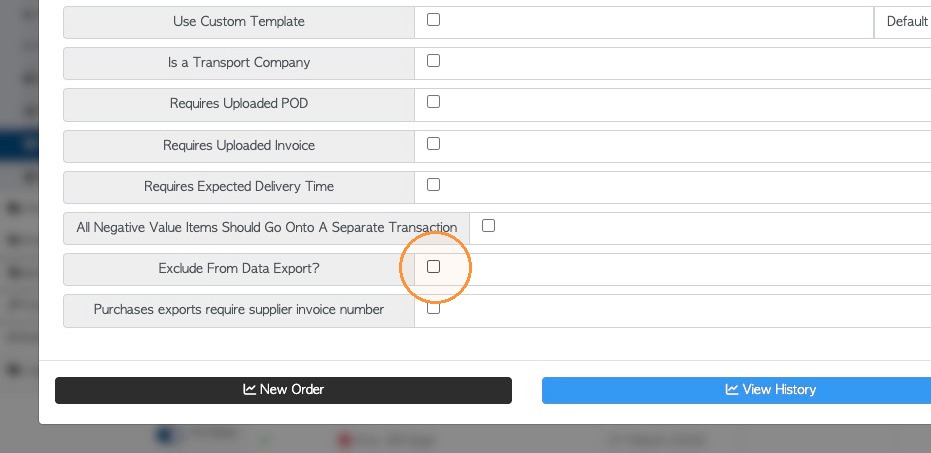
9. Select "Exclude From Data Export?". Click 'save' to complete changes.
Any transactions from this contact will now not appear in the export page.
LOCK TRANSACTIONS
10. When a completed transaction is exported it is automatically locked, to avoid duplicate transfers. Therefore manually locking a transaction will make a transaction exempt from export.
Use the global search to look up a transaction or use the transaction history pages e.g. Order History.
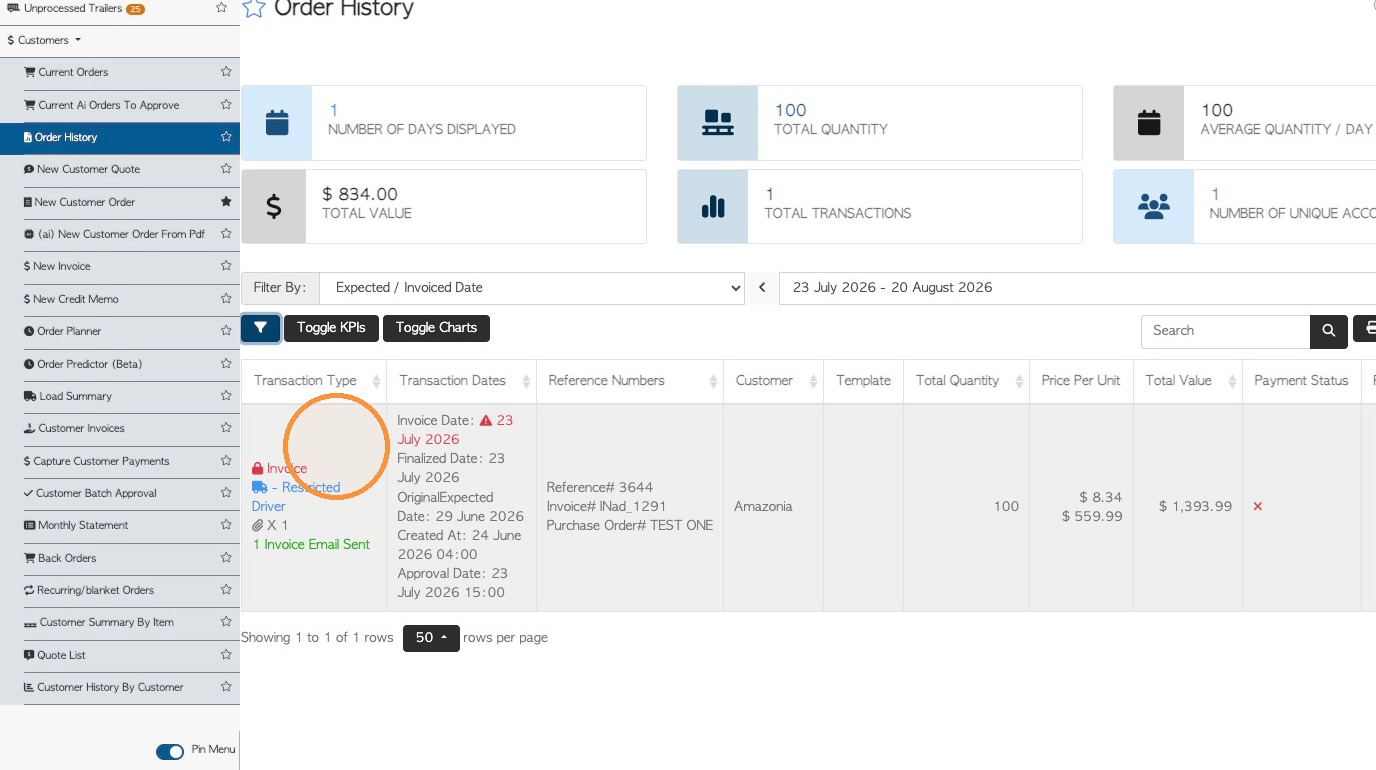
11. Click "Review" to access the main transaction menu.
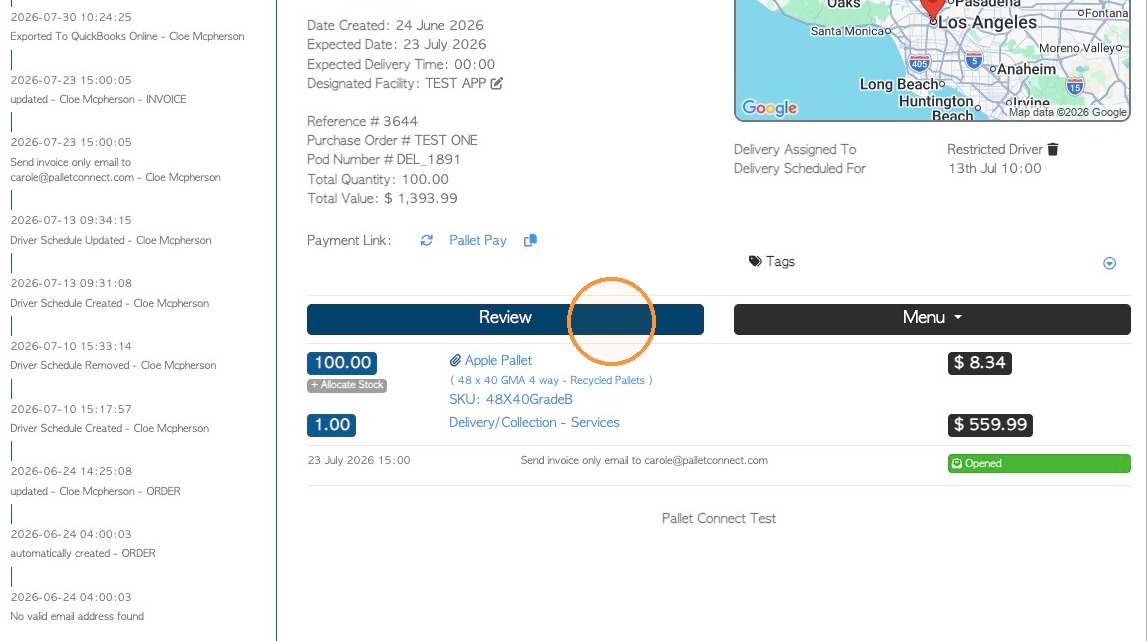
12. Click "Menu" and "lock transaction".
NOTE: This is also shown as "Mark as Exported".
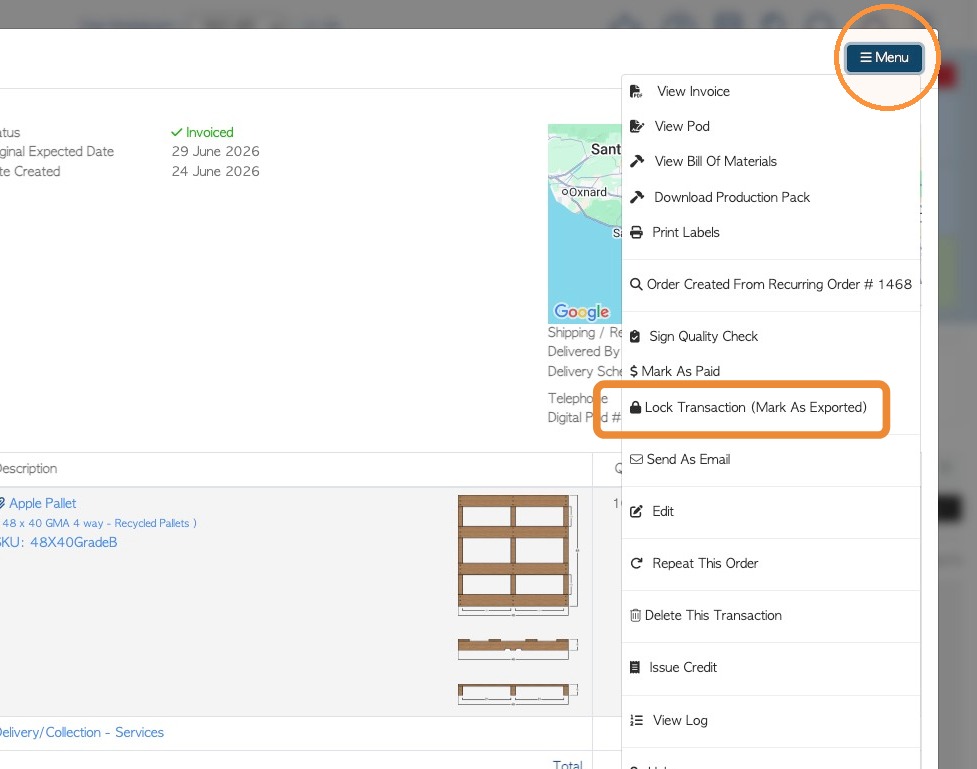
13. The transaction is now locked and will not be available for export.
TIP! A list of completed transactions with export status can be found in the Export Reconciliation Report. See related article.