1. This article shows how to obtain a report showing the total orders that are scheduled to be built, within a certain time frame. The supporting BOMs (Bill of Materials) can then be downloaded.
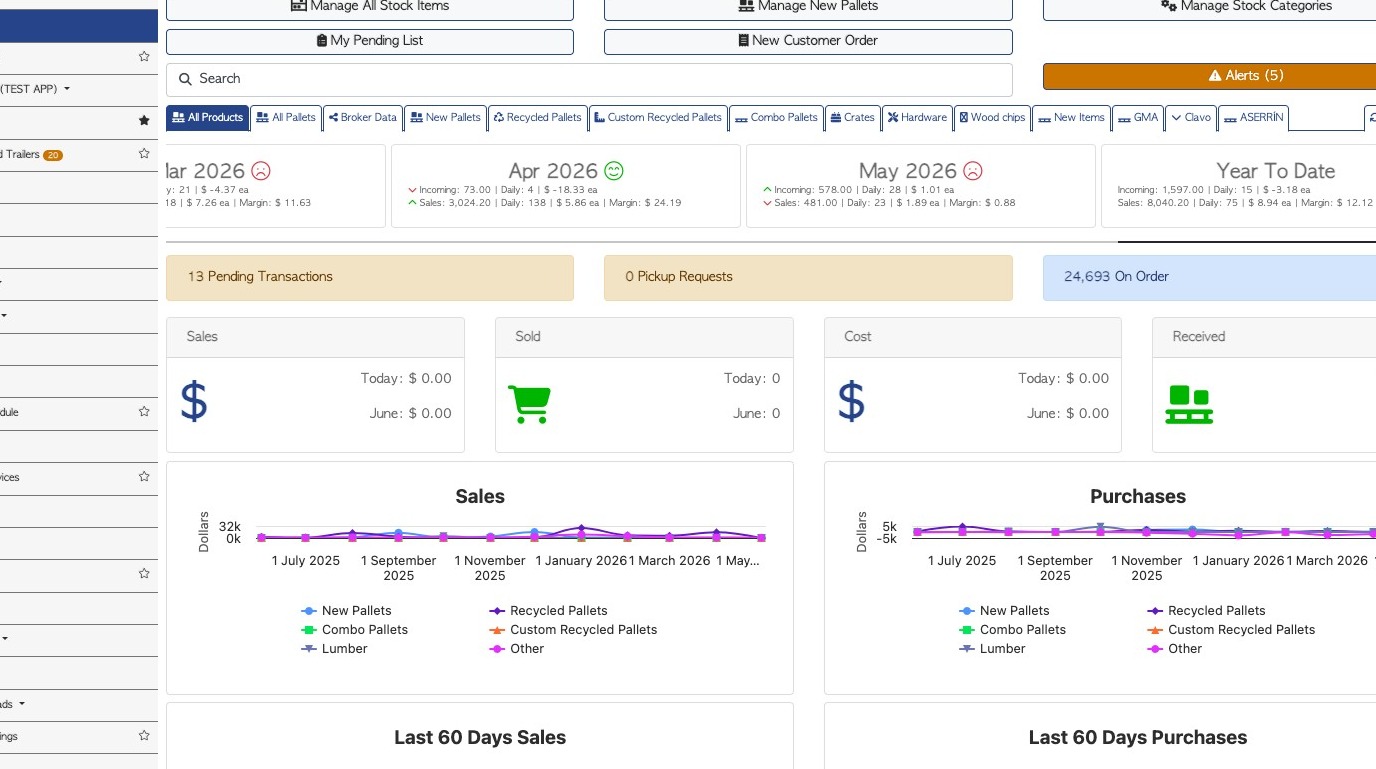
2. From the main menu, navigate to "Current Orders" under the "Customers" section.

3. Click this text field to adjust the time frame of the report.
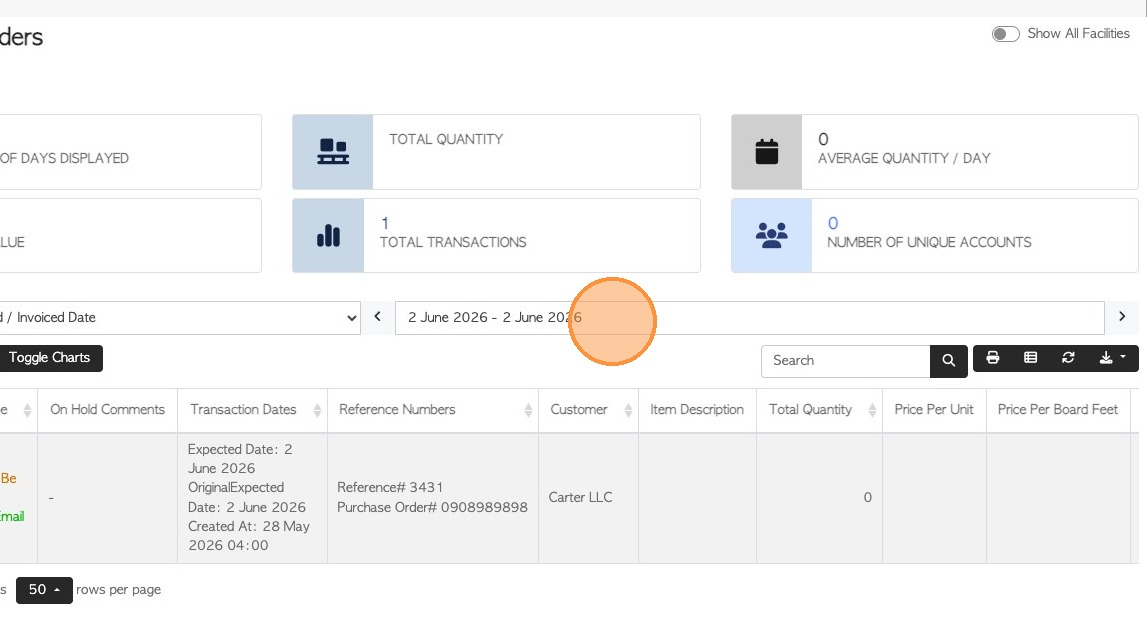
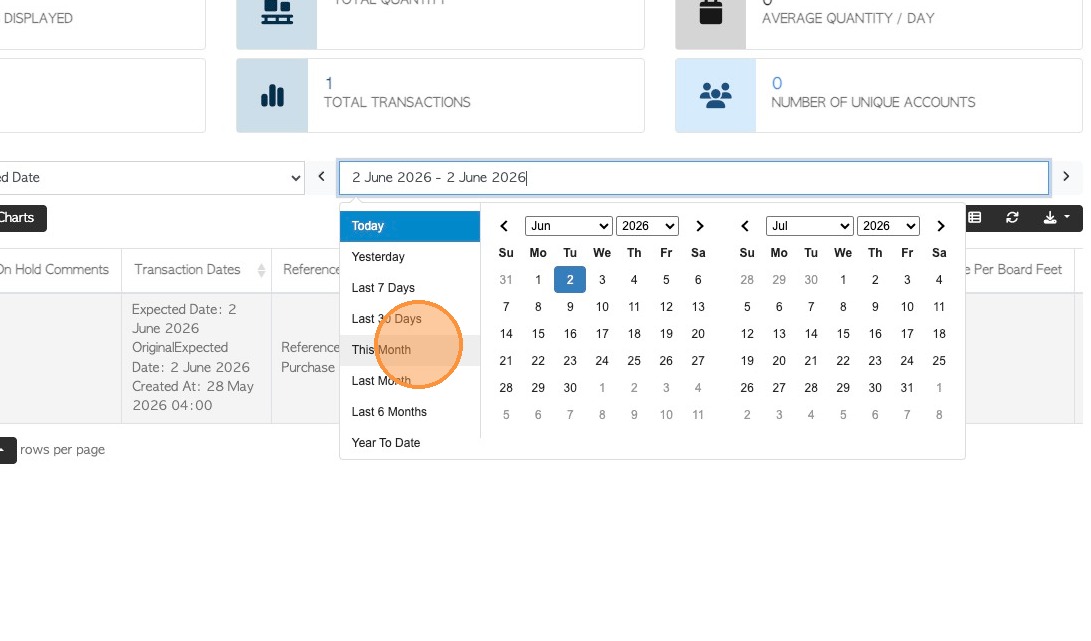
4. Click on a date range from the list, or choose dates from the calendar.
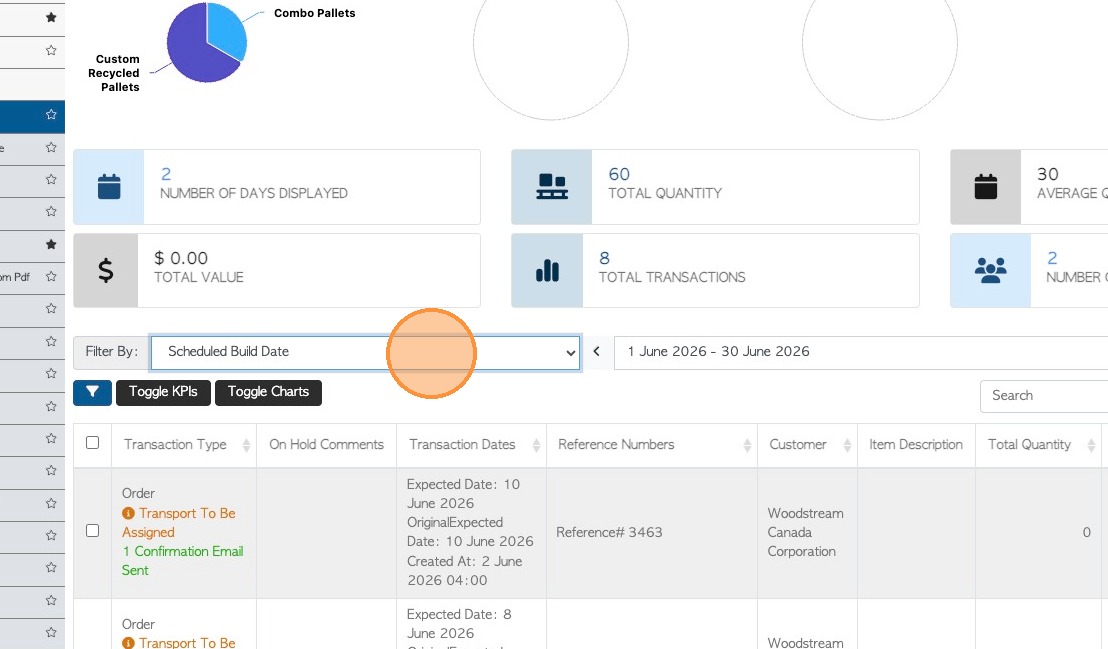
5. Select "Scheduled Build Date" from the "Filter By" dropdown menu.
The report will now show all orders that have been planned on the build schedule, within the chosen time frame.

6. ACCESS BOMs: Select the checkbox at the top of the list to select ALL transactions. Transactions can be selected individually also.
If more than 1 transaction is selected then the 'Bulk Actions" button will be visible.

7. Open the "Bulk Actions" menu and select "View Bill Of Materials".
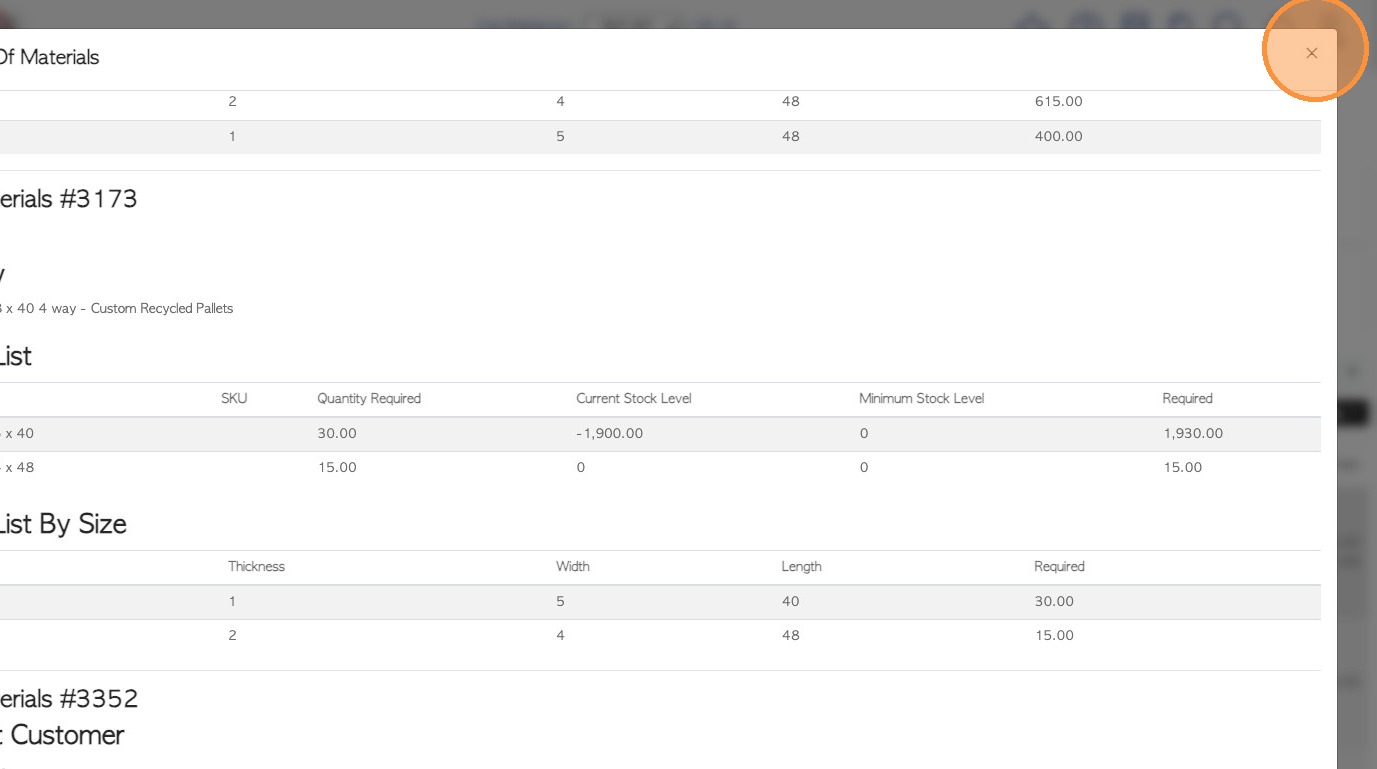
8. The "Bill Of Materials Summary" will show a total from all selected transactions.
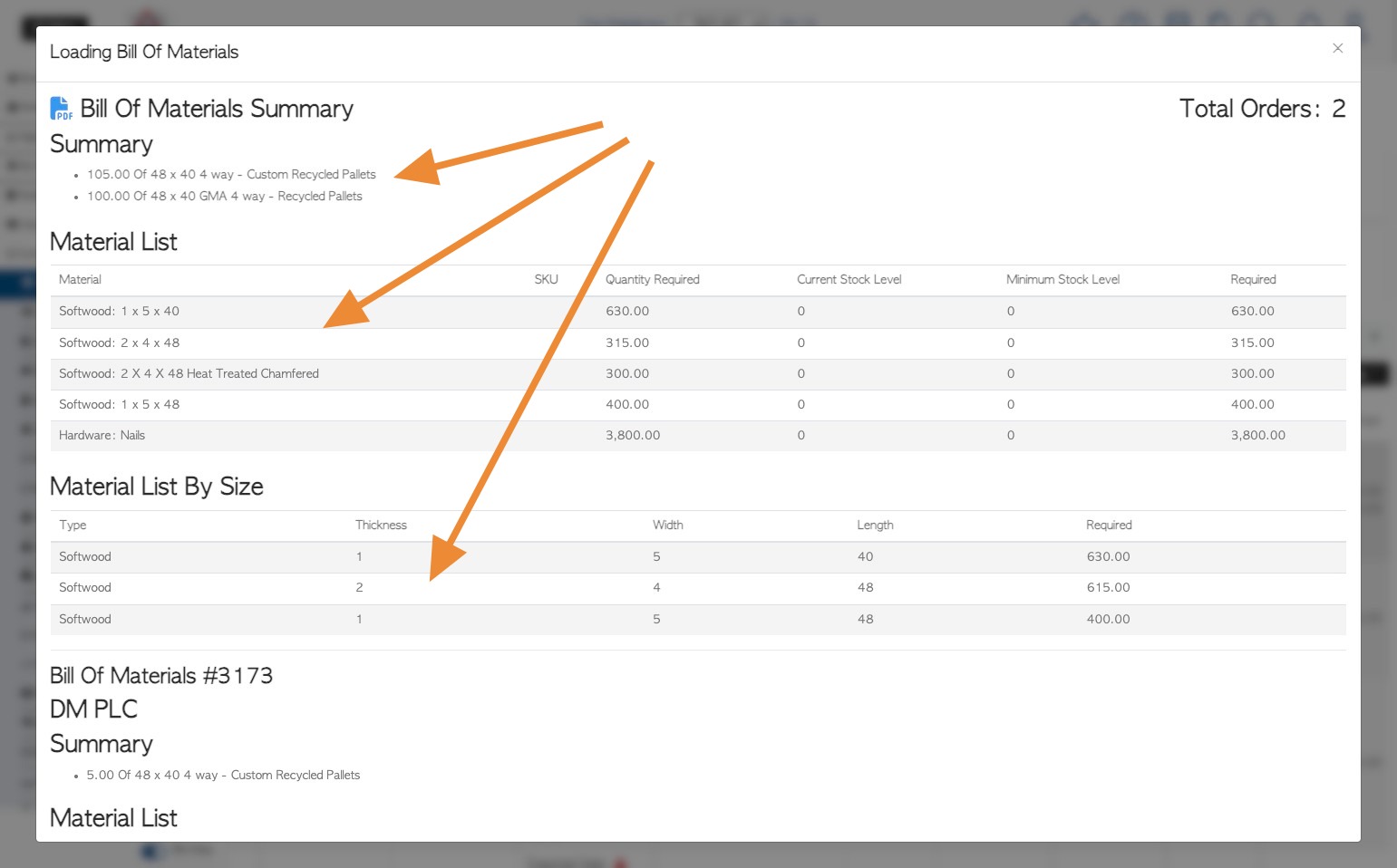
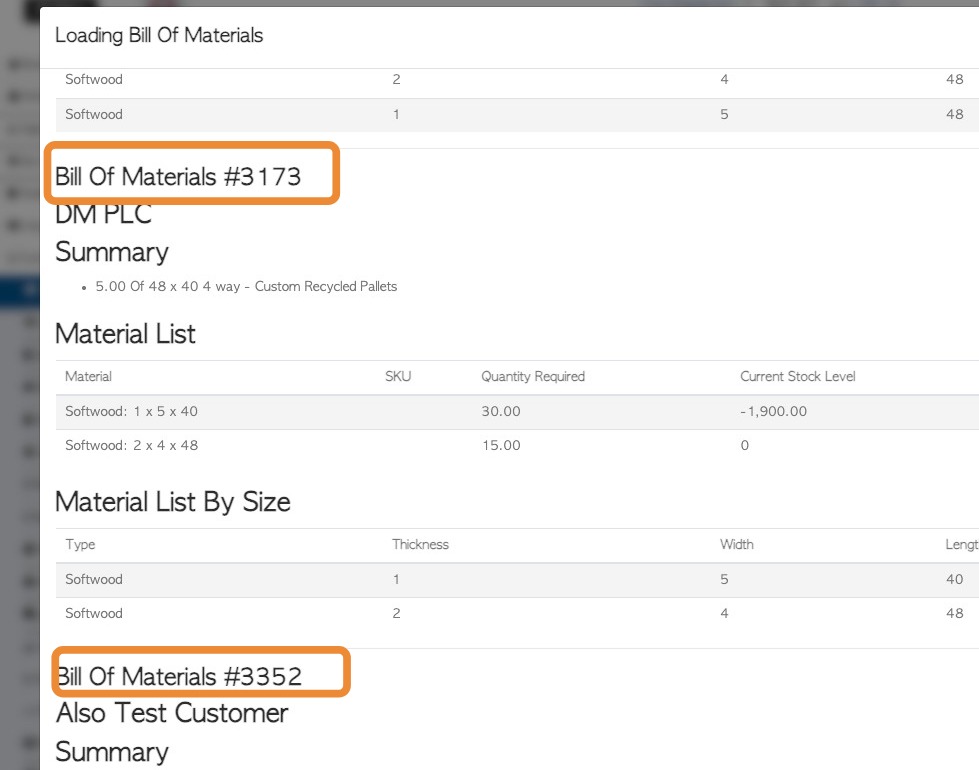
9. The transactions are also listed separately below the total summary.
10. Close the Bill of Materials window by clicking the "×" button and return to the Current Orders screen.