
Email settings are managed at a system setting level, contact level and contact person level. This article focuses on setting up the types of emails that are received by a contact person within the site.
1. Navigate to the contact profile, through the global search or from the contact list pages e.g. Manage Customers, Manage Vendors etc.
Click on the "contact people' tab
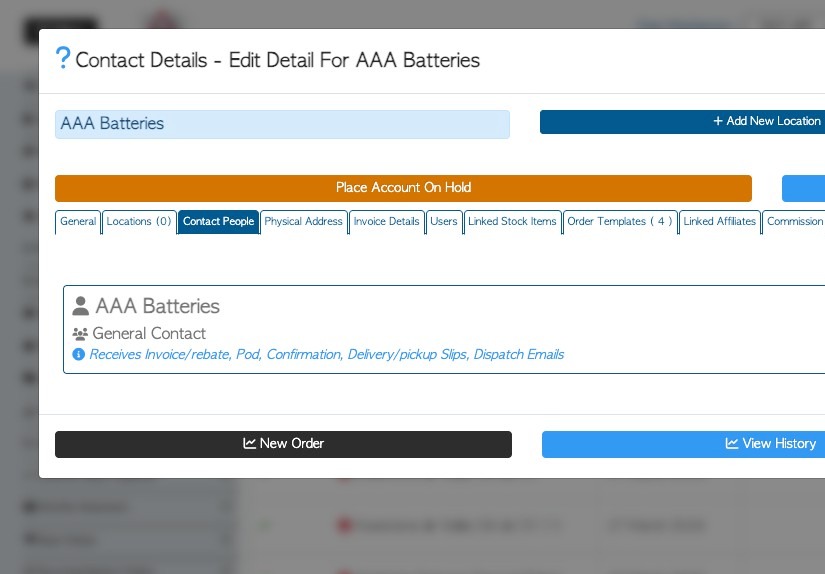
2. The contact people for this company will be listed. Click the contact edit icon.
TIP! If there are currently no contact people listed, click the 'Add New Contact' button to enter a new record. Ensure that the person's email address is included.
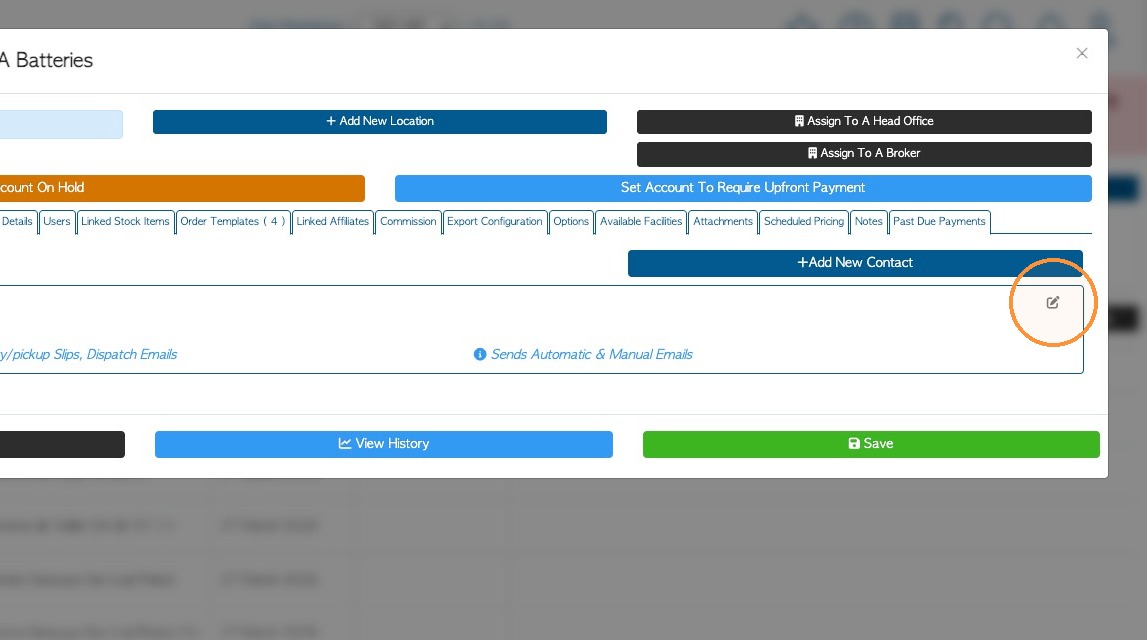
3. Click the edit icon in the person's profile to expand its details.
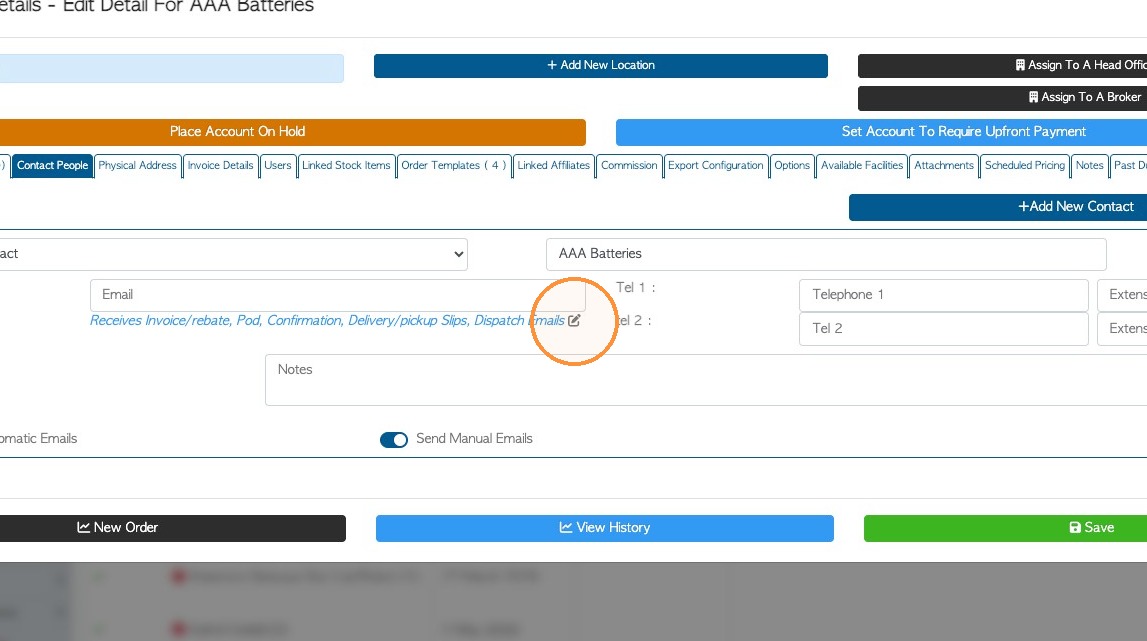
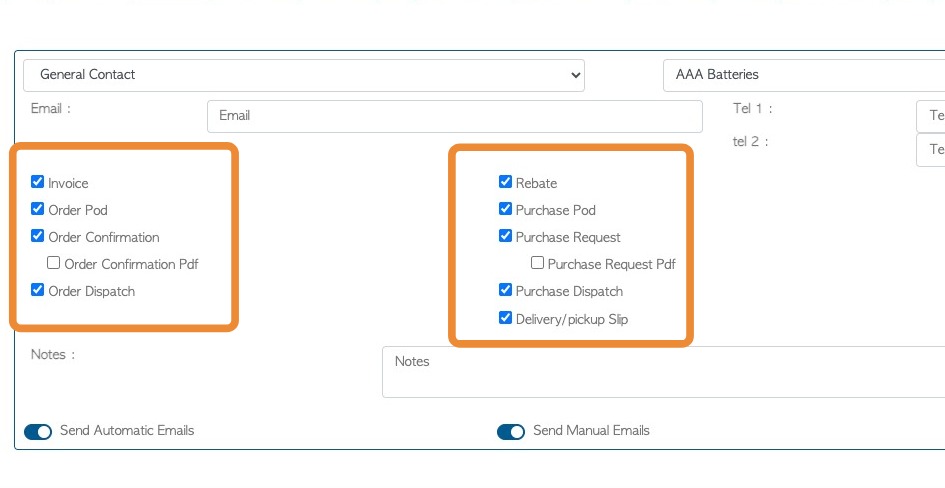
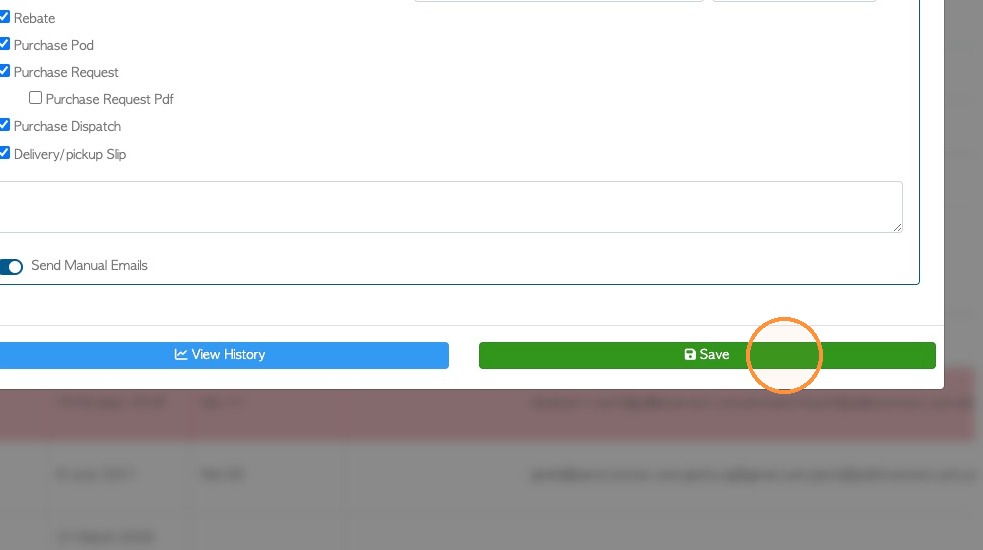
4. The various emails will be displayed. Check off the types of emails that will be sent to the contact person. The lists are divided into sales and purchase emails.
5. Click "Save" to complete any changes.
6. Various customer order emails explained:
Invoice: Sends the customer an invoice email when the invoice is generated. If approvals are enabled, the invoice email is sent after the invoice is approved.
Order POD: Sends the customer a Proof of Delivery with the Invoice email, once the Invoice has been generated.
Order Confirmation: Sends an Order Confirmation email, when an order is created. The summary does not include pricing.
Order Confirmation PDF: Sends a PDF attachment of the Order, with the Order Confirmation email.
Order Dispatch: Sends the customer an email when the order is marked as 'dispatched' and the transport is on its way.
Delivery slip: The Order Confirmation email will include a PDF copy of the customer collection or delivery slip (BOL).
7. Various supplier/vendor emails explained:
Rebate: Sends Rebate/PO emails, as soon as the Vendor Rebate is created. If approvals are enabled, the rebate email is sent after the transaction is approved. Also sends Purchase order completion to a Supplier.
Purchase POD: Sends the Vendor/Supplier a Proof of Delivery with the Rebate/PO email, once the Rebate/PO has been generated.
Purchase Request: Sends a Request email confirming the Vendor's request or Supplier Purchase Order, when they are created. The summary does not include pricing.
Purchase Request PDF: Includes the purchase request/purchase order as a PDF attachment, when the Purchase Request/Purchase Order email is sent.
Purchase Dispatch: Sends the supplier/vendor a dispatch notification when the pickup transport is dispatched.
Delivery/pick up slip: The Request email will include a PDF copy of the Vendor/Supplier collection or delivery slip (BOL).