1. The Comments are a versatile tool, as they can be customized to which screens and documents they are displayed and which users can view and edit them. The comments themselves can be fully customized. Comments can be added at a transaction, contact or stock item level. This article explain how to add a comment to a linked Stock Item.
Adding a comment to a linked stock item in Pallet Connect helps maintain clear communication and accurate tracking of inventory-related updates. This feature allows users to document important notes, clarifications, or actions directly within the stock record for better collaboration. By keeping comments attached to the relevant item, teams can easily review context and ensure transparency across operations.
TIP! Comments follow rules of the associated Comment Type. See related article on How to Set Up Comment Types.
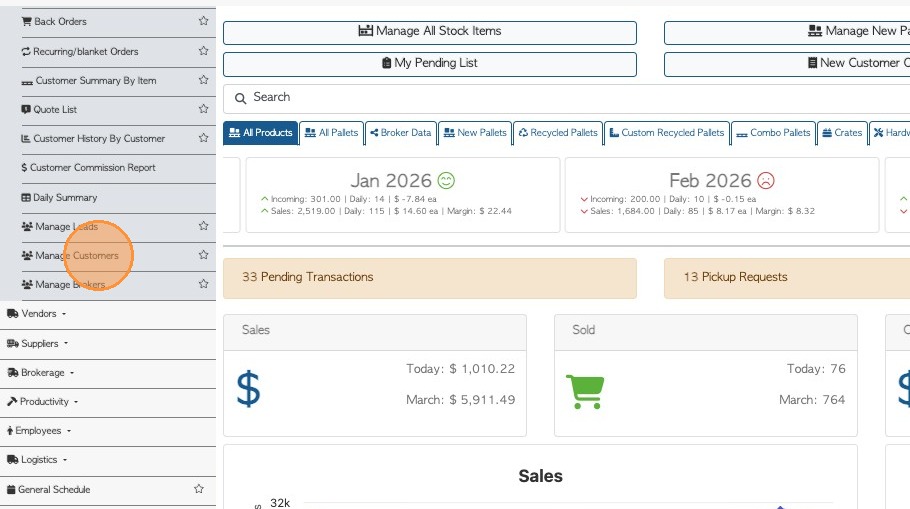
2. Look up the Customer name using the global search or by clicking on the company from the Manage Customers page.
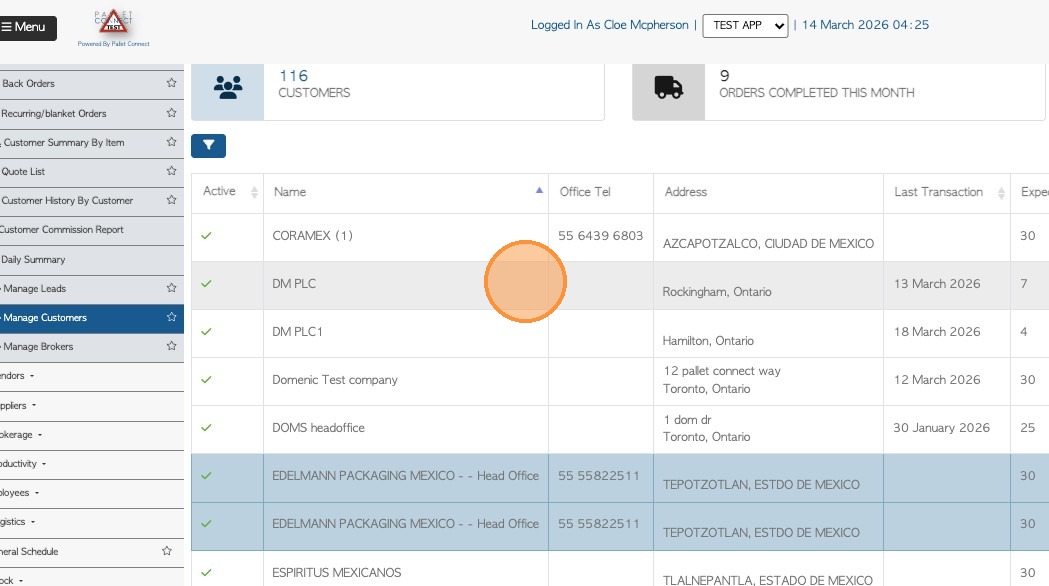
3. Select "Edit Contact".
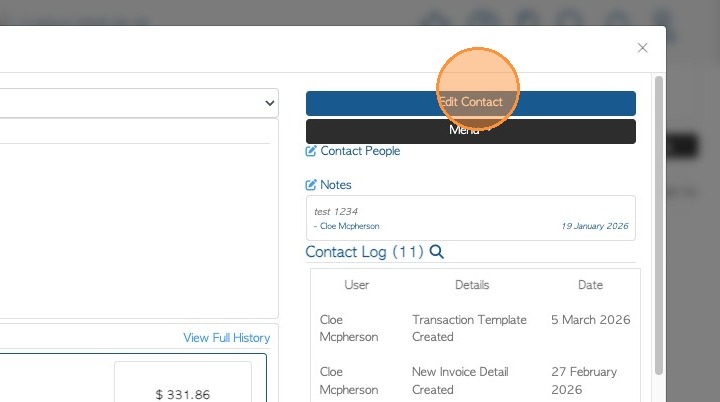
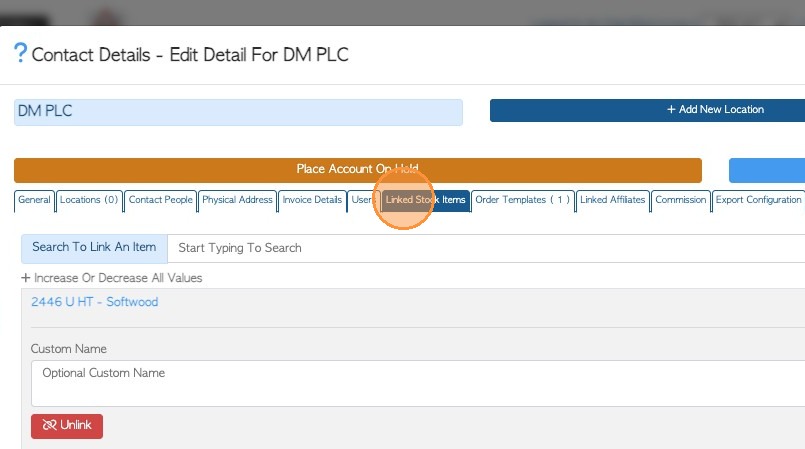
4. Click the "Linked Stock Items" tab. This will show all the linked stock items currently attached to the profile. Find the stock where the comment needs to be added or edited.
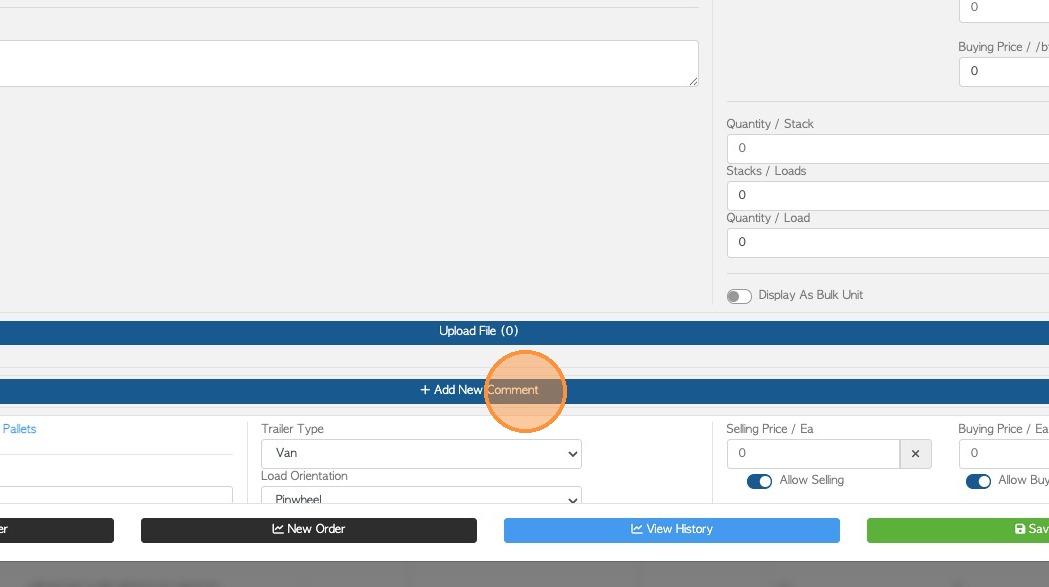
5. Click "Add New Comment". Select the Comment Type first.
Kindly follow this article for the full guidelines to set the comment types.
Add and Edit Comment Types and Preset Comments in the Settings
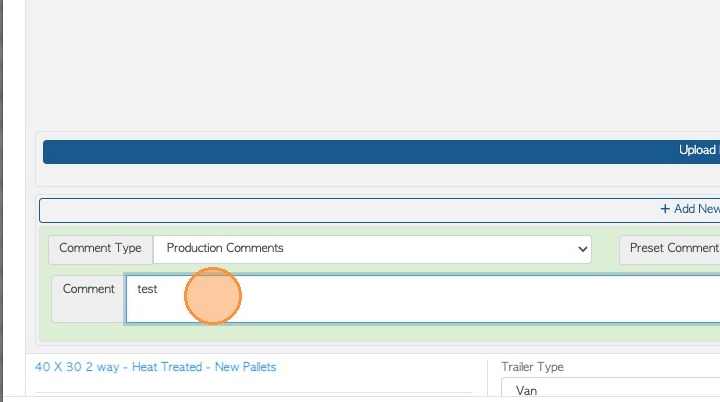
6.Type the Comment or select from the Preset Comments in the dropdown.
TIP! Preset Comments are created in Settings also, see previous linked article.
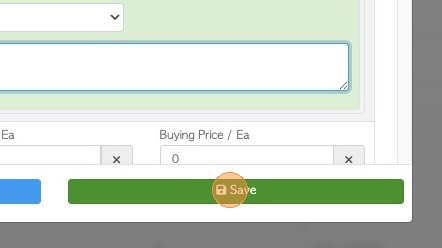
7. Click "Save" to complete.