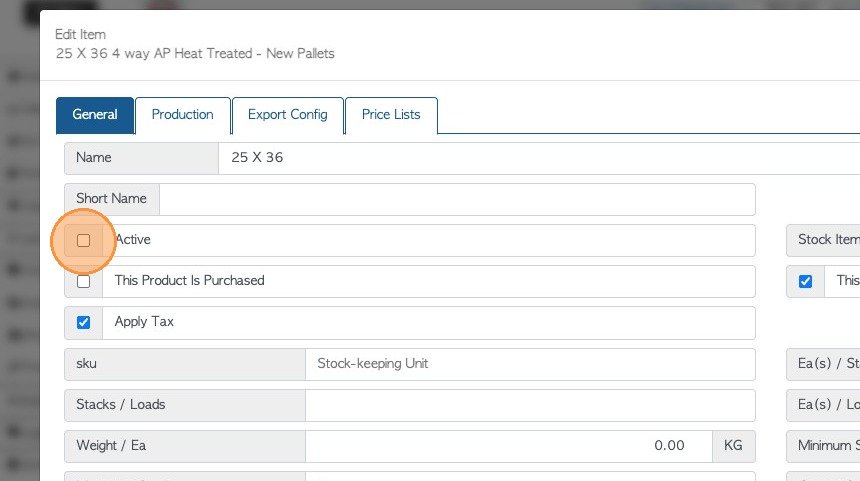
1. Please note that the system does not allow the deletion of stock items. Instead, items can be deactivated and reactivated to maintain accurate inventory records while preserving important historical data. Stock items may be deactivated when they are no longer available or temporarily unused, preventing them from appearing in current transactions. Reactivating an item restores its availability for use when needed.
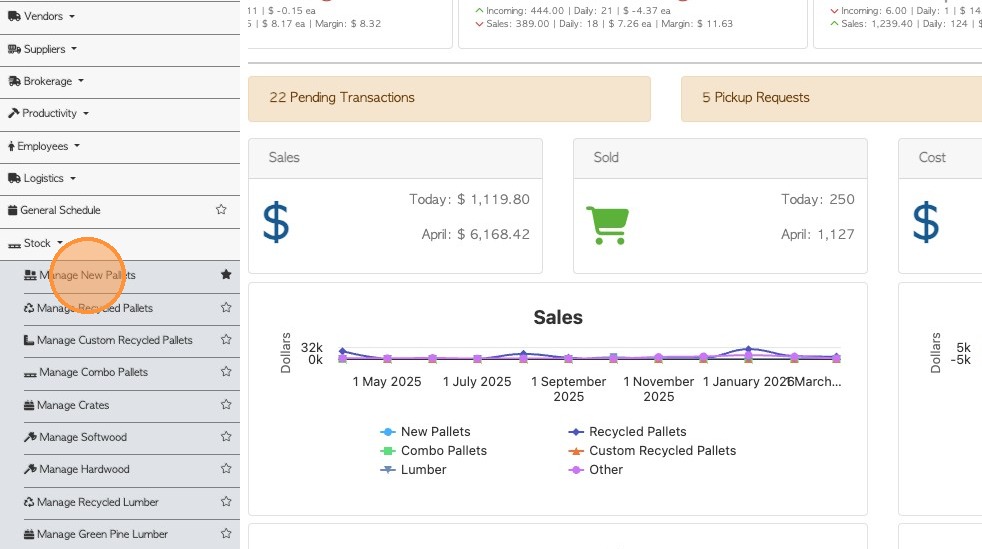
2. To start, go to Stock section of the Main Menu. Then to 'Manage New Pallets' or any stock item category that is listed. For this example, the article will focus on deactivating a New Pallet.
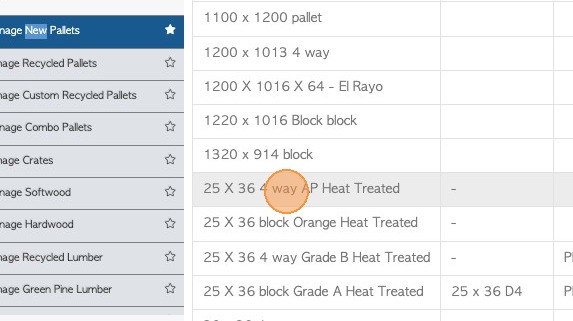
3. Click the selected item from the list. There is the option to manually search for the item name in the search field on the upper right side of the table also.
Tip! Directly search the item name using the Global Search tool and access the stock profile from there.
4. In the General tab, look for the "Active" checkbox. To deactivate the item, de-select the check box.
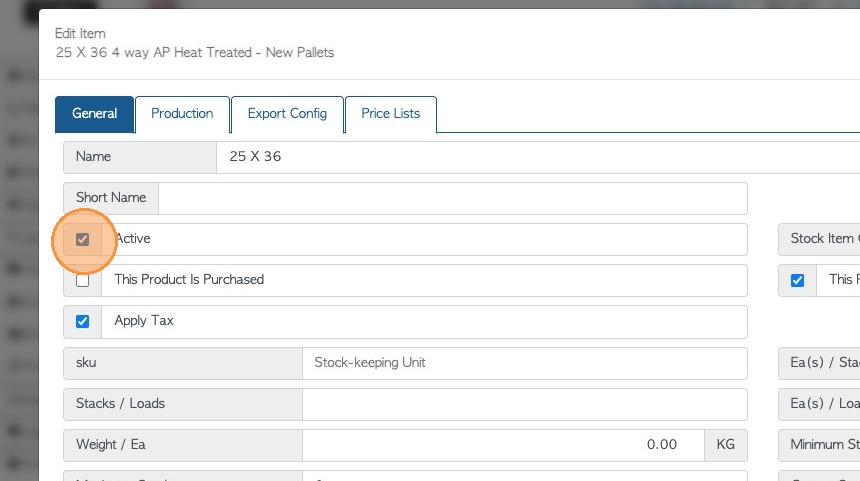
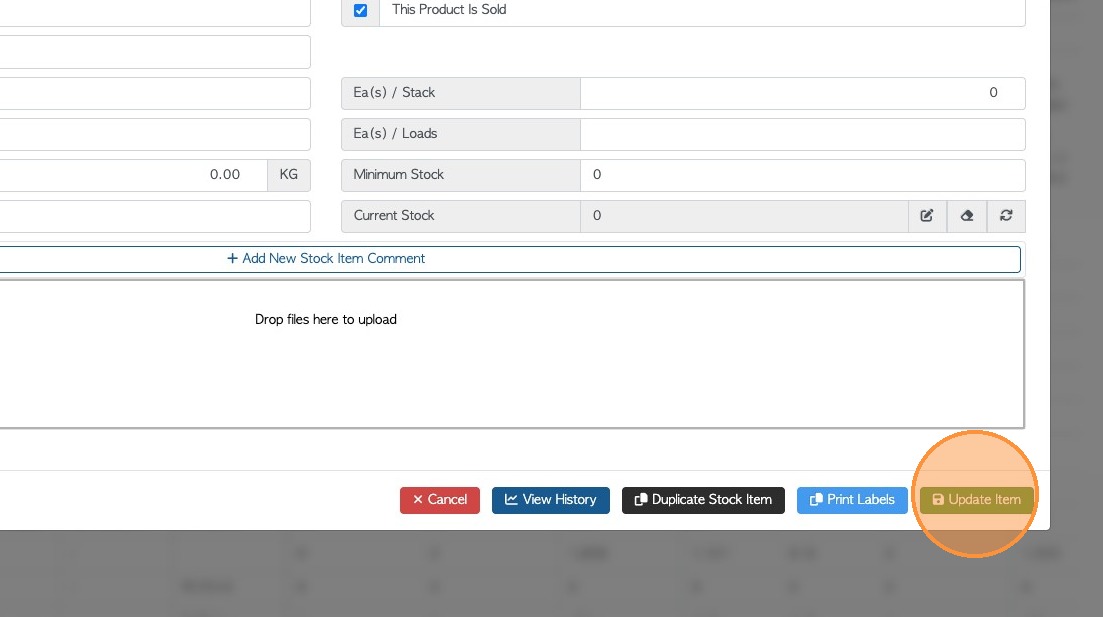
5. Click "Update Item" and close the window by clicking "X".
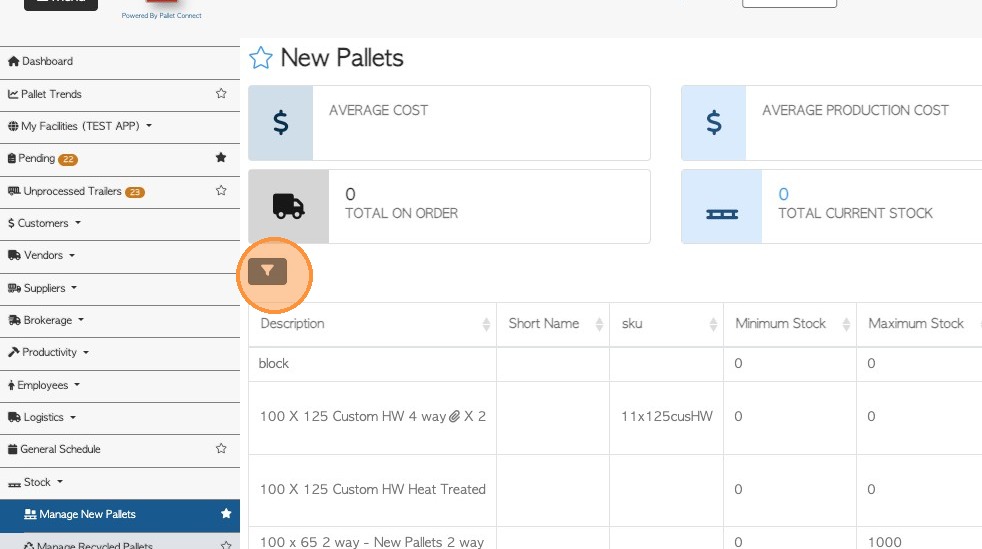
6. To view the deactivated items from the stock item list, use the funnel icon at the top of the list, to filter the report.
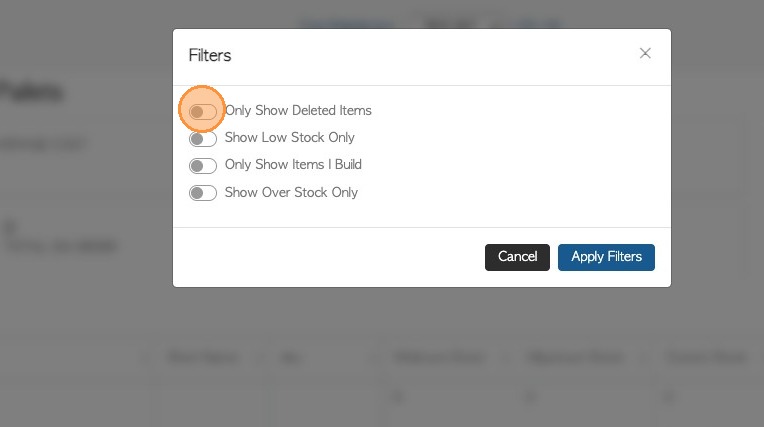
7. Toggle on "Only Show Deleted Items" and click Apply Filters to save.
NOTE: The deactivated item will also show in the Global search, however the text will be crossed through, to indicate deletion.
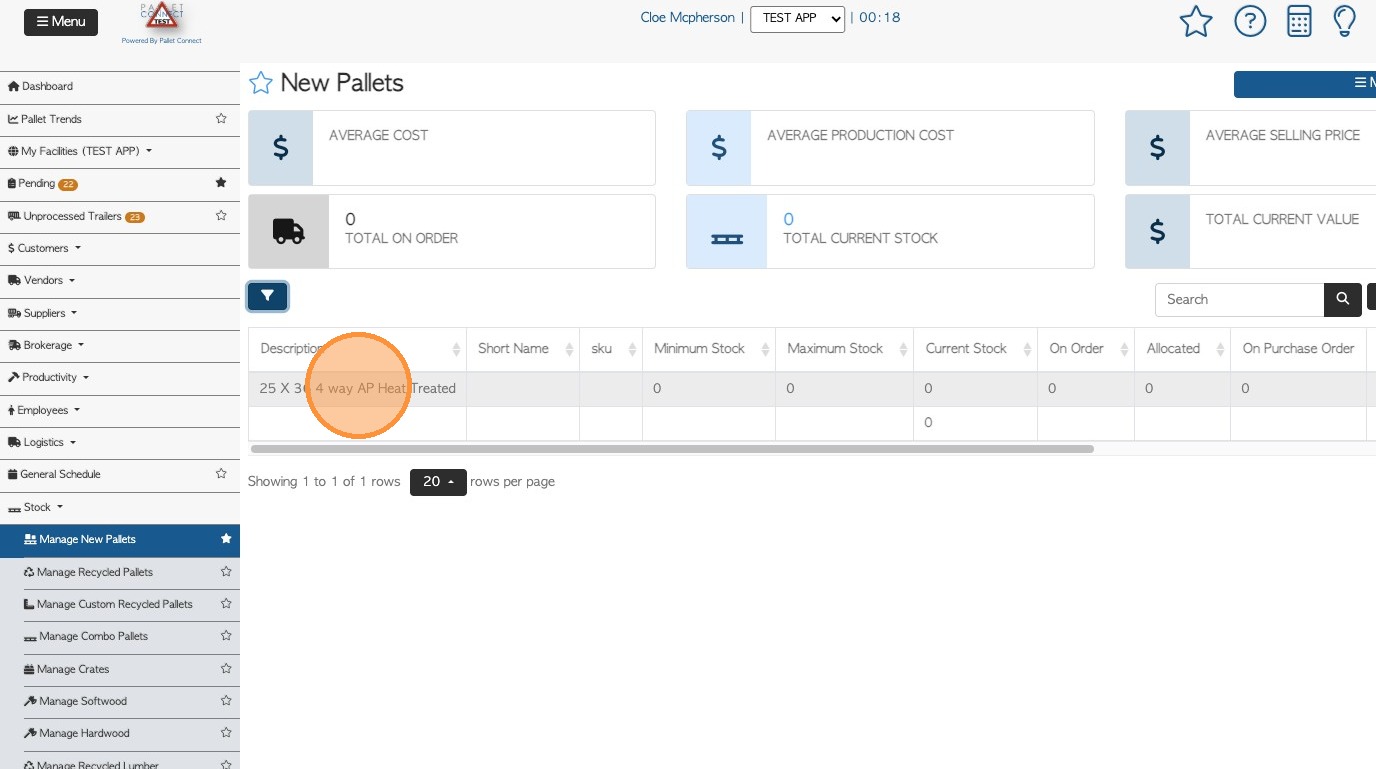
8. To reactivate the item, select the stock item from the list to open the profile.
9. In the General tab, click the "Active" field, then select "Update Item" to save the changes.
The item will be active again and ready to use in transactions.