This guide explains how to configure settings within the system, related to features.
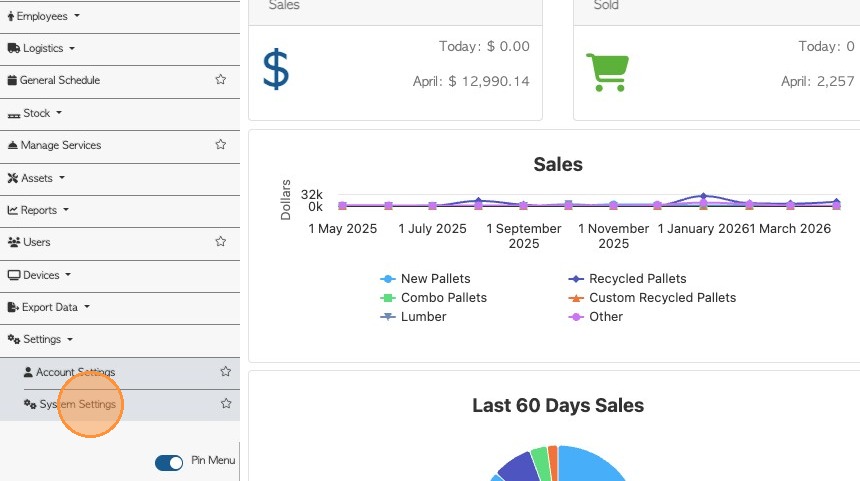
1. Select "Settings" then "System Settings" in the main menu.
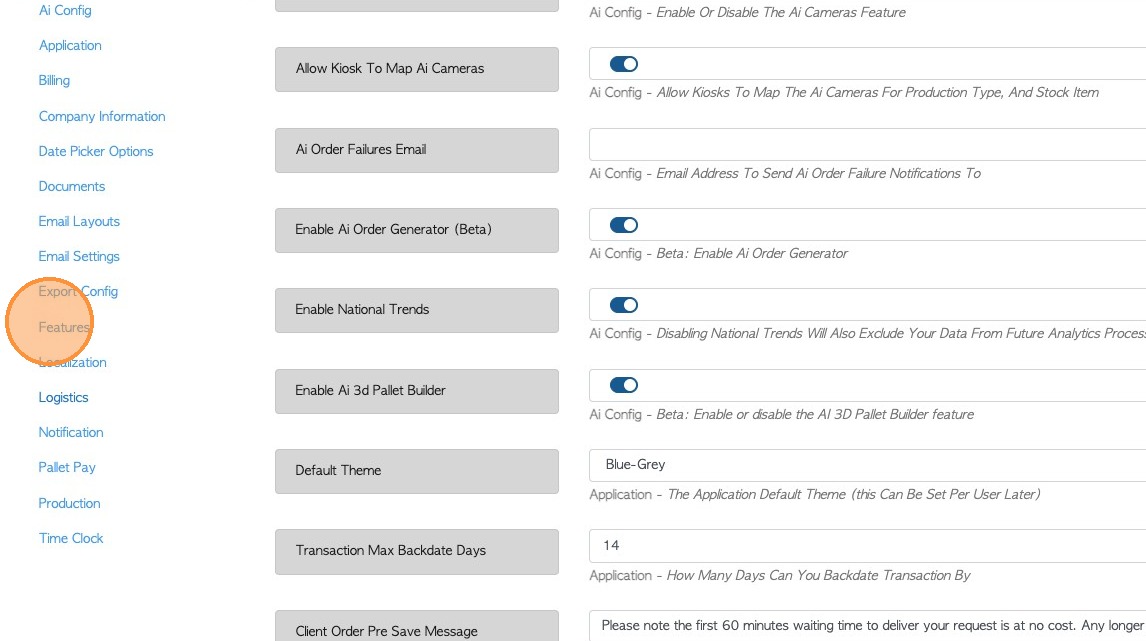
2. Select "Features" from the settings list
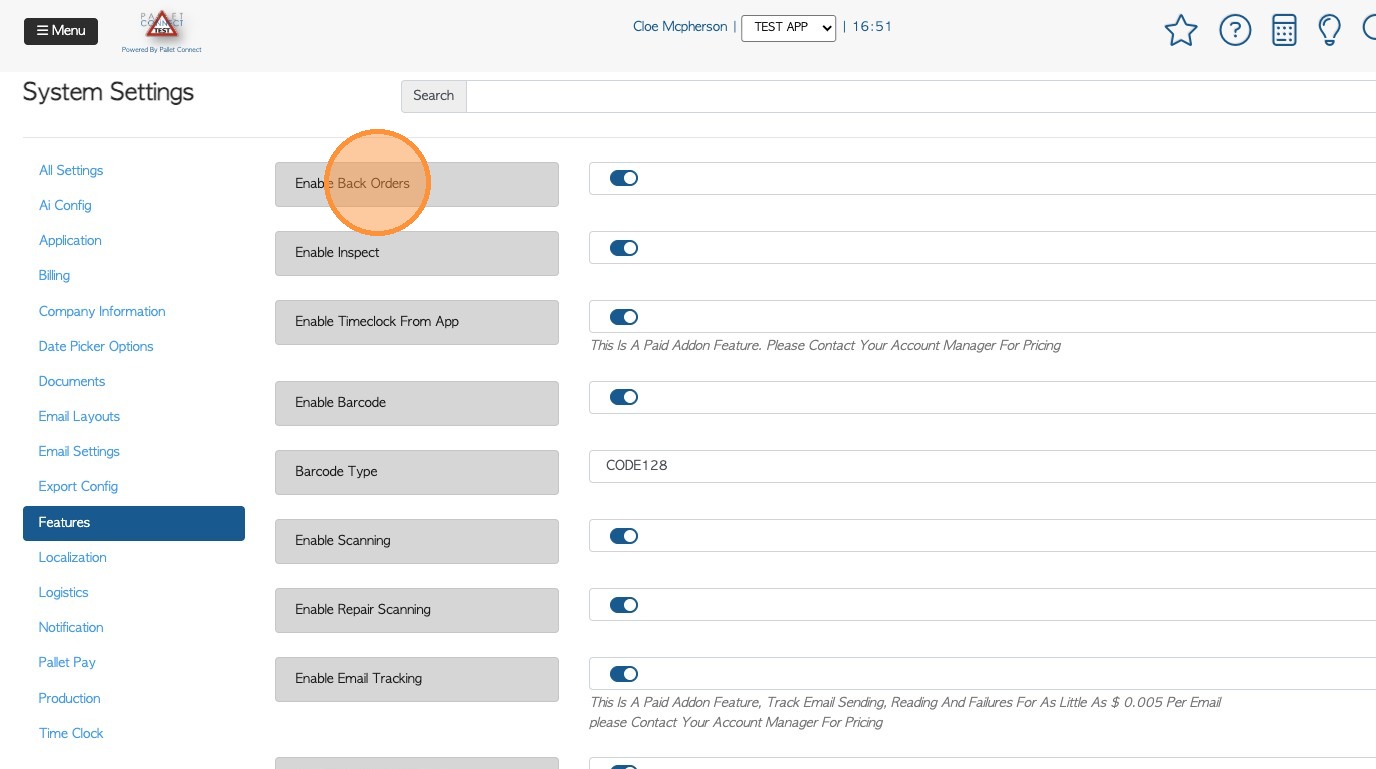
3. The following settings are available:
Enable Back Orders – If a order is only partially fulfilled, then Back Orders allow for the remaining items to be added to a separate order, to be sold when ready.
Enable Inspect – Enables "Inspection" processes for items or orders. This is an extra step in the Production module.
Enable Time-clock From App – Lets employees clock in/out from the app (Time-clock is a paid add-on; contact your account manager for pricing).
Enable Barcode – Activates barcode functionality in the system.
Barcode Type – Specifies the type or format of barcode to use within the system.
Enable Scanning – Allows scanning of barcodes for operations.
Enable Repair Scanning – Enables scanning specifically for repair-related tasks.
Enable Email Tracking – Tracks emails sent from the system and displays status such as sent, delivered, opened, and failure to send (This is a paid add-on; contact your account manager for pricing).
Enable Pallet Connect Pod – Activates integration with Pallet Connect Pod features/devices.
Enable Brokerage – Enables the Brokerage module. When enabled it will show in the Main Menu and allows for broker related transactions or workflows, such as Affiliate linked Ordering.
Enable Build – Allows build or assembly processes to be captured and scheduled. When enabled this will show in the Production Module.
Enable Chamfer – Enables chamfer (edge cutting) operations to be captured. When enabled this will show in the Production Module.
Enable Crates – Allows management or tracking of crates. When enabled this will show in the Stock Module.
Enable Cut – Enables cutting processes to be captured and scheduled. When enabled this will show in the Production Module.
Enable Heat Treat – Enables heat treatment operations to be captured and scheduled. When enabled this will show in the Production Module.
Enable Notch – Enables notching processes to be captured. When enabled this will show in the Production Module.
Enable Paint – Enables painting operations to be captured. When enabled this will show in the Production Module.
Enable Plate – Enables plating processes to be captured. When enabled this will show in the Production Module.
Enable Repair – Enables repair-related workflows to be captured. When enabled this will show in the Production Module.
Enable Misc – Enables miscellaneous operations to be captured. This can be used when the process does not fit into the other production categories. When enabled this will show in the Production Module.
Calculate Hourly From Piece Work – If an Employee is paid piece rate only. The system will calculate this into the Payroll Assistant.
The system will take the quantity of pieces produced, multiply it by the piece rate and then equally divide the cost per hour, over the Employee's shift time.
Allow Edit Prices On New Vendors – Allows editing of prices when adding new vendors.
Enable End User New Pickups – Lets End Users create new pickup requests within their portal log-in.
Commission Is Profit Based – Calculates commission based on profit only instead of revenue.
Vendor Hide New Pickup Button – When enabled it hides the “New Pickup” option for Vendors, when logged into the portal.
Use GMA Label – Uses standard GMA labels for pallets.
Employee Code On Badge – Displays employee codes on badges if enabled. Employee code is an optional field that can be inputted in Employee profile. An ID badge can be created from the profile.
Use Production Time Tracking – Tracks time spent on production tasks.
Automatically Add Linked Stock Items – Automatically links stock items to contact profiles. When enabled the system will automatically link stock items to a profile if it has been added to a transaction.
Disable Commission – Turns off all commission calculations for the entire site.
Allow Customer Note Delete – Allows deletion/editing of the notes section, in customer profiles.
Calculate Hourly Overtime Multiplier – Sets a factor to calculate overtime pay based on hourly rate. If an employee goes over their regular hours, then overtime pay is calculated based on this input e.g. 1.5
Place Order From Portal On Hold – Automatically puts portal orders on hold before processing, this allows for review before becoming an open order.
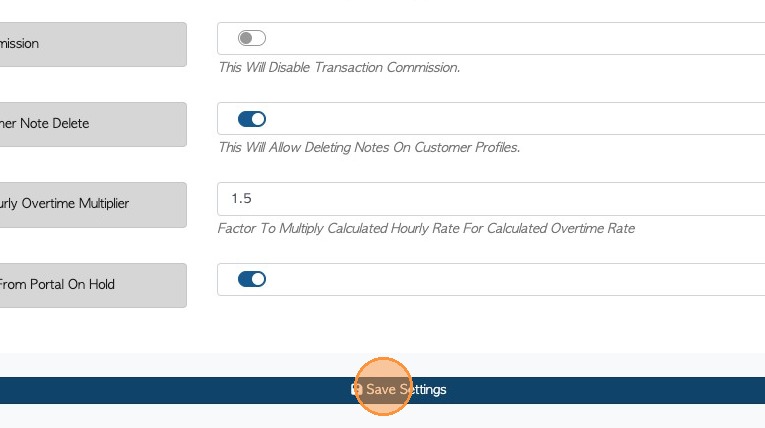
4. Click "Save Settings" to apply any changes.