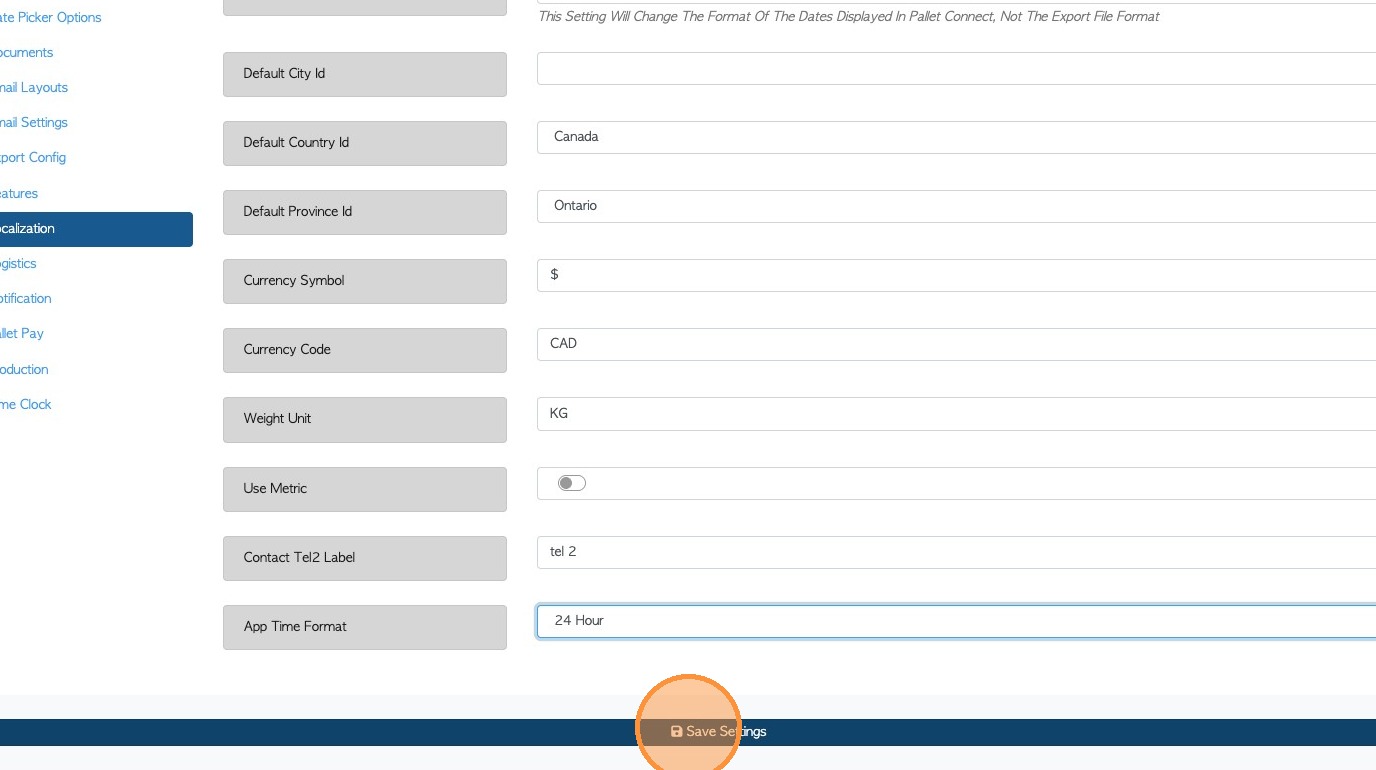
Learn how to access and modify the localization settings. This guide walks through navigating the settings menu to update system preferences and save configurations.
1. Localizations settings are defaulted dependent on the Company Address. This article explains how to review and edit the settings.
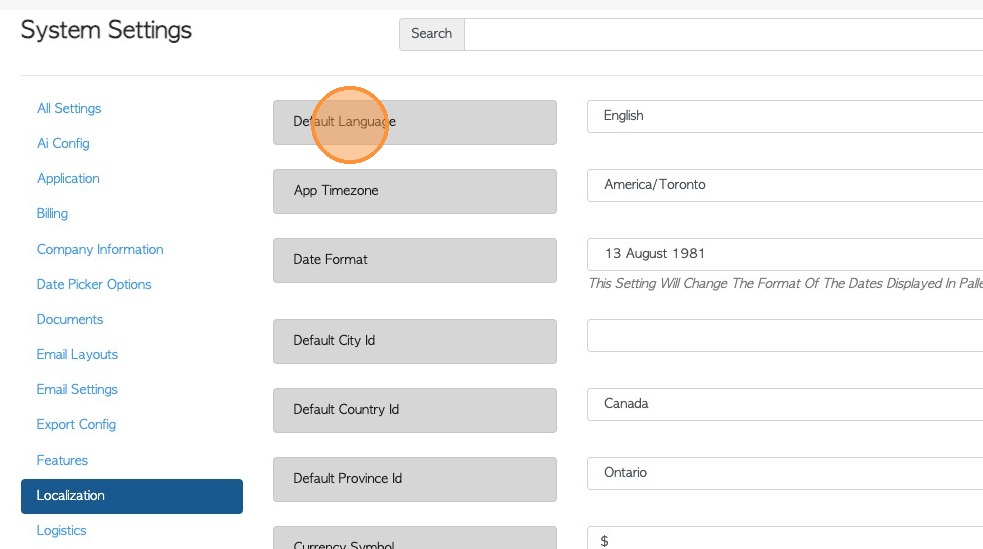
From the Main Menu, go to Settings, then System Settings. Select "Localization" from the left panel.
Default Language is set to English. Click to see a dropdown list of all the languages available. The current available languages are Afrikaans, English, French and Spanish.
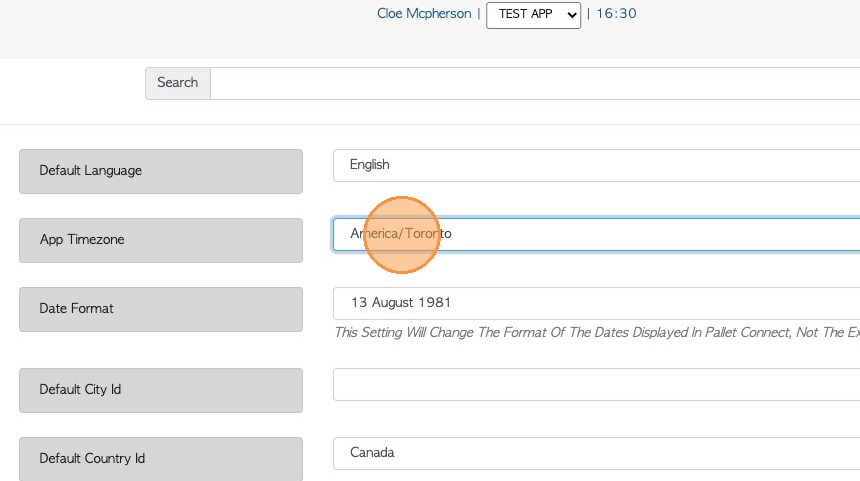
2. Select the App's Timezone from the dropdown list. Default depends on the company address.
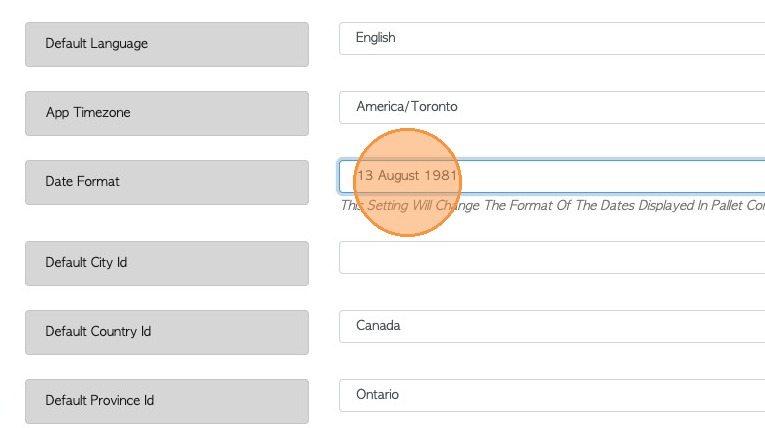
3. Click on Date Format. Use the dropdown menu to choose one of the formats.
4. Select the Default City ID and Country ID from dropdown.
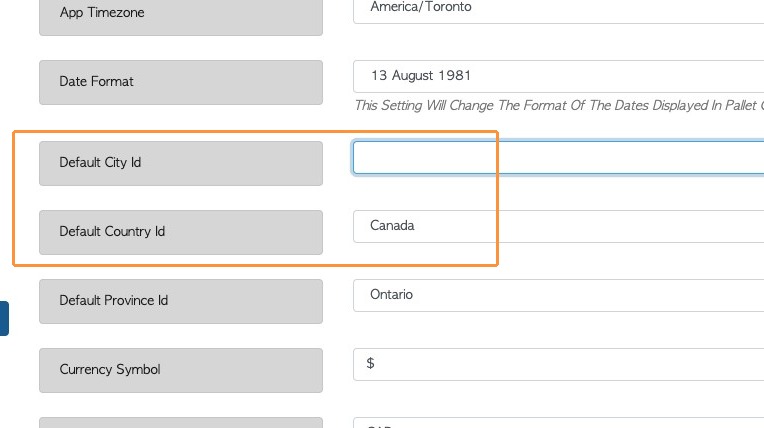
5. Choose the Default Province/State ID.
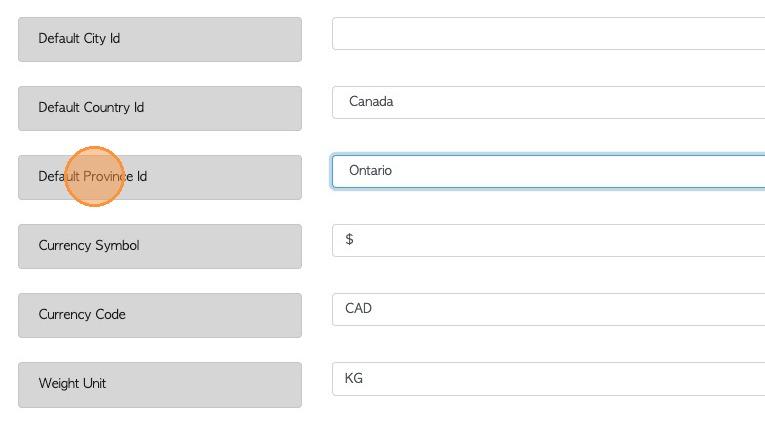
6. Enter Currency Symbol.
Example: "$"
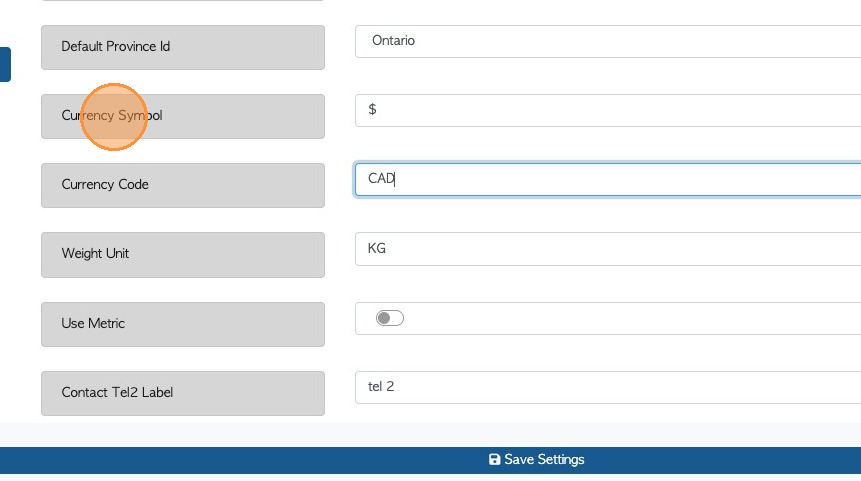
7. Enter Currency Code.
Example: "USD" or "CAD"
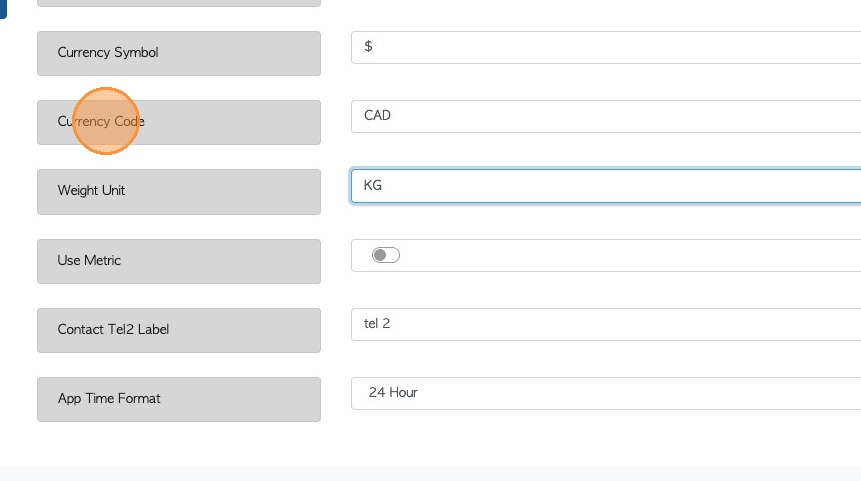
8. Enter Weight Unit.
Example: "KG" or "LB".
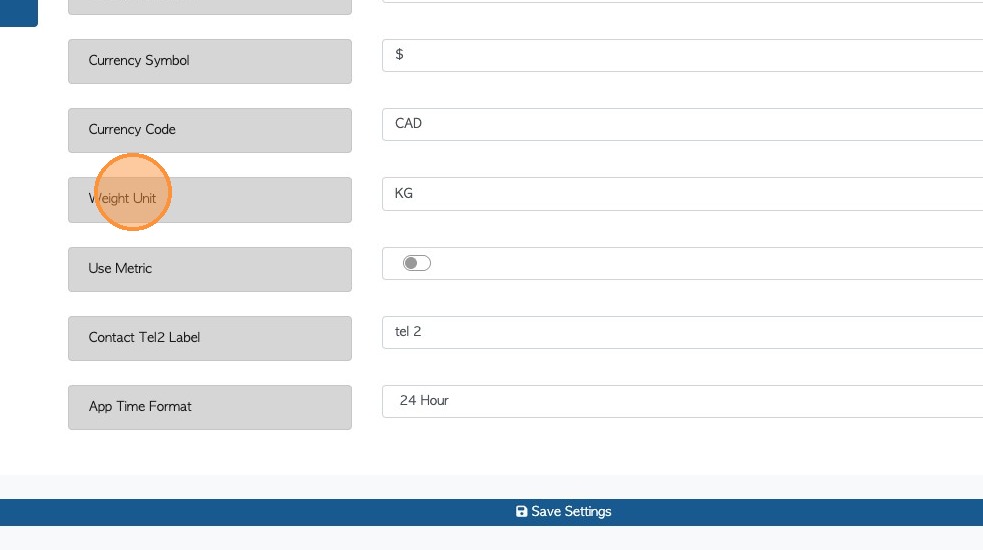
9. Update the Contact Tel2 Label.
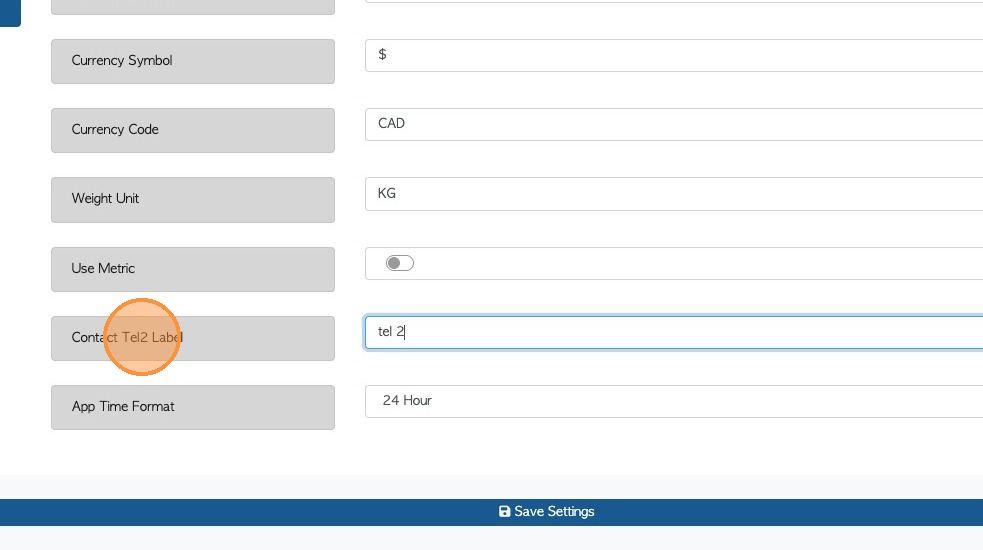
10. Select App Time Format. Choose between 24 Hour and 12 Hour format.
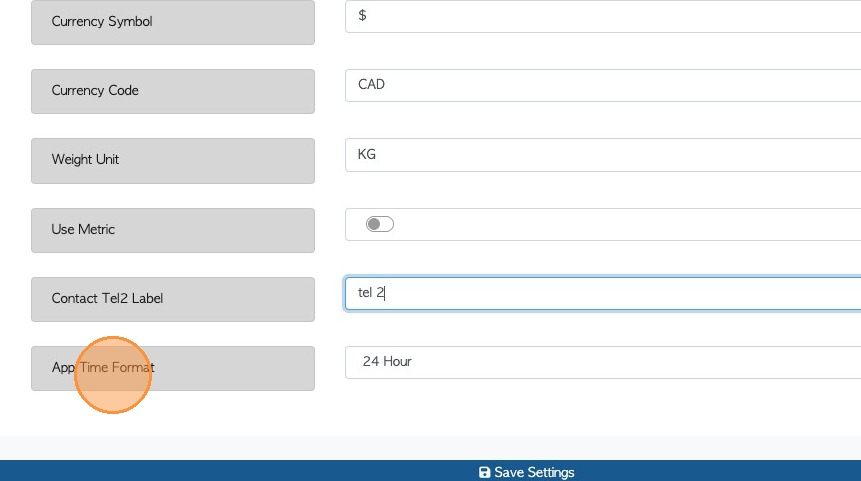
11. Once completed, click "Save Settings". Changes can be made anytime for users who have access to the System Settings.