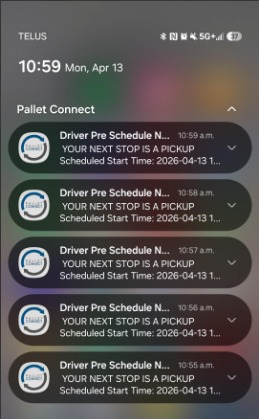
1. Pallet Connect can provide Notifications to a device, related to Driver schedule changes. Notifications are sent to both the relevant Driver and the General Managers in the system.
This article explains the feature and how to navigate the Settings for Notifications.
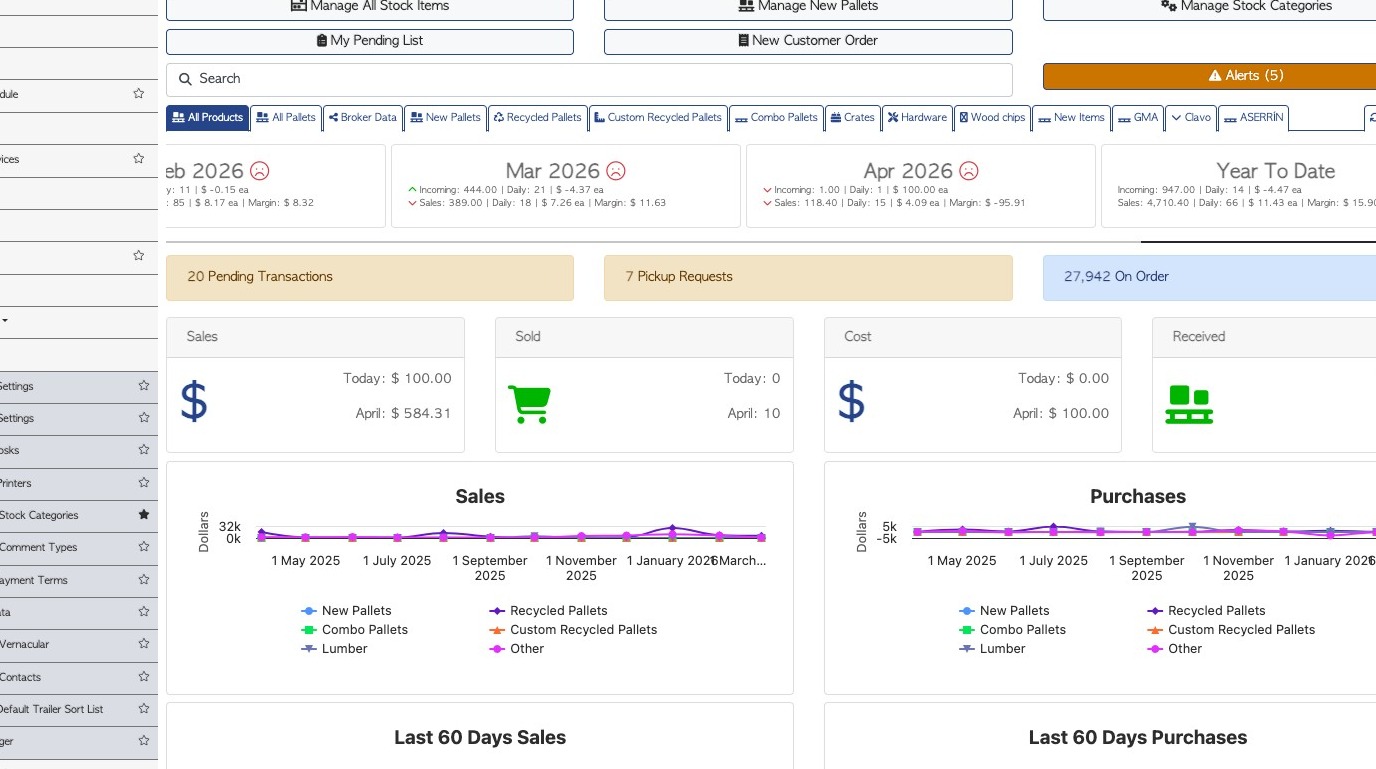
2. From the Main Menu, click "Settings"
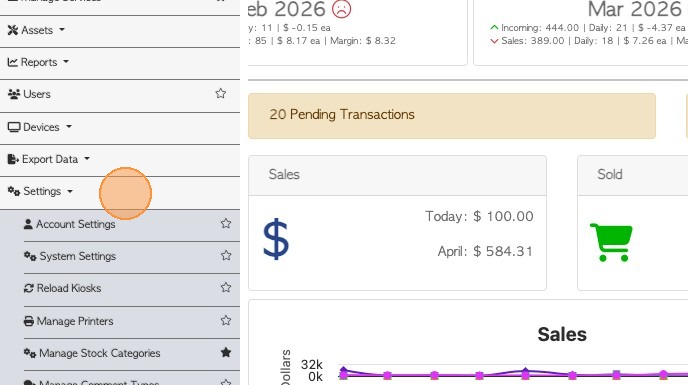
3. Click "System Settings"
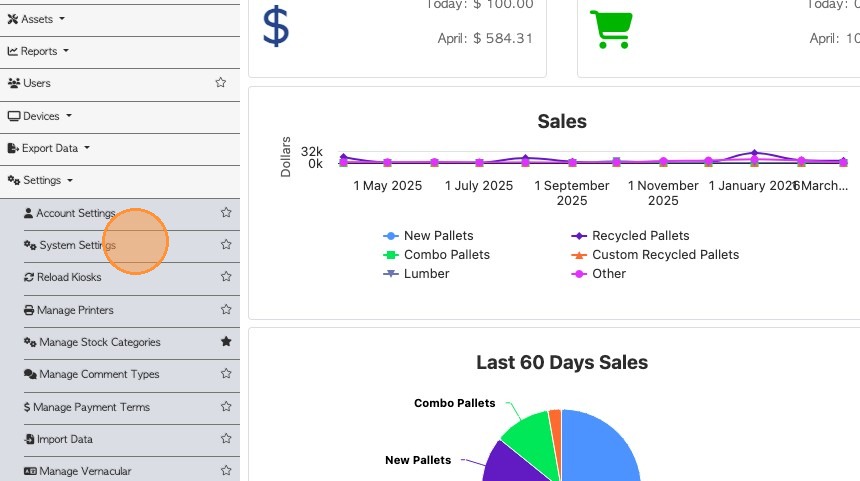
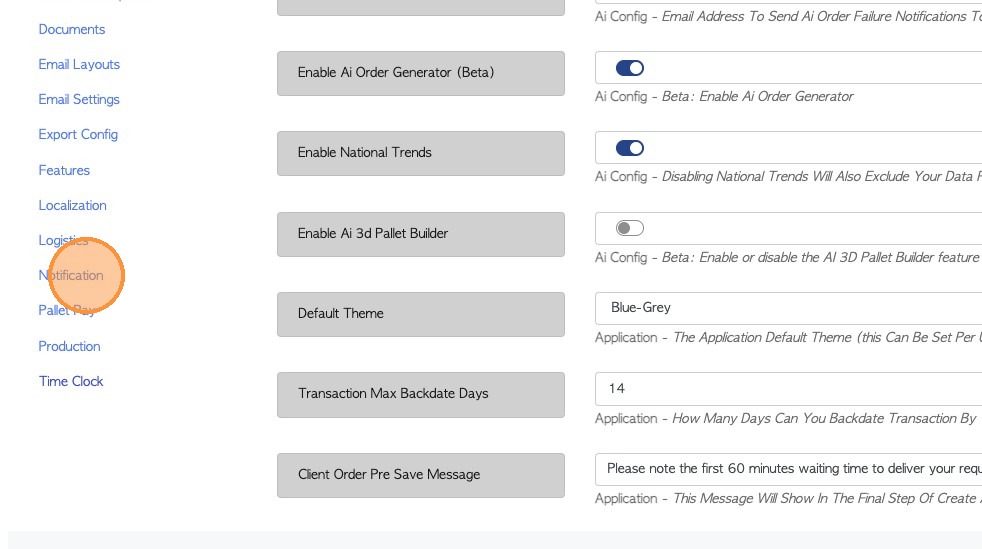
4. Click "Notification"
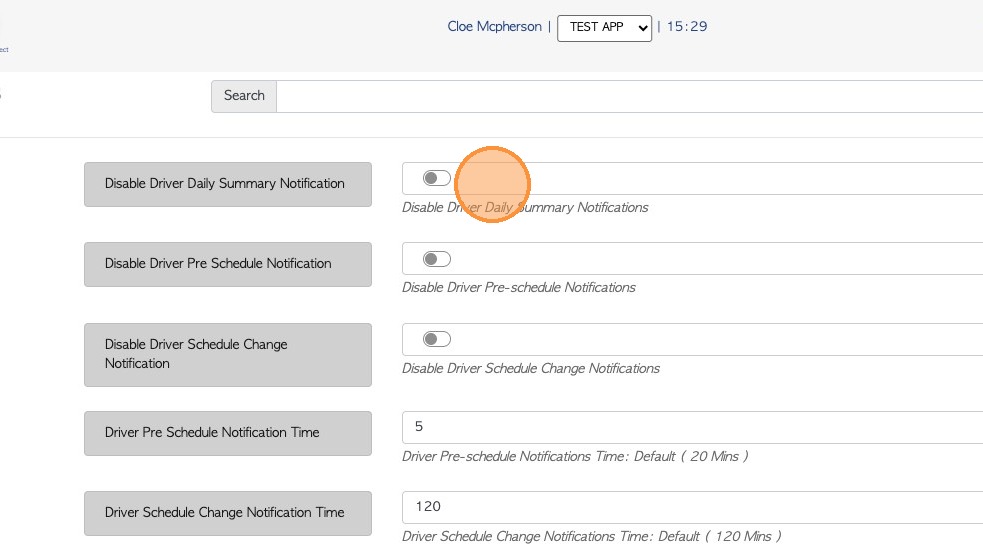
5. Notifications are enabled by default but can be disabled in this section of the settings menu.
#1 Driver Daily Summary: If enabled it will provide a summary of tasks e.g. deliveries and pick ups, at the end of the day, that are due for the next day.
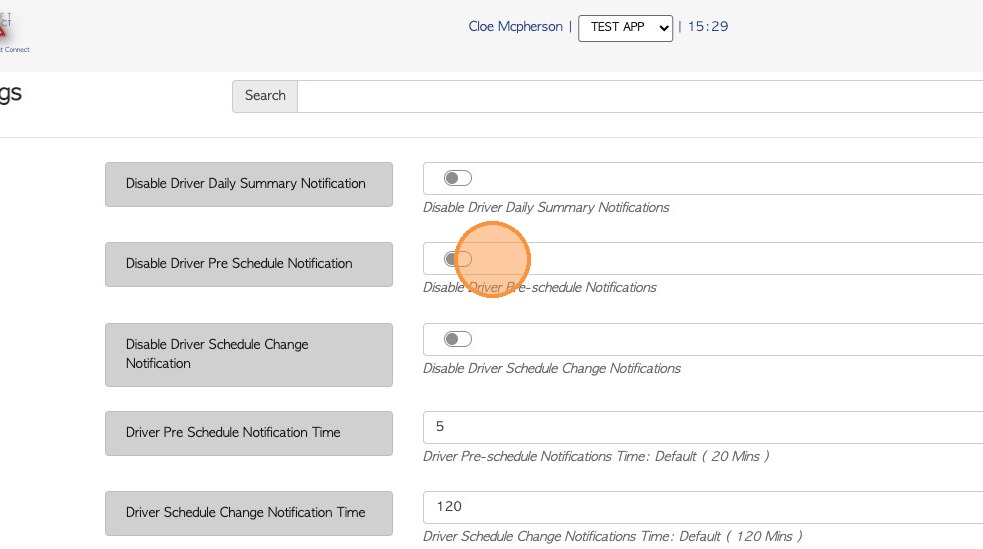
6. #2 Driver Pre Schedule: If enabled this will trigger a notification when a task is added to the driver schedule.
This will trigger based on the time set for 'Driver Pre Schedule Notification Time'. See #5 for more details.
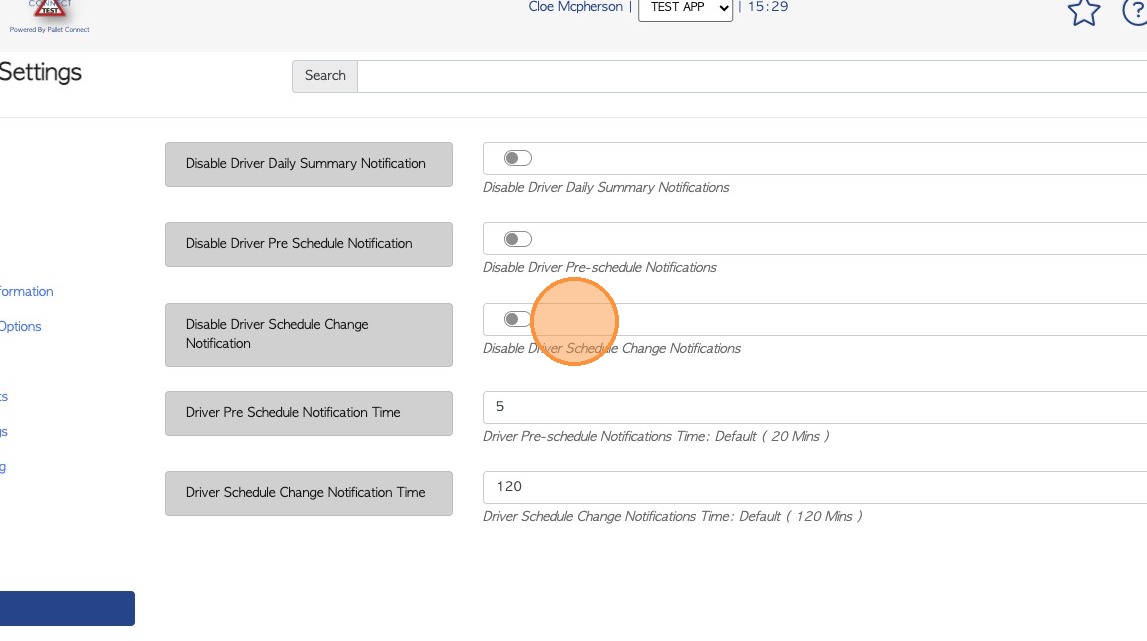
7. #3 Driver Schedule Change: If enabled this will trigger a notification when a scheduled task has been changed and now has a new time.
This will trigger based on the time set for 'Driver Schedule Change Notification Time'. See #6 for more details.
8. #5 Pre Schedule Notification Time: The time can be set in minutes and is defaulted to 20 minutes if not changed. This relates to the time frame a notification is sent out, when a new task is scheduled to a driver.
For example, if the setting is 20 mins, when a delivery is changed, the notification will be sent 20 mins before scheduled time.
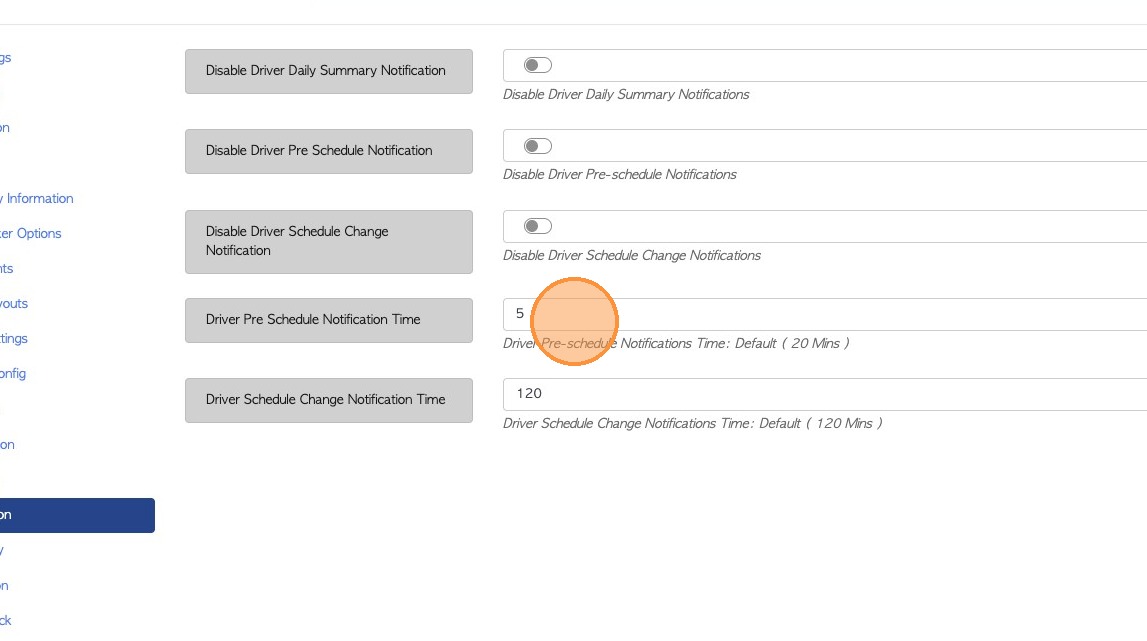
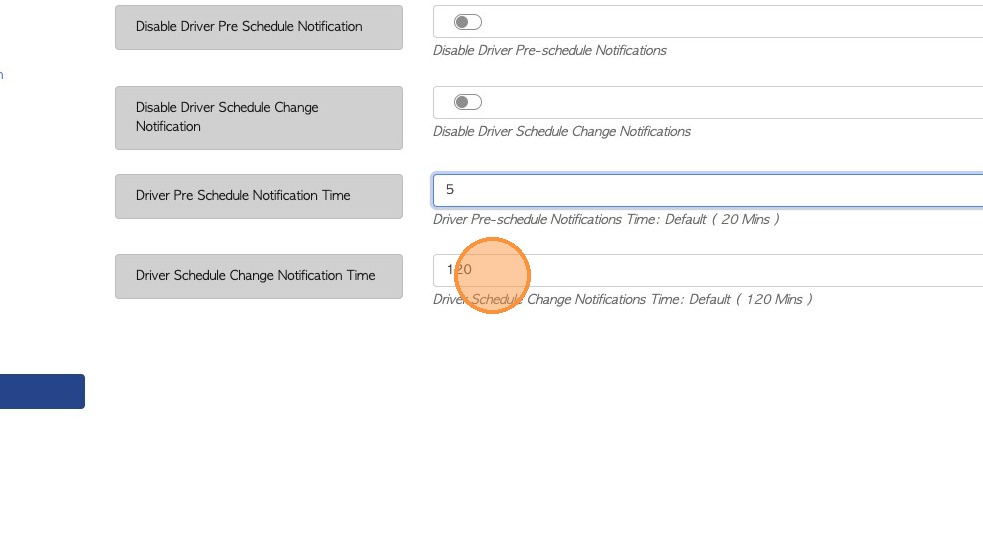
9. #6 Driver Schedule Change Notification Time: The time can be set in minutes and is defaulted to 120 minutes if not changed. This relates to the time frame for schedule changes.
For example, if the setting is 120 mins, when a delivery is changed 120 mins before scheduled time, it will trigger a notification.
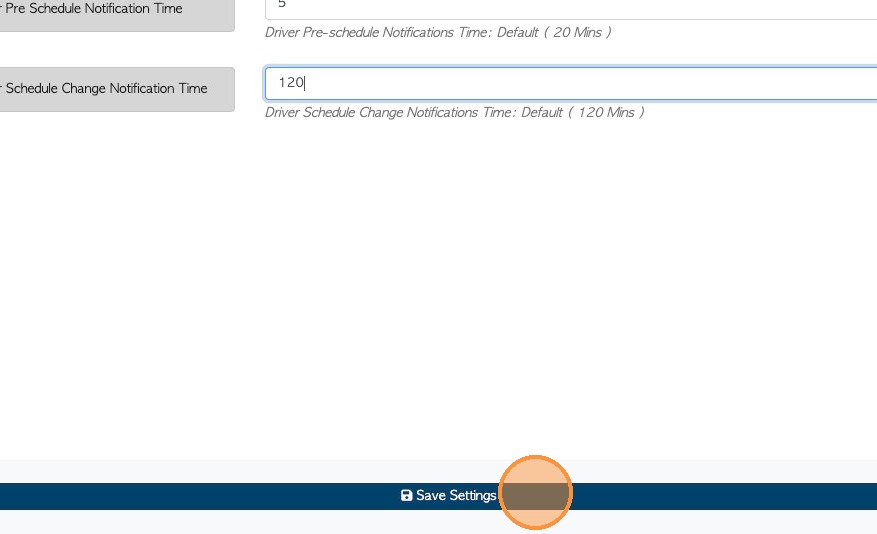
10. Click "Save Settings" to complete any changes.
11. When Notifications are enabled they will appear on a device, as per the set up in Settings.