There are times when an employee works past midnight during a shift. The Pallet Connect time-clock will recognize that the employee was clocked in on a previous day than they clocked out. This article explains how the time-clock will then record this.
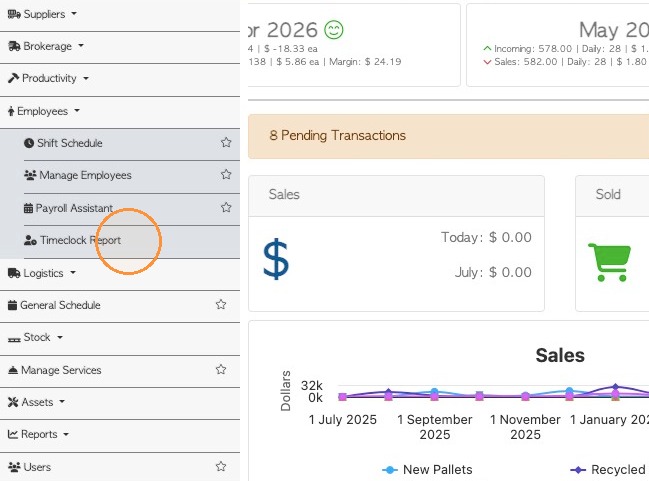
1. To reach the Time-Clock report. From the main menu, navigate to the Employee section and click "Time-clock Report"
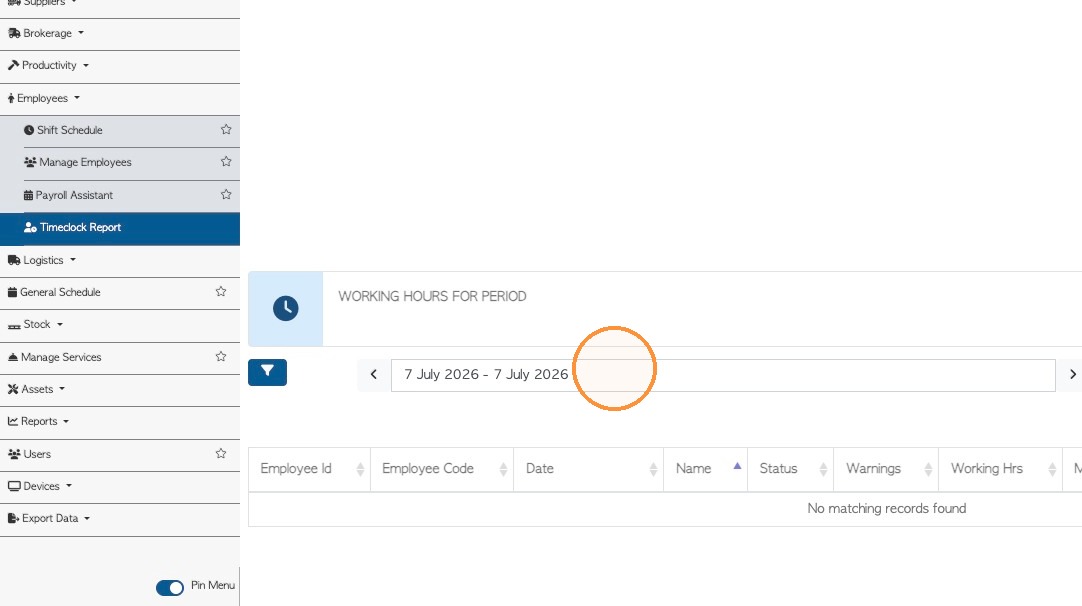
2. Choose the selected date range from the picker.
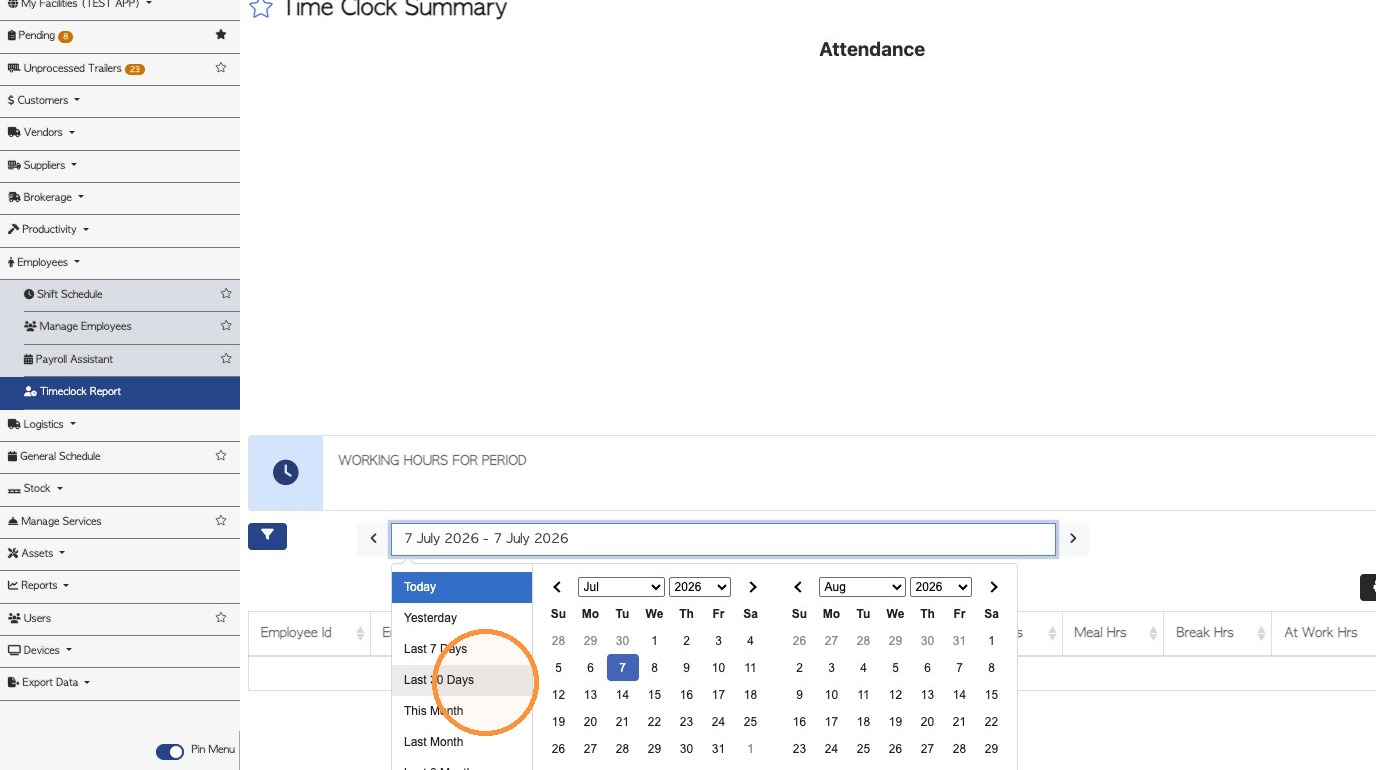
3. Click on a selected time-clock record to see the details.
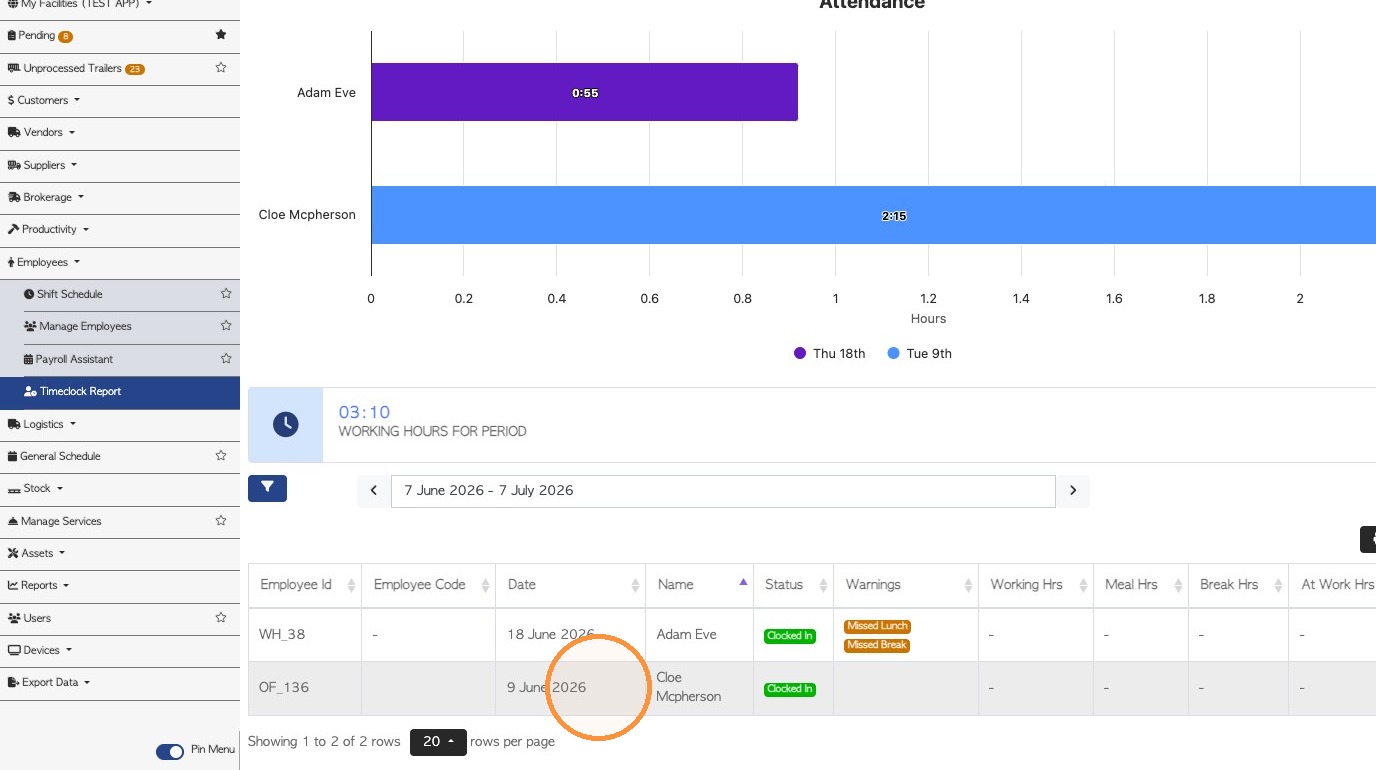
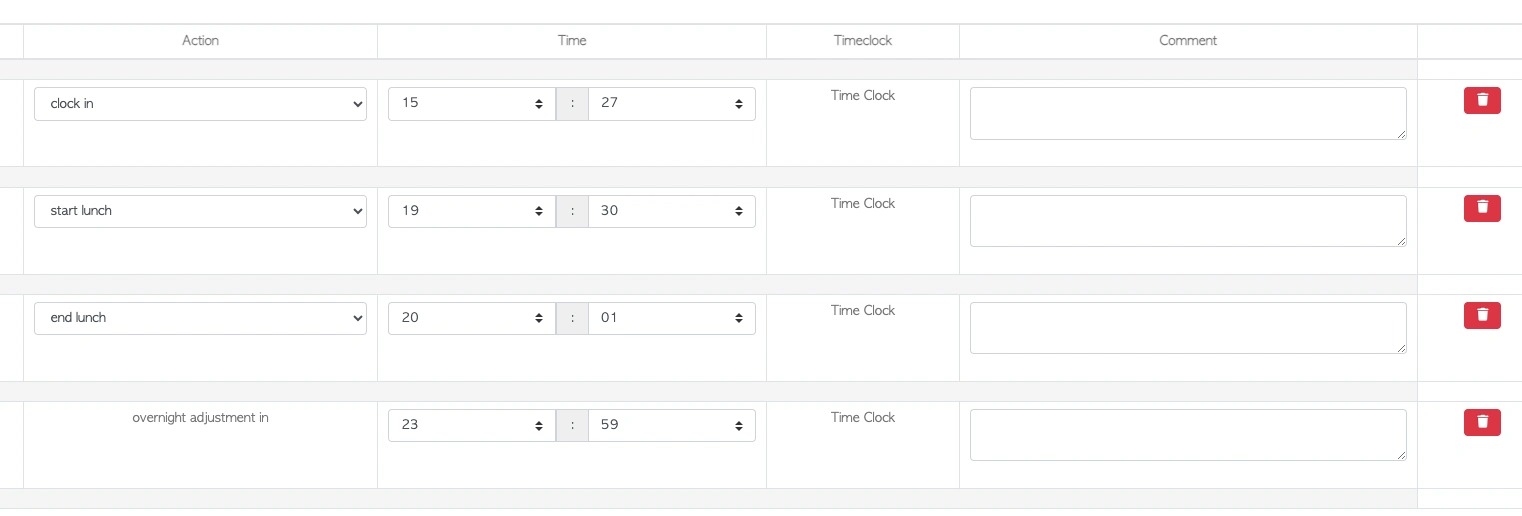
4. The pop up screen will show the 'overnight adjustment out' at midnight.
NOTE:Remember that the employee needs to be clocked in before midnight for this to activate. In this example, the employee clocked in for the shift, clocked out for lunch and then clocked back in again when lunch ended.
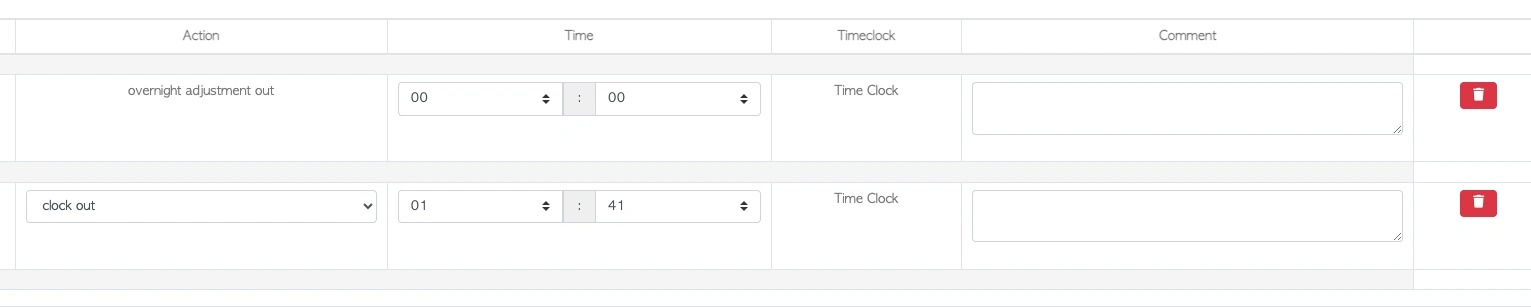
5. Now review the record for the next day.
The details pop up screen will show "overnight adjustment in" at midnight and the clock out time, to finish the shift.
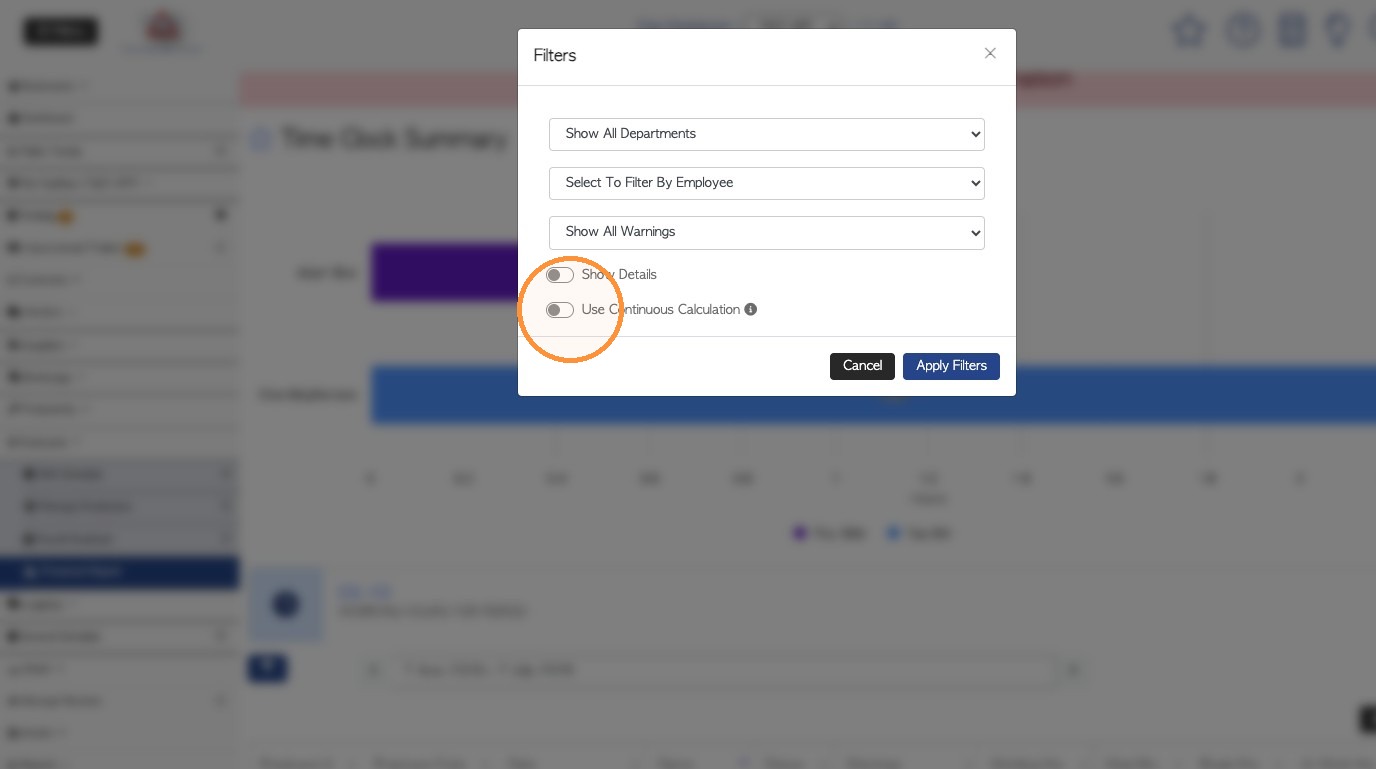
6. CONTINUOUS CALCULATION: Enabling this filter, the report will show any overnight shifts on the day the shift was started.
Click the filter icon.
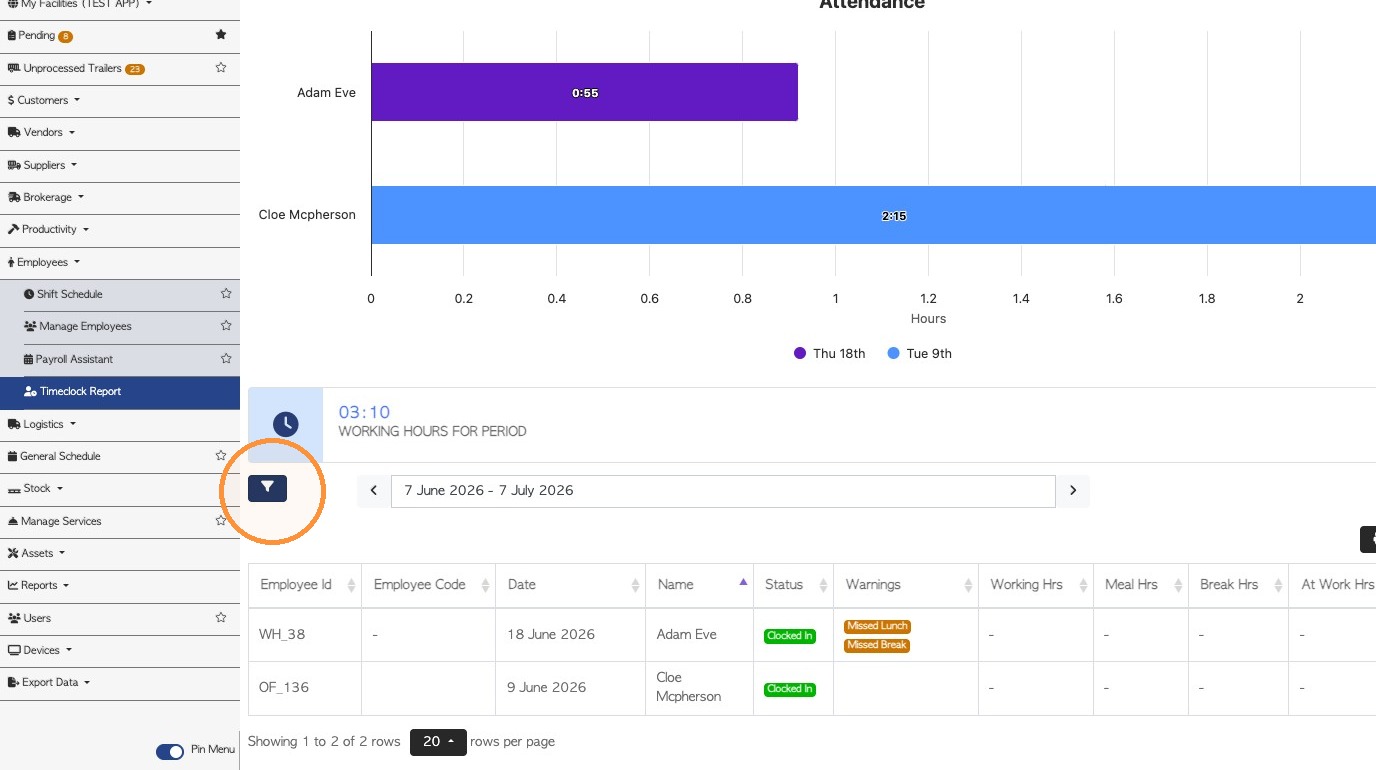
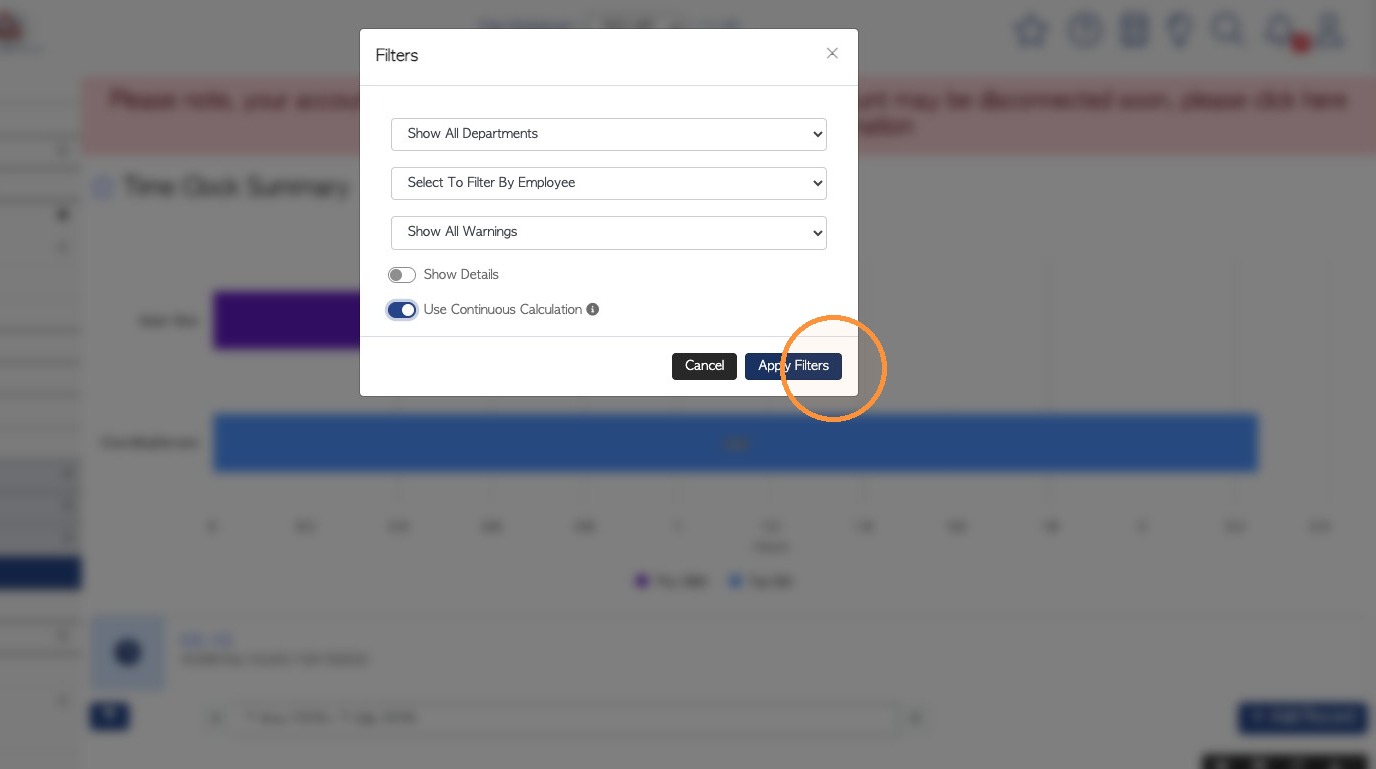
7. Enable 'Use Continuous Calculation' and click 'Apply Filters'.