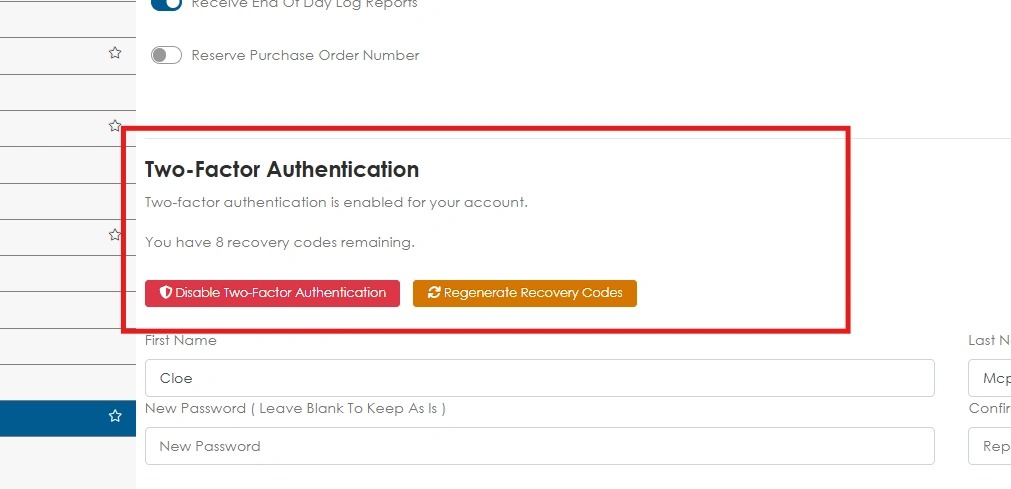
Two-Factor Authentication (2FA) adds an extra layer of security to Pallet Connect accounts. In addition to a password, identification is verified using a second method when signing in. This is optional but highly recommended as standard practise. The additional verification step only takes a few seconds when signing in.
1. The benefits of adding 2FA is enhanced security. It helps protect an account even if the password is compromised and provides an additional safeguard for data and information. It prevents others from accessing the account without the additional verification.
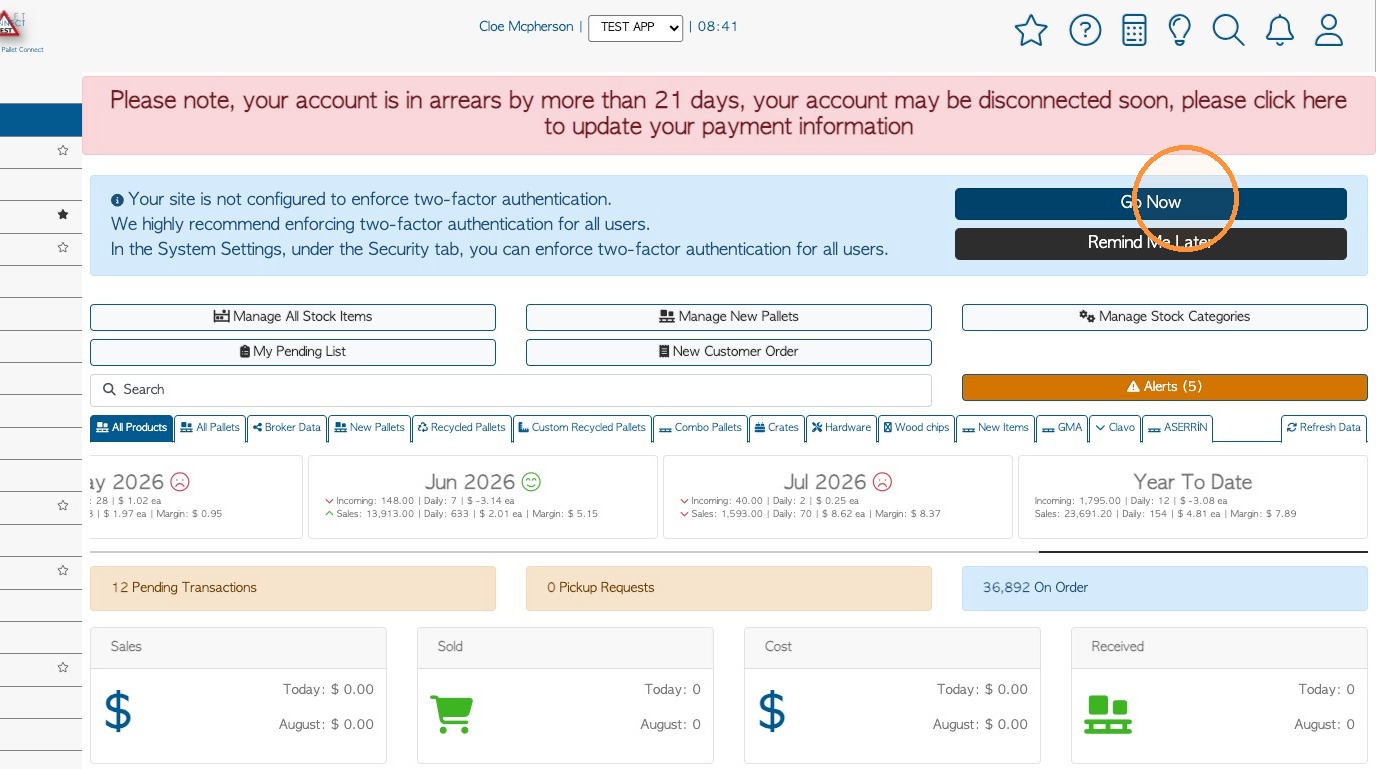
SET UP FROM NOTIFICATION BANNER: Start by clicking "Go Now" to begin.
TIP! Download an Authenticator app on a personal device, prior to set up. Google and Microsoft Authenticator are recommended.
NOTE: To opt out, click on 'Remind Me Later' to disappear the banner. The notification will return at a later date.
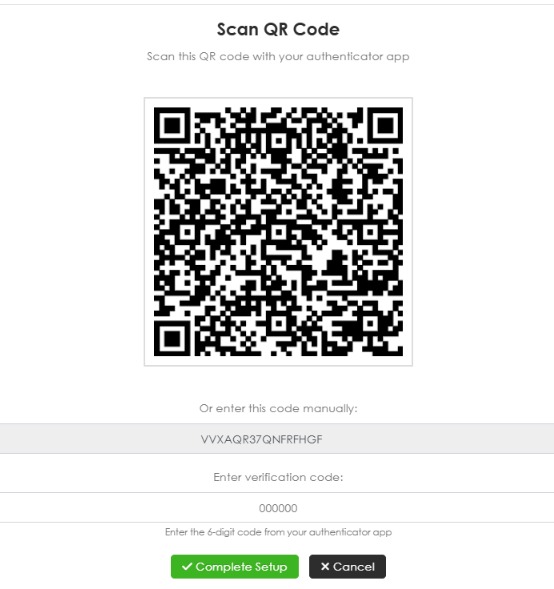
2. Scan the QR code into the Authenticator app on a mobile device, to set up the feature. The app will now generate a 6 digit code that will be used when logging into Pallet Connect.
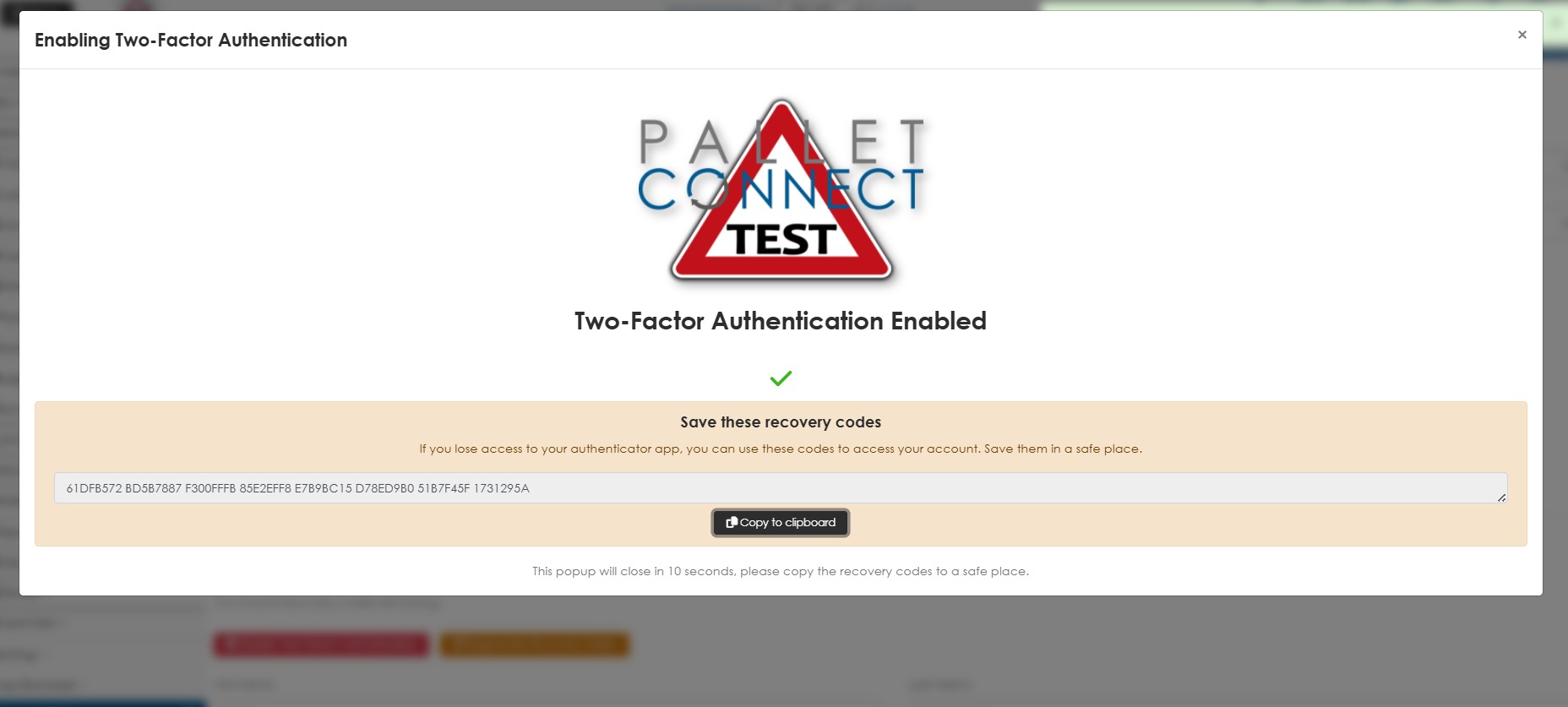
3. The feature will be enabled.
TIP! Recovery codes are provided for when a user is locked out of the account. It reminds the user to save the codes in a safe place as these can be used to regain access if needed.
4. Once enabled, the log in will require the six digit code to access the site.
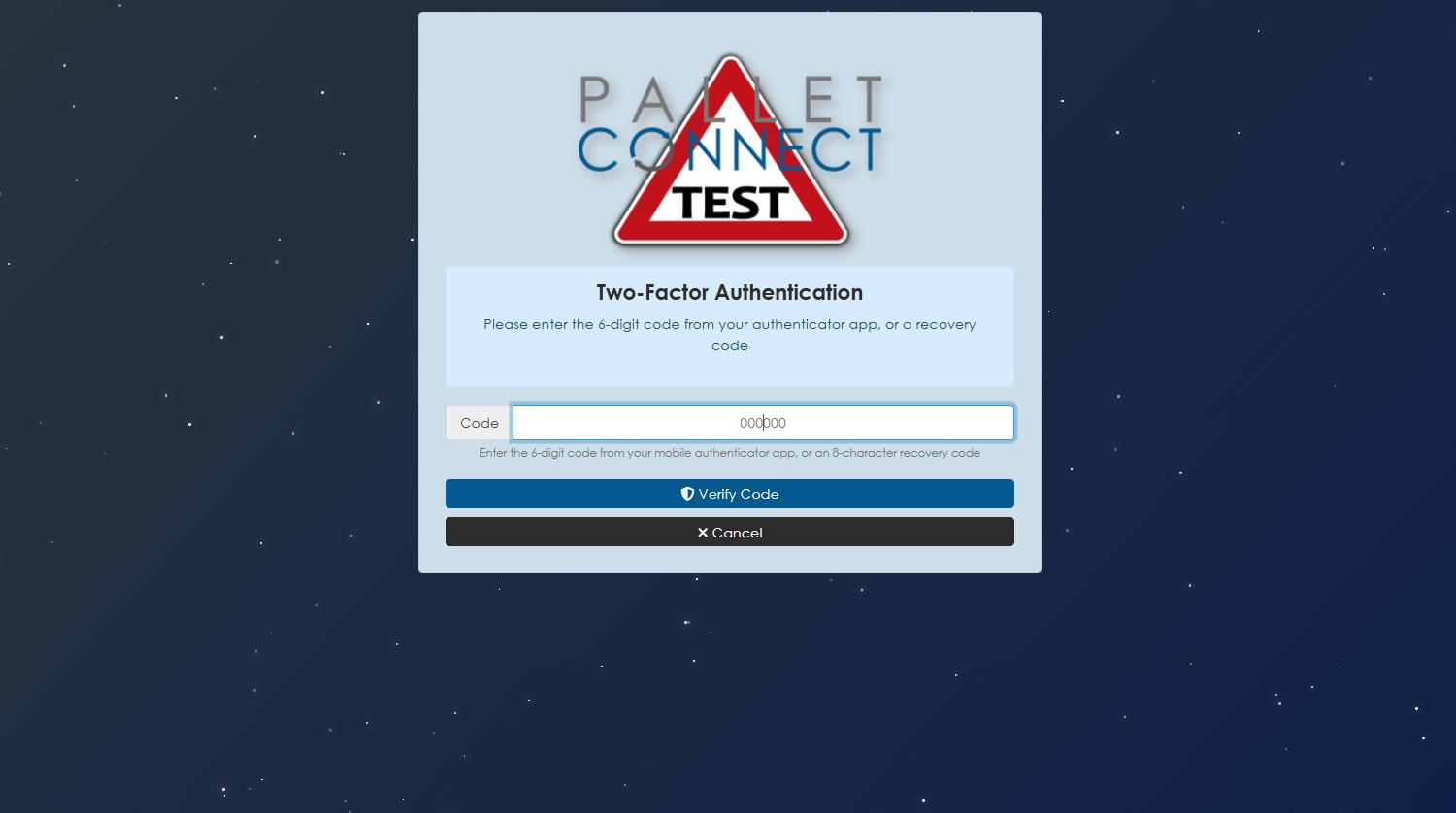
5. SET UP FROM SETTINGS: A General Manager user, who has access to the system settings, can enable the 2FA for all users. This will then prompt all users to set up 2FA when they log in. Users will not be able to opt out of the feature.
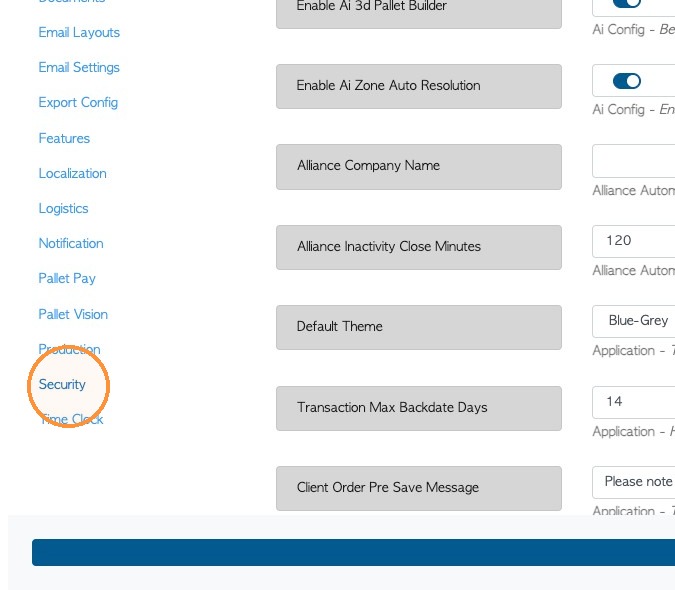
Navigate to Settings from the Main menu, click on System Settings and then click "Security".
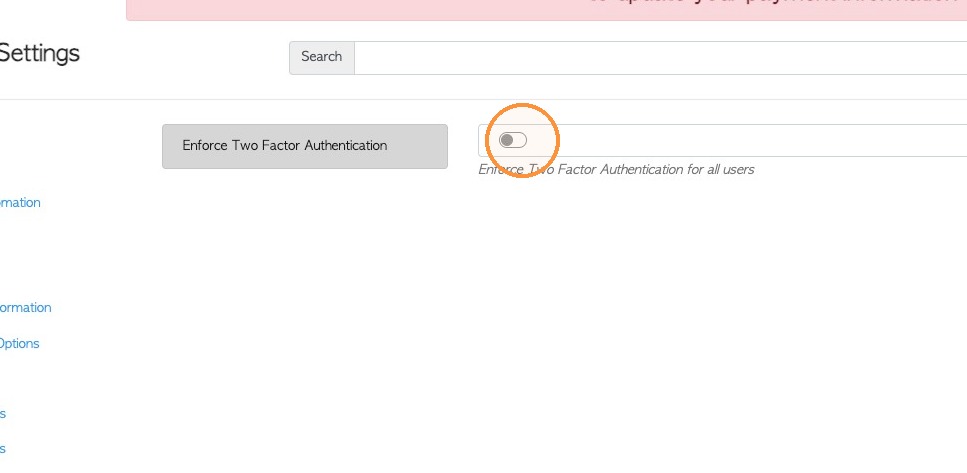
6. Click the "Enforce Two Factor Authentication" toggle to enable.
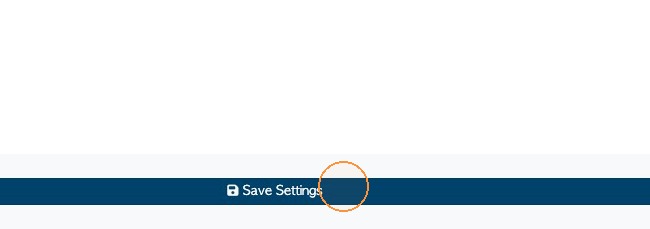
7. Click "Save Settings" to complete.
8. SETTING UP FROM A USER ACCOUNT: A user may set up the 2FA themselves, without being prompted by a General Manager.
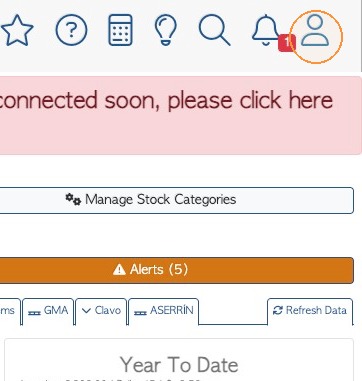
Click on the person icon in the main tool bar, to access the account.
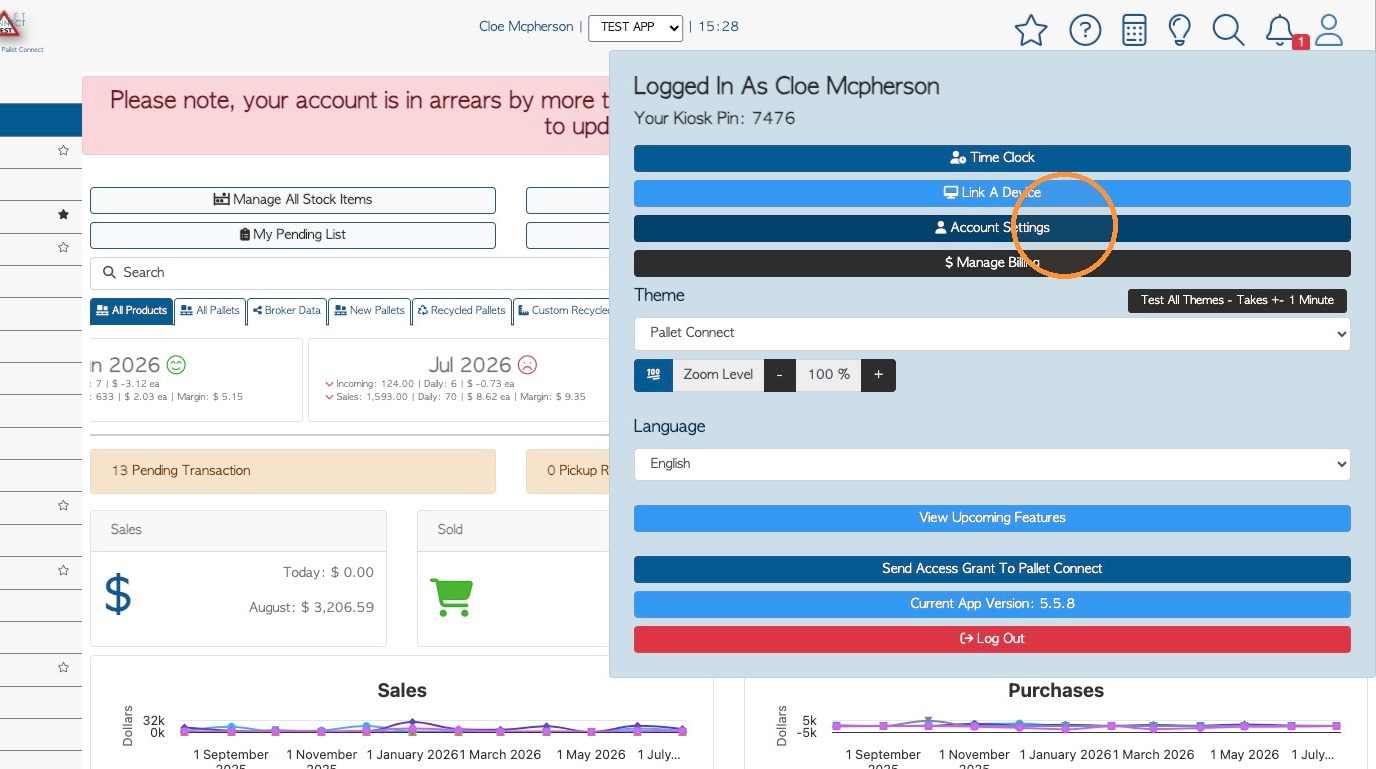
9. Click "Account Settings"
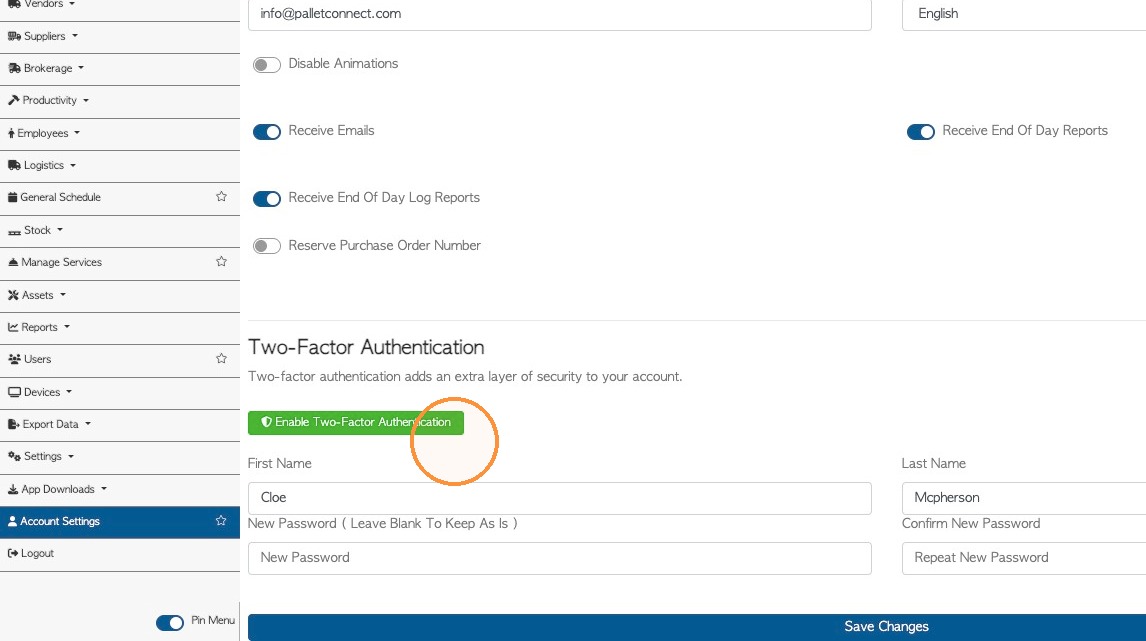
10. Click on "Enable Two Factor Authentication" to start the process.
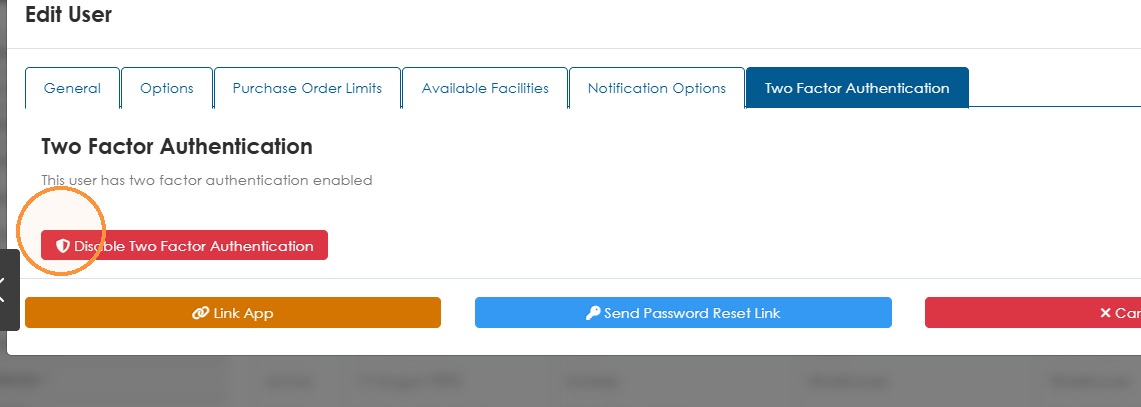
11. DISABLE THE FEATURE: For user types that have access to User profiles, the feature can be disabled in the Two Factor Authentication tab.
12. The feature can also be disabled from the account settings page, accessible from the main tool bar (located at the top right of each page).
NOTE: Reminder that it is recommended to have this feature enabled for security purposes.