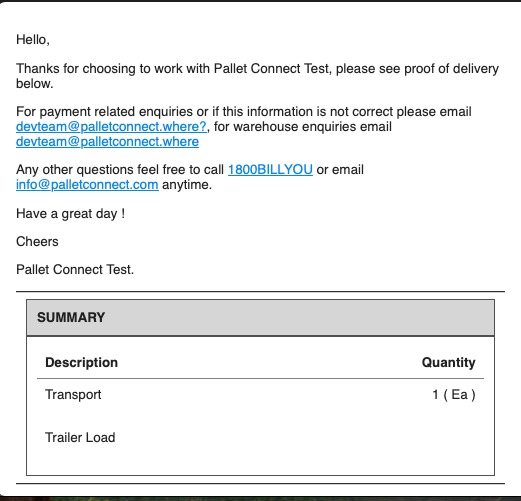
1. This article reviews the various automated emails that can be sent to a Vendor during the pick-up process.
TIP! Please see related article on Email Settings, this will affect who receives emails and which emails the system sends.
TIP! Enable Email tracking for details on the status of the email. See related article.
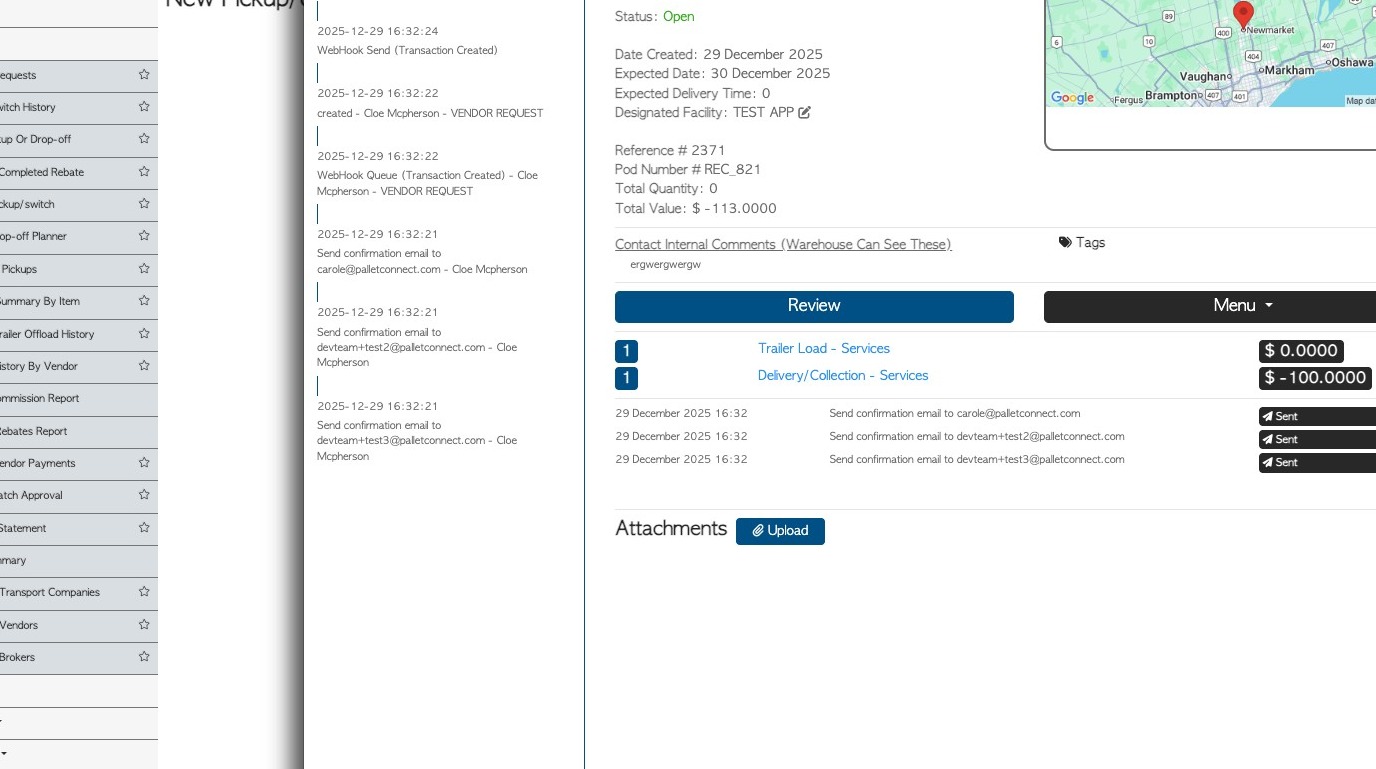
2. Once the Vendor Pick Up request has been created the email sequence starts.
NOTE: On the Current Requests and Pick-up/switch pages of the Vendor section of the menu, the email status is shown for each order.
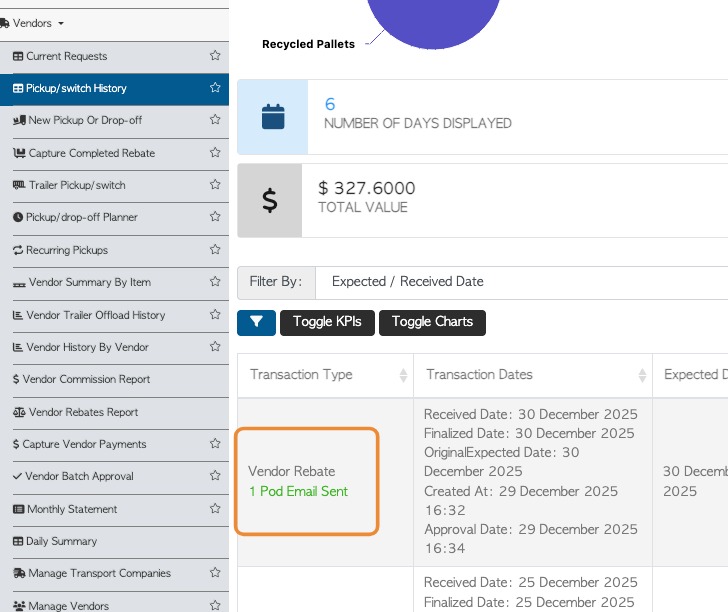
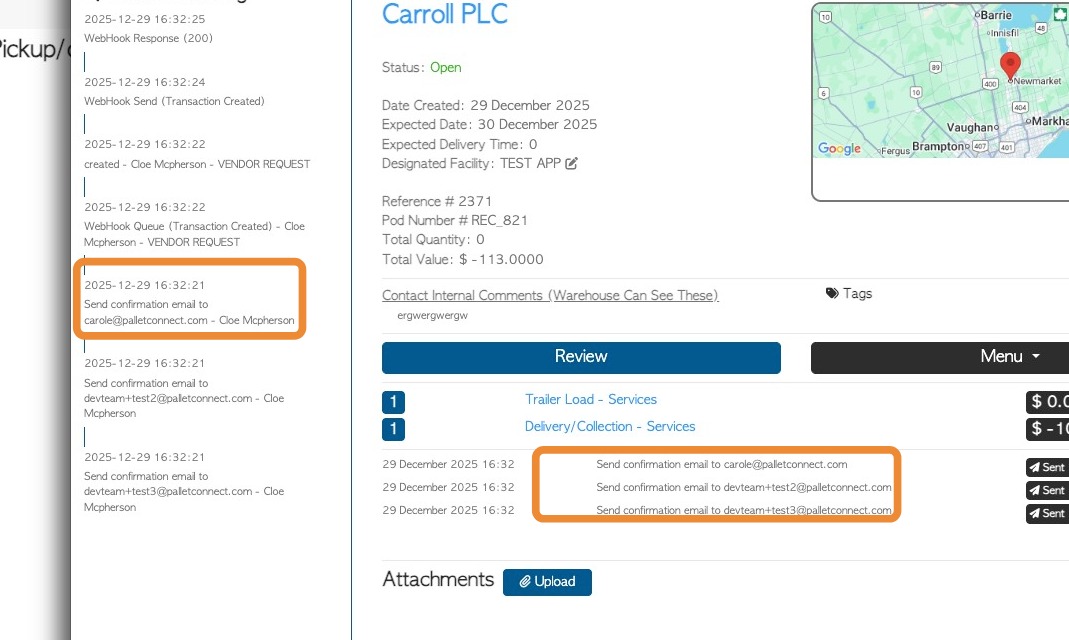
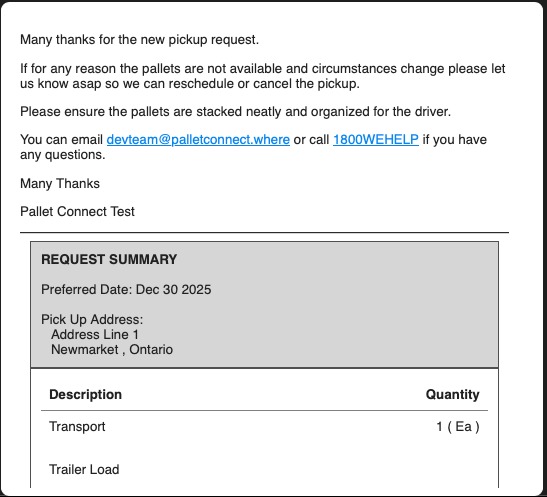
3. EMAIL 1 REQUEST CONFIRMATION
This shows in the transaction log and on the open request as "confirmation email".
4. The Vendor receives an email titled "Your request confirmation"
NOTE: The summary does not contain pricing. There is a pick-up slip attached to the email as well as a PDF copy of the request.
5. EMAIL 2 - DISPATCH EMAIL
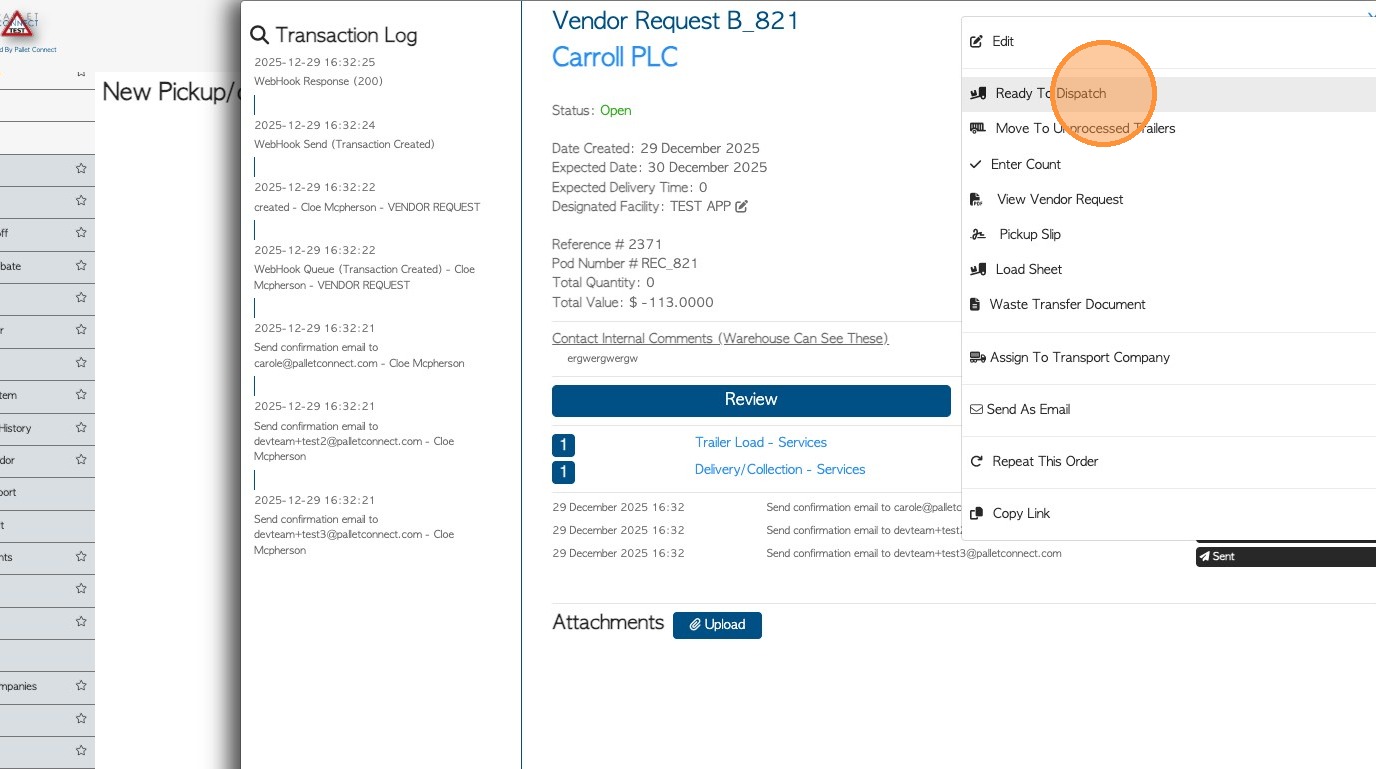
This is automatically sent out when 'dispatch' is chosen, either by admin staff from the transaction menu or from the driver log-in.
Click "Ready To Dispatch"(if enabled) or "Dispatch".
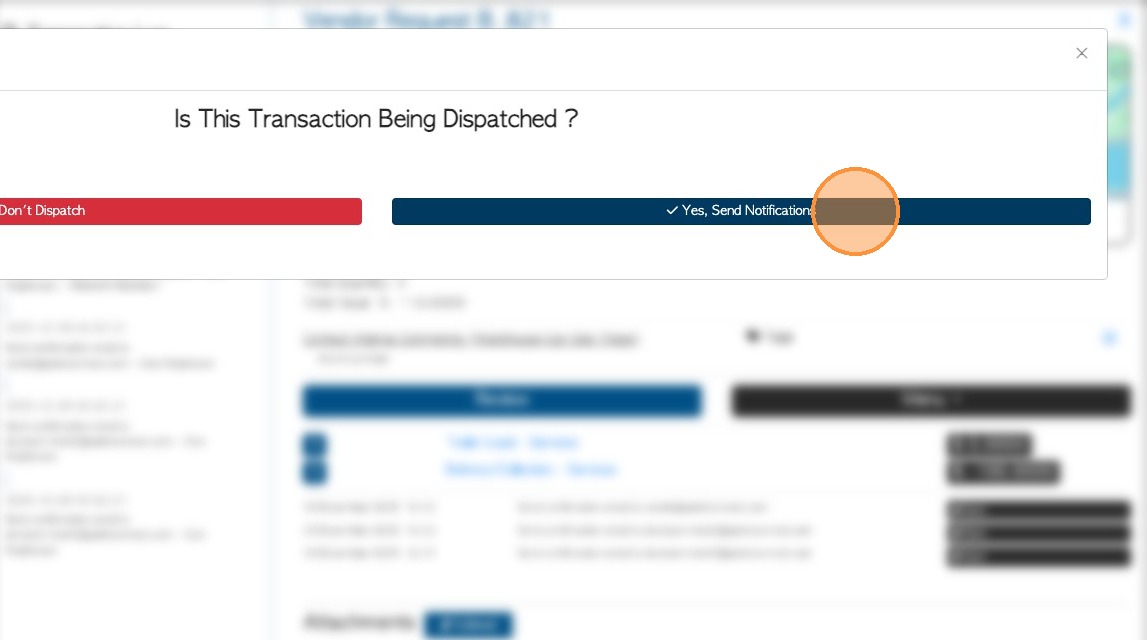
6. There is an alert to inform that an email is sent. To dispatch, click "Yes, Send Notifications"
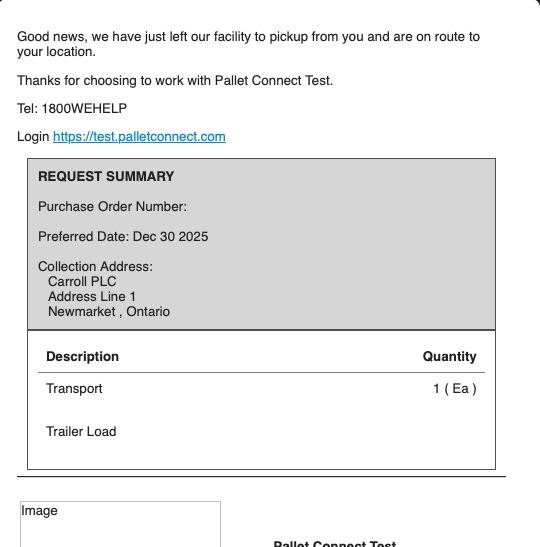
7. Vendor receives an email titled "Transport Dispatch to Pick Up"
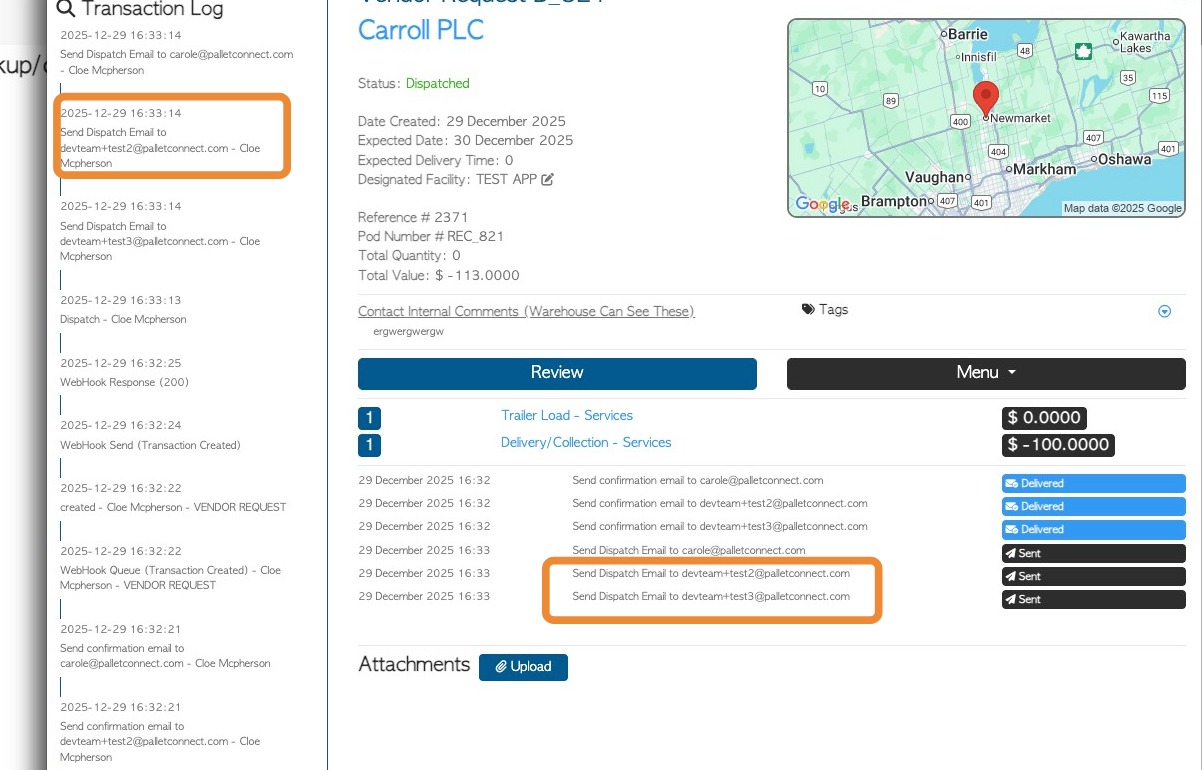
8. This email shows as "Send Dispatch Email " on the transaction log
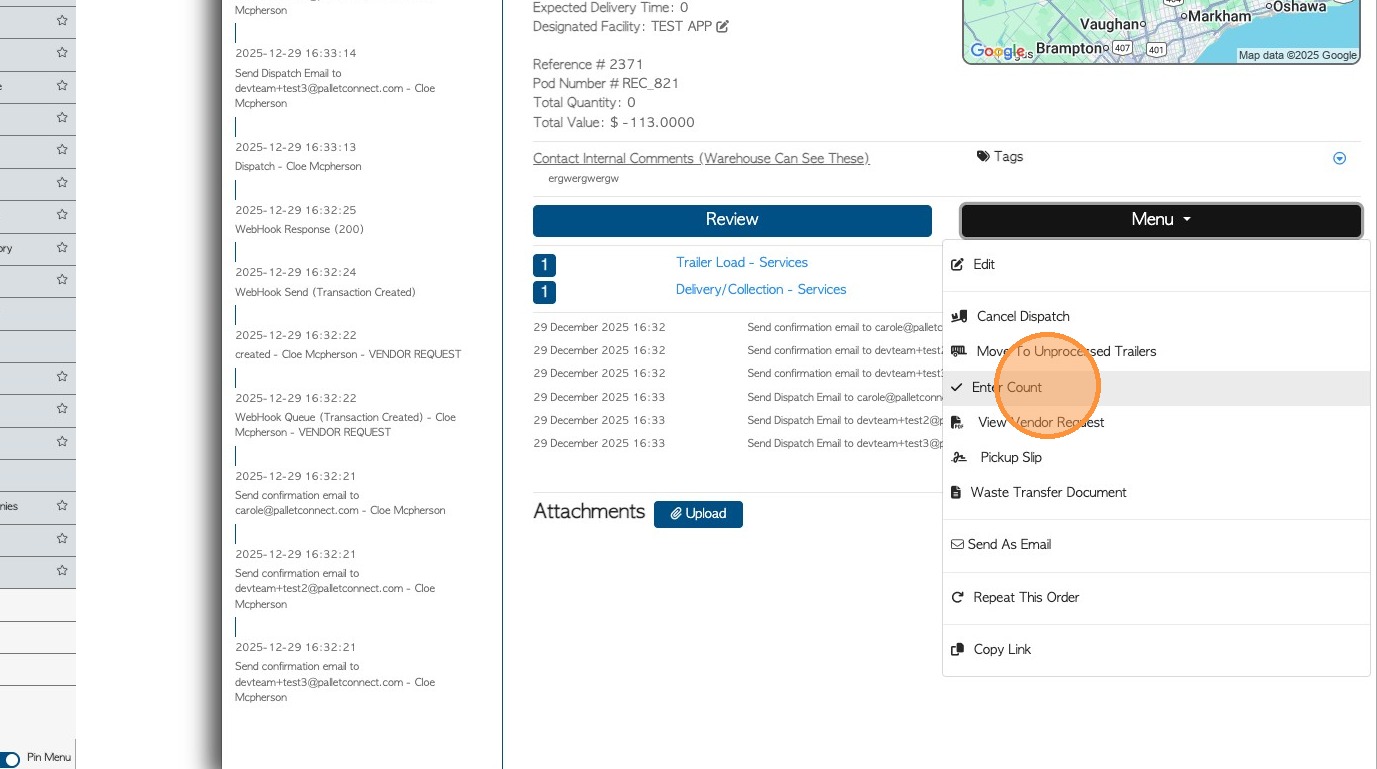
9. Once a signature has been obtained and pick up is complete, rebate emails can be sent.
NOTE: If Approvals are enabled in system settings, then an additional email is sent automatically when the driver obtains a Vendor signature. This email serves as a Proof of Delivery.
Optional EMAIL 3A - WAITING APPROVAL
TIP! When approvals are enabled, the system will not send the Rebate until billing has been approved. If office staff "invoice' the transaction no email is sent. If the driver completes the delivery, the system will send the Approval email.
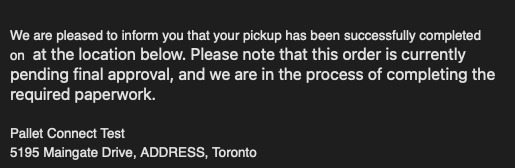
10. The Customer will receive an email titled "Pick Up Update (pending approval)".
This will show as "Approval email" sent, in the transaction logs.
11. EMAIL 3B - REBATE EMAIL
If Approvals are not enabled, the Rebate email will be sent once a signature has been received and the pick-up is complete.
If Approvals are enabled, the Rebate email is sent automatically when the Rebate and counts are approved.
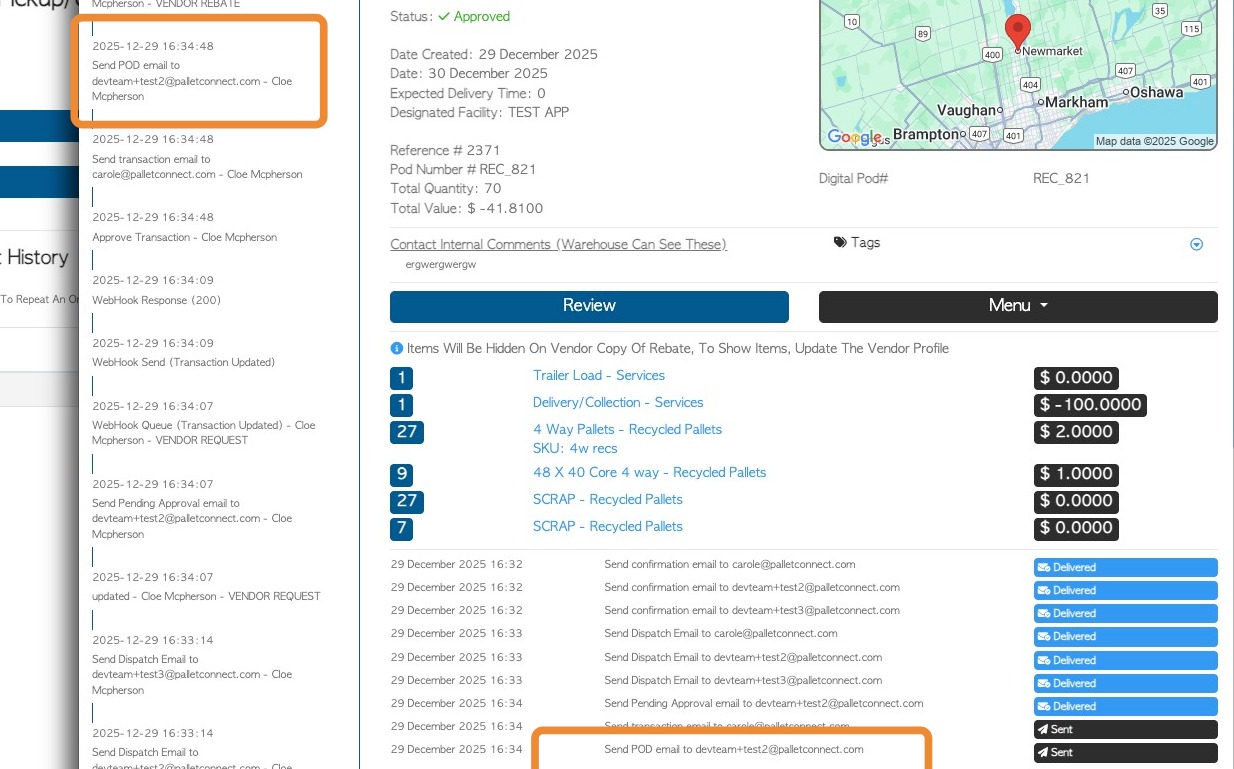
Once sent, the Rebate email shows as "transaction' email on the transaction log.
12. The Vendor receives an email titled "Your Rebate (reference number and company name included). A copy of the Rebate and the Proof of Pick Up are also attached.